
If you’re serious about gaming in 2026, your storage drive isn’t just a background component—it’s a performance-critical piece of your entire setup. Gone are the days when loading screens were an accepted part of the experience. Today’s games demand lightning-fast data access, seamless asset streaming, and near-instant boot times. Whether you’re diving into sprawling open-world RPGs, competitive shooters with split-second reactions, or next-gen titles leveraging real-time ray tracing and AI-driven environments, your SSD can make or break your gameplay. A slow or outdated drive doesn’t just mean longer load times—it can lead to stuttering, texture pop-in, lag during level transitions, and even crashes in the worst cases.
This expert-level buying guide is designed to cut through the noise and help you choose the right SSD for gaming in today’s rapidly evolving landscape. We’ll walk you through every critical factor—from raw performance specs to real-world durability, budget considerations, and future-proofing strategies. You’ll learn how to balance speed, capacity, reliability, and cost so you get the best possible experience without overspending on features you don’t need. Whether you’re building a new gaming rig, upgrading an existing one, or looking to expand storage on a console like the PlayStation 5 or Xbox Series X|S, this guide has you covered.
The SSD market in 2026 is more competitive than ever. With advancements in NAND flash technology, controller designs, and interface standards like PCIe 5.0 and NVMe 2.0, there’s a dizzying array of options. From budget SATA drives to blazing-fast Gen5 M.2 SSDs, the choices can be overwhelming. But don’t worry—we’ve tested, compared, and analyzed the latest models to bring you actionable insights. By the end of this guide, you’ll know exactly what to look for, which brands to trust, how to avoid common pitfalls, and how to maximize your investment. Let’s dive in and find the perfect SSD for your gaming needs.
What to Look for When Buying Buying Guide
1. Interface & Form Factor
The interface and form factor of your SSD determine how it connects to your system and what performance levels it can achieve. In 2026, the most common interfaces for gaming SSDs are SATA III, PCIe Gen3, PCIe Gen4, and PCIe Gen5. SATA III drives max out at around 550 MB/s—fine for basic storage but far too slow for modern gaming workloads. PCIe Gen3 NVMe drives offer speeds up to 3,500 MB/s, while Gen4 doubles that to around 7,000 MB/s. The latest Gen5 drives can exceed 12,000 MB/s, though real-world gaming benefits plateau beyond Gen4 for most users.
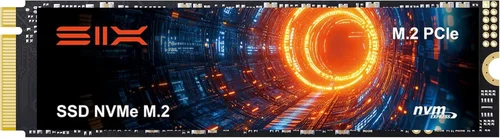
Form factors include 2.5-inch (for SATA), M.2 2280 (the most common for NVMe), and U.2 (rare in consumer gaming). For gaming PCs and consoles like the PS5, M.2 NVMe SSDs are the gold standard due to their compact size and high-speed capabilities. Always check your motherboard or console specifications to ensure compatibility—some older boards don’t support Gen4 or Gen5, and the PS5 requires a heatsink and specific dimensions.
2. Sequential Read/Write Speeds
Sequential read and write speeds measure how quickly large files—like game installations or video assets—can be loaded or saved. For gaming, read speed is far more important than write speed, as games constantly stream data from storage during gameplay. A drive with high sequential read speeds (5,000+ MB/s) will significantly reduce level load times and improve texture streaming in open-world games.
However, don’t get caught up in marketing numbers. While a Gen5 SSD might boast 12,000 MB/s, most games won’t see a meaningful difference compared to a high-end Gen4 drive at 7,000 MB/s. The bottleneck often lies in game engine optimization, not storage speed. That said, if you’re also editing videos, rendering 3D models, or transferring large files, higher write speeds become more relevant.
3. Random Read/Write Performance (IOPS)
While sequential speeds grab headlines, random read/write performance—measured in Input/Output Operations Per Second (IOPS)—is arguably more important for gaming. This metric reflects how well the SSD handles small, scattered data requests, which is exactly what happens when a game loads textures, scripts, or audio files on the fly. High IOPS (500,000+ for 4K random reads) ensures smoother gameplay, fewer hitches, and faster asset loading in dynamic environments.
Look for SSDs with strong random performance specs, especially if you play games with large, detailed worlds like Cyberpunk 2077, Elden Ring, or Starfield. Drives with advanced controllers and DRAM caches typically excel here. Avoid DRAM-less SSDs if possible—they rely on system memory (HMB) and can suffer under heavy random workloads.
4. Capacity & Future-Proofing
Game sizes continue to balloon. AAA titles now routinely exceed 100GB, with some—like Call of Duty: Modern Warfare III or Microsoft Flight Simulator—topping 200GB. A 500GB SSD might hold just three or four modern games, leaving little room for the OS, apps, or future downloads. For most gamers, a 1TB drive is the minimum recommended capacity, while 2TB is ideal for a balanced library.
Future-proofing is key. Consider how many games you play simultaneously and whether you plan to keep older titles installed. Cloud saves help, but local storage offers faster access. If you’re building a new system, investing in a 2TB or even 4TB SSD now can save you from upgrading in a year. Also, note that SSD performance can degrade as drives fill up—keeping at least 10–20% free space maintains optimal speed.
5. Endurance & TBW Rating
Endurance, measured in Terabytes Written (TBW), indicates how much data can be written to the SSD over its lifetime before it may start to fail. For gaming, this is less critical than for professional workloads, but it’s still important for long-term reliability. A 1TB SSD with a 600 TBW rating can theoretically handle 600TB of writes—equivalent to writing 100GB per day for over 16 years.
Look for drives with at least 300–600 TBW for 1TB models. Higher-end SSDs often offer 1,200 TBW or more. While gaming doesn’t write massive amounts of data constantly, background processes like updates, patches, and save files do add up. A higher TBW rating also reflects better build quality and NAND type (e.g., TLC vs. QLC).
6. NAND Flash Type
The type of NAND flash memory used in an SSD affects speed, endurance, and cost. In 2026, the main types are SLC (Single-Level Cell), MLC (Multi-Level Cell), TLC (Triple-Level Cell), and QLC (Quad-Level Cell). SLC is fastest and most durable but prohibitively expensive. MLC is rare in consumer drives. TLC offers the best balance of performance, endurance, and price—ideal for gaming. QLC is cheaper and higher-capacity but slower, especially under sustained writes, and has lower endurance.
For gaming, stick with TLC-based SSDs. They provide excellent performance and reliability without the premium cost of SLC or MLC. Avoid QLC unless you’re on a tight budget and only need bulk storage for less frequently played games. Some manufacturers use “3D NAND” or “176-layer NAND” in marketing—these refer to stacking layers for higher density and better efficiency, which is a good sign.
7. DRAM Cache
A DRAM cache acts as a high-speed buffer between the SSD controller and NAND flash, improving performance and longevity. SSDs with DRAM can maintain consistent speeds during heavy workloads and handle metadata more efficiently. DRAM-less SSDs use Host Memory Buffer (HMB) technology, borrowing system RAM, which works but can lead to performance drops under load.
For gaming, a DRAM-equipped SSD is strongly recommended. Games often access small, random data chunks, and DRAM helps the controller manage these requests swiftly. While HMB has improved, it’s still not as reliable as dedicated DRAM, especially in multitasking scenarios. Check product specs—if DRAM isn’t mentioned, it’s likely DRAM-less.
8. Thermal Management & Heatsinks
High-speed NVMe SSDs generate significant heat, especially Gen4 and Gen5 models. Excessive heat can throttle performance, reducing speeds to prevent damage. Many M.2 SSDs now come with built-in heatsinks, or you can purchase aftermarket ones. The PlayStation 5 requires an SSD with a heatsink due to its compact design and high airflow demands.
Even on PC, a heatsink can help maintain peak performance during long gaming sessions. Look for SSDs with aluminum or copper heatsinks, or ensure your motherboard has a built-in M.2 shield. Passive cooling is usually sufficient—active cooling (fans) is overkill for most users. Monitor temperatures using tools like HWInfo or CrystalDiskInfo to ensure your drive stays under 70°C.
9. Brand Reputation & Reliability
Not all SSDs are created equal. Established brands like Samsung, Western Digital, Crucial, Kingston, and Sabrent have proven track records for reliability, firmware updates, and customer support. Lesser-known brands may offer tempting prices but often cut corners on components, firmware, or quality control.
Check independent reviews and failure rate data (e.g., from Backblaze or user forums). Samsung’s 990 Pro, WD Black SN850X, and Crucial T700 are consistently top performers. Avoid no-name brands with vague specifications or missing warranty information. A reputable brand also ensures better long-term support and compatibility with future systems.
10. Warranty & Support
A solid warranty reflects the manufacturer’s confidence in their product. Most premium SSDs come with 5-year limited warranties, often tied to TBW limits (e.g., “5 years or 600 TBW, whichever comes first”). This means you’re covered for defects or premature failure, but not for normal wear.
Check the warranty terms: some require registration, others don’t. Also, consider customer support responsiveness. Brands like Samsung and Crucial offer excellent support, including firmware tools and data recovery assistance. Avoid drives with only 1–3 year warranties unless they’re budget SATA models. A longer warranty often correlates with higher build quality.
Different Types of Buying Guide

Common Buying Mistakes to Avoid

❌ Mistake: Prioritizing Peak Speed Over Real-World Performance
Why it’s bad: Many buyers get swept up in marketing claims like “12,000 MB/s!” but fail to realize that most games don’t benefit from speeds beyond 7,000 MB/s. The difference between a Gen4 and Gen5 SSD in actual gameplay is often imperceptible, yet Gen5 drives cost significantly more.
What to do instead: Focus on balanced performance—look for drives with strong random read speeds, low latency, and consistent performance under load. A high-end Gen4 SSD often delivers better real-world gaming performance than a budget Gen5 drive.
❌ Mistake: Buying a DRAM-less SSD for Primary Gaming Storage
Why it’s bad: DRAM-less SSDs use system memory to manage data, which can lead to performance drops during multitasking or when the system is under load. They also tend to have lower endurance and slower write speeds, which can affect game updates and save operations.
What to do instead: Always choose an SSD with a dedicated DRAM cache for your primary gaming drive. The small price increase is worth the stability, speed, and longevity.
❌ Mistake: Ignoring Compatibility with Your System
Why it’s bad: Not all M.2 slots support Gen4 or Gen5 speeds. Installing a Gen5 SSD in a Gen3 slot will limit it to Gen3 speeds, wasting your investment. Similarly, the PS5 requires a heatsink and specific dimensions—using an incompatible drive can cause overheating or physical fit issues.
What to do instead: Check your motherboard or console manual for M.2 slot specifications. Use tools like CPU-Z or the manufacturer’s website to verify supported interfaces and physical clearances.
❌ Mistake: Overlooking Thermal Throttling
Why it’s bad: High-speed NVMe SSDs can heat up quickly, especially during long gaming sessions or large file transfers. Without proper cooling, they may throttle down to lower speeds to prevent damage, negating their performance advantage.
What to do instead: Choose SSDs with built-in heatsinks or install an aftermarket one. Ensure good case airflow and avoid stacking components too closely around the M.2 slot.
❌ Mistake: Choosing QLC NAND for Primary Storage
Why it’s bad: QLC SSDs offer high capacity at low cost but suffer from slower write speeds, lower endurance, and performance degradation when nearly full. They’re fine for archival storage but not ideal for active gaming libraries.
What to do instead: Stick with TLC NAND for your main gaming drive. Reserve QLC drives for secondary storage or media backups.
❌ Mistake: Skimping on Capacity
Why it’s bad: A 500GB SSD fills up fast with modern games. Running low on space can slow down the drive and limit your ability to install new titles. You may end up constantly uninstalling and reinstalling games, which is frustrating and time-consuming.
What to do instead: Start with at least 1TB, and consider 2TB if your budget allows. It’s better to have extra space than to constantly manage storage.
❌ Mistake: Ignoring Warranty and Support
Why it’s bad: A short or unclear warranty can leave you stranded if the drive fails. Some brands offer limited support or require complex RMA processes, making replacements difficult.
What to do instead: Choose drives with at least a 5-year warranty and check user reviews about customer service. Register your product if required.
Budget Guidelines: How Much Should You Spend?
When it comes to SSDs for gaming, your budget should align with your performance needs and long-term goals. Here’s a breakdown of what to expect at different price points in 2026:
Entry-Level ($40–$70 for 1TB): This range covers SATA III and budget PCIe Gen3 NVMe drives. Ideal for older systems or secondary storage. Expect speeds around 500–3,500 MB/s. Brands like Kingston NV2 or Crucial P3 offer solid value. Perfect if you’re on a tight budget or upgrading from an HDD.
Mid-Range ($70–$120 for 1TB): The sweet spot for most gamers. High-performance PCIe Gen4 NVMe drives like the WD Black SN770 or Samsung 980 Pro fall here. You’ll get 5,000–7,000 MB/s speeds, excellent random performance, and reliable TLC NAND. This tier offers the best balance of speed, capacity, and price.
Premium ($120–$200 for 1TB): For enthusiasts and future-proofers. Gen4 and entry-level Gen5 drives with top-tier controllers, heatsinks, and high TBW ratings. Examples include the Samsung 990 Pro or Sabrent Rocket 4 Plus. These drives excel in both gaming and productivity, with consistent performance under load.
Luxury ($200+ for 1TB): Top-tier Gen5 SSDs like the Crucial T700 or Corsair MP700 Pro. These offer speeds over 12,000 MB/s, advanced cooling, and premium components. Best for content creators, streamers, or those who want the absolute latest tech. For pure gaming, the gains over Gen4 are minimal, but they’re great for multitasking.
Expert Tips for Getting the Best Deal
- Buy During Sales Cycles: Major retailers offer deep discounts on SSDs during seasonal sales. Black Friday, Cyber Monday, and Amazon Prime Day are prime times to save 20–40% on premium drives.
- Compare Prices Across Retailers: Use price-tracking tools like CamelCamelCamel (for Amazon) or Honey to find the lowest price. Sometimes smaller retailers like Micro Center or B&H offer better deals than giants.
- Check for Bundled Deals: Some motherboards or prebuilt PCs include free SSD upgrades. Look for bundles that offer extra storage at no extra cost.
- Consider Refurbished or Open-Box: Reputable sellers like Amazon Renewed or Best Buy Outlet offer certified refurbished SSDs with full warranties at reduced prices. These are often as good as new.
- Read User Reviews: Professional reviews are helpful, but real-world user feedback reveals long-term reliability, thermal performance, and compatibility issues.
- Verify Return Policies: Ensure the retailer offers a hassle-free return window (30 days or more) in case the drive doesn’t fit or perform as expected.
- Test After Installation: Use tools like CrystalDiskMark or AS SSD to benchmark your SSD and confirm it’s running at expected speeds. Monitor temperatures during gaming sessions.
- Register Your Warranty: Don’t skip this step—some manufacturers require registration to activate the full warranty period.

Frequently Asked Questions
Q: Do I really need an NVMe SSD for gaming?
A: While not strictly necessary, an NVMe SSD significantly improves load times and asset streaming compared to SATA or HDDs. For modern gaming, especially on PC or PS5, NVMe is the recommended standard.
Q: Can I use an external SSD for gaming?
A: Yes, but with caveats. External SSDs connected via USB 3.2 or Thunderbolt work well for Xbox Series X|S and PS5 (with limitations). However, they’re generally slower than internal NVMe drives and may not support all game features.
Q: Will a Gen5 SSD make my games load faster than Gen4?
A: In most cases, no. The difference in real-world gaming performance between Gen4 and Gen5 is minimal. Gen5 excels in large file transfers and multitasking, not typical gaming scenarios.
Q: How much SSD storage do I need for gaming?
A: At least 1TB is recommended. With game sizes exceeding 100GB, 500GB fills up quickly. 2TB offers a comfortable buffer for a growing library.
Q: Is it safe to buy a used SSD?
A: It can be, but check the TBW usage and health using tools like CrystalDiskInfo. Avoid drives with high write counts or signs of wear. Stick to reputable sellers.
Q: Do I need a heatsink for my M.2 SSD?
A: For Gen4 and Gen5 drives, yes—especially in the PS5 or tightly packed PC cases. A heatsink prevents thermal throttling and maintains performance.
Q: Can I install games on a secondary SSD?
A: Absolutely. You can set up multiple drives and choose where to install games. Just ensure the secondary drive is fast enough (NVMe preferred).
Q: What’s the difference between NVMe and SATA?
A: NVMe uses the PCIe interface for much faster speeds (up to 12,000+ MB/s), while SATA is limited to ~550 MB/s. NVMe is the standard for modern gaming.
Q: How do I clone my old drive to a new SSD?
A: Use cloning software like Macrium Reflect, Acronis True Image, or Samsung Data Migration. Connect both drives, clone the OS and data, then swap them in your system.
Q: Will an SSD improve FPS in games?
A: Not directly. FPS is determined by your GPU and CPU. However, an SSD reduces stuttering, pop-in, and load times, leading to a smoother overall experience.
Our Final Recommendations
Best for Budget-Conscious Buyers: WD Blue SN580 (1TB) – A reliable Gen4 NVMe SSD with strong random performance and a 5-year warranty. Great value at under $70.
Best Overall Value: Samsung 980 Pro (1TB) – Consistently top-rated for speed, reliability, and compatibility. Ideal for PC and PS5 upgrades.
Best Premium Option: Crucial T700 (2TB) – A Gen5 powerhouse with 12,000+ MB/s speeds, excellent cooling, and high endurance. Perfect for enthusiasts.
Best for Beginners: Crucial P5 Plus (1TB) – Easy to install, great performance, and user-friendly software. A safe choice for first-time upgraders.
Best for Advanced Users: Sabrent Rocket 4 Plus (2TB) – High-end Gen4 drive with customizable heatsink, excellent firmware, and rock-solid performance under load.
Conclusion: Making the Right Choice
Choosing the right SSD for gaming in 2026 doesn’t have to be overwhelming. By focusing on key factors like interface, speed, capacity, and build quality, you can find a drive that delivers smooth, responsive gameplay without breaking the bank. Remember, the goal isn’t to chase the highest numbers—it’s to match the SSD to your specific needs, system, and budget.
Prioritize TLC NAND, DRAM cache, and a reputable brand. Aim for at least 1TB of storage, and don’t overlook thermal management, especially for Gen4 and Gen5 drives. Whether you’re upgrading a console or building a high-end gaming rig, the right SSD will transform your experience—faster loads, fewer hitches, and more time playing, less time waiting.
Take your time, compare options, and use the tips in this guide to make an informed decision. Your games—and your patience—will thank you.