
Solid-state drives have revolutionized how we store and access data. Gone are the days of waiting minutes for a computer to boot or hours for large files to transfer. Modern SSDs deliver near-instant responsiveness, dramatically improving everything from system startup times to application loading speeds. Whether you’re building a new PC, upgrading an aging laptop, or simply looking to breathe new life into your current machine, choosing the right SSD is one of the most impactful decisions you can make.
This comprehensive guide is designed to cut through the technical jargon and marketing hype that often clouds the SSD buying process. By the end, you’ll understand not only what makes one SSD better than another but also how to match a drive to your specific needs—whether you’re a casual user, a content creator, a gamer, or a professional handling large datasets. We’ll explore key performance metrics, form factors, interface types, and real-world considerations like endurance and reliability. The SSD market in 2026 is more diverse than ever, with options ranging from budget-friendly SATA drives to blazing-fast PCIe 5.0 NVMe models. Our goal is to help you navigate this landscape with confidence and make a purchase that delivers lasting value.

What to Look for When Buying Buying Guide
1. Interface Type: SATA vs. NVMe
The interface determines how your SSD connects to your motherboard and, crucially, how fast it can transfer data. In 2026, two primary interfaces dominate: SATA and NVMe over PCIe.
SATA (Serial ATA) has been the standard for over a decade. It uses the same connection as traditional hard drives and maxes out at around 550 MB/s due to bandwidth limitations of the SATA III protocol. While slower than modern alternatives, SATA SSDs remain relevant for older systems or budget builds where compatibility is a priority.
NVMe (Non-Volatile Memory Express), on the other hand, communicates directly with the CPU via the PCIe bus, bypassing the bottlenecks of SATA. NVMe drives come in several generations:
– PCIe 3.0: Up to ~3,500 MB/s
– PCIe 4.0: Up to ~7,000 MB/s
– PCIe 5.0: Up to ~14,000 MB/s (as of 2026)
If your motherboard supports NVMe (most modern systems do), it’s almost always worth choosing an NVMe SSD over SATA—even if you don’t need peak speeds. The responsiveness difference is tangible in everyday use.
2. Form Factor: 2.5-inch vs. M.2
SSDs come in different physical shapes, and choosing the right form factor ensures compatibility with your system.
The 2.5-inch SSD resembles a traditional laptop hard drive and connects via SATA cables. It’s bulkier but widely compatible with desktops and older laptops that have spare drive bays.
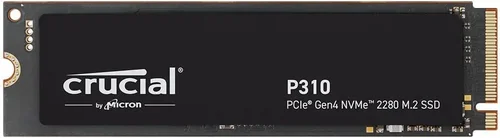
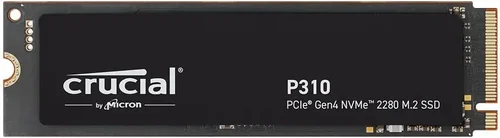
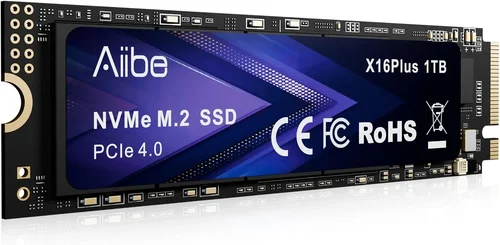
M.2 SSDs are slim, stick-like modules that plug directly into the motherboard. They’re available in both SATA and NVMe variants, though NVMe is far more common in 2026. Common M.2 lengths include 2242, 2260, and 2280 (the most popular). The “22” refers to width in millimeters, and the last two digits indicate length.
For new builds or upgrades in compact systems (like ultrabooks or mini-PCs), M.2 is the clear winner—it saves space, reduces cable clutter, and enables faster performance when paired with NVMe.
3. Storage Capacity: How Much Do You Really Need?
Capacity directly affects price, but overspending on unused space is a common mistake. Consider your actual usage:
– 250GB–500GB: Suitable for basic tasks (web browsing, office apps, light gaming). Ideal for secondary drives or budget systems.
– 1TB: The sweet spot for most users. Enough for OS, applications, and a growing media library.
– 2TB+: Recommended for gamers, video editors, developers, or anyone working with large files (4K video, virtual machines, RAW photos).
Remember: SSDs perform best when they’re not near full capacity. Aim to keep at least 10–20% free space for optimal speed and longevity.
4. Performance Specifications: Read/Write Speeds and IOPS
Manufacturers advertise sequential read/write speeds (e.g., “7,000 MB/s read”), but real-world performance depends on more than just raw throughput.
Sequential speeds matter for large file transfers (e.g., copying videos), but random read/write performance—measured in IOPS (Input/Output Operations Per Second)—is more indicative of everyday responsiveness. A drive with high IOPS will feel snappier when launching apps, loading games, or multitasking.
Look for drives with strong random 4K performance (typically listed in specs). For example, a drive with 1M+ IOPS will handle small file operations much better than one with only 200K IOPS, even if both claim similar sequential speeds.
Also, note that sustained performance under heavy workloads can differ significantly from burst performance. High-end drives often include large SLC caches that boost short-term speeds but may slow down during prolonged writes. Check reviews for real-world sustained write tests.
5. Endurance and TBW (Terabytes Written)
Unlike HDDs, SSDs have a finite number of write cycles. However, modern NAND technology (especially TLC and QLC with advanced controllers) has made endurance concerns largely irrelevant for typical users.
TBW indicates how much data can be written to the drive over its lifetime. For example, a 1TB drive with 600 TBW can theoretically write 600 terabytes before hitting its endurance limit. To put that in perspective: writing 50GB per day would take over 32 years to reach that limit.
That said, higher TBW ratings generally correlate with better build quality and longer warranties. Gamers and professionals should aim for drives with at least 600 TBW for 1TB models. Budget QLC drives may have lower endurance (e.g., 200–400 TBW), which is still plenty for average use but less ideal for write-heavy workloads.
6. NAND Flash Type: SLC, MLC, TLC, QLC
NAND flash stores data in memory cells. The number of bits per cell affects cost, speed, endurance, and capacity:
– SLC (Single-Level Cell): 1 bit per cell. Fastest, most durable, but expensive. Used in enterprise drives.
– MLC (Multi-Level Cell): 2 bits per cell. Good balance of speed and endurance. Rare in consumer drives today.
– TLC (Triple-Level Cell): 3 bits per cell. Most common in mid-to-high-end consumer SSDs. Offers great performance and reasonable endurance.
– QLC (Quad-Level Cell): 4 bits per cell. Cheaper and higher capacity, but slower write speeds and lower endurance. Best for read-heavy tasks.
In 2026, TLC dominates the mainstream market, while QLC is gaining traction in budget and high-capacity segments. Avoid QLC if you plan to frequently write large amounts of data (e.g., video editing). For general use, even QLC is perfectly adequate.
7. DRAM Cache: Why It Matters
Many SSDs include a small amount of DRAM (dynamic RAM) as a cache to speed up mapping tables and improve performance. DRAM-less SSDs exist—especially in budget models—but they rely on system memory (HMB, or Host Memory Buffer) or slower NAND-based caching.
Drives with dedicated DRAM typically offer more consistent performance, especially during mixed workloads or when the drive is near full. While DRAM-less drives can be fine for light use, they may exhibit noticeable slowdowns under pressure.
If you’re choosing between two similarly priced drives, prioritize the one with DRAM—it’s a hidden performance booster.
8. Brand Reputation and Reliability
Not all SSDs are created equal, even if specs look similar. Reputable brands invest in quality controllers, firmware optimization, and rigorous testing. In 2026, top-tier manufacturers include Samsung, Western Digital, Crucial, Kingston, SK Hynix, and Kioxia.
Avoid no-name or ultra-cheap brands sold on discount marketplaces. These often use recycled NAND, outdated controllers, or misleading labeling. A failed SSD can mean lost data—something no amount of savings can replace.
Look for brands with transparent warranty policies, active firmware updates, and strong customer support. User forums and professional reviews (like those from Tom’s Hardware or AnandTech) are excellent resources for gauging real-world reliability.
Different Types of Buying Guide
Common Buying Mistakes to Avoid
❌ Mistake: Prioritizing Peak Speed Over Real-World Performance
Why it’s bad: A drive advertised as “14,000 MB/s” may only achieve those speeds in synthetic benchmarks or during short bursts. In daily use, differences between PCIe 4.0 and 5.0 are often imperceptible for non-professional tasks.
What to do instead: Focus on consistent performance, low latency, and strong random I/O. Read professional reviews that test real-world scenarios like game loading, app launches, and file copying.
❌ Mistake: Ignoring Compatibility
Why it’s bad: Buying an M.2 NVMe drive for a laptop that only supports SATA M.2 will result in a non-functional SSD. Similarly, some older motherboards don’t support PCIe 4.0 or 5.0.
What to do instead: Verify your system’s specifications before purchasing. Use manufacturer compatibility tools or consult your device manual. When in doubt, choose a universally compatible option like a 2.5-inch SATA SSD.
❌ Mistake: Choosing the Cheapest Option Without Checking NAND Type
Why it’s bad: Ultra-budget SSDs often use QLC NAND and lack DRAM, leading to poor write performance and shorter lifespans under heavy use.
What to do instead: Spend a little more for a TLC-based drive with DRAM. The performance and longevity gains are worth the modest price increase for most users.
❌ Mistake: Overlooking Warranty and TBW
Why it’s bad: A short warranty (e.g., 1–2 years) or low TBW rating may indicate lower-quality components. You could face premature failure with no recourse.
What to do instead: Aim for at least a 5-year warranty and check the TBW rating. Reputable brands often offer longer warranties on higher-end models.
❌ Mistake: Not Considering Thermal Throttling
Why it’s bad: High-speed NVMe drives, especially PCIe 5.0 models, generate significant heat. Without proper cooling, they throttle performance to prevent damage.
What to do instead: If using a PCIe 5.0 drive in a compact case or laptop, ensure adequate airflow or consider a drive with a built-in heatsink. Some motherboards include M.2 heatsinks—use them!
❌ Mistake: Buying Based Solely on Brand Name
Why it’s bad: Even top brands release underperforming models. Conversely, lesser-known brands sometimes offer excellent value.
What to do instead: Research specific models, not just brands. Look at independent benchmarks, user reviews, and failure rate reports.
❌ Mistake: Forgetting About Data Migration
Why it’s bad: Installing a new SSD is only half the battle. Without cloning your old drive or clean-installing your OS, you won’t benefit from the speed upgrade.
What to do instead: Use free cloning software (like Macrium Reflect Free or Samsung Data Migration) to transfer your OS and files. Alternatively, perform a fresh Windows install for the cleanest experience.
Budget Guidelines: How Much Should You Spend?
Entry-Level ($30–$60 for 1TB):
These are typically SATA 2.5-inch or DRAM-less NVMe drives using QLC NAND. Perfect for basic computing, web browsing, and light office work. Expect decent read speeds but slower writes. Ideal for upgrading older systems or adding secondary storage.
Mid-Range ($60–$100 for 1TB):
The sweet spot for most buyers. Look for TLC-based NVMe PCIe 3.0 or 4.0 drives with DRAM and 500+ TBW. Examples include the Crucial P5 Plus or WD Black SN770. These offer excellent balance of speed, endurance, and value.
Premium ($100–$150 for 1TB):
High-performance PCIe 4.0 or early PCIe 5.0 drives from top brands. Features include large SLC caches, advanced controllers, and robust heatsinks. Great for gamers, streamers, and creative professionals who need consistent high-speed access.
Luxury ($150+ for 1TB):
Cutting-edge PCIe 5.0 drives with top-tier specs, such as the Samsung 990 PRO or SK Hynix Platinum P41. These are overkill for average users but ideal for workstations handling 8K video, 3D rendering, or AI training. Often include premium software suites and extended warranties.
Expert Tips for Getting the Best Deal
1. Buy During Major Sales Events: SSD prices drop significantly during Black Friday, Cyber Monday, Amazon Prime Day, and back-to-school promotions. Historical data shows discounts of 20–40% are common.
2. Compare Across Retailers: Don’t settle for the first listing you see. Check Amazon, Newegg, Best Buy, B&H Photo, and direct-from-manufacturer stores. Sometimes, the same drive is $10–$20 cheaper elsewhere.
3. Consider Refurbished or Open-Box Units: Many manufacturers sell certified refurbished SSDs with full warranties at 15–30% off. These are thoroughly tested and often indistinguishable from new.
4. Bundle with Other Components: When building a PC, some retailers offer discounts when you buy an SSD alongside a CPU, motherboard, or GPU. Look for bundle deals on sites like Micro Center or Newegg.
5. Check Return Policies: Ensure the retailer offers at least a 30-day return window. This gives you time to test the drive and confirm compatibility.
6. Monitor Firmware Updates: After purchase, register your SSD with the manufacturer and check for firmware updates. These can improve performance, fix bugs, and enhance security.
7. Use Price Tracking Tools: Websites like CamelCamelCamel (for Amazon) or Honey track price history and alert you when a drive hits your target price.
8. Don’t Overbuy Capacity: A 2TB drive isn’t always twice as fast as a 1TB model—but it is twice as expensive. Only upgrade capacity if you truly need the space.

Frequently Asked Questions
Q: Can I use an NVMe SSD in a SATA-only slot?
A: No. NVMe and SATA M.2 slots are electrically different. However, some motherboards support both—check your manual. If your system only has SATA, stick with a 2.5-inch SATA SSD or a SATA M.2 drive.
Q: Will an SSD improve my gaming performance?
A: Yes—but mostly in load times, not frame rates. Games will launch faster, levels will load quicker, and open-world streaming will be smoother. However, once loaded, gameplay FPS depends on your GPU and CPU.
Q: Do I need to enable TRIM?
A: Modern operating systems (Windows 10/11, macOS, Linux) enable TRIM automatically for SSDs. It helps maintain performance by clearing unused data blocks. You can verify it’s active in Windows via `fsutil behavior query DisableDeleteNotify` (should return 0).
Q: How long do SSDs last?
A: For typical users, 5–10 years is realistic—and often longer. Manufacturers design SSDs to outlast the useful life of most computers. Failure is more likely due to physical damage or controller issues than NAND wear.
Q: Should I defragment my SSD?
A: No. Defragmentation is unnecessary and harmful to SSDs, as it increases write cycles. Windows automatically disables defrag for SSDs and runs TRIM instead.
Q: Can I recover data from a failed SSD?
A: It’s possible but expensive and not guaranteed. Unlike HDDs, SSDs often fail suddenly with no warning. Regular backups are essential. Use cloud services or external drives for critical data.
Q: Are external SSDs as fast as internal ones?
A: It depends on the interface. USB 3.2 Gen 2 (10 Gbps) caps around 1,000 MB/s—slower than most internal NVMe drives. Thunderbolt 3/4 external SSDs can match internal speeds but cost significantly more.
Q: What’s the difference between DRAM and DRAM-less SSDs?
A: DRAM acts as a high-speed cache for the drive’s mapping table. DRAM-less drives use system RAM (HMB) or slower NAND-based caching, which can lead to performance drops under heavy workloads.
Q: Is PCIe 5.0 worth it in 2026?
A: Only if you’re working with massive files (e.g., 8K video, scientific datasets) or building a future-proof workstation. For gaming and general use, PCIe 4.0 offers nearly identical real-world performance at a lower cost and with less heat.
Q: Can I install an SSD in an old laptop?
A: Most laptops from 2012 onward support 2.5-inch SATA SSDs. Ultrabooks may have M.2 slots. Check your model’s service manual or use Crucial’s Scanner Tool to confirm compatibility.
Our Final Recommendations
Best for Budget-Conscious Buyers:
Crucial BX500 (1TB SATA)
A reliable, no-frills SATA SSD that delivers solid performance for everyday tasks. Great for upgrading older systems without breaking the bank.
Best Overall Value:
WD Black SN770 (1TB PCIe 4.0)
Offers near-top-tier speeds, excellent endurance (600 TBW), and consistent performance—all at a competitive price. Ideal for gamers and general users.
Best Premium Option:
Samsung 990 PRO (1TB PCIe 4.0)
Consistently ranks as one of the fastest and most reliable consumer SSDs. Features a robust heatsink, 5-year warranty, and exceptional real-world performance.
Best for Beginners:
Kingston NV2 (1TB PCIe 4.0)
Easy to install, compatible with most systems, and offers great out-of-the-box performance. Comes with Kingston’s SSD Manager software for monitoring health.
Best for Advanced Users:
SK Hynix Platinum P41 (1TB PCIe 4.0)
Top-tier performance, low power consumption, and excellent thermal management. A favorite among enthusiasts and professionals for its balance of speed and efficiency.
Conclusion: Making the Right Choice
Choosing the right SSD in 2026 doesn’t have to be overwhelming. By focusing on your actual needs—rather than chasing the highest numbers on a spec sheet—you can find a drive that delivers lasting performance, reliability, and value. Remember: the best SSD is the one that fits your system, your workflow, and your budget.
Start by identifying your interface and form factor requirements, then prioritize capacity, NAND type, and endurance based on how you use your computer. Don’t skimp on brand reputation or warranty, and always verify compatibility before hitting “buy.” With the insights from this guide, you’re equipped to make a confident, informed decision.
Whether you’re breathing new life into an old machine or building a high-performance rig from scratch, an SSD upgrade is one of the most rewarding investments you can make. So go ahead—swap out that sluggish HDD, embrace the speed, and enjoy a faster, smoother computing experience today.