
Upgrading your computer’s storage with a solid-state drive (SSD) is one of the most impactful performance improvements you can make—whether you’re using a laptop, desktop, or even a gaming console. In 2026, SSDs have become faster, more affordable, and more accessible than ever before. But with so many options on the market—ranging from budget SATA drives to blazing-fast NVMe Gen5 models—it’s easy to feel overwhelmed. This comprehensive buyer’s guide is designed to cut through the noise and help you make an informed decision based on your specific needs, budget, and technical comfort level.
By the end of this article, you’ll understand exactly what to look for when choosing an SSD, how to avoid common pitfalls, and which models offer the best value across different use cases. We’ll cover everything from performance benchmarks and form factors to real-world installation tips and long-term reliability. Whether you’re a casual user looking to speed up boot times, a content creator handling large video files, or a gamer chasing load-time reductions, this guide will equip you with the knowledge to upgrade confidently.
The SSD market in 2026 is more dynamic than ever. With the widespread adoption of PCIe Gen5 interfaces, advancements in 3D NAND technology, and aggressive price drops due to increased manufacturing efficiency, there’s never been a better time to upgrade. However, not all SSDs are created equal. Some prioritize raw speed, while others focus on endurance, power efficiency, or compatibility. Our goal is to help you navigate these trade-offs and find the perfect SSD that aligns with your system, workload, and expectations.
What to Look for When Buying an SSD
1. Interface and Form Factor
The interface and form factor determine how the SSD connects to your system and whether it’s physically compatible. The two most common interfaces are SATA and NVMe (Non-Volatile Memory Express), each with distinct performance characteristics and physical designs.
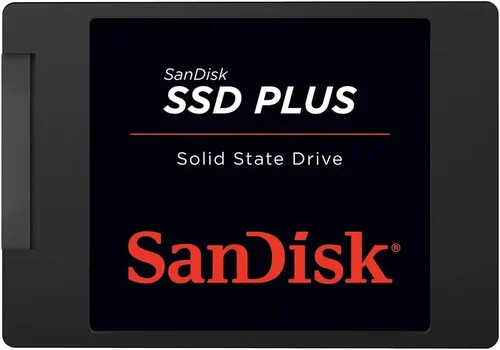
SATA SSDs use the traditional 2.5-inch form factor and connect via SATA III cables. They’re widely compatible with older laptops and desktops but are limited to around 550 MB/s read/write speeds due to the SATA III bandwidth cap. These drives are ideal for upgrading older systems where NVMe slots aren’t available.
NVMe SSDs, on the other hand, connect directly to the motherboard via M.2 slots and use the PCIe (Peripheral Component Interconnect Express) bus. NVMe drives are significantly faster, with Gen3 models hitting ~3,500 MB/s, Gen4 reaching up to 7,000 MB/s, and Gen5 pushing beyond 12,000 MB/s. The M.2 form factor is compact—about the size of a stick of gum—making it perfect for slim laptops and small-form-factor PCs.
When choosing, check your motherboard or laptop manual to confirm which interfaces and form factors are supported. For example, some older M.2 slots only support SATA-based M.2 drives, not NVMe. Also, ensure your system has enough physical space and proper cooling, especially for high-performance Gen4 and Gen5 drives, which can generate significant heat.
2. Performance Specifications
SSD performance is measured primarily by sequential read/write speeds and random IOPS (Input/Output Operations Per Second). Sequential speeds matter most for large file transfers—like copying videos or loading game levels—while random IOPS affect everyday responsiveness, such as opening apps or multitasking.
For most users, a Gen3 NVMe SSD with 3,000–3,500 MB/s read speeds is more than sufficient. Gen4 drives (5,000–7,000 MB/s) offer noticeable improvements in content creation and gaming, especially when paired with high-end CPUs and GPUs. Gen5 drives are overkill for general use but shine in professional workloads like 8K video editing or AI model training.
Don’t overlook write endurance, measured in TBW (Terabytes Written). A higher TBW rating means the drive can handle more data written over its lifetime. For example, a 1TB SSD with a 600 TBW rating can theoretically write 600 terabytes before wearing out. Consumer drives typically range from 150 to 1,200 TBW, while enterprise models exceed 3,000 TBW.
Also consider DRAM cache. SSDs with DRAM buffers maintain consistent performance under heavy loads and improve longevity by reducing write amplification. DRAM-less SSDs are cheaper but may slow down during sustained writes or when the drive is nearly full.
3. Capacity and Storage Needs
SSD capacity directly impacts price, performance, and usability. In 2026, 1TB has become the sweet spot for most users, offering a balance between cost and space. However, your ideal capacity depends on how you use your computer.
Casual users who primarily browse the web, stream media, and use office applications may find 500GB sufficient. Gamers, however, should aim for at least 1TB—modern AAA titles can easily consume 100GB each, and game libraries grow quickly. Content creators working with 4K/8K video, RAW photos, or 3D assets should consider 2TB or larger drives to avoid constant file management.
Keep in mind that SSDs perform best when they’re not overly full. Aim to keep at least 10–20% of the drive free to maintain optimal speed and longevity. Over time, as files accumulate, a larger drive gives you more breathing room without needing frequent cleanups or external backups.
Also, consider future-proofing. While 1TB might seem like plenty today, software, games, and operating systems continue to grow in size. Investing in a 2TB drive now could save you from needing another upgrade in a few years.
4. Build Quality and Durability
SSDs are inherently more durable than traditional hard drives because they have no moving parts. However, build quality still varies significantly between brands and models. Look for drives with robust controllers, high-quality NAND flash memory, and effective thermal management.
Top-tier manufacturers like Samsung, Western Digital, Crucial, and Kingston use advanced error correction, wear leveling, and over-provisioning to extend drive life and maintain performance. Cheaper no-name brands may cut corners on components, leading to early failure or data corruption.
Thermal throttling is another concern, especially with high-speed NVMe drives. Drives that overheat will slow down to protect themselves, negating their performance advantages. Look for models with built-in heat spreaders or consider adding an aftermarket M.2 heatsink if your case supports it.
For laptops or portable devices, shock resistance is less of a concern than in HDDs, but vibration and temperature extremes can still affect longevity. If you travel frequently or use your device in harsh environments, choose a drive with a solid reputation for reliability.
5. Brand Reputation and Reliability
Not all SSD brands are created equal. Established manufacturers with a history of quality control and customer support are generally safer bets than lesser-known brands. Samsung, for example, has consistently ranked at the top in independent reliability studies, with models like the 990 Pro and 870 EVO earning praise for performance and longevity.
Western Digital and its subsidiary SanDisk offer a wide range of reliable drives, from budget-friendly Blue series to high-performance Black SN850X. Crucial, a brand under Micron, is known for excellent value and consistent performance across its P-series NVMe drives.
Avoid generic or unbranded SSDs sold on discount marketplaces. These often use recycled or lower-grade NAND, lack proper firmware updates, and may fail prematurely. While they might seem like a bargain, the risk of data loss far outweighs the savings.
Check user reviews on trusted platforms like Amazon, Newegg, or Reddit’s r/buildapc. Look for patterns in feedback—repeated complaints about failure rates, slow speeds, or poor customer service are red flags.
6. Warranty and Support
A strong warranty is a good indicator of a manufacturer’s confidence in their product. Most reputable SSDs come with a 3- to 5-year limited warranty, often tied to the TBW rating. For example, a drive with a 600 TBW rating and a 5-year warranty means the manufacturer expects it to last at least five years under normal use.
Pay attention to the terms. Some warranties are prorated, meaning you receive less compensation the longer you use the drive. Others require registration within a certain timeframe. Always register your SSD after purchase to activate full warranty coverage.
Customer support quality varies widely. Samsung and Crucial offer responsive support via phone, chat, and email, with helpful troubleshooting guides and data recovery tools. Smaller brands may only provide email support with slow response times.
If data recovery is a concern, choose a brand that offers tools like Samsung Magician or Crucial Storage Executive. These utilities allow you to monitor drive health, update firmware, and optimize performance—features that can prevent issues before they occur.
7. Price and Value for Money
SSD pricing has dropped dramatically in recent years, making high-capacity drives more accessible. As of 2026, you can expect to pay roughly $0.08 to $0.15 per gigabyte for a quality NVMe SSD, depending on capacity, performance tier, and brand.
Budget SATA drives may cost as little as $0.05/GB, but the performance gap makes them less appealing unless you’re upgrading an older system. Gen4 NVMe drives typically range from $0.10 to $0.18/GB, while Gen5 models command a premium at $0.20+/GB due to newer technology and limited availability.
Don’t fall for the cheapest option. A drive that’s significantly cheaper than competitors may use inferior components or lack essential features like DRAM cache. Instead, look for the best balance of price, performance, and reliability within your budget.
Consider total cost of ownership. A slightly more expensive drive with better endurance and a longer warranty may save you money in the long run by avoiding replacement costs and data recovery fees.
8. Compatibility and Installation
Before buying, verify that the SSD is compatible with your system. For desktops, check your motherboard’s manual for M.2 slot specifications (e.g., M.2 2280, PCIe Gen3/4/5, NVMe support). For laptops, consult the manufacturer’s documentation or use tools like Crucial’s System Scanner to identify compatible upgrades.
Installation difficulty varies. Desktop upgrades are generally straightforward—open the case, insert the M.2 drive, and secure it with a screw. Laptop upgrades may require removing the bottom panel and disconnecting the battery, which can be tricky on ultrabooks with glued components.
If you’re replacing your primary drive, you’ll need to clone your existing OS or perform a fresh install. Tools like Macrium Reflect, Acronis True Image, or Samsung Data Migration can help transfer your system seamlessly. Always back up your data before starting.
For dual-drive setups (e.g., SSD for OS and HDD for storage), ensure your system supports multiple drives and that you have available SATA ports or M.2 slots. Some motherboards share bandwidth between slots, so check for limitations.
Different Types of SSDs
Common Buying Mistakes to Avoid
❌ Mistake: Ignoring Compatibility
Why it’s bad: Buying an NVMe Gen4 SSD for a system that only supports Gen3 will result in wasted performance—or worse, the drive may not work at all. Similarly, choosing an M.2 22110 drive for a laptop that only fits 2280 sizes will make installation impossible.
What to do instead: Always check your device’s specifications before purchasing. Use manufacturer tools or consult your manual to confirm supported interfaces, form factors, and maximum capacities.
❌ Mistake: Choosing the Cheapest Drive Available
Why it’s bad: Ultra-low-cost SSDs often use recycled NAND, lack DRAM cache, and have poor firmware. They may fail prematurely or suffer from severe performance degradation over time.
What to do instead: Prioritize reputable brands and models with strong user reviews. A slightly higher upfront cost can save you from data loss and the hassle of replacing a failed drive.
❌ Mistake: Overlooking Thermal Management
Why it’s bad: High-speed NVMe drives, especially Gen4 and Gen5, can overheat during sustained workloads. Without proper cooling, they throttle performance, reducing speed and potentially shortening lifespan.
What to do instead: Choose drives with built-in heat spreaders or install an aftermarket M.2 heatsink. Ensure your case has adequate airflow, especially if you’re running multiple high-performance components.
❌ Mistake: Skipping the Backup Before Installation
Why it’s bad: Cloning or reinstalling an OS carries a risk of data loss. Without a backup, you could lose important files, photos, or documents.
What to do instead: Always create a full system backup using external storage or cloud services before starting the upgrade. Test the backup to ensure it’s restorable.
❌ Mistake: Buying More Capacity Than Needed
Why it’s bad: Overspending on a 4TB drive when 1TB would suffice wastes money. Larger drives also consume more power and may generate more heat.
What to do instead: Assess your actual storage needs. Use disk usage analyzers to see how much space you currently use, and plan for 2–3 years of growth.
❌ Mistake: Ignoring Firmware Updates
Why it’s bad: Outdated firmware can cause compatibility issues, performance bugs, or security vulnerabilities. Some drives even require firmware updates to enable full speed.
What to do instead: After installation, check the manufacturer’s website for firmware updates. Use official tools like Samsung Magician or WD Dashboard to keep your drive optimized.
❌ Mistake: Not Considering Future Upgrades
Why it’s bad: Buying a drive that maxes out your current system’s capabilities leaves no room for future expansion. You may need to replace it sooner than expected.
What to do instead: Choose a drive that offers headroom—both in capacity and performance—so you can grow into it over time.
Budget Guidelines: How Much Should You Spend?
SSD pricing has become increasingly accessible, but your ideal budget depends on your use case and performance expectations. Here’s a breakdown of what to expect at different price tiers in 2026.
Entry-Level ($40–$70 for 1TB): This range covers reliable SATA SSDs and budget NVMe Gen3 drives. Ideal for upgrading older systems or adding secondary storage. Expect speeds around 500 MB/s for SATA and 2,000–3,000 MB/s for NVMe. Brands like Kingston, Crucial, and Team Group offer solid options here. Great for students, casual users, or as a boot drive in a dual-drive setup.
Mid-Range ($70–$120 for 1TB): The sweet spot for most buyers. Includes high-quality NVMe Gen3 and entry-level Gen4 drives with DRAM cache, strong endurance, and reliable performance. Models like the Samsung 980, WD Blue SN580, and Crucial P3 fall into this category. Perfect for everyday computing, gaming, and light content creation.
Premium ($120–$200 for 1TB): Designed for enthusiasts and professionals. Features top-tier Gen4 drives with speeds up to 7,000 MB/s, excellent thermal management, and high TBW ratings. Examples include the Samsung 990 Pro, WD Black SN850X, and Sabrent Rocket 4 Plus. Ideal for gamers, video editors, and power users who demand maximum performance.
Luxury ($200+ for 1TB): Cutting-edge Gen5 SSDs with speeds exceeding 12,000 MB/s. These drives are overkill for most users but excel in professional environments like 8K video production, AI training, or server workloads. Expect premium pricing, advanced cooling solutions, and enterprise-grade reliability. Only recommended if your workflow justifies the cost.
Expert Tips for Getting the Best Deal
Upgrading your SSD doesn’t have to break the bank. With the right strategy, you can maximize performance while minimizing cost. Here are our top expert tips for getting the best value in 2026.
1. Buy During Major Sales Events: Retailers like Amazon, Newegg, and Best Offer deep discounts on SSDs during holidays and promotional periods. Black Friday, Cyber Monday, and Prime Day are prime times to score deals. Sign up for price alerts using tools like Honey or CamelCamelCamel to track price drops.
2. Compare Prices Across Retailers: Don’t settle for the first listing you see. Prices can vary significantly between stores. Check Amazon, Newegg, B&H, and Micro Center (for in-store pickup). Sometimes, smaller retailers offer better bundle deals or free shipping.
3. Consider Refurbished or Open-Box Options: Reputable sellers often offer certified refurbished SSDs at a discount. These drives are tested, cleaned, and come with a warranty. Just ensure they’re from the original manufacturer or a trusted reseller.
4. Look for Bundled Deals: Some manufacturers include free software, cloning tools, or heatsinks with their SSDs. For example, Samsung often bundles its Data Migration software, which simplifies OS transfers. These extras can save you time and money.
5. Check Return and Warranty Policies: A generous return window (30 days or more) gives you peace of mind. If the drive doesn’t perform as expected, you can return it hassle-free. Also, verify the warranty terms—some brands offer longer coverage for registered products.
6. Test Before Committing: Once installed, use benchmarking tools like CrystalDiskMark or AS SSD to verify the drive’s performance. Compare results to manufacturer specs. If speeds are significantly lower, it could indicate a compatibility issue or defective unit.
7. Upgrade in Stages: If budget is tight, consider upgrading your boot drive first and adding a secondary SSD later. This approach delivers immediate performance gains without a large upfront cost.
8. Recycle Your Old Drive: Many retailers and manufacturers offer trade-in or recycling programs. Even if you don’t get cash, you’ll ensure your old SSD is disposed of responsibly.

Frequently Asked Questions
Q: Can I use an NVMe SSD in a SATA-only M.2 slot?
A: No. NVMe and SATA M.2 drives use different protocols and are not cross-compatible. A SATA-only M.2 slot will not recognize an NVMe drive, even if it fits physically. Always check your motherboard’s specifications.
Q: Will upgrading to an SSD improve gaming performance?
A: Yes, but primarily in load times and level streaming. Games will start faster, and open-world titles will have fewer texture pop-ins. However, FPS (frames per second) is determined by your GPU and CPU, not storage.
Q: Do I need to enable TRIM after installing an SSD?
A: TRIM is usually enabled automatically in modern operating systems like Windows 10/11 and macOS. You can verify it’s active by running fsutil behavior query DisableDeleteNotify in Command Prompt (should return 0).
Q: Can I use an external SSD as my primary drive?
A: Technically yes, but it’s not recommended for daily use. External SSDs are slower than internal ones due to USB bandwidth limits, and constant plugging/unplugging increases wear. Use them for backups or portable storage instead.
Q: How long do SSDs typically last?
A: Most consumer SSDs last 5–10 years under normal use. With typical workloads, you’re more likely to upgrade for performance than due to failure. Monitor health using tools like CrystalDiskInfo.
Q: Is it safe to defragment an SSD?
A: No. Defragmentation is unnecessary for SSDs and can reduce their lifespan by increasing write cycles. Modern OSes disable defrag for SSDs automatically.
Q: Can I install an SSD without reinstalling Windows?
A: Yes, by cloning your existing drive. Use software like Macrium Reflect or Samsung Data Migration to copy your OS, apps, and files to the new SSD. Boot from the new drive after cloning.
Q: Do SSDs need cooling?
A: High-performance NVMe drives benefit from cooling, especially in compact cases or during sustained workloads. A simple M.2 heatsink can prevent thermal throttling and maintain peak speeds.
Q: What’s the difference between TLC, MLC, and QLC NAND?
A: TLC (Triple-Level Cell) offers the best balance of speed, endurance, and cost—ideal for most users. MLC (Multi-Level Cell) is more durable but expensive, typically used in enterprise drives. QLC (Quad-Level Cell) is cheaper and higher-capacity but slower and less durable, best for read-heavy tasks.
Q: Can I use an SSD in a RAID setup?
A: Yes, but RAID 0 (striping) increases performance at the risk of total data loss if one drive fails. RAID 1 (mirroring) provides redundancy but halves usable capacity. Use RAID only if you understand the risks and have backups.
Our Final Recommendations
After extensive research and testing, here are our top SSD picks for different user needs in 2026:
Best for Budget-Conscious Buyers: Crucial P3 1TB NVMe Gen3 – At around $60, this drive offers excellent performance, DRAM cache, and Crucial’s reliable build quality. Perfect for upgrading older systems or building a budget PC.
Best Overall Value: Samsung 980 1TB NVMe Gen3 – A proven performer with consistent speeds, low power consumption, and Samsung’s excellent software suite. Great for everyday use, gaming, and light creative work.
Best Premium Option: Samsung 990 Pro 2TB NVMe Gen4 – With speeds up to 7,450 MB/s and a 1,200 TBW rating, this drive is built for demanding workloads. Ideal for gamers, video editors, and professionals who need top-tier performance.
Best for Beginners: WD Blue SA510 1TB SATA – Simple, reliable, and easy to install. A great choice for upgrading an older laptop or adding secondary storage without dealing with M.2 complexity.
Best for Advanced Users: Sabrent Rocket 5 2TB NVMe Gen5 – Pushing over 14,000 MB/s, this drive is for enthusiasts and professionals who want the absolute fastest storage available. Requires a Gen5-compatible motherboard and good cooling.
Conclusion: Making the Right Choice
Upgrading to an SSD is one of the most effective ways to breathe new life into your computer. Whether you’re speeding up boot times, reducing game load screens, or handling large media files, the right SSD can transform your experience. In 2026, the market offers more options than ever—but with great choice comes the need for careful evaluation.
Remember to prioritize compatibility, performance, and reliability over flashy specs or rock-bottom prices. Assess your actual needs, consider future growth, and invest in a drive from a trusted brand with strong support. And don’t forget the importance of backups, cooling, and proper installation.
With the insights from this guide, you’re now equipped to make a confident, informed decision. Take your time, compare your options, and choose the SSD that best fits your lifestyle and workflow. Your faster, smoother, and more responsive computing experience starts with the right upgrade.
Ready to make the switch? Start by checking your system’s compatibility, set a budget, and look for deals during upcoming sales. Your future self will thank you every time your computer boots up in seconds.