
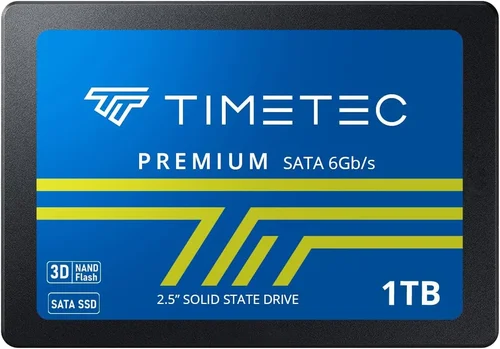
Solid-state drives (SSDs) have revolutionized the way we store and access data. Gone are the days of waiting minutes for a computer to boot up or applications to load—today’s SSDs deliver near-instant responsiveness, dramatically improving system performance across desktops, laptops, gaming rigs, and even servers. Whether you’re upgrading an aging machine or building a high-performance workstation from scratch, choosing the right SSD is one of the most impactful decisions you can make. But with so many options on the market—varying in speed, capacity, interface type, and price—it’s easy to feel overwhelmed.
This comprehensive guide is designed to cut through the noise and help you make an informed decision tailored to your specific needs. You’ll learn not just what specs matter most, but how to interpret real-world performance, avoid common pitfalls, and get the best value for your money. We’ll explore everything from NVMe vs. SATA distinctions to endurance ratings, thermal management, and firmware features that often go overlooked. By the end, you’ll have a clear roadmap for selecting an SSD that delivers optimal performance without overspending or compromising on reliability.
The SSD market in 2026 continues to evolve rapidly, driven by advancements in NAND flash technology, controller innovation, and the growing adoption of PCIe 5.0 interfaces. While entry-level drives now offer impressive speeds for everyday use, high-end models push sequential read/write rates beyond 12,000 MB/s—making them ideal for content creators, gamers, and professionals handling large datasets. At the same time, pricing has become more competitive than ever, with 1TB and 2TB drives available at historically low cost-per-gigabyte ratios. With this guide, you’ll navigate these trends confidently and choose an SSD that aligns perfectly with your performance goals, budget, and usage patterns.

What to Look for When Buying Buying Guide
1. Interface and Form Factor
The interface and physical form factor of an SSD determine how it connects to your system and what kind of performance it can deliver. The two dominant interfaces today are SATA and NVMe (Non-Volatile Memory Express), each with distinct advantages and limitations. SATA SSDs use the same connection standard as traditional hard drives, typically offering speeds up to 550 MB/s—sufficient for general computing but significantly slower than modern alternatives. They come in 2.5-inch form factors and are ideal for older systems or budget builds where compatibility is a priority.
In contrast, NVMe SSDs connect directly to the motherboard via the PCIe (Peripheral Component Interconnect Express) bus, enabling much higher bandwidth. Most consumer NVMe drives today use PCIe 3.0, 4.0, or the latest PCIe 5.0 standards. PCIe 3.0 drives cap out around 3,500 MB/s, while PCIe 4.0 models reach up to 7,000 MB/s, and PCIe 5.0 drives can exceed 12,000 MB/s under ideal conditions. NVMe drives usually come in M.2 form factors—small, stick-like modules that slot directly into the motherboard—making them perfect for slim laptops and compact desktops. When choosing, ensure your system supports the interface: not all motherboards have M.2 slots, and fewer still support PCIe 5.0.
2. NAND Flash Type and Endurance
The type of NAND flash memory used in an SSD directly affects its speed, durability, and longevity. There are several variants: SLC (Single-Level Cell), MLC (Multi-Level Cell), TLC (Triple-Level Cell), and QLC (Quad-Level Cell). SLC stores one bit per cell and offers the highest endurance and performance but is prohibitively expensive for consumer use. MLC stores two bits per cell and strikes a balance between cost and reliability, often found in enterprise-grade drives. Most consumer SSDs today use TLC or QLC NAND.
TLC (three bits per cell) provides a good mix of performance, capacity, and affordability, making it the standard for mid-range to high-end consumer drives. QLC (four bits per cell) increases storage density and lowers cost per gigabyte but sacrifices write speed and endurance due to more complex voltage management. While QLC drives are fine for light workloads like web browsing or office tasks, they may struggle under sustained write operations such as video editing or database management. Endurance is measured in terabytes written (TBW)—the total amount of data that can be written to the drive over its lifetime. A higher TBW rating indicates greater longevity. For example, a 1TB TLC SSD might have a 600 TBW rating, while a comparable QLC model may only offer 200–300 TBW.
3. Sequential and Random Read/Write Speeds
SSD performance is often advertised using two key metrics: sequential and random read/write speeds. Sequential speeds measure how quickly large, contiguous files (like videos or disk images) can be read from or written to the drive. These numbers are prominently displayed in marketing materials—for instance, “Up to 7,400 MB/s read”—and are important for tasks involving large file transfers or loading massive game assets.
However, random read/write performance—measured in IOPS (Input/Output Operations Per Second)—is arguably more relevant for everyday computing. Random operations involve accessing small, scattered pieces of data, which mimics real-world usage like opening applications, loading operating system files, or multitasking. A drive with high sequential speeds but poor random performance may feel sluggish during normal use. For example, a PCIe 4.0 SSD might boast 7,000 MB/s sequential reads but deliver only 500,000 IOPS for random 4K reads, while another drive with slightly lower sequential speeds could offer 1 million+ IOPS, resulting in snappier system responsiveness. Always look for both metrics when comparing drives, especially if you prioritize system boot times, app launches, or multitasking efficiency.
4. DRAM Cache and HMB Technology
DRAM (Dynamic Random-Access Memory) cache plays a crucial role in SSD performance by storing the drive’s mapping table—the index that tracks where data is physically located on the NAND chips. SSDs with onboard DRAM can access this table instantly, leading to faster read/write operations and better consistency under load. Drives without DRAM rely on system memory via Host Memory Buffer (HMB) technology, which borrows a small portion of your computer’s RAM to emulate a cache.
While DRAM-less SSDs with HMB can perform well in light workloads, they often exhibit performance degradation during sustained operations or when the system is under heavy memory pressure. For example, copying large folders or running multiple virtual machines may cause noticeable slowdowns on DRAM-less models. If you’re building a gaming PC, content creation workstation, or server, opting for an SSD with dedicated DRAM is strongly recommended. Budget-conscious users can consider HMB-based drives for basic tasks, but be aware of potential trade-offs in stability and long-term performance.
5. Thermal Management and Throttling
High-performance SSDs, especially PCIe 4.0 and 5.0 models, generate significant heat during intensive operations. Without proper cooling, these drives can throttle—automatically reducing speed to prevent overheating. Throttling not only diminishes performance but can also shorten the drive’s lifespan if thermal cycling occurs frequently. Many premium SSDs now include built-in heatsinks or thermal pads, and some motherboards feature M.2 heatsinks that cover the drive once installed.
When evaluating thermal performance, look for reviews that test sustained workloads (e.g., 30-minute file transfers or synthetic benchmarks). Drives that maintain consistent speeds without dropping below 80% of peak performance are preferable. Additionally, consider your system’s airflow: compact laptops or small-form-factor PCs may struggle to dissipate heat effectively, making passive cooling insufficient. In such cases, active cooling solutions or lower-power SSDs may be necessary. Always monitor drive temperatures using tools like CrystalDiskInfo or HWMonitor after installation to ensure safe operating ranges (ideally below 70°C).
6. Brand Reputation and Firmware Quality
Not all SSDs are created equal—even if they share the same controller and NAND type. Brand reputation matters because it reflects consistency in manufacturing, firmware optimization, and post-purchase support. Established brands like Samsung, Crucial, Western Digital, Kingston, and SK hynix have a track record of delivering reliable products with robust firmware that enhances performance, stability, and security features like encryption and error correction.
Firmware is the embedded software that manages how the SSD operates, including wear leveling, garbage collection, and bad block management. Poorly optimized firmware can lead to sudden performance drops, data corruption, or premature failure. For example, early versions of certain QLC drives suffered from severe write speed degradation due to inefficient caching algorithms—issues later resolved through firmware updates. Choosing a reputable brand increases the likelihood of receiving timely firmware patches and responsive customer service. Avoid no-name or ultra-budget brands that may cut corners on firmware development or use recycled components.
7. Warranty and Support
A solid warranty is a strong indicator of an SSD’s expected lifespan and the manufacturer’s confidence in its product. Most consumer SSDs come with 3- to 5-year limited warranties, often tied to both time and terabytes written (TBW). For instance, a 5-year warranty with a 600 TBW rating means the drive is covered until either condition is met. Higher-end models may offer 5- or even 10-year warranties, reflecting superior build quality and endurance.
Beyond the warranty period, consider the quality of customer support. Can you easily register your product? Is there a clear process for RMA (Return Merchandise Authorization)? Do they provide diagnostic tools or firmware update utilities? Brands like Samsung and Crucial offer user-friendly dashboards for monitoring drive health and updating firmware, while lesser-known brands may lack these resources. A good warranty combined with accessible support ensures peace of mind, especially if you’re relying on the SSD for critical data or professional work.
8. Capacity and Real-World Usability
While larger capacities generally offer better performance due to increased parallelism across NAND chips, choosing the right size depends on your actual needs. A 250GB SSD might be sufficient for a lightweight OS installation and a few apps, but it will fill up quickly—and performance can degrade as the drive approaches full capacity. Most experts recommend leaving at least 10–20% of the drive free to maintain optimal speed and longevity.
For general users, a 1TB SSD strikes an excellent balance between cost, performance, and usable space. Gamers and multimedia enthusiasts should consider 2TB or higher, especially with modern games exceeding 100GB each. Content creators working with 4K/8K video, RAW photos, or large project files may need 4TB+ drives. Keep in mind that pricing doesn’t scale linearly: upgrading from 1TB to 2TB often costs less per gigabyte than going from 500GB to 1TB. Always assess your current and projected storage needs rather than simply buying the largest drive available.
Different Types of Buying Guide
Common Buying Mistakes to Avoid
❌ Mistake: Ignoring Your System’s Compatibility
Why it’s bad: Buying a PCIe 5.0 SSD for a motherboard that only supports PCIe 3.0 wastes money and limits performance. Similarly, installing an M.2 drive in a system without an M.2 slot renders it unusable.
What to do instead: Always verify your motherboard’s specifications—check the manual, manufacturer website, or use tools like CPU-Z—to confirm supported interfaces, form factors, and PCIe generations before purchasing.
❌ Mistake: Prioritizing Peak Speeds Over Real-World Performance
Why it’s bad: Marketing materials often highlight maximum sequential speeds, but these rarely reflect everyday usage. A drive with high sequential specs but poor random I/O performance may feel sluggish during normal tasks.
What to do instead: Look for reviews that test real-world scenarios like boot times, app launches, and file operations. Prioritize drives with strong 4K random read/write performance if responsiveness matters to you.
❌ Mistake: Choosing QLC NAND for Heavy Workloads
Why it’s bad: QLC drives offer high capacity at low cost but suffer from slower write speeds and reduced endurance. Using them for video editing, database operations, or frequent large file transfers can lead to performance bottlenecks and premature wear.
What to do instead: Opt for TLC-based SSDs for any workload involving sustained writes. Reserve QLC drives for archival storage, media libraries, or light computing tasks.
❌ Mistake: Overlooking Thermal Throttling
Why it’s bad: High-speed NVMe drives can overheat in poorly ventilated systems, causing performance to drop dramatically during extended use. This is especially problematic in laptops or small-form-factor PCs.
What to do instead: Choose drives with built-in heatsinks or ensure your case has adequate airflow. Monitor temperatures post-installation and consider aftermarket cooling if needed.
❌ Mistake: Skimping on Capacity
Why it’s bad: Filling an SSD beyond 80–90% capacity can degrade performance due to reduced space for wear leveling and garbage collection. Small drives also limit future expansion.
What to do instead: Aim for at least 1TB for most users, and scale up based on your usage. Remember: larger drives often perform better and cost less per gigabyte.
❌ Mistake: Ignoring Firmware and Software Ecosystem
Why it’s bad: Drives from lesser-known brands may lack firmware updates, diagnostic tools, or encryption support, increasing the risk of data loss or security vulnerabilities.
What to do instead: Stick with reputable brands that offer robust software suites (e.g., Samsung Magician, Crucial Storage Executive) for monitoring health, updating firmware, and optimizing performance.
❌ Mistake: Not Checking Warranty Terms
Why it’s bad: Some warranties are voided if the drive exceeds its TBW limit, even within the time frame. Others may require registration or proof of purchase.
What to do instead: Read the fine print. Choose drives with clear, consumer-friendly warranty policies and register your product promptly after purchase.
Budget Guidelines: How Much Should You Spend?
- Entry-Level ($30–$60 for 1TB): Ideal for basic upgrades or secondary storage. Look for reliable SATA or PCIe 3.0 NVMe drives from trusted brands. Expect decent performance for everyday tasks but limited endurance and no advanced features.
- Mid-Range ($60–$120 for 1TB): The sweet spot for most users. PCIe 4.0 NVMe drives in this range offer excellent speed, good endurance (TLC NAND), and often include DRAM cache. Perfect for gaming, productivity, and moderate content creation.
- Premium ($120–$250 for 1TB): Designed for enthusiasts and professionals. These drives feature top-tier controllers, high-end TLC NAND, robust thermal solutions, and warranties up to 5–10 years. Ideal for 4K/8K video editing, 3D rendering, and high-frequency trading.
- Luxury ($250+ for 1TB): Cutting-edge PCIe 5.0 drives with blistering speeds, enterprise-grade components, and advanced firmware. Best suited for early adopters, AI researchers, or those building ultra-high-performance systems. Overkill for most consumers but unmatched in raw performance.

Expert Tips for Getting the Best Deal
- Buy During Seasonal Sales: Major retailers and manufacturers offer significant discounts during holiday periods. Q4 (October–December) is particularly strong for SSD deals.
- Compare Across Retailers: Prices can vary widely between Amazon, Newegg, Best Buy, and direct-from-brand stores. Use price comparison tools to find the lowest total cost, including shipping and taxes.
- Consider Refurbished or Open-Box Units: Certified refurbished SSDs from reputable sellers often come with full warranties and can save you 20–40%. Just ensure they’re factory-reset and tested.
- Check Return Policies: A generous return window (30+ days) gives you time to test the drive in your system and ensure compatibility and performance meet expectations.
- Update Firmware Before Heavy Use: Manufacturers frequently release firmware updates that improve stability, performance, and security. Install the latest version using the brand’s official utility.
- Use Built-in Monitoring Tools: Regularly check your SSD’s health, temperature, and wear level using software like CrystalDiskInfo or the manufacturer’s dashboard. Early detection of issues can prevent data loss.
- Avoid “Too Good to Be True” Deals: Extremely low prices on high-capacity drives often indicate counterfeit products, used drives sold as new, or drives with hidden defects. Stick to authorized retailers.
- Future-Proof When Possible: If your budget allows, investing in a PCIe 4.0 or 5.0 drive today ensures your system remains competitive for years, even if current workloads don’t fully utilize the speed.

Frequently Asked Questions
Q: Is NVMe always faster than SATA?
A: Not necessarily in real-world terms. While NVMe drives have much higher theoretical bandwidth, everyday tasks like web browsing or document editing show minimal difference between SATA and NVMe. However, for gaming, large file transfers, or professional applications, NVMe provides a noticeable advantage.
Q: Can I use an NVMe SSD in a SATA-only slot?
A: No. NVMe and SATA use different protocols and physical connectors. An NVMe M.2 drive will not work in a SATA M.2 slot, and vice versa. Always match the drive type to your motherboard’s supported interface.
Q: Do I need a heatsink for my NVMe SSD?
A: It depends. If your case has good airflow or your motherboard includes an M.2 heatsink, you may not need one. However, for PCIe 4.0/5.0 drives under heavy load, a heatsink helps prevent throttling and extends lifespan.
Q: How long do SSDs typically last?
A: Most consumer SSDs last 5–10 years under normal use, depending on workload and TBW rating. Modern drives are highly reliable, and failure due to wear is rare before the warranty expires.
Q: Should I enable TRIM?
A: Yes. TRIM helps maintain SSD performance by informing the drive which blocks of data are no longer in use, allowing for efficient garbage collection. It’s usually enabled by default in modern operating systems.
Q: Can I recover data from a failed SSD?
A: Data recovery from SSDs is more complex and less successful than from HDDs due to wear leveling and TRIM. Professional services may help, but prevention—via regular backups—is far more effective.
Q: Are external SSDs as fast as internal ones?
A: It depends on the connection. USB 3.2 Gen 2 (10 Gbps) external SSDs can reach ~1,000 MB/s, while Thunderbolt 3/4 models match internal NVMe speeds. However, latency is typically higher than internal drives.
Q: Does SSD performance degrade over time?
A: Yes, but minimally with modern drives. Performance can dip as the drive fills up or if garbage collection is inefficient. Regular maintenance (keeping free space, enabling TRIM) mitigates this.
Q: Can I install an OS on any SSD?
A: Yes, as long as the drive is recognized by your system’s BIOS/UEFI and your OS supports the interface (e.g., Windows 11 works with NVMe). Most modern SSDs are bootable out of the box.
Q: What’s the difference between DRAM and DRAM-less SSDs?
A: DRAM-equipped SSDs have dedicated memory for mapping tables, resulting in faster and more consistent performance. DRAM-less drives use system RAM (HMB), which can slow down under heavy multitasking but are cheaper.
Our Final Recommendations
- Best for Budget-Conscious Buyers: Crucial P3 1TB (PCIe 3.0 NVMe) – Offers excellent value with reliable TLC NAND, decent speeds (~3,500 MB/s), and a 5-year warranty. Perfect for upgrading older systems.
- Best Overall Value: Samsung 980 Pro 1TB (PCIe 4.0 NVMe) – Combines top-tier performance (~7,000 MB/s), robust build quality, and Samsung’s excellent software ecosystem. Ideal for gamers and creators.
- Best Premium Option: WD Black SN850X 2TB (PCIe 4.0 NVMe) – Delivers sustained high speeds, includes a heatsink variant, and excels in both gaming and professional workloads. Great for high-end builds.
- Best for Beginners: Kingston NV2 1TB (PCIe 4.0 NVMe) – Simple installation, reliable performance, and affordable pricing. Comes with Kingston’s SSD Manager for easy monitoring.
- Best for Advanced Users: Samsung 990 Pro 2TB (PCIe 4.0 NVMe) – Flagship drive with exceptional random performance, low latency, and advanced thermal management. Built for demanding workloads and future-proofing.
Conclusion: Making the Right Choice
Choosing the right SSD isn’t just about chasing the highest numbers on a spec sheet—it’s about understanding your unique needs, system constraints, and usage patterns. Whether you’re breathing new life into an old laptop with a SATA upgrade or building a bleeding-edge workstation with PCIe 5.0 speeds, the principles outlined in this guide will help you make a smart, informed decision. Remember to prioritize compatibility, real-world performance, endurance, and brand reliability over flashy marketing claims.
Take the time to assess what truly matters for your workflow. Gamers might prioritize load times and responsiveness, while content creators need sustained write performance and large capacities. Budget users should focus on value and longevity, not just upfront cost. And always keep an eye on thermal performance and firmware support—these often-overlooked factors can make or break your experience.
Ultimately, the best SSD is the one that delivers consistent, reliable performance tailored to your lifestyle. With the insights from this guide, you’re now equipped to navigate the crowded SSD market with confidence. Don’t rush the decision—invest wisely, and your system will reward you with years of smooth, lightning-fast operation. Ready to upgrade? Start by checking your system specs, set a realistic budget, and choose a drive that aligns with your goals. Your future self will thank you every time your computer boots up in seconds.