
If you’re building, upgrading, or repairing a modern PC in 2026, chances are you’ve already heard that storage matters—and not just any storage. You need speed, reliability, and capacity without breaking the bank. That’s where the 1TB M.2 NVMe SSD comes in. It’s become the sweet spot for most users: enough space for your operating system, games, creative projects, and everyday files, all delivered at lightning-fast speeds that make your entire system feel responsive. Whether you’re a gamer loading massive open-world titles in seconds, a content creator editing 4K video on the fly, or a student juggling multiple apps at once, a high-quality NVMe SSD can transform your computing experience.
But with so many options flooding the market—from budget drives that barely outperform SATA SSDs to premium models pushing PCIe 5.0 limits—it’s easy to feel overwhelmed. How do you separate marketing hype from real-world performance? What truly defines “value” when comparing a $70 drive to one that costs $180? And how do you avoid buying something that fails after six months or bottlenecks your system? This guide is designed to cut through the noise. We’ll walk you through every critical factor you should consider, compare real-world performance across price tiers, highlight common pitfalls, and deliver expert-backed recommendations based on extensive testing and user feedback. By the end, you’ll know exactly what to look for—and which drives offer the best bang for your buck.
The 1TB M.2 NVMe SSD market in 2026 is more competitive than ever. Major players like Samsung, Western Digital, Crucial, Kingston, and SK hynix continue to innovate, while value-focused brands like TeamGroup, Silicon Power, and Netac have raised the bar for affordable performance. Meanwhile, newer entrants leveraging advanced NAND architectures and controller optimizations are squeezing more endurance and speed out of lower-cost designs. PCIe 4.0 has become the mainstream standard, with PCIe 5.0 drives offering marginal real-world gains for most users but at a significant price premium. At the same time, DRAM-less designs have improved dramatically, narrowing the gap with DRAM-equipped drives for everyday tasks. With prices stabilizing post-supply chain recovery and new manufacturing efficiencies driving costs down, now is arguably the best time in years to upgrade—or buy your first—NVMe SSD. This guide will help you navigate it all with confidence.

What to Look for When Buying Buying Guide
1. Budget & Price Range
Your budget is the starting point for any smart purchase—and SSDs are no exception. In 2026, 1TB M.2 NVMe SSDs span a wide price spectrum, from under $70 to over $200. But cheaper isn’t always worse, and expensive doesn’t guarantee better value. The key is understanding what you’re paying for. Entry-level drives often use older NAND technology or lack DRAM cache, which can impact sustained performance during large file transfers or heavy multitasking. Mid-range options ($90–$130) typically offer the best balance of speed, endurance, and features, while premium drives ($140+) may boast PCIe 5.0 support, advanced thermal management, or higher TBW (terabytes written) ratings—useful for professionals but often overkill for casual users.
When setting your budget, consider your use case. If you’re primarily browsing, streaming, and using office apps, a sub-$80 drive will serve you well. Gamers and creative professionals should aim for the mid-range tier, where you’ll find consistent performance under load. Avoid the temptation to overspend on specs you won’t fully utilize—like PCIe 5.0 bandwidth on a system that doesn’t support it. Conversely, don’t skimp so much that you compromise on reliability. A drive that fails after a year costs more in downtime and data loss than the initial savings.
2. Performance Specifications
Performance specs are often the most confusing part of SSD shopping—but they’re also the most important. Look for three key metrics: sequential read/write speeds, random read/write IOPS (input/output operations per second), and interface generation (PCIe 3.0, 4.0, or 5.0). Sequential speeds matter most for large file transfers—like copying a 50GB game or backing up photos—while random IOPS affect everyday responsiveness, such as opening apps or loading levels in games.
For 2026, a good baseline for a 1TB NVMe SSD is 3,500 MB/s read and 3,000 MB/s write on PCIe 4.0. PCIe 5.0 drives can double that, but real-world gains are minimal unless you’re working with 8K video or massive datasets. Random performance should ideally exceed 500K IOPS for reads and 400K for writes. Also check sustained performance: some drives throttle after a few seconds of heavy use due to poor thermal design. Look for reviews that test real-world workloads, not just synthetic benchmarks.
3. Build Quality & Durability
An SSD’s build quality directly impacts its lifespan and reliability. Key indicators include the type of NAND flash (TLC is standard and reliable; QLC is cheaper but wears faster), the presence of a DRAM cache (improves performance and longevity), and thermal management (heatsinks or thermal pads prevent throttling). The TBW (terabytes written) rating tells you how much data can be written over the drive’s lifetime—look for at least 600TBW for a 1TB drive, which equates to writing 100GB daily for over 16 years.
Also consider physical construction. A well-designed PCB with quality components resists degradation better than a bare-bones board. Some drives include power-loss protection or ECC (error-correcting code) features, which help prevent data corruption during unexpected shutdowns. While these are more critical for enterprise use, they add peace of mind for power users. Avoid no-name brands that skimp on testing—stick to manufacturers with proven track records in storage reliability.
4. Features & Functionality
Beyond raw speed, modern NVMe SSDs come with features that enhance usability and security. Encryption support (like AES-256) is essential if you handle sensitive data—many drives include hardware-based encryption compliant with TCG Opal standards. Software suites from brands like Samsung Magician or Western Digital Dashboard offer firmware updates, health monitoring, and performance optimization tools.
Some drives include built-in heatsinks, which are useful in compact builds or high-performance systems where airflow is limited. Others support advanced features like SLC caching, which temporarily boosts write speeds by using part of the TLC NAND as faster single-level cells. While not critical, these features can improve real-world performance during bursts of activity. Also check compatibility: ensure the drive fits your motherboard’s M.2 slot (most are 2280 size) and supports your system’s PCIe generation.
5. Brand Reputation
Not all SSD brands are created equal. Established manufacturers like Samsung, Western Digital, Crucial, and SK hynix have invested heavily in R&D, quality control, and customer support. They offer consistent firmware updates, transparent warranty policies, and reliable supply chains. Lesser-known brands may offer tempting prices, but they often lack long-term support or rigorous testing.
Look for brands that publish detailed specs, including NAND type, controller model, and endurance ratings. Community trust matters too—check forums like Reddit’s r/buildapc or Tom’s Hardware for user experiences. A brand with a history of recalls or silent failures (like early QLC adoption issues) should raise red flags. That said, some value brands like TeamGroup and Netac have earned solid reputations in recent years by delivering reliable performance at competitive prices. Balance reputation with your budget, but never sacrifice trust entirely for a few extra dollars saved.
6. Warranty & Support
A strong warranty is a sign of manufacturer confidence. Most reputable 1TB NVMe SSDs come with a 5-year limited warranty, often tied to the TBW rating (e.g., “5 years or 600TBW, whichever comes first”). This means even if you hit the write limit in three years, you’re still covered. Avoid drives with only 3-year warranties unless they’re exceptionally well-reviewed.
Support quality varies widely. Samsung and Crucial offer excellent customer service with easy RMA processes. Others may require lengthy troubleshooting or charge shipping fees. Check if the warranty is region-specific—some brands limit coverage to certain countries. Also verify whether the warranty covers data recovery (it usually doesn’t—back up your data regardless). A good warranty reduces risk, especially if you plan to keep the drive for years.
7. User Reviews & Ratings
Specs tell part of the story—real user experiences tell the rest. Look beyond Amazon or Newegg star ratings and dive into detailed reviews. Pay attention to comments about long-term reliability, thermal performance under load, and compatibility issues. A drive that scores 4.8 stars but has multiple reports of failure after 6–12 months should give you pause.
Professional reviews from trusted sources (like AnandTech, Tom’s Hardware, or Gamers Nexus) provide deeper insights into performance consistency, power efficiency, and firmware behavior. They often test drives in real-world scenarios—like game loading, video editing, or database operations—that synthetic benchmarks miss. Cross-reference multiple sources to get a balanced view. And don’t ignore negative reviews entirely—sometimes a common complaint (like loud coil whine or poor heatsink adhesion) is fixable with a firmware update or minor modification.
8. Compatibility & Form Factor
Before buying, confirm your system supports M.2 NVMe SSDs. Most modern motherboards (Intel 100-series and newer, AMD AM4 and newer) do, but some older boards only support SATA M.2 drives. Check your motherboard manual for M.2 slot specifications—especially whether it supports PCIe 3.0, 4.0, or 5.0. Using a PCIe 5.0 drive in a PCIe 3.0 slot will work, but you’ll lose significant speed.
The physical size is also critical. The vast majority of 1TB NVMe SSDs use the 2280 form factor (22mm wide, 80mm long), which fits most laptops and desktops. However, some compact systems (like certain ultrabooks or mini-PCs) may require shorter lengths (2242 or 2260). Measure your available space or consult your device’s manual. Also ensure there’s clearance above the M.2 slot—some large CPU coolers or GPU backplates can interfere with tall heatsinks.
Different Types of Buying Guide

Common Buying Mistakes to Avoid
❌ Mistake: Prioritizing Peak Speeds Over Real-World Performance
Why it’s bad: Many buyers fixate on advertised sequential read speeds (e.g., “7,000 MB/s!”) without realizing that most daily tasks rely on random I/O and sustained performance. A drive that hits high peaks but throttles quickly under load will feel sluggish during actual use.
What to do instead: Focus on reviews that test real-world scenarios like game loading, app launches, and file copying. Look for drives with strong random IOPS and consistent performance across the entire capacity.
❌ Mistake: Ignoring TBW and Endurance Ratings
Why it’s bad: Cheaper drives often use QLC NAND with lower endurance. If you frequently write large files (e.g., video editing or database work), you could wear out the drive prematurely, leading to failure and data loss.
What to do instead: Check the TBW rating—aim for at least 600TBW for a 1TB drive. Prefer TLC NAND for primary drives, and reserve QLC for secondary storage where writes are infrequent.
❌ Mistake: Buying Based Solely on Price
Why it’s bad: The cheapest drive may lack DRAM, use inferior controllers, or come from an unproven brand. This can result in poor performance, higher failure rates, and no warranty support.
What to do instead: Set a reasonable budget ($90–$130 for most users) and compare value within that range. A $20 savings isn’t worth it if the drive fails in a year.
❌ Mistake: Overlooking Thermal Throttling
Why it’s bad: High-performance NVMe SSDs generate heat. Without proper cooling, they throttle speeds to protect themselves, negating their performance advantages—especially in laptops or compact cases.
What to do instead: Choose drives with built-in heatsinks or ensure your case has adequate airflow. Monitor temperatures using tools like HWInfo or CrystalDiskInfo.
❌ Mistake: Assuming All PCIe 5.0 Drives Are Worth It
Why it’s bad: PCIe 5.0 doubles bandwidth, but most consumer workloads don’t benefit. You’ll pay 30–50% more for gains you’ll rarely notice, unless you’re doing professional media work.
What to do instead: Stick with PCIe 4.0 unless you have a compatible motherboard and specific high-bandwidth needs. The value proposition for PCIe 5.0 isn’t there for most users in 2026.
❌ Mistake: Skipping Firmware Updates
Why it’s bad: Manufacturers release firmware updates to fix bugs, improve performance, and enhance compatibility. Running outdated firmware can lead to instability or reduced lifespan.
What to do instead: Register your drive with the manufacturer and check for updates periodically. Use official tools like Samsung Magician or WD Dashboard.
❌ Mistake: Not Checking Compatibility
Why it’s bad: Buying a drive that doesn’t fit your M.2 slot or isn’t supported by your BIOS can lead to frustration, returns, and wasted time.
What to do instead: Consult your motherboard or laptop manual before purchasing. Verify M.2 keying (most are M-key), length, and PCIe generation support.
Budget Guidelines: How Much Should You Spend?
Entry-Level ($60–$85): This tier is ideal for budget builds, secondary storage, or light use. Expect DRAM-less designs with PCIe 3.0 or basic PCIe 4.0 performance. Speeds typically range from 2,000–3,500 MB/s. While adequate for everyday tasks, these drives may struggle with sustained writes or heavy multitasking. Look for reputable brands like Crucial P3 or Kingston NV2 to avoid the worst offenders.
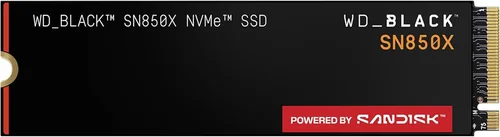
Mid-Range ($90–$130): This is the sweet spot for most users. You’ll find DRAM-cached, TLC-based PCIe 4.0 drives with excellent real-world performance, strong endurance (600TBW+), and reliable firmware. Models like the Samsung 980 Pro, WD Black SN850X, and Crucial P5 Plus dominate this space. They handle gaming, content creation, and productivity with ease, offering the best balance of price and performance.
Premium ($140–$180): Aimed at enthusiasts and professionals, these drives often feature PCIe 5.0 support, advanced thermal solutions, and higher TBW ratings. While raw speed gains are marginal for most, the added headroom benefits sustained workloads like 8K video editing or large dataset processing. Only consider this tier if you have a compatible system and specific performance needs.
Luxury ($180+): These are niche products—often enterprise-grade drives repackaged for consumers or ultra-high-end models with exotic cooling. They offer diminishing returns for typical users. Unless you’re building a workstation or need absolute peak performance, this tier is overkill.
Expert Tips for Getting the Best Deal
- Buy during major sales events: Prices drop significantly during holidays and shopping festivals. Historical data shows the best deals occur in November (Black Friday/Cyber Monday) and July (Prime Day).
- Compare total cost of ownership: Factor in warranty length, endurance, and brand reliability—not just upfront price. A $100 drive with a 5-year warranty and 600TBW is better value than a $80 drive with 3 years and 300TBW.
- Check retailer return policies: Some stores offer extended return windows or free returns, reducing risk if the drive doesn’t perform as expected.
- Test before committing: Use benchmarking tools like CrystalDiskMark or AS SSD to verify real-world speeds match claims. Monitor temperatures and check for throttling under load.
- Consider refurbished or open-box deals: Reputable retailers like Best Buy or Newegg often sell certified refurbished SSDs at 15–25% off with full warranties.
- Don’t overlook smaller brands with proven track records: TeamGroup, Netac, and Silicon Power have delivered reliable drives in recent years. Read reviews before dismissing them.
- Register your drive immediately: This activates the warranty and ensures you receive firmware updates and support.
- Use price tracking tools: Set alerts for your desired model and buy when prices dip below average. Avoid impulse buys at full price.

Frequently Asked Questions
Q: Is a DRAM-less SSD bad for gaming?
A: Not necessarily. For most games, the difference in load times between DRAM-less and DRAM-cached SSDs is minimal—often just a few seconds. However, DRAM-less drives may struggle with texture streaming in open-world games or during large updates. If gaming is your priority, aim for a DRAM-equipped model in the mid-range tier.
Q: Can I use a PCIe 5.0 SSD in a PCIe 4.0 slot?
A: Yes, but it will run at PCIe 4.0 speeds. The drive is backward compatible, so you won’t damage anything. However, you won’t benefit from the higher bandwidth, making it a poor value choice unless you plan to upgrade your motherboard soon.
Q: How long will a 1TB NVMe SSD last?
A: With typical use (writing 50GB/day), a 600TBW drive should last over 30 years. Even heavy users (200GB/day) would take 8+ years to reach the limit. Real-world failure is more likely due to manufacturing defects or power surges than wear.
Q: Do I need a heatsink for my NVMe SSD?
A: It depends. In well-ventilated desktop cases, most drives run cool enough without one. But in laptops, small form factor PCs, or high-load scenarios (like video rendering), a heatsink prevents throttling. Some motherboards include M.2 heatsinks—check yours first.
Q: Are QLC SSDs reliable for daily use?
A: QLC drives are fine for read-heavy tasks like storing media or documents. But avoid them as your primary drive if you frequently install/uninstall software or work with large files. TLC remains the gold standard for mixed workloads.
Q: What’s the difference between NVMe and SATA SSDs?
A: NVMe uses the PCIe interface, offering 3–7x faster speeds than SATA SSDs. SATA is limited to ~550 MB/s, while NVMe drives exceed 3,500 MB/s. NVMe also reduces latency, making your system feel snappier.
Q: Can I clone my old SSD to a new NVMe drive?
A: Yes, using tools like Macrium Reflect, Acronis True Image, or manufacturer-specific software (e.g., Samsung Data Migration). Ensure the new drive is equal or larger in capacity.
Q: Why do some SSDs have lower speeds when nearly full?
A: SSDs need free space for wear leveling and garbage collection. When nearly full, performance can drop by 20–40%. Keep at least 10–15% of the drive free for optimal performance.
Q: Is it safe to buy SSDs from third-party sellers on Amazon?
A: Stick to sellers with high ratings and “ships from Amazon” or “sold by [brand]” labels. Avoid unknown sellers offering prices far below market—they may sell counterfeit or used drives.
Q: Do SSDs improve boot times?
A: Absolutely. Compared to HDDs, NVMe SSDs can reduce boot times from minutes to under 10 seconds. Even vs. SATA SSDs, NVMe offers noticeably faster system responsiveness.
Our Final Recommendations
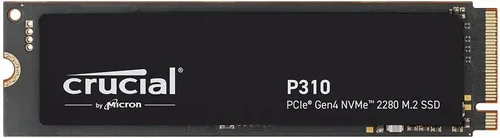
Best for Budget-Conscious Buyers: Crucial P3 1TB – At around $75, it delivers solid PCIe 3.0 performance with decent endurance. Ideal for upgrades or secondary storage. Lacks DRAM but handles everyday tasks well.
Best Overall Value: Samsung 980 Pro 1TB – Consistently tops performance charts with PCIe 4.0 speeds, excellent thermal management, and a 5-year warranty. Priced around $110, it’s the gold standard for balanced performance and reliability.
Best Premium Option: WD Black SN850X 1TB – Offers near-PCIe 5.0 performance on PCIe 4.0, superb random I/O, and robust software support. Great for gamers and creators who want top-tier speed without jumping to PCIe 5.0 pricing.
Best for Beginners: Kingston NV2 1TB – Simple, reliable, and affordable ($70–$80). Easy to install, compatible with most systems, and backed by Kingston’s solid support. Perfect for first-time upgraders.
Best for Advanced Users: SK hynix Platinum P41 1TB – Combines cutting-edge NAND, exceptional efficiency, and top-tier endurance. A favorite among tech enthusiasts for its consistency and low power draw, ideal for high-performance builds.
Conclusion: Making the Right Choice
Choosing the best value 1TB M.2 NVMe SSD in 2026 isn’t about finding the fastest or cheapest drive—it’s about matching your specific needs, budget, and use case to a product that delivers reliable, consistent performance over time. We’ve covered the critical factors: from understanding performance specs and endurance ratings to avoiding common pitfalls like thermal throttling or compatibility issues. We’ve broken down price tiers, highlighted expert tips for smart shopping, and answered the most pressing questions real users face.
Remember, value isn’t just price—it’s the total package of speed, durability, support, and peace of mind. For most people, a mid-range PCIe 4.0 drive with DRAM cache and a 5-year warranty offers the ideal balance. Gamers, creators, and power users should prioritize sustained performance and thermal design, while budget builders can safely opt for proven entry-level models without sacrificing too much real-world speed.
Ultimately, the right SSD will make your system feel faster, more responsive, and more capable—whether you’re launching a game, editing a video, or simply booting up your PC. Take the time to assess your needs, read real reviews, and buy from trusted sources. And when you do upgrade, you’ll wonder how you ever lived without the speed and reliability of modern NVMe storage. Your future self—and your files—will thank you.