
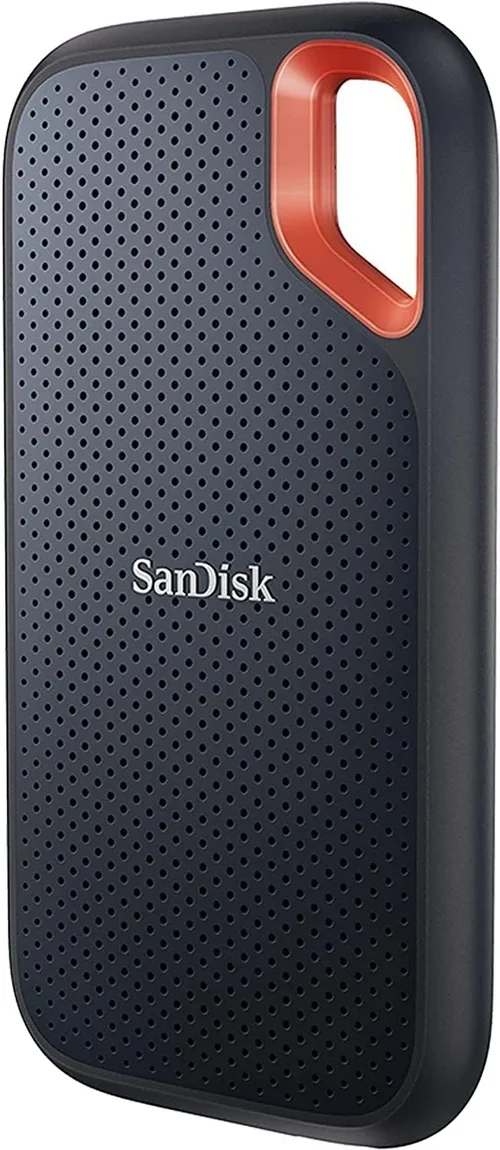
The solid-state drive (SSD) has revolutionized personal computing over the past decade, transforming sluggish boot times and laggy file transfers into near-instantaneous experiences. As we move through 2026, SSDs are no longer a luxury upgrade—they’re a necessity for anyone serious about performance, whether you’re a gamer, content creator, student, or business professional. With the rapid evolution of storage technology, choosing the right SSD can feel overwhelming. New form factors, interface standards, NAND types, and controller architectures emerge constantly, making it difficult to know what truly matters when making a purchase. That’s where this guide comes in.
In this comprehensive SSD buying guide, you’ll learn exactly how to cut through the marketing noise and make an informed decision based on your specific needs. We’ll break down the key technical specifications that impact real-world performance, explain the differences between SATA, NVMe, and PCIe Gen5 drives, and help you understand which features are worth paying for—and which are just hype. Whether you’re building a high-end gaming rig, upgrading an aging laptop, or setting up a workstation for video editing, this guide will equip you with the knowledge to choose the best SSD for your use case. We’ll also cover budget considerations, common pitfalls to avoid, and expert tips to get the most value from your investment.
The SSD market in 2026 is more competitive than ever. Major manufacturers like Samsung, Western Digital, Crucial, Kingston, and SK Hynix continue to push the boundaries of speed and reliability, while newer players like Phison-powered brands and Chinese OEMs offer compelling alternatives at lower price points. At the same time, advancements in 3D NAND stacking, QLC/PLC memory, and DRAM-less designs have created a wider range of options than ever before. With prices steadily declining and capacities increasing, there’s never been a better time to upgrade—or to invest in your first SSD. But with so many choices, knowing where to start is half the battle. This guide will walk you through every critical decision point, ensuring you end up with a drive that delivers both performance and longevity.

What to Look for When Buying Buying Guide
1. Interface and Form Factor
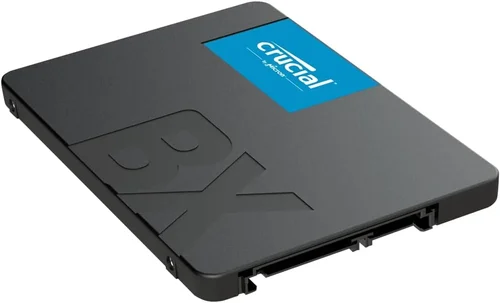
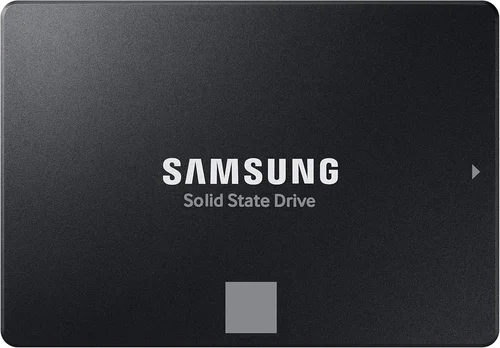
The interface and form factor of an SSD determine how it connects to your system and what kind of performance it can deliver. The two most common interfaces today are SATA and NVMe (Non-Volatile Memory Express), each with distinct advantages and limitations. SATA SSDs use the same connection as traditional hard drives and are limited to around 550 MB/s in sequential read/write speeds. They typically come in the 2.5-inch form factor, making them ideal for older laptops or desktops with limited M.2 slots. While SATA drives are slower than their NVMe counterparts, they remain a reliable and cost-effective option for general use, such as web browsing, office work, or light multitasking.
NVMe SSDs, on the other hand, connect directly to the motherboard via the PCIe (Peripheral Component Interconnect Express) bus, bypassing the SATA bottleneck and enabling dramatically faster data transfer rates. In 2026, NVMe drives using PCIe Gen4 are the mainstream standard, with sequential read speeds commonly reaching 7,000 MB/s or more. PCIe Gen5 drives are now entering the consumer market, offering speeds up to 14,000 MB/s—ideal for professionals working with 8K video, large datasets, or high-FPS gaming. NVMe drives typically use the M.2 form factor, a compact, stick-like design that saves space and reduces cable clutter. When choosing an SSD, always verify your system’s compatibility: older motherboards may only support SATA or PCIe Gen3, while newer ones may offer multiple M.2 slots with Gen4 or Gen5 support.
2. NAND Flash Type
NAND flash memory is the core technology behind SSD storage, and the type of NAND used significantly impacts performance, endurance, and cost. In 2026, the most common types are TLC (Triple-Level Cell), QLC (Quad-Level Cell), and, to a lesser extent, PLC (Penta-Level Cell). TLC NAND stores three bits of data per cell and offers the best balance of speed, durability, and price. It’s used in most mid-to-high-end consumer SSDs and is ideal for everyday computing, gaming, and content creation. TLC drives typically have longer lifespans and better sustained write performance, especially under heavy workloads.
QLC NAND stores four bits per cell, allowing for higher storage densities and lower production costs. This makes QLC SSDs more affordable per gigabyte, often enabling 4TB or 8TB drives at competitive prices. However, QLC drives generally have slower write speeds, especially when the drive is nearly full, and lower endurance ratings (measured in terabytes written, or TBW). They’re best suited for read-heavy tasks like media storage, backups, or secondary drives. PLC NAND, which stores five bits per cell, is still emerging in 2026 and offers even greater density but with further trade-offs in speed and longevity. For most users, TLC remains the gold standard, while QLC is a viable option for budget builds or bulk storage needs.
3. DRAM Cache
One of the most overlooked yet critical components of an SSD is the DRAM cache. DRAM (Dynamic Random-Access Memory) acts as a high-speed buffer between the NAND flash and the host system, storing the flash translation layer (FTL) map that tracks where data is physically located on the drive. SSDs with a dedicated DRAM cache deliver significantly better performance, especially during random read/write operations and sustained workloads. They also tend to have longer lifespans because the FTL map is updated more efficiently, reducing wear on the NAND cells.
In contrast, DRAM-less SSDs omit this component to reduce cost and power consumption. While modern DRAM-less drives use Host Memory Buffer (HMB) technology to borrow system RAM for mapping, they still lag behind DRAM-equipped models in performance consistency. For example, a DRAM-less QLC drive may experience severe slowdowns when writing large files or running multiple applications simultaneously. If you’re using your SSD as a boot drive or for active workloads like gaming or video editing, a DRAM cache is highly recommended. However, for secondary storage or infrequent use, a DRAM-less drive may suffice—just be aware of the performance trade-offs.
4. Sequential and Random Performance
When evaluating SSD performance, manufacturers often highlight sequential read and write speeds—measured in megabytes per second (MB/s)—which reflect how quickly large files like videos or game installations can be transferred. For PCIe Gen4 NVMe drives, sequential reads of 7,000 MB/s and writes of 6,500 MB/s are common, while Gen5 drives can exceed 12,000 MB/s. These numbers are impressive, but they don’t tell the whole story. Real-world performance also depends on random read/write speeds, measured in input/output operations per second (IOPS). Random performance affects how quickly your system can access small, scattered files—such as loading game assets, opening applications, or multitasking.
For example, a drive with high sequential speeds but poor random performance may struggle when launching multiple programs at once or running a database. Look for SSDs that offer strong IOPS ratings, especially in the 4K random read/write categories. A good rule of thumb is to aim for at least 500,000 IOPS for random reads and 400,000 IOPS for random writes in a high-performance drive. While sequential speeds matter for large file transfers, random performance often has a greater impact on everyday responsiveness. Always check independent benchmarks from trusted sources like Tom’s Hardware, AnandTech, or StorageReview to get a complete picture of real-world performance.
5. Endurance and TBW Rating
SSD endurance refers to how much data can be written to the drive over its lifetime before it’s likely to fail. This is typically measured in terabytes written (TBW)—for example, a 1TB SSD with a 600 TBW rating can theoretically write 600 terabytes of data before reaching its endurance limit. Endurance is directly tied to the type of NAND used: TLC drives generally offer higher TBW ratings than QLC or PLC drives of the same capacity. For instance, a 1TB TLC SSD might have a 600 TBW rating, while a 1TB QLC SSD might only offer 200–300 TBW.
While most consumers will never reach these limits under normal use (writing 100GB per day would take over 16 years to hit 600 TBW), endurance becomes critical for professionals who frequently transfer large files, run virtual machines, or use their SSD for caching. Additionally, higher endurance often correlates with better build quality and more robust controllers. When comparing drives, always check the TBW rating and warranty terms. A longer warranty (5 years is standard for premium drives) usually indicates higher confidence in the drive’s longevity. For heavy workloads, prioritize drives with high TBW ratings and robust power-loss protection.
6. Brand Reputation and Reliability
Not all SSDs are created equal, and brand reputation plays a significant role in long-term reliability and customer support. Established brands like Samsung, Western Digital, Crucial, and Kingston have a proven track record of delivering high-quality drives with consistent performance and strong warranties. Samsung, for example, is known for its excellent firmware optimization and industry-leading endurance, while Western Digital offers a wide range of options from budget-friendly to enterprise-grade. These brands also tend to provide better software tools for monitoring drive health, updating firmware, and performing secure erases.
On the other hand, lesser-known or generic brands may offer lower prices but often cut corners on components, firmware, or quality control. Some may use inferior NAND or controllers that lead to early failure or performance degradation. While it’s tempting to save money, investing in a reputable brand can save you from data loss, system crashes, or the hassle of replacing a failed drive. Always check user reviews and professional benchmarks to verify real-world reliability. A drive that performs well in synthetic tests but fails prematurely in the field is not a good value, no matter how cheap it is.
7. Warranty and Support
A strong warranty is a key indicator of an SSD’s expected lifespan and the manufacturer’s confidence in its product. Most premium SSDs come with a 5-year limited warranty, which typically covers defects and premature failure. Some high-end models, especially those aimed at professionals, may offer 6- or even 7-year warranties. The warranty often includes a TBW limit—meaning the drive is covered only if it fails before reaching its rated endurance. For example, a drive with a 600 TBW rating and a 5-year warranty is protected as long as it fails within that time or before writing 600TB, whichever comes first.
Customer support is another important factor. Reputable brands usually offer responsive support via email, phone, or live chat, along with detailed FAQs and troubleshooting guides. Some also provide data recovery services or expedited replacement programs. When comparing drives, check the warranty terms carefully: some brands require registration, while others may void the warranty if the drive is used in certain environments (e.g., industrial applications). A longer warranty with good support can provide peace of mind, especially if you’re storing critical data or using the drive in a mission-critical system.
8. Price per Gigabyte and Value
Price is often the deciding factor for many buyers, but it’s important to evaluate value rather than just the upfront cost. The price per gigabyte (GB) gives a clearer picture of how much you’re paying for storage. As of 2026, SATA SSDs typically range from $0.08 to $0.12 per GB, while NVMe Gen4 drives fall between $0.10 and $0.18 per GB. PCIe Gen5 drives are still premium products, often costing $0.20 or more per GB. QLC drives tend to be the cheapest per GB, while TLC and MLC (Multi-Level Cell) drives command a premium.
However, the cheapest option isn’t always the best value. A low-cost DRAM-less QLC drive may save you $20 upfront but could cost you in performance, longevity, or reliability down the line. Consider your usage patterns: if you need fast boot times and responsive multitasking, investing in a higher-quality TLC NVMe drive is worth the extra cost. Conversely, if you’re buying a secondary drive for backups or media storage, a budget QLC SATA SSD may be perfectly adequate. Always balance price with performance, endurance, and brand reputation to get the best long-term value.
Different Types of Buying Guide

Common Buying Mistakes to Avoid
❌ Mistake: Ignoring Your System’s Compatibility
Why it’s bad: Buying a high-end PCIe Gen5 NVMe SSD for a laptop that only supports SATA will result in a drive that doesn’t fit or function at all. Even within NVMe, some older motherboards only support Gen3, limiting the performance of a Gen4 or Gen5 drive. This leads to wasted money and frustration.
What to do instead: Always check your device’s specifications before purchasing. Look up your laptop model or motherboard manual to confirm supported interfaces (SATA, NVMe), form factors (2.5″, M.2 2280), and PCIe generations. Use tools like CPU-Z or the manufacturer’s website to verify compatibility.
❌ Mistake: Prioritizing Speed Over Endurance
Why it’s bad: A drive with incredible sequential speeds but low TBW and poor random performance may fail prematurely under real-world workloads. This is especially true for QLC or DRAM-less drives marketed as “high-speed” but lacking in sustained performance.
What to do instead: Balance speed with endurance and reliability. For primary drives, choose TLC NAND with a DRAM cache and a TBW rating appropriate for your usage. Check professional reviews for real-world endurance tests, not just synthetic benchmarks.
❌ Mistake: Overlooking the Importance of DRAM
Why it’s bad: DRAM-less SSDs may seem like a bargain, but they often suffer from performance degradation during heavy writes or when the drive is nearly full. This can lead to slow boot times, laggy applications, and reduced lifespan.
What to do instead: Unless you’re on an extremely tight budget, opt for a drive with a dedicated DRAM cache. The performance and longevity benefits far outweigh the small cost difference, especially for boot drives or active workloads.
❌ Mistake: Buying Based Solely on Price
Why it’s bad: The cheapest SSD may use inferior components, lack firmware updates, or have poor customer support. A failed drive can result in data loss, system downtime, and the cost of recovery—far exceeding the initial savings.
What to do instead: Focus on value, not just price. Compare price per gigabyte, warranty length, TBW rating, and brand reputation. A slightly more expensive drive from a trusted brand often provides better long-term value.
❌ Mistake: Neglecting Firmware Updates
Why it’s bad: Firmware controls how the SSD manages data, wear leveling, and error correction. Outdated firmware can lead to performance issues, compatibility problems, or even data corruption.
What to do instead: Choose brands that provide regular firmware updates and easy-to-use tools for applying them. Samsung Magician, WD Dashboard, and Crucial Storage Executive are excellent examples of manufacturer utilities that keep your drive optimized.
❌ Mistake: Not Considering Future Needs
Why it’s bad: Buying a 256GB SSD in 2026 may seem sufficient now, but modern games, operating systems, and applications consume significant space. Running out of storage can slow down your system and limit functionality.
What to do instead: Plan for the future. For most users, a 1TB drive is the minimum recommended for a primary SSD. Gamers and creators should consider 2TB or larger. Cloud storage helps, but local speed and capacity are irreplaceable for performance.
❌ Mistake: Skipping Independent Reviews
Why it’s bad: Marketing materials often highlight peak performance under ideal conditions, which may not reflect real-world usage. Relying solely on specs can lead to disappointment.
What to do instead: Always consult independent reviews from trusted tech sites. Look for tests on sustained writes, thermal throttling, random performance, and real-world application load times. These insights reveal how a drive performs when it matters most.
Budget Guidelines: How Much Should You Spend?
– Entry-Level ($30 – $60): This range covers 500GB SATA SSDs or budget NVMe Gen3 drives. Ideal for upgrading older systems or adding secondary storage. Expect modest performance with TLC or QLC NAND, often DRAM-less. Best for light use like web browsing, office work, or media playback.
– Mid-Range ($60 – $120): The sweet spot for most buyers. Includes 1TB NVMe Gen4 drives with TLC NAND and DRAM cache. Offers excellent performance for gaming, multitasking, and content creation. Brands like Crucial, Kingston, and Western Digital offer great value here with strong warranties and reliability.
– Premium ($120 – $250): For enthusiasts and professionals. Features high-end NVMe Gen4 or early Gen5 drives with top-tier controllers, high TBW ratings, and advanced features like power-loss protection. Ideal for 4K/8K video editing, game development, or high-FPS gaming. Samsung 990 Pro and WD Black SN850X are standout options.
– Luxury ($250+): Top-tier performance with cutting-edge technology. Includes 2TB+ Gen5 NVMe drives, enterprise-grade endurance, and specialized firmware. Best for AI workloads, server applications, or users who demand the absolute fastest speeds. Expect prices above $0.25 per GB, but unmatched performance and longevity.
Expert Tips for Getting the Best Deal
– Buy During Major Sales Events: Retailers like Amazon, Newegg, and Best Offer significant discounts during holidays. Sign up for price alerts using tools like Honey or CamelCamelCamel to catch deals early.
– Check Manufacturer Refurbished Programs: Brands like Samsung and WD sell certified refurbished SSDs at 20-40% off with full warranties. These are often overstock or returned units that have been tested and repackaged.
– Compare Total Cost of Ownership: Factor in warranty length, expected lifespan, and performance. A $100 drive with a 5-year warranty and high TBW may be cheaper long-term than a $70 drive that fails in two years.
– Use Manufacturer Software: Tools like Samsung Magician or Crucial Storage Executive help monitor drive health, update firmware, and optimize performance—extending the life of your SSD.
– Consider Bundled Deals: Some retailers offer SSDs with free cloning software, enclosures, or installation kits. These can save time and money if you’re upgrading an existing system.
– Verify Return Policies: Ensure the seller offers a generous return window (30 days or more) in case the drive is defective or incompatible. Avoid third-party sellers with unclear policies.
– Test Before Committing: If possible, run benchmarks like CrystalDiskMark or AS SSD after installation to verify performance matches specifications. This helps catch counterfeit or underperforming drives early.
– Don’t Overbuy Capacity: While larger drives often have better performance and endurance, buying more storage than you need wastes money. Use cloud storage or external drives for archives.

Frequently Asked Questions
Q: Can I use an NVMe SSD in a SATA slot?
A: No. NVMe and SATA use different interfaces and protocols. An NVMe M.2 drive will not work in a SATA M.2 or 2.5″ SATA slot. However, some M.2 slots support both, so check your motherboard manual.
Q: Do I need a heatsink for my NVMe SSD?
A: High-performance NVMe Gen4 and Gen5 drives can get hot under load, potentially causing thermal throttling. A heatsink helps maintain peak speeds, especially in small form-factor PCs or laptops with poor airflow. Many motherboards include built-in heatsinks.
Q: How long do SSDs last?
A: Most consumer SSDs last 5-10 years under normal use, depending on workload and TBW rating. Modern drives are highly reliable, and failure due to wear is rare. Power surges or physical damage are more common causes of failure.
Q: Should I defragment my SSD?
A: No. Defragmentation is unnecessary and harmful to SSDs, as it increases write cycles. Windows and macOS automatically optimize SSDs using TRIM, which maintains performance without wear.
Q: Can I recover data from a failed SSD?
A: It depends. Some data recovery services can retrieve data from failed SSDs, but success is not guaranteed and can be expensive. Regular backups are the best protection.
Q: Are external SSDs as fast as internal ones?
A: USB 3.2 Gen 2×2 and Thunderbolt 4 external SSDs can reach speeds up to 2,000 MB/s, rivaling internal SATA drives. However, they’re still slower than internal NVMe Gen4/Gen5 drives due to interface limitations.
Q: What’s the difference between M.2 2280 and 22110?
A: These refer to the physical dimensions of M.2 drives: 22mm wide and 80mm or 110mm long. Most consumer systems support 2280. 22110 drives are longer and typically used in workstations or servers.
Q: Is QLC NAND bad?
A: Not necessarily. QLC is fine for read-heavy tasks and secondary storage. Avoid using QLC as a primary drive for heavy writing. TLC remains the best all-around choice.
Q: Do SSDs improve gaming performance?
A: Yes, but mostly in load times and level streaming. Games load faster, and open-world titles stutter less. However, FPS (frames per second) is determined by your GPU and CPU, not storage.
Q: Can I install an SSD in an old computer?
A: Yes, as long as it has a SATA port or M.2 slot. Even older systems benefit greatly from an SSD upgrade, with faster boot times and snappier responsiveness.
Our Final Recommendations
– Best for Budget-Conscious Buyers: Crucial P3 1TB NVMe Gen3 – Offers excellent value with TLC NAND, DRAM cache, and 5-year warranty at under $70.
– Best Overall Value: Samsung 980 Pro 1TB – A proven performer with Gen4 speeds, high endurance, and Samsung’s reliable firmware. Ideal for gamers and creators.
– Best Premium Option: WD Black SN850X 2TB – Combines top-tier Gen4 performance, robust build quality, and excellent software support. Perfect for high-end builds.
– Best for Beginners: Kingston NV2 1TB – Simple, reliable, and affordable NVMe Gen4 drive with plug-and-play compatibility. Great first SSD upgrade.
– Best for Advanced Users: Sabrent Rocket 4 Plus-G 2TB – One of the first consumer Gen5 drives, delivering over 14,000 MB/s reads. For those who want cutting-edge speed and future-proofing.
Conclusion: Making the Right Choice
Choosing the best SSD in 2026 doesn’t have to be overwhelming. By focusing on your specific needs—whether that’s speed, capacity, budget, or compatibility—you can narrow down the options and make a confident decision. Remember that the “best” SSD isn’t always the fastest or most expensive; it’s the one that delivers the right balance of performance, reliability, and value for your use case. Prioritize TLC NAND, a DRAM cache, and a reputable brand, and always verify compatibility with your system.
As storage technology continues to evolve, SSDs will only become faster, cheaper, and more efficient. Whether you’re upgrading an old machine or building a new one, investing in a quality SSD is one of the most impactful improvements you can make. It transforms your entire computing experience—from lightning-fast boot times to seamless multitasking and rapid file access. Use the insights from this guide to navigate the market wisely, avoid common pitfalls, and select a drive that will serve you well for years to come.
Take the time to assess your needs, compare options, and read real-world reviews. Your data, your time, and your productivity are worth the investment. Upgrade smart, and enjoy the speed, reliability, and peace of mind that a great SSD brings.