
The solid-state drive (SSD) market has evolved dramatically over the past decade, transforming from a luxury upgrade into an essential component for modern computing. Whether you’re building a high-performance gaming rig, upgrading an aging laptop, or setting up a professional workstation, choosing the right SSD can make the difference between a sluggish system and one that boots in seconds, loads applications instantly, and handles large files with ease. With so many options available—spanning different form factors, interfaces, speeds, and price points—it’s easy to feel overwhelmed. That’s exactly why this comprehensive buying guide exists: to cut through the noise and help you make an informed decision based on your specific needs, budget, and use case.
In this guide, we’ll walk you through every critical aspect of SSD selection, from understanding technical specifications like NAND type and controller quality to comparing real-world performance across consumer and professional workloads. You’ll learn how to evaluate endurance ratings, interpret warranty terms, avoid common pitfalls, and identify when paying more actually delivers meaningful value. We’ll also break down the differences between SATA, NVMe PCIe 3.0, PCIe 4.0, and the emerging PCIe 5.0 standards, so you know which interface matches your system’s capabilities. By the end, you’ll have the confidence to choose not just a good SSD—but the best SSD for your setup.
The SSD landscape in 2026 is more diverse and competitive than ever. Major manufacturers like Samsung, Western Digital, Crucial, Kingston, SK Hynix, and Sabrent continue to push the boundaries of speed and reliability, while newer entrants and value-focused brands offer compelling alternatives at lower price points. Meanwhile, advancements in 3D NAND stacking, QLC and TLC memory technologies, and intelligent caching algorithms have made high-capacity, high-performance drives accessible to mainstream users. Whether you’re looking for a budget-friendly 1TB drive for everyday tasks or a blazing-fast 4TB NVMe drive for 8K video editing, this guide will equip you with the knowledge to navigate the options wisely.

What to Look for When Buying an SSD
1. Interface and Form Factor
The interface determines how your SSD connects to your motherboard and directly impacts its maximum potential speed. The two dominant interfaces today are SATA and NVMe (Non-Volatile Memory Express), with NVMe further divided into PCIe generations.
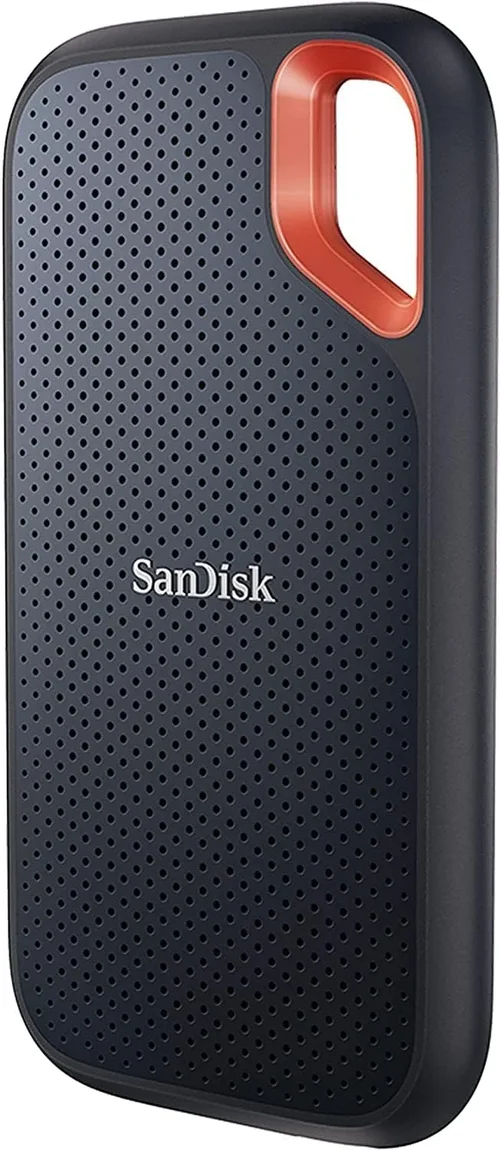
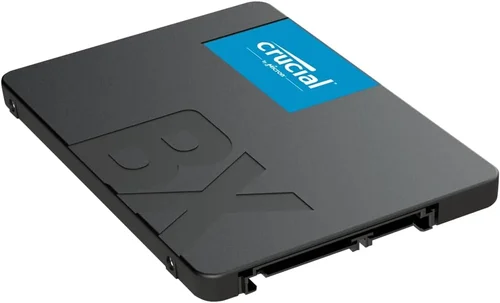
SATA SSDs use the same connector as traditional hard drives and are limited to around 550 MB/s due to the SATA III bottleneck. They come in 2.5-inch form factors and are ideal for older systems or budget builds where compatibility is key. However, they’re increasingly being phased out in favor of faster NVMe options.
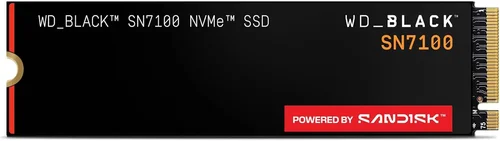
NVMe SSDs connect via the M.2 slot on modern motherboards and communicate directly over the PCIe bus, enabling significantly higher speeds. PCIe 3.0 drives typically reach up to 3,500 MB/s, while PCIe 4.0 models can hit 7,000 MB/s or more. PCIe 5.0 drives, now widely available in 2026, push beyond 12,000 MB/s—though real-world gains depend heavily on workload and system support. Most NVMe SSDs use the M.2 2280 form factor (22mm wide, 80mm long), which fits most laptops and desktops. Always verify your motherboard or laptop supports the interface and form factor before purchasing.
2. NAND Flash Type
NAND flash memory is the core storage technology inside every SSD, and its type affects speed, endurance, cost, and longevity. The main types are SLC, MLC, TLC, and QLC.
SLC (Single-Level Cell) stores one bit per cell and offers the highest endurance and speed but is prohibitively expensive for consumer use. MLC (Multi-Level Cell) stores two bits per cell and strikes a balance between performance and cost, though it’s mostly found in enterprise drives today.
TLC (Triple-Level Cell) stores three bits per cell and dominates the consumer market. Modern TLC SSDs use advanced error correction and wear-leveling algorithms to deliver excellent reliability for everyday use. QLC (Quad-Level Cell) stores four bits per cell, allowing for higher capacities at lower prices, but with reduced write endurance and slower sustained write speeds.
For most users, TLC is the sweet spot—offering great performance, decent endurance, and reasonable pricing. QLC drives are acceptable for secondary storage or light workloads but may struggle under heavy write loads like video editing or database operations. Always check the drive’s TBW (Terabytes Written) rating to gauge endurance.
3. Performance Specifications
When comparing SSDs, look beyond marketing claims and focus on real-world metrics: sequential read/write speeds, random read/write IOPS (Input/Output Operations Per Second), and sustained performance under load.
Sequential speeds matter most for large file transfers—like copying videos or loading game assets. Random IOPS are crucial for multitasking, boot times, and application responsiveness. A drive might advertise 7,000 MB/s reads, but if it throttles after 30 seconds due to poor thermal management, that speed is meaningless in practice.
Also consider DRAM cache: SSDs with dedicated DRAM buffers maintain consistent performance during mixed workloads and improve longevity by reducing write amplification. DRAM-less SSDs are cheaper but can suffer from performance drops during heavy use.
Use synthetic benchmarks like CrystalDiskMark or real-world tests like PCMark 10 Storage to compare drives. Remember, peak speeds are impressive, but sustained performance under typical usage matters more for daily computing.
4. Capacity and Use Case Alignment
SSD capacity should match your storage needs without overspending on unused space. Common capacities range from 250GB to 8TB, with 1TB and 2TB being the most popular for mainstream users.
A 250GB–500GB SSD is suitable for basic tasks like web browsing, office work, and light gaming—but fills up quickly if you install multiple games or store media. For most users, 1TB is the practical minimum in 2026, offering enough room for the OS, essential apps, and several large games or projects.
Creative professionals working with 4K/8K video, 3D models, or RAW photos should consider 2TB or larger. Gamers with extensive libraries may also benefit from 2TB+, especially as modern titles regularly exceed 100GB each.
Avoid buying the smallest capacity just to save money—low-capacity SSDs often have fewer NAND chips, which can reduce parallelism and hurt performance. Additionally, SSDs perform best when they have 10–20% free space for garbage collection and wear leveling.
5. Endurance and TBW Rating
Endurance measures how much data you can write to an SSD over its lifetime, typically expressed in TBW (Terabytes Written). For example, a 1TB Samsung 990 Pro has a 600 TBW rating, meaning you could write 600TB total before hitting the warranty limit.
While most users will never reach these limits—even heavy users might only write 50–100TB over five years—TBW is a useful indicator of build quality and intended use case. Enterprise drives have much higher TBW ratings than consumer models.
Don’t panic if you’re a heavy writer (e.g., video editor or database admin)—just choose a drive with a robust TBW and consider models designed for sustained workloads, such as those with SLC caching or power-loss protection.
6. Brand Reputation and Reliability
Not all SSDs are created equal, even if they share similar specs. Reputable brands invest in quality controllers, firmware optimization, and rigorous testing. Samsung, Western Digital, Crucial (Micron), and SK Hynix consistently rank highest in independent reliability studies.
Avoid no-name or ultra-budget brands that cut corners on components or firmware. A cheap SSD might work fine initially but could fail prematurely or suffer from data corruption due to poor error handling.
Check professional reviews from trusted sources like Tom’s Hardware, AnandTech, or StorageReview, which conduct long-term testing and failure analysis. User reviews on retail sites can also reveal real-world issues like sudden disconnects or firmware bugs.
7. Warranty and Support
A strong warranty reflects manufacturer confidence in their product. Most premium SSDs come with 5-year limited warranties, often tied to TBW limits (e.g., “5 years or 600 TBW, whichever comes first”).
Pay attention to what the warranty covers: some exclude accidental damage or require registration. Also, check if the brand offers data recovery services or expedited replacement—valuable if you lose critical files.
Customer support responsiveness varies widely. Samsung and Crucial offer excellent support, while some budget brands provide minimal assistance. If you’re buying for a business or mission-critical system, prioritize brands with proven support infrastructure.
8. Thermal Management and Throttling
High-speed NVMe SSDs generate significant heat, especially PCIe 4.0 and 5.0 models. Without proper cooling, they throttle performance to prevent damage, negating their speed advantages.
Many premium drives include built-in heat spreaders or thermal pads. For desktops, consider adding an M.2 heatsink—especially if your case has poor airflow. Laptops often rely on the chassis for cooling, so check reviews for thermal performance under load.
PCIe 5.0 drives are particularly prone to overheating; some require active cooling in sustained workloads. If you’re building a compact system or using a laptop, ensure adequate ventilation or opt for a drive with efficient thermal design.
Different Types of SSDs

Common Buying Mistakes to Avoid
❌ Mistake: Ignoring Your System’s Compatibility
Why it’s bad: Buying a PCIe 5.0 SSD for a motherboard that only supports PCIe 3.0 wastes money—the drive will run at reduced speeds. Similarly, installing an M.2 drive in a laptop without an M.2 slot is impossible.
What to do instead: Check your motherboard or laptop manual for supported interfaces and form factors. Use tools like CPU-Z or manufacturer specs to confirm PCIe generation and M.2 keying (B-key vs. M-key).
❌ Mistake: Prioritizing Peak Speed Over Real-World Performance
Why it’s bad: A drive advertised as “12,000 MB/s” may only sustain that speed for a few seconds before throttling due to heat or cache exhaustion. In daily use, you’ll rarely notice the difference between 3,500 MB/s and 7,000 MB/s.
What to do instead: Focus on consistent performance, low latency, and strong random IOPS. Look for reviews that test sustained workloads, not just synthetic benchmarks.
❌ Mistake: Choosing QLC for Primary Drive in Heavy Workloads
Why it’s bad: QLC drives have slower write speeds and lower endurance. Using one as your OS drive for video editing or software development can lead to frustrating slowdowns and premature wear.
What to do instead: Use QLC for secondary storage (e.g., game libraries or media archives) and stick with TLC for your primary drive. If budget allows, opt for DRAM-equipped TLC models.
❌ Mistake: Overlooking Thermal Throttling in Compact Systems
Why it’s bad: In small-form-factor PCs or thin laptops, high-speed NVMe drives can overheat and throttle, reducing performance to SATA levels or worse.
What to do instead: Choose drives with built-in heat spreaders or add aftermarket M.2 heatsinks. Monitor temperatures using tools like HWiNFO or CrystalDiskInfo.
❌ Mistake: Skipping Firmware Updates
Why it’s bad: Manufacturers release firmware updates to fix bugs, improve stability, and enhance performance. Ignoring them leaves your drive vulnerable to known issues.
What to do instead: Register your SSD with the manufacturer and periodically check for firmware updates. Use official tools (e.g., Samsung Magician, WD Dashboard) for safe updates.
❌ Mistake: Buying Based Solely on Price
Why it’s bad: The cheapest SSD often uses inferior components, lacks DRAM, or has poor firmware—leading to crashes, data loss, or early failure.
What to do instead: Balance cost with reputation, warranty, and real-world reviews. A slightly more expensive drive from a trusted brand usually pays off in reliability.
❌ Mistake: Not Backing Up Before Installation
Why it’s bad: Cloning or fresh-installing an OS on a new SSD carries risks. Without a backup, a failed clone or installation error could mean data loss.
What to do instead: Always create a full system image or backup critical files before swapping drives. Use reliable cloning software like Macrium Reflect or Acronis True Image.
Budget Guidelines: How Much Should You Spend?
Entry-Level ($30–$60 for 1TB):
This tier includes SATA SSDs and budget NVMe PCIe 3.0 drives. Expect TLC NAND, basic controllers, and modest performance (up to 3,500 MB/s for NVMe). Ideal for upgrading old systems or light daily use. Brands like Kingston NV2 or Crucial P3 offer solid value here.
Mid-Range ($60–$100 for 1TB):
The sweet spot for most users. You’ll find high-quality PCIe 3.0 and entry-level PCIe 4.0 drives with DRAM, strong endurance, and reliable performance. Examples include the Samsung 980 (non-Pro), WD Black SN770, and Crucial P5 Plus. Perfect for gaming, productivity, and general computing.
Premium ($100–$200 for 1TB):
Targeted at enthusiasts and professionals. These drives feature PCIe 4.0 or 5.0 interfaces, advanced controllers, large DRAM caches, and excellent thermal management. Models like the Samsung 990 Pro, WD Black SN850X, and Sabrent Rocket 4 Plus deliver top-tier speeds and consistency for demanding workloads.
Luxury ($200+ for 1TB):
Reserved for extreme use cases—8K video editing, AI training, or enterprise applications. Expect PCIe 5.0 speeds, massive endurance ratings (1,200+ TBW), and sometimes hardware encryption or power-loss protection. Drives like the SK Hynix Platinum P41 or Corsair MP700 Pro are in this category. Only necessary if your workflow justifies the cost.
Expert Tips for Getting the Best Deal
– Buy during seasonal sales: SSD prices drop significantly during holiday periods. Black Friday, Cyber Monday, and Amazon Prime Day often feature 20–40% discounts on premium models.
– Compare retailers: Don’t limit yourself to one store. Check Newegg, Amazon, Best Buy, B&H, and direct manufacturer sites. Sometimes, buying directly from Samsung or WD includes extended warranties or bundled software.
– Watch for open-box or refurbished deals: Certified refurbished SSDs from reputable sellers often come with full warranties and can save you 15–30%. Just ensure they’re factory-refurbished, not customer returns.
– Prioritize warranty over minor spec differences: A drive with a 5-year warranty and slightly lower speed is often a better long-term investment than a faster drive with only 3 years of coverage.
– Check return policies: Some retailers offer 30–60 day return windows. Use this time to test the drive’s performance and compatibility with your system.
– Use benchmarking tools post-installation: Run CrystalDiskMark or AS SSD Benchmark to verify the drive meets advertised speeds. If performance is far below expectations, contact support—it could indicate a defective unit.
– Consider future-proofing: If you plan to upgrade your CPU/motherboard soon, investing in a PCIe 4.0 or 5.0 drive now avoids needing another upgrade later.
– Don’t forget the little things: Some drives include cloning software, mounting screws, or USB enclosures. These extras add value, especially for first-time upgraders.

Frequently Asked Questions
Q: Can I use an NVMe SSD in a SATA-only slot?
A: No. NVMe and SATA use different protocols and physical connectors. An NVMe M.2 drive will not work in a SATA M.2 slot, and vice versa. Always check your motherboard’s specifications.
Q: Is a larger SSD faster?
A: Generally, yes—up to a point. Larger SSDs have more NAND chips, enabling greater parallelism and better performance, especially in writes. A 2TB drive often outperforms a 500GB model of the same series.
Q: Do I need a heatsink for my M.2 SSD?
A: It depends. In well-ventilated desktop cases, many PCIe 4.0 drives run fine without one. But in compact builds, laptops, or for PCIe 5.0 drives, a heatsink is strongly recommended to prevent throttling.
Q: How long do SSDs last?
A: Most consumer SSDs last 5–10 years under normal use. Modern drives have wear-leveling and over-provisioning to extend lifespan. The TBW rating gives a concrete estimate—most users won’t exceed it.
Q: Can I recover data from a failed SSD?
A: It’s possible but difficult and expensive. Unlike HDDs, SSDs often fail suddenly with no warning. Regular backups are essential. Professional recovery services exist but can cost hundreds of dollars.
Q: Should I enable TRIM?
A: Yes. TRIM helps maintain SSD performance by informing the drive which blocks are no longer in use. It’s enabled by default in Windows 10/11, macOS, and modern Linux distributions.
Q: Are external SSDs as fast as internal ones?
A: Not always. USB 3.2 Gen 2 (10 Gbps) caps at ~1,000 MB/s, while Thunderbolt 3/4 can reach 2,800 MB/s. For maximum speed, use a Thunderbolt-enabled external SSD with a PCIe 4.0 internal drive.
Q: Can I install games on a secondary SSD?
A: Absolutely. Steam, Epic, and other platforms let you choose installation directories. Just ensure the drive has enough free space and decent speed—NVMe is ideal, but SATA is fine for most games.
Q: What’s the difference between DRAM and DRAM-less SSDs?
A: DRAM-equipped SSDs have a dedicated memory chip to map data locations, improving speed and longevity. DRAM-less drives use system RAM (HMB) or slower methods, which can cause performance drops under load.
Q: Is PCIe 5.0 worth it in 2026?
A: For most users, no—yet. While PCIe 5.0 offers incredible speeds, real-world benefits are minimal unless you’re transferring multi-gigabyte files constantly or working with uncompressed 8K video. PCIe 4.0 remains the best balance of speed, price, and compatibility.
Our Final Recommendations
Best for Budget-Conscious Buyers:
Crucial P3 1TB (PCIe 3.0 NVMe) – Offers excellent value with TLC NAND, DRAM, and reliable performance under $60. Perfect for upgrading older systems or building a budget PC.
Best Overall Value:
Samsung 980 1TB (PCIe 3.0 NVMe) – Combines Samsung’s renowned reliability, strong random performance, and competitive pricing. Ideal for everyday users who want quality without overspending.
Best Premium Option:
Samsung 990 Pro 2TB (PCIe 4.0 NVMe) – Top-tier performance, exceptional endurance (1,200 TBW), and efficient thermal design. The go-to choice for gamers, creators, and power users.
Best for Beginners:
WD Blue SN580 1TB (PCIe 4.0 NVMe) – Easy to install, includes cloning software, and delivers smooth performance for first-time upgraders. Great balance of simplicity and capability.
Best for Advanced Users:
SK Hynix Platinum P41 2TB (PCIe 4.0 NVMe) – Consistently ranks #1 in performance benchmarks, with best-in-class efficiency and endurance. Ideal for professionals needing uncompromising speed and reliability.
Conclusion: Making the Right Choice
Choosing the best SSD isn’t about finding the fastest or most expensive drive—it’s about matching the right technology to your specific needs, system capabilities, and budget. Whether you’re breathing new life into an old laptop with a SATA upgrade or building a cutting-edge workstation with PCIe 5.0 storage, the principles outlined in this guide will help you avoid costly mistakes and maximize your investment.
Remember: prioritize compatibility first, then align capacity and performance with your use case. Don’t overlook endurance, warranty, and thermal considerations—they’re just as important as raw speed. And always back up your data before making any hardware changes.
The SSD market in 2026 offers something for everyone, from ultra-affordable entry-level options to bleeding-edge drives that push the limits of what’s possible. By applying the insights from this guide, you’ll be equipped to make a confident, informed decision that delivers lasting performance and peace of mind. Now go forth—upgrade wisely, and enjoy the instant responsiveness that only a great SSD can provide.