
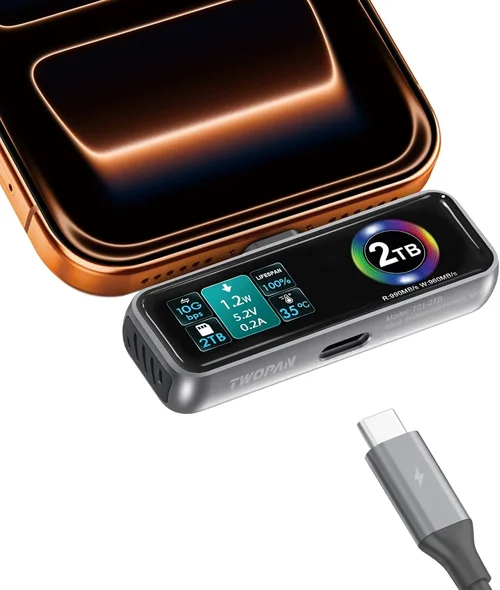
When it comes to creative work on a Mac—whether you’re editing 4K video in Final Cut Pro, retouching high-resolution images in Photoshop, or rendering complex 3D models in Blender—your system’s performance can make or break your workflow. One often-overlooked but critical component that dramatically impacts responsiveness and speed is the scratch disk. Unlike your primary boot drive, a scratch disk acts as a temporary workspace for memory-intensive applications, handling overflow data when your RAM is maxed out. For professionals and power users, investing in a high-performance SSD scratch disk isn’t just a luxury—it’s a necessity.
This guide is designed to cut through the noise and help you make an informed decision. Whether you’re a freelance photographer, a video editor working on tight deadlines, or a hobbyist pushing your Mac to its limits, choosing the right SSD scratch disk can mean the difference between smooth multitasking and constant lag. We’ll walk you through everything you need to know: from understanding what a scratch disk actually does, to comparing different types of SSDs, avoiding common pitfalls, and finding the best value for your budget. By the end of this guide, you’ll have a clear roadmap to select the ideal SSD scratch disk that aligns with your workflow, performance needs, and financial constraints.
The market for external SSDs has exploded in recent years, with dozens of brands offering drives that promise blazing-fast speeds, rugged durability, and sleek designs. But not all SSDs are created equal—especially when it comes to sustained performance under heavy loads. Some drives excel in burst speeds but throttle under prolonged use, while others offer consistent throughput but come at a steep price. Add in compatibility concerns with macOS, varying interface standards (USB-C, Thunderbolt, NVMe), and the growing demand for portability, and it’s easy to feel overwhelmed. This guide demystifies the process, equipping you with expert-level insights to navigate the landscape confidently.

What to Look for When Buying Buying Guide
1. Performance Specifications
Performance is the cornerstone of any SSD scratch disk. When evaluating speed, look beyond just the advertised “up to” read/write numbers. Real-world performance depends on sustained transfer rates, especially during long editing sessions or large file exports. For scratch disk use, consistency matters more than peak bursts. Aim for drives with sustained write speeds of at least 500 MB/s, though 1,000 MB/s or higher is ideal for 4K/6K video workflows. Interface type plays a huge role here: USB 3.2 Gen 2 (10 Gbps) supports up to ~1,000 MB/s, while Thunderbolt 3/4 (40 Gbps) can deliver over 2,800 MB/s. NVMe-based SSDs generally outperform SATA-based ones, so prioritize NVMe if your Mac supports it.
2. Interface & Compatibility
Your Mac’s available ports dictate which SSDs will work best. Most modern Macs feature USB-C with support for USB 3.2 Gen 2 or Thunderbolt 3/4. Thunderbolt offers significantly higher bandwidth and lower latency, making it the gold standard for professional scratch disks. However, Thunderbolt drives are more expensive. Ensure the drive you choose matches your Mac’s capabilities—using a Thunderbolt SSD on a USB-only Mac won’t unlock its full potential. Also, verify macOS compatibility: some drives require specific formatting (APFS or exFAT) to work seamlessly with macOS, especially when sharing files with Windows systems.
3. Capacity Requirements
Scratch disks need ample space to handle temporary files, cache, and project backups. A 500GB drive might suffice for light photo editing, but video editors should consider 1TB or larger. High-resolution projects can consume hundreds of gigabytes quickly—imagine working with 8K RAW footage where a single minute can exceed 10GB. Additionally, SSDs perform best when they’re not nearly full; maintaining at least 10–20% free space helps preserve speed and longevity. If you frequently work with large assets, opt for 2TB or 4TB models. Remember, you can always use multiple smaller drives for different projects, but a single large-capacity drive simplifies management.
4. Build Quality & Durability
Since scratch disks are often moved between workstations or used on location, physical robustness is crucial. Look for drives with aluminum enclosures that dissipate heat effectively and provide shock resistance. Some premium models are even rated for water and dust resistance (IP55 or higher), which is invaluable for field work. Avoid plastic-bodied drives if you plan to travel—they’re more prone to cracking under pressure. Heat management is another key factor: sustained high-speed writes generate heat, which can cause thermal throttling. Drives with built-in heat sinks or passive cooling designs maintain performance longer under load.
5. Brand Reputation & Reliability
Not all SSD manufacturers are equal in terms of reliability and firmware quality. Stick with established brands known for consistent performance and solid customer support. Samsung, SanDisk (Western Digital), Samsung T series, LaCie, and OWC (Other World Computing) have strong track records in the Mac ecosystem. Avoid no-name or ultra-budget brands that may use lower-grade NAND flash or lack proper error correction. Reliability directly affects data integrity—corrupted scratch files can crash your editing software or corrupt projects. Reading long-term user reviews and professional benchmarks (like those from Puget Systems or Macworld) can reveal hidden issues like premature wear or inconsistent speeds.
6. Warranty & Support
A good warranty reflects the manufacturer’s confidence in their product. Most reputable SSDs come with 3- to 5-year limited warranties. Pay attention to whether the warranty covers both hardware failure and data recovery assistance—some premium brands offer expedited replacement or even data rescue services. Customer support responsiveness matters too; if your drive fails mid-project, you’ll want quick resolution. Check if the brand has local service centers or offers cross-shipping options. Also, verify that firmware updates are regularly released to fix bugs or improve compatibility with newer macOS versions.
7. Portability & Form Factor
If you work remotely or collaborate across locations, portability becomes a major consideration. Compact, pocket-sized SSDs like the Samsung T7 or SanDisk Extreme Pro are easy to carry and connect via short cables. However, larger drives with built-in cables (like the LaCie Rugged SSD Pro) reduce clutter but may be bulkier. Weight, thickness, and cable management all factor into daily usability. For studio-based users, a slightly larger desktop SSD with multiple ports (e.g., daisy-chaining via Thunderbolt) might be preferable. Consider how often you’ll move the drive and whether you need it to fit in a laptop bag or camera case.
8. Price-to-Performance Ratio
While it’s tempting to go for the cheapest option, scratch disks are a long-term investment. A poorly performing drive can bottleneck your entire system, costing you time and frustration. That said, you don’t need to overspend on features you won’t use. Evaluate the cost per gigabyte alongside performance metrics. For example, a $200 1TB Thunderbolt SSD offering 2,800 MB/s delivers better value than a $150 1TB USB 3.2 drive capped at 1,050 MB/s—if your workflow demands speed. Set a realistic budget based on your usage intensity and prioritize drives that offer the best balance of speed, capacity, and durability within that range.
Different Types of Buying Guide
Common Buying Mistakes to Avoid
❌ Mistake: Choosing Based Solely on Peak Speed Ratings
Why it’s bad: Many manufacturers advertise “up to” speeds that are only achievable in short bursts. Under sustained load—like exporting a 30-minute 4K timeline—many drives slow down significantly due to thermal throttling or cache exhaustion. Relying on peak numbers can lead to disappointment when real-world performance falls short.
What to do instead: Look for reviews that test sustained write performance over 10–30 minutes. Tools like Blackmagic Disk Speed Test or AJA System Test can simulate real workloads. Prioritize drives with consistent throughput, even if their peak speeds are slightly lower.
❌ Mistake: Ignoring Thermal Management
Why it’s bad: High-speed SSDs generate heat, and without proper cooling, they throttle performance to prevent damage. This results in inconsistent speeds and longer render times—exactly what you don’t want during a deadline crunch.
What to do instead: Choose drives with aluminum casings, built-in heat sinks, or active cooling (fans). Avoid enclosed plastic designs unless they’re specifically rated for sustained workloads. If using a portable drive heavily, consider a small USB-powered fan or cooling pad.
❌ Mistake: Overlooking File System Compatibility
Why it’s bad: Formatting your scratch disk incorrectly can cause compatibility issues. For example, using NTFS limits write access on macOS without third-party software, while HFS+ isn’t readable on Windows. This becomes problematic when collaborating across platforms.
What to do instead: Format your scratch disk as exFAT for cross-platform compatibility or APFS for optimal macOS performance. Use Disk Utility to reformat if needed, but remember this erases all data. Always back up before reformatting.
❌ Mistake: Buying the Cheapest Drive Available
Why it’s bad: Budget SSDs often use lower-quality NAND flash and lack robust controllers, leading to faster wear, data corruption, or sudden failure. Replacing a failed drive mid-project is far more costly than investing in reliability upfront.
What to do instead: Allocate at least 15–20% of your total storage budget to the scratch disk. Think of it as insurance for your workflow. A reliable mid-range SSD will outlast several cheap ones and save you headaches.
❌ Mistake: Not Testing Before Committing
Why it’s bad: Every Mac configuration is slightly different. A drive that works flawlessly on one system might have compatibility issues on another due to USB controller variations or macOS version differences.
What to do instead: If possible, test the SSD with your actual workload before making it your permanent scratch disk. Run a sample project export or import large media files to verify stability and speed. Many retailers offer 30-day return windows—use them wisely.
❌ Mistake: Using the Boot Drive as a Scratch Disk
Why it’s bad: Running your OS, applications, and scratch disk on the same drive creates contention for resources. This slows down both system responsiveness and application performance, especially during heavy I/O operations.
What to do instead: Always use a separate dedicated SSD for scratch purposes. This isolates workloads, reduces wear on your boot drive, and ensures consistent performance. It’s one of the simplest upgrades with the biggest impact.
Budget Guidelines: How Much Should You Spend?
- Entry-Level ($80–$150): Ideal for casual users or those doing light photo editing. Expect SATA-based SSDs with speeds around 500–550 MB/s. Drives like the Samsung T5 or SanDisk SSD Plus fit here. Capacity typically ranges from 500GB to 1TB. Performance is adequate for 1080p video but may struggle with 4K.
- Mid-Range ($150–$300): The sweet spot for most creative professionals. These are usually NVMe SSDs with USB 3.2 Gen 2 interfaces, delivering 1,000–1,050 MB/s. Models like the Samsung T7 Shield or SanDisk Extreme Pro offer excellent speed, portability, and durability. 1TB to 2TB capacities are common, providing room for large projects.
- Premium ($300–$500): Designed for demanding workflows like 4K/6K video editing, 3D rendering, or multi-stream timelines. Thunderbolt 3/4 drives such as the LaCie Rugged SSD Pro or OWC Envoy Pro FX deliver 2,500–2,800 MB/s. These often include rugged builds, hardware encryption, and extended warranties. Capacities start at 1TB and go up to 4TB.
- Luxury ($500+): Reserved for enterprise users, post-production houses, or those needing maximum reliability and speed. Examples include the G-Technology G-DRIVE Mobile Pro SSD or custom-built RAID enclosures. These offer Thunderbolt connectivity, RAID 0 support, and professional-grade support. While overkill for most, they ensure zero bottlenecks in high-stakes environments.

Expert Tips for Getting the Best Deal
- Buy During Major Sales Events: Look for discounts during Black Friday, Cyber Monday, Amazon Prime Day, or Back-to-School seasons. Brands often slash prices by 20–30% on premium SSDs. Sign up for newsletters from B&H, Adorama, or OWC to get early alerts.
- Consider Refurbished or Open-Box Units: Reputable retailers like Apple Certified Refurbished, B&H, or Best Buy offer certified pre-owned SSDs at significant savings. These come with full warranties and are thoroughly tested—perfect for budget-conscious pros.
- Check Manufacturer Direct: Sometimes, buying directly from Samsung, SanDisk, or LaCie offers better bundles (e.g., free software, extended warranty) than third-party sellers. They also provide the most up-to-date firmware and support.
- Bundle with Other Gear: If you’re upgrading your entire setup, look for kits that include SSDs, card readers, or docking stations. These bundles often provide better value than purchasing items separately.
- Monitor Price Tracking Tools: Use tools like CamelCamelCamel (for Amazon) or Keepa to track price history and set alerts. You’ll know when a drive hits its lowest price in 90 days.
- Prioritize Return Policies: Choose retailers with generous return windows (30 days or more). This gives you time to test the drive thoroughly and return it if it doesn’t meet expectations.
- Verify Firmware Updates: Before finalizing your purchase, check the manufacturer’s website for recent firmware updates. Some drives ship with outdated firmware that can affect performance or compatibility.
- Think Long-Term: A slightly more expensive SSD with a 5-year warranty and proven reliability will cost less over time than replacing a cheaper drive every two years. Calculate total cost of ownership, not just upfront price.

Frequently Asked Questions
Q: Can I use an internal SSD as an external scratch disk?
A: Yes, but only if you install it in a compatible external enclosure. Look for USB-C or Thunderbolt enclosures that support NVMe or SATA SSDs. Ensure the enclosure provides adequate power and cooling. This DIY approach can save money but requires technical know-how.
Q: Does my Mac need Thunderbolt for a scratch disk?
A: Not necessarily. USB 3.2 Gen 2 (10 Gbps) is sufficient for most 4K workflows. However, Thunderbolt is recommended for 6K/8K video, multi-cam editing, or when using the scratch disk for real-time playback. Check your Mac model’s port specifications before deciding.
Q: How do I set up a scratch disk in Photoshop or Final Cut Pro?
A: In Photoshop, go to Preferences > Scratch Disks and select your external SSD. In Final Cut Pro, scratch disks are managed via the Library settings—right-click your library, choose Settings, and assign the external drive under Cache. Always eject safely to avoid corruption.
Q: Will a faster scratch disk improve render times?
A: Indirectly, yes. While rendering is primarily CPU/GPU-bound, a fast scratch disk reduces bottlenecks during cache reads/writes and media ingestion. This keeps your system responsive and can shave minutes off long exports.
Q: Can I use multiple SSDs as scratch disks?
A: Absolutely. Some applications allow you to designate multiple scratch disks. This spreads the I/O load and can improve performance, especially if the drives are on separate controllers. Just ensure they’re all high-speed and reliably connected.
Q: Is it safe to leave my scratch disk connected all the time?
A: Generally yes, especially if it’s a desktop SSD with passive cooling. Portable drives may overheat if left plugged in during sleep mode. For safety, eject when not in use or use a smart power strip to cut power overnight.
Q: What happens if my scratch disk fails?
A: Most scratch data is temporary, so project files on your main drive should remain intact. However, unsaved cache or previews may be lost, potentially causing crashes. Always save projects frequently and back up critical work separately.
Q: Do I need hardware encryption on my scratch disk?
A: Only if you handle sensitive client data or work in regulated industries. For most creatives, software-based encryption (via FileVault or third-party tools) is sufficient. Hardware encryption adds cost and complexity with minimal benefit for typical use.
Our Final Recommendations
- Best for Budget-Conscious Buyers: Samsung T7 Shield (1TB) – Offers excellent speed (1,050 MB/s), rugged design, and reliable performance at under $150. Perfect for photo editors and 1080p video creators.
- Best Overall Value: SanDisk Extreme Pro (2TB) – Combines NVMe speed, IP55 rating, and compact form factor. Priced around $220, it’s ideal for hybrid studio/field work.
- Best Premium Option: LaCie Rugged SSD Pro (2TB, Thunderbolt) – Delivers 2,800 MB/s, military-grade durability, and seamless macOS integration. A top choice for professional video teams.
- Best for Beginners: OWC Envoy Pro Elektron (1TB) – Simple plug-and-play setup, macOS-optimized, and includes a padded case. Great for those new to external storage.
- Best for Advanced Users: G-Technology G-DRIVE Mobile Pro SSD (4TB, Thunderbolt) – Built for 8K workflows, supports daisy-chaining, and comes with a 5-year warranty. Ideal for high-end post-production.
Conclusion: Making the Right Choice
Selecting the best SSD scratch disk for your Mac isn’t just about chasing the highest speed or the lowest price—it’s about finding the right balance of performance, reliability, and usability for your specific workflow. As we’ve explored, factors like interface type, sustained speed, build quality, and compatibility all play pivotal roles in determining whether a drive will enhance or hinder your creativity. Whether you’re editing wedding videos on location or refining product shots in a studio, your scratch disk should feel like an extension of your Mac—responsive, dependable, and invisible in its efficiency.
Remember, the goal isn’t to buy the most expensive drive on the market, but the one that best supports your needs without compromise. Take the time to assess your typical project sizes, port requirements, and mobility demands. Read real-user reviews, test before you commit, and don’t underestimate the value of a solid warranty. Your time is precious, and a well-chosen scratch disk ensures that every second spent working feels productive, not frustrating.
Now that you’re armed with expert knowledge, it’s time to make your move. Revisit your current setup, identify the bottlenecks, and choose a drive that lifts them. Whether you go with a compact NVMe powerhouse or a Thunderbolt beast, you’re not just buying storage—you’re investing in smoother renders, faster exports, and a more enjoyable creative experience. So plug in, format wisely, and let your Mac breathe new life into your projects.