
[FEATURED_IMAGE_PLACEOLDER]
Solid-state drives (SSDs) have revolutionized how we store and access data—offering lightning-fast boot times, near-instant file transfers, and a silent, reliable computing experience compared to traditional hard disk drives (HDDs). Whether you’re building a high-performance gaming rig, upgrading an aging laptop, or setting up a workstation for creative professionals, choosing the right SSD is no longer optional—it’s essential. With so many brands, form factors, and performance tiers on the market, navigating the SSD landscape can feel overwhelming. That’s where this comprehensive 2026 SSD buying guide comes in.
In this guide, we’ll cut through the noise and help you make an informed decision based on your specific needs. You’ll learn how to evaluate key factors like speed, endurance, compatibility, and value—not just what the marketing claims say. We’ll compare top manufacturers, break down different SSD types (SATA, NVMe, M.2, PCIe Gen4/Gen5), and highlight common pitfalls that even tech-savvy buyers fall into. By the end, you’ll know exactly what to look for, which brands consistently deliver quality, and how to get the best SSD for your budget—whether you’re spending $30 or $300.
The SSD market in 2026 is more competitive than ever. Major players like Samsung, Western Digital, Crucial, Kingston, and SK hynix continue to push the boundaries of NAND flash technology, while newer entrants like Corsair, Sabrent, and Team Group offer compelling alternatives at various price points. At the same time, advancements in QLC and PLC NAND, controller efficiency, and thermal management are reshaping performance expectations. This guide will help you understand not just which SSD to buy, but why—so you can future-proof your system and avoid buyer’s remorse.

What to Look for When Buying Buying Guide
1. Budget & Price Range
Your budget is the starting point for any SSD purchase. SSDs come in a wide range of prices, from under $20 for basic 256GB models to over $500 for high-capacity, enterprise-grade drives. The key is balancing cost with performance and capacity. For most users, spending between $50 and $150 will get you a reliable, fast SSD that significantly improves system responsiveness. However, if you’re on a tight budget, don’t assume you have to settle for sluggish performance—many entry-level NVMe drives now offer excellent value.
When evaluating price, consider cost per gigabyte (GB). For example, a 1TB SSD priced at $80 offers better value than a 500GB model at $45, even if the upfront cost is higher. Also, be wary of extremely cheap SSDs from unknown brands—they often use lower-quality NAND or lack proper DRAM caches, leading to poor performance over time. Always compare prices across reputable retailers like Amazon, Newegg, Best Buy, and B&H Photo to find the best deal without sacrificing quality.
2. Performance Specifications
Performance is where SSDs truly shine—but not all SSDs are created equal. The two most important metrics are sequential read and write speeds, measured in megabytes per second (MB/s). For NVMe SSDs, speeds can range from 2,000 MB/s on older Gen3 drives to over 12,000 MB/s on cutting-edge Gen5 models. SATA SSDs, by contrast, are capped around 550 MB/s due to interface limitations.
However, don’t get obsessed with peak speeds. Real-world performance also depends on random read/write speeds (measured in IOPS—input/output operations per second), which affect how quickly your system opens applications, loads games, or handles multitasking. A drive with high sequential speeds but poor random performance may feel sluggish in daily use. Look for drives with strong 4K random performance—ideally above 500,000 IOPS for read and 400,000 for write in mid-to-high-tier models.
Another critical spec is the DRAM cache. SSDs with a dedicated DRAM buffer maintain consistent performance under load and improve longevity. DRAM-less SSDs are cheaper but can suffer from slowdowns during sustained writes. For most users, especially gamers and content creators, a DRAM-equipped drive is worth the extra cost.
3. Build Quality & Durability
SSDs are inherently more durable than HDDs because they have no moving parts—but that doesn’t mean all SSDs are equally reliable. Durability is measured in terabytes written (TBW), which indicates how much data can be written to the drive over its lifetime. For example, a 1TB SSD with a 600 TBW rating can theoretically endure 600 terabytes of writes before failure. Higher TBW ratings generally correlate with better build quality and longer lifespan.
The type of NAND flash used also affects durability. Single-level cell (SLC) NAND is the most durable but expensive. Multi-level cell (MLC) and triple-level cell (TLC) are common in consumer drives, offering a good balance of cost and endurance. Quad-level cell (QLC) and penta-level cell (PLC) NAND are cheaper and higher-capacity but wear out faster under heavy write workloads. For everyday use, TLC is ideal; for write-intensive tasks like video editing or database management, consider MLC or enterprise-grade drives.
Thermal management is another often-overlooked factor. High-performance NVMe drives can get hot, especially in compact laptops or small-form-factor PCs. Drives with built-in heat spreaders or those compatible with motherboard heatsinks perform better under sustained loads. Some manufacturers, like Samsung and Corsair, include thermal throttling protection to prevent performance drops due to overheating.
4. Features & Functionality
Beyond raw speed and capacity, modern SSDs come with a range of features that enhance usability and security. One of the most important is hardware encryption, often compliant with TCG Opal or IEEE 1667 standards. This allows you to secure your data with full-disk encryption without taxing your CPU—ideal for business users or anyone handling sensitive information.
Another useful feature is power-loss protection (PLP), which uses capacitors to complete pending writes during a sudden power outage. While more common in enterprise drives, some high-end consumer models include basic PLP. This can prevent data corruption and is especially valuable in workstations or servers.
Software suites are also worth considering. Many manufacturers offer free utilities for drive monitoring, firmware updates, and data migration. Samsung’s Magician, Crucial’s Storage Executive, and Western Digital’s Dashboard provide intuitive interfaces to optimize performance and health. These tools can extend the life of your drive and simplify maintenance.
Finally, consider compatibility features like bootability, RAID support, and operating system optimization. Most SSDs work out of the box with Windows, macOS, and Linux, but some are optimized for specific platforms. For example, Apple’s T2/M-series Macs require specific NVMe controllers, while gaming consoles like the PS5 have strict requirements for M.2 SSDs (e.g., PCIe Gen4, heatsink compatibility).
5. Brand Reputation
Not all SSD manufacturers are equal—some have a proven track record of reliability, innovation, and customer support, while others prioritize low cost over quality. When choosing a brand, look for companies with a history of consistent performance, transparent specifications, and strong warranty policies.
Samsung has long been considered the gold standard in consumer SSDs, known for their high performance, excellent endurance, and reliable firmware. Their 990 Pro and 980 Pro series are top picks for enthusiasts. Western Digital (and its subsidiary SanDisk) offers a wide range of drives, from budget-friendly WD Blue SATA models to high-end WD Black SN850X NVMe drives. Crucial, a brand under Micron, is praised for its value and consistency, especially in the mid-range segment.
Other reputable brands include SK hynix (makers of the excellent Platinum P41), Kingston (known for durability and wide compatibility), and Corsair (popular among gamers for performance and aesthetics). Avoid no-name brands or those with limited online presence—these often cut corners on components and lack proper support.
Brand reputation also extends to firmware updates and long-term support. Samsung and Crucial, for example, regularly release firmware updates to fix bugs and improve performance. This level of commitment can make a big difference over the lifespan of your drive.
6. Warranty & Support
A strong warranty is a sign of confidence in a product’s longevity. Most consumer SSDs come with a 3- to 5-year limited warranty, often tied to the TBW rating. For example, a drive with a 600 TBW rating and a 5-year warranty will be covered as long as you don’t exceed the write limit within that time. Some premium drives, like the Samsung 990 Pro, offer up to 1,200 TBW on a 1TB model with a 5-year warranty.
When comparing warranties, check the terms carefully. Some brands offer prorated warranties, meaning coverage decreases over time. Others require registration to activate the full warranty period. Also, ensure the manufacturer provides accessible customer support—preferably with live chat, phone, or email options.
Return policies are equally important. Retailers like Amazon and Newegg typically offer 30-day return windows, but some manufacturers allow direct returns for defective products. If you’re buying from a third-party seller, verify their return policy before purchasing. A good warranty and support system can save you time, money, and frustration if something goes wrong.
7. Size & Portability
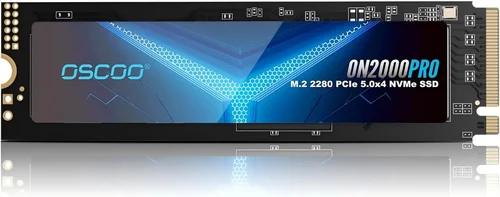
While most internal SSDs are standard sizes, portability matters for external drives and laptops with limited space. The most common form factors are 2.5-inch (for SATA SSDs), M.2 2280 (22mm wide, 80mm long), and M.2 2242/2260 (shorter variants for compact devices).
For desktops, M.2 2280 is the sweet spot—it’s compact, fast, and easy to install. Laptops may require shorter M.2 drives or 2.5-inch SATA models, depending on the chassis. Always check your device’s manual or manufacturer specifications before buying.
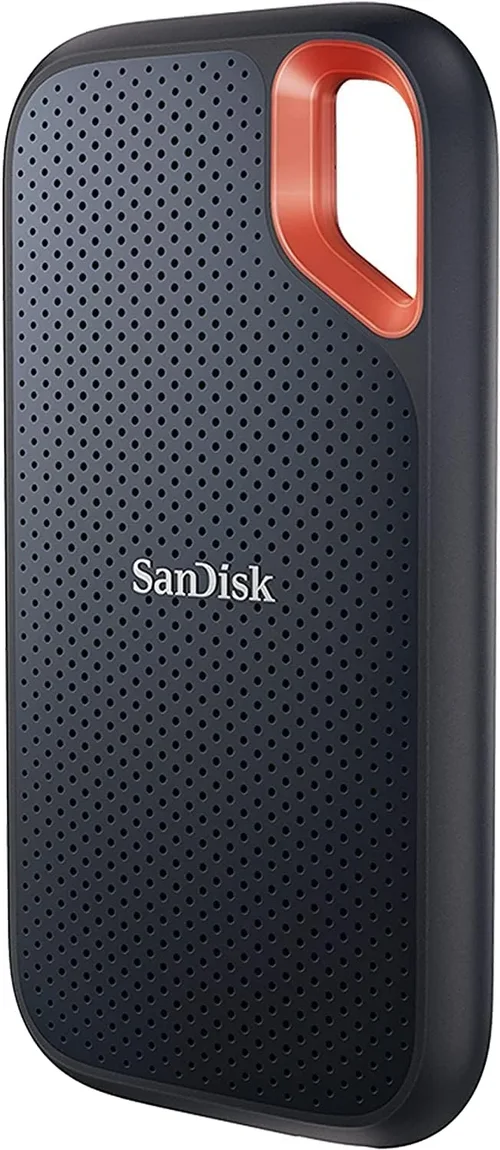
External SSDs are ideal for backups, media storage, or transferring large files. These come in portable enclosures with USB-C or Thunderbolt connectivity. Look for ruggedized models with IP ratings for water and dust resistance if you plan to use them outdoors or in harsh environments. Brands like Samsung (T7 Shield), SanDisk (Extreme Pro), and LaCie offer durable, high-speed external SSDs.
8. User Reviews & Ratings
While specs and marketing materials are helpful, real-world user feedback provides invaluable insights. Check reviews on trusted platforms like Amazon, Newegg, and Reddit’s r/buildapc or r/storage. Look for patterns—consistent praise for speed or complaints about overheating can signal strengths or weaknesses.
Pay attention to long-term reviews (6+ months of use), as they reveal issues like performance degradation, firmware bugs, or premature failure. Also, consider professional reviews from sites like Tom’s Hardware, AnandTech, or PCMag, which conduct rigorous benchmarking and stress tests.
Be cautious of fake or incentivized reviews. Look for verified purchase tags and detailed comments. If a drive has hundreds of 5-star reviews with generic praise (“Great product! Fast shipping!”), it may be suspicious. Genuine reviews often include specific use cases, benchmarks, and comparisons to other drives.
Different Types of Buying Guide

Common Buying Mistakes to Avoid
❌ Mistake: Prioritizing Speed Over Endurance
Why it’s bad: A drive with blazing-fast speeds but low TBW may fail prematurely under heavy use, especially if you’re editing videos or running virtual machines.
What to do instead: Balance speed with endurance. For most users, a TLC-based NVMe drive with at least 600 TBW offers the best mix of performance and longevity.
❌ Mistake: Buying DRAM-less SSDs for Primary Storage
Why it’s bad: DRAM-less drives rely on system memory (HMB) for caching, which can lead to inconsistent performance and slower writes over time.
What to do instead: Invest in a DRAM-equipped SSD for your OS and applications. The performance difference is noticeable, especially during multitasking.
❌ Mistake: Ignoring Compatibility
Why it’s bad: Not all M.2 slots support NVMe—some only accept SATA. Installing the wrong drive can result in it not being detected.
What to do instead: Check your motherboard or laptop manual to confirm M.2 slot type (PCIe/SATA) and keying (B-key, M-key, or B+M).
❌ Mistake: Overlooking Thermal Throttling
Why it’s bad: High-performance NVMe drives can overheat in poorly ventilated cases, causing speed drops during sustained workloads.
What to do instead: Use a heatsink (built-in or aftermarket) and ensure good airflow. Monitor temps with tools like HWInfo or CrystalDiskInfo.
❌ Mistake: Falling for “Too Good to Be True” Deals
Why it’s bad: Extremely cheap SSDs often use recycled or low-grade NAND, lack proper controllers, or have fake capacity (a 1TB drive that’s actually 128GB).
What to do instead: Stick to reputable brands and retailers. If a deal seems suspicious, research the seller and read user reviews.
❌ Mistake: Neglecting Firmware Updates
Why it’s bad: Outdated firmware can cause bugs, security vulnerabilities, or performance issues.
What to do instead: Use the manufacturer’s software to check for and install firmware updates regularly.
❌ Mistake: Not Backing Up Data
Why it’s bad: SSDs can fail suddenly without warning, unlike HDDs that often show signs of degradation.
What to do instead: Always maintain a backup using cloud storage or an external drive. Use tools like Macrium Reflect or Acronis True Image for automated backups.
Budget Guidelines: How Much Should You Spend?
- Entry-Level ($25–$50): Ideal for basic upgrades or secondary storage. Look for 256GB–500GB SATA or DRAM-less NVMe drives from brands like Kingston or Team Group. Expect decent performance for web browsing and office tasks, but avoid heavy workloads.
- Mid-Range ($50–$120): The sweet spot for most users. 1TB NVMe drives with DRAM and TLC NAND (e.g., Crucial P3 Plus, WD Blue SN580) offer excellent speed and reliability for gaming, productivity, and light content creation.
- Premium ($120–$250): For enthusiasts and professionals. 1TB–2TB Gen4 NVMe drives (e.g., Samsung 990 Pro, SK hynix Platinum P41) deliver top-tier performance, high endurance, and advanced features like encryption and thermal management.
- Luxury ($250+): Top-tier Gen5 drives or high-capacity enterprise models. These are overkill for most users but ideal for AI development, 8K video editing, or server applications. Expect cutting-edge speeds, robust build quality, and extended warranties.
Expert Tips for Getting the Best Deal
- Buy During Sales Cycles: Major retailers offer deep discounts on SSDs during holidays and shopping events. Set price alerts on CamelCamelCamel or Honey to catch deals.
- Compare Across Retailers: Prices can vary significantly between Amazon, Newegg, Best Buy, and direct-from-manufacturer stores. Check all options before buying.
- Consider Refurbished or Open-Box: Certified refurbished SSDs from reputable sellers often come with full warranties and can save you 15–30%.
- Check Return Policies: Ensure you can return the drive if it’s defective or incompatible. Some retailers charge restocking fees, so read the fine print.
- Test Before Committing: Use benchmarking tools like CrystalDiskMark or AS SSD to verify performance matches specs. This is especially important for external or used drives.
- Register Your Drive: Many manufacturers require registration to activate the full warranty. Do this as soon as you install the SSD.
- Monitor Health: Use SMART monitoring tools to track wear leveling, temperature, and error rates. Early detection can prevent data loss.
- Upgrade in Pairs: If you’re adding a second SSD, buy two of the same model to ensure consistent performance and simplify RAID setups.

Frequently Asked Questions
Q: Can I use an NVMe SSD in a SATA slot?
A: No. NVMe and SATA use different protocols and connectors. An NVMe drive will not fit or function in a SATA-only M.2 slot. Always check your motherboard’s specifications.
Q: Do I need a heatsink for my M.2 SSD?
A: It depends. High-performance Gen4/Gen5 drives benefit from heatsinks, especially in small cases or laptops. For Gen3 or light use, a heatsink is optional but recommended for sustained workloads.
Q: How long do SSDs last?
A: Most consumer SSDs last 5–10 years under normal use, depending on TBW and workload. Modern drives are very reliable, but regular backups are still essential.
Q: Can I recover data from a failed SSD?
A: It’s possible but difficult and often expensive. Unlike HDDs, SSDs use wear leveling and TRIM, which can make data recovery challenging. Prevention through backups is the best strategy.
Q: Is QLC NAND bad?
A: Not necessarily. QLC offers high capacity at low cost and is fine for read-heavy tasks like gaming or media storage. Avoid it for write-intensive workloads.
Q: Should I enable TRIM?
A: Yes. TRIM helps maintain SSD performance by clearing unused data blocks. It’s enabled by default in Windows, macOS, and most Linux distributions.
Q: Can I use an SSD as a boot drive?
A: Absolutely. In fact, it’s recommended. SSDs drastically reduce boot times and improve system responsiveness.
Q: Are external SSDs as fast as internal ones?
A: It depends on the interface. USB 3.2 Gen 2×2 or Thunderbolt 3/4 external SSDs can match internal Gen3 speeds. USB 3.0 limits performance to around 400 MB/s.
Q: Do SSDs need defragmentation?
A: No. Defragmentation is harmful to SSDs and unnecessary due to their lack of moving parts. Windows automatically disables defrag for SSDs.
Q: What’s the difference between Gen3, Gen4, and Gen5?
A: These refer to PCIe generations. Gen3 offers ~3,500 MB/s, Gen4 ~7,000 MB/s, and Gen5 up to 14,000 MB/s. Higher generations require compatible motherboards and CPUs.
Our Final Recommendations
- Best for Budget-Conscious Buyers: Crucial P3 1TB – A reliable, DRAM-equipped NVMe Gen3 drive with excellent value and solid performance for everyday use.
- Best Overall Value: Samsung 980 (Non-Pro) 1TB – Combines Samsung’s reliability with strong Gen3 speeds and a competitive price. Great for most users.
- Best Premium Option: Samsung 990 Pro 2TB – Top-tier Gen4 performance, high endurance, and excellent thermal management. Ideal for gamers and creators.
- Best for Beginners: WD Blue SA510 1TB SATA – Simple, affordable, and compatible with almost any system. Perfect for first-time upgraders.
- Best for Advanced Users: SK hynix Platinum P41 2TB – One of the fastest Gen4 drives on the market, with exceptional endurance and efficiency. A favorite among power users.
Conclusion: Making the Right Choice
Choosing the best SSD manufacturer isn’t about picking the flashiest brand or the highest benchmark score—it’s about finding the right balance of performance, reliability, and value for your specific needs. Whether you’re upgrading an old laptop, building a high-end gaming PC, or setting up a professional workstation, the right SSD can transform your computing experience.
Throughout this guide, we’ve covered the essential factors to consider: budget, performance, durability, features, brand reputation, warranty, and real-world usability. We’ve compared SSD types, highlighted common mistakes, and provided actionable tips to help you avoid pitfalls and get the best deal. Remember, the “best” SSD is the one that fits your system, your workload, and your budget—not the one with the most impressive spec sheet.
As you shop, prioritize your needs. If you’re a casual user, a mid-range NVMe drive will serve you well for years. If you’re a content creator or gamer, investing in a high-end Gen4 or Gen5 drive with strong endurance and thermal management is worth the extra cost. And always, always back up your data.
The SSD market will continue to evolve, with faster interfaces, higher capacities, and smarter controllers on the horizon. But the fundamentals remain the same: choose a reputable brand, read real user reviews, and don’t compromise on quality for the sake of a few dollars. Your data—and your peace of mind—are worth it.
Now that you’re equipped with expert knowledge, it’s time to make your choice. Upgrade with confidence, enjoy the speed, and experience the difference a great SSD can make.