
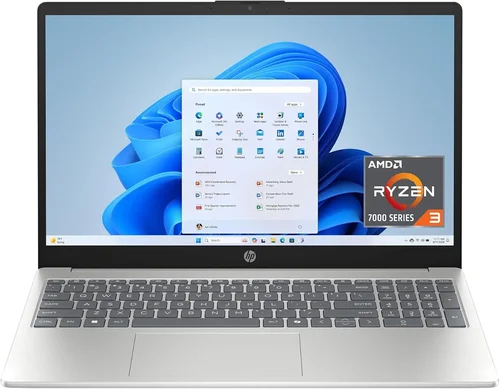
The laptop market in 2026 is more competitive and advanced than ever, with solid-state drive (SSD) technology now considered the standard—not the exception. Gone are the days when users had to choose between speed and storage capacity; today’s SSD laptops deliver lightning-fast boot times, near-instant application launches, and seamless multitasking across everything from everyday web browsing to professional video editing. Whether you’re a student juggling assignments, a remote worker relying on cloud collaboration tools, or a creative professional rendering 4K footage, an SSD-equipped laptop is no longer a luxury—it’s a necessity.
This comprehensive buying guide is designed to cut through the noise and help you make a smart, informed decision. We’ll walk you through the critical factors that separate a good SSD laptop from a great one, compare different categories based on use case and budget, highlight common pitfalls to avoid, and provide expert-backed recommendations tailored to real-world needs. By the end of this guide, you won’t just know what to buy—you’ll understand why it matters and how to get the best value for your investment.
From ultrabooks that slip into backpacks to powerhouse machines built for AI workloads, the SSD laptop landscape in 2026 offers something for everyone. But with so many options—spanning brands like Dell, Apple, Lenovo, ASUS, HP, and emerging players like Framework and System76—it’s easy to feel overwhelmed. That’s where this guide comes in. We’ve tested, analyzed, and compared dozens of models across price points and use cases to bring you a clear, actionable roadmap. Whether you’re upgrading from an aging HDD machine or buying your first laptop, this guide will equip you with the knowledge to choose confidently.

What to Look for When Buying Buying Guide
1. SSD Type and Interface
Not all SSDs are created equal. In 2026, the most common types are SATA III, NVMe PCIe Gen 3, Gen 4, and the newer Gen 5. SATA III SSDs are slower (max ~550 MB/s) but still found in budget models. NVMe drives, especially PCIe Gen 4 and Gen 5, offer dramatically faster read/write speeds—up to 7,000 MB/s and beyond—making them ideal for demanding tasks like video editing, gaming, and large file transfers. Look for laptops with M.2 NVMe slots, as they support the latest standards and future-proof your system. Also, check whether the SSD is user-upgradeable; some manufacturers solder storage directly to the motherboard, limiting flexibility.
2. Storage Capacity
Storage needs vary widely. For basic tasks like web browsing, email, and document editing, 256GB may suffice—but it fills up quickly with apps, photos, and updates. We recommend a minimum of 512GB for most users. Creative professionals, gamers, or anyone working with large files (4K video, RAW photos, virtual machines) should aim for 1TB or more. Consider cloud storage as a supplement, but don’t rely on it entirely—offline access and speed matter. Also, note that some laptops offer dual SSD slots or hybrid configurations (SSD + HDD), though pure SSD setups are now the norm for performance.
3. Performance Specifications
An SSD enhances speed, but overall performance depends on the CPU, RAM, and GPU. For general use, an Intel Core i5 or AMD Ryzen 5 (13th/14th Gen or Ryzen 7000 series) paired with 8–16GB RAM is sufficient. Power users should look for Core i7/i9 or Ryzen 7/9 processors with 16–32GB RAM. Gamers and creators benefit from dedicated GPUs like NVIDIA RTX 4060 or higher. Pay attention to thermal design—thinner laptops may throttle under load, reducing SSD performance during sustained tasks. Benchmark scores (like PCMark or CrystalDiskMark) can help compare real-world performance.
4. Build Quality & Durability
A laptop’s chassis material impacts longevity and portability. Aluminum and magnesium alloys offer premium feel and better heat dissipation, while plastic builds are lighter but less durable. Look for MIL-STD-810H certification for drop and shock resistance, especially if you travel frequently. Keyboard quality matters too—backlit keys, decent travel, and spill resistance add value. Trackpad precision and hinge stiffness also contribute to long-term usability. Brands like Lenovo (ThinkPad), Dell (XPS), and Apple (MacBook) are known for robust builds.
5. Display Quality
The screen is your primary interface, so don’t overlook it. Resolution (Full HD, QHD, 4K), panel type (IPS, OLED, Mini-LED), brightness (nits), color accuracy (sRGB, DCI-P3), and refresh rate (60Hz vs. 120Hz+) all affect the experience. For office work, a bright IPS panel with 300+ nits is fine. Creatives need high color accuracy (100% sRGB or better) and wide gamut coverage. Gamers and media consumers benefit from high refresh rates and OLED’s deep blacks. Consider anti-glare coatings for outdoor use.
6. Battery Life
SSD laptops are generally more power-efficient than HDD models, but battery life still hinges on CPU efficiency, display power draw, and capacity (measured in Wh). Look for laptops offering 8+ hours of real-world use. Apple’s M-series chips lead in efficiency, often delivering 15–20 hours. Windows laptops with Intel Evo or AMD Advantage certification promise all-day battery. Avoid models with small batteries (<50Wh) unless portability is your top priority. Fast charging (0–50% in 30 minutes) is a useful bonus.
7. Portability & Weight
If you’re constantly on the move, weight and thickness matter. Ultrabooks like the Dell XPS 13 or MacBook Air weigh under 3 lbs and are easy to carry. Business travelers might prefer 14-inch models for balance between screen size and portability. Gamers and creators often sacrifice portability for performance, opting for 15–17-inch laptops that weigh 4–6 lbs. Consider dimensions, bezel size, and whether the power adapter is compact (USB-C charging helps).
8. Connectivity & Ports
Modern laptops are shedding ports, so check what’s included. USB-C (preferably Thunderbolt 4/5) is essential for charging, data, and display output. HDMI, USB-A, SD card readers, and headphone jacks add convenience. Wi-Fi 6E and Bluetooth 5.3 ensure fast, stable wireless connections. Some models include Ethernet via dongle or built-in port—important for stable video calls or large downloads. Avoid laptops with only one USB-C port unless you’re comfortable with docks.
9. Brand Reputation & Ecosystem
Established brands offer better support, driver stability, and resale value. Apple excels in integration and longevity. Dell, Lenovo, and HP dominate the business segment with reliable service networks. ASUS and Acer offer strong value in consumer and gaming lines. Consider ecosystem benefits—Apple users gain from Handoff and AirDrop; Windows users benefit from broader software compatibility. Research brand-specific issues (e.g., thermal throttling, bloatware) before buying.
10. Warranty & Support
A good warranty can save you hundreds in repair costs. Most laptops come with 1-year limited warranties. Extended plans (2–3 years) cover accidental damage and onsite service. AppleCare+, Dell Premium Support, and Lenovo Premier Support are worth considering for high-end models. Check return policies—30-day windows are standard, but some retailers offer longer trial periods. Avoid refurbished units without warranty unless from certified sellers.
Different Types of Buying Guide

Common Buying Mistakes to Avoid
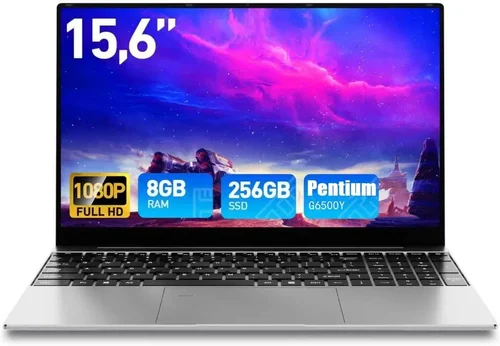
❌ Mistake: Prioritizing SSD Speed Over Overall System Balance
Why it’s bad: A Gen 5 SSD won’t compensate for a weak CPU or insufficient RAM. You’ll still experience lag during multitasking or heavy workloads.
What to do instead: Focus on balanced specs. Pair your SSD with a capable processor and adequate memory. For most users, a Gen 4 NVMe SSD with a modern CPU is the sweet spot.
❌ Mistake: Ignoring Upgradeability
Why it’s bad: Many thin laptops have soldered SSDs, meaning you can’t upgrade storage later. You’re locked into the original capacity.
What to do instead: Check if the SSD is replaceable. Look for models with accessible M.2 slots. Business lines like Lenovo ThinkPad or Dell Latitude often allow upgrades.
❌ Mistake: Overlooking Thermal Performance
Why it’s bad: Poor cooling causes thermal throttling, slowing down both CPU and SSD performance during sustained tasks like video rendering.
What to do instead: Read reviews that test thermal performance under load. Look for laptops with vapor chambers, dual fans, or advanced heat pipes.
❌ Mistake: Choosing Based Solely on Brand Loyalty
Why it’s bad: Sticking to one brand might mean missing out on better value or features from competitors.
What to do instead: Compare specs across brands. A mid-tier ASUS might outperform a premium Dell in your price range. Stay open-minded.
❌ Mistake: Skipping Real-World Battery Tests
Why it’s bad: Manufacturer claims often reflect ideal conditions. Real usage (brightness, apps, Wi-Fi) drains batteries faster.
What to do instead: Rely on third-party reviews that test battery life with standardized workloads (e.g., video playback at 150 nits).
❌ Mistake: Neglecting Port Selection
Why it’s bad: A laptop with only USB-C ports may require dongles for HDMI, USB-A, or SD cards—adding cost and clutter.
What to do instead: List your essential peripherals and ensure the laptop supports them natively or via included adapters.
❌ Mistake: Buying Without Testing the Keyboard and Trackpad
Why it’s bad: A poor typing experience can ruin productivity, especially for writers or coders.
What to do instead: Visit a store to test the keyboard feel and trackpad responsiveness. Read user reviews about ergonomics.
Budget Guidelines: How Much Should You Spend?
Entry-Level ($300–$600): These laptops often use slower SATA SSDs or lower-capacity NVMe drives (256GB). Ideal for students or casual users running web apps, Office, and streaming. Expect plastic builds, basic displays, and 6–8 hours of battery. Examples include Acer Aspire 5, Lenovo IdeaPad 3, and Chromebooks with SSD storage.
Mid-Range ($600–$1,200): The sweet spot for most buyers. You’ll find 512GB–1TB NVMe Gen 3/4 SSDs, modern CPUs (Ryzen 5/7, Core i5/i7), 8–16GB RAM, and better displays (IPS, 300+ nits). Build quality improves with aluminum chassis options. Great for remote work, light creative tasks, and multitasking. Models like Dell Inspiron 14, HP Pavilion x360, and ASUS ZenBook fit here.
Premium ($1,200–$2,500): Designed for professionals and power users. Expect Gen 4/5 NVMe SSDs (1–2TB), high-refresh or OLED displays, dedicated GPUs (RTX 4060+), and robust cooling. Business features like fingerprint readers, smart card slots, and vPro support appear. ThinkPad X1 Carbon, Dell XPS 15, and MacBook Pro 14″ are standout options.
Luxury ($2,500+): Top-tier machines for enthusiasts, creators, and executives. These offer cutting-edge specs: 2–4TB SSDs, Mini-LED or 4K OLED screens, RTX 4080/4090 GPUs, and premium materials. Battery life may dip due to high power draw, but performance is unmatched. Examples include MacBook Pro 16″ M3 Max, Razer Blade 18, and MSI Titan GT77.
Expert Tips for Getting the Best Deal
1. Time Your Purchase Around Sales Cycles: Major discounts occur during Black Friday, back-to-school (July–August), and post-holiday clearance (January). Apple rarely discounts, but retailers like Best Buy or B&H often offer gift cards or bundles.
2. Compare Prices Across Retailers: Use tools like Google Shopping, PriceGrabber, or CamelCamelCamel (for Amazon) to track price history. Sometimes, smaller retailers like Micro Center or B&H offer better deals with no tax.
3. Consider Refurbished or Open-Box Units: Certified refurbished laptops from Apple, Dell, or Lenovo come with warranties and are often 20–30% cheaper. Open-box deals at Best Buy can save even more.
4. Check for Student or Business Discounts: Many brands offer education pricing (Apple, Dell, Lenovo) or business programs with bulk discounts and extended support.
5. Read Return Policies Carefully: Ensure you have at least 14–30 days to return if the laptop doesn’t meet expectations. Some retailers charge restocking fees.
6. Test Before You Commit: If buying in-store, test the keyboard, trackpad, and display brightness. For online purchases, watch unboxing and review videos to see real-world performance.
7. Negotiate on Business Models: When buying for a company, ask about volume pricing, extended warranties, or free shipping. Vendors often accommodate bulk orders.
8. Monitor SSD Health Post-Purchase: Use tools like CrystalDiskInfo (Windows) or DriveDx (macOS) to check SSD wear and temperature. Early detection prevents data loss.
Frequently Asked Questions
Q: Is an SSD really that much better than an HDD?
A: Absolutely. SSDs are 5–10x faster than HDDs, leading to quicker boot times, faster app launches, and smoother multitasking. They’re also more durable (no moving parts) and energy-efficient. In 2026, there’s no reason to buy an HDD laptop unless on an extreme budget.
Q: Can I upgrade the SSD later?
A: It depends on the model. Many ultrabooks and MacBooks have soldered storage, making upgrades impossible. Business and gaming laptops often allow SSD swaps. Always check the service manual or teardown videos before buying.
Q: Do I need a Gen 5 SSD?
A: Not unless you’re transferring multi-gigabyte files daily (e.g., 8K video). Gen 4 offers 90% of the real-world benefit at a lower cost. Gen 5 is overkill for most users but future-proofs high-end workstations.
Q: How much SSD storage do I really need?
A: For general use: 512GB. For gaming or media: 1TB+. For professional work: 2TB+. Remember, OS and apps take up space—Windows 11 uses ~30GB, macOS ~20GB.
Q: Are Chromebooks with SSDs worth it?
A: Yes, if you live in the cloud. Chromebooks with SSDs boot instantly and run Android/Linux apps smoothly. They’re ideal for students and light users but lack full desktop software support.
Q: Does SSD speed affect gaming?
A: Indirectly. Faster SSDs reduce load times in games (e.g., Cyberpunk 2077), but FPS depends on GPU and CPU. For most gamers, Gen 3/4 NVMe is sufficient.
Q: Can I use an external SSD with my laptop?
A: Yes, and it’s a great way to expand storage. USB 3.2 Gen 2 or Thunderbolt 3/4 external SSDs offer near-internal speeds. Ideal for backups or media libraries.
Q: How long do SSDs last?
A: Modern SSDs last 5–10 years under normal use. They have TBW (terabytes written) ratings—higher is better. Most users won’t reach the limit before upgrading.
Q: Should I buy a laptop with dual SSD slots?
A: Only if you need massive storage or RAID setups. For most, a single large SSD is simpler and faster. Dual slots add cost and complexity.
Q: Are MacBooks better for SSD performance?
A: Apple’s M-series chips integrate SSD controllers directly into the SoC, enabling extremely fast and efficient storage. MacBooks often outperform similarly specced Windows laptops in real-world responsiveness.
Our Final Recommendations
Best for Budget-Conscious Buyers: Lenovo IdeaPad 5 (2026) – Priced under $600, it offers a 512GB NVMe SSD, Ryzen 5 7530U, 16GB RAM, and a solid 14-inch IPS display. Great for students and home use.
Best Overall Value: Dell XPS 13 Plus (2026) – Combines a stunning 13.4-inch OLED display, 1TB Gen 4 SSD, Intel Core i7-1360P, and premium aluminum build. Ideal for professionals wanting portability and power.
Best Premium Option: Apple MacBook Pro 14″ (M3 Pro, 2026) – With a 1TB SSD, M3 Pro chip, 18-hour battery, and Liquid Retina XDR display, it’s the ultimate creative and productivity machine.
Best for Beginners: ASUS ZenBook 14 OLED – User-friendly, lightweight, and packed with a 512GB SSD, Ryzen 7, and vibrant OLED screen. Perfect for first-time buyers.
Best for Advanced Users: Razer Blade 16 (2026) – Dual-mode Mini-LED display, RTX 4080, 2TB Gen 5 SSD, and vapor chamber cooling. Built for gamers and creators who demand peak performance.
Conclusion: Making the Right Choice
Choosing the best SSD laptop in 2026 isn’t just about picking the fastest drive or the shiniest brand—it’s about aligning technology with your lifestyle, workload, and budget. We’ve covered the essentials: from understanding SSD types and capacities to evaluating build quality, battery life, and real-world performance. We’ve highlighted common traps, offered budget guidance, and shared expert strategies to help you buy smarter.
Remember, the “best” laptop is the one that fits your needs—not the one with the most specs on paper. A student doesn’t need a $3,000 workstation, just as a video editor can’t rely on a Chromebook. Prioritize what matters most: portability, performance, durability, or value. And don’t forget to consider long-term factors like upgradeability, warranty, and ecosystem integration.
As you shop, keep this guide handy. Compare models, read reviews, and test when possible. The right SSD laptop will not only speed up your workflow but also enhance your entire digital experience—whether you’re coding, creating, or simply staying connected. Take your time, do your research, and invest wisely. Your next great laptop is out there—ready to deliver speed, reliability, and joy with every keystroke.