

Solid-state drives (SSDs) have revolutionized how we store and access data. Gone are the days of waiting minutes for a computer to boot up or hours for large files to transfer. Today’s SSDs deliver lightning-fast speeds, silent operation, and rock-solid reliability—making them essential upgrades for laptops, desktops, gaming rigs, and even servers. Whether you’re replacing a sluggish hard disk drive (HDD), building a new PC from scratch, or simply looking to future-proof your system, choosing the right SSD can dramatically improve your computing experience.
But with so many options flooding the market—each boasting different interfaces, form factors, speeds, and price points—it’s easy to feel overwhelmed. That’s where this comprehensive buying guide comes in. We’ll walk you through everything you need to know to make an informed decision, from understanding key technical specs to avoiding common pitfalls. By the end, you’ll not only know what the “best” SSD means for your needs, but you’ll also be equipped to spot great deals, compare models confidently, and maximize your investment.
The SSD landscape in 2026 is more dynamic than ever. With advancements in NAND flash technology, the rise of PCIe 5.0 support, and increasing adoption of NVMe protocols, performance benchmarks are reaching new heights. At the same time, prices have continued to drop, making high-capacity SSDs accessible to mainstream users. From budget-friendly SATA drives ideal for older systems to cutting-edge Gen5 M.2 drives that push bandwidth limits, there’s an SSD for every use case and budget. This guide cuts through the noise to help you find the perfect match.

What to Look for When Buying Buying Guide
1. Interface & Form Factor
The interface determines how your SSD connects to your motherboard and directly impacts speed and compatibility. The three main types are SATA, NVMe over PCIe (M.2), and U.2. SATA SSDs use the same connector as traditional HDDs and max out at around 550 MB/s—great for older systems but limiting for modern builds. M.2 NVMe drives, on the other hand, plug directly into the motherboard via the M.2 slot and leverage the PCIe bus for much faster data transfer. As of 2026, PCIe 4.0 is widely supported, with PCIe 5.0 becoming standard on high-end motherboards.
Form factor refers to the physical size and shape of the drive. The most common is the M.2 2280 (22mm wide, 80mm long), which fits most laptops and desktops. Smaller variants like 2242 or 2230 exist for ultra-compact devices, while 2.5-inch SATA SSDs resemble traditional laptop hard drives. Always check your device’s manual or motherboard specs to ensure compatibility before buying.
2. Performance Specifications
When evaluating performance, focus on two key metrics: sequential read/write speeds and random IOPS (Input/Output Operations Per Second). Sequential speeds matter most for large file transfers—like moving video projects or loading game assets—while random IOPS reflect how well the drive handles many small, simultaneous requests, such as booting your OS or multitasking.
For PCIe 4.0 NVMe drives, expect sequential reads between 5,000–7,000 MB/s and writes slightly lower. PCIe 5.0 drives can exceed 10,000 MB/s, though real-world gains may be modest unless you’re working with massive datasets. Random 4K read/write performance is often listed in IOPS—look for at least 500K IOPS for high-end drives. Don’t get swayed by marketing claims alone; check independent benchmarks from trusted sources like Tom’s Hardware or AnandTech.
Latency is another underappreciated metric. Lower latency means faster response times, which translates to snappier system behavior. Enterprise-grade SSDs often prioritize low latency over raw throughput, but even consumer drives benefit from optimized controllers and firmware.
3. Storage Capacity
Capacity needs vary widely depending on usage. A basic web browsing or office work setup might suffice with 500GB, but gamers, content creators, and developers should aim for 1TB or more. Consider what you’ll store: modern AAA games can take 100GB+ each, 4K video projects easily consume terabytes, and operating systems themselves are growing larger.
It’s also wise to leave some free space—typically 10–20% of total capacity—for optimal performance and longevity. SSDs use a process called garbage collection to manage deleted data, and they perform better when they have room to maneuver. Overfilling an SSD can lead to slowdowns and reduced lifespan.
As of 2026, 1TB and 2TB drives offer the best value per gigabyte. Prices for 4TB+ models have dropped significantly, making them viable for enthusiasts, though they remain premium purchases.
4. NAND Flash Type & Endurance
NAND flash memory comes in several flavors: SLC (Single-Level Cell), MLC (Multi-Level Cell), TLC (Triple-Level Cell), and QLC (Quad-Level Cell). SLC is fastest and most durable but prohibitively expensive for consumer use. MLC offers excellent endurance but is mostly found in enterprise drives. TLC strikes the best balance for most users—good performance, decent endurance, and affordable pricing. QLC is cheaper and higher-capacity but slower, especially under sustained writes, and has lower write endurance.
Endurance is measured in TBW (Terabytes Written)—the total amount of data that can be written to the drive over its lifetime. A 1TB TLC SSD might have a 600 TBW rating, while a QLC variant could be rated at 360 TBW. For typical home users, even QLC endurance is more than sufficient, but professionals handling heavy write workloads should opt for TLC or MLC.
5. DRAM Cache
A DRAM cache acts as a high-speed buffer between the SSD controller and NAND flash, dramatically improving performance—especially for random reads/writes and sustained workloads. Drives with DRAM cache maintain consistent speeds and handle multitasking far better than DRAM-less alternatives.
DRAM-less SSDs use system memory (HMB—Host Memory Buffer) instead, which works adequately for light tasks but struggles under pressure. You’ll often find DRAM-less designs in budget QLC drives. While acceptable for basic computing, we strongly recommend choosing an SSD with onboard DRAM for any performance-sensitive application.
Check spec sheets carefully: some manufacturers omit “DRAM” from marketing materials but include it in technical documentation. If a drive lists HMB support but no DRAM, proceed with caution.
6. Brand Reputation & Reliability
Not all SSDs are created equal—even if they share similar specs. Established brands like Samsung, Western Digital, Crucial, Kingston, and SK hynix have proven track records for quality control, firmware stability, and long-term reliability. They also invest heavily in R&D, resulting in better controllers and error correction.
Avoid no-name or ultra-budget brands that cut corners on components or use recycled NAND. These drives may fail prematurely or deliver inconsistent performance. Look for brands that publish detailed reliability data (like annualized failure rates) and offer transparent warranty terms.
Community feedback matters too. Forums like Reddit’s r/buildapc or r/DataHoarder often highlight real-world experiences with specific models—including failure patterns or firmware bugs. A drive with glowing lab benchmarks but poor user reports should raise red flags.
7. Warranty & Support
Warranty length and terms are strong indicators of a manufacturer’s confidence in their product. Most reputable SSDs come with 3–5 years of coverage, often tied to both time and TBW limits (e.g., “5 years or 600 TBW, whichever comes first”). Some premium models offer up to 7 years.
Pay attention to what the warranty covers. Does it include data recovery? Is it transferable if you sell the drive? Can you get a replacement without returning the faulty unit? Samsung and Crucial, for example, offer hassle-free cross-shipping for replacements.
Customer support quality varies widely. Brands with dedicated SSD support teams (rather than generic tech support) tend to resolve issues faster. Check if the company provides firmware update tools—keeping your SSD firmware current can fix bugs and improve performance.
8. Power Efficiency & Thermal Management
Especially important for laptops and small-form-factor PCs, power efficiency affects battery life and heat output. High-performance NVMe drives can draw significant power under load, generating heat that throttles performance if not managed.
Look for drives with built-in thermal throttling protection and consider models with integrated heatsinks—or plan to add an aftermarket one. Some manufacturers, like Samsung and Corsair, design their SSDs with power efficiency in mind, balancing speed with thermal constraints.
For mobile users, lower-power SATA or DRAM-less NVMe drives may offer better battery longevity, though at the cost of peak performance. Always weigh your priorities: raw speed vs. portability and runtime.
Different Types of Buying Guide
Common Buying Mistakes to Avoid

❌ Mistake: Prioritizing Peak Speeds Over Real-World Performance
Why it’s bad: Marketing materials often highlight maximum sequential read speeds, but most daily tasks—like opening apps, browsing, or loading documents—rely heavily on random 4K performance and low latency. A drive with sky-high sequential speeds but poor random I/O will feel sluggish in practice.
What to do instead: Look at comprehensive benchmarks that include both sequential and random performance. Tools like CrystalDiskMark and ATTO provide balanced insights. Prioritize drives with strong 4K random read/write scores if responsiveness matters to you.
❌ Mistake: Ignoring Compatibility
Why it’s bad: Buying a PCIe 5.0 NVMe SSD for an older motherboard that only supports PCIe 3.0 wastes money and may not fit physically. Similarly, installing a 22110 M.2 drive in a laptop that only accepts 2280 can damage the device.
What to do instead: Always verify your system’s specifications before purchasing. Check your motherboard manual, laptop service guide, or use tools like CPU-Z to identify available slots and supported standards. When in doubt, consult manufacturer compatibility lists.
❌ Mistake: Choosing QLC for Heavy Workloads
Why it’s bad: QLC NAND is cost-effective for storage but suffers from slower write speeds, especially when the SLC cache is exhausted. Video editors, database administrators, or anyone writing large files continuously will experience frustrating slowdowns.
What to do instead: Reserve QLC drives for archival storage, backups, or light computing. For active projects, gaming, or development work, stick with TLC-based SSDs. The slight price premium is worth the performance and longevity.
❌ Mistake: Overlooking the Importance of DRAM
Why it’s bad: DRAM-less SSDs may seem like a bargain, but they rely on your system’s RAM for caching, which can degrade overall performance—especially on systems with limited memory. They also struggle with sustained writes and multitasking.
What to do instead: Unless you’re on an extremely tight budget, always choose an SSD with a dedicated DRAM cache. The performance difference is noticeable in everyday use and becomes critical under load.
❌ Mistake: Skipping Firmware Updates
Why it’s bad: Outdated firmware can cause compatibility issues, security vulnerabilities, or performance bugs. Some early PCIe 4.0 drives had thermal throttling problems fixed only via firmware updates.
What to do instead: Register your SSD with the manufacturer and download their management software (e.g., Samsung Magician, WD Dashboard). These tools notify you of firmware updates and often include optimization features like secure erase and health monitoring.
❌ Mistake: Assuming All “NVMe” Drives Are Equal
Why it’s bad: NVMe is just a protocol—not a guarantee of speed. A budget NVMe drive using PCIe 3.0 x2 lanes will be slower than a high-end SATA SSD. Confusingly, some manufacturers label slow NVMe drives as “Gen3” without specifying lane count.
What to do instead: Check the full specification: look for “PCIe 4.0 x4” or “PCIe 3.0 x4” to ensure full bandwidth utilization. Avoid drives that only mention “NVMe” without interface details.
❌ Mistake: Neglecting Backup Strategy
Why it’s bad: SSDs fail differently than HDDs—often without warning. While they’re more reliable overall, sudden failure can result in total data loss if you’re not backing up regularly.
What to do instead: Treat your SSD like any critical storage device. Use cloud backups, external drives, or NAS solutions for important files. Enable TRIM and monitor drive health with tools like CrystalDiskInfo.
Budget Guidelines: How Much Should You Spend?
Entry-Level ($30–$70): This tier covers 500GB SATA SSDs and budget NVMe drives (PCIe 3.0). Ideal for upgrading old laptops or building a basic desktop. Expect decent reliability from brands like Crucial BX500 or Kingston NV2, but avoid no-name brands. Performance will be adequate for web browsing, office apps, and light gaming—but don’t expect blazing speeds.
Mid-Range ($70–$150): The sweet spot for most users. Here you’ll find 1TB PCIe 3.0 or PCIe 4.0 NVMe drives with DRAM cache and TLC NAND. Models like the Samsung 980 Pro (PCIe 4.0) or WD Black SN770 offer excellent performance for gaming, content creation, and multitasking. This range delivers the best balance of speed, capacity, and value.
Premium ($150–$300): Targeted at enthusiasts and professionals. These are high-capacity (2TB+) PCIe 4.0 or early PCIe 5.0 drives with top-tier controllers, robust cooling, and extended warranties. Examples include the Sabrent Rocket 4 Plus or Corsair MP600 PRO XT. Perfect for 4K video editing, large game libraries, or workstation use.
Luxury ($300+): Reserved for extreme performance or enterprise needs. Think 4TB PCIe 5.0 drives with 12,000+ MB/s speeds, heatsinks included, and 7-year warranties. These are overkill for average users but justified for AI researchers, 8K video editors, or server applications where every millisecond counts.
Expert Tips for Getting the Best Deal
1. Time Your Purchase Strategically: SSD prices tend to drop in Q4 (holiday season) and Q2 (post-back-to-school). Avoid buying right after new product launches—early adopters pay a premium. Monitor historical pricing using tools like CamelCamelCamel or Keepa.
2. Buy Direct from Reputable Retailers: Stick with authorized sellers like Amazon (sold by Amazon, not third parties), Newegg, Best Buy, or direct from manufacturers. This ensures warranty validity and reduces risk of counterfeit products.
3. Bundle with Other Components: Many retailers offer discounts when you buy an SSD alongside a motherboard, CPU, or laptop. Check bundle deals during PC-building seasons.
4. Consider Refurbished or Open-Box Units: Manufacturer-refurbished SSDs often come with full warranties and are rigorously tested. Open-box items from retailers like Micro Center can save 10–20% with minimal risk.
5. Read the Fine Print on Warranties: Some warranties require registration within 30 days of purchase. Others void coverage if used in RAID configurations. Know the terms before you buy.
6. Test Before Committing: If possible, test the SSD in your system before finalizing setup. Run a quick benchmark and check for overheating or compatibility warnings in your BIOS.
7. Don’t Chase the Latest Tech Blindly: PCIe 5.0 offers impressive specs, but real-world benefits are marginal for most users in 2026. Unless you’re building a high-end workstation, PCIe 4.0 remains the practical choice with better cooling and lower cost.
8. Use Manufacturer Tools for Optimization: After installation, download the brand’s SSD utility software. These tools enable features like over-provisioning, secure erase, and performance tuning—maximizing your drive’s potential.

Frequently Asked Questions
Q: Can I use an SSD in an old computer?
A: Absolutely! Most older systems support SATA SSDs via the same ports used for HDDs. Even if your PC is 10+ years old, swapping in a SATA SSD will dramatically improve boot times and responsiveness. Just ensure you have available SATA power and data cables.
Q: Is NVMe always faster than SATA?
A: In theory, yes—but only if your system supports it. NVMe drives require an M.2 slot or PCIe adapter. On systems that support NVMe, even entry-level models outperform SATA SSDs. However, if your motherboard only has SATA ports, a high-quality SATA SSD is still a massive upgrade over an HDD.
Q: Do I need a heatsink for my M.2 SSD?
A: It depends. High-performance PCIe 4.0 and 5.0 drives generate significant heat under sustained loads. If your case has poor airflow or you plan to run intensive tasks (like video rendering), a heatsink helps prevent thermal throttling. Many motherboards include built-in M.2 heatsinks—check yours first.
Q: How long do SSDs last?
A: Modern consumer SSDs typically last 5–10 years under normal use. With TBW ratings in the hundreds of terabytes and advanced wear-leveling, most users will upgrade due to capacity needs long before the drive fails. Heavy write workloads (e.g., databases) may shorten lifespan, but even then, endurance is rarely the limiting factor.
Q: Should I enable TRIM?
A: Yes—always. TRIM helps the SSD manage deleted data efficiently, maintaining performance over time. It’s enabled by default in Windows 10/11, macOS, and modern Linux distributions. You can verify its status in Windows via “fsutil behavior query DisableDeleteNotify” (should return 0).
Q: Can I recover data from a failed SSD?
A: It’s possible but difficult and expensive. Unlike HDDs, SSDs don’t give audible warnings before failure. Professional data recovery services exist, but success isn’t guaranteed—and costs can exceed the drive’s value. Prevention (regular backups) is far better than cure.
Q: Are external SSDs as fast as internal ones?
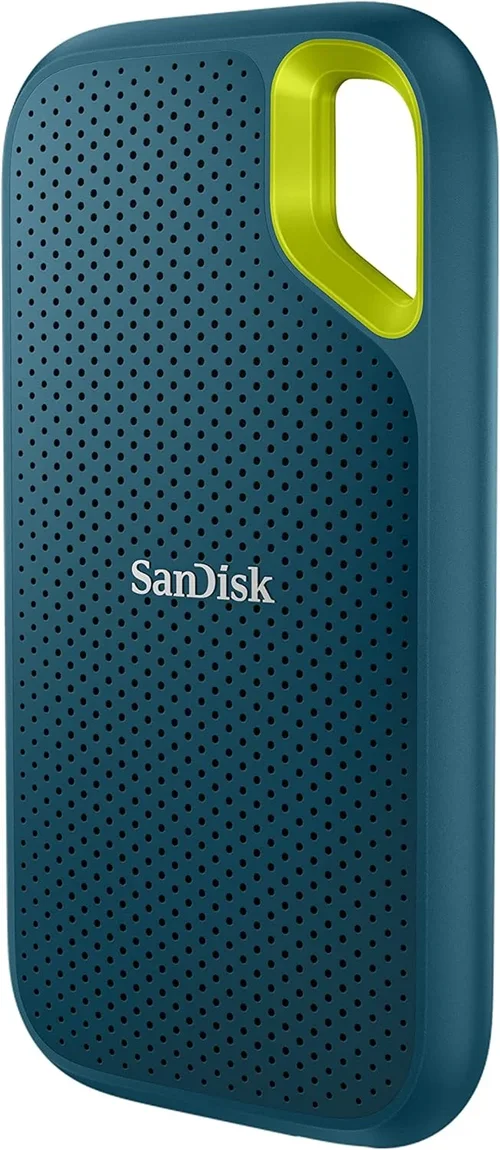
A: Not quite—but close. USB 3.2 Gen 2×2 (20 Gbps) and Thunderbolt 4 (40 Gbps) can saturate even fast NVMe drives. However, real-world speeds depend on the enclosure’s controller and cable quality. For portability and cross-device use, external SSDs are excellent; for maximum performance, internal is still king.
Q: What’s the difference between consumer and enterprise SSDs?
A: Enterprise drives prioritize endurance, consistency, and power-loss protection. They’re built for 24/7 operation in servers and data centers, with higher TBW ratings and advanced error correction. Consumer drives focus on cost, capacity, and burst performance. Unless you’re running a server, stick with consumer models.
Q: Can I install both an SSD and HDD in the same system?
A: Yes—and it’s a popular setup. Use the SSD for your operating system, applications, and frequently used files, and the HDD for bulk storage (media, backups, archives). This combines speed with capacity at a reasonable cost.
Q: Does SSD speed affect gaming?
A: Indirectly. Faster SSDs reduce game load times and texture streaming hitches, especially in open-world titles. However, once a game is loaded, FPS (frames per second) is determined by your GPU and CPU. Upgrading from HDD to SSD makes a huge difference; upgrading from SATA to NVMe offers diminishing returns for most gamers.
Our Final Recommendations
Best for Budget-Conscious Buyers: Crucial P3 1TB (PCIe 3.0 NVMe)
Offers excellent value with DRAM cache, TLC NAND, and reliable performance under $70. Perfect for upgrading older systems or building a budget gaming PC.
Best Overall Value: Samsung 980 Pro 1TB (PCIe 4.0 NVMe)
A proven performer with blazing speeds, robust build quality, and Samsung’s legendary reliability. Slightly pricier but worth it for the peace of mind and consistent performance.
Best Premium Option: WD Black SN850X 2TB (PCIe 4.0 NVMe)
Designed for enthusiasts, this drive delivers near-maximum PCIe 4.0 speeds, includes a heatsink option, and excels in both gaming and creative workloads.
Best for Beginners: Kingston NV2 1TB (PCIe 3.0 NVMe)
Simple, affordable, and compatible with nearly any modern system. Great first NVMe drive for those new to SSD upgrades.
Best for Advanced Users: Sabrent Rocket 4 Plus-G 4TB (PCIe 4.0 NVMe)
High-capacity, high-endurance drive with a 7-year warranty. Ideal for professionals needing massive, fast storage without compromising on reliability.
Conclusion: Making the Right Choice
Choosing the best SSD isn’t about finding the fastest or most expensive drive—it’s about matching the right technology to your specific needs, budget, and system capabilities. Whether you’re breathing new life into an aging laptop with a SATA upgrade or building a cutting-edge workstation with PCIe 5.0 speeds, the principles outlined in this guide will steer you toward a smart, future-proof decision.
Remember: prioritize compatibility, real-world performance, and reliability over flashy marketing claims. Invest in reputable brands, respect endurance limits, and always back up your data. And don’t forget to leverage seasonal sales and bundle deals to stretch your dollar further.
Your SSD is more than just storage—it’s the heartbeat of your digital experience. With the right choice, you’ll enjoy faster boots, quicker app launches, smoother multitasking, and the confidence that your data is safe and secure. So take your time, do your research, and upgrade with confidence. The perfect SSD is out there—and now you know exactly how to find it.