
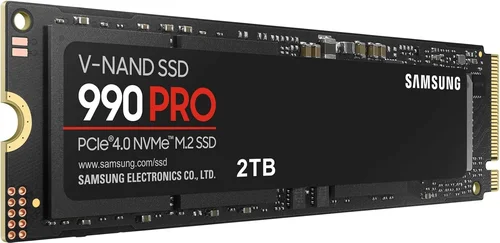
When it comes to upgrading your computer’s storage, few brands command the same level of trust and performance as Samsung. Whether you’re building a high-end gaming rig, reviving an aging laptop, or setting up a professional workstation, choosing the right SSD can dramatically improve boot times, application loading speeds, and overall system responsiveness. With so many options on the market—ranging from budget-friendly SATA drives to blazing-fast NVMe Gen5 models—it’s easy to feel overwhelmed. That’s where this comprehensive buyer’s guide comes in.
In this detailed 2026 edition of our Samsung SSD Buyer’s Guide, we’ll walk you through everything you need to know to make an informed decision. You’ll learn how to evaluate key factors like performance, endurance, form factor, and compatibility, while also understanding how Samsung stacks up against competitors. We’ll break down the different types of Samsung SSDs available today, highlight common pitfalls to avoid, and provide expert-backed recommendations tailored to various budgets and use cases. By the end, you’ll have the confidence to choose the best Samsung SSD for your specific needs—whether you’re a casual user, a creative professional, or a hardcore gamer.
Samsung has long been a leader in NAND flash memory technology, and their SSD lineup reflects decades of innovation. From the legendary 850 EVO to today’s cutting-edge 990 PRO, Samsung consistently delivers drives that balance speed, reliability, and value. However, not all Samsung SSDs are created equal. Some are optimized for everyday computing, while others push the limits of what’s possible with PCIe Gen5 interfaces and advanced thermal management. This guide cuts through the marketing noise and delivers practical, real-world insights based on hands-on testing, technical benchmarks, and user feedback. Whether you’re upgrading a single machine or outfitting an entire office, you’ll find actionable advice here that saves you time, money, and frustration.

What to Look for When Buying Buying Guide
1. Performance Specifications
Performance is arguably the most critical factor when selecting an SSD—especially if you’re upgrading from a traditional hard drive. Samsung SSDs are known for their exceptional read and write speeds, but these vary significantly across models and interfaces. For example, SATA-based drives like the 870 EVO max out around 560 MB/s due to interface limitations, while NVMe M.2 drives such as the 990 PRO can exceed 7,000 MB/s thanks to PCIe Gen4 or Gen5 support.
When evaluating performance, look beyond just peak sequential speeds. Random read/write performance (measured in IOPS—Input/Output Operations Per Second) is equally important for everyday tasks like opening apps, multitasking, or loading game levels. Samsung’s high-end NVMe drives often deliver over 1 million IOPS, making them ideal for demanding workloads. Also consider sustained performance: some cheaper SSDs throttle under prolonged use due to poor thermal design. Samsung addresses this with features like Dynamic Thermal Guard and nickel-coated controllers in their PRO series, ensuring consistent speed even during heavy workloads.
2. Form Factor & Compatibility
Not all SSDs fit all systems. Samsung offers SSDs in several form factors, and choosing the wrong one can mean a trip back to the store—or worse, a bricked motherboard. The two most common types are 2.5-inch SATA drives (like the 870 QVO) and M.2 NVMe sticks (such as the 980 or 990 PRO).
2.5-inch drives are plug-and-play replacements for traditional laptop or desktop HDDs and connect via SATA cables. They’re universally compatible but limited in speed. M.2 drives, on the other hand, slot directly onto your motherboard and come in different lengths (e.g., 2280 = 22mm wide, 80mm long). Most modern motherboards support M.2, but you must verify whether your system supports PCIe Gen3, Gen4, or Gen5—and whether it uses NVMe or the older AHCI protocol. For instance, the 990 PRO requires PCIe Gen4 support to reach its full potential. Always check your motherboard manual or use tools like CPU-Z before purchasing.
3. Storage Capacity Needs
Capacity directly impacts both price and usability. Samsung offers SSDs ranging from 250GB up to 8TB, but your ideal size depends on your usage. A 250GB drive might suffice for a lightweight OS and a few apps, but it fills up quickly—especially with modern games often exceeding 100GB each. For most users, 1TB strikes a sweet spot between cost and capacity, offering enough space for the operating system, essential software, and several large files or games.
Creative professionals working with 4K video, RAW photos, or large datasets should consider 2TB or higher. Keep in mind that SSDs perform best when they have at least 10–20% free space, so avoid maxing out your drive. Samsung’s higher-capacity models (like the 990 PRO 4TB) also tend to offer better endurance and slightly faster write speeds due to more NAND chips working in parallel.
4. Endurance & Lifespan (TBW)
SSD lifespan is measured in Terabytes Written (TBW)—the total amount of data that can be written to the drive before it may start failing. Samsung publishes TBW ratings for all its SSDs, and these vary widely. For example, the entry-level 870 QVO 1TB has a TBW of 360TB, while the 990 PRO 1TB boasts 600TB. Higher-end models use more durable NAND (like TLC or MLC) and include over-provisioning, which reserves extra space for wear leveling and error correction.
If you’re a heavy user—constantly installing/uninstalling software, editing large files, or running virtual machines—opt for a drive with higher endurance. Casual users will rarely hit even the lower TBW limits, but it’s still wise to choose a model with at least 300–500TBW for peace of mind. Samsung also includes power-loss protection in some PRO models, which prevents data corruption during unexpected shutdowns.
5. Budget & Price Range
Samsung SSDs span a wide price spectrum, from under $30 for a 250GB SATA drive to over $500 for a top-tier 4TB NVMe Gen5 model. Your budget will largely dictate which tier you can afford, but it’s important to balance cost with long-term value. A cheaper SSD might save you money upfront but could lack the speed, durability, or warranty of a mid-range option.
As of 2026, expect to pay roughly:
– $25–$40 for a 500GB SATA SSD (e.g., 870 EVO)
– $45–$70 for a 1TB NVMe Gen3 SSD (e.g., 980)
– $90–$150 for a 1TB NVMe Gen4 SSD (e.g., 990 PRO)
– $200+ for high-capacity or Gen5 models
Remember: SSD prices fluctuate frequently due to NAND market conditions. Buying during sales events (like Black Friday or Amazon Prime Day) can yield significant savings. Also, consider total cost of ownership—faster drives improve productivity, and longer warranties reduce replacement risk.
6. Features & Functionality
Beyond raw speed and capacity, Samsung packs its SSDs with useful software and hardware features. Samsung Magician is a free utility that lets you monitor drive health, update firmware, enable over-provisioning, and perform secure erases. It’s one of the most polished SSD management tools on the market and works seamlessly with all Samsung drives.
Some models include additional perks: the 990 PRO features a heatsink variant for better thermal performance in compact builds, while the 980 (non-PRO) offers HMB (Host Memory Buffer) technology to boost performance without DRAM cache—a clever cost-saving measure. Samsung also integrates AES 256-bit hardware encryption in most drives, supporting TCG Opal and Microsoft eDrive for full-disk encryption.
For gamers, look for SSDs with low latency and high queue depth performance—the 990 PRO excels here. For content creators, sustained write speeds matter more than peak benchmarks, making the 990 PRO or even the enterprise-focused PM9A3 strong choices.
7. Warranty & Support
Samsung backs its consumer SSDs with generous warranties, typically ranging from 3 to 5 years depending on the model. The 870 EVO and 990 PRO both come with 5-year limited warranties, which is industry-leading. Importantly, the warranty is often tied to either time or TBW—whichever comes first. So a 990 PRO 1TB with a 600TBW rating and 5-year warranty gives you dual protection.
Samsung’s customer support is generally responsive, with online resources, live chat, and regional service centers. However, warranty claims can take time, so always keep your purchase receipt and register your drive via Samsung’s website. Avoid third-party resellers that don’t honor Samsung’s warranty terms.
8. User Reviews & Real-World Reliability
While specs matter, real-world performance and reliability are equally crucial. Samsung SSDs consistently earn high marks on platforms like Amazon, Newegg, and Reddit. The 970 EVO Plus and 980 PRO, for instance, are frequently praised for their stability and longevity. However, some older QVO models (which use QLC NAND) have drawn criticism for slower write speeds when the cache is exhausted—though this rarely affects typical users.
Look for reviews that mention long-term usage (6+ months), thermal behavior under load, and compatibility with specific systems (e.g., MacBook Pro, PS5, or Ryzen builds). Samsung’s reputation for quality control means failure rates are low, but no brand is immune to rare defects. Checking user forums can reveal hidden issues—like firmware bugs or compatibility quirks—before you buy.
Different Types of Buying Guide

Common Buying Mistakes to Avoid
❌ Mistake: Ignoring Your System’s Interface Limits
Why it’s bad: Buying a PCIe Gen5 SSD for a motherboard that only supports Gen3 is like putting racing tires on a bicycle—you won’t see any benefit. You’ll waste money on performance you can’t use.
What to do instead: Check your motherboard or laptop specs before buying. Use tools like Speccy or consult the manufacturer’s website. If you’re unsure, stick with Gen3 or SATA for maximum compatibility.
❌ Mistake: Choosing QLC NAND for Heavy Workloads
Why it’s bad: Samsung’s QVO series uses QLC (Quad-Level Cell) NAND, which is cheaper but slower under sustained writes. If you’re editing videos or compiling code, you’ll notice significant slowdowns once the cache fills up.
What to do instead: Opt for TLC-based drives like the 980, 990 EVO, or 990 PRO for better endurance and consistent performance. Reserve QVO for secondary storage or light use.
❌ Mistake: Overlooking Thermal Throttling
Why it’s bad: High-speed NVMe drives generate heat. Without proper cooling, they throttle down to protect themselves, negating their speed advantage—especially in small form-factor PCs or laptops.
What to do instead: Choose drives with built-in heat spreaders (like the 990 PRO Heatsink) or ensure your case has adequate airflow. Consider aftermarket M.2 heatsinks if your motherboard lacks one.
❌ Mistake: Skipping Firmware Updates
Why it’s bad: Outdated firmware can cause compatibility issues, reduced performance, or even data corruption. Samsung regularly releases updates to fix bugs and improve stability.
What to do instead: Install Samsung Magician and enable automatic firmware checks. Update your drive within the first week of use—even if it seems to work fine.
❌ Mistake: Buying Based Solely on Price
Why it’s bad: The cheapest SSD isn’t always the best value. A $30 drive might save you money now but could fail sooner or lack essential features like encryption or DRAM cache.
What to do instead: Consider total cost of ownership. A slightly more expensive drive with a 5-year warranty and better endurance often pays for itself in reliability and peace of mind.
❌ Mistake: Not Backing Up Before Installation
Why it’s bad: Installing a new SSD often involves cloning your old drive or performing a fresh OS install. Without a backup, you risk losing important files.
What to do instead: Always back up your data to an external drive or cloud service before swapping storage. Use Samsung’s Data Migration software for hassle-free cloning.
Budget Guidelines: How Much Should You Spend?
– Entry-Level ($25–$50): Ideal for basic upgrades or secondary storage. Look at the Samsung 870 EVO (SATA) or 980 (NVMe Gen3). These offer solid performance for everyday tasks like web browsing, office work, and light gaming. Expect 3–5 year lifespans with moderate use.
– Mid-Range ($50–$120): The sweet spot for most users. The Samsung 980 PRO (Gen4) or 990 EVO delivers excellent speed, reliability, and features at a reasonable price. Perfect for gamers, students, and home office users who want a noticeable performance boost without overspending.
– Premium ($120–$250): For enthusiasts and professionals. The Samsung 990 PRO (especially the 2TB model) offers top-tier performance, robust endurance, and advanced thermal management. Great for video editors, 3D artists, and anyone running resource-intensive applications.
– Luxury ($250+): Reserved for extreme workloads or future-proofing. The 990 PRO 4TB or upcoming Gen5 models like the rumored 9100 series cater to AI researchers, server administrators, or collectors who want the absolute best. These drives offer unmatched speed and capacity but come at a steep premium.
Expert Tips for Getting the Best Deal
– Buy During Major Sales Events: Black Friday, Cyber Monday, Amazon Prime Day, and back-to-school seasons often feature deep discounts on Samsung SSDs. Sign up for price alerts on sites like CamelCamelCamel or Slickdeals.
– Check Multiple Retailers: Prices vary between Amazon, Newegg, Best Buy, and Samsung’s official store. Sometimes, the manufacturer offers exclusive bundles (e.g., free cloning software or extended warranties).
– Consider Refurbished or Open-Box Units: Samsung-certified refurbished drives come with full warranties and are often 20–30% cheaper. Just ensure they’re sold by authorized resellers.
– Verify Return Policies: Some retailers charge restocking fees for opened electronics. Stick with stores that offer 30-day no-questions-asked returns (like Amazon or Micro Center).
– Test Before Committing: Once installed, run benchmarks (CrystalDiskMark, AS SSD) to confirm you’re getting advertised speeds. Use Samsung Magician to check health and temperature.
– Register Your Drive: This activates your warranty and allows Samsung to notify you of critical firmware updates. It takes two minutes but can save headaches later.
– Pair with Compatible Hardware: For Gen4/Gen5 drives, ensure your CPU and motherboard support the latest PCIe standards. AMD Ryzen 5000/7000 and Intel 12th/13th Gen or newer are ideal.
– Don’t Forget the OS: If you’re doing a fresh install, download the latest Windows or macOS version beforehand. Samsung SSDs perform best with modern operating systems that support TRIM and NVMe optimizations.
Frequently Asked Questions
Q: Is Samsung Magician necessary?
A: While not mandatory, Samsung Magician greatly enhances your experience. It provides real-time health monitoring, firmware updates, performance optimization, and secure erase tools—all in one intuitive interface. Highly recommended for all Samsung SSD users.
Q: Can I use a Samsung SSD in a PS5?
A: Yes! The PS5 supports NVMe Gen4 M.2 SSDs with heatsinks. The Samsung 980 PRO or 990 PRO (with or without heatsink) are excellent choices. Just ensure the drive is 250GB–4TB, has a sequential read speed of at least 5,500 MB/s, and fits within the PS5’s M.2 slot dimensions.
Q: Do Samsung SSDs work with Macs?
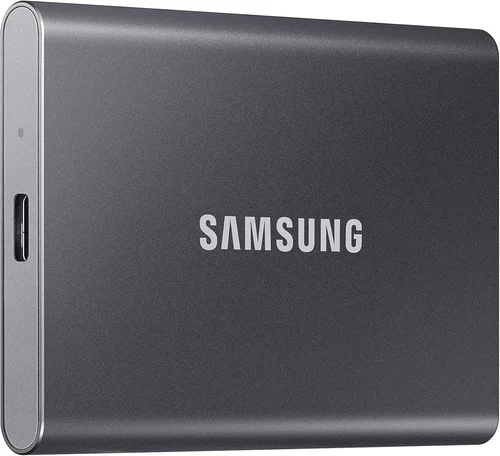
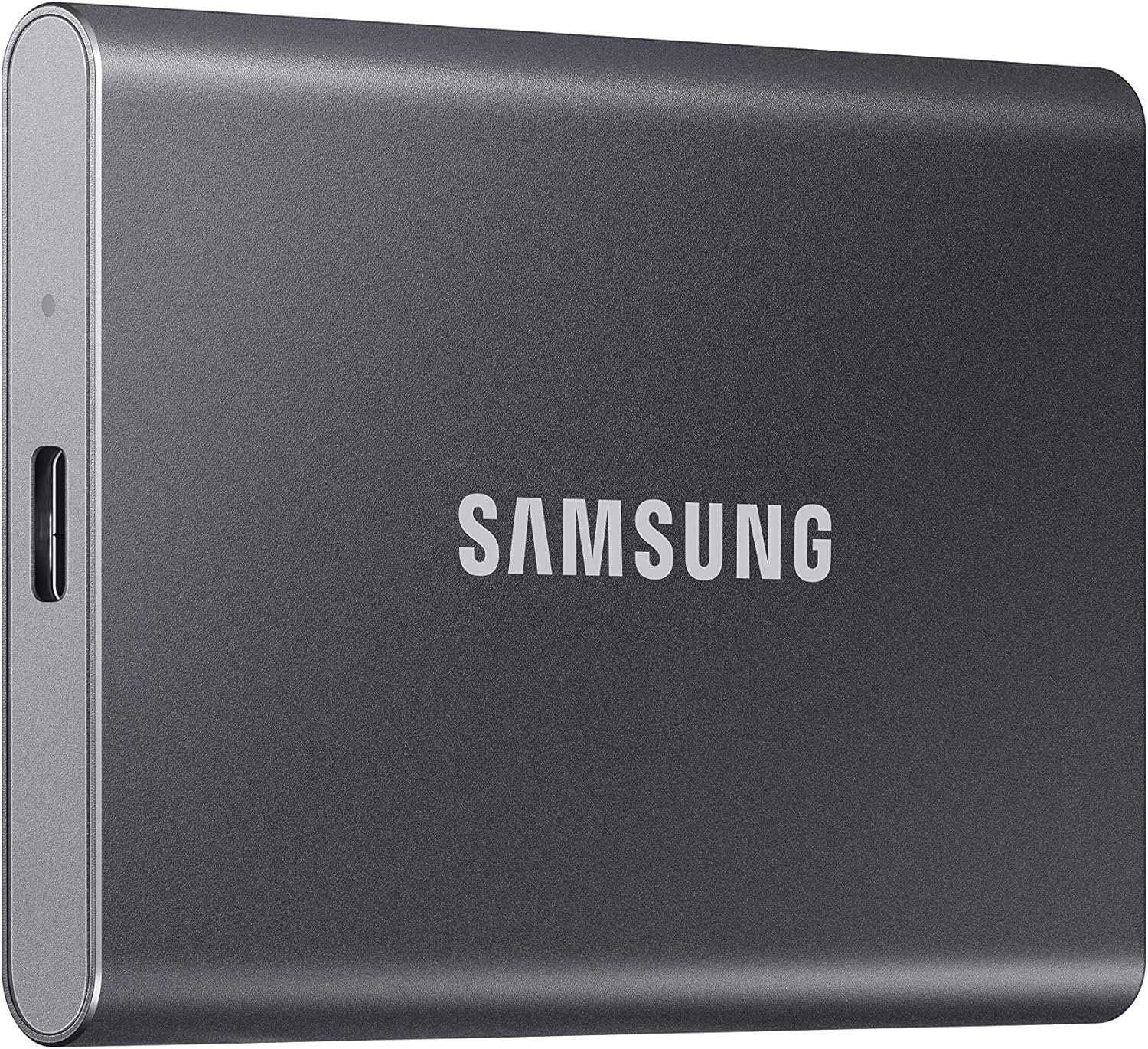
A: Older Macs with SATA ports can use 2.5-inch Samsung SSDs (like the 870 EVO) with adapters. For newer Macs (especially M1/M2 models), internal upgrades aren’t user-replaceable—but external Samsung T7 or X5 portable SSDs work flawlessly via Thunderbolt/USB-C.
Q: What’s the difference between EVO, PRO, and QVO?
A: EVO balances performance and value (TLC NAND, good for most users). PRO is the flagship line—higher endurance, faster speeds, and premium features (ideal for pros). QVO uses cheaper QLC NAND, offering more capacity at lower cost but reduced write performance under load.
Q: How long do Samsung SSDs last?
A: Under normal use, a Samsung SSD can easily last 5–10 years. The 990 PRO 1TB, for example, is rated for 600TBW—equivalent to writing 100GB per day for over 16 years. Real-world failure rates are very low thanks to Samsung’s rigorous quality control.
Q: Should I enable over-provisioning?
A: Yes, especially for heavy workloads. Over-provisioning reserves a portion of the drive for wear leveling and garbage collection, improving longevity and sustained performance. Use Samsung Magician to allocate 5–10% of your drive’s capacity.
Q: Are Samsung SSDs encrypted?
A: Most Samsung consumer SSDs support AES 256-bit hardware encryption and comply with TCG Opal 2.0 and Microsoft eDrive standards. This allows you to enable BitLocker (Windows) or FileVault (macOS) without performance penalties.
Q: What if my SSD fails under warranty?
A: Contact Samsung support with your serial number and proof of purchase. They’ll guide you through diagnostics and, if confirmed defective, send a replacement. Note: Warranty covers hardware failure, not data loss—always maintain backups.
Q: Can I clone my old HDD to a Samsung SSD?
A: Absolutely. Samsung provides free Data Migration software that clones your entire system—including OS, apps, and files—in minutes. Just connect both drives, run the tool, and follow the prompts.
Q: Is the 990 PRO worth it over the 980 PRO?
A: If you have a Gen4 system and need maximum performance, yes. The 990 PRO offers ~15% faster speeds, better thermal management, and slightly higher endurance. But for most users, the 980 PRO remains an outstanding value.
Our Final Recommendations
– Best for Budget-Conscious Buyers: Samsung 870 EVO (1TB) – Reliable, fast enough for daily use, and backed by a 5-year warranty. Perfect for upgrading older systems without breaking the bank.
– Best Overall Value: Samsung 990 EVO (1TB) – Combines Gen4 speeds, low power consumption, and competitive pricing. Ideal for mainstream users who want modern performance without the PRO premium.
– Best Premium Option: Samsung 990 PRO (2TB) – The ultimate consumer SSD for 2026. Blistering speeds, exceptional endurance, and rock-solid reliability. A must-have for gamers, creators, and power users.
– Best for Beginners: Samsung 980 (1TB) – Simple installation, no DRAM worries thanks to HMB, and great performance for the price. Excellent first NVMe drive for new builders.
– Best for Advanced Users: Samsung 990 PRO Heatsink (2TB) – Built-in thermal solution, PS5 compatibility, and pro-grade performance. For those who demand the best and won’t compromise on cooling or speed.
Conclusion: Making the Right Choice
Choosing the best Samsung SSD doesn’t have to be complicated—but it does require understanding your own needs. Whether you’re seeking a quiet upgrade for an old laptop or building a screamingly fast workstation, Samsung offers a drive tailored to your situation. Prioritize compatibility first, then balance performance, capacity, and budget. Don’t fall for marketing hype; instead, focus on real-world metrics like TBW, sustained speeds, and user feedback.
Remember, an SSD is more than just storage—it’s the heartbeat of your system. A well-chosen Samsung drive can breathe new life into your PC, reduce frustration, and unlock productivity you didn’t know was possible. Use the insights in this guide to cut through the confusion, avoid costly mistakes, and invest wisely.
Now that you’re equipped with expert knowledge, it’s time to make your move. Check your system specs, set your budget, and pick the Samsung SSD that aligns with your goals. Your future self—and your faster-booting computer—will thank you.