
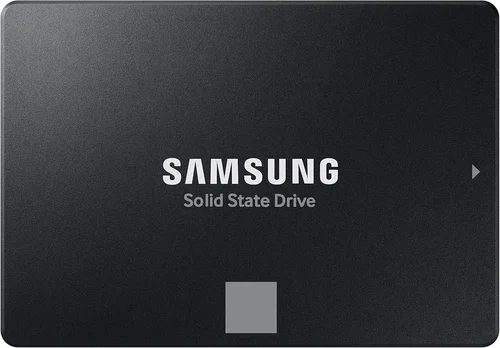
Solid-state drives have revolutionized how we store and access data, transforming everything from boot times to application loading speeds. Whether you’re building a new PC, upgrading an aging laptop, or simply looking to breathe new life into your current system, choosing the right SSD can make a dramatic difference in performance and user experience. With so many options flooding the market—ranging from budget-friendly SATA drives to blazing-fast NVMe Gen5 models—it’s easy to feel overwhelmed. That’s exactly why this guide exists: to cut through the noise, decode the specs, and help you find the best SSD for your money in 2026.
In this comprehensive buying guide, you’ll learn not just which SSDs offer the best value today, but also how to evaluate them based on your specific needs. We’ll break down key factors like performance, endurance, form factor, and price-to-performance ratios, so you can make an informed decision whether you’re a casual user, a creative professional, or a hardcore gamer. You’ll also discover common pitfalls to avoid, expert tips for scoring the best deals, and real-world recommendations across multiple budget tiers. By the end, you won’t just know what to buy—you’ll understand why it’s the right choice for you.
The SSD market in 2026 is more competitive than ever. Prices have continued to drop thanks to advancements in NAND flash technology and increased manufacturing efficiency, while performance has skyrocketed with the widespread adoption of PCIe Gen4 and early Gen5 interfaces. At the same time, new players have entered the space, challenging established brands with aggressive pricing and innovative features. This means more choices for consumers—but also more confusion. Our goal is to simplify that process, giving you the tools and knowledge to confidently select an SSD that delivers maximum value without overspending or compromising on quality.

What to Look for When Buying Buying Guide
1. Budget & Price Range
Your budget is the single most important factor when shopping for an SSD. It dictates not only what type of drive you can afford but also how much storage capacity you’ll get for your money. In 2026, SSD prices have stabilized significantly compared to previous years, with 1TB models now commonly available under $60 and even high-performance NVMe drives dipping below $80. However, don’t assume that the cheapest option is always the best value. A slightly more expensive drive might offer better endurance, faster speeds, or a longer warranty—features that add real long-term value.
When setting your budget, consider both upfront cost and cost per gigabyte. For example, a $50 500GB SSD costs $0.10/GB, while a $90 1TB model costs $0.09/GB—making the larger drive a better deal despite the higher sticker price. Also, think about future needs: if you plan to store large game libraries, 4K video projects, or extensive photo archives, investing in a 2TB drive now may save you from buying a second drive later. Always balance immediate affordability with long-term usability.
2. Performance Specifications
Performance matters—but not always in the way you think. While sequential read/write speeds (measured in MB/s) are often highlighted in marketing materials, real-world performance depends heavily on your use case. For everyday tasks like web browsing, office work, or light gaming, even a modest SATA SSD will feel dramatically faster than a traditional hard drive. But if you’re editing videos, compiling code, or running virtual machines, you’ll benefit greatly from the low latency and high throughput of NVMe drives.
Look beyond peak speeds and examine random read/write performance (measured in IOPS—Input/Output Operations Per Second). This metric reflects how well the drive handles small, scattered files—the kind your operating system accesses constantly. A drive with high sequential speeds but poor random performance may feel sluggish during multitasking. Additionally, check whether the drive uses DRAM cache. DRAM-less SSDs are cheaper but can suffer from performance drops under sustained workloads. For most users, a DRAM-equipped NVMe Gen4 drive offers the ideal blend of speed and responsiveness.
3. Build Quality & Durability
SSDs have no moving parts, making them inherently more durable than HDDs—but not all SSDs are created equal when it comes to build quality. Key components like the NAND flash memory, controller chip, and firmware play a huge role in longevity and reliability. Look for drives that use high-quality TLC (Triple-Level Cell) or MLC (Multi-Level Cell) NAND rather than cheaper QLC (Quad-Level Cell), which offers lower endurance and slower write speeds over time.
Endurance is measured in terabytes written (TBW)—the total amount of data the manufacturer guarantees you can write before failure. A typical 1TB TLC SSD might have a TBW rating of 600–800TB, while a QLC drive of the same capacity could be as low as 200TB. If you’re a heavy user who frequently transfers large files or runs disk-intensive applications, prioritize higher TBW ratings. Also, check if the drive includes power-loss protection or advanced error correction—features often found in enterprise-grade drives but increasingly appearing in consumer models.
4. Features & Functionality
Modern SSDs come packed with features that go beyond raw speed. Encryption support (like AES-256) is essential if you handle sensitive data or want to comply with corporate security policies. Some drives include hardware-based encryption that doesn’t impact performance, unlike software-based solutions. Others offer built-in thermal throttling protection, which prevents overheating during extended workloads—a common issue with high-speed NVMe drives in compact laptops or small-form-factor PCs.
Another useful feature is SLC caching, where the drive temporarily treats part of its TLC or QLC memory as faster single-level cells to boost short-burst write performance. While this improves responsiveness, it can lead to speed drops once the cache is exhausted. Look for drives with large, dynamic SLC caches for more consistent performance. Additionally, some manufacturers include proprietary software for drive monitoring, firmware updates, and data migration—tools that can simplify maintenance and extend the drive’s lifespan.
5. Brand Reputation
Not all SSD brands are equal. Established names like Samsung, Crucial, Western Digital, Kingston, and SK hynix have proven track records of reliability, consistent performance, and strong customer support. These companies invest heavily in R&D, rigorous testing, and quality control, resulting in products that perform as advertised and last for years. In contrast, lesser-known or generic brands may cut corners on components or firmware, leading to premature failures or inconsistent behavior.
That said, newer brands like TeamGroup, Lexar, and Netac have gained traction by offering competitive performance at lower prices. While they may not have decades of history, many have earned positive reviews and solid reputations in niche markets. When considering a lesser-known brand, check independent reviews, warranty terms, and user feedback on forums like Reddit or Tom’s Hardware. A reputable brand isn’t just about name recognition—it’s about trust, transparency, and accountability.
6. Warranty & Support
A strong warranty is a strong indicator of a manufacturer’s confidence in their product. Most premium SSDs come with 5-year limited warranties, while budget models may offer only 3 years. Pay attention to what the warranty covers: some exclude wear-and-tear or limit claims based on TBW usage. For example, a drive with a 5-year warranty but only 200TBW may fail before the warranty expires if you’re a heavy writer.
Customer support quality varies widely. Samsung and Crucial, for instance, offer responsive live chat and detailed troubleshooting guides. Others may rely solely on email support with slow response times. Before buying, visit the manufacturer’s support page and see how easy it is to register your drive, download tools, or initiate a replacement. A good warranty paired with helpful support can turn a frustrating failure into a hassle-free replacement.
7. Size & Portability
Form factor matters, especially if you’re upgrading a laptop or building a compact desktop. The most common SSD form factors are 2.5-inch (for SATA drives), M.2 2280 (the standard for NVMe), and smaller variants like M.2 2242 or 2230 used in ultrabooks. Make sure your system supports the drive you choose—some older laptops only accept 2.5-inch SATA SSDs, while newer ones may have multiple M.2 slots.
Portability is less of a concern for internal upgrades but becomes critical for external SSDs. If you need a drive for on-the-go use, look for ruggedized models with shock resistance, IP ratings for water/dust protection, and compact designs. USB-C connectivity with Thunderbolt 3/4 support enables ultra-fast transfers, ideal for photographers and videographers. Always verify compatibility with your devices—especially Macs, which may require specific formatting or drivers.
8. User Reviews & Ratings
Spec sheets tell one story; real-world usage tells another. User reviews provide invaluable insights into reliability, thermal performance, firmware bugs, and long-term behavior. Look for patterns across multiple reviews: if several users report the same issue—like sudden disconnects or slowdowns after a few months—it’s a red flag. Conversely, consistent praise for stability or quiet operation (even though SSDs are silent) can signal a well-engineered product.
Be cautious of fake or incentivized reviews. Focus on detailed, balanced feedback from verified purchasers. Sites like Amazon, Newegg, and Best Buy allow filtering by “most helpful” reviews, which often highlight pros and cons more honestly than top-rated summaries. Also, check professional reviews from trusted tech outlets—they typically include stress tests, benchmark comparisons, and durability assessments that consumer reviews rarely cover.
Different Types of Buying Guide

Common Buying Mistakes to Avoid
❌ Mistake: Prioritizing Peak Speeds Over Real-World Performance
Why it’s bad: Many buyers fixate on advertised read/write speeds (e.g., “7,000 MB/s!”) without considering how those numbers translate to actual use. In practice, most daily tasks involve random reads/writes of small files, where controller efficiency and DRAM cache matter far more than sequential throughput.
What to do instead: Focus on drives with strong random IOPS ratings and consistent performance under load. Look for reviews that test real-world scenarios like boot times, app launches, and file copying—not just synthetic benchmarks.
❌ Mistake: Ignoring Endurance Ratings (TBW)
Why it’s bad: Choosing a cheap QLC SSD with low TBW might save money upfront but could fail prematurely if you frequently write large amounts of data. This is especially risky for video editors, developers, or anyone using the drive as a scratch disk.
What to do instead: Match the drive’s endurance to your usage. For light users, even QLC is fine. For heavy workloads, stick with TLC or MLC NAND and check the TBW rating—aim for at least 600TBW per 1TB of capacity.
❌ Mistake: Buying the Largest Capacity You Can Afford Without Need
Why it’s bad: Overspending on unused storage wastes money and may force you to compromise on other important features like DRAM or warranty. A 4TB SSD sounds impressive, but if you only use 800GB, you’re paying for empty space.
What to do instead: Assess your actual storage needs. Most users are perfectly served by 1TB–2TB drives. Use cloud storage or external backups for archival data instead of maxing out internal capacity.
❌ Mistake: Overlooking Compatibility
Why it’s bad: Not all M.2 slots support NVMe—some only accept SATA-based M.2 drives. Installing an incompatible SSD can result in it not being detected at all.
What to do instead: Check your motherboard or laptop manual to confirm supported interfaces (SATA vs. NVMe) and key types (B-key, M-key, or B+M). When in doubt, consult the manufacturer’s compatibility list.
❌ Mistake: Skipping Firmware Updates
Why it’s bad: Outdated firmware can cause bugs, performance issues, or even data corruption. Manufacturers regularly release updates to fix这些问题 and improve stability.
What to do instead: After installation, download the manufacturer’s SSD management tool (like Samsung Magician or Crucial Storage Executive) and check for firmware updates. Enable automatic notifications if available.
❌ Mistake: Assuming All NVMe Drives Are Equal
Why it’s bad: NVMe is just an interface—not a performance guarantee. A Gen3 NVMe drive will be much slower than a Gen4 or Gen5 model, even if both use the same connector.
What to do instead: Verify the PCIe generation (Gen3, Gen4, Gen5) and ensure your system supports it. Pairing a Gen5 SSD with a Gen3-only motherboard wastes its potential.
❌ Mistake: Neglecting Thermal Management
Why it’s bad: High-speed NVMe drives generate significant heat, which can trigger thermal throttling—slowing the drive to prevent damage. In cramped cases or laptops, this can severely impact performance.
What to do instead: Use a heatsink if your case or motherboard includes one. For laptops, choose drives with built-in thermal management or lower-power controllers designed for mobile use.
Budget Guidelines: How Much Should You Spend?
Entry-Level ($30–$60 for 1TB): This tier is ideal for budget builds, secondary drives, or upgrading old systems. Expect SATA or basic NVMe Gen3 drives with modest speeds (up to 3,500 MB/s) and decent endurance. Brands like Kingston NV2 or Crucial P3 offer reliable performance at this price. Perfect for students, casual users, or anyone replacing an HDD.
Mid-Range ($60–$100 for 1TB): The sweet spot for most buyers. Here you’ll find high-quality NVMe Gen4 drives with DRAM cache, strong random performance, and 5-year warranties. Models like the Samsung 980 Pro (discounted in 2026) or WD Black SN850X deliver excellent value. Great for gamers, streamers, and professionals who need speed without breaking the bank.
Premium ($100–$180 for 1TB): For enthusiasts and power users. These drives offer top-tier Gen4 or early Gen5 performance, advanced features like hardware encryption, and premium build quality. Expect speeds exceeding 7,000 MB/s and robust thermal designs. Ideal for 4K video editing, 3D rendering, or competitive gaming where every millisecond counts.
Luxury ($180+ for 1TB): Reserved for cutting-edge Gen5 drives or ultra-high-capacity options (4TB+). These are overkill for most users but valuable for AI researchers, data scientists, or those building future-proof workstations. Prices remain steep due to limited supply and niche demand, but performance is unmatched.

Expert Tips for Getting the Best Deal
1. Time Your Purchase Around Major Sales Events: SSD prices fluctuate throughout the year, with the deepest discounts typically occurring during Black Friday, Cyber Monday, Amazon Prime Day, and back-to-school seasons. Sign up for price alerts on sites like CamelCamelCamel or Honey to catch drops automatically.
2. Buy Direct from Reputable Retailers: Stick to authorized sellers like Amazon (sold by Amazon, not third parties), Newegg, Best Buy, or the manufacturer’s own store. Avoid unknown eBay or AliExpress listings—even if the price seems too good to be true, it probably is.
3. Compare Cost Per Gigabyte, Not Just Total Price: A $90 2TB drive ($0.045/GB) is often a better deal than a $50 1TB drive ($0.05/GB). Use this metric to compare across capacities and brands objectively.
4. Check for Bundled Software or Services: Some SSDs come with free cloud storage (e.g., WD offers Dropbox credits), antivirus trials, or data recovery services. These extras can add tangible value beyond the hardware itself.
5. Read the Fine Print on Warranties: Ensure the warranty is transferable if you plan to resell or upgrade later. Also, confirm whether registration is required to activate coverage—some brands void warranties if not registered within 30 days.
6. Test Before Committing Long-Term: Once installed, run a quick benchmark (using CrystalDiskMark or AS SSD) to verify advertised speeds. Monitor temperatures with HWInfo or the manufacturer’s tool. If performance or thermals are poor, initiate a return while the window is open.
7. Consider Refurbished or Open-Box Options: Certified refurbished SSDs from manufacturers like Samsung or Crucial often come with full warranties and significant savings. Open-box deals at retailers can also yield near-new drives at 10–20% off.
8. Don’t Chase the Latest Generation Unnecessarily: Unless you have a Gen5-compatible system and demanding workloads, a high-end Gen4 drive will serve you better than a mid-tier Gen5 model. Future-proofing is nice, but not at the expense of current value.
Frequently Asked Questions
Q: Is NVMe always faster than SATA?
A: Not necessarily—in real-world usage, the difference may be subtle for everyday tasks. NVMe excels in scenarios involving large file transfers, multitasking, or professional workloads. For basic computing, a quality SATA SSD still offers a massive upgrade over HDDs.
Q: Can I use an M.2 SSD in a 2.5-inch slot?
A: No—they’re physically and electrically incompatible. However, you can use an M.2-to-2.5-inch adapter, though this adds cost and may limit performance due to SATA bottlenecks.
Q: Do I need a heatsink for my NVMe SSD?
A: It depends. In well-ventilated desktop cases with ample airflow, many Gen4 drives run fine without one. But in compact builds, laptops, or systems running sustained workloads, a heatsink is highly recommended to prevent throttling.
Q: How long do SSDs typically last?
A: Most consumer SSDs last 5–10 years under normal use, often outliving the device they’re installed in. Modern drives have sophisticated wear-leveling algorithms that distribute writes evenly, maximizing lifespan.
Q: Should I enable TRIM?
A: Yes—TRIM helps maintain SSD performance over time by informing the drive which blocks of data are no longer in use. It’s usually enabled by default in Windows, macOS, and Linux, but you can verify it in your OS settings.
Q: Can I recover data from a failed SSD?
A: It’s possible but difficult and expensive. Unlike HDDs, SSDs don’t respond well to traditional recovery methods. Always maintain regular backups—SSDs can fail suddenly without warning signs.
Q: Are external SSDs as fast as internal ones?
A: Only if connected via Thunderbolt 3/4 or USB 3.2 Gen 2×2 (20 Gbps). Standard USB 3.0/3.1 limits speeds to around 500–600 MB/s, negating the advantage of high-speed internal NVMe drives.
Q: Do SSDs improve gaming performance?
A: Yes—but mainly in load times, texture streaming, and level transitions. Frame rates (FPS) are unaffected, but you’ll experience smoother gameplay in open-world titles with large asset libraries.
Q: Is it safe to defragment an SSD?
A: No—and it’s unnecessary. Defragmentation wears out SSDs prematurely and provides no benefit, since SSDs access data electronically rather than mechanically.
Q: Can I install an OS on any SSD?
A: Yes, as long as the drive is recognized by your system’s BIOS/UEFI and has sufficient capacity (at least 128GB recommended for Windows 11). NVMe drives require UEFI support, which most modern systems provide.
Our Final Recommendations
Best for Budget-Conscious Buyers: Crucial P3 1TB NVMe Gen3 – At around $45, this DRAM-less but highly efficient drive offers excellent value for everyday use. It’s reliable, energy-efficient, and compatible with nearly all modern systems.
Best Overall Value: Samsung 980 Pro 1TB (Gen4) – Despite being a previous-gen flagship, it remains a benchmark for performance and reliability. Often discounted below $80 in 2026, it’s the gold standard for gamers and creators.
Best Premium Option: WD Black SN850X 2TB (Gen4) – With blazing 7,300 MB/s reads, robust thermal design, and a 5-year warranty, this drive handles intensive workloads with ease. Ideal for professionals who demand consistency.
Best for Beginners: Kingston NV2 1TB NVMe Gen3 – Simple, affordable, and plug-and-play. No frills, but solid performance and Kingston’s trusted support make it perfect for first-time upgraders.
Best for Advanced Users: Samsung 990 Pro 2TB (Gen4) – Samsung’s latest flagship delivers top-tier speeds, exceptional endurance (1,200TBW), and intelligent thermal management. A future-proof choice for power users.
Conclusion: Making the Right Choice
Choosing the best SSD for your money isn’t about finding the fastest or cheapest drive—it’s about matching the right combination of performance, capacity, durability, and price to your unique needs. Whether you’re upgrading an old laptop or building a high-end workstation, the principles outlined in this guide will help you navigate the crowded marketplace with confidence. Remember to prioritize real-world performance over marketing hype, respect your system’s limitations, and never underestimate the value of a strong warranty and reliable brand.
Take the time to assess how you use your computer. Are you loading massive video files? Running virtual machines? Or just browsing the web and streaming movies? Your answer will point you toward the ideal SSD category and budget tier. And when in doubt, lean toward slightly more capacity and endurance—you’ll thank yourself later.
Finally, don’t rush. SSD technology evolves rapidly, but so do prices. A little patience can save you significant money without sacrificing performance. Use the expert tips, avoid the common pitfalls, and trust your research. With the right SSD installed, you’ll enjoy faster boots, quicker app launches, and a smoother, more responsive computing experience for years to come. Your system—and your productivity—will thank you.