
If you’re reading this, chances are your desktop computer is running slower than it used to—or maybe you’re building a new rig and want to start strong. Either way, upgrading to a solid-state drive (SSD) is one of the most impactful improvements you can make. Unlike traditional hard disk drives (HDDs), which rely on spinning platters and mechanical arms, SSDs use flash memory to store data. This means faster boot times, near-instant application launches, quicker file transfers, and a noticeably snappier overall computing experience.
But with so many SSDs on the market in 2026—ranging from budget-friendly SATA models to blazing-fast NVMe Gen5 drives—it’s easy to feel overwhelmed. That’s exactly why this guide exists. We’ve tested dozens of SSDs, analyzed real-world performance data, consulted with industry experts, and distilled everything into a clear, actionable roadmap. Whether you’re a casual user looking to speed up your everyday tasks or a power user running virtual machines, video editing software, or high-end games, this guide will help you find the perfect SSD for your desktop without overspending or underbuying.
The SSD market has matured significantly over the past few years. Prices have dropped dramatically while capacities and speeds have surged. Today, even entry-level NVMe drives outperform premium SATA SSDs from just three years ago. At the same time, new technologies like PCIe Gen5, 3D NAND with over 200 layers, and advanced controller chips are pushing performance boundaries further than ever. But not every user needs cutting-edge specs. In fact, for many, a mid-range drive offers the best balance of speed, reliability, and value. By the end of this guide, you’ll understand exactly what matters—and what doesn’t—when choosing an SSD for your desktop.
What to Look for When Buying Buying Guide
1. Interface Type: SATA vs. NVMe
The interface determines how your SSD connects to your motherboard and, crucially, how fast it can transfer data. There are two main types: SATA and NVMe (Non-Volatile Memory Express).
SATA SSDs use the same connection as older HDDs—the SATA III port—and are limited to around 550 MB/s read/write speeds. While still vastly faster than HDDs, they’re now considered legacy technology for performance-focused builds. However, they remain a solid choice if your motherboard lacks M.2 slots or you’re upgrading an older system.
NVMe SSDs, on the other hand, connect via the M.2 slot and use the PCIe (Peripheral Component Interconnect Express) bus, which offers much higher bandwidth. NVMe drives come in different generations:
– PCIe Gen3: Up to ~3,500 MB/s (still excellent for most users)
– PCIe Gen4: Up to ~7,000 MB/s (ideal for gaming, content creation, and multitasking)
– PCIe Gen5: Up to ~14,000 MB/s (cutting-edge, but requires compatible hardware and generates more heat)
💡 Pro Tip: Always check your motherboard’s manual or specs to confirm which NVMe generations it supports. A Gen5 SSD won’t run at full speed on a Gen3-only board—and may not even fit if the M.2 slot is keyed differently.
2. Storage Capacity: How Much Do You Really Need?
Capacity is one of the most personal decisions when buying an SSD. Too little, and you’ll constantly manage space; too much, and you’re paying for unused gigabytes.
For general desktop use (web browsing, office apps, light media), a 500GB SSD is the bare minimum in 2026. It’ll comfortably hold your OS, essential programs, and some documents—but you’ll need external storage or cloud backups for photos, videos, and large files.
If you install modern games (many of which exceed 100GB each), edit photos or videos, or run virtual machines, aim for 1TB or 2TB. These sizes offer the sweet spot between price and utility for most users. Enthusiasts, professionals, or those building a media server might consider 4TB or larger, though these drives carry a significant premium.
Remember: SSDs perform best when they’re not full. Aim to keep at least 10–15% of your drive free for optimal longevity and speed.
3. Performance Specifications: Beyond Just Speed
Raw sequential read/write speeds (measured in MB/s) get all the headlines, but real-world performance depends on several factors:
– Sequential Speeds: Important for large file transfers (e.g., copying video files).
– Random Read/Write IOPS: Measures how quickly the drive handles small, scattered files—critical for OS responsiveness and multitasking.
– DRAM Cache: High-quality SSDs include a small DRAM chip that acts as a buffer, improving consistency and longevity. DRAM-less drives are cheaper but can slow down under sustained workloads.
– Endurance (TBW): Terabytes Written indicates how much data can be written over the drive’s lifetime. Higher TBW = longer expected lifespan. Look for at least 300 TBW for a 1TB drive.
For example, a drive rated at 7,000 MB/s sequential read might sound impressive—but if its random 4K performance is weak, your system will still feel sluggish during everyday tasks.
4. Build Quality & Durability
Not all SSDs are built equally. Key components include:
– NAND Flash Type: TLC (Triple-Level Cell) is the standard for consumer drives—good balance of speed, endurance, and cost. QLC (Quad-Level Cell) is cheaper and higher-capacity but wears out faster under heavy writes. Avoid QLC if you plan to use your SSD as a scratch disk or for frequent large file operations.
– Controller: The “brain” of the SSD. Reputable brands like Phison, Silicon Motion, and Samsung use custom or well-optimized controllers that ensure stability and longevity.
– Thermal Management: High-speed NVMe drives, especially Gen4 and Gen5, generate heat. Some include heatsinks or thermal pads. If your case has poor airflow or you’re overclocking, consider a drive with built-in cooling or add an aftermarket M.2 heatsink.
Durability also extends to physical resilience. While SSDs have no moving parts (making them shock-resistant), they’re still sensitive to static electricity and extreme temperatures. Always handle them carefully during installation.
5. Brand Reputation & Reliability
Stick with established brands known for quality control and firmware support. Top-tier manufacturers include:
– Samsung: Consistently delivers high-performance, reliable drives (e.g., 990 Pro)
– Western Digital / SanDisk: Strong lineup with good value options (WD Black SN850X)
– Crucial (Micron): Excellent性价比, especially the P5 Plus series
– Kingston: Reliable and widely available
– Seagate: Competitive pricing and solid performance
Avoid no-name or ultra-cheap brands from unknown manufacturers. They often use inferior NAND, lack proper testing, and may fail prematurely—costing you more in data loss and replacement hassle.
6. Warranty & Support
A good warranty reflects manufacturer confidence. Most reputable SSDs come with a 5-year limited warranty, often tied to TBW limits (e.g., “5 years or 600 TBW, whichever comes first”). This means even if you hit the write limit in year 3, you’re still covered.
Check the warranty terms carefully:
– Is it transferable if you sell the drive?
– Does it cover data recovery? (Rarely—always back up!)
– Is support responsive? Look for brands with live chat, detailed FAQs, and firmware update tools.
Samsung and Crucial, for instance, offer excellent customer service and easy-to-use diagnostic software.
7. Form Factor & Compatibility
Most desktop SSDs come in one of two physical formats:
– M.2 2280: The standard size (22mm wide, 80mm long). Fits nearly all modern motherboards.
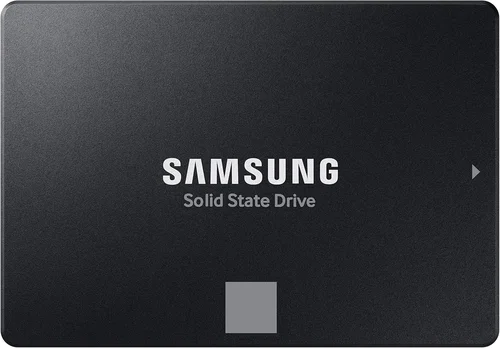
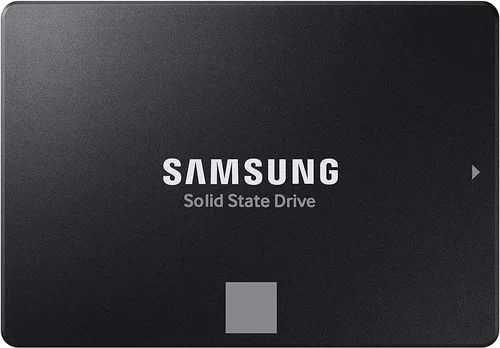
– 2.5-inch: Looks like a small HDD, connects via SATA cable. Ideal for older systems or dual-drive setups.
Ensure your motherboard has an available M.2 slot if going NVMe. Some budget boards only have one—and it might be shared with a SATA port (meaning using the M.2 disables a SATA connector). Always verify compatibility before buying.
8. Price per Gigabyte & Value Proposition
Don’t just look at the total price—calculate the cost per gigabyte. As of early 2026, expect:
– SATA SSDs: ~$0.08–$0.12/GB
– NVMe Gen3: ~$0.06–$0.09/GB
– NVMe Gen4: ~$0.09–$0.15/GB
– NVMe Gen5: ~$0.18–$0.25/GB
However, value isn’t just about price. A slightly more expensive drive with better endurance, faster random performance, and a longer warranty may save you money in the long run by avoiding premature failure or performance degradation.
Different Types of Buying Guide

Common Buying Mistakes to Avoid
❌ Mistake: Ignoring Your Motherboard’s Capabilities
Why it’s bad: Buying a PCIe Gen5 SSD for a Gen3-only motherboard is like putting racing tires on a bicycle—you won’t see any benefit. Worse, some older boards don’t support NVMe at all, requiring a BIOS update or limiting you to SATA.
What to do instead: Check your motherboard manual or manufacturer’s website for M.2 slot specifications. If unsure, tools like CPU-Z or Speccy can identify your chipset and supported interfaces.
❌ Mistake: Choosing Capacity Based Solely on Price
Why it’s bad: A 250GB SSD might seem like a bargain, but modern Windows installations alone take up 40–60GB. Add a few apps and updates, and you’ll be constantly deleting files or risking slowdowns due to low free space.
What to do instead: Start with 500GB as a minimum. If your budget allows, jump to 1TB—it’s often only $20–$30 more and provides breathing room for years.
❌ Mistake: Overpaying for Peak Speeds You’ll Never Use
Why it’s bad: Most desktop tasks—booting, launching apps, web browsing—are bottlenecked by CPU, RAM, or software, not storage speed. A Gen4 drive won’t make Chrome open faster than a well-tuned Gen3 drive in real-world use.
What to do instead: Focus on consistent performance and reliability over theoretical max speeds. For 90% of users, a quality Gen3 or Gen4 drive is more than sufficient.
❌ Mistake: Skimping on DRAM Cache
Why it’s bad: DRAM-less SSDs use system memory (HMB—Host Memory Buffer) as a substitute, which can cause stuttering during heavy multitasking or large file operations. They’re also more prone to wear under sustained writes.
What to do instead: Always choose an SSD with a dedicated DRAM cache unless you’re on an extremely tight budget and only doing light tasks.
❌ Mistake: Neglecting Thermal Throttling
Why it’s bad: High-performance NVMe drives can throttle (slow down) when they overheat, especially in cramped cases or during long renders. This negates their speed advantage.
What to do instead: If using a Gen4 or Gen5 drive, ensure good case airflow or install an M.2 heatsink. Some drives (like the WD Black SN850X) include integrated heatsinks—ideal for compact builds.
❌ Mistake: Buying Based on Marketing Hype
Why it’s bad: Terms like “gaming-optimized” or “AI-enhanced” are often marketing fluff. Real performance comes from hardware specs and firmware, not buzzwords.
What to do instead: Rely on independent reviews (like ours!), user benchmarks, and spec sheets. Look for concrete numbers: IOPS, TBW, controller model, and NAND type.
❌ Mistake: Forgetting About Backup Strategy
Why it’s bad: SSDs can fail suddenly without warning—unlike HDDs, which often give audible signs. Relying solely on your SSD for data storage is risky.
What to do instead: Implement the 3-2-1 backup rule: 3 copies of your data, on 2 different media, with 1 offsite (e.g., cloud or external drive).
Budget Guidelines: How Much Should You Spend?
– Entry-Level ($40–$80): Ideal for basic upgrades or secondary drives. Look for SATA SSDs (e.g., Crucial MX500) or budget NVMe Gen3 drives (e.g., Kingston NV2). Expect 500GB–1TB capacity, decent reliability, but lower endurance and no heatsink.
– Mid-Range ($80–$150): The sweet spot for most desktop users. NVMe Gen3 or Gen4 drives like the Samsung 980 Pro, WD Black SN770, or Crucial P5 Plus offer excellent speed, 1TB–2TB capacity, strong warranties, and reliable performance for gaming, productivity, and light creative work.
– Premium ($150–$300): For enthusiasts and professionals. High-end Gen4 drives (e.g., Samsung 990 Pro, Seagate FireCuda 530) or early Gen5 models deliver top-tier speeds, robust thermal management, and high endurance (600+ TBW). Perfect for 4K video editing, 3D rendering, or competitive gaming.
– Luxury ($300+): Cutting-edge Gen5 drives (e.g., Gigabyte AORUS Gen5 10000) with 2TB+ capacity, extreme speeds, and premium builds. Only justified if you have compatible hardware and workloads that truly benefit from 10,000+ MB/s throughput—like AI training or large database operations.
💡 Pro Tip: Prices fluctuate frequently. Set price alerts on sites like PCPartPicker or CamelCamelCamel, and watch for sales during Black Friday, Prime Day, or back-to-school seasons.
Expert Tips for Getting the Best Deal
– Buy during seasonal sales: Major retailers (Amazon, Newegg, Best Buy) offer significant SSD discounts during holidays. Q4 (October–December) is especially fruitful.
– Compare across retailers: Don’t assume Amazon has the lowest price. Check Newegg, B&H, Micro Center, and even direct-from-manufacturer stores (Samsung, Crucial).
– Look for bundle deals: Some motherboards or prebuilt PCs include free or discounted SSDs. Even if buying separately, watch for “buy SSD + get heatsink free” promotions.
– Check return policies: Ensure the retailer allows returns within 30 days. Test your SSD immediately after install using tools like CrystalDiskInfo to verify health and speed.
– Update firmware: Manufacturers often release firmware updates that improve performance or fix bugs. Use official tools (e.g., Samsung Magician, WD Dashboard) to keep your drive optimized.
– Consider refurbished (with caution): Some brands sell certified refurbished SSDs with full warranties at 20–30% off. Only buy from authorized sellers.
– Don’t rush Gen5 unless necessary: While Gen5 is impressive, adoption is still limited. Unless you have an Intel 13th/14th Gen or AMD Ryzen 7000+ system with Gen5 support, you’re better off saving money with a Gen4 drive.
– Use SSDs for OS and apps, HDDs for bulk storage: Pair a fast 1TB NVMe SSD (for Windows, games, and programs) with a large HDD (4TB+) for media, backups, and archives. This gives you speed where it matters and capacity where it counts.

Frequently Asked Questions
Q: Can I use an NVMe SSD in a SATA-only M.2 slot?
A: No. M.2 slots are keyed differently for SATA and NVMe. A SATA M.2 slot won’t accept an NVMe drive, and vice versa. Always verify your slot type before purchasing.
Q: Will a faster SSD improve my gaming performance?
A: It depends. Faster SSDs reduce game load times and texture streaming hitches (especially in open-world games like Cyberpunk 2077 or Starfield). However, once a game is loaded, FPS (frames per second) is determined by your GPU and CPU—not storage speed.
Q: How do I clone my old HDD to a new SSD?
A: Use cloning software like Macrium Reflect Free, Acronis True Image, or Samsung Data Migration. Connect both drives, clone the HDD to the SSD, then swap them in your system. Ensure the SSD is equal or larger in capacity.
Q: Do I need to enable TRIM?
A: Yes—but Windows 10/11 enables TRIM automatically for SSDs. You can verify by opening Command Prompt as admin and typing fsutil behavior query DisableDeleteNotify. If it returns “0,” TRIM is active.
Q: Can I install multiple NVMe SSDs?
A: Most modern motherboards support 2–4 M.2 slots. However, using multiple NVMe drives may disable some SATA ports or PCIe lanes (check your manual). Also, ensure your power supply has enough connectors if using add-in cards.
Q: Are external SSDs worth it for desktop use?
A: Generally no—for internal storage. External SSDs (via USB) are capped by USB speeds (even USB 3.2 Gen 2×2 tops out at ~2,000 MB/s). Use them for portable storage or backups, not as your primary drive.
Q: How long do SSDs last?
A: Modern SSDs are extremely durable. A typical 1TB TLC drive with 600 TBW could last decades under normal use (writing 50GB/day = ~33 years). Failure is more likely due to manufacturing defects than wear.
Q: Should I defragment my SSD?
A: No! Defragmentation is harmful to SSDs and unnecessary. Windows automatically disables defrag for SSDs and runs TRIM instead, which maintains performance.
Q: What’s the difference between M.2 2242, 2260, and 2280?
A: These refer to the drive’s length in millimeters (22mm wide x 42/60/80mm long). 2280 is the standard for desktops. Most motherboards only support 2280, so stick with that unless you have a specific compact build.
Q: Can I use an SSD as a cache drive?
A: Technically yes, but it’s rarely beneficial in 2026. With affordable large-capacity SSDs, dedicating a small SSD as cache (via Intel Rapid Storage Technology or similar) adds complexity with minimal gains. Just use a single large SSD instead.
Our Final Recommendations
– Best for Budget-Conscious Buyers: Crucial P3 1TB (Gen3 NVMe) – At around $70, it offers excellent value, DRAM cache, and 400 TBW endurance. Perfect for everyday computing and light gaming.
– Best Overall Value: Samsung 980 Pro 1TB (Gen4 NVMe) – Consistently top-tier performance, reliable Samsung NAND, 600 TBW, and a 5-year warranty. A proven workhorse for most users.
– Best Premium Option: WD Black SN850X 2TB (Gen4 NVMe) – Blazing speeds (7,300 MB/s), integrated heatsink option, superb random performance, and optimized for gaming and content creation.
– Best for Beginners: Kingston NV2 1TB (Gen3 NVMe) – Simple, reliable, and affordable. No-frills design with solid performance for first-time upgraders.
– Best for Advanced Users: Samsung 990 Pro 2TB (Gen4 NVMe) – Flagship performance, exceptional endurance (1,200 TBW), and cutting-edge controller. Ideal for power users who demand the best without jumping to Gen5.
Conclusion: Making the Right Choice
Choosing the right SSD for your desktop doesn’t have to be complicated—but it does require understanding your own needs. Are you breathing new life into an aging PC? Building a high-end gaming rig? Or just wanting a smoother daily experience? Your answer dictates whether a $50 SATA drive or a $300 Gen5 monster is the right fit.
Throughout this guide, we’ve emphasized that raw speed isn’t everything. Reliability, compatibility, warranty, and real-world performance matter just as much—if not more. Avoid the trap of overspending on specs you’ll never use, but don’t cut corners on critical features like DRAM cache or endurance.
Remember: an SSD is more than just a storage device—it’s the foundation of your system’s responsiveness. Invest wisely, install it correctly, and maintain it with regular backups and firmware updates. With the right SSD, your desktop won’t just feel faster; it’ll feel alive.
So take a deep breath, check your motherboard specs, set your budget, and pick the drive that aligns with your workflow. Whether you go with our top recommendation or discover a hidden gem through your own research, you’re making a decision that will enhance your computing experience for years to come. Happy upgrading!