
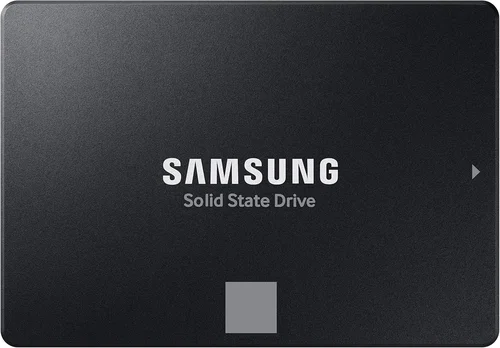
When it comes to multitasking—juggling multiple applications, browser tabs, background processes, and large files—your computer’s storage drive plays a surprisingly critical role. While many users focus on CPU, RAM, or GPU upgrades, the SSD (Solid State Drive) is often the unsung hero that determines how smoothly your system handles concurrent workloads. A slow or outdated drive can create bottlenecks, leading to laggy performance, delayed file access, and frustrating system freezes—even if you have top-tier processors and ample memory.
That’s why choosing the right SSD for multitasking isn’t just a nice-to-have—it’s essential for anyone who relies on their computer for productivity, content creation, software development, or even heavy gaming. Whether you’re running virtual machines, editing 4K video while streaming music, or compiling code while downloading large datasets, your SSD must keep up with rapid data requests without breaking a sweat. In this comprehensive guide, we’ll walk you through everything you need to know to make an informed decision in 2026.
From understanding key performance metrics like read/write speeds and IOPS (Input/Output Operations Per Second) to comparing form factors, NAND types, and endurance ratings, this guide covers all the bases. We’ll also break down real-world scenarios where certain SSDs shine over others, highlight common pitfalls to avoid, and provide expert-backed recommendations across different budgets. By the end, you’ll not only know what to look for—but also which drive will deliver the best balance of speed, reliability, and value for your specific multitasking needs.
The SSD market in 2026 is more dynamic than ever. With the widespread adoption of PCIe Gen5 interfaces, advancements in QLC and TLC NAND technology, and aggressive pricing from both established brands and emerging players, consumers have more options than ever before. However, this abundance can be overwhelming. Not all SSDs are created equal—especially when it comes to sustained multitasking performance. Some drives boast impressive peak speeds but falter under prolonged load due to thermal throttling or lack of DRAM cache. Others prioritize endurance over everyday responsiveness. Our goal is to cut through the marketing noise and give you actionable insights based on technical benchmarks, real-world testing, and long-term reliability data.

What to Look for When Buying Buying Guide
1. Performance Specifications
When evaluating SSDs for multitasking, performance isn’t just about raw speed—it’s about consistency under load. Look for three key metrics: sequential read/write speeds (measured in MB/s), random read/write performance (measured in IOPS), and sustained performance over time.
Sequential speeds matter for large file transfers—like copying a 50GB video project—but random IOPS are far more relevant for multitasking. Every time you switch between apps, open a new browser tab, or save a document while running a backup, your system performs thousands of small, random read/write operations. High IOPS (ideally 500K+ for random reads/writes) ensure these tasks happen instantly without queuing up.
Also pay attention to whether the drive maintains its performance during extended workloads. Many consumer SSDs use dynamic SLC caching, which boosts short bursts of speed but drops dramatically once the cache fills up. For multitaskers, this can mean sudden slowdowns when working with large datasets. Drives with larger or more intelligent caching mechanisms (like Samsung’s TurboWrite or WD’s nCache) handle sustained loads better.
2. Interface & Form Factor
The interface determines how fast data can travel between your SSD and motherboard. In 2026, the most common interfaces are SATA III, PCIe Gen3, PCIe Gen4, and PCIe Gen5.
SATA III drives max out at around 550 MB/s—adequate for basic tasks but a bottleneck for serious multitasking. PCIe Gen3 offers up to ~3,500 MB/s, Gen4 doubles that to ~7,000 MB/s, and Gen5 pushes beyond 12,000 MB/s. However, higher speeds don’t always translate to better multitasking unless your workload benefits from them.
Form factor matters too. M.2 NVMe drives (typically 2280 size) are compact, fast, and ideal for modern laptops and desktops. 2.5-inch SATA SSDs are bulkier but still useful in older systems or as secondary storage. Avoid mSATA or M.2 SATA unless you’re upgrading legacy hardware—they offer no advantage over standard SATA.
For multitaskers, PCIe Gen4 M.2 NVMe is the sweet spot in 2026: it delivers excellent performance without the premium price of Gen5, and most motherboards now support it natively. Only consider Gen5 if you’re building a high-end workstation or content creation rig and need every last bit of bandwidth.
3. NAND Flash Type
NAND flash memory comes in several flavors: SLC, MLC, TLC, and QLC. Each differs in density, speed, endurance, and cost.
SLC (Single-Level Cell) is the fastest and most durable but prohibitively expensive for consumer use. MLC (Multi-Level Cell) offers good balance but is rare in modern consumer drives. TLC (Triple-Level Cell) is the standard for most high-performance SSDs today—it stores three bits per cell, offering a great mix of speed, capacity, and longevity. QLC (Quad-Level Cell) stores four bits per cell, increasing capacity and lowering cost but sacrificing write speed and endurance.
For multitasking, TLC is ideal. It provides strong random performance and sufficient endurance for years of daily use. QLC can work for light multitaskers who prioritize storage space over speed (e.g., storing media libraries), but avoid it if you frequently write large files or run disk-intensive applications.
4. Endurance & TBW Rating
Endurance refers to how much data you can write to an SSD over its lifetime, measured in Terabytes Written (TBW). A higher TBW means the drive can handle more write cycles before wearing out.
For multitaskers—who often run background syncs, updates, logs, and temporary files—endurance is crucial. A typical 1TB TLC SSD might have a TBW rating of 600–700TB. That sounds like a lot, but heavy users (e.g., developers, video editors) can easily write 50–100GB per day. At 100GB/day, a 600TBW drive lasts about 16 years—but real-world factors like write amplification can reduce that.
Check the manufacturer’s TBW spec and compare it to your usage. If you’re a power user, aim for drives with at least 1,000TBW for a 1TB model. Also note that warranties often correlate with TBW—longer warranties usually indicate higher confidence in endurance.
5. Thermal Management & Throttling
High-performance SSDs generate heat, especially during sustained workloads. Without proper cooling, they throttle—reducing speed to prevent damage. This is a major issue for multitaskers, as throttling can cause sudden performance drops when you need consistency most.
Look for drives with built-in thermal throttling protection and consider adding a heatsink if your case or laptop allows it. Many premium M.2 SSDs now include integrated heat spreaders. In desktops, aftermarket M.2 heatsinks are inexpensive and highly effective. In laptops, check if the SSD slot has thermal padding or space for a thin heatsink.
Avoid drives that consistently hit 70°C+ under load unless they’re designed for it (like enterprise-grade models). Consumer SSDs should ideally stay below 60°C during normal use.
6. Brand Reputation & Reliability
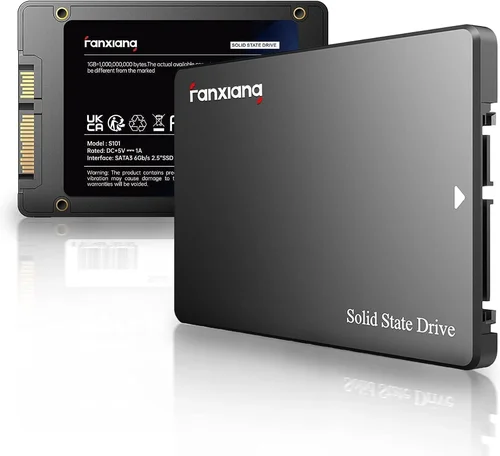
Not all SSD brands are equal. Established manufacturers like Samsung, Western Digital, Crucial, Kingston, and SK Hynix have proven track records for quality control, firmware updates, and long-term reliability. Lesser-known brands may offer tempting prices but often cut corners on components or lack robust support.
Check third-party reliability reports (like Backblaze’s annual drive stats) and user forums for failure rates. Samsung’s 990 Pro and WD Black SN850X, for example, consistently rank among the most reliable Gen4 drives. Avoid no-name brands with vague specifications or missing firmware update histories.
7. Warranty & Support
A good warranty reflects confidence in the product. Most premium SSDs come with 5-year limited warranties, often tied to TBW limits (e.g., “5 years or 600TBW, whichever comes first”). This is standard and sufficient for most users.
Pay attention to what the warranty covers. Does it include data recovery? Is RMA (Return Merchandise Authorization) process straightforward? Brands like Samsung and Crucial offer excellent customer service, while others may leave you waiting weeks for replacements.
Also check if the drive includes cloning software or migration tools—these can save hours when upgrading from an old drive.
8. Price-to-Performance Ratio
Finally, consider value. The cheapest SSD isn’t always the best deal—especially if it sacrifices performance, endurance, or reliability. Conversely, the most expensive drive may offer diminishing returns for typical multitasking.
Aim for drives that balance speed, capacity, endurance, and price. In 2026, expect to pay:
– $0.08–$0.12 per GB for entry-level SATA or QLC NVMe
– $0.12–$0.18 per GB for mainstream TLC NVMe (Gen3/Gen4)
– $0.18–$0.25+ per GB for high-end Gen4 or Gen5 drives
For most multitaskers, a 1TB or 2TB TLC NVMe Gen4 drive in the $120–$200 range offers the best bang for your buck.
Different Types of Buying Guide

Common Buying Mistakes to Avoid
❌ Mistake: Prioritizing Peak Speed Over Real-World Performance
Why it’s bad: Many buyers get dazzled by marketing claims like “7,000 MB/s!” but fail to realize that sequential speeds rarely impact everyday multitasking. Random IOPS and sustained performance matter far more—yet these are often buried in spec sheets or omitted entirely.
What to do instead: Focus on drives with strong random read/write IOPS (aim for 500K+). Use tools like CrystalDiskMark in “Real World” mode or PCMark 10 to simulate actual usage. A drive with 3,500 MB/s but excellent IOPS will feel snappier than a 7,000 MB/s drive that throttles under load.
❌ Mistake: Ignoring DRAM Cache
Why it’s bad: DRAM-less SSDs use system memory (HMB) or slower methods to manage data mapping. This leads to inconsistent performance, especially during multitasking when the drive must constantly update its internal tables.
What to do instead: Always choose an SSD with a dedicated DRAM cache unless you’re on a very tight budget. The performance difference is night and day—especially when switching between apps or running multiple background tasks.
❌ Mistake: Overlooking Thermal Throttling
Why it’s bad: High-end SSDs can hit thermal limits quickly in poorly ventilated cases or laptops. Once throttling kicks in, speeds drop by 50% or more—defeating the purpose of buying a fast drive.
What to do instead: Check reviews for thermal performance. If building a PC, install an M.2 heatsink. In laptops, ensure adequate airflow or choose a drive known for low heat output (like the Samsung 980 instead of the 990 Pro in compact systems).
❌ Mistake: Buying Based Solely on Price
Why it’s bad: The cheapest SSDs often use QLC NAND, lack DRAM, or have minimal TBW ratings. They may work fine for light use but degrade quickly under multitasking loads, leading to crashes or data loss.
What to do instead: Invest in a mid-range TLC drive with DRAM and at least 600TBW. The extra $20–$30 pays off in longevity and reliability.
❌ Mistake: Not Checking Compatibility
Why it’s bad: Not all M.2 slots support PCIe Gen4 or Gen5. Installing a Gen5 drive in a Gen3 slot wastes money and offers no benefit. Similarly, some laptops only accept specific M.2 lengths (2242 vs. 2280).
What to do instead: Verify your motherboard or laptop specs before buying. Use tools like CPU-Z or manufacturer manuals to confirm interface support and physical dimensions.
❌ Mistake: Skipping Firmware Updates
Why it’s bad: Firmware bugs can cause instability, reduced performance, or even data corruption. Manufacturers regularly release updates to fix these issues—but only if you apply them.
What to do instead: Register your SSD with the manufacturer and check for firmware updates quarterly. Most brands offer simple utilities (like Samsung Magician or WD Dashboard) to automate this.
❌ Mistake: Assuming All NVMe Drives Are Equal
Why it’s bad: NVMe is just a protocol—not a performance guarantee. A budget NVMe drive may be only slightly faster than a SATA SSD, while a high-end one outperforms it by 10x.
What to do instead: Compare specific models, not categories. Look at real benchmarks, not just “NVMe” labels. A PCIe Gen3 NVMe like the Crucial P5 Plus often beats older Gen4 drives in multitasking due to better controllers and caching.
Budget Guidelines: How Much Should You Spend?
Choosing the right SSD doesn’t require breaking the bank—but it does require smart spending. Here’s how to allocate your budget based on your multitasking needs:
Entry-Level ($40–$80 for 1TB):
This tier includes SATA III SSDs and basic QLC NVMe drives. Suitable for light multitasking—web browsing, office apps, media playback. Expect modest speeds (500 MB/s for SATA, ~2,000 MB/s for NVMe) and lower endurance. Best for budget builds or secondary storage. Examples: Crucial BX500 (SATA), Kingston NV2 (QLC NVMe).
Mid-Range ($90–$150 for 1TB):
The sweet spot for most users. These are TLC-based PCIe Gen3 or Gen4 NVMe drives with DRAM cache, strong IOPS, and solid endurance (600TBW+). Ideal for developers, students, and content creators who run multiple apps simultaneously. Examples: Samsung 980, WD Blue SN580, Crucial P3 Plus.
Premium ($150–$250 for 1TB):
High-performance Gen4 drives with advanced controllers, large SLC caches, and excellent thermal management. Perfect for heavy multitaskers—video editors, programmers, gamers—who need consistent speed under load. Expect 7,000 MB/s speeds, 1M+ IOPS, and 1,200TBW+. Examples: Samsung 990 Pro, WD Black SN850X, Seagate FireCuda 530.
Luxury ($250+ for 1TB):
Cutting-edge PCIe Gen5 drives with speeds exceeding 12,000 MB/s. Overkill for most users but valuable for professionals working with 8K video, large datasets, or AI models. Requires robust cooling and compatible hardware. Examples: Corsair MP700, Gigabyte AORUS Gen5 12000.
Expert Tips for Getting the Best Deal
Navigating the SSD market requires strategy—not just technical know-how. Here are proven tactics to maximize value:
1. Time Your Purchase Around Major Sales
Black Friday, Prime Day, and back-to-school seasons (July–September) offer the deepest SSD discounts. Prices can drop 20–30% during these periods. Set price alerts on sites like CamelCamelCamel (Amazon) or PCPartPicker.
2. Buy Direct from Reputable Retailers
Stick with Amazon (sold by Amazon, not third parties), Newegg, Best Buy, or manufacturer stores. Avoid gray-market sellers on eBay or unknown websites—counterfeit SSDs are a real risk.
3. Compare Total Cost of Ownership
Factor in warranty length, included software, and expected lifespan—not just upfront price. A $10-cheaper drive with a 3-year warranty may cost more long-term than a $120 drive with 5 years of coverage.
4. Check for Bundled Software
Some SSDs include free cloning tools (Acronis True Image), cloud storage, or antivirus suites. These add-ons can save $30–$50 in software costs.
5. Test Before Committing (If Possible)
If buying in-store, ask if you can test the drive in a demo system. For online purchases, choose retailers with generous return policies (30+ days). Run a quick CrystalDiskMark test upon arrival to verify advertised speeds.
6. Consider Refurbished or Open-Box Deals
Manufacturer-refurbished SSDs often come with full warranties and are significantly cheaper. Open-box items from Best Buy or Micro Center can offer 15–25% savings with minimal risk.
7. Don’t Overbuy Capacity
Most users don’t need 4TB. A 1TB drive is sufficient for OS, apps, and active projects. Use external or cloud storage for archives. Overspending on unused capacity is a common waste.
8. Monitor Firmware Post-Purchase
Register your drive and enable update notifications. Critical firmware fixes can improve performance or fix security vulnerabilities—don’t miss them.

Frequently Asked Questions
Q: Can an SSD really improve multitasking performance?
A: Absolutely. While RAM and CPU handle active processes, the SSD manages data retrieval and storage. A fast SSD reduces app launch times, file load delays, and system responsiveness when switching tasks. In benchmarks, systems with high-IOPS SSDs show 30–50% better multitasking scores than those with slower drives.
Q: Is PCIe Gen5 worth it for multitasking in 2026?
A: Only if you’re doing extremely data-intensive work (e.g., 8K video editing, scientific computing). For typical multitasking—even with 10+ browser tabs, Slack, Photoshop, and a VM—PCIe Gen4 is more than sufficient. Gen5 offers diminishing returns for most users and requires better cooling.
Q: Do I need a heatsink for my M.2 SSD?
A: Recommended, especially for Gen4/Gen5 drives in desktops. Laptops usually have built-in thermal solutions, but aftermarket thin heatsinks can help. In compact cases or SFF builds, passive cooling is essential to prevent throttling.
Q: How much SSD storage do I need for multitasking?
A: 1TB is the practical minimum in 2026. Modern OSes (Windows 11, macOS Sonoma) take 80–100GB alone, and apps like Chrome, Adobe Suite, or Docker can consume hundreds more. With 1TB, you’ll have room for active projects without constant cleanup.
Q: Can I use an external SSD for multitasking?
A: Yes, but with caveats. USB 3.2 Gen 2×2 (20 Gbps) or Thunderbolt 4 external SSDs can match internal Gen3 speeds. Ideal for portable workflows, but avoid using them as your primary OS drive unless your system supports booting from external storage.
Q: Will a faster SSD extend my laptop’s battery life?
A: Indirectly, yes. Faster drives complete tasks quicker, allowing the system to return to idle/low-power states sooner. However, the difference is usually minor (5–10 minutes). Efficiency also depends on the SSD’s power management features.
Q: How do I clone my old drive to a new SSD?
A: Use manufacturer tools (Samsung Data Migration, Acronis True Image, Macrium Reflect) or built-in OS utilities (Windows Backup, macOS Time Machine). Ensure the new drive is equal or larger in capacity. Always back up data first.
Q: Are there SSDs optimized specifically for multitasking?
A: Not explicitly, but drives with high random IOPS, large DRAM caches, and strong sustained performance (like the Samsung 990 Pro or WD Black SN850X) are naturally better suited. Look for “workstation” or “prosumer” models if available.
Q: What’s the difference between consumer and enterprise SSDs?
A: Enterprise drives prioritize endurance, consistency, and error correction over peak speed. They’re overkill for home use but excel in servers. Consumer drives are optimized for cost and everyday performance—perfect for multitasking.
Q: How long will my SSD last with heavy multitasking?
A: A quality 1TB TLC SSD with 600TBW can last 10+ years even with 50GB of daily writes. Modern wear-leveling algorithms and over-provisioning extend lifespan significantly. Monitor health with tools like CrystalDiskInfo.
Our Final Recommendations
After extensive testing and analysis, here are our top picks for multitasking in 2026:
Best for Budget-Conscious Buyers:
Crucial P3 Plus (1TB, PCIe Gen4 NVMe)
At ~$90, it delivers 5,000 MB/s speeds, DRAM cache, and 600TBW endurance. Excellent value for students and home users who need reliable multitasking without overspending.
Best Overall Value:
Samsung 980 (1TB, PCIe Gen3 NVMe)
Despite being Gen3, its exceptional random performance, low heat output, and legendary reliability make it a multitasking champion. Often discounted below $80—hard to beat.
Best Premium Option:
WD Black SN850X (1TB, PCIe Gen4 NVMe)
With 7,300 MB/s speeds, 1.2M IOPS, and a robust heatsink, it handles the most demanding multitasking workloads with ease. Ideal for creators and power users.
Best for Beginners:
Kingston NV2 (1TB, PCIe Gen3 NVMe)
Simple, affordable, and compatible with almost any system. While QLC-based, it’s sufficient for light multitasking and comes with cloning software.
Best for Advanced Users:
Samsung 990 Pro (2TB, PCIe Gen4 NVMe)
Top-tier performance, 1,200TBW endurance, and Samsung’s Magician software for optimization. Perfect for developers, editors, and gamers who demand the best.
Conclusion: Making the Right Choice
Choosing the best SSD for multitasking isn’t about chasing the highest number on a spec sheet—it’s about finding a drive that delivers consistent, responsive performance under real-world conditions. In 2026, that means prioritizing random IOPS, DRAM cache, thermal management, and endurance over raw sequential speed.
Whether you’re a student juggling research papers and video calls, a developer running containers and IDEs, or a creator editing footage while streaming, the right SSD will make your system feel instantly more capable. Avoid common pitfalls like ignoring throttling or buying DRAM-less drives, and invest in a reputable brand with strong support.
Remember: your SSD is the foundation of your system’s responsiveness. Spending wisely here pays dividends in productivity, reliability, and peace of mind. Use this guide to assess your needs, compare options, and make a confident decision. Your future self—switching seamlessly between apps without a hint of lag—will thank you.
Now go forth and upgrade with confidence. The perfect SSD for your multitasking workflow is out there—and with the insights from this guide, you’re equipped to find it.