
Upgrading your HP Omen with a solid-state drive (SSD) is one of the most impactful performance enhancements you can make—whether you’re chasing faster boot times, smoother game loading, or just a more responsive system overall. But with so many SSDs on the market in 2026, it’s easy to get overwhelmed by specs, compatibility concerns, and marketing buzzwords. That’s exactly why this guide exists: to cut through the noise and help you make a smart, informed decision tailored specifically to your HP Omen laptop or desktop.
In this comprehensive buying guide, we’ll walk you through everything you need to know before dropping your hard-earned cash on an SSD. From understanding key technical specs like NVMe vs. SATA and PCIe generations, to navigating real-world compatibility with different Omen models, we’ve got you covered. You’ll learn how to balance speed, capacity, reliability, and price—and avoid common pitfalls that even seasoned tech users fall into. Whether you’re building out a new Omen rig or giving your aging machine a much-needed refresh, this guide will equip you with the knowledge to choose the best SSD for your needs.
The SSD market in 2026 is more dynamic than ever. With advancements in 3D NAND technology, controller efficiency, and thermal management, today’s drives offer blistering speeds and rock-solid endurance at prices that were unthinkable just a few years ago. However, not all SSDs are created equal—and not all are compatible with every HP Omen model. Some Omen laptops support only M.2 SATA drives, while others unlock the full potential of Gen4 or even Gen5 NVMe SSDs. Desktops may have multiple drive bays and expansion slots, opening up more options but also adding complexity. Our goal is to simplify this landscape so you can confidently select the right drive—no PhD in computer engineering required.

What to Look for When Buying Buying Guide
1. Compatibility with Your HP Omen Model
Before you even glance at performance benchmarks, the first and most critical factor is compatibility. HP Omen systems span a wide range—from compact 15-inch laptops like the Omen 15-en0000 series to high-end desktops like the Omen 45L. Each has unique storage configurations. For example, many Omen laptops use M.2 slots that support either SATA or NVMe protocols, but not always both. Meanwhile, some newer Omen desktops feature dual M.2 slots with support for PCIe Gen4 or Gen5.
To ensure compatibility, start by identifying your exact Omen model number (usually found on a sticker underneath the laptop or in the BIOS). Then consult HP’s official documentation or use tools like CPU-Z or HWiNFO to check what interface your system supports. If you’re unsure, err on the side of caution: a Gen3 NVMe SSD will work in a Gen4 slot (at reduced speeds), but a Gen4 drive won’t function in a SATA-only M.2 slot. Always double-check physical dimensions too—most Omen laptops use the 2280 form factor (22mm wide, 80mm long), but some older models may require 2260 or 2242.
2. Performance Specifications
Once compatibility is confirmed, performance becomes your next priority. For gaming and general productivity, look for sequential read/write speeds. In 2026, a good Gen3 NVMe SSD delivers around 3,500 MB/s read and 3,000 MB/s write, while Gen4 drives push 5,000–7,000 MB/s, and Gen5 models exceed 10,000 MB/s. But raw speed isn’t everything—random 4K read/write performance matters more for OS responsiveness and multitasking. Aim for at least 500,000 IOPS (Input/Output Operations Per Second) for smooth everyday use.
Also consider sustained performance under load. Some budget SSDs throttle dramatically when their SLC cache fills up during large file transfers. High-end drives with robust controllers and ample DRAM cache maintain consistent speeds even during extended workloads—a must if you’re installing large games or editing videos directly from the SSD.
3. Storage Capacity Needs
Capacity directly impacts both usability and cost. For most gamers, 1TB is the sweet spot in 2026—it comfortably holds your OS, a handful of AAA titles (which can easily exceed 100GB each), and essential apps. If you’re on a tight budget, 500GB might suffice temporarily, but you’ll likely feel cramped within a year. Creative professionals or data hoarders should consider 2TB or higher. Keep in mind that larger capacities often come with better endurance ratings and slightly improved performance due to more parallel NAND channels.
Don’t forget about over-provisioning: leaving 10–20% of your SSD unallocated helps maintain long-term performance and longevity. Many users partition their drive accordingly or rely on built-in tools from manufacturers like Samsung Magician or WD Dashboard.
4. Build Quality & Durability
SSDs have no moving parts, making them inherently more durable than HDDs—but not all SSDs are equally resilient. Look for drives with high TBW (Terabytes Written) ratings, which indicate how much data can be written over the drive’s lifetime. A 1TB SSD with a 600 TBW rating is far more robust than one rated for 300 TBW. Enterprise-grade drives often exceed 1,000 TBW, but even consumer models in 2026 typically offer 300–1,200 TBW depending on capacity and NAND type.
NAND flash technology also plays a role. TLC (Triple-Level Cell) is standard for consumer drives—it offers a great balance of speed, endurance, and cost. QLC (Quad-Level Cell) is cheaper and higher-capacity but wears out faster under heavy write loads, making it less ideal for primary drives. Avoid drives that don’t disclose their NAND type—this is often a red flag for low-quality components.
5. Brand Reputation & Reliability
Stick with established brands known for consistent quality and firmware support. In 2026, top-tier manufacturers include Samsung, Western Digital (WD), Crucial (Micron), Kingston, and Seagate. These companies invest heavily in R&D, offer robust software suites, and provide transparent warranty terms. Lesser-known brands may offer tempting deals, but they often cut corners on controllers, NAND sourcing, or thermal design—leading to premature failure or inconsistent performance.
Check independent reviews from trusted sources like Tom’s Hardware, AnandTech, or StorageReview. User forums like Reddit’s r/buildapc or r/HPGaming also provide real-world insights into long-term reliability. A drive that performs well in synthetic benchmarks but fails after six months in daily use isn’t worth your money.
6. Warranty & Support
A solid warranty is a strong indicator of a manufacturer’s confidence in their product. Most premium SSDs come with 5-year limited warranties, often tied to TBW limits (e.g., “5 years or 600 TBW, whichever comes first”). Some brands, like Samsung, offer transferable warranties if you sell your system. Always register your drive upon purchase to activate full coverage.
Customer support quality varies widely. Samsung and WD provide responsive live chat and detailed troubleshooting guides. Budget brands may only offer email support with slow response times. If you’re investing in a high-capacity drive for critical data, prioritize brands with proven support track records.
7. Thermal Management
High-performance NVMe SSDs, especially Gen4 and Gen5 models, generate significant heat under sustained load. Without proper cooling, they can throttle—dropping speeds by 30–50% to protect themselves. Many Omen laptops have limited airflow around the M.2 slot, making heatsinks or thermal pads essential for maintaining peak performance.
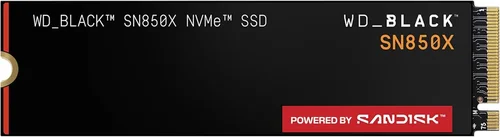
Some SSDs come with integrated heatsinks (like the WD Black SN850X or Samsung 990 Pro), while others require aftermarket solutions. If your Omen has space, consider a low-profile M.2 heatsink or ensure the drive includes one. Desktops often have better airflow, but it’s still wise to monitor temperatures using tools like CrystalDiskInfo.
8. Price-to-Performance Ratio
Finally, evaluate value—not just upfront cost. A $100 1TB Gen3 SSD might seem like a bargain, but if it uses QLC NAND and lacks DRAM, it could slow down your system over time. Conversely, a $250 Gen5 drive may be overkill if your Omen only supports Gen3. Calculate cost per gigabyte, but also factor in endurance, warranty, and real-world performance.
In 2026, expect to pay roughly $0.08–$0.12 per GB for a quality Gen3 NVMe SSD, $0.12–$0.18 for Gen4, and $0.20+ for Gen5. SATA SSDs remain the cheapest (around $0.06/GB) but are only worth considering if NVMe isn’t supported.
Different Types of Buying Guide

Common Buying Mistakes to Avoid
❌ Mistake: Ignoring Your Omen’s Actual Interface Support
Why it’s bad: Buying a Gen4 NVMe SSD for an Omen laptop that only supports SATA will result in a non-functional drive or severely underutilized hardware. You’ll waste money and time.
What to do instead: Always verify your system’s storage interface using HP’s spec sheet or diagnostic tools. When in doubt, choose a Gen3 NVMe—it’s backward-compatible and offers great performance for most users.
❌ Mistake: Prioritizing Peak Speeds Over Real-World Performance
Why it’s bad: Synthetic benchmarks don’t reflect everyday use. A drive with 7,000 MB/s reads might stutter during OS boot if it has poor random 4K performance or aggressive throttling.
What to do instead: Focus on mixed workload performance and sustained write speeds. Look for reviews that test real scenarios like game installs, file copies, and multitasking.
❌ Mistake: Overlooking Thermal Throttling in Laptops
Why it’s bad: Many Omen laptops have cramped internals. A high-wattage Gen4 SSD without adequate cooling can throttle within minutes, negating its speed advantage.
What to do instead: Choose drives with built-in heatsinks or apply thermal pads. Monitor temps post-installation and consider undervolting if necessary.
❌ Mistake: Choosing QLC NAND for a Primary Drive
Why it’s bad: QLC SSDs have lower endurance and slower write speeds once their cache is exhausted. They’re fine for secondary storage but risky as your main OS/game drive.
What to do instead: Stick with TLC NAND for primary drives. Reserve QLC for bulk storage where writes are infrequent.
❌ Mistake: Skipping Firmware Updates
Why it’s bad: Manufacturers often release firmware updates to fix bugs, improve stability, or enhance performance. Running outdated firmware can lead to crashes or data loss.
What to do instead: Install the manufacturer’s SSD management software (e.g., Samsung Magician) and enable automatic update notifications.
❌ Mistake: Not Backing Up Before Installation
Why it’s bad: Cloning your existing drive or performing a clean Windows install carries risks. Without a backup, a failed clone could mean losing everything.
What to do instead: Always create a full system image backup using tools like Macrium Reflect or Acronis True Image before swapping drives.
❌ Mistake: Falling for “Gaming” Branding Without Substance
Why it’s bad: Some brands slap “gaming” on budget drives with mediocre components. The flashy packaging doesn’t guarantee performance.
What to do instead: Ignore marketing fluff. Focus on specs, reviews, and brand reputation. A “non-gaming” Samsung 990 Pro often outperforms heavily branded alternatives.
Budget Guidelines: How Much Should You Spend?
- Entry-Level ($50–$80 for 1TB): Ideal for budget-conscious users or secondary storage. Expect SATA or basic Gen3 NVMe drives with TLC NAND and modest endurance (300–400 TBW). Great for light gaming and office tasks. Examples: Crucial P3, Kingston NV2.
- Mid-Range ($80–$130 for 1TB): The sweet spot for most Omen owners. These Gen3 or entry-level Gen4 NVMe drives offer excellent performance, 5-year warranties, and strong reliability. Perfect for gaming, streaming, and moderate content creation. Examples: WD Black SN770, Samsung 980 (non-Pro).
- Premium ($130–$220 for 1TB): For enthusiasts who want top-tier speed and endurance. Gen4 NVMe drives with DRAM cache, high TBW ratings (600+), and robust thermal designs. Ideal for competitive gamers and creators. Examples: Samsung 990 Pro, WD Black SN850X.
- Luxury ($220+ for 1TB): Cutting-edge Gen5 SSDs with blistering speeds (>10,000 MB/s) and premium build quality. Only worthwhile if your Omen desktop explicitly supports Gen5 and you demand absolute peak performance. Examples: Seagate FireCuda 540, Crucial T700.

Expert Tips for Getting the Best Deal
- Buy During Seasonal Sales: Major retailers discount SSDs heavily during back-to-school (August), Black Friday (November), and Amazon Prime Day (July). Historical data shows average discounts of 25% during these periods.
- Check Refurbished or Open-Box Options: Certified refurbished SSDs from reputable sellers (like Amazon Renewed or Best Buy Outlet) often come with full warranties and can save you 15–30%. Just ensure they’re from the original manufacturer, not third-party resellers.
- Compare Total Cost of Ownership: A slightly more expensive drive with a longer warranty and higher endurance may cost less in the long run by avoiding premature replacement.
- Use Price Tracking Tools: Browser extensions like Honey or CamelCamelCamel let you track price history and get alerts when your desired SSD drops below a target price.
- Verify Return Policies: Ensure the retailer offers at least a 30-day return window. Some SSDs may have DOA (dead on arrival) units, and you don’t want to be stuck with a faulty drive.
- Test Immediately After Installation: Run a quick benchmark (e.g., CrystalDiskMark) and check SMART data to confirm the drive is healthy and performing as expected.
- Consider Bundled Software: Some drives include free cloning software or cloud backup subscriptions. These add-ons can offset the cost if you’d otherwise pay for them separately.
- Avoid “Too Good to Be True” Deals: If a 2TB Gen4 SSD is listed for $99, it’s likely counterfeit or uses recycled NAND. Stick to authorized retailers.

Frequently Asked Questions
Q: Can I use any M.2 SSD in my HP Omen laptop?
A: Not necessarily. While most Omen laptops use the M.2 2280 form factor, the protocol (SATA vs. NVMe) varies by model. Check your user manual or HP’s support page. If your system only supports SATA, an NVMe drive won’t work—and vice versa.
Q: Will upgrading to an SSD void my HP Omen warranty?
A: Generally, no—as long as you don’t damage the system during installation. HP permits user-upgradeable storage under most warranties. However, always document your original configuration before making changes.
Q: Do I need to enable AHCI or RAID mode in BIOS?
A: For NVMe SSDs, no—they operate natively in modern UEFI systems. SATA SSDs typically use AHCI mode, which is enabled by default. Only switch to RAID if you’re setting up multiple drives in a阵列 (not recommended for most users).
Q: How do I clone my existing drive to the new SSD?
A: Use free tools like Macrium Reflect Free or the manufacturer’s cloning software (e.g., Acronis True Image for WD/Samsung). Connect both drives, clone the old one to the new one, then swap them. Ensure the new SSD is equal or larger in capacity.
Q: Is DRAM cache necessary for an SSD?
A: For primary drives, yes. DRAM cache significantly improves performance and longevity by mapping data locations efficiently. DRAM-less SSDs (often labeled “HMB” – Host Memory Buffer) rely on system RAM and can slow down under heavy loads.
Q: Can I install two SSDs in my Omen desktop?
A: Most Omen desktops (like the 45L) support multiple M.2 and SATA drives. Check your motherboard manual for available slots. You can use one for the OS and another for games or projects.
Q: What’s the difference between PCIe Gen3, Gen4, and Gen5?
A: Each generation roughly doubles the bandwidth. Gen3 offers ~3.9 GB/s, Gen4 ~7.8 GB/s, and Gen5 ~15.7 GB/s. However, real-world gains diminish beyond Gen4 for most applications unless you’re transferring massive files regularly.
Q: How long do SSDs last?
A: Modern TLC SSDs typically last 5–10 years under normal use. With a 600 TBW rating, writing 100GB daily would take over 16 years to reach the limit. Failure is more likely due to controller issues than NAND wear.
Q: Should I enable TRIM on my SSD?
A: Absolutely. TRIM helps maintain performance by telling the SSD which blocks are no longer in use. It’s enabled by default in Windows 10/11 but can be verified via fsutil behavior query DisableDeleteNotify in Command Prompt (should return 0).
Q: Are external SSDs a good alternative?
A: For portable storage or backups, yes—but not for primary use in an Omen. USB 3.2 Gen2x2 caps at ~2,000 MB/s, far below internal NVMe speeds. Internal upgrades always deliver better performance and lower latency.
Our Final Recommendations
- Best for Budget-Conscious Buyers: Crucial P3 1TB (Gen3 NVMe) – Reliable TLC NAND, 400 TBW, and excellent value at under $80. Perfect for Omen laptops with Gen3 support.
- Best Overall Value: WD Black SN770 1TB (Gen4 NVMe) – Blends near-top-tier performance with aggressive pricing (~$110). Includes a heatsink variant for better thermals in laptops.
- Best Premium Option: Samsung 990 Pro 1TB (Gen4 NVMe) – Consistently top-ranked for speed, endurance (600 TBW), and firmware support. Ideal for power users and creators.
- Best for Beginners: Kingston NV2 1TB (Gen3 NVMe) – Simple installation, no-frills design, and solid performance for everyday tasks. Great first upgrade.
- Best for Advanced Users: Seagate FireCuda 540 2TB (Gen5 NVMe) – If your Omen 45L supports Gen5, this drive delivers unmatched speed and endurance (1,275 TBW). Future-proof for years.
Conclusion: Making the Right Choice
Choosing the best SSD for your HP Omen isn’t just about picking the fastest or cheapest drive—it’s about finding the right balance of compatibility, performance, reliability, and value for your specific use case. By understanding your system’s limitations, prioritizing real-world performance over marketing hype, and avoiding common pitfalls, you’ll unlock a transformative upgrade that breathes new life into your gaming rig.
Remember: a well-chosen SSD doesn’t just make your Omen faster—it makes it more enjoyable to use. Games load in seconds, Windows boots almost instantly, and multitasking feels effortless. Whether you’re a casual gamer, a competitive esports player, or a content creator, the right SSD is a foundational investment in your system’s longevity and performance.
So take your time, do your research, and don’t rush the decision. Use the guidelines, tips, and recommendations in this guide to narrow down your options. And when you finally install that new drive, you’ll wonder how you ever gamed without it. Happy upgrading!