
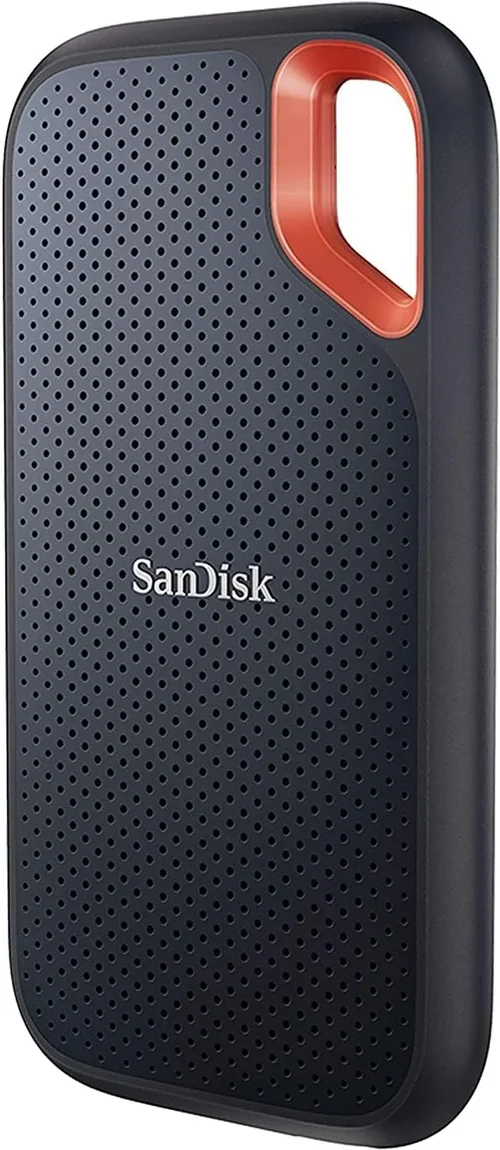
Solid-state drives (SSDs) have completely transformed the way we experience laptops. Gone are the days of waiting minutes for your system to boot up or applications to load—today’s SSDs deliver near-instant responsiveness, faster file transfers, and a smoother overall computing experience. Whether you’re upgrading an older laptop or building a new one from scratch, choosing the right SSD is one of the most impactful decisions you can make. A high-quality SSD doesn’t just improve performance—it extends the usable life of your device, enhances productivity, and future-proofs your investment.
This comprehensive buying guide is designed to help you navigate the crowded and often confusing SSD market with confidence. By the end of this article, you’ll understand exactly what to look for in an SSD, how different types compare, and which models offer the best value for your specific needs. We’ll break down technical specs in plain language, highlight common pitfalls to avoid, and provide expert-backed recommendations across all budget ranges. Whether you’re a casual user, a creative professional, or a gamer, this guide will equip you with the knowledge to make a smart, informed decision.
The SSD market in 2026 is more diverse and competitive than ever. With advancements in NAND flash technology, controller designs, and interface standards like PCIe Gen5 and NVMe, today’s SSDs are faster, more efficient, and more affordable than their predecessors. However, this abundance of choice can be overwhelming. Not all SSDs are created equal—some prioritize speed, others focus on endurance or power efficiency, and many strike a balance between performance and price. Our goal is to cut through the marketing noise and give you a clear, actionable roadmap to finding the best SSD for your laptop.

What to Look for When Buying Buying Guide
1. Interface and Form Factor
The interface and physical form factor of an SSD determine whether it will physically fit in your laptop and how it connects to the motherboard. The two most common interfaces for laptop SSDs are SATA and NVMe (Non-Volatile Memory Express). SATA SSDs use the older AHCI protocol and connect via a 2.5-inch drive bay or mSATA/M.2 slot, while NVMe SSDs use the faster PCIe interface and are typically found in M.2 form factors.
M.2 SSDs are the standard for modern laptops due to their compact size and high-speed capabilities. They come in different lengths (e.g., 2242, 2260, 2280) and key types (B-key, M-key, or B+M-key), which determine compatibility. Most consumer laptops use the 2280 (22mm wide, 80mm long) M.2 form factor with an M-key interface for NVMe drives. Always check your laptop’s manual or manufacturer specifications to confirm which form factors and interfaces are supported.
2. Storage Capacity
Storage capacity is one of the most straightforward factors to consider, but it’s also one where many users make mistakes. While it might be tempting to go for the largest capacity available, you should balance your needs with budget and real-world usage.
For most users, a 500GB to 1TB SSD is the sweet spot. This range offers enough space for the operating system, essential applications, documents, and even some media files without breaking the bank. Gamers, video editors, and content creators may benefit from 2TB or larger drives, especially if they work with large files like 4K video or high-resolution images.
Keep in mind that SSDs perform best when they have some free space—typically 10–20% of total capacity. This allows the drive’s garbage collection and wear-leveling algorithms to function efficiently. Overfilling an SSD can lead to slower write speeds and reduced lifespan.
3. Performance Specifications
Performance is where SSDs truly shine, but not all drives are created equal. The key metrics to look for are sequential read/write speeds and random read/write IOPS (Input/Output Operations Per Second).
Sequential speeds measure how quickly large files (like videos or game installations) can be read from or written to the drive. NVMe SSDs typically offer sequential read speeds of 3,000–7,000 MB/s, while SATA SSDs max out around 550 MB/s due to interface limitations.
Random IOPS, on the other hand, reflect how well the drive handles small, scattered data requests—such as opening multiple browser tabs or loading game assets. Higher IOPS mean better multitasking and responsiveness. For most users, a drive with at least 500,000 random read IOPS is more than sufficient.
4. NAND Flash Type
The type of NAND flash memory used in an SSD significantly impacts its performance, endurance, and price. There are several types, each with distinct characteristics:
– SLC (Single-Level Cell): Stores one bit per cell. Offers the highest endurance and speed but is extremely expensive. Rarely used in consumer drives.
– MLC (Multi-Level Cell): Stores two bits per cell. Better endurance than TLC but more costly. Found in some high-end consumer and enterprise drives.
– TLC (Triple-Level Cell): Stores three bits per cell. The most common type in consumer SSDs. Offers a good balance of performance, capacity, and cost.
– QLC (Quad-Level Cell): Stores four bits per cell. Cheaper and higher capacity but slower write speeds and lower endurance. Best for read-heavy workloads.
For most laptop users, TLC NAND is the ideal choice. It provides excellent performance and reliability at a reasonable price. QLC drives can be tempting for their low cost per gigabyte, but they’re best suited for secondary storage or light use.
5. DRAM Cache
Many SSDs include a small amount of DRAM (Dynamic Random Access Memory) cache, which acts as a high-speed buffer between the NAND flash and the host system. DRAM helps the SSD manage data more efficiently, especially during sustained writes and multitasking.
SSDs with DRAM cache generally offer better performance and longer lifespan because they can map data locations more effectively. DRAM-less SSDs, often found in budget models, rely on system memory (HMB—Host Memory Buffer) or slower mapping techniques, which can lead to performance degradation under heavy loads.
While DRAM-less drives can still be adequate for light use, we recommend choosing an SSD with a dedicated DRAM cache for consistent performance, especially if you plan to use your laptop for productivity, gaming, or content creation.
6. Endurance and TBW Rating
Endurance refers to how much data can be written to an SSD over its lifetime, typically measured in Terabytes Written (TBW). This metric is crucial for understanding the drive’s longevity, especially for users who frequently write large amounts of data.
For example, a 1TB SSD with a 600 TBW rating can theoretically write 600 terabytes of data before it reaches its endurance limit. In practical terms, this is far more than most users will ever need—writing 50GB per day would take over 30 years to reach that limit.
Higher-end SSDs often have higher TBW ratings, reflecting better build quality and more durable NAND. While endurance may not be a top concern for casual users, it’s worth considering if you’re using your laptop for intensive tasks like video editing or database work.
7. Power Efficiency
Laptop users should pay special attention to power efficiency, as it directly impacts battery life. SSDs consume significantly less power than traditional hard drives, but there are still differences between models.
NVMe SSDs, especially high-performance Gen4 and Gen5 drives, can draw more power under load, which may reduce battery life during intensive tasks. However, modern SSDs include power management features like low-power states (L1.2, DevSlp) that help minimize energy consumption when idle.
Look for SSDs with good power efficiency ratings, particularly if you frequently work on the go. Some manufacturers publish power consumption data in their datasheets—check these if battery life is a priority.
8. Brand Reputation and Reliability
Not all SSD brands are created equal. Established manufacturers like Samsung, Crucial, Western Digital, Kingston, and SK Hynix have a proven track record of producing reliable, high-quality drives. These companies invest heavily in R&D, quality control, and firmware optimization.
While lesser-known brands may offer tempting prices, they often cut corners on components, firmware, or support. A cheaper SSD might save you money upfront but could fail prematurely or lack critical features like encryption or thermal throttling protection.
Stick with reputable brands, especially for primary drives. User reviews, professional benchmarks, and third-party reliability studies (like those from Backblaze) can help you assess real-world performance and longevity.
9. Warranty and Support
A strong warranty is a good indicator of a manufacturer’s confidence in their product. Most premium SSDs come with a 5-year limited warranty, while budget models may offer only 3 years or less.
Warranty terms often include both time and TBW limits—for example, “5 years or 600 TBW, whichever comes first.” Make sure you understand the conditions, such as whether the warranty is transferable or requires registration.
Customer support is another important factor. Look for brands with responsive support teams, detailed documentation, and firmware update tools. Samsung’s Magician software and Crucial’s Storage Executive are excellent examples of user-friendly utilities that help monitor drive health and performance.
Different Types of Buying Guide

Common Buying Mistakes to Avoid
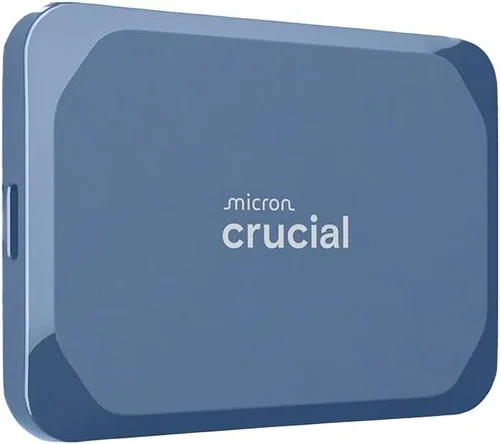
❌ Mistake: Ignoring Compatibility
Why it’s bad: Buying an SSD that doesn’t fit your laptop or isn’t supported by your motherboard is a frustrating and costly error. For example, installing a PCIe Gen4 NVMe drive in a system that only supports Gen3 will work, but you won’t get the full speed benefit—and in some cases, it may not be recognized at all.
What to do instead: Always check your laptop’s specifications before purchasing. Look for the supported form factors (2.5-inch, M.2), interface types (SATA, NVMe), and PCIe generation. If you’re unsure, consult the manufacturer’s website or user manual.
❌ Mistake: Choosing Capacity Over Performance
Why it’s bad: Some users prioritize storage size without considering how the drive will perform. A 2TB QLC SSD might seem like a great deal, but its slow write speeds and limited endurance can lead to poor performance during large file transfers or sustained workloads.
What to do instead: Balance capacity with performance needs. For most users, a 1TB TLC NVMe SSD offers the best combination of speed, reliability, and value. Only go larger if you truly need the space and are willing to accept potential trade-offs.
❌ Mistake: Overlooking DRAM Cache
Why it’s bad: DRAM-less SSDs may save money, but they often suffer from inconsistent performance, especially under heavy use. Without a dedicated cache, the drive must rely on slower system memory or inefficient mapping, leading to stuttering and longer load times.
What to do instead: Choose an SSD with a DRAM cache unless you’re on an extremely tight budget. The performance and longevity benefits far outweigh the small price difference.
❌ Mistake: Buying Based on Peak Speeds Alone
Why it’s bad: Marketing materials often highlight maximum sequential read speeds, but real-world performance depends on many factors, including random IOPS, controller efficiency, and thermal management. A drive with high peak speeds may throttle under sustained load due to overheating.
What to do instead: Look at comprehensive reviews that test real-world performance, including sustained writes, multitasking, and thermal behavior. Tools like CrystalDiskMark and AS SSD Benchmark can help you compare drives objectively.
❌ Mistake: Skipping Firmware Updates
Why it’s bad: Outdated firmware can lead to bugs, performance issues, or even data loss. Manufacturers regularly release updates to improve stability, fix security vulnerabilities, and enhance performance.
What to do instead: After installing your SSD, check the manufacturer’s website for firmware updates. Use their official utility (e.g., Samsung Magician) to safely apply updates and monitor drive health.
❌ Mistake: Not Backing Up Before Upgrading
Why it’s bad: Replacing or upgrading an SSD often involves cloning your existing drive or performing a fresh OS installation. Without a backup, you risk losing important files, settings, or applications.
What to do instead: Always back up your data before making any hardware changes. Use cloud storage, external drives, or imaging software to create a full system backup.
❌ Mistake: Ignoring Thermal Throttling
Why it’s bad: High-performance NVMe SSDs can generate significant heat, especially Gen4 and Gen5 models. Without proper cooling, the drive may throttle its speed to prevent overheating, negating its performance advantages.
What to do instead: If your laptop has limited airflow or no SSD heatsink, consider a drive with built-in thermal management or use a thermal pad. Some laptops allow you to install a small heatsink over the M.2 slot.
Budget Guidelines: How Much Should You Spend?
Entry-Level ($30–$70): This range is ideal for budget-conscious users upgrading from an HDD or replacing a failed drive. Expect SATA III or basic NVMe Gen3 SSDs with capacities of 250GB to 500GB. While performance won’t be groundbreaking, these drives offer a massive improvement over mechanical hard drives. Look for reliable brands like Kingston or Crucial in this tier.
Mid-Range ($70–$150): This is the sweet spot for most laptop users. You’ll find 500GB to 1TB NVMe Gen3 or Gen4 SSDs with TLC NAND, DRAM cache, and solid performance. Drives like the Samsung 980 or WD Black SN770 offer excellent speed, reliability, and value. This range balances cost, capacity, and performance perfectly for everyday use, gaming, and light content creation.
Premium ($150–$300): For power users, gamers, and professionals, premium SSDs deliver top-tier performance and features. Expect 1TB to 2TB capacities, PCIe Gen4 or Gen5 support, high endurance ratings, and advanced thermal management. Models like the Samsung 990 Pro or Sabrent Rocket 4 Plus are built for sustained workloads and demanding applications.
Luxury ($300+): At this level, you’re paying for cutting-edge technology, maximum capacity, and enterprise-grade reliability. These drives are overkill for most consumers but may be justified for video editors, 3D artists, or server applications. Features like hardware encryption, power-loss protection, and ultra-high TBW ratings are common.
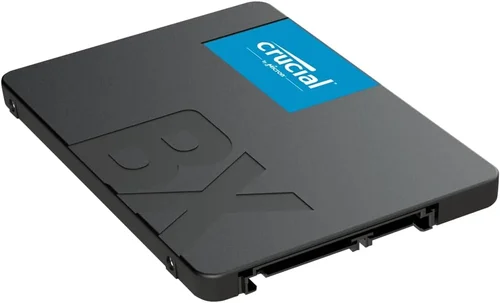
Expert Tips for Getting the Best Deal
– Buy During Major Sales Events: Look for discounts during Black Friday, Cyber Monday, Amazon Prime Day, and back-to-school seasons. SSD prices often drop significantly during these periods.
– Compare Prices Across Retailers: Check Amazon, Newegg, Best Buy, B&H, and manufacturer websites. Use price tracking tools like CamelCamelCamel or Honey to monitor historical prices and get alerts.
– Consider Refurbished or Open-Box Options: Reputable retailers often sell certified refurbished SSDs at a discount. These come with warranties and are thoroughly tested.
– Check for Bundle Deals: Some manufacturers offer SSDs bundled with cloning software, enclosures, or installation kits. These can add value, especially if you’re upgrading an older system.
– Read Professional Reviews: Don’t rely solely on user ratings. Sites like Tom’s Hardware, AnandTech, and StorageReview provide in-depth testing and comparisons.
– Verify Return Policies: Ensure the retailer offers a hassle-free return window in case the drive is incompatible or defective.
– Test After Installation: Use tools like CrystalDiskInfo to monitor drive health and performance. Run a full benchmark to confirm the SSD is performing as expected.
– Register Your Warranty: Many manufacturers require registration to activate the full warranty period. Don’t skip this step.

Frequently Asked Questions
Q: Can I use an NVMe SSD in a SATA slot?
A: No, NVMe and SATA use different interfaces and protocols. An NVMe SSD will not work in a SATA-only M.2 slot. However, some M.2 slots support both SATA and NVMe—check your laptop’s specifications to confirm.
Q: Is a larger SSD faster?
A: Generally, yes—larger SSDs often have more NAND chips and channels, allowing for better parallelism and higher performance. A 1TB drive will typically outperform a 250GB model of the same series, especially in write speeds.
Q: Do I need to enable TRIM?
A: Yes, TRIM helps maintain SSD performance by allowing the operating system to inform the drive which blocks of data are no longer in use. Most modern OSes (Windows 10/11, macOS, Linux) enable TRIM automatically, but you can verify it in disk management tools.
Q: Can I use an external SSD with my laptop?
A: Absolutely. External SSDs connect via USB 3.2, USB-C, or Thunderbolt and are great for expanding storage or transferring large files. Just ensure your laptop supports the interface for optimal speeds.
Q: How do I clone my old drive to a new SSD?
A: Use cloning software like Macrium Reflect, Acronis True Image, or Samsung Data Migration. Connect both drives (internally or via USB enclosure), select the source and target, and follow the prompts. Always back up first.
Q: Will an SSD improve gaming performance?
A: Yes, but primarily in load times and asset streaming. Games will launch faster, levels will load quicker, and open-world games will have fewer texture pop-ins. However, FPS (frames per second) is determined by your GPU and CPU, not storage.
Q: Are SSDs reliable long-term?
A: Yes, modern SSDs are highly reliable. With proper use and within their TBW rating, they can last many years. Regular backups and firmware updates further enhance longevity.
Q: Can I mix SSD brands in a laptop?
A: Yes, you can use multiple SSDs from different brands, but it’s best to use the same type (e.g., both NVMe Gen4) for consistency. Mixing interfaces or generations may lead to compatibility or performance issues.
Q: What’s the difference between PCIe Gen3, Gen4, and Gen5?
A: Each generation doubles the bandwidth. Gen3 offers ~3,500 MB/s, Gen4 ~7,000 MB/s, and Gen5 up to 14,000 MB/s. However, real-world gains depend on your laptop’s support and workload.
Q: Should I defragment my SSD?
A: No. Defragmentation is unnecessary and harmful to SSDs. It increases write cycles without improving performance. Modern OSes disable defragmentation for SSDs automatically.
Our Final Recommendations
Best for Budget-Conscious Buyers: Crucial P3 1TB NVMe Gen3 – Offers excellent value with TLC NAND, DRAM cache, and solid performance at under $80. Perfect for upgrading older laptops or building a budget system.
Best Overall Value: Samsung 980 1TB NVMe Gen3 – A reliable, fast, and well-supported drive from a trusted brand. Great for everyday use, gaming, and light creative work.
Best Premium Option: Samsung 990 Pro 2TB NVMe Gen4 – Top-tier performance, exceptional endurance, and advanced thermal management. Ideal for power users and professionals.
Best for Beginners: WD Blue SN580 1TB NVMe Gen4 – Easy to install, user-friendly software, and consistent performance. A great first NVMe upgrade.
Best for Advanced Users: Sabrent Rocket 4 Plus 2TB NVMe Gen4 – High-speed, high-capacity, and built for sustained workloads. Excellent for video editing and gaming.
Conclusion: Making the Right Choice
Choosing the best SSD for your laptop doesn’t have to be overwhelming. By focusing on key factors like interface, capacity, performance, and reliability, you can narrow down your options and find a drive that meets your needs and budget. Remember, the right SSD isn’t just about speed—it’s about compatibility, longevity, and real-world usability.
Take the time to assess your usage patterns, check your laptop’s specifications, and read trusted reviews. Avoid common pitfalls like ignoring compatibility or overlooking DRAM cache. And don’t forget to back up your data before making any changes.
Whether you’re upgrading for speed, capacity, or both, a quality SSD will transform your laptop experience. With the insights from this guide, you’re now equipped to make a confident, informed decision. Your future self—and your laptop—will thank you.