
Solid-state drives (SSDs) have revolutionized desktop computing, transforming everything from boot times to application responsiveness. If you’re still running your desktop on a traditional hard disk drive (HDD), you’re missing out on one of the most impactful upgrades you can make. In 2026, SSDs are no longer a luxury—they’re a necessity. Whether you’re building a new PC, upgrading an existing system, or simply looking to breathe new life into an older machine, choosing the right SSD is critical. But with so many options on the market—varying in speed, capacity, form factor, and price—it’s easy to feel overwhelmed. That’s where this guide comes in.
This comprehensive buying guide is designed to cut through the noise and help you make an informed decision. We’ll walk you through every key factor you should consider, from performance benchmarks and durability to compatibility and long-term value. You’ll learn how to match your SSD choice to your specific use case—whether you’re a gamer, content creator, office worker, or tech enthusiast. By the end of this article, you’ll not only understand what makes one SSD better than another, but you’ll also know exactly which model fits your budget, needs, and system setup. The SSD market in 2026 is more competitive than ever, with innovations in NAND technology, controller efficiency, and interface standards like PCIe 5.0 pushing performance boundaries. We’ll break down these advancements in plain language, so you can confidently navigate the options and avoid costly mistakes.

What to Look for When Buying Buying Guide
1. Interface and Form Factor
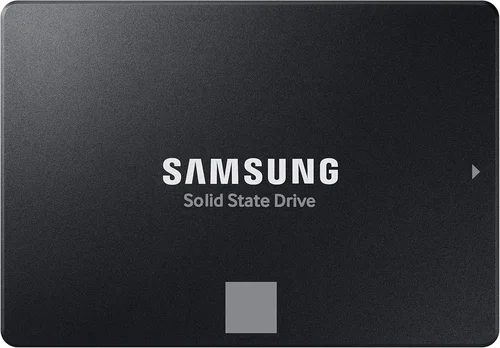
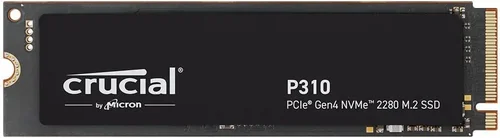
The interface and form factor of an SSD determine how it connects to your desktop and whether it’s compatible with your motherboard. The most common types are SATA, M.2, and U.2, each with distinct physical and performance characteristics. SATA SSDs use the traditional 2.5-inch drive form factor and connect via SATA cables. They’re reliable, widely supported, and ideal for older systems or budget builds. However, they’re limited to around 550 MB/s due to SATA III bandwidth constraints. If your desktop has an M.2 slot, you can take advantage of NVMe (Non-Volatile Memory Express) technology, which runs over the PCIe bus and delivers significantly faster speeds. M.2 SSDs are compact, plug directly into the motherboard, and come in different lengths (e.g., 2280, which is 22mm wide and 80mm long). U.2 drives are less common in consumer desktops but offer high performance and are typically used in workstations or servers.
When choosing, check your motherboard’s manual or specifications to see which interfaces are supported. Most modern motherboards support both SATA and M.2, but PCIe 4.0 and 5.0 compatibility varies. If you have a PCIe 5.0-capable motherboard, you can future-proof your build with a Gen5 SSD, though these are still relatively expensive and generate more heat. For most users, a PCIe 4.0 M.2 SSD offers the best balance of speed, compatibility, and value.
2. Performance Specifications
Performance is often the first thing people look at when comparing SSDs, and for good reason—it directly impacts how fast your system boots, loads applications, and transfers files. The two key metrics are sequential read/write speeds and random read/write IOPS (Input/Output Operations Per Second). Sequential speeds measure how quickly large files (like videos or game installations) are read from or written to the drive. For example, a high-end PCIe 4.0 SSD might offer 7,000 MB/s read and 6,500 MB/s write speeds, while a SATA SSD maxes out around 550 MB/s. Random IOPS, on the other hand, reflect performance when handling many small files simultaneously—critical for multitasking, database operations, or running virtual machines.
While raw speed numbers are impressive, real-world performance depends on your workload. Gamers benefit more from fast load times (sequential reads), while content creators editing 4K video or developers compiling code need strong random performance. Also, consider sustained performance: some SSDs throttle under prolonged use due to heat. Look for drives with robust thermal management, such as built-in heatsinks or support for motherboard-mounted heat spreaders. Benchmark tools like CrystalDiskMark and AS SSD can help you compare real-world performance across models.
3. Storage Capacity
Capacity determines how much data your SSD can hold—from your operating system and applications to games, media files, and backups. In 2026, 1TB has become the new baseline for most desktop users. It provides enough space for Windows, essential software, and a handful of large games or projects. However, if you work with large files—such as 4K/8K video, RAW photos, or CAD models—you’ll want at least 2TB. Enthusiasts and professionals may even consider 4TB or larger drives, especially as game sizes continue to grow (some AAA titles now exceed 200GB).
Keep in mind that SSDs perform best when they have free space. A drive that’s 90% full will slow down significantly due to reduced over-provisioning and garbage collection efficiency. Aim to keep at least 10–20% of your SSD free. Also, note that higher-capacity drives often have better endurance and performance due to more NAND chips and parallelism. For example, a 2TB SSD typically has more cache and faster write speeds than a 500GB version of the same model.
4. NAND Flash Type and Controller
The type of NAND flash memory used in an SSD affects its speed, endurance, and cost. In 2026, the most common types are TLC (Triple-Level Cell) and QLC (Quad-Level Cell). TLC stores three bits per cell and offers a good balance of performance, durability, and price—making it ideal for most users. QLC stores four bits per cell, allowing for higher capacities at lower costs, but it’s slower, especially during sustained writes, and has lower endurance. Some premium drives use SLC (Single-Level Cell) caching to boost short-term performance, but this is a temporary buffer, not the main storage type.
The controller is the SSD’s “brain,” managing data flow, error correction, wear leveling, and garbage collection. A high-quality controller can significantly improve performance and longevity. Brands like Phison, Silicon Motion, and Samsung design their own controllers, often optimized for their NAND. When comparing drives, look for models with well-reviewed controllers and firmware. Avoid no-name brands with generic controllers, as they may lack reliability and long-term support.
5. Endurance and Durability
SSD endurance is measured in terabytes written (TBW)—the total amount of data that can be written to the drive over its lifetime. For example, a 1TB SSD might have a TBW rating of 600TB. This doesn’t mean the drive will fail after writing 600TB; it’s a warranty threshold based on reliability testing. Higher TBW ratings indicate better longevity, especially important for write-heavy workloads like video editing, database servers, or frequent large file transfers.
Durability also depends on the absence of moving parts. Unlike HDDs, SSDs are resistant to physical shock, making them ideal for desktops in environments with vibration or movement. However, they can still fail due to electrical issues, firmware bugs, or NAND wear. Look for drives with power-loss protection (PLP), which safeguards data during unexpected shutdowns. Enterprise-grade SSDs often include PLP, but some consumer models now offer it as well.
6. Brand Reputation and Reliability
Not all SSDs are created equal, and brand reputation matters. Established manufacturers like Samsung, Crucial, Western Digital, Kingston, and Sabrent have a track record of quality control, consistent performance, and reliable firmware updates. Samsung, for instance, produces its own NAND, controllers, and firmware, allowing for tight integration and optimization. Crucial, a subsidiary of Micron, also uses in-house components and offers excellent value.
Avoid unknown or generic brands, especially those sold at suspiciously low prices. These drives may use inferior NAND, lack proper testing, or have counterfeit components. Check user reviews on trusted platforms like Amazon, Newegg, or Reddit’s r/buildapc. Look for patterns in feedback—consistent complaints about failure rates, slow speeds, or poor customer support are red flags. A reputable brand also means better warranty service and firmware support, which can extend the life of your drive.
7. Warranty and Support
A strong warranty is a sign of confidence in a product’s durability. Most consumer SSDs come with a 3- to 5-year limited warranty, often tied to the TBW rating. For example, Samsung’s 990 PRO offers a 5-year warranty or 1,200TBW (for the 2TB model), whichever comes first. Some brands, like Kingston, offer limited lifetime warranties on certain models, though this usually applies only to the original purchaser and may have usage limits.
Support includes firmware updates, data recovery tools, and customer service. Samsung and Crucial provide downloadable software (Samsung Magician, Crucial Storage Executive) that lets you monitor drive health, update firmware, and optimize performance. These tools can help prevent issues and extend lifespan. When comparing warranties, read the fine print: some exclude certain usage types (e.g., server use) or require registration within a specific timeframe.
8. Price and Value for Money
Price is always a consideration, but the cheapest SSD isn’t always the best value. A drive that fails after a year may cost more in downtime, data loss, and replacement than a slightly more expensive, reliable model. As of 2026, expect to pay around $0.08–$0.12 per gigabyte for a quality SATA SSD, $0.10–$0.18 for a PCIe 3.0 NVMe drive, and $0.15–$0.25 for a high-performance PCIe 4.0 or 5.0 model.
Value isn’t just about upfront cost—it’s about performance per dollar, endurance, warranty, and long-term reliability. A mid-range PCIe 4.0 SSD like the WD Black SN850X offers excellent speed and endurance at a reasonable price, making it a great value for gamers and creators. Meanwhile, a budget QLC drive might save you $20 upfront but could slow down under heavy use and have a shorter lifespan. Always consider total cost of ownership, not just the sticker price.
Different Types of Buying Guide

Common Buying Mistakes to Avoid
❌ Mistake: Ignoring Motherboard Compatibility
Why it’s bad: Buying a PCIe 5.0 SSD for a motherboard that only supports PCIe 3.0 means you won’t get the advertised speeds—and you’ve overpaid for performance you can’t use. Similarly, some M.2 slots share bandwidth with SATA ports, disabling certain drives when an M.2 is installed.
What to do instead: Always check your motherboard’s manual or manufacturer website for supported interfaces, M.2 slot types (Key M, Key B, or both), and PCIe generation. Use tools like CPU-Z or the motherboard’s BIOS to verify compatibility before purchasing.
❌ Mistake: Choosing Capacity Over Performance Needs
Why it’s bad: A 4TB QLC SSD might seem like a great deal, but if it slows to a crawl during large file transfers due to limited cache, it can disrupt workflows. Conversely, a tiny 250GB drive may fill up quickly, forcing constant file management.
What to do instead: Match capacity to your actual usage. Gamers: 1–2TB. Content creators: 2–4TB. General users: 500GB–1TB. Prioritize TLC NAND and sufficient cache for sustained performance.
❌ Mistake: Overlooking Thermal Throttling
Why it’s bad: High-speed NVMe SSDs generate heat, and without proper cooling, they throttle performance to prevent damage. This can turn a 7,000 MB/s drive into a 2,000 MB/s one under load.
What to do instead: Choose drives with built-in heatsinks or ensure your case has good airflow. Many motherboards include M.2 heat spreaders—use them. For PCIe 5.0 drives, active cooling or aftermarket heatsinks are often recommended.
❌ Mistake: Buying Based Solely on Price
Why it’s bad: Extremely cheap SSDs often use outdated controllers, low-quality NAND, or lack firmware updates. They may fail prematurely or deliver inconsistent performance.
What to do instead: Focus on value, not just cost. Compare price per gigabyte, warranty length, TBW rating, and brand reputation. A $10 difference can mean years of reliable service.
❌ Mistake: Skipping Firmware Updates
Why it’s bad: Firmware bugs can cause crashes, data corruption, or performance drops. Manufacturers release updates to fix these issues, but many users never apply them.
What to do instead: Download the manufacturer’s utility software (e.g., Samsung Magician) and check for firmware updates regularly. Keep your SSD healthy and optimized.
❌ Mistake: Not Backing Up Data
Why it’s bad: SSDs can fail suddenly without warning, unlike HDDs that often show signs of degradation. Losing critical data is a real risk.
What to do instead: Always maintain backups—use cloud storage, external drives, or NAS systems. Treat your SSD as a performance tool, not a long-term archive.
❌ Mistake: Confusing Sequential and Random Performance
Why it’s bad: A drive with high sequential speeds may perform poorly in everyday tasks that rely on random I/O, like opening multiple browser tabs or launching apps.
What to do instead: Look at both metrics. For general use, prioritize strong random read/write IOPS (aim for 500K+). For large file transfers, sequential speed matters more.
Budget Guidelines: How Much Should You Spend?
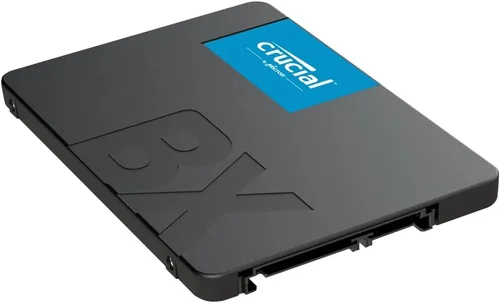
– Entry-Level ($40–$80): Ideal for basic computing, office work, or upgrading an old HDD. Look for 500GB–1TB SATA or PCIe 3.0 NVMe drives from reputable brands like Crucial BX500 or Kingston NV2. Expect solid reliability but modest speeds (up to 3,500 MB/s for NVMe).
– Mid-Range ($80–$150): The sweet spot for most desktop users. A 1TB PCIe 4.0 NVMe SSD like the WD Black SN770 or Samsung 980 PRO offers excellent performance, good endurance, and strong warranties. Perfect for gaming, streaming, and multitasking.
– Premium ($150–$300): For enthusiasts and professionals. These drives (e.g., Samsung 990 PRO, Sabrent Rocket 4 Plus) deliver top-tier speeds, high TBW ratings, and advanced features like power-loss protection. Ideal for 4K/8K editing, 3D rendering, or high-end gaming rigs.
– Luxury ($300+): Cutting-edge PCIe 5.0 drives like the Corsair MP700 or Gigabyte AORUS Gen5. These offer speeds up to 14,000 MB/s and are built for future-proofing. Only recommended if you have a compatible motherboard and demanding workloads.
Expert Tips for Getting the Best Deal
– Buy During Major Sales Events: SSD prices fluctuate, and the best deals often appear during holiday sales. Set price alerts on sites like CamelCamelCamel or Honey to catch discounts.
– Check Multiple Retailers: Compare prices on Amazon, Newegg, Best Buy, and B&H Photo. Sometimes smaller retailers offer bundle deals or free shipping.
– Consider Refurbished or Open-Box: Certified refurbished SSDs from manufacturers like Samsung or Crucial often come with full warranties and can save you 20–30%.
– Read the Fine Print on Warranties: Some warranties require registration within 30 days or exclude certain usage types. Register your drive promptly and keep proof of purchase.
– Use Manufacturer Tools: Software like Samsung Magician or Crucial Storage Executive can monitor health, update firmware, and optimize performance—extending your drive’s life.
– Don’t Overbuy Capacity: A 2TB drive isn’t always better than a 1TB one. If you don’t need the space, save money and invest in a higher-quality drive with better endurance.
– Test Before Committing: If possible, test the SSD in your system before finalizing the setup. Use benchmarks to verify advertised speeds and check for thermal throttling.
– Plan for the Future: If you’re building a new PC, consider a PCIe 4.0 or 5.0 SSD even if your current workload doesn’t require it. It ensures your system stays fast for years.

Frequently Asked Questions
Q: Can I use an M.2 SSD in a desktop?
A: Yes, as long as your motherboard has an M.2 slot. Most modern desktops do. M.2 SSDs plug directly into the slot and are secured with a screw—no cables needed.
Q: Is PCIe 5.0 worth it in 2026?
A: For most users, PCIe 4.0 is still sufficient. PCIe 5.0 offers double the bandwidth, but real-world gains are minimal unless you’re transferring massive files regularly or using professional applications that leverage the speed.
Q: How long do SSDs last?
A: Modern SSDs are very durable. A typical 1TB TLC SSD with a 600TBW rating could last 10+ years under normal use (writing 50GB per day). Most users will upgrade before the drive wears out.
Q: Should I get a heatsink for my M.2 SSD?
A: If your motherboard includes one, use it. For high-performance PCIe 4.0 or 5.0 drives, a heatsink helps prevent thermal throttling. Aftermarket heatsinks are available if your board lacks one.
Q: Can I clone my old HDD to a new SSD?
A: Yes, using cloning software like Macrium Reflect, Acronis True Image, or Samsung Data Migration. This transfers your OS, apps, and files seamlessly.
Q: Are external SSDs as fast as internal ones?
A: USB 3.2 Gen 2×2 or Thunderbolt 3/4 external SSDs can reach 2,000–2,800 MB/s, close to internal SATA speeds. However, they’re not as fast as NVMe internal drives and are best for portability.
Q: What’s the difference between DRAM and DRAM-less SSDs?
A: DRAM acts as a cache for the SSD’s mapping table, improving speed and longevity. DRAM-less drives use system memory (HMB) instead, which can slow down under heavy use. For desktops, prefer drives with DRAM.
Q: Can I use an SSD as a boot drive?
A: Absolutely. In fact, it’s recommended. Install your OS on the SSD for faster boot times and overall system responsiveness.
Q: Do SSDs need defragmentation?
A: No. SSDs don’t benefit from defragmentation and it can reduce their lifespan. Windows automatically disables defrag for SSDs and runs TRIM instead to maintain performance.
Q: What happens if my SSD fails?
A: Contact the manufacturer for warranty support. If data is critical, professional recovery services may help, but prevention (backups) is always better.
Our Final Recommendations
– Best for Budget-Conscious Buyers: Crucial P3 1TB (PCIe 3.0 NVMe) – Reliable, fast enough for most tasks, and priced under $60. Great for upgrading older systems.
– Best Overall Value: WD Black SN770 1TB (PCIe 4.0 NVMe) – Excellent performance, low power consumption, and strong endurance. Ideal for gamers and general users.
– Best Premium Option: Samsung 990 PRO 2TB (PCIe 4.0 NVMe) – Top-tier speed, superb build quality, and 5-year warranty. Perfect for creators and enthusiasts.
– Best for Beginners: Kingston NV2 1TB (PCIe 3.0 NVMe) – Easy to install, affordable, and compatible with almost any system. Great first SSD.
– Best for Advanced Users: Corsair MP700 2TB (PCIe 5.0 NVMe) – Blazing-fast speeds, built-in heatsink, and designed for high-end workloads. Future-proof your rig.
Conclusion: Making the Right Choice
Choosing the best SSD for your desktop isn’t just about picking the fastest or cheapest option—it’s about finding the right balance of performance, capacity, reliability, and value for your specific needs. Whether you’re upgrading from an HDD or building a high-end gaming rig, the SSD you choose will have a profound impact on your system’s speed and responsiveness. By understanding key factors like interface, NAND type, endurance, and thermal performance, you can avoid common pitfalls and make a confident decision.
Remember, the best SSD is the one that fits your budget, matches your workload, and comes from a trusted brand with solid support. Don’t rush the decision—take time to research, compare, and consider future needs. And once you’ve installed your new drive, don’t forget to enable TRIM, keep firmware updated, and maintain regular backups. With the right SSD, your desktop will feel faster, smoother, and more capable than ever. Upgrade wisely, and enjoy the speed.