

External SSDs have revolutionized how we store, transfer, and back up data in our increasingly mobile digital lives. Gone are the days when bulky, fragile hard disk drives (HDDs) were the only option for portable storage. Today’s solid-state drives offer lightning-fast speeds, shock resistance, silent operation, and compact designs that fit in your pocket—yet deliver performance that rivals internal storage. Whether you’re a creative professional editing 4K video on location, a student backing up coursework between classes, or a traveler safeguarding precious memories from your latest adventure, the right external SSD can be a game-changer.
This comprehensive guide is designed to help you navigate the crowded and rapidly evolving market of external SSDs in 2026. With dozens of models from dozens of brands—each boasting different capacities, interfaces, durability ratings, and price points—it’s easy to feel overwhelmed. Our goal is to cut through the marketing noise and give you actionable, expert-backed advice so you can make a confident, informed decision. You’ll learn how to evaluate key specs like read/write speeds and interface types, understand real-world performance differences, avoid common pitfalls, and find the best drive for your specific needs—whether you’re on a tight budget or investing in top-tier gear.
The external SSD market has matured significantly over the past few years. What once was a niche product for tech enthusiasts is now mainstream, with options ranging from ultra-affordable 500GB drives to high-capacity, ruggedized beasts capable of handling extreme environments. Brands like Samsung, SanDisk, Crucial, WD, Kingston, and Sabrent dominate the space, but newer players like Orico, Anker, and Lexar are also making waves with competitive offerings. As USB-C, Thunderbolt 4, and USB4 become standard across laptops and smartphones, compatibility and future-proofing have never been more important. This guide will walk you through everything you need to know to pick the perfect external SSD in 2026.

What to Look for When Buying Buying Guide
1. Performance Specifications
Performance is arguably the most critical factor when choosing an external SSD. Unlike traditional HDDs, which rely on spinning platters and mechanical read/write heads, SSDs use flash memory, enabling significantly faster data access. When evaluating performance, focus on three main specs: sequential read/write speeds, interface type, and real-world transfer consistency.
Sequential read and write speeds—measured in megabytes per second (MB/s)—indicate how quickly large files like videos or disk images can be transferred. For example, a drive rated at 1,050 MB/s read and 1,000 MB/s write will copy a 50GB video file in under a minute, whereas a slower 500 MB/s drive might take twice as long. However, don’t rely solely on manufacturer claims. Real-world performance often varies due to thermal throttling, file fragmentation, or host device limitations.
The interface determines the maximum theoretical speed your drive can achieve. USB 3.2 Gen 2 (10 Gbps) supports up to ~1,250 MB/s, while USB 3.2 Gen 2×2 (20 Gbps) doubles that to ~2,500 MB/s. Thunderbolt 3 and Thunderbolt 4 offer even higher bandwidth—up to 40 Gbps—making them ideal for professionals working with large media files. Always check your computer’s port compatibility: a Thunderbolt drive won’t reach full speed on a USB-A port, even with an adapter.
2. Build Quality & Durability
External SSDs are inherently more durable than HDDs because they have no moving parts. But not all SSDs are created equal when it comes to physical resilience. If you plan to carry your drive in a backpack, toss it in a camera bag, or use it in harsh environments (like construction sites or outdoor shoots), durability should be a top priority.
Look for drives with MIL-STD-810H certification, which means they’ve passed rigorous tests for drop resistance (often from heights of 4–6 feet), vibration, temperature extremes, and even sand/dust exposure. Many premium models also feature IP ratings for water and dust resistance—IP55 or IP65 are common, indicating protection against limited dust ingress and low-pressure water jets.
Materials matter too. Aluminum enclosures provide excellent heat dissipation and structural strength, while rubberized coatings add grip and shock absorption. Avoid plastic-only builds unless you’re using the drive in a controlled, stationary environment. Also consider the connector: USB-C ports are more durable than micro-USB, and some drives include reinforced cables or magnetic attachments to reduce strain.
3. Capacity Needs
Storage capacity directly impacts both price and usability. In 2026, external SSDs are available from 250GB up to 8TB, though capacities above 4TB remain premium-priced. To choose wisely, assess your actual storage requirements rather than defaulting to “more is better.”
For casual users—students, office workers, or casual photographers—a 500GB or 1TB drive is usually sufficient. It can hold thousands of documents, hundreds of high-res photos, or dozens of HD movies. Content creators, however, may need 2TB or more. A single 4K video project can easily consume 500GB–1TB, and RAW photo libraries grow quickly. Gamers should also consider capacity: modern AAA titles often exceed 100GB each.
Beware of diminishing returns. The price per gigabyte drops significantly as you move from 250GB to 1TB, but jumps again at 4TB+. Unless you truly need massive storage, sticking to 1TB or 2TB offers the best balance of cost and utility. Also, remember that formatting and system files reduce usable space—typically by 5–7%.
4. Portability & Form Factor
One of the biggest advantages of external SSDs is their portability. But “portable” means different things to different people. A drive that fits in a jeans pocket may be perfect for a commuter, while a videographer might prioritize a slightly larger drive with better cooling for sustained workloads.
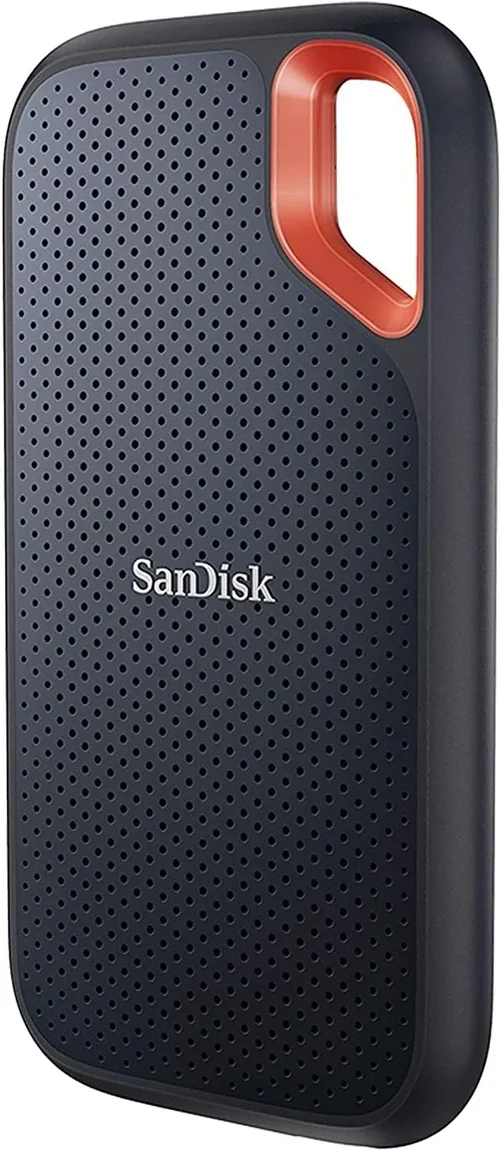
Most consumer SSDs today are pocket-sized, measuring around 3–4 inches long, 2 inches wide, and less than an inch thick. Weight typically ranges from 2 to 6 ounces. Some ultra-compact models, like the Samsung T7 Shield or SanDisk Extreme, are barely larger than a USB stick. Others, like the WD Black P50, are bulkier but offer higher performance and active cooling.
Consider cable management too. Drives with built-in cables (or included short USB-C cables) reduce clutter and prevent lost accessories. Magnetic cable organizers or included carrying cases add convenience. If you travel frequently, look for drives that meet airline carry-on size limits and don’t require external power.
5. Interface & Compatibility
The interface isn’t just about speed—it’s about compatibility across your devices. In 2026, USB-C is the universal standard, found on nearly all modern laptops, tablets, smartphones, and even some cameras. Ensure your chosen drive uses USB-C and supports the latest protocols.
Check backward compatibility: a USB 3.2 Gen 2×2 drive will work on older USB 3.0 ports, but at reduced speeds. Thunderbolt drives are backward compatible with USB-C but require a Thunderbolt-enabled host for full performance. If you use multiple operating systems (Windows, macOS, Linux, Android), verify cross-platform support. Most drives are preformatted for exFAT, which works seamlessly across Windows and macOS, but some may require reformatting for optimal performance on specific systems.
Also consider daisy-chaining capabilities if you use Thunderbolt. Some drives allow you to connect multiple devices in a chain, reducing cable clutter. Finally, check for included software—some brands offer encryption tools, backup utilities, or cloud integration that can enhance functionality.
6. Brand Reputation & Ecosystem
Not all SSD manufacturers are equal. Established brands like Samsung, SanDisk (a Western Digital brand), Crucial (Micron), and Kingston have proven track records for reliability, firmware updates, and customer support. They also tend to use higher-quality NAND flash and controllers, which translates to better longevity and consistent performance.
Newer or lesser-known brands may offer tempting prices, but often cut corners on components or lack robust quality control. Reading professional reviews and user feedback is essential. Look for brands that provide detailed spec sheets, transparent warranty terms, and responsive customer service. Also consider ecosystem integration: if you already use Samsung phones or SanDisk memory cards, their SSDs may offer seamless compatibility or bundled software benefits.
Avoid “no-name” drives sold exclusively through third-party marketplaces with vague specifications. These often use recycled or lower-grade NAND, leading to premature failure or data loss. Stick to reputable retailers and verified sellers.
7. Warranty & Support
A strong warranty is a sign of confidence in a product’s durability. Most quality external SSDs come with 3- to 5-year limited warranties. Samsung, for instance, offers a 5-year warranty on its T-series drives, while SanDisk provides 5 years on the Extreme Pro. Longer warranties often correlate with higher endurance ratings (measured in terabytes written, or TBW).
Check what the warranty covers: does it include accidental damage? Is data recovery included? Some brands offer expedited replacement services or international support, which is crucial for travelers. Also review the return policy—many retailers allow 30-day returns, giving you time to test the drive thoroughly.
Customer support quality varies widely. Look for brands with live chat, phone support, and comprehensive online resources (FAQs, drivers, firmware updates). Avoid companies that only offer email support with slow response times.
8. Security Features
If you store sensitive data—financial records, client projects, personal photos—security should be a consideration. Many premium SSDs include hardware-based encryption compliant with AES-256 standards. This means your data is encrypted at the drive level, not just by software, making it nearly impossible to access without the correct password.
Some drives come with built-in fingerprint scanners (like the Samsung T7 Touch) or PIN pads for biometric authentication. Others rely on software utilities (e.g., WD Security or SanDisk SecureAccess) that create encrypted vaults. While convenient, software-based encryption can be bypassed if the drive is connected to a compromised system.
For maximum security, choose drives with hardware encryption and avoid storing passwords in plaintext. Always enable encryption immediately after purchase, and keep recovery keys in a safe place. Remember: if you lose both the password and recovery key, your data is likely unrecoverable—even by the manufacturer.
Different Types of Buying Guide
Common Buying Mistakes to Avoid
❌ Mistake: Prioritizing Price Over Endurance
Why it’s bad: Cheap SSDs often use low-grade NAND flash with limited write cycles. If you frequently transfer large files or use the drive as a scratch disk, it may fail prematurely—risking data loss.
What to do instead: Check the TBW (terabytes written) rating. A 1TB drive should have at least 600 TBW. Pay slightly more for drives with higher endurance if you’re a heavy user.
❌ Mistake: Ignoring Thermal Throttling
Why it’s bad: Many compact SSDs lack adequate cooling. During prolonged transfers, they overheat and slow down dramatically—sometimes to HDD-like speeds—defeating the purpose of buying an SSD.
What to do instead: Look for drives with aluminum heatsinks, thermal pads, or active cooling (fans). Read reviews that test sustained write performance, not just peak speeds.
❌ Mistake: Buying Based Solely on Advertised Speeds
Why it’s bad: Manufacturers often quote ideal lab conditions. Real-world speeds can be 20–40% lower, especially with small or fragmented files.
What to do instead: Consult independent benchmarks from trusted tech sites. Test the drive yourself during the return window using tools like CrystalDiskMark or Blackmagic Disk Speed Test.
❌ Mistake: Overlooking Cable Quality
Why it’s bad: A high-speed SSD is bottlenecked by a poor-quality cable. Thin, unshielded cables can cause connection drops or limit speeds to USB 2.0 levels.
What to do instead: Always use the included cable or purchase certified USB-IF cables. For Thunderbolt drives, ensure the cable supports 40 Gbps.
❌ Mistake: Assuming All USB-C Ports Are Equal
Why it’s bad: Not all USB-C ports support USB 3.2 or Thunderbolt. Plugging a high-speed SSD into a USB 2.0-only USB-C port (common on older tablets) yields dismal performance.
What to do instead: Verify your device’s port specifications. Use a port checker app or consult your device manual. When in doubt, choose a drive with broad compatibility.
❌ Mistake: Skipping Encryption for Sensitive Data
Why it’s bad: Losing an unencrypted SSD means anyone can access your files—including private photos, financial docs, or work projects.
What to do instead: Enable hardware encryption immediately. Use strong, unique passwords and store recovery keys securely (e.g., password manager or offline vault).
❌ Mistake: Buying the Largest Capacity Without Need
Why it’s bad: High-capacity SSDs (4TB+) are expensive and may exceed your actual needs. You’re paying for unused space and potentially overpaying per gigabyte.
What to do instead: Audit your current storage usage. Add a 20–30% buffer for future growth, but don’t overshoot. Consider cloud storage for archival files.
Budget Guidelines: How Much Should You Spend?
Entry-Level ($40–$90): Ideal for students, casual users, or secondary backups. Expect capacities of 250GB–1TB, USB 3.2 Gen 1 or Gen 2 speeds (500–1,050 MB/s), and basic plastic builds. Brands like Kingston XS2000 or Crucial X6 offer solid value here. Don’t expect ruggedness or advanced features, but performance is sufficient for documents, photos, and light media.
Mid-Range ($90–$200): The sweet spot for most buyers. You’ll find 1TB–2TB drives with USB 3.2 Gen 2×2 or Thunderbolt support, aluminum enclosures, and improved durability. Models like the Samsung T7, SanDisk Extreme, and WD My Passport SSD dominate this tier. These drives balance speed, portability, and reliability—perfect for photographers, freelancers, and hybrid workers.
Premium ($200–$500): For professionals and power users. Expect 2TB–4TB capacities, Thunderbolt 3/4 compatibility, IP65+ ratings, and sustained high-speed performance. Drives like the Samsung X5, SanDisk Extreme Pro, and OWC Envoy Pro FX fall here. They’re built for 4K/8K video editing, large game libraries, and mission-critical backups.
Luxury ($500+): Top-tier performance and capacity. These include 4TB–8TB drives with active cooling, enterprise-grade NAND, and extensive warranties. The WD Black P50 and G-Technology G-DRIVE are examples. Only justified for studios, IT departments, or users with extreme storage demands. Price per gigabyte remains high, but reliability and speed are unmatched.

Expert Tips for Getting the Best Deal
- Shop during major sales events: Black Friday, Cyber Monday, Amazon Prime Day, and back-to-school seasons often feature 20–40% discounts on external SSDs. Sign up for price alerts on sites like CamelCamelCamel or Honey.
- Buy directly from manufacturer websites: Samsung, SanDisk, and WD often run exclusive promotions, bundle free software, or offer extended warranties not available elsewhere.
- Consider certified refurbished units: Many brands sell factory-refurbished SSDs with full warranties at 20–30% off. These are rigorously tested and often indistinguishable from new.
- Check return policies before buying: Ensure you have at least 30 days to test the drive. Some retailers charge restocking fees for opened electronics—avoid these when possible.
- Bundle with other gear: Purchasing an SSD alongside a laptop, camera, or docking station sometimes triggers bundle discounts or free shipping.
- Monitor flash sales: Retailers like B&H Photo, Newegg, and Best Buy run limited-time deals. Follow their social media or subscribe to newsletters.
- Verify authenticity: Counterfeit SSDs are common on third-party marketplaces. Buy from authorized sellers and check serial numbers on the manufacturer’s website.
- Future-proof your purchase: Invest in USB4 or Thunderbolt if your device supports it. These standards ensure compatibility with next-gen hardware and maximize longevity.

Frequently Asked Questions
Q: Can I use an external SSD as a boot drive?
A: Yes, most modern operating systems (Windows 11, macOS Ventura+, Linux) support booting from external SSDs. However, performance depends on the interface—Thunderbolt or USB 3.2 Gen 2×2 is recommended for smooth operation. Note that some BIOS/UEFI settings may need adjustment.
Q: Will an external SSD work with my smartphone or tablet?
A: Many Android devices and iPads with USB-C support external SSDs via OTG (On-The-Go) adapters. However, power delivery can be an issue—some drives require more power than mobile devices provide. Stick to low-power SSDs or use a powered hub.
Q: How long do external SSDs last?
A: With typical use, a quality external SSD can last 5–10 years. Lifespan depends on TBW rating, usage patterns, and environmental conditions. Most consumer drives are rated for 150–600 TBW. Heavy users should monitor wear using SMART tools.
Q: Do I need to format my external SSD?
A: It’s recommended. While most come preformatted as exFAT (compatible with Windows and macOS), formatting ensures optimal performance and removes any bloatware. Use NTFS for Windows-only use, APFS for macOS-only, or exFAT for cross-platform.
Q: Can I recover data from a failed external SSD?
A: Data recovery is possible but expensive and not guaranteed. Unlike HDDs, SSDs use wear-leveling and TRIM, which can make recovery harder. Always maintain backups. Professional services like DriveSavers charge $500–$3,000+.
Q: Are external SSDs safe to travel with?
A: Yes—especially rugged models. They’re immune to shocks that would destroy HDDs. However, avoid extreme temperatures (e.g., leaving in a hot car). For airport security, SSDs pose no risk (unlike magnetic media).
Q: Should I buy a USB 3.2 Gen 2×2 or Thunderbolt drive?
A: If your device has Thunderbolt 3/4, go for Thunderbolt—it offers double the bandwidth and daisy-chaining. Otherwise, USB 3.2 Gen 2×2 is excellent and more universally compatible. Avoid Gen 2×2 if your host only supports Gen 2.
Q: Do external SSDs get slower over time?
A: Slightly, due to NAND wear and fragmentation, but far less than HDDs. Modern SSDs use advanced controllers and over-provisioning to maintain performance. Regular TRIM commands (automatic on macOS/Windows) help.
Q: Can I use an external SSD for gaming?
A: Absolutely. Many gamers use external SSDs to expand console or PC storage. Xbox Series X|S and PlayStation 5 support external SSDs for backward-compatible games (though PS5 requires internal SSD for PS5 titles). Load times are nearly identical to internal drives.
Q: What’s the difference between SATA and NVMe external SSDs?
A: Most external SSDs use NVMe protocol over USB, which is faster than SATA-based enclosures. NVMe drives typically hit 1,000–2,800 MB/s, while SATA maxes out around 600 MB/s. Always check the internal protocol—not just the outer interface.
Our Final Recommendations
Best for Budget-Conscious Buyers: Kingston XS2000 (1TB) – At under $90, it delivers 2,000 MB/s speeds, USB 3.2 Gen 2×2 support, and a compact design. Great for students and casual users who want SSD performance without breaking the bank.
Best Overall Value: Samsung T7 Shield (2TB) – Combines 1,050 MB/s speeds, IP65 rating, drop resistance, and a 5-year warranty. Ideal for travelers, creators, and anyone needing reliable, fast storage in a tough package.
Best Premium Option: SanDisk Extreme Pro (4TB) – Thunderbolt 3 support, 2,800 MB/s speeds, IP55 rating, and hardware encryption. Perfect for videographers and professionals who demand top-tier performance and durability.
Best for Beginners: WD My Passport SSD (1TB) – User-friendly software, sleek design, and solid 1,050 MB/s performance. Includes backup tools and password protection—great for first-time SSD buyers.
Best for Advanced Users: Samsung X5 (2TB) – Thunderbolt 3, 2,800 MB/s, and NVMe architecture. Designed for 4K/8K workflows and intensive applications. Requires a Thunderbolt host but delivers unmatched speed.
Conclusion: Making the Right Choice
Choosing the best external SSD in 2026 doesn’t have to be overwhelming. By focusing on your specific needs—whether that’s budget, speed, durability, or capacity—you can narrow down the options and find a drive that truly enhances your digital life. Remember: the “best” SSD isn’t necessarily the fastest or most expensive—it’s the one that aligns perfectly with how you work, travel, and create.
Prioritize reliability and real-world performance over flashy specs. Invest in reputable brands, protect your data with encryption, and always keep backups. And don’t forget to test your drive thoroughly during the return period—real usage often reveals issues that specs alone can’t predict.
Whether you’re safeguarding family photos, editing cinematic masterpieces, or simply freeing up space on your laptop, the right external SSD is a worthy investment. Use this guide as your roadmap, and you’ll walk away with a drive that serves you well for years to come. Happy storing!