
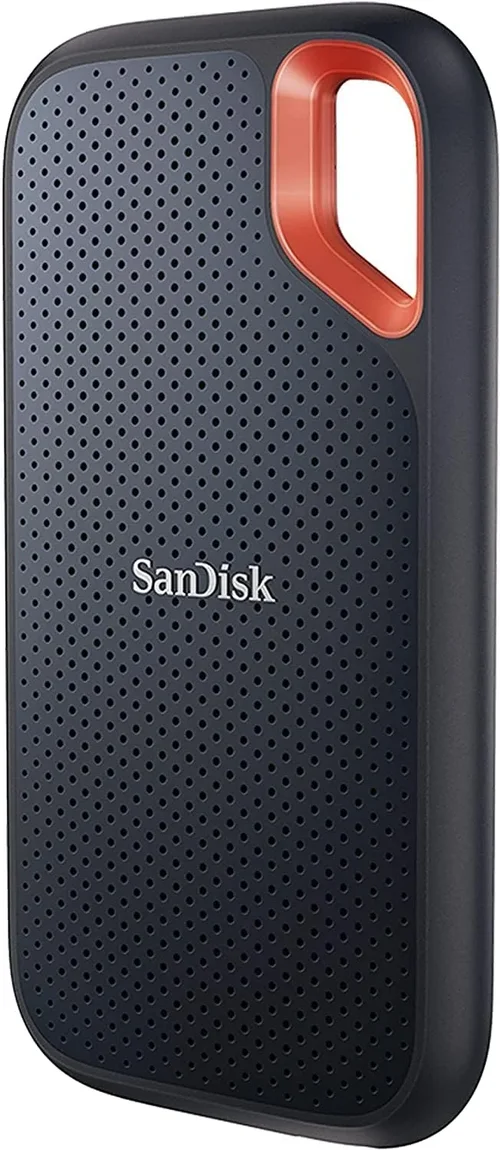
Solid-state drives (SSDs) have revolutionized the way we store and access data, transforming everything from everyday computing to high-performance workstations and gaming rigs. Gone are the days when mechanical hard disk drives (HDDs) ruled the storage landscape—today, SSDs offer faster boot times, quicker file transfers, silent operation, and greater reliability thanks to their lack of moving parts. Whether you’re upgrading an aging laptop, building a new PC, or expanding your storage capacity for creative projects, choosing the right SSD is more important than ever. With so many options flooding the market—from budget SATA models to blazing-fast NVMe Gen5 drives—it’s easy to feel overwhelmed. That’s exactly why this comprehensive buying guide exists: to cut through the noise and help you make a smart, informed decision.
In this expert-level guide, you’ll learn everything you need to know about selecting the best SSD for your specific needs. We’ll break down the key technical specs that matter most—like interface type, NAND flash technology, endurance ratings, and real-world performance—without drowning you in jargon. You’ll discover how different form factors (2.5-inch, M.2, U.2) affect compatibility, and why speed isn’t always the only thing that counts. We’ll also compare top brands, analyze price-to-performance ratios across budget tiers, and highlight common pitfalls that even seasoned users fall into. By the end, you’ll not only understand what makes one SSD better than another but also know exactly which model aligns with your use case, whether you’re a casual user, a content creator, or a hardcore gamer.
The SSD market in 2026 is more dynamic than ever. While PCIe Gen4 drives remain the sweet spot for most consumers, PCIe Gen5 SSDs are now hitting mainstream prices, offering double the bandwidth for those who demand maximum throughput. Meanwhile, QLC NAND is pushing capacities higher at lower costs, though often at the expense of write endurance. At the same time, enterprise-grade features like power-loss protection and hardware encryption are trickling down into consumer models. With innovations in controller design, thermal management, and firmware optimization, today’s SSDs are faster, more efficient, and more durable than ever before. This guide will help you navigate these advancements and choose a drive that delivers lasting value—not just peak benchmarks.

What to Look for When Buying Buying Guide
1. Interface & Form Factor
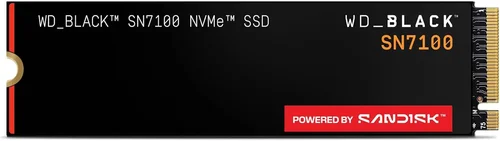
The interface and physical form factor of an SSD determine how it connects to your system and whether it’s compatible at all. The three main interfaces you’ll encounter are SATA, PCIe (NVMe), and USB (for external drives). SATA SSDs use the same connector as traditional HDDs and are limited to around 550 MB/s due to the SATA III bottleneck. They’re ideal for older systems or budget builds but can’t compete with modern NVMe speeds. PCIe-based NVMe SSDs, on the other hand, plug directly into M.2 slots or PCIe expansion slots and leverage the much faster PCIe bus—Gen3 offers up to ~3,500 MB/s, Gen4 doubles that to ~7,000 MB/s, and Gen5 pushes beyond 12,000 MB/s.
Form factors include 2.5-inch (common for SATA SSDs), M.2 (a compact stick-like design used for NVMe), and U.2 (larger, mostly found in servers). M.2 drives come in different lengths (e.g., 2280 = 22mm wide, 80mm long) and key types (B-key, M-key, or B+M), so always check your motherboard’s manual before buying. If you’re upgrading a laptop, space constraints may limit you to shorter M.2 drives. For desktops, full-length M.2 or even add-in-card (AIC) NVMe drives are options. Always verify compatibility—plugging a Gen4 drive into a Gen3 slot will work, but you’ll lose half the speed.
2. Performance Specifications
Raw speed matters—but not as much as sustained performance under real-world loads. Manufacturers advertise sequential read/write speeds (e.g., “7,000 MB/s read”), which are impressive on paper but don’t tell the whole story. Random 4K read/write performance is far more relevant for everyday tasks like opening apps, loading games, or multitasking. A drive with high sequential speeds but poor random I/O will feel sluggish during normal use.
Look for IOPS (Input/Output Operations Per Second) ratings—higher is better. For example, a drive rated at 1 million random read IOPS will handle small file operations far more efficiently than one at 300,000 IOPS. Also consider cache behavior: many NVMe SSDs use SLC (Single-Level Cell) caching to boost short bursts of speed. Once the cache fills up, performance can drop dramatically—this is called “cache exhaustion.” High-end drives often feature larger or dynamic caches to mitigate this. Real-world benchmarks from trusted sources like Tom’s Hardware or AnandTech are more reliable than manufacturer claims.
3. NAND Flash Type & Endurance
NAND flash memory comes in several types: SLC, MLC, TLC, and QLC. SLC is the fastest and most durable but prohibitively expensive—it’s mostly used in enterprise gear. MLC offers good balance but is rare in consumer drives today. TLC (Triple-Level Cell) is the standard for most mid-to-high-end SSDs, offering a solid mix of speed, capacity, and endurance. QLC (Quad-Level Cell) stores four bits per cell, enabling higher capacities at lower prices, but suffers from slower write speeds and reduced longevity.
Endurance is measured in TBW (Terabytes Written)—the total amount of data that can be written to the drive over its lifetime. A 1TB TLC SSD might have a 600 TBW rating, while a similarly sized QLC drive could be as low as 200 TBW. If you’re doing heavy video editing, database work, or frequent large file transfers, prioritize higher TBW and avoid QLC unless capacity is your absolute priority. Most consumer workloads won’t hit even modest TBW limits, but it’s still wise to choose TLC or better for peace of mind.
4. Capacity Needs
SSD capacities range from 128GB (barely usable today) to 8TB or more. For most users, 500GB–1TB is the practical sweet spot—enough for the OS, essential apps, and some games or media. Gamers should aim for at least 1TB, as modern titles can easily consume 100GB+ each. Content creators working with 4K/8K video may need 2TB or more. Keep in mind that SSDs perform best when they’re not nearly full—ideally, keep 10–20% free space for wear leveling and garbage collection.
Avoid the temptation to buy the largest drive you can afford if you don’t actually need the space. Overspending on unused capacity is wasteful. Conversely, don’t skimp too much—a 256GB SSD might seem cheap, but it’ll fill up fast with Windows updates, browser caches, and a few apps. Also note that advertised capacities use decimal (base-10) notation, while your OS reports in binary (base-2), so a “1TB” drive shows up as ~931GB in File Explorer.
5. Brand Reputation & Reliability
Not all SSDs are created equal—even if they share the same specs. Reputable brands like Samsung, Western Digital, Crucial, Kingston, and Sabrent invest heavily in quality control, firmware development, and long-term reliability testing. Lesser-known brands may use cheaper controllers or lower-grade NAND, leading to inconsistent performance or early failure. Check independent reviews and failure rate data (Backblaze publishes annual drive stats) before committing.
Samsung’s 990 Pro and WD Black SN850X are consistently praised for stability and performance. Crucial’s MX and P series offer excellent value without sacrificing quality. Avoid no-name brands that lack transparency about components or firmware updates. A reliable SSD isn’t just about speed—it’s about data integrity over years of use.
6. Warranty & Support
Warranty terms vary widely. Most consumer SSDs come with 3–5 years of coverage, often tied to TBW limits (e.g., “5-year or 600 TBW, whichever comes first”). Longer warranties generally indicate manufacturer confidence in durability. Some brands, like Samsung and Crucial, offer hassle-free replacement processes, while others require lengthy RMA procedures.
Check if the warranty is transferable (important if you sell your system) and whether it covers accidental damage. Also look for included software utilities—Samsung Magician and WD Dashboard provide health monitoring, firmware updates, and performance optimization tools. Good customer support can save you hours of frustration if something goes wrong.
7. Thermal Management
High-speed NVMe drives, especially Gen4 and Gen5 models, generate significant heat during sustained workloads. Without proper cooling, they can throttle performance to prevent overheating. Many premium M.2 SSDs now include built-in heatsinks or thermal pads. If your motherboard has an M.2 heatsink, ensure the drive fits underneath—some aftermarket coolers are too tall.
For compact builds (like mini-ITX PCs) or laptops, passive cooling may not suffice. Consider drives with lower power draw or active cooling solutions. Overheating doesn’t just hurt performance—it can reduce lifespan. Always monitor drive temps using tools like HWInfo or CrystalDiskInfo, especially during large file transfers or rendering tasks.
8. Price-to-Performance Ratio
The best SSD isn’t necessarily the fastest or most expensive—it’s the one that delivers the most value for your specific use case. A Gen5 drive costing $300 may offer double the speed of a Gen4 model at $150, but if your workload doesn’t benefit from that extra bandwidth, you’re overpaying. Compare price per gigabyte ($/GB) across similar drives, but also factor in endurance, warranty, and real-world performance.
During sales events like Black Friday or Prime Day, you can often find Gen4 drives at Gen3 prices—making them exceptional bargains. Avoid “too good to be true” deals on unknown brands; counterfeit SSDs are a real problem. Stick to authorized retailers and verified sellers.
Different Types of Buying Guide

Common Buying Mistakes to Avoid
❌ Mistake: Ignoring Your System’s Compatibility
Why it’s bad: Buying a Gen5 NVMe SSD for a motherboard that only supports Gen3 means you’re paying for performance you can’t use. Similarly, installing an M.2 drive in a laptop that lacks an M.2 slot renders it useless.
What to do instead: Always check your motherboard or laptop specs before purchasing. Use tools like CPU-Z or the manufacturer’s website to confirm supported interfaces and form factors.
❌ Mistake: Prioritizing Peak Speeds Over Real-World Performance
Why it’s bad: A drive advertising “12,000 MB/s” may slow to a crawl after its cache fills up during large file copies. You end up with inconsistent performance that doesn’t match marketing claims.
What to do instead: Look for sustained write speeds and cache size in reviews. Choose drives with large, dynamic SLC caches or DRAM buffers for consistent performance.
❌ Mistake: Choosing QLC for Heavy Workloads
Why it’s bad: QLC drives wear out faster under frequent writes. If you’re editing videos or running databases, a QLC SSD may fail prematurely or throttle severely.
What to do instead: Stick with TLC or MLC NAND for write-intensive tasks. Reserve QLC for archival storage or light use.
❌ Mistake: Overlooking Thermal Throttling
Why it’s bad: An overheating NVMe drive can drop to half its speed within minutes, negating its performance advantage—especially in small form-factor PCs.
What to do instead: Invest in a drive with a heatsink or ensure your case has adequate airflow. Monitor temps regularly during heavy use.
❌ Mistake: Skimping on Capacity
Why it’s bad: A 256GB SSD fills up quickly with Windows, updates, and a few apps. Low free space hurts performance and reduces lifespan due to inefficient wear leveling.
What to do instead: Start with at least 500GB—preferably 1TB for modern systems. It’s better to have unused space than to constantly manage storage.
❌ Mistake: Buying Based Solely on Price
Why it’s bad: The cheapest SSDs often use inferior components, lack DRAM caches, or have minimal endurance. You may save $20 now but risk data loss or replacement costs later.
What to do instead: Balance cost with brand reputation, warranty length, and independent review scores. Sometimes spending 20% more buys you 200% more reliability.
❌ Mistake: Neglecting Firmware Updates
Why it’s bad: Outdated firmware can cause bugs, performance drops, or compatibility issues. Some drives even shipped with critical security flaws.
What to do instead: Register your drive with the manufacturer and check for firmware updates periodically. Use official tools like Samsung Magician for safe updates.
Budget Guidelines: How Much Should You Spend?
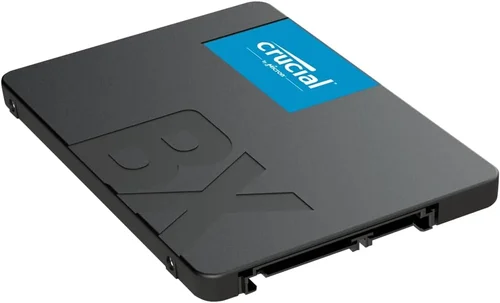
Entry-Level ($30–$60): This tier covers basic SATA SSDs (e.g., Crucial BX500, Kingston A400) and budget NVMe Gen3 drives (e.g., WD Blue SN580). Expect modest speeds (500–3,500 MB/s), limited endurance (150–300 TBW for 1TB), and no heatsinks. Ideal for upgrading old laptops or building a low-cost desktop. Don’t expect premium features, but these drives are reliable for everyday tasks.
Mid-Range ($60–$120): The sweet spot for most users. Here you’ll find high-quality TLC-based NVMe Gen3 and Gen4 drives like the Samsung 980, Crucial P3 Plus, or WD Black SN770. Capacities typically range from 500GB to 2TB, with strong real-world performance, decent endurance (400–600 TBW), and often include software suites. Perfect for gaming, office work, and light creative tasks.
Premium ($120–$250): Designed for enthusiasts and professionals. Drives like the Samsung 990 Pro, WD Black SN850X, or Sabrent Rocket 4 Plus offer top-tier Gen4 speeds, robust heatsinks, high endurance (600–1,200 TBW), and advanced features like hardware encryption. These are ideal for 4K video editing, large game libraries, and multitasking-heavy workflows.
Luxury ($250+): Reserved for cutting-edge Gen5 drives (e.g., Corsair MP700, Gigabyte AORUS Gen5) and ultra-high-capacity models (4TB–8TB). Expect blistering speeds (>10,000 MB/s), enterprise-grade components, and premium build quality. Only justified if you’re working with 8K media, scientific computing, or need future-proofing for next-gen platforms.
Expert Tips for Getting the Best Deal
– Buy during major sales events: SSD prices fluctuate significantly. Historical data shows the best discounts occur in November (Black Friday/Cyber Monday) and July (Prime Day). Avoid buying right after new models launch—prices are highest then.
– Stick to authorized retailers: Purchase from Amazon (sold by Amazon, not third parties), Newegg, Best Buy, or direct from manufacturers. This ensures genuine products, valid warranties, and easy returns.
– Compare total cost of ownership: Factor in warranty length, expected lifespan, and replacement cost—not just upfront price. A $100 drive with a 5-year warranty is better value than a $80 drive with 1-year coverage.
– Check return policies: Some retailers charge restocking fees or won’t accept opened SSDs. Buy from stores with generous return windows (30+ days) and no-questions-asked policies.
– Test before relying on it: Once installed, run a full diagnostic using CrystalDiskMark or the manufacturer’s tool. Verify advertised speeds and check for errors. This catches defective units early.
– Consider used/refurbished cautiously: While refurbished SSDs from reputable sellers can be safe, avoid used drives—you have no idea how much data was written to them. TBW history is invisible to buyers.
– Don’t forget the OS migration: If upgrading from an HDD, use cloning software (Macrium Reflect, Acronis True Image) to transfer your OS and apps seamlessly. Fresh installs are cleaner but take more time.
– Future-proof wisely: If your system supports Gen4 or Gen5, consider investing in a compatible drive—even if you don’t need the speed today. It extends the useful life of your build.

Frequently Asked Questions
Q: Is NVMe always faster than SATA?
A: In theory, yes—NVMe leverages the PCIe bus for much higher bandwidth. However, for everyday tasks like web browsing, office apps, or light gaming, the difference is often negligible. You’ll only notice the speed boost during large file transfers, game loading, or professional workloads. If your system only has SATA ports, a SATA SSD is still a massive upgrade over an HDD.
Q: Do I need a heatsink for my M.2 SSD?
A: It depends. If your motherboard includes an M.2 heatsink or you’re using the drive in a well-ventilated case, you may not need one. However, Gen4 and Gen5 drives benefit greatly from active or passive cooling during sustained workloads. For compact builds or laptops, choose low-profile drives or those with integrated thermal solutions.
Q: Can I use an SSD as a boot drive?
A: Absolutely—and you should! SSDs are ideal for operating systems due to their fast read speeds, which drastically reduce boot and load times. Just ensure your BIOS/UEFI recognizes the drive and set it as the primary boot device.
Q: How long do SSDs last?
A: Modern consumer SSDs typically last 5–10 years under normal use, often outliving the device they’re installed in. Endurance is measured in TBW—most 1TB drives can handle 300–600TB of writes. Unless you’re writing terabytes daily, wear-out is rarely an issue.
Q: What’s the difference between DRAM and DRAM-less SSDs?
A: DRAM-equipped SSDs have a dedicated memory chip to cache mapping tables, improving speed and longevity. DRAM-less drives use system RAM (HMB) or slower internal caching, which can hurt performance under load. For most users, DRAM-less is fine, but avoid it for heavy workloads.
Q: Are external SSDs as fast as internal ones?
A: Only if they use USB 3.2 Gen 2×2 (20 Gbps) or Thunderbolt 3/4 (40 Gbps). Standard USB 3.0/3.1 caps out around 500–600 MB/s—similar to SATA. For maximum speed, choose Thunderbolt-enabled models like the Samsung T7 Shield or SanDisk Extreme Pro.
Q: Should I enable TRIM?
A: Yes! TRIM helps maintain SSD performance by informing the drive which blocks are no longer in use, allowing efficient garbage collection. It’s usually enabled by default in Windows, macOS, and Linux, but you can verify it in Disk Management or using the `fsutil behavior query DisableDeleteNotify` command.
Q: Can I recover data from a failed SSD?
A: It’s possible but difficult and expensive. Unlike HDDs, SSDs often fail suddenly with little warning, and data recovery requires specialized tools. Regular backups are essential—never rely solely on your SSD for critical data.
Q: Is it safe to defragment an SSD?
A: No—and you shouldn’t. Defragmentation is designed for HDDs and causes unnecessary wear on SSDs. Modern OSes automatically disable defrag for SSDs and use TRIM instead for optimization.
Q: Do SSDs consume less power than HDDs?
A: Yes, significantly. SSDs draw 2–3 watts under load compared to 6–7 watts for HDDs. This translates to longer battery life in laptops and lower heat output—a key advantage for portable devices.
Our Final Recommendations
Best for Budget-Conscious Buyers: Crucial P3 1TB (PCIe Gen3 NVMe) – At around $60, it delivers excellent TLC-based performance, 400 TBW endurance, and Crucial’s reliable firmware. Perfect for upgrading older systems without breaking the bank.
Best Overall Value: Samsung 980 1TB (PCIe Gen3 NVMe) – A proven performer with consistent speeds, low power draw, and Samsung’s industry-leading quality control. Great for gamers and general users who want reliability without Gen4 pricing.
Best Premium Option: Samsung 990 Pro 2TB (PCIe Gen4 NVMe) – The gold standard for consumer SSDs. Blazing 7,450 MB/s reads, 1,200 TBW endurance, integrated heatsink, and exceptional thermal management. Ideal for creators and enthusiasts.
Best for Beginners: WD Blue SA510 1TB (SATA) – Simple, reliable, and universally compatible. No setup hassles—just plug into any SATA port. Excellent for first-time upgraders or older machines.
Best for Advanced Users: Corsair MP700 2TB (PCIe Gen5 NVMe) – Pushes the limits with 10,000+ MB/s speeds, robust heatsink, and Micron 232-layer TLC NAND. Built for 8K editing, AI workloads, and future-proof builds.
Conclusion: Making the Right Choice
Choosing the best SSD in 2026 isn’t just about chasing the highest number on a spec sheet—it’s about aligning technology with your real-world needs. Whether you’re breathing new life into an old laptop with a SATA upgrade or building a bleeding-edge workstation with a Gen5 powerhouse, the right SSD will transform your computing experience. Remember to prioritize compatibility, endurance, and sustained performance over flashy marketing claims. Factor in your budget, but don’t sacrifice reliability for a few saved dollars. And always buy from trusted sources during optimal sale windows to maximize value.
Ultimately, the “best” SSD is the one that fits your system, supports your workflow, and delivers peace of mind for years to come. Use this guide as your compass—weigh the factors that matter most to you, avoid the common pitfalls, and invest wisely. Your data deserves a fast, secure, and dependable home. So go ahead: upgrade with confidence, and enjoy the silent, lightning-fast performance that only a quality SSD can provide.