
Solid-state drives (SSDs) have revolutionized how we experience computing, especially when it comes to booting up our systems. Gone are the days of waiting minutes for your operating system to load—today’s best SSD boot drives deliver near-instant startup times, snappier application launches, and a smoother overall user experience. Whether you’re building a new PC, upgrading an aging laptop, or simply looking to breathe new life into your current machine, choosing the right SSD as your primary boot drive is one of the most impactful upgrades you can make.
This comprehensive buying guide is designed to cut through the noise and help you make an informed decision in 2026. We’ll walk you through every critical factor—from performance specs and form factors to budget considerations and brand reliability—so you can confidently select the SSD that best matches your needs. The market is flooded with options, ranging from budget-friendly SATA models to blazing-fast NVMe Gen5 drives, and it’s easy to get overwhelmed. But with the right knowledge, you’ll know exactly what to prioritize. By the end of this guide, you’ll understand not only what makes a great boot drive but also how to avoid common pitfalls, stretch your dollar, and future-proof your system.
The SSD landscape has evolved rapidly over the past few years. While traditional SATA SSDs once dominated the market, NVMe (Non-Volatile Memory Express) drives—especially those using PCIe Gen4 and Gen5 interfaces—have become the new standard for high-performance computing. At the same time, advancements in NAND flash technology, controller designs, and firmware optimization have made even entry-level SSDs significantly faster and more reliable than their predecessors. Whether you’re a casual user, a content creator, a gamer, or a professional developer, there’s an SSD out there tailored to your workflow. This guide will help you navigate that landscape with clarity and confidence.

What to Look for When Buying Buying Guide
1. Interface and Form Factor
The interface and physical form factor of your SSD determine compatibility with your system and directly influence performance. The two most common interfaces today are SATA and NVMe (which uses the PCIe bus). SATA SSDs connect via the older SATA III interface, capping speeds at around 550 MB/s. They typically come in the 2.5-inch form factor, which fits most laptops and desktops with standard drive bays. While SATA SSDs are reliable and affordable, they’re increasingly being phased out in favor of faster NVMe options.
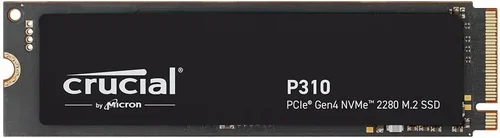
NVMe SSDs, on the other hand, connect directly to the motherboard via an M.2 slot and use the PCIe interface, enabling much higher data transfer rates. M.2 NVMe drives are compact, resemble small circuit boards, and are ideal for modern ultrabooks and compact desktops. They come in different lengths (e.g., 2280, which is 22mm wide and 80mm long) and support various PCIe generations—Gen3, Gen4, and now Gen5. Gen4 drives can reach speeds up to 7,000 MB/s, while Gen5 pushes beyond 10,000 MB/s. However, not all systems support Gen4 or Gen5, so always check your motherboard’s specifications before purchasing.
2. Performance Specifications
When evaluating SSD performance, focus on three key metrics: sequential read/write speeds, random read/write IOPS (Input/Output Operations Per Second), and latency. Sequential speeds matter most for large file transfers and boot times, while random IOPS are crucial for multitasking, loading small files, and running multiple applications simultaneously.
For a boot drive, you don’t need the absolute highest speeds, but faster drives will noticeably improve system responsiveness. A good NVMe Gen4 SSD with 5,000–7,000 MB/s read speeds and 4,000–6,000 MB/s write speeds is more than sufficient for most users. Random 4K read/write performance should ideally exceed 500,000 IOPS for smooth multitasking. Latency—how quickly the drive responds to requests—should be under 100 microseconds for optimal performance.
Also consider sustained performance. Some SSDs throttle under prolonged workloads due to thermal issues. Look for drives with robust thermal management, such as built-in heatsinks or support for motherboard-mounted heatsinks, especially if you plan to use the drive for both booting and heavy workloads like video editing or gaming.
3. Storage Capacity
Capacity is a critical factor because your boot drive needs to hold your operating system, essential applications, and frequently used files. While 250GB might seem sufficient, modern operating systems like Windows 11 or macOS Ventura can consume 60–80GB alone, leaving little room for apps and updates. We recommend a minimum of 500GB for most users, with 1TB being the sweet spot for performance, longevity, and future-proofing.
Larger drives often perform better due to increased parallelism—more NAND chips working simultaneously—and they have more over-provisioning space, which helps maintain speed and endurance over time. Additionally, SSDs slow down as they fill up. A drive that’s 90% full will perform significantly worse than one at 50% capacity. Therefore, choosing a larger drive not only gives you more space but also helps maintain consistent performance.
For gamers, content creators, or developers, 2TB or even 4TB drives are worth considering, especially if you plan to install large games, video projects, or development environments directly on the boot drive. However, larger capacities come at a higher cost per gigabyte, so balance your needs with your budget.
4. NAND Flash Type and Controller
The type of NAND flash memory used in an SSD affects its speed, endurance, and cost. The most common types are TLC (Triple-Level Cell) and QLC (Quad-Level Cell). TLC stores three bits per cell and offers a good balance of performance, endurance, and price, making it ideal for boot drives. QLC stores four bits per cell, increasing storage density and reducing cost, but at the expense of lower write speeds and endurance.
While QLC drives are improving, they’re better suited for secondary storage or light workloads. For a boot drive, TLC is the safer, more reliable choice. Some high-end drives now use PLC (Penta-Level Cell), but these are still emerging and not recommended for primary use due to limited endurance.
The controller—the SSD’s “brain”—manages data flow, error correction, wear leveling, and garbage collection. A high-quality controller from reputable manufacturers like Phison, Silicon Motion, or Samsung ensures consistent performance and longevity. Look for drives with modern controllers that support advanced features like dynamic SLC caching, which temporarily treats part of the TLC or QLC memory as faster SLC (Single-Level Cell) to boost write speeds during bursts.
5. Endurance and TBW Rating
Endurance refers to how much data can be written to an SSD over its lifetime, typically measured in Terabytes Written (TBW). A higher TBW rating indicates a longer-lasting drive. For example, a 1TB SSD with a 600 TBW rating can theoretically withstand 600 terabytes of writes before failure.
While most users won’t reach these limits—even heavy users typically write 20–50TB per year—endurance matters for reliability and peace of mind. Boot drives are subject to constant read/write activity from the OS, so choosing a drive with a solid TBW rating is important. Consumer-grade SSDs usually offer 150–600 TBW for 1TB models, while enterprise drives can exceed 1,000 TBW.
Also consider the drive’s DWPD (Drive Writes Per Day), which indicates how many times the full capacity can be written daily over the warranty period. A 1TB drive with 0.3 DWPD can handle 300GB of writes per day for five years. For most users, 0.3–0.5 DWPD is sufficient.
6. Brand Reputation and Reliability
Not all SSDs are created equal, and brand reputation plays a significant role in long-term reliability. Established brands like Samsung, Crucial, Western Digital, Kingston, and Sabrent have a proven track record of producing high-quality, durable drives with consistent firmware updates and customer support.
Samsung, for instance, is known for its excellent performance, reliability, and proprietary V-NAND technology. Crucial (a subsidiary of Micron) offers great value with solid performance and endurance. Western Digital and SanDisk provide reliable options across budget and premium segments. Sabrent has gained popularity for high-performance NVMe drives at competitive prices.
Avoid no-name or ultra-cheap brands, especially those sold on obscure online marketplaces. These drives may use inferior components, lack proper firmware, or even misrepresent their specifications. Reading professional reviews and user feedback can help you identify trustworthy brands and avoid potential duds.
7. Warranty and Support
A strong warranty is a good indicator of a manufacturer’s confidence in their product. Most reputable SSDs come with a 3- to 5-year limited warranty, often tied to the TBW rating. For example, a drive with a 600 TBW rating and a 5-year warranty will be covered as long as you don’t exceed the write limit within that time.
Check the warranty terms carefully. Some brands offer prorated warranties, meaning coverage decreases over time. Others provide full replacement regardless of usage, as long as the drive fails within the warranty period. Also consider the availability of customer support—can you easily contact the manufacturer? Do they offer firmware updates? Is there a user-friendly dashboard for monitoring drive health?
Samsung’s Magician software, for example, provides detailed drive information, performance optimization, and firmware updates. Crucial offers Storage Executive with similar features. These tools enhance the user experience and help maintain drive performance over time.
8. Price and Value for Money
Price is always a consideration, but the cheapest SSD isn’t always the best value. You want to balance cost with performance, endurance, and reliability. As of 2026, expect to pay:
– $30–$50 for a 500GB SATA SSD
– $40–$70 for a 1TB SATA SSD
– $50–$90 for a 1TB NVMe Gen3 SSD
– $70–$130 for a 1TB NVMe Gen4 SSD
– $120–$200+ for a 1TB NVMe Gen5 SSD
Prices fluctuate based on market conditions, NAND supply, and technological advancements. During sales events like Black Friday or Amazon Prime Day, you can often find significant discounts. However, be cautious of deals that seem too good to be true—they often are.
Instead of focusing solely on price per gigabyte, consider the total cost of ownership. A slightly more expensive SSD with better endurance, performance, and warranty may save you money in the long run by lasting longer and requiring fewer replacements.
Different Types of Buying Guide
Common Buying Mistakes to Avoid
❌ Mistake: Choosing Based Solely on Price
Why it’s bad: Opting for the cheapest SSD often means sacrificing performance, endurance, and reliability. Low-cost drives may use QLC NAND, weak controllers, or lack proper firmware, leading to slower speeds, higher failure rates, and shorter lifespans.
What to do instead: Focus on value, not just price. Compare drives within your budget based on performance, TBW rating, warranty, and brand reputation. A slightly more expensive drive that lasts twice as long is a better investment.
❌ Mistake: Ignoring Compatibility
Why it’s bad: Buying an NVMe Gen5 drive for a motherboard that only supports Gen3 will result in wasted money and no performance gain. Similarly, installing a 22110 M.2 drive in a slot that only supports 2280 will cause physical incompatibility.
What to do instead: Check your motherboard or laptop specifications before purchasing. Look for the supported M.2 slot type, PCIe generation, and physical dimensions. Consult the manual or manufacturer’s website if unsure.
❌ Mistake: Overlooking Thermal Management
Why it’s bad: High-performance NVMe drives, especially Gen4 and Gen5, generate significant heat. Without proper cooling, they can throttle, reducing speeds and potentially shortening lifespan.
What to do instead: Choose drives with built-in heatsinks or ensure your case or motherboard has a heatsink for the M.2 slot. Monitor temperatures using tools like HWInfo or Samsung Magician.
❌ Mistake: Buying Too Little Storage
Why it’s bad: A 250GB SSD fills up quickly with modern OSes and applications. Low capacity leads to slower performance, frequent cleanup, and the need for a secondary drive sooner than expected.
What to do instead: Start with at least 500GB, but aim for 1TB if your budget allows. This provides ample space for the OS, apps, and future updates without compromising performance.
❌ Mistake: Neglecting Firmware Updates
Why it’s bad: Outdated firmware can cause compatibility issues, performance bugs, or even data corruption. Some manufacturers release critical updates to fix security vulnerabilities.
What to do instead: Register your SSD with the manufacturer and periodically check for firmware updates. Use official tools like Samsung Magician or Crucial Storage Executive to apply updates safely.
❌ Mistake: Assuming All NVMe Drives Are Equal
Why it’s bad: NVMe is a protocol, not a performance guarantee. A Gen3 NVMe drive is much slower than a Gen4 or Gen5 model. Additionally, some NVMe drives use DRAM-less designs, which hurt performance under load.
What to do instead: Check the PCIe generation, controller, and whether the drive includes a DRAM cache. DRAM-less drives are acceptable for light use but not ideal for a boot drive.
❌ Mistake: Not Backing Up Before Installation
Why it’s bad: Installing a new SSD often involves cloning your existing drive or performing a clean OS install. Without a backup, you risk losing important data.
What to do instead: Always back up your data before making changes. Use tools like Macrium Reflect, Acronis True Image, or built-in OS utilities to create a full system image.
Budget Guidelines: How Much Should You Spend?
– Entry-Level ($30–$60): Ideal for budget builds or upgrading older systems. Look for 500GB–1TB SATA SSDs or entry-level NVMe Gen3 drives. Expect decent performance for everyday tasks but limited endurance and features. Brands like Kingston, Crucial, and SanDisk offer reliable options in this range.
– Mid-Range ($60–$120): The sweet spot for most users. 1TB NVMe Gen3 or Gen4 drives with TLC NAND, DRAM cache, and strong TBW ratings. These drives offer excellent performance for booting, gaming, and productivity. Models like the Samsung 980, WD Black SN770, and Crucial P5 Plus fall into this category.
– Premium ($120–$200): For enthusiasts and professionals who demand top-tier performance. 1TB–2TB NVMe Gen4 or Gen5 drives with advanced controllers, heatsinks, and high endurance. These are ideal for content creation, 4K/8K video editing, and high-end gaming. Consider the Samsung 990 Pro, WD Black SN850X, or Sabrent Rocket 4 Plus.
– Luxury ($200+): Top-of-the-line drives with cutting-edge technology, maximum capacity (4TB+), and enterprise-grade endurance. These are overkill for most users but suitable for workstations, servers, or future-proofing. Examples include the Samsung 990 Pro 4TB or Corsair MP700 Pro.

Expert Tips for Getting the Best Deal
– Wait for Major Sales Events: Black Friday, Cyber Monday, Amazon Prime Day, and back-to-school seasons often feature significant SSD discounts. Sign up for price alerts on sites like CamelCamelCamel or Slickdeals to catch deals early.
– Buy Direct from Manufacturers: Samsung, Crucial, and WD often run exclusive promotions on their websites, including bundle deals or extended warranties. You may also get faster shipping and better support.
– Check Retailer Return Policies: Ensure the retailer offers a hassle-free return window (at least 30 days). This gives you time to test the drive and ensure compatibility.
– Compare Prices Across Platforms: Don’t rely on a single store. Compare prices on Amazon, Newegg, Best Buy, B&H, and direct manufacturer sites. Sometimes smaller retailers offer better deals or free shipping.
– Look for Bundled Software: Some SSDs come with free cloning software, backup tools, or cloud storage. These add-ons can save you money and simplify the installation process.
– Monitor Drive Health After Purchase: Use tools like CrystalDiskInfo or the manufacturer’s software to check SMART data, temperature, and wear leveling. Early detection of issues can prevent data loss.
– Consider Future Upgrades: If you plan to upgrade your system soon, choose an SSD that will remain compatible. For example, a Gen4 drive will work in a Gen5 system, but not vice versa.
– Avoid Counterfeit Drives: Only buy from authorized retailers. Counterfeit SSDs are common on auction sites and may have fake capacity or poor performance.

Frequently Asked Questions
Q: Can I use an external SSD as a boot drive?
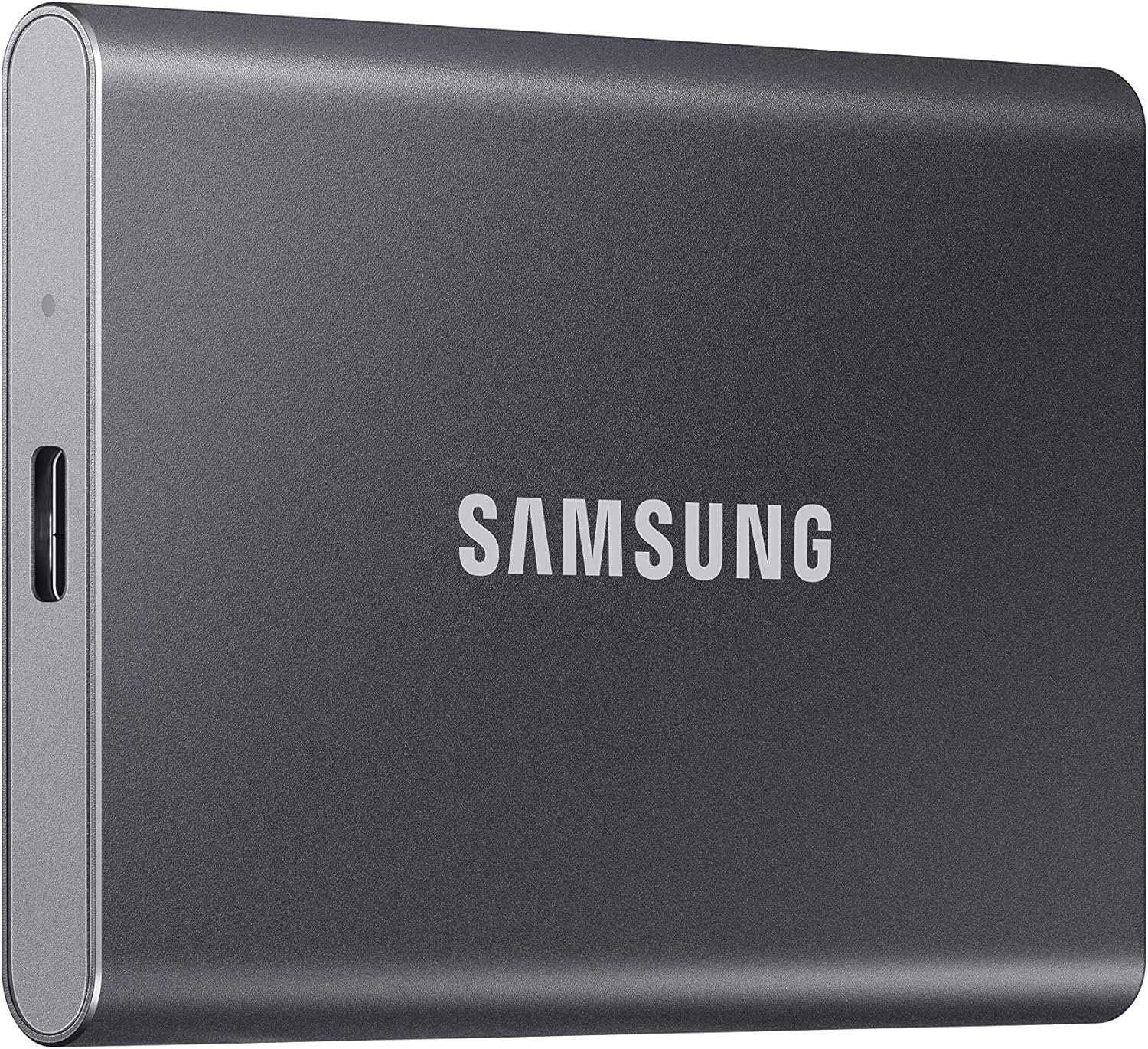
A: Yes, most modern systems support booting from external SSDs via USB-C or Thunderbolt. This is especially useful for Mac users or those who want a portable boot drive. Ensure your BIOS/UEFI supports external boot and that the drive is fast enough (USB 3.2 Gen 2 or Thunderbolt 3/4 recommended).
Q: Do I need a heatsink for my NVMe SSD?
A: It depends. If your motherboard has a built-in M.2 heatsink or you’re using the drive in a well-ventilated case, a separate heatsink may not be necessary. However, for Gen4 or Gen5 drives under heavy load, a heatsink helps prevent thermal throttling and maintains peak performance.
Q: How long do SSDs last as boot drives?
A: Most consumer SSDs last 5–10 years under normal use, depending on usage patterns and TBW rating. With proper care and moderate usage, a 1TB TLC SSD should easily outlast the lifespan of your computer.
Q: Is DRAM cache important for a boot drive?
A: Yes. DRAM cache helps the SSD manage data efficiently, improving performance and longevity. DRAM-less SSDs rely on system memory (HMB), which can slow down under heavy workloads. For a boot drive, a DRAM-equipped SSD is recommended.
Q: Can I clone my old HDD to a new SSD?
A: Absolutely. Cloning allows you to transfer your OS, apps, and files without reinstalling everything. Use tools like Macrium Reflect, Acronis True Image, or Samsung Data Migration. Ensure the SSD is at least as large as the used space on your HDD.
Q: What’s the difference between NVMe and SATA SSDs?
A: NVMe uses the PCIe interface for much faster speeds (up to 10,000 MB/s), while SATA is limited to ~550 MB/s. NVMe drives are typically M.2 form factor, whereas SATA drives are usually 2.5-inch. NVMe is better for performance, SATA for compatibility.
Q: Should I enable TRIM on my SSD?
A: Yes. TRIM helps the SSD manage deleted data more efficiently, maintaining performance over time. It’s usually enabled by default in modern OSes, but you can check via Command Prompt (Windows) or Disk Utility (macOS).
Q: Are Gen5 SSDs worth it in 2026?
A: For most users, Gen4 is still the best balance of performance and price. Gen5 offers marginal real-world benefits unless you’re working with 8K video, large datasets, or AI workloads. Wait for prices to drop and broader motherboard support before upgrading.
Q: Can I use an SSD as both boot and storage drive?
A: Yes, and it’s common. Just ensure the drive has enough capacity (1TB or more) and that you manage space wisely. Avoid filling the drive beyond 80% to maintain performance.
Q: What happens if my SSD fails?
A: SSDs can fail suddenly due to controller issues or NAND wear. Always back up your data regularly. If under warranty, contact the manufacturer for a replacement. Keep your data backed up on an external drive or cloud service.
Our Final Recommendations
– Best for Budget-Conscious Buyers: Crucial P3 1TB NVMe Gen3 – Offers excellent value with solid performance, TLC NAND, and a 5-year warranty. Perfect for upgrading older systems or building a budget PC.
– Best Overall Value: Samsung 980 1TB NVMe Gen3 – Reliable, fast, and backed by Samsung’s excellent software and support. A proven performer for everyday use and light gaming.
– Best Premium Option: Samsung 990 Pro 1TB NVMe Gen4 – Top-tier performance, low latency, and exceptional endurance. Ideal for gamers, creators, and power users who demand the best.
– Best for Beginners: WD Blue SN580 1TB NVMe Gen4 – Easy to install, reliable, and affordable. Comes with WD Dashboard for monitoring and updates. Great first NVMe drive.
– Best for Advanced Users: Sabrent Rocket 4 Plus-G 1TB NVMe Gen4 – High-speed performance, built-in heatsink, and excellent sustained write speeds. Perfect for demanding workloads and overclocking.
Conclusion: Making the Right Choice
Choosing the best SSD boot drive in 2026 comes down to understanding your needs, budget, and system compatibility. Whether you’re looking for a budget-friendly upgrade or a high-performance powerhouse, the right SSD can transform your computing experience with faster boot times, quicker app launches, and smoother multitasking.
Prioritize reliability, performance, and endurance over flashy specs or rock-bottom prices. Invest in a reputable brand, ensure compatibility with your system, and don’t skimp on capacity. Remember, your boot drive is the foundation of your system—choose wisely.
Take the time to compare options, read reviews, and consider future needs. With the insights from this guide, you’re equipped to make a confident, informed decision. Upgrade your system today and enjoy the speed, responsiveness, and reliability that only a quality SSD boot drive can deliver.