
Solid-state drives (SSDs) have revolutionized how we store and access data. Gone are the days of slow boot times, laggy application launches, and the constant whirring of mechanical hard drives. Today, SSDs offer lightning-fast performance, silent operation, and improved durability—making them essential for everything from everyday computing to high-end gaming and professional workloads. But with so many options on the market, choosing the right SSD can feel overwhelming. One of the most critical decisions you’ll make isn’t about speed or brand—it’s about size.
This guide is designed to cut through the confusion and help you determine the best SSD size for your specific needs in 2026. Whether you’re building a new PC, upgrading an old laptop, or expanding storage for a media server, understanding how much storage you truly require—and how to balance that with performance, cost, and future-proofing—is key. We’ll walk you through every factor that influences your decision, from budget constraints to real-world usage patterns, and help you avoid common pitfalls that lead to buyer’s remorse.
By the end of this comprehensive guide, you’ll have a clear roadmap for selecting the ideal SSD capacity. You’ll learn how to assess your storage needs based on your operating system, applications, games, and personal files. We’ll compare different SSD types, break down pricing tiers, and share expert tips to help you get the best value. Whether you’re a casual user, a content creator, or a tech enthusiast, this guide will empower you to make a confident, informed decision—so your next SSD purchase delivers exactly what you need, now and in the years ahead.
The SSD market in 2026 is more dynamic than ever. Prices have continued to drop thanks to advancements in NAND flash technology, particularly the widespread adoption of QLC (Quad-Level Cell) and PLC (Penta-Level Cell) memory, which offer higher densities at lower costs. At the same time, PCIe 5.0 SSDs are becoming mainstream, delivering unprecedented speeds that push the limits of what’s possible with consumer storage. Yet, despite these innovations, one thing remains constant: capacity matters. A blazing-fast 1TB SSD might be perfect for a gamer, but it could leave a video editor running out of space in just a few projects. Conversely, a massive 8TB drive might be overkill for someone who only uses their computer for web browsing and office work.
That’s why this guide focuses squarely on SSD size—not just in terms of raw gigabytes, but in how that capacity aligns with your lifestyle, workflow, and long-term goals. We’ll explore the sweet spots for different user types, explain why more isn’t always better, and show you how to future-proof your investment without overspending. With real-world examples, detailed comparisons, and actionable advice, this is your definitive resource for choosing the right SSD size in 2026.

What to Look for When Buying Buying Guide
1. Budget & Price Range
Your budget is often the first and most important factor when choosing an SSD size. SSD prices have dropped significantly over the past few years, but larger capacities still come at a premium. As of 2026, you can expect to pay roughly $0.08 to $0.15 per gigabyte for mainstream SATA and NVMe SSDs, with higher-end models and enterprise-grade drives costing more. This means a 1TB SSD might cost between $80 and $150, while a 4TB model could range from $320 to $600 or more.
When setting your budget, consider not just the upfront cost but also the long-term value. A slightly more expensive SSD with better endurance or a longer warranty might save you money in the long run by reducing the risk of failure or the need for early replacement. Also, keep in mind that prices fluctuate based on supply chain conditions, new technology releases, and seasonal sales. For example, Black Friday and back-to-school periods often feature significant discounts on storage devices.
It’s also wise to allocate your budget across your entire system build or upgrade. If you’re building a high-performance gaming rig, you might prioritize a fast 2TB NVMe SSD over a slower 4TB SATA drive. Conversely, if you’re on a tight budget, a 500GB SSD paired with a secondary HDD for bulk storage could be a smart compromise. The key is to balance capacity, performance, and cost in a way that aligns with your priorities.
2. Performance Specifications
While size determines how much you can store, performance dictates how quickly you can access it. SSD performance is measured in several key areas: sequential read/write speeds, random read/write IOPS (Input/Output Operations Per Second), and latency. These specs vary significantly between SSD types and capacities.
Larger SSDs often perform better than smaller ones, even within the same product line. This is because SSDs use multiple NAND flash chips in parallel, and higher-capacity models typically have more chips, allowing for greater bandwidth. For example, a 2TB NVMe SSD might deliver 7,000 MB/s read speeds, while a 500GB version of the same model caps out at 3,500 MB/s due to fewer active channels.
Sequential speeds matter most for large file transfers—like copying videos or loading game levels—while random IOPS are crucial for multitasking, booting the OS, and launching applications. If you’re a content creator working with 4K or 8K video, high IOPS can drastically reduce render times and improve workflow efficiency. Gamers will also benefit from faster load times in open-world titles that stream assets dynamically.
When comparing SSDs, look beyond marketing claims and check independent benchmarks. Brands like Samsung, WD, and Crucial often publish detailed performance data, but real-world tests from reviewers can reveal inconsistencies. Also, consider the interface: PCIe 4.0 and 5.0 NVMe drives offer the best performance, while SATA SSDs are limited to around 550 MB/s—still fast, but not ideal for high-end workloads.
3. Build Quality & Durability
SSDs are inherently more durable than HDDs because they have no moving parts, but not all SSDs are created equal. Build quality affects longevity, reliability, and resistance to physical shock, temperature extremes, and power failures. Key indicators of quality include the type of NAND flash used, the controller chip, and the presence of features like power-loss protection.
Higher-capacity SSDs often use more advanced NAND technologies, such as 3D TLC (Triple-Level Cell) or even MLC (Multi-Level Cell), which offer better endurance and data retention than cheaper QLC or PLC variants. For example, a 4TB TLC SSD might be rated for 1,200 TBW (Terabytes Written), while a 1TB QLC drive might only handle 200 TBW. If you plan to write large amounts of data regularly—like video editing or database work—opt for a drive with higher endurance.
The controller is the brain of the SSD, managing data flow, error correction, and wear leveling. Premium controllers from companies like Phison, Silicon Motion, and Marvell are found in high-end drives and contribute to better performance and longevity. Cheaper SSDs may use lower-tier controllers that degrade over time or struggle under heavy loads.
Also consider the physical build. M.2 NVMe SSDs are compact and ideal for laptops and small form factor PCs, but they can overheat under sustained workloads. Look for models with built-in heatsinks or consider adding an aftermarket one. 2.5-inch SATA SSDs are easier to cool and often more durable for desktop use. Industrial-grade SSDs offer even higher reliability but come at a steep price.
4. Features & Functionality
Modern SSDs come with a range of features that go beyond basic storage. These can significantly impact usability, security, and performance. When evaluating SSDs, look for features like hardware encryption, DRAM cache, SLC caching, and software suites.
Hardware-based encryption, such as TCG Opal or AES-256, protects your data if the drive is lost or stolen. This is especially important for business users or anyone handling sensitive information. Some drives also support self-encrypting drive (SED) functionality, which automatically encrypts data without performance penalties.
DRAM cache is a small amount of high-speed memory that stores the drive’s mapping table, improving performance and longevity. SSDs without DRAM (often called DRAM-less) rely on system memory or slower caching methods, which can lead to performance drops under heavy use. For most users, a DRAM-equipped SSD is worth the slight premium.
SLC caching is a technique where a portion of the TLC or QLC NAND is used as single-level cell memory, boosting write speeds during short bursts. This is common in consumer SSDs and helps maintain responsiveness during large file transfers. However, once the cache is exhausted, write speeds can drop significantly—so it’s important to understand how large the cache is and how it behaves under sustained loads.
Many manufacturers offer companion software for drive management, including firmware updates, health monitoring, and secure erase tools. Samsung’s Magician, WD’s Dashboard, and Crucial’s Storage Executive are examples of robust utilities that enhance the user experience. These tools can help you maintain optimal performance and troubleshoot issues before they become critical.
5. Brand Reputation
Not all SSD brands are equal. While third-party manufacturers may offer competitive prices, established brands like Samsung, Western Digital, Crucial, Kingston, and Sabrent have proven track records for reliability, performance, and customer support. Choosing a reputable brand reduces the risk of encountering defective drives, poor firmware, or lack of long-term support.
Samsung, for instance, is known for its high-quality NAND and controllers, often leading the market in both performance and endurance. Their 990 Pro series is a favorite among enthusiasts for its consistent speeds and 1,200 TBW rating. Western Digital offers a wide range of options, from budget-friendly Blue series to high-performance Black SN850X drives. Crucial, a subsidiary of Micron, leverages in-house NAND production to deliver reliable, cost-effective SSDs.
When evaluating brands, consider their history of firmware updates, recall policies, and transparency about component sourcing. Some brands use third-party NAND or controllers, which can lead to inconsistencies between product revisions. Look for brands that disclose their components and provide detailed specifications.
Customer support is another critical factor. A brand with responsive technical support, clear warranty terms, and easy RMA (Return Merchandise Authorization) processes can save you time and frustration if something goes wrong. Check user forums and review sites to see how brands handle support requests and whether they honor warranties promptly.
6. Warranty & Support
The warranty on an SSD is a strong indicator of its expected lifespan and the manufacturer’s confidence in its product. Most consumer SSDs come with a 3- to 5-year limited warranty, often tied to a TBW (Terabytes Written) rating. For example, a 1TB SSD might be warrantied for 600 TBW over 5 years, meaning you can write 600 terabytes of data before the warranty expires—regardless of time.
Higher-capacity drives typically come with longer warranties and higher TBW ratings. A 4TB SSD might offer a 1,200 TBW rating, reflecting its intended use for heavier workloads. This makes larger drives more appealing for professionals who need reliability and longevity.
When comparing warranties, read the fine print. Some brands prorate the warranty based on usage, while others offer full replacement regardless of TBW consumed. Also, check whether the warranty is transferable—important if you plan to sell or upgrade your system later.
Support quality varies widely. Look for brands that offer online resources, firmware updates, and accessible customer service. Some companies provide live chat or phone support, while others rely solely on email or forums. A good support experience can make a big difference if you encounter issues with your drive.
7. Size & Portability
While “size” in this guide primarily refers to storage capacity, physical size and form factor are also important considerations—especially for laptops, ultrabooks, and small form factor PCs. The three main SSD form factors are 2.5-inch SATA, M.2 2280, and M.2 2242/2260.
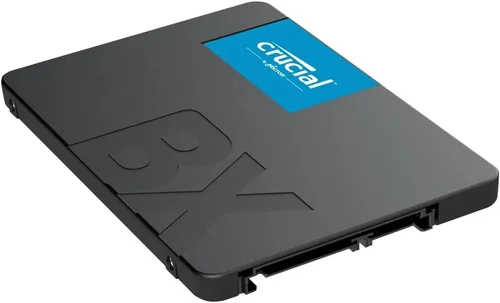
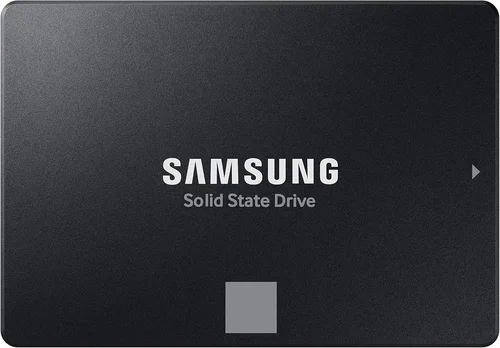
2.5-inch SATA SSDs are the traditional size, fitting into standard laptop and desktop drive bays. They’re easy to install and compatible with most systems, but they require both a SATA data cable and a power cable, which can clutter your build. These drives are ideal for older systems or users who prefer a more straightforward upgrade path.
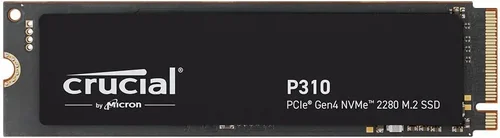
M.2 SSDs are much smaller and connect directly to the motherboard via an M.2 slot. The “2280” designation means 22mm wide and 80mm long—the most common size. M.2 drives are compact, lightweight, and don’t require cables, making them perfect for thin laptops and compact desktops. However, they can overheat under sustained loads, so thermal management is important.
Portability also matters if you plan to use the SSD externally. Many users opt for portable SSDs like the Samsung T7 or SanDisk Extreme Pro, which offer high speeds in a rugged, pocket-sized design. These are great for transferring large files between devices or backing up data on the go. Just ensure your chosen capacity fits your needs—external SSDs can be more expensive per gigabyte than internal ones.
8. User Reviews & Ratings
Before making a final decision, always consult user reviews and professional ratings. Real-world feedback can reveal issues that aren’t apparent from specifications alone—such as inconsistent performance, firmware bugs, or premature failures.
Look for reviews from trusted sources like Tom’s Hardware, AnandTech, or PCMag, which conduct rigorous testing and provide detailed analysis. Pay attention to long-term reviews, which assess reliability over months or years, not just initial performance.
User reviews on retail sites like Amazon, Newegg, or Best Buy can also be valuable, especially when it comes to customer service experiences and real-world usage scenarios. Look for patterns in feedback—if multiple users report the same issue, it’s likely a genuine concern.
Be cautious of fake reviews or overly promotional content. Genuine reviews often include both pros and cons, photos of the product, and specific use cases. Use aggregate ratings as a starting point, but dive deeper into individual experiences to get a complete picture.
Different Types of Buying Guide

Common Buying Mistakes to Avoid
❌ Mistake: Buying the Largest SSD You Can Afford
Why it’s bad: While more storage seems better, oversized SSDs can be a waste of money if you don’t actually need the space. You’re paying a premium for capacity you’ll never use, and larger drives may not offer proportional performance gains unless you’re doing heavy workloads.
What to do instead: Assess your actual storage needs based on your OS, apps, and files. A 2TB SSD is often the sweet spot for most users—enough for the OS, games, and media, without overspending.
❌ Mistake: Ignoring TBW and Endurance Ratings
Why it’s bad: SSDs have a finite lifespan based on how much data you write to them. Ignoring TBW (Terabytes Written) can lead to premature failure, especially with QLC drives used in high-write scenarios.
What to do instead: Check the TBW rating and match it to your usage. For heavy workloads, choose TLC or MLC drives with higher endurance. Use monitoring tools to track write cycles.
❌ Mistake: Choosing a DRAM-less SSD for Performance Tasks
Why it’s bad: DRAM-less SSDs rely on system memory or slower caching, leading to performance drops under sustained loads. This can cause stuttering in games or slowdowns during large file transfers.
What to do instead: Opt for SSDs with a dedicated DRAM cache, especially if you multitask or work with large files. The performance difference is noticeable and worth the slight cost increase.
❌ Mistake: Overlooking Thermal Throttling in M.2 Drives
Why it’s bad: High-speed NVMe SSDs generate heat, and without proper cooling, they can throttle performance to prevent damage. This negates the benefits of fast speeds.
What to do instead: Use a heatsink if your case or motherboard supports it. Monitor temperatures with tools like HWInfo or CrystalDiskInfo, and ensure good airflow in your system.
❌ Mistake: Buying Based Solely on Price
Why it’s bad: The cheapest SSD may use low-quality components, lack firmware updates, or have poor endurance. You might end up replacing it sooner, costing more in the long run.
What to do instead: Balance price with reviews, brand reputation, and features. Look for drives with good value per gigabyte and strong user feedback.
❌ Mistake: Not Checking Compatibility
Why it’s bad: Not all SSDs fit all systems. M.2 slots vary in keying (B-key, M-key, or B+M), and some motherboards only support certain PCIe generations.
What to do instead: Verify your system’s specifications before buying. Check the motherboard manual or use tools like CPU-Z to confirm M.2 slot type and supported speeds.
❌ Mistake: Skipping Firmware Updates
Why it’s bad: Firmware updates can fix bugs, improve performance, and enhance security. Ignoring them leaves your drive vulnerable and potentially underperforming.
What to do instead: Use the manufacturer’s software to check for and install firmware updates regularly. Most brands offer automatic update notifications.
Budget Guidelines: How Much Should You Spend?
Entry-Level ($40–$80): This tier is ideal for budget-conscious users upgrading from an HDD or building a basic system. Expect 250GB to 500GB SATA or DRAM-less NVMe SSDs with modest performance. Great for light办公, web browsing, and casual gaming. Look for brands like Kingston, Crucial, or Team Group.
Mid-Range ($80–$200): The sweet spot for most users. 1TB to 2TB NVMe SSDs with DRAM cache, good endurance, and solid performance. Perfect for gaming, content creation, and multitasking. Models like the Samsung 980 Pro, WD Black SN770, and Crucial P5 Plus offer excellent value here.
Premium ($200–$400): For enthusiasts and professionals. 2TB to 4TB high-end NVMe drives with PCIe 4.0 or 5.0 support, high TBW ratings, and advanced features like hardware encryption. Ideal for 4K/8K video editing, 3D rendering, and high-performance gaming rigs.
Luxury ($400+): Top-tier storage for extreme workloads. 4TB+ enterprise-grade SSDs with power-loss protection, ultra-high endurance, and server-grade reliability. These are overkill for most consumers but essential for data centers, AI training, and mission-critical applications.
Expert Tips for Getting the Best Deal
- Buy during sales events: Black Friday, Cyber Monday, Prime Day, and back-to-school seasons often feature deep discounts on SSDs. Sign up for deal alerts from retailers like Amazon, Newegg, and Best Buy.
- Compare prices across retailers: Use price comparison tools like Google Shopping or CamelCamelCamel to find the best deal. Don’t forget to factor in shipping and return policies.
- Check for bundle deals: Some retailers offer SSDs bundled with enclosures, adapters, or software. These can add value, especially if you need external storage.
- Consider refurbished or open-box units: Certified refurbished SSDs from reputable sellers often come with warranties and can save you 20–30%. Just ensure they’re from the original manufacturer.
- Monitor TBW and health: Use tools like CrystalDiskInfo or Samsung Magician to track your SSD’s health and remaining lifespan. This helps you plan for future upgrades.
- Read return policies: Ensure the retailer offers a hassle-free return window (at least 30 days) in case the drive is defective or incompatible.
- Future-proof with slightly more capacity: If you’re on the fence between 1TB and 2TB, go for 2TB. Storage needs grow over time, and the price difference is often minimal.

Frequently Asked Questions
Q: How much SSD storage do I really need?
A: It depends on your usage. For general use, 500GB–1TB is sufficient. Gamers should aim for 1TB–2TB to accommodate large game libraries. Content creators and professionals may need 2TB–4TB or more for video, photos, and projects.
Q: Is a larger SSD faster?
A: Often, yes. Larger SSDs typically have more NAND chips and can use parallelism to achieve higher speeds. However, the difference is most noticeable in write performance and sustained workloads.
Q: Can I use multiple smaller SSDs instead of one large one?
A: Yes, but it’s more complex. You can use RAID configurations or simply install multiple drives, but this requires more management and doesn’t offer the same simplicity as a single large SSD.
Q: Do I need a heatsink for my M.2 SSD?
A: Not always, but recommended for high-performance NVMe drives, especially in small cases or during sustained workloads. Many motherboards include heatsinks, or you can buy aftermarket ones.
Q: How long do SSDs last?
A: Most consumer SSDs last 5–10 years under normal use, depending on TBW and usage patterns. Monitoring tools can help you track wear and plan for replacement.
Q: Can I recover data from a failed SSD?
A: It’s possible but difficult and often expensive. Unlike HDDs, SSDs use wear leveling and TRIM, which can make data recovery challenging. Regular backups are essential.
Q: Should I fill my SSD to capacity?
A: No. SSDs need free space for wear leveling and garbage collection. Aim to keep at least 10–20% of the drive free for optimal performance and longevity.
Q: Are external SSDs as fast as internal ones?
A: USB 3.2 Gen 2×2 and Thunderbolt 3/4 external SSDs can match internal SATA speeds, but they’re still slower than PCIe 4.0/5.0 NVMe drives. Choose based on your speed needs.
Q: Can I upgrade my laptop’s SSD?
A: Most modern laptops allow SSD upgrades, but check your model’s specifications. Some ultrabooks use soldered storage, which can’t be replaced.
Q: Is QLC NAND bad?
A: Not necessarily. QLC offers higher capacity at lower cost but has lower endurance and slower write speeds. It’s fine for general use but not ideal for heavy writing tasks.
Our Final Recommendations
Best for Budget-Conscious Buyers: Crucial P3 1TB NVMe SSD – Offers excellent value with DRAM cache, solid performance, and a 5-year warranty. Perfect for upgrading older systems or building a budget PC.
Best Overall Value: Samsung 980 Pro 2TB – Combines top-tier performance, high endurance (1,200 TBW), and reliable firmware. Ideal for gamers and creators who want speed and capacity.
Best Premium Option: WD Black SN850X 4TB – PCIe 4.0 powerhouse with blazing speeds, excellent thermal management, and a 5-year warranty. Great for high-end builds and professional workloads.
Best for Beginners: Kingston NV2 1TB – Simple, reliable, and affordable. Easy to install and compatible with most systems. A great first SSD for new users.
Best for Advanced Users: Sabrent Rocket 4 Plus 4TB – High-performance PCIe 4.0 drive with optional heatsink, ideal for overclockers and enthusiasts who demand maximum speed and capacity.
Conclusion: Making the Right Choice
Choosing the right SSD size isn’t just about picking the biggest number on the box. It’s about understanding your needs, balancing performance and cost, and planning for the future. Whether you’re a casual user, a gamer, or a professional, the ideal SSD capacity will align with your workflow, budget, and long-term goals.
Remember to consider factors like TBW, DRAM cache, form factor, and brand reputation—not just raw gigabytes. Avoid common pitfalls like overspending on unused space or ignoring thermal management. And always consult reviews and benchmarks to make an informed decision.
With the insights from this guide, you’re now equipped to navigate the SSD market with confidence. Take your time, compare your options, and choose a drive that will serve you well for years to come. Your data—and your patience—will thank you.