
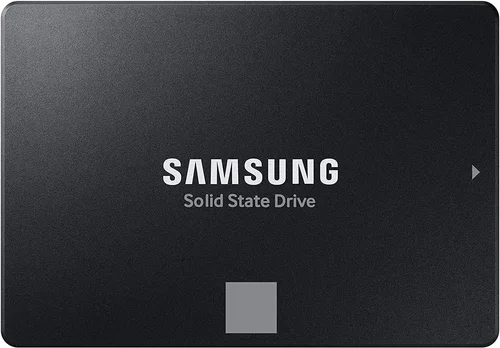
Choosing the right SSD size for a dual boot setup isn’t just about picking the biggest drive you can afford. It’s a strategic decision that balances operating system requirements, application storage, future-proofing, and real-world usability. Whether you’re running Windows and Linux side by side, macOS and Windows via Boot Camp, or any other combination, your SSD must accommodate not only two full operating systems but also their respective updates, software installations, user files, and temporary data—all while maintaining performance and longevity.
This guide is designed to cut through the confusion and help you make an informed, confident decision. We’ll walk you through every critical factor—from understanding how much space each OS actually needs to evaluating performance trade-offs between different SSD types. You’ll learn how to avoid common pitfalls like underestimating partition sizes or overlooking wear-leveling concerns. By the end, you’ll know exactly what size SSD fits your workflow, budget, and long-term goals.
The SSD market in 2026 continues to evolve rapidly, with capacities now commonly ranging from 250GB to 8TB and beyond. NVMe drives dominate new builds, while SATA SSDs remain viable for budget-conscious users. Prices have stabilized significantly compared to earlier years, making high-capacity storage more accessible than ever. However, “more space” doesn’t always mean “better value”—especially in a dual boot environment where inefficient partitioning or mismatched performance can lead to frustration. This guide will help you navigate those nuances with clarity and precision.

What to Look for When Buying Buying Guide
1. Total Storage Capacity Needs
The most obvious—but often miscalculated—factor is total storage. A dual boot system requires enough space for two complete operating systems, plus room for applications, updates, and personal files. For example, a fresh Windows 11 installation typically consumes 30–40GB, while a standard Ubuntu desktop setup uses 15–25GB. However, these numbers balloon quickly: Windows updates can add 10–20GB over time, and development tools, games, or creative software may demand hundreds of gigabytes per OS.
As a rule of thumb, allocate at least 100GB per OS partition for basic use, 200GB+ for moderate workloads (e.g., programming, light photo editing), and 300GB+ if you plan to install large applications or store media locally. Don’t forget swap space (Linux) or hibernation files (Windows), which can consume another 8–16GB depending on your RAM. Always leave 10–15% free space on each partition to maintain SSD performance and enable wear leveling.
2. Performance Specifications
Not all SSDs are created equal—even within the same capacity range. For dual boot setups, consistent read/write speeds matter because both OSes will compete for I/O resources during boot, updates, or multitasking. NVMe PCIe 4.0 and 5.0 drives offer blazing sequential speeds (up to 7,000–12,000 MB/s), ideal for fast boot times and loading large applications. SATA SSDs cap out around 550 MB/s but remain reliable and cost-effective for secondary or budget systems.
Pay attention to random 4K read/write performance too—this affects everyday responsiveness like opening apps or browsing files. Look for drives with high IOPS (Input/Output Operations Per Second) ratings, especially if you’ll be running databases, virtual machines, or compiling code across both OSes. DRAM cache is another key spec: SSDs with dedicated DRAM buffers handle sustained workloads better and reduce slowdowns during heavy usage.
3. Partitioning Strategy & Flexibility
How you partition your SSD directly impacts usability and future upgrades. A poorly planned layout can leave one OS starved for space while the other sits idle. Consider using a shared NTFS or exFAT partition for cross-platform file access (e.g., documents, media), but avoid installing applications here—they’re OS-specific. Tools like GParted (Linux) or Windows Disk Management let you resize partitions post-install, but it’s safer to plan ahead.
For flexibility, many users opt for a 3–4 partition scheme: one for each OS, one shared data partition, and optionally a small EFI/system partition (usually 500MB–1GB). If you anticipate switching OSes frequently or testing new distributions, consider leaving unallocated space for future partitions. Remember: shrinking partitions later is possible but risky—back up first!
4. Endurance & TBW Rating
SSDs wear out over time due to write cycles. The Terabytes Written (TBW) rating indicates how much data can be written before the drive may fail. For dual boot users, this is crucial because both OSes generate constant writes—log files, temp data, updates, and background services. A 1TB SSD with a 600TBW rating is far more durable than a 500GB model with 200TBW, even if both cost similar amounts.
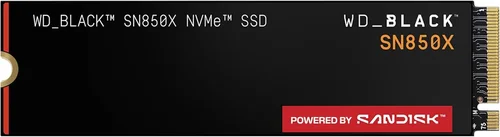
Check manufacturer specs for TBW and warranty length (typically 3–5 years). High-endurance drives like Samsung 990 Pro or WD Black SN850X offer excellent longevity. Avoid ultra-budget SSDs without DRAM or with low TBW—they may save money upfront but risk premature failure under dual-boot workloads.
5. Compatibility & Form Factor
Ensure your SSD physically fits your system and is supported by your motherboard or laptop. M.2 NVMe drives are compact and fast but require an M.2 slot with PCIe support. SATA SSDs use 2.5-inch bays and SATA cables—common in older systems. Some laptops only accept specific lengths (e.g., M.2 2280), so verify dimensions before buying.
Also confirm UEFI/BIOS compatibility. Most modern systems handle dual booting fine, but some OEM laptops (especially Windows-only models) may have Secure Boot or Fast Startup settings that interfere with Linux installs. Research your hardware model beforehand to avoid headaches.
6. Brand Reputation & Reliability
Stick with established brands known for quality control and firmware stability: Samsung, Crucial, Western Digital, Kingston, and SK Hynix are top choices. These manufacturers offer consistent performance, robust software suites (like Samsung Magician), and reliable customer support. Avoid no-name brands or suspiciously cheap drives—they often use lower-grade NAND flash or lack proper error correction.
User forums and professional reviews (e.g., Tom’s Hardware, AnandTech) are great resources for real-world reliability data. Look for patterns in failure reports or performance degradation over time.
7. Warranty & Support
A solid warranty reflects manufacturer confidence. Most reputable SSDs come with 3–5 year limited warranties, sometimes tied to TBW limits (e.g., “5 years or 600TBW, whichever comes first”). Register your drive promptly to activate coverage. Check if the brand offers data recovery assistance—some include free recovery services for failed drives.
Support quality varies: Samsung and Crucial provide excellent documentation and troubleshooting tools, while lesser brands may offer minimal help. If you’re building a mission-critical dual boot workstation, prioritize vendors with strong support ecosystems.
8. Price per Gigabyte vs. Real-World Value
While price-per-gigabyte is a useful metric, it shouldn’t be the sole deciding factor. A $0.08/GB drive might seem like a bargain, but if it lacks DRAM, has poor endurance, or uses QLC NAND (which slows under sustained writes), it could cost more in frustration or replacement. Conversely, a slightly pricier TLC-based NVMe drive with DRAM and high TBW often delivers better long-term value.
Calculate total cost of ownership: include potential downtime, data loss risks, and upgrade frequency. For most dual boot users, mid-range NVMe drives (1TB–2TB) offer the best balance of speed, capacity, and affordability in 2026.
Different Types of Buying Guide

Common Buying Mistakes to Avoid
❌ Mistake: Choosing a 500GB SSD for Dual Boot
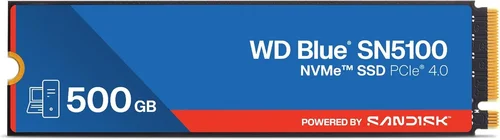
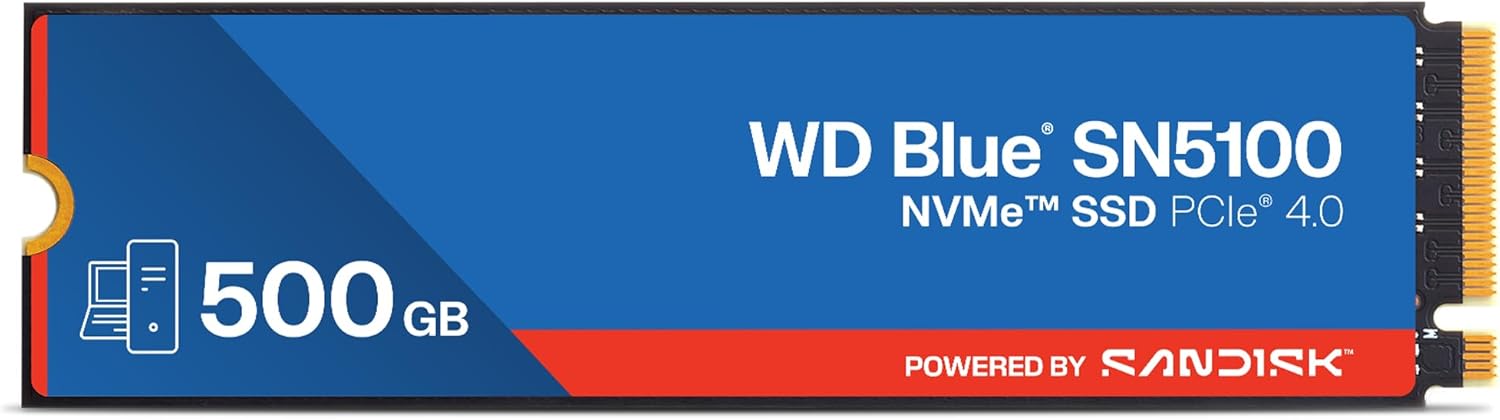
Why it’s bad: While 500GB seems adequate on paper, it quickly becomes cramped when splitting between two OSes. After allocating 100–150GB per OS and reserving space for shared data, you’re left with minimal breathing room. Windows updates alone can consume 20–30GB annually, and Linux package caches add up fast. Low free space degrades SSD performance and shortens lifespan.
What to do instead: Start with at least 1TB. It provides comfortable headroom for growth and ensures both OSes operate smoothly without constant cleanup.
❌ Mistake: Ignoring NAND Type (QLC vs. TLC)
Why it’s bad: QLC (Quad-Level Cell) NAND stores four bits per cell, offering higher density but lower endurance and slower write speeds under load. In a dual boot scenario—where both OSes generate frequent writes—QLC drives may throttle or wear out faster. TLC (Triple-Level Cell) offers better balance for mixed workloads.
What to do instead: Prioritize TLC-based SSDs for primary dual boot drives. Reserve QLC for archival or read-heavy secondary storage.
❌ Mistake: Overlooking DRAM Cache
Why it’s bad: DRAM-less SSDs use system RAM (HMB) for mapping tables, which works fine for light tasks but causes stutters during heavy multitasking—common in dual boot environments. Without dedicated DRAM, performance drops significantly when the drive fills up.
What to do instead: Always choose an SSD with onboard DRAM unless you’re on a very tight budget and only doing basic web browsing.
❌ Mistake: Using FAT32 for Shared Partitions
Why it’s bad: FAT32 has a 4GB file size limit and lacks modern security features. Trying to copy a Windows ISO or video file larger than 4GB will fail. It’s also prone to fragmentation.
What to do instead: Use exFAT for shared partitions—it supports large files, works natively on Windows and macOS, and has good Linux support via packages like exfat-utils.
❌ Mistake: Not Backing Up Before Partitioning
Why it’s bad: Repartitioning carries inherent risk. A misstep can corrupt partitions, erase data, or render the system unbootable. Many beginners skip backups assuming “it’ll be fine.”
What to do instead: Always create a full disk image backup using tools like Macrium Reflect (Windows) or Clonezilla (Linux) before making changes.
❌ Mistake: Buying Based Solely on Sequential Speeds
Why it’s bad: Marketing often highlights peak sequential read/write numbers (e.g., “7,000 MB/s!”), but real-world dual boot performance depends more on random 4K I/O and latency. A drive with mediocre sequential specs but excellent random performance may feel snappier in daily use.
What to do instead: Check reviews that include PCMark or CrystalDiskMark random benchmarks, not just synthetic sequential tests.
❌ Mistake: Forgetting About Thermal Throttling
Why it’s bad: High-performance NVMe drives generate heat. In cramped laptop chassis or poorly ventilated desktops, they may throttle speeds to prevent overheating—negating their performance advantage.
What to do instead: Choose drives with built-in heat spreaders (or add an aftermarket heatsink) if your system lacks adequate airflow. Monitor temps with tools like HWiNFO or Samsung Magician.
Budget Guidelines: How Much Should You Spend?
- Entry-Level ($50–$100): Expect 500GB–1TB SATA or DRAM-less NVMe drives. Suitable for light dual boot use (e.g., web browsing, office apps). Avoid for development or media work. Look for Crucial BX500 or Kingston NV2.
- Mid-Range ($100–$200): The sweet spot for most users. 1TB–2TB NVMe PCIe 3.0/4.0 drives with DRAM and TLC NAND (e.g., Samsung 980, WD Blue SN580). Excellent balance of speed, capacity, and reliability.
- Premium ($200–$400): High-end NVMe PCIe 4.0 drives (2TB–4TB) with top-tier endurance and performance (Samsung 990 Pro, WD Black SN850X). Ideal for developers, gamers, and creators who need fast access across both OSes.
- Luxury ($400+): PCIe 5.0 drives (4TB+) or enterprise-grade SSDs with extreme TBW ratings. Overkill for most, but justified for workstations handling 8K video, AI training, or server-like workloads.
Expert Tips for Getting the Best Deal
- Buy during seasonal sales: Major retailers and manufacturers discount SSDs predictably. Sign up for price alerts on PCPartPicker or CamelCamelCamel.
- Prioritize reputable retailers: Purchase from Amazon (sold by Amazon, not third-party), Newegg, Best Buy, or direct from brands. Avoid gray-market sellers.
- Check return policies: Ensure you can return or exchange if the drive is DOA (Dead On Arrival) or incompatible. Most brands offer 30-day return windows.
- Verify firmware updates: Some SSDs ship with buggy firmware. Download the latest version from the manufacturer’s site before installing your OSes.
- Use cloning for migration: If upgrading from an older SSD, clone your existing setup instead of reinstalling both OSes. Tools like Macrium Reflect Free or dd (Linux) make this easy.
- Enable TRIM in both OSes: TRIM helps maintain SSD performance over time. Windows enables it by default; in Linux, ensure
fstrimruns weekly via cron or systemd. - Don’t max out the drive: Keep at least 10–15% free space. Full SSDs slow down dramatically and reduce lifespan.
- Consider used enterprise drives cautiously: eBay listings for “used server SSDs” may have high TBW remaining but unknown history. Only buy from sellers with detailed health reports.
Frequently Asked Questions
Q: Can I dual boot on a 256GB SSD?
A: Technically yes, but it’s not recommended. After installing both OSes and essential apps, you’ll have almost no room for files or updates. Performance will suffer, and you’ll constantly manage storage. Upgrade to at least 500GB—but 1TB is far better.
Q: Should I use separate SSDs for each OS?
A: It’s possible and can simplify management, but it’s usually overkill unless you’re running high-performance workloads. A single large SSD with proper partitioning is more cost-effective and easier to maintain.
Q: Does dual booting reduce SSD lifespan?
A: Not significantly if you choose a drive with adequate TBW and avoid filling it completely. Modern SSDs are built for heavy workloads. Just monitor health periodically with SMART tools.
Q: Can I resize partitions after installing both OSes?
A: Yes, but back up first! Use GParted (Linux) or third-party tools like MiniTool Partition Wizard (Windows). Shrinking the Windows partition requires disabling hibernation and page file temporarily.
Q: Is NVMe worth it over SATA for dual boot?
A: Absolutely, if your system supports it. NVMe offers 5–10x faster speeds, reducing boot and app load times in both OSes. The price gap has narrowed, making NVMe the default choice in 2026.
Q: What file system should I use for the shared partition?
A: exFAT is best for cross-platform compatibility. NTFS works on Linux with ntfs-3g, but permissions can be tricky. Avoid ext4 on Windows—it requires third-party drivers.
Q: How do I ensure both OSes appear in the boot menu?
A: Install Windows first, then Linux. Most Linux installers (Ubuntu, Fedora) detect Windows and configure GRUB automatically. If not, use os-prober and update GRUB.
Q: Can I hibernate both OSes on the same SSD?
A: Yes, but ensure each OS has its own swap/hibernation file and adequate space. Windows uses hiberfil.sys; Linux uses a swap partition or file. Don’t mix them.
Q: Are external SSDs viable for dual boot?
A: Only if your system supports booting from USB 3.2/Thunderbolt. Performance will be slower than internal drives, and reliability depends on the enclosure. Not ideal for daily driver use.
Q: What’s the minimum RAM needed for smooth dual boot?
A: 8GB is the absolute minimum, but 16GB is strongly recommended—especially if running VMs, IDEs, or browsers with many tabs in either OS.
Our Final Recommendations
- Best for Budget-Conscious Buyers: Crucial P3 1TB NVMe PCIe 3.0 – Reliable TLC NAND, DRAM, and excellent price-to-performance. Perfect for students or casual users.
- Best Overall Value: Samsung 980 1TB NVMe PCIe 3.0 – Proven reliability, strong random performance, and Samsung’s robust software suite. A safe, future-proof choice.
- Best Premium Option: WD Black SN850X 2TB NVMe PCIe 4.0 – Blazing speeds, high endurance (1,200TBW), and built-in heatsink. Ideal for power users and creators.
- Best for Beginners: Kingston NV2 1TB NVMe PCIe 4.0 – Simple setup, good performance, and Kingston’s straightforward warranty process. Great first NVMe drive.
- Best for Advanced Users: Samsung 990 Pro 2TB NVMe PCIe 4.0 – Top-tier performance, exceptional endurance (1,200TBW), and optimized for sustained workloads. The gold standard for dual boot workstations.
Conclusion: Making the Right Choice
Selecting the optimal SSD size for dual booting boils down to understanding your workflow, respecting the hidden storage demands of modern operating systems, and investing in quality over sheer capacity. A 1TB NVMe drive with DRAM and TLC NAND strikes the perfect balance for most users in 2026—offering ample space, responsive performance, and long-term reliability without breaking the bank.
Remember: dual booting isn’t just about having two OSes—it’s about seamless productivity across both. Don’t let a cramped or underperforming SSD become the bottleneck. Plan your partitions wisely, prioritize endurance and compatibility, and always leave room to grow. With the insights from this guide, you’re equipped to build a dual boot system that’s fast, stable, and built to last.
Now go forth—install with confidence, and enjoy the best of both worlds.