
Portable SSDs have revolutionized how we store, transfer, and back up data on the go. Whether you’re a photographer transferring high-resolution images from a shoot, a video editor moving 4K footage between studios, or a student backing up research files between classes, these compact drives offer speed, reliability, and convenience that traditional hard drives simply can’t match. With advancements in NAND flash technology, USB standards, and ruggedized designs, portable SSDs are no longer just a luxury—they’re a necessity for anyone who values performance and portability.
This guide is designed to cut through the noise and help you make an informed decision when choosing the best portable SSD for your needs in 2026. We’ll walk you through every critical factor—from performance specs and build quality to budget considerations and brand reliability—so you can confidently select a drive that fits your workflow, lifestyle, and long-term goals. Whether you’re a casual user looking for extra storage or a creative professional requiring blazing-fast transfer speeds, this comprehensive buying guide will equip you with the knowledge to avoid common pitfalls and get the most value for your investment.
The portable SSD market has matured significantly over the past few years. What was once dominated by a handful of premium brands now features a diverse range of options across all price points. From budget-friendly drives that offer solid performance for everyday tasks to high-end models built for extreme environments and professional workloads, there’s never been a better time to upgrade your storage. However, with so many choices—each boasting different speeds, capacities, connectors, and features—it’s easy to feel overwhelmed. That’s why understanding what truly matters in a portable SSD is essential. This guide will demystify the technical jargon, highlight real-world performance differences, and help you prioritize what’s most important based on your specific use case.

What to Look for When Buying Buying Guide
1. Performance Specifications
When it comes to portable SSDs, performance is king—and it’s not just about how fast the drive claims to be, but how it performs under real-world conditions. The two most critical performance metrics are read and write speeds, typically measured in megabytes per second (MB/s). Modern portable SSDs using USB 3.2 Gen 2 or USB4 can deliver speeds ranging from 500 MB/s to over 2,000 MB/s. For context, a drive with 1,000 MB/s read/write speed can transfer a 50GB video file in under a minute, while a slower 500 MB/s drive might take nearly two minutes.
But speed isn’t everything. You also need to consider interface compatibility. Most portable SSDs today use USB-C, which supports faster data transfer protocols like USB 3.2 Gen 2 (10 Gbps), USB 3.2 Gen 2×2 (20 Gbps), or even Thunderbolt 3/4 (up to 40 Gbps). If your laptop or desktop only has USB-A ports, ensure the drive comes with a compatible cable or adapter. Also, check whether the drive supports UASP (USB Attached SCSI Protocol), which can improve performance by reducing CPU usage and enabling faster command queuing.
Another often-overlooked factor is sustained performance. Some drives may advertise peak speeds but throttle significantly during large file transfers due to thermal management issues. Look for drives with built-in heat dissipation features like aluminum casings or thermal pads, especially if you plan to transfer multi-gigabyte files regularly.
2. Storage Capacity
Portable SSDs are available in a wide range of capacities, typically starting at 250GB and going up to 8TB or more. Your ideal capacity depends entirely on how you plan to use the drive. For casual users backing up documents, photos, or music, a 500GB or 1TB drive is usually sufficient. However, professionals working with large media files—such as 4K/8K video, RAW photos, or game development assets—will benefit from 2TB or higher.
It’s important to note that higher capacity often correlates with better performance. This is because larger SSDs can utilize more NAND flash chips in parallel, allowing for faster read/write operations. Additionally, SSDs perform best when they’re not nearly full. Experts recommend keeping at least 10–20% of the drive’s capacity free to maintain optimal speed and longevity.
Consider future-proofing your purchase. If you anticipate your storage needs growing—say, starting a YouTube channel or upgrading to a higher-resolution camera—it may be worth investing in a larger drive now rather than buying a second one later. That said, don’t overspend on capacity you won’t use; a 4TB drive filled with vacation photos is overkill unless you’re a professional photographer.
3. Build Quality & Durability
Unlike traditional hard drives, portable SSDs have no moving parts, making them inherently more resistant to physical shock. However, not all portable SSDs are created equal when it comes to ruggedness. If you’re frequently traveling, working outdoors, or handling sensitive data in unpredictable environments, durability should be a top priority.
Look for drives with ruggedized designs that meet military-grade standards such as MIL-STD-810H. These certifications indicate resistance to drops (often from heights of 2–3 meters), vibrations, extreme temperatures, and even water or dust ingress (IP ratings like IP65 or IP67). For example, some drives are sealed against dust and can withstand being submerged in water for short periods—ideal for fieldwork or outdoor shoots.
Materials matter too. Drives with aluminum or magnesium alloy bodies not only dissipate heat better but also provide structural strength. Rubberized coatings can add grip and absorb impact, while compact, pocket-sized designs reduce the risk of damage during transport. Avoid flimsy plastic enclosures unless you’re using the drive in a controlled, indoor environment.
4. Portability & Form Factor
One of the main advantages of portable SSDs is their compact size and lightweight design. Most models are smaller than a smartphone and weigh under 100 grams, making them easy to slip into a backpack, laptop bag, or even a jacket pocket. However, “portable” doesn’t always mean “easy to carry.”
Consider the overall dimensions and shape. Some drives are long and narrow, which can be awkward when plugged into a laptop with closely spaced USB ports. Others have built-in cables or swivel designs that eliminate the need for extra cords—a small convenience that adds up over time. Weight distribution also matters; a well-balanced drive won’t strain your USB port when connected.
Cable management is another subtle but important detail. Many drives include a USB-C to USB-C or USB-C to USB-A cable, but not all cables are equal. Look for braided or reinforced cables that resist tangling and fraying. Some premium models even include a carrying pouch or magnetic cable holder.
5. Connectivity & Compatibility
Compatibility is crucial—there’s nothing worse than buying a high-speed SSD only to find it’s bottlenecked by your device’s outdated ports. Most modern portable SSDs use USB-C, which is reversible, fast, and widely adopted across laptops, tablets, and even smartphones. However, older devices may still rely on USB-A.
Ensure the drive you choose includes the right cables or supports adapters. For instance, a USB-C drive with a USB-A adapter gives you flexibility across devices. If you own a MacBook, Windows laptop, and Android phone, universal compatibility is a major plus.
Also, consider cross-platform support. Some drives come pre-formatted for specific operating systems (e.g., exFAT for Windows/macOS compatibility), while others may require reformatting. Check whether the drive supports encryption or backup software that works across platforms if you switch between devices often.
Thunderbolt support is another differentiator. While more expensive, Thunderbolt 3/4-enabled drives offer speeds up to 40 Gbps—ideal for video editors or data scientists transferring massive datasets. But unless your computer has a Thunderbolt port, this feature is wasted.
6. Security & Encryption
Data security is increasingly important, especially for professionals handling sensitive client information, financial records, or personal health data. Many portable SSDs now include hardware-based encryption features such as AES-256 bit encryption, which protects your data even if the drive is lost or stolen.
Some drives offer password protection via built-in keypads or companion apps. For example, certain models require you to enter a PIN directly on the drive before it mounts on your computer. Others use biometric authentication like fingerprint scanners—though these are rarer and typically found in premium models.
Software-based encryption is also common, often bundled with backup utilities. While convenient, software encryption can be slower and may not protect the drive if it’s accessed on a different system. Hardware encryption is generally more secure and seamless.
Always verify whether the encryption is FIPS 140-2 validated, a government standard for cryptographic modules. This is especially important for business or government users who must comply with data protection regulations.
7. Brand Reputation & Reliability
Not all SSD manufacturers are equal. Established brands like Samsung, SanDisk, Crucial, WD (Western Digital), and Sabrent have proven track records for quality control, firmware updates, and customer support. They also tend to use higher-grade NAND flash memory and controllers, which translates to better longevity and fewer failures.
Newer or lesser-known brands may offer tempting prices, but they often cut corners on components or lack rigorous testing. A drive that fails after six months can cost you far more in lost data and productivity than the initial savings. Check user forums, professional reviews, and failure rate reports (like those from Backblaze) to gauge real-world reliability.
Brand reputation also affects long-term support. Will the company provide firmware updates? Do they honor warranties promptly? Are drivers and software tools regularly maintained? These factors matter more than you might think, especially if you rely on the drive for mission-critical work.
8. Warranty & Customer Support
A solid warranty is a strong indicator of a manufacturer’s confidence in their product. Most reputable portable SSDs come with a 3- to 5-year limited warranty, covering defects in materials and workmanship. Some premium models even offer 5+ years of coverage.
Read the fine print: Does the warranty cover accidental damage? Is it transferable if you sell the drive? Are there regional limitations? Also, check whether the warranty includes data recovery services—some brands partner with recovery labs to help retrieve data if the drive fails.
Customer support quality varies widely. Look for brands that offer multiple support channels (phone, email, live chat) and have responsive, knowledgeable representatives. User reviews often highlight whether support teams are helpful during warranty claims or troubleshooting.
Different Types of Buying Guide
Common Buying Mistakes to Avoid

❌ Mistake: Prioritizing Price Over Performance
Why it’s bad: Buying the cheapest SSD available often means sacrificing speed, durability, and reliability. A $60 drive might seem like a bargain, but if it fails after a few months or can’t keep up with your workflow, you’ve wasted both money and time.
What to do instead: Set a realistic budget based on your needs. Even mid-range drives offer excellent value and longevity. Invest in a reputable brand with proven performance benchmarks.
❌ Mistake: Ignoring Real-World Speed Tests
Why it’s bad: Manufacturers often advertise peak speeds under ideal lab conditions. In reality, performance can drop significantly during sustained transfers due to overheating or poor controller design.
What to do instead: Consult independent reviews that test large file transfers (e.g., 10GB+ video files). Look for drives that maintain consistent speeds without throttling.
❌ Mistake: Overlooking Compatibility
Why it’s bad: A Thunderbolt SSD won’t work at full speed on a USB 3.0 port. Similarly, a drive formatted for macOS may not be readable on Windows without reformatting.
What to do instead: Verify your device’s port types and operating system. Choose a drive with broad compatibility or one that includes necessary adapters and formatting tools.
❌ Mistake: Skipping Warranty Details
Why it’s bad: A short or restrictive warranty can leave you stranded if the drive fails. Some brands void warranties if the drive is opened or used with third-party cables.
What to do instead: Read the warranty terms carefully. Opt for brands offering at least 3 years of coverage and hassle-free replacement policies.
❌ Mistake: Buying Based on Capacity Alone
Why it’s bad: A 2TB drive from an unknown brand may use low-quality NAND that wears out quickly. Capacity doesn’t guarantee longevity or performance.
What to do instead: Balance capacity with build quality and brand reputation. Sometimes a smaller, high-quality drive is better than a large, unreliable one.
❌ Mistake: Neglecting Data Security
Why it’s bad: Losing a portable SSD with unencrypted sensitive data can lead to privacy breaches, legal issues, or identity theft.
What to do instead: Choose a drive with hardware encryption, especially if you handle confidential information. Enable password protection and keep backups.
❌ Mistake: Not Planning for Future Needs
Why it’s bad: Buying a 500GB drive today might seem sufficient, but if your photo or video library grows rapidly, you’ll need to upgrade soon—doubling your cost.
What to do instead: Estimate your storage growth over the next 2–3 years. Spending 20% more now for double the capacity can save money and hassle later.
Budget Guidelines: How Much Should You Spend?
– Entry-Level ($50 – $120): Ideal for students, casual users, or secondary backups. Expect capacities of 250GB–1TB, USB 3.2 Gen 1 speeds (~500 MB/s), and basic plastic builds. Brands like Kingston, PNY, and budget SanDisk models fit here. Great for documents, music, and occasional photo storage.
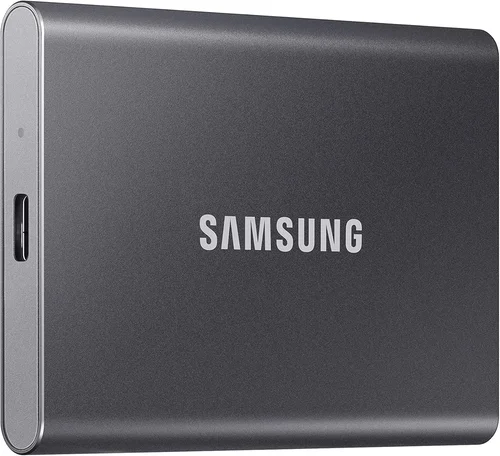
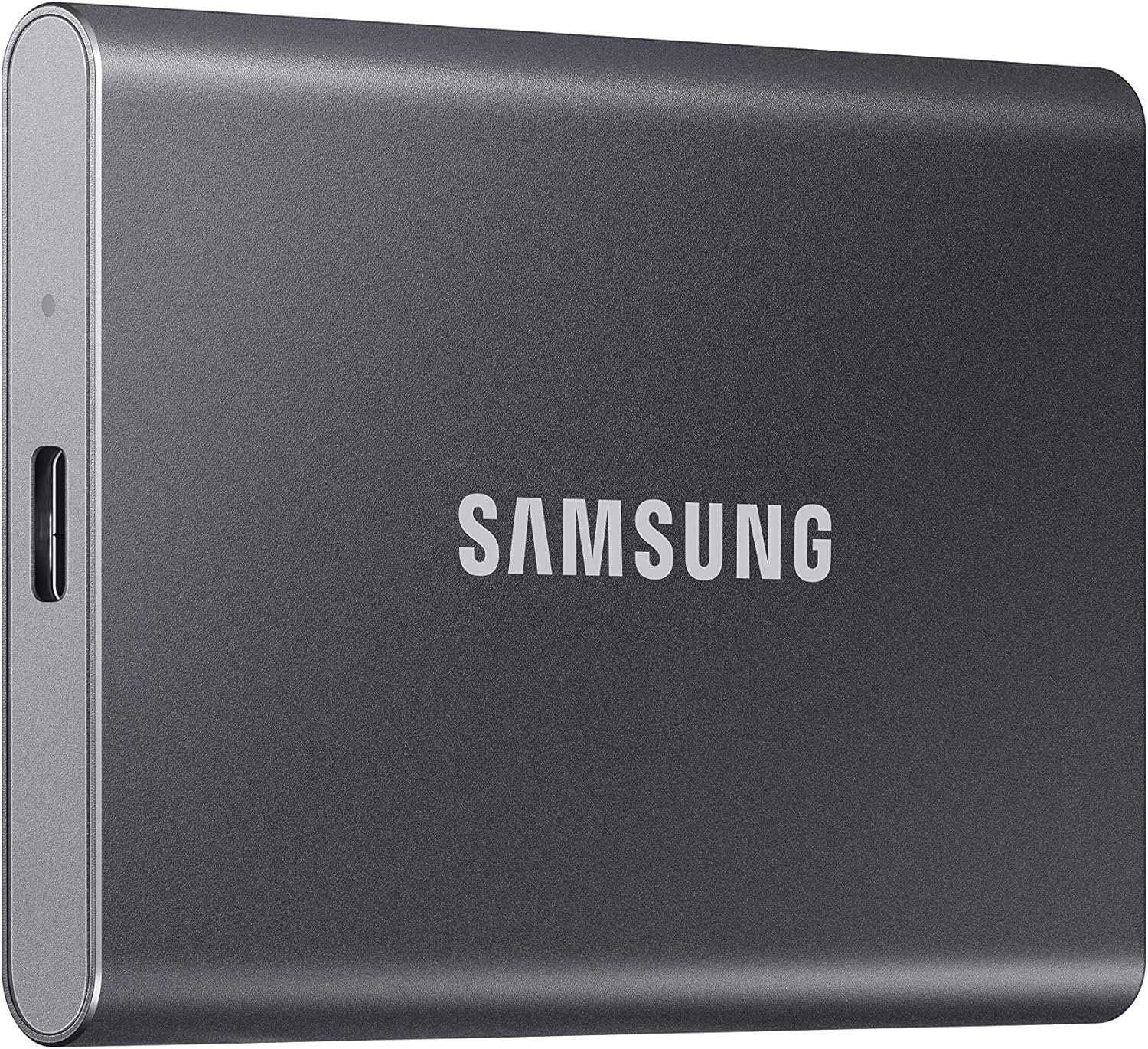
– Mid-Range ($120 – $250): The sweet spot for most buyers. Offers 1TB–2TB capacities, USB 3.2 Gen 2 speeds (1,000+ MB/s), aluminum casings, and better thermal management. Models from Samsung T7, Crucial X9, and WD My Passport SSD deliver excellent performance and reliability for creators and professionals.
– Premium ($250 – $400): Designed for demanding workflows. Features 2TB–4TB capacities, Thunderbolt or USB 3.2 Gen 2×2 support (2,000+ MB/s), ruggedized designs, and advanced encryption. Perfect for video editors, photographers, and IT professionals who need speed and durability.
– Luxury ($400+): Top-tier drives with 4TB–8TB+ capacities, military-grade durability, biometric security, and enterprise-grade components. Examples include the Samsung X5 (Thunderbolt) and LaCie Rugged SSD Pro. These are overkill for most users but essential for high-stakes environments.
Expert Tips for Getting the Best Deal
– Buy during seasonal sales: Major retailers like Amazon, Best Buy, and B&H Photo offer deep discounts on portable SSDs during holiday periods. Sign up for newsletters to get early access.
– Compare prices across platforms: Use tools like Google Shopping or CamelCamelCamel to track price history and find the lowest current offer. Sometimes smaller retailers match big-box prices.
– Check refurbished or open-box options: Certified refurbished drives from manufacturers often come with full warranties and can save you 20–30%. Just ensure they’re sold directly by the brand or authorized resellers.
– Read return policies carefully: Some stores charge restocking fees or have short return windows. Buy from retailers with generous policies (e.g., 30+ days, free returns).
– Test before relying on it: Once you receive your SSD, run a full speed test and check for bad sectors using tools like CrystalDiskMark or Samsung Magician. This ensures you got a working unit.
– Register for extended warranties: Some credit cards offer extended manufacturer warranties when you purchase electronics. Combine this with the drive’s native warranty for extra protection.
– Avoid “too good to be true” deals: Extremely low prices on high-capacity drives are often scams or counterfeit products. Stick to trusted sellers.
– Consider bundle deals: Some brands offer SSDs bundled with cloud storage subscriptions, backup software, or carrying cases—adding value beyond the hardware.
Frequently Asked Questions
Q: Can I use a portable SSD as my primary boot drive?
A: Yes, but with caveats. While modern portable SSDs are fast enough to run an OS, frequent read/write operations can reduce lifespan. It’s better suited for secondary storage or running lightweight operating systems like Linux. For daily booting, an internal SSD is more reliable.
Q: Do portable SSDs need external power?
A: No. Portable SSDs draw power directly from the USB port. However, very high-performance models (especially Thunderbolt) may require more power than older USB ports can provide. Always use the included cable and a powered port when possible.
Q: How long do portable SSDs last?
A: Most portable SSDs have a lifespan of 5–10 years under normal use, depending on write cycles and build quality. Look for drives with high TBW (Terabytes Written) ratings—200TBW or higher is ideal for heavy users.
Q: Can I recover data from a failed portable SSD?
A: It depends. If the drive is recognized by your computer, data recovery software may help. If the controller or NAND fails, professional recovery services are needed—and can be expensive. Always maintain backups.
Q: Are portable SSDs safe for travel?
A: Yes, especially rugged models. Their lack of moving parts makes them ideal for travel. However, always carry them in protective cases and avoid extreme temperatures (e.g., leaving in a hot car).
Q: Do I need to format my portable SSD?
A: Most come pre-formatted for cross-platform use (exFAT). If you’re using it exclusively with one OS, reformatting to NTFS (Windows) or APFS (macOS) can improve performance and enable advanced features.
Q: Can I use a portable SSD with my gaming console?
A: Yes, for storage expansion. The PlayStation 5 and Xbox Series X|S support external SSDs for storing and playing games (PS5 requires USB 3.0+ and specific speed requirements). Check console compatibility before buying.
Q: Is Thunderbolt worth the extra cost?
A: Only if you need ultra-fast speeds and have a Thunderbolt-compatible device. For most users, USB 3.2 Gen 2 (10 Gbps) is more than sufficient. Thunderbolt shines in professional video and data-intensive workflows.
Q: How do I securely erase a portable SSD?
A: Use manufacturer-provided tools (e.g., Samsung Magician) or built-in secure erase features. Avoid simple file deletion—use full encryption wipe or ATA Secure Erase for complete data removal.
Q: Can I daisy-chain multiple portable SSDs?
A: Only if they support Thunderbolt and your host device allows it. USB SSDs cannot be daisy-chained due to protocol limitations. Thunderbolt enables chaining up to six devices.
Our Final Recommendations
– Best for Budget-Conscious Buyers: Samsung T7 Shield (1TB) – Offers excellent speed (1,050 MB/s), rugged design, and IP65 rating at an affordable price. Perfect for students and casual users.
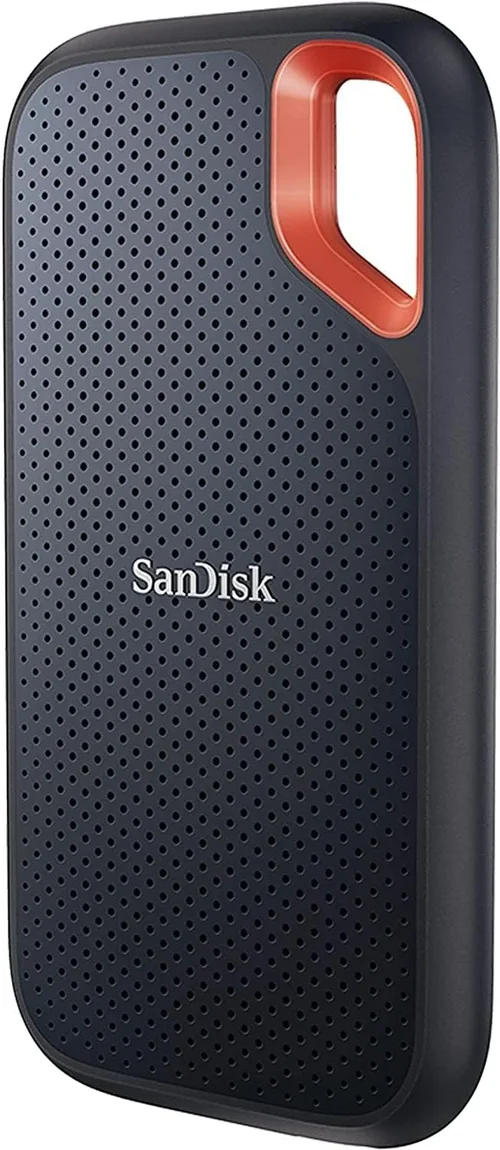
– Best Overall Value: SanDisk Extreme Portable SSD V2 (2TB) – Combines high performance (1,050 MB/s), drop resistance, and compact design. Great for photographers and travelers.
– Best Premium Option: Samsung X5 (2TB) – Thunderbolt 3 support delivers 2,800 MB/s speeds. Ideal for 4K/8K video editors and professionals needing maximum throughput.
– Best for Beginners: WD My Passport SSD (1TB) – User-friendly, reliable, and comes with backup software. Simple setup makes it perfect for first-time SSD users.
– Best for Advanced Users: LaCie Rugged SSD Pro (4TB) – Thunderbolt 3, IP67 rating, and hardware encryption. Built for extreme environments and high-security needs.
Conclusion: Making the Right Choice
Choosing the best portable SSD in 2026 doesn’t have to be overwhelming—if you know what to prioritize. Start by defining your primary use case: Are you backing up family photos, editing videos on location, or securing sensitive business data? From there, focus on the key factors that matter most: performance, capacity, durability, and compatibility. Don’t let flashy marketing claims distract you from real-world reliability and long-term value.
Remember, the cheapest option isn’t always the best deal, and the fastest drive may be overkill for your needs. Balance your budget with your workflow demands, and always lean toward trusted brands with strong warranties and customer support. With the insights from this guide, you’re now equipped to make a smart, informed decision that will serve you well for years to come.
Take the time to compare models, read user reviews, and consider future-proofing your purchase. Whether you’re a creative professional, a student, or a tech-savvy traveler, the right portable SSD can transform how you work, play, and protect your digital life. So go ahead—invest wisely, transfer confidently, and never worry about slow speeds or lost data again.