
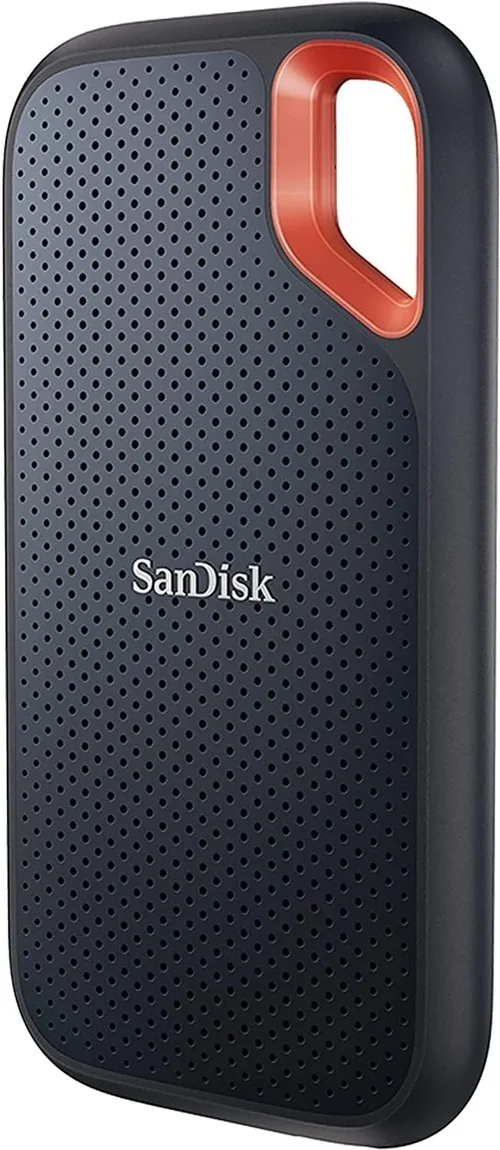
Portable SSDs have revolutionized the way we store, transfer, and back up data. Gone are the days of bulky external hard drives that were slow, fragile, and prone to mechanical failure. Today’s portable SSDs offer blazing-fast speeds, compact designs, and rugged reliability—all in a device small enough to fit in your pocket. Whether you’re a creative professional working with 4K video files, a student backing up research projects, or a traveler who needs secure access to important documents on the go, a portable SSD is no longer a luxury—it’s a necessity.
This comprehensive buying guide is designed to help you navigate the crowded marketplace of portable SSDs with confidence. We’ll break down the most critical factors to consider, compare different types and price ranges, highlight common pitfalls to avoid, and provide expert-backed recommendations tailored to your specific needs. By the end of this guide, you’ll not only understand what makes one portable SSD better than another but also know exactly which model is right for you—whether you’re on a tight budget or ready to invest in top-tier performance.
The portable SSD market has exploded in recent years, with major brands like Samsung, SanDisk, Crucial, WD, and Kingston pushing the boundaries of speed, durability, and affordability. With options ranging from under $50 to well over $300, it’s easy to feel overwhelmed. But don’t worry—we’ve done the research so you don’t have to. This guide cuts through the marketing noise and focuses on real-world performance, build quality, value for money, and long-term reliability. Whether you’re upgrading from an old HDD or buying your first portable SSD, this is your definitive resource for making a smart, informed decision in 2026.

What to Look for When Buying Buying Guide
1. Performance Specifications
When it comes to portable SSDs, performance is king—but it’s not just about raw speed. You need to consider read and write speeds, interface type, and real-world usability. Most modern portable SSDs use either USB 3.2 Gen 2 (10 Gbps) or USB 3.2 Gen 2×2 (20 Gbps), with some high-end models supporting Thunderbolt 3 or 4 for even faster transfers. For example, a drive rated at 1,050 MB/s will feel dramatically faster than one capped at 540 MB/s when copying large video files or loading games.
Look for drives that clearly list both sequential read and write speeds—not just peak read speeds. A drive might advertise 2,000 MB/s reads but only 1,200 MB/s writes, which can bottleneck performance during large file transfers. Also, consider sustained performance: some drives throttle after a few minutes of heavy use due to heat buildup. High-quality controllers and NAND flash memory (like TLC or MLC) help maintain consistent speeds over time.
2. Build Quality & Durability
Portable SSDs are meant to be carried around, so durability is non-negotiable. Look for drives with shock-resistant designs, often rated to withstand drops from 1.5 to 3 meters. Many premium models feature aluminum or magnesium alloy casings that dissipate heat and protect internal components. Some even come with IP ratings for water and dust resistance—like the Samsung T7 Shield (IP65) or SanDisk Extreme Pro (IP55)—making them ideal for outdoor use or travel.
Internal protection matters too. Unlike traditional HDDs, SSDs have no moving parts, so they’re inherently more resistant to physical shock. However, poor-quality enclosures or flimsy connectors can still lead to failure. Avoid drives with plastic shells that feel cheap or creak under pressure. Instead, opt for models with reinforced USB-C ports and rubberized grips for added grip and protection.
3. Storage Capacity
Capacity needs vary widely depending on your use case. For basic document storage or light photo backups, 500GB may suffice. But if you’re editing 4K/8K video, storing RAW photos, or keeping large game libraries, you’ll want at least 1TB—or even 2TB+. Keep in mind that higher capacities often come with better performance due to more NAND chips and parallel data channels.
Also, consider future-proofing. A 1TB drive might seem like overkill today, but within a year, your media library could easily double. And while 4TB portable SSDs exist, they’re significantly more expensive and may be overkill unless you’re a professional videographer or data archivist.
4. Interface & Compatibility
The connection interface determines how fast your drive can communicate with your device. USB-C is now the standard, offering reversible plug orientation and support for high-speed protocols. Ensure your laptop, tablet, or smartphone has a compatible port—most modern devices do, but older systems may require adapters.
Thunderbolt 3/4 drives offer the fastest speeds (up to 40 Gbps) but are usually more expensive and only work with compatible Macs and high-end PCs. USB 3.2 Gen 2×2 (20 Gbps) is a sweet spot for many users, delivering near-Thunderbolt speeds at a lower cost. Avoid USB 3.0-only drives unless you’re on a very tight budget—they’re noticeably slower.
Also, verify cross-platform compatibility. Some drives come preformatted for Windows (NTFS) or macOS (APFS/HFS+), which can cause issues when switching between systems. Look for drives that support exFAT out of the box, as it works seamlessly across Windows, macOS, and many Linux distributions.
5. Security Features
If you handle sensitive data—client files, financial records, personal photos—security should be a top priority. Many premium portable SSDs include hardware encryption (AES-256) and password protection via built-in software or mobile apps. For example, the Samsung T7 Touch includes a fingerprint scanner for biometric access, while the SanDisk Extreme Pro offers encrypted vaults.
Software-based encryption is better than nothing, but hardware encryption is faster and more secure since the key never leaves the drive. Avoid drives that rely solely on third-party software you must install separately—this adds complexity and potential vulnerabilities.
6. Brand Reputation & Reliability
Not all SSDs are created equal—even if they share similar specs. Established brands like Samsung, SanDisk, Crucial, and WD have proven track records for reliability, firmware updates, and customer support. Lesser-known brands may offer tempting prices, but they often cut corners on components, testing, or warranty coverage.
Check independent reviews from trusted sources like Tom’s Hardware, PCMag, or AnandTech. Look for consistency in user feedback regarding longevity, failure rates, and real-world performance. A brand with a strong reputation is more likely to honor warranties and provide timely firmware updates to fix bugs or improve performance.
7. Warranty & Support
A good warranty is a sign of confidence in a product’s durability. Most reputable portable SSDs come with 3- to 5-year limited warranties. Samsung, for instance, offers a 5-year warranty on its T7 series, while SanDisk provides 5 years on the Extreme Pro line. Longer warranties often correlate with higher-quality components and better build standards.
Pay attention to what the warranty covers. Does it include accidental damage? Is data recovery included? Can you get a replacement drive shipped quickly? Also, check if the manufacturer offers global support—especially important if you travel frequently.
8. Size & Portability
One of the main advantages of portable SSDs is their compact form factor. But “portable” doesn’t mean one-size-fits-all. Some drives are credit-card sized (like the Samsung T7), while others are slightly larger but include extra features like built-in cables or ruggedized shells.
Consider how you’ll carry the drive. If it’s going in a backpack or laptop bag, size may be less critical. But if you’re slipping it into a jeans pocket or camera pouch, every millimeter counts. Weight matters too—most weigh under 100 grams, but some rugged models can exceed 150g.
Also, check cable inclusion. Many drives come with both USB-C to USB-C and USB-C to USB-A cables, ensuring compatibility with older devices. Drives that require you to buy cables separately can be frustrating and add hidden costs.
Different Types of Buying Guide

Common Buying Mistakes to Avoid
❌ Mistake: Prioritizing Price Over Performance
Why it’s bad: The cheapest portable SSDs often use slower NAND flash (like QLC) and inferior controllers, leading to poor write speeds and shorter lifespans. You might save $20 upfront but end up replacing the drive sooner.
What to do instead: Aim for the mid-range tier ($80–$150) where you get the best balance of speed, reliability, and features. Look for TLC NAND and reputable controllers like Phison or Silicon Motion.
❌ Mistake: Ignoring Real-World Speed Tests
Why it’s bad: Manufacturers often advertise peak read speeds under ideal lab conditions. In reality, sustained write performance—especially with large files—can be much lower.
What to do instead: Read third-party reviews that test real-world scenarios like copying 50GB video files or loading game assets. Sites like StorageReview.com provide detailed benchmarks.
❌ Mistake: Overlooking Compatibility
Why it’s bad: Buying a Thunderbolt SSD for an older laptop without Thunderbolt support means you won’t get the advertised speeds—and may need expensive adapters.
What to do instead: Match the drive’s interface to your device’s capabilities. If you’re unsure, stick with USB 3.2 Gen 2, which is widely supported and still very fast.
❌ Mistake: Skipping Warranty Details
Why it’s bad: A short or vague warranty can leave you stranded if the drive fails. Some brands only cover manufacturing defects, not wear and tear.
What to do instead: Choose drives with at least a 3-year warranty and clear terms. Register your product upon purchase to activate full coverage.
❌ Mistake: Assuming All SSDs Are Equally Durable
Why it’s bad: While SSDs are more durable than HDDs, cheap enclosures can crack, ports can loosen, and internal solder joints can fail under stress.
What to do instead: Invest in a drive with a metal casing, reinforced USB-C port, and drop/shock ratings. Rugged models are worth the extra cost if you’re mobile.
❌ Mistake: Not Considering Future Needs
Why it’s bad: Buying a 500GB drive today might seem sufficient, but within a year, your photo, video, or project files could easily exceed that capacity.
What to do instead: Buy one capacity tier higher than you think you need. The price difference between 1TB and 2TB is often less than you’d expect—and future-proofing pays off.
❌ Mistake: Forgetting About Backup Strategy
Why it’s bad: A portable SSD is not a backup solution—it’s a single point of failure. If it’s lost, stolen, or fails, your data could be gone forever.
What to do instead: Use the 3-2-1 backup rule: keep 3 copies of your data, on 2 different media types, with 1 copy offsite (e.g., cloud storage).
Budget Guidelines: How Much Should You Spend?
Entry-Level ($40–$80): These drives are great for basic file storage, document backups, or light photo libraries. Expect capacities of 500GB–1TB, USB 3.2 Gen 1 or Gen 2 support, and speeds around 500–1,000 MB/s. Brands like Kingston XS2000 or Crucial X6 offer solid value here. Don’t expect ruggedness or advanced security, but they’re reliable for everyday use.
Mid-Range ($80–$150): This is the sweet spot for most buyers. You’ll find 1TB–2TB capacities, USB 3.2 Gen 2×2 support, speeds up to 2,000 MB/s, and better build quality. Models like the Samsung T7, SanDisk Extreme, and WD My Passport SSD fall here. Many include hardware encryption, aluminum casings, and 5-year warranties—perfect for students, freelancers, and general users.
Premium ($150–$300): Designed for professionals and power users, these drives offer Thunderbolt 3/4 support, sustained high-speed performance, and ruggedized designs. Expect IP ratings, fingerprint scanners, and capacities up to 4TB. The Samsung X5, SanDisk Extreme Pro, and G-Technology G-DRIVE are top contenders. Ideal for video editors, photographers, and IT professionals.
Luxury ($300+): At this tier, you’re paying for极致 performance, brand prestige, and niche features. These drives often use enterprise-grade NAND, support RAID configurations, or include bundled software suites. While overkill for most, they’re essential for studios handling 8K workflows or data centers needing portable archival solutions.

Expert Tips for Getting the Best Deal
1. Time Your Purchase Strategically: Major retailers like Amazon, Best Buy, and B&H Photo offer deep discounts during holiday sales. Sign up for price alerts using tools like Honey or CamelCamelCamel to catch deals automatically.
2. Buy Direct from Manufacturers: Samsung, SanDisk, and WD often run exclusive promotions on their websites, including extended warranties or free accessories. You might also get faster shipping and better customer service.
3. Consider Refurbished Units: Certified refurbished drives from reputable sellers (like Amazon Renewed or manufacturer outlets) can save you 20–40% and come with the same warranty as new units.
4. Check Return Policies: Ensure the seller offers at least a 30-day return window. Some high-end drives require firmware updates or formatting that can’t be undone—so test thoroughly before committing.
5. Bundle with Accessories: Look for kits that include protective cases, lanyards, or extra cables. These add-ons can cost $20–$50 separately but are often included for free during promotions.
6. Test Before Long-Term Use: Once you receive your drive, run a full speed test using CrystalDiskMark or Blackmagic Disk Speed Test. Copy large files to verify sustained performance and check for errors.
7. Register for Firmware Updates: Some drives receive performance optimizations or security patches post-launch. Registering your product ensures you get these updates automatically.
8. Avoid “Too Good to Be True” Deals: If a 2TB Thunderbolt SSD is listed for $99, it’s likely counterfeit or defective. Stick to authorized retailers and verified sellers.
Frequently Asked Questions
Q: Can I use a portable SSD with my smartphone or tablet?
A: Yes, but only if your device supports USB OTG (On-The-Go) and has a USB-C or Lightning port. Most modern Android phones and iPads work well, but you may need a compatible cable. Note that not all apps can access external storage directly—check your device’s documentation.
Q: How long do portable SSDs last?
A: Most portable SSDs are rated for 150–600 terabytes written (TBW), depending on capacity and NAND type. For typical users, this translates to 5–10 years of normal use. Heavy workloads (like constant video editing) may shorten lifespan, but modern drives include wear-leveling to maximize longevity.
Q: Are portable SSDs safe from viruses?
A: Like any storage device, portable SSDs can carry malware if connected to infected systems. Always scan new drives with antivirus software and avoid plugging them into public or untrusted computers.
Q: Can I boot an operating system from a portable SSD?
A: Yes! Many users run macOS or Windows from external SSDs for faster performance or portability. Ensure your drive is fast enough (USB 3.2 Gen 2 or Thunderbolt) and formatted correctly. Tools like Windows To Go or macOS Recovery make this process straightforward.
Q: Do I need to defragment a portable SSD?
A: No—and you shouldn’t. SSDs don’t benefit from defragmentation like HDDs do. In fact, it wastes write cycles and reduces lifespan. Modern operating systems automatically optimize SSDs using TRIM commands.
Q: What happens if I lose my encrypted SSD?
A: If you’ve enabled hardware encryption and forgotten your password or lost your biometric key, the data is virtually unrecoverable—even by the manufacturer. That’s why secure backup of credentials is critical.
Q: Can I daisy-chain multiple portable SSDs?
A: Only if they support Thunderbolt and your host device allows daisy-chaining (common on Macs). USB-based drives cannot be daisy-chained due to protocol limitations.
Q: Are portable SSDs worth it over cloud storage?
A: It depends. Portable SSDs offer instant access, no internet dependency, and better privacy. Cloud storage is great for collaboration and offsite backup but can be slow and subscription-based. Many professionals use both: SSD for active work, cloud for backup.
Q: How do I safely eject my portable SSD?
A: Always use the “Safely Remove Hardware” option in Windows or drag the drive to the trash in macOS before unplugging. This prevents data corruption from incomplete write operations.
Q: Can I recover data from a failed portable SSD?
A: Professional data recovery services can sometimes retrieve data from failed SSDs, but it’s expensive ($300–$2,000+) and not guaranteed. Prevention—via regular backups—is far more reliable.
Our Final Recommendations
Best for Budget-Conscious Buyers: Crucial X6 (1TB) – At around $70, it delivers 800 MB/s speeds, a compact design, and Crucial’s reliable NAND. Perfect for students and casual users who need fast, affordable storage.
Best Overall Value: Samsung T7 (1TB) – With 1,050 MB/s speeds, AES-256 encryption, a sleek aluminum body, and a 5-year warranty, the T7 strikes the perfect balance of performance, security, and price (~$90).
Best Premium Option: SanDisk Extreme Pro (2TB) – Boasting 2,000 MB/s speeds, IP55 rating, hardware encryption, and ruggedized design, this drive is built for professionals who demand speed and durability (~$220).
Best for Beginners: WD My Passport SSD (1TB) – User-friendly software, solid performance (1,000 MB/s), and reliable build quality make this an excellent first portable SSD (~$85).
Best for Advanced Users: Samsung X5 (2TB) – Thunderbolt 3 support delivers 2,800 MB/s speeds, ideal for 8K video editing and large dataset transfers. Comes with a fingerprint scanner and 5-year warranty (~$350).
Conclusion: Making the Right Choice
Choosing the best portable SSD isn’t just about picking the fastest or cheapest option—it’s about aligning the drive’s features with your specific needs, workflow, and budget. Whether you’re a student backing up essays, a photographer archiving RAW files, or a developer testing code on the go, there’s a portable SSD tailored for you.
Remember to prioritize performance that matches your device’s capabilities, invest in durability if you’re mobile, and never underestimate the importance of security and backup. Avoid common pitfalls like overspending on unnecessary specs or ignoring real-world performance. And always read reviews, check warranties, and test your drive upon arrival.
In 2026, portable SSDs continue to evolve—offering faster speeds, smarter security, and tougher builds than ever before. With the insights from this guide, you’re now equipped to make a confident, informed decision. Don’t settle for less than what your data deserves. Choose wisely, back up regularly, and enjoy the freedom that comes with reliable, high-speed portable storage.