
Solid-state drives (SSDs) have fundamentally reshaped how we experience computing. Gone are the days of waiting minutes for a computer to boot or applications to load—today’s SSDs deliver near-instant responsiveness, transforming everything from gaming and content creation to everyday productivity. Whether you’re upgrading an aging laptop, building a high-performance desktop, or simply looking to breathe new life into your current system, choosing the right SSD is one of the most impactful decisions you can make. With the market flooded with options ranging from budget SATA models to blazing-fast NVMe Gen5 drives, it’s easy to feel overwhelmed. That’s exactly why this guide exists: to cut through the noise and help you find the best-performing SSD for your specific needs in 2026.
In this comprehensive buying guide, you’ll learn not just which SSDs are currently leading the pack, but also how to evaluate them based on real-world performance, reliability, value, and compatibility. We’ll break down technical specs in plain English, compare different types of SSDs, highlight common pitfalls, and offer expert-backed recommendations across all budget tiers. By the end, you won’t just know what to buy—you’ll understand why it’s the right choice for your setup. The SSD landscape in 2026 is more advanced than ever, with innovations like PCIe 5.0 interfaces, advanced NAND architectures (including QLC and TLC variants), and intelligent power management pushing performance and efficiency to new heights. Whether you’re a casual user, a creative professional, or a hardcore gamer, this guide will equip you with the knowledge to make a confident, informed decision.

What to Look for When Buying Buying Guide
1. Performance Specifications
When evaluating SSD performance, three key metrics dominate the conversation: sequential read/write speeds, random read/write IOPS (Input/Output Operations Per Second), and latency. Sequential speeds—measured in MB/s—are crucial for large file transfers, such as loading a 4K video project or installing a massive game. For example, a high-end NVMe Gen5 SSD might offer sequential read speeds exceeding 12,000 MB/s, while a SATA SSD typically caps out around 550 MB/s. Random IOPS, on the other hand, reflect how well the drive handles numerous small files simultaneously—a critical factor for multitasking, database operations, or running virtual machines. Latency, often overlooked, measures how quickly the drive responds to a request; lower latency means snappier system responsiveness.
It’s important to note that advertised peak speeds are often achieved under ideal lab conditions and may not reflect real-world usage. Thermal throttling, controller efficiency, and NAND quality all influence sustained performance. For instance, some Gen5 drives may start strong but drop significantly in speed during prolonged workloads due to overheating. Always look for reviews that test sustained performance under load, not just burst speeds. Additionally, consider whether your system can even utilize the drive’s full potential—a Gen5 SSD in a Gen3 slot will perform no better than a Gen3 drive.
2. Form Factor & Compatibility
SSDs come in several physical formats, and matching the right form factor to your device is essential. The most common types include 2.5-inch SATA drives, M.2 SATA, M.2 NVMe, and the newer U.2 and EDSFF (Enterprise and Data Center SSD Form Factor) drives used in servers. For consumer and prosumer use, M.2 NVMe drives dominate due to their compact size and high-speed PCIe interface. However, not all M.2 slots support NVMe—some only accept SATA-based M.2 drives, which are slower. Always check your motherboard or laptop manual to confirm compatibility.
Another consideration is the M.2 keying and length. M.2 drives use different notches (B-key, M-key, or B+M-key) to indicate supported interfaces, and lengths vary from 30mm (2230) to 110mm (22110). Most consumer laptops and desktops use 2280 (80mm) drives. Installing a drive that doesn’t fit physically or electrically can lead to frustration or hardware damage. For desktop builders, ensure your case and motherboard support the drive type and that you have adequate cooling—high-performance NVMe drives generate significant heat and may require heatsinks or active cooling.
3. NAND Flash Type & Endurance
The type of NAND flash memory used in an SSD directly affects its performance, longevity, and cost. The most common types are SLC (Single-Level Cell), MLC (Multi-Level Cell), TLC (Triple-Level Cell), and QLC (Quad-Level Cell). SLC is the fastest and most durable but prohibitively expensive for consumer use. MLC offers excellent endurance and speed but is mostly found in enterprise drives. TLC strikes a balance between performance, endurance, and affordability, making it the standard for most consumer SSDs. QLC stores four bits per cell, increasing storage density and lowering cost per gigabyte, but at the expense of write speed and endurance.
Endurance is measured in TBW (Terabytes Written) or DWPD (Drive Writes Per Day). A 1TB TLC SSD might have a 600 TBW rating, meaning you could write 600 terabytes over its lifetime before risking failure. QLC drives often have lower TBW ratings—sometimes half that of TLC—making them less ideal for write-heavy workloads like video editing or database servers. However, for typical consumer use (web browsing, office apps, gaming), even QLC drives offer more than enough endurance. Always check the manufacturer’s endurance rating and consider your usage patterns when choosing between TLC and QLC.
4. DRAM Cache & Controller
A DRAM cache acts as a high-speed buffer between the NAND flash and the host system, significantly improving performance—especially for random read/write operations and sustained workloads. SSDs with DRAM cache can maintain consistent speeds and reduce latency, while DRAM-less drives rely on slower system memory (HMB—Host Memory Buffer) or cache algorithms, which can lead to performance drops under load. For example, a DRAM-equipped NVMe drive will handle simultaneous file transfers and application launches far more smoothly than a DRAM-less alternative.
The controller is the SSD’s “brain,” managing data flow, error correction, wear leveling, and garbage collection. High-quality controllers from companies like Phison, Silicon Motion, and Marvell enable better performance, reliability, and longevity. When comparing SSDs, look for models using proven controllers—such as the Phison E18 or E26 for Gen4, or the upcoming E30 for Gen5. A superior controller can make a significant difference, even if two drives use the same NAND type and interface.
5. Thermal Management & Throttling
High-speed SSDs, especially PCIe Gen4 and Gen5 models, generate substantial heat during intensive operations. Without proper cooling, they can throttle—reduce performance to prevent overheating—leading to inconsistent speeds and potential long-term reliability issues. Many premium NVMe drives now include built-in heatsinks or are designed to work with motherboard-mounted heatsinks. Some manufacturers even offer active cooling solutions for extreme workloads.
Thermal performance is a critical factor for sustained workloads. For example, a Gen5 SSD might hit 14,000 MB/s in short bursts but drop to 5,000 MB/s after a few minutes of continuous use if it overheats. Gamers and content creators should prioritize drives with effective thermal solutions or plan to add third-party heatsinks. Laptop users have fewer options, so choosing a drive with efficient power management and low heat output is essential. Always check thermal performance in independent reviews, as manufacturer specs rarely address throttling behavior.
6. Brand Reputation & Reliability
Not all SSD brands are created equal. Established manufacturers like Samsung, Crucial, Western Digital, Kingston, and SK Hynix have a proven track record of delivering reliable, high-performance drives with consistent firmware updates and strong customer support. Lesser-known brands may offer tempting prices, but they often cut corners on components, firmware, or quality control, leading to higher failure rates and poor long-term performance.
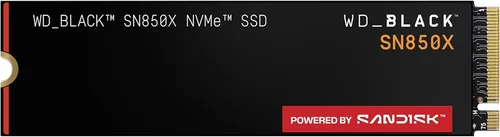
Reliability is difficult to assess from specs alone. Look for brands that publish detailed reliability data, offer transparent warranty terms, and have positive feedback from long-term users. Samsung’s 990 Pro and WD’s Black SN850X, for instance, are widely regarded as among the most reliable high-performance drives on the market. Avoid no-name brands that lack third-party reviews or have inconsistent performance across units. A slightly higher upfront cost for a reputable brand often pays off in peace of mind and longevity.
7. Warranty & Support
A strong warranty is a strong indicator of a manufacturer’s confidence in their product. Most premium SSDs come with 5-year limited warranties, often tied to both time and endurance (e.g., 5 years or 600 TBW, whichever comes first). Some brands, like Samsung and Crucial, also offer data recovery services or expedited replacement programs. Always register your drive upon purchase to ensure full warranty coverage.
Customer support quality varies widely. Brands with dedicated support teams, comprehensive knowledge bases, and active community forums (like Samsung’s SSD support portal) make troubleshooting and replacements much easier. Avoid brands with vague warranty terms or poor support reputations. A 5-year warranty means little if the company takes weeks to respond to a claim. Check user forums and review sites for real-world experiences with warranty claims before buying.
8. Price-to-Performance Ratio
While raw speed is important, the best SSD isn’t always the fastest—it’s the one that delivers the most value for your specific use case. A $500 4TB Gen5 drive may offer incredible performance, but if you only need 1TB for gaming and light productivity, it’s overkill. Conversely, a $50 500GB SATA SSD might seem like a bargain but could bottleneck a modern system.
Evaluate price per gigabyte, performance per dollar, and total cost of ownership. For example, a 1TB NVMe Gen4 drive at $80 offers better long-term value than a 500GB Gen3 drive at $40 if you plan to upgrade later. Consider future-proofing: investing in a Gen4 or Gen5 drive now may save you from needing another upgrade in a few years. Balance your immediate needs with anticipated growth in storage demands.
Different Types of Buying Guide

Common Buying Mistakes to Avoid
❌ Mistake: Prioritizing Peak Speeds Over Real-World Performance
Why it’s bad: Many buyers focus solely on advertised sequential speeds, ignoring how the drive performs under sustained workloads or mixed usage. A drive that hits 7,000 MB/s in benchmarks might drop to 1,500 MB/s during long file transfers due to thermal throttling or poor cache management.
What to do instead: Look for reviews that test real-world scenarios like game loading, video editing, and multitasking. Prioritize drives with consistent performance and effective thermal solutions over those with impressive but unsustainable peak numbers.
❌ Mistake: Ignoring Compatibility
Why it’s bad: Buying a Gen5 NVMe drive for a laptop that only supports SATA will result in a non-functional or severely underperforming SSD. Similarly, installing a 22110 M.2 drive in a 2280 slot is physically impossible.
What to do instead: Always verify your system’s specifications—check the motherboard manual, laptop service guide, or use tools like CPU-Z or HWiNFO to confirm supported interfaces and form factors before purchasing.
❌ Mistake: Choosing QLC for Write-Intensive Tasks
Why it’s bad: QLC SSDs have lower endurance and slower write speeds, especially when the cache is exhausted. Using a QLC drive for video editing, database work, or frequent large file transfers can lead to premature wear and performance degradation.
What to do instead: Opt for TLC-based drives for professional or heavy workloads. Reserve QLC for secondary storage, backups, or light use where cost per gigabyte is more important than performance.
❌ Mistake: Overlooking DRAM Cache
Why it’s bad: DRAM-less SSDs rely on system memory or slower algorithms, leading to inconsistent performance, higher latency, and reduced longevity under load. They may struggle with multitasking or random access tasks.
What to do instead: Always choose SSDs with a dedicated DRAM cache for primary system drives. For secondary storage, DRAM-less models can be acceptable if price is a major concern.
❌ Mistake: Skipping the Heatsink on High-Performance Drives
Why it’s bad: Gen4 and Gen5 NVMe drives can reach temperatures over 80°C under load, triggering thermal throttling and reducing both performance and lifespan. Running hot also increases the risk of data corruption.
What to do instead: Use a heatsink—either included with the drive or added separately—especially in desktops. Laptop users should choose drives with efficient thermal designs or consider models with lower power consumption.
❌ Mistake: Buying Based Solely on Price
Why it’s bad: The cheapest SSD often uses inferior components, lacks firmware updates, and has a higher failure rate. A $40 drive might save money upfront but cost more in data loss or replacement.
What to do instead: Balance cost with reliability, performance, and warranty. Spend a little more for a reputable brand with strong reviews and a solid track record.
❌ Mistake: Not Checking Firmware Updates
Why it’s bad: Outdated firmware can cause compatibility issues, performance bugs, or security vulnerabilities. Some drives ship with firmware that improves over time.
What to do instead: After installation, check the manufacturer’s website for firmware updates. Use official tools (like Samsung Magician or WD Dashboard) to keep your SSD optimized and secure.
Budget Guidelines: How Much Should You Spend?
– Entry-Level ($30 – $70 for 1TB): Ideal for budget builds, older system upgrades, or secondary storage. Expect SATA or basic NVMe Gen3 drives with TLC NAND and DRAM cache. Performance is adequate for everyday tasks but may struggle with heavy workloads. Look for models like the Crucial BX500 or Kingston NV2.
– Mid-Range ($70 – $130 for 1TB): The sweet spot for most users. These drives offer NVMe Gen3 or Gen4 speeds, excellent endurance, and strong reliability. Perfect for gaming, productivity, and light content creation. Examples include the Samsung 980 Pro, WD Black SN770, and Crucial P5 Plus.
– Premium ($130 – $250 for 1TB): Designed for enthusiasts and professionals. These drives feature Gen4 or Gen5 interfaces, high-end controllers, advanced thermal management, and top-tier endurance. Ideal for 4K/8K video editing, 3D rendering, and high-FPS gaming. Top picks include the Samsung 990 Pro, WD Black SN850X, and Sabrent Rocket 4 Plus.
– Luxury ($250+ for 1TB): Cutting-edge performance with the latest tech. Gen5 drives like the Crucial T700 or Phison E30-based models offer speeds over 12,000 MB/s and ultra-low latency. These are overkill for most users but essential for AI training, scientific computing, or extreme overclocking. Expect premium pricing and often require active cooling.

Expert Tips for Getting the Best Deal
– Buy During Major Sales Events: Look for discounts during Black Friday, Cyber Monday, Prime Day, and back-to-school seasons. SSD prices often drop 20–40% during these periods. Subscribe to deal alerts from retailers like Newegg, Amazon, and Best Buy.
– Compare Prices Across Retailers: Use price tracking tools like CamelCamelCamel, Honey, or Slickdeals to monitor historical pricing and spot genuine deals. Avoid “too good to be true” offers from unknown sellers.
– Consider Refurbished or Open-Box Units: Reputable retailers often sell certified refurbished SSDs with full warranties at significant discounts. These are thoroughly tested and safe for use.
– Check for Bundle Deals: Some manufacturers offer SSDs bundled with heatsinks, cloning software, or migration tools. These can add value beyond the drive itself.
– Prioritize Warranty and Return Policies: Choose retailers with generous return windows (30+ days) and easy RMA processes. Brands with global warranty coverage are preferable for travelers.
– Test Before Committing: If possible, test the SSD in your system before finalizing the setup. Use tools like CrystalDiskMark or AS SSD Benchmark to verify performance matches expectations.
– Future-Proof When Possible: If your budget allows, opt for a Gen4 or Gen5 drive even if your current system supports it. This extends the upgrade cycle and improves resale value.
– Monitor Firmware and Security: After purchase, regularly check for firmware updates to ensure optimal performance and security. Enable TRIM and over-provisioning for longevity.

Frequently Asked Questions
Q: Is NVMe always faster than SATA?
A: Yes, NVMe drives are significantly faster than SATA SSDs due to the PCIe interface, which offers much higher bandwidth. While SATA caps at around 550 MB/s, NVMe Gen3 drives reach 3,500 MB/s, and Gen4/Gen5 exceed 7,000–14,000 MB/s. However, for basic tasks like web browsing or office work, the difference may not be noticeable.
Q: Can I use a Gen5 SSD in a Gen4 or Gen3 slot?
A: Yes, Gen5 SSDs are backward compatible with Gen4 and Gen3 slots, but they will operate at the lower speed of the slot. A Gen5 drive in a Gen3 slot will perform like a Gen3 drive. Always check your motherboard’s PCIe version before buying.
Q: Do I need a heatsink for my NVMe SSD?
A: It depends on usage. For light tasks, a heatsink may not be necessary. However, for gaming, video editing, or sustained workloads, a heatsink is highly recommended to prevent thermal throttling. Many motherboards include M.2 heatsinks, or you can buy aftermarket ones.
Q: How long do SSDs last?
A: Modern SSDs are extremely durable. A typical 1TB TLC SSD with a 600 TBW rating could last 10+ years under normal use (writing 160GB per day). Most users will never reach the endurance limit. Factors like temperature, usage patterns, and firmware quality also affect lifespan.
Q: Should I fill my SSD to capacity?
A: No. SSDs need free space for wear leveling, garbage collection, and over-provisioning. Filling an SSD beyond 75–80% can degrade performance and reduce lifespan. Aim to keep at least 10–20% free space.
Q: Can I recover data from a failed SSD?
A: Data recovery from SSDs is more complex than from HDDs due to wear leveling and TRIM. If the drive is detected, tools like Recuva or professional services may help. If not, recovery is often impossible. Always back up important data.
Q: Are external SSDs as fast as internal ones?
A: It depends on the interface. USB 3.2 Gen 2×2 (20 Gbps) external SSDs can match internal SATA speeds, but Thunderbolt 3/4 (40 Gbps) models can rival NVMe Gen3 performance. For maximum speed, use Thunderbolt enclosures with NVMe drives.
Q: Do SSDs improve gaming performance?
A: Yes, but primarily in load times and asset streaming. Games load faster, levels stream more smoothly, and open-world games experience fewer stutters. However, FPS (frames per second) is determined by your GPU and CPU, not storage.
Q: Is it safe to use an SSD in a laptop?
A: Absolutely. SSDs are more durable than HDDs because they have no moving parts. They’re ideal for laptops due to shock resistance, lower power consumption, and silent operation.
Q: Can I clone my old HDD to a new SSD?
A: Yes, using cloning software like Macrium Reflect, Acronis True Image, or the manufacturer’s tools (e.g., Samsung Data Migration). Ensure the SSD is equal or larger in capacity than the used space on the HDD.
Our Final Recommendations
– Best for Budget-Conscious Buyers: Crucial P3 1TB NVMe Gen3 – Offers excellent value with TLC NAND, DRAM cache, and solid performance at under $70. Perfect for upgrading older systems without breaking the bank.
– Best Overall Value: Samsung 980 Pro 1TB – A proven Gen4 performer with consistent speeds, strong endurance, and Samsung’s reliable firmware. Ideal for gamers and creators seeking a balance of speed and price.
– Best Premium Option: Samsung 990 Pro 2TB – One of the fastest Gen4 drives available, with exceptional thermal management, high endurance, and top-tier performance. A favorite among professionals and enthusiasts.
– Best for Beginners: WD Blue SN580 1TB – Easy to install, reliable, and affordable. Uses HMB instead of DRAM but delivers smooth performance for everyday use. Great first NVMe upgrade.
– Best for Advanced Users: Crucial T700 2TB Gen5 – Pushes the limits with PCIe 5.0 speeds over 12,000 MB/s, advanced cooling, and enterprise-grade endurance. Built for 8K video, AI workloads, and extreme performance demands.
Conclusion: Making the Right Choice
Choosing the best-performing SSD in 2026 isn’t just about picking the fastest drive—it’s about finding the right balance of speed, reliability, compatibility, and value for your specific needs. Whether you’re upgrading a laptop for better responsiveness, building a high-end gaming rig, or setting up a workstation for creative projects, the right SSD can transform your computing experience. By understanding key factors like NAND type, DRAM cache, thermal performance, and real-world benchmarks, you can avoid common pitfalls and make a confident decision.
Remember, the “best” SSD is the one that fits your system, your workload, and your budget. Don’t chase peak numbers at the expense of reliability or compatibility. Prioritize reputable brands, check reviews from trusted sources, and consider future needs when making your choice. With the insights from this guide, you’re now equipped to navigate the SSD market like an expert. Take the time to evaluate your options, compare models, and invest in a drive that will deliver lasting performance and peace of mind. Your system—and your productivity—will thank you.