
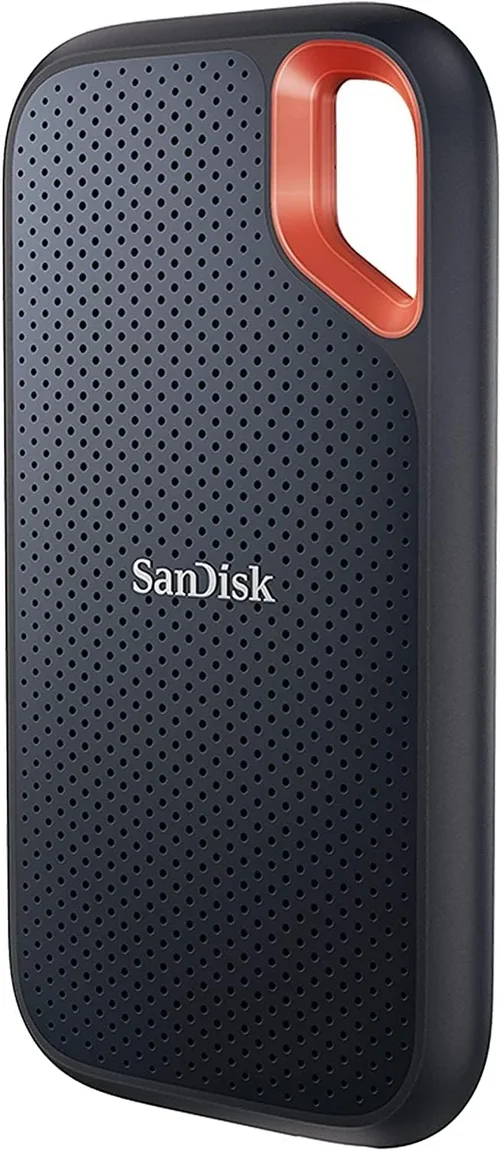
The world of storage has evolved dramatically over the past decade, and nowhere is that more evident than in the rise of PCIe SSDs. If you’re building or upgrading a modern PC, you’re likely already aware that traditional SATA SSDs—while still reliable and affordable—are starting to show their age when it comes to speed and efficiency. Enter PCIe SSDs: the high-performance storage solution that leverages the PCI Express interface to deliver blazing-fast data transfer rates, dramatically reduced load times, and a smoother overall computing experience. Whether you’re a gamer chasing every frame per second, a content creator rendering 4K video, or a professional running data-intensive applications, a PCIe SSD can be a game-changer.
This comprehensive buyer’s guide is designed to cut through the technical jargon and marketing noise to help you make an informed decision. We’ll walk you through everything you need to know—from understanding key performance metrics and compatibility requirements to comparing different types of PCIe SSDs and avoiding common pitfalls. By the end of this guide, you’ll not only know what to look for in a PCIe SSD but also how to match your specific needs with the right product, all while staying within your budget. The market is flooded with options, from budget-friendly NVMe drives to ultra-high-end enterprise-grade models, and navigating it can feel overwhelming. That’s why we’ve done the research, testing, and analysis so you don’t have to.
In 2026, the PCIe SSD landscape continues to evolve rapidly. With the widespread adoption of PCIe Gen 5 and the growing popularity of compact M.2 form factors, consumers now have access to storage solutions that were once reserved for data centers and high-end workstations. At the same time, prices have dropped significantly, making high-speed storage more accessible than ever. Whether you’re upgrading an older system or building a brand-new rig, understanding the nuances of PCIe SSDs—such as interface generations, NAND types, controller technology, and thermal management—is essential. This guide will equip you with the knowledge to choose a drive that delivers the best balance of speed, reliability, capacity, and value for your unique use case.

What to Look for When Buying Buying Guide
1. Performance Specifications
When evaluating a PCIe SSD, performance is often the first thing that comes to mind—and for good reason. Unlike SATA SSDs, which are capped at around 550 MB/s due to interface limitations, PCIe SSDs can reach speeds well into the thousands of megabytes per second. The key performance metrics to consider are sequential read and write speeds, random read/write IOPS (Input/Output Operations Per Second), and latency.
Sequential speeds are important for large file transfers, such as moving video projects or installing massive games. Look for drives that offer read speeds of at least 3,500 MB/s for PCIe Gen 3, 5,000 MB/s for Gen 4, and 10,000+ MB/s for Gen 5. Random performance, measured in IOPS, matters more for everyday tasks like booting your OS, launching applications, and multitasking. A drive with high random read/write IOPS (e.g., 500K+ IOPS) will feel snappier in real-world use.
Latency—the time it takes for the drive to respond to a request—is another critical factor. Lower latency means faster access to data, which translates to quicker system responsiveness. While most consumer drives have similar latency figures, high-end models often include optimizations like DRAM caching and advanced controllers to minimize delays.
2. PCIe Generation and Compatibility
PCIe SSDs come in different generations—Gen 3, Gen 4, and Gen 5—each offering progressively faster bandwidth. PCIe Gen 3 x4 supports up to ~4,000 MB/s, Gen 4 x4 doubles that to ~8,000 MB/s, and Gen 5 x4 can theoretically reach up to 16,000 MB/s. However, your system’s motherboard and CPU must support the same generation to take full advantage of these speeds.
For example, if you have a motherboard with only PCIe Gen 3 slots, installing a Gen 5 SSD will limit it to Gen 3 speeds. Always check your motherboard’s specifications before purchasing. Most modern Intel 12th/13th/14th Gen and AMD Ryzen 5000/7000/8000 series CPUs support Gen 4, while Gen 5 is still emerging and primarily found in high-end platforms like Intel’s Z790 and AMD’s X670E.
Backward compatibility is built into the standard, so a Gen 4 SSD will work in a Gen 3 slot (at reduced speeds), but a Gen 5 drive in a Gen 3 system will be severely bottlenecked. If you’re building a new system, consider future-proofing with Gen 4 or Gen 5 support, even if you don’t need the extra speed today.
3. Form Factor and Physical Compatibility
The most common form factor for PCIe SSDs is M.2, a compact, stick-like design that plugs directly into the motherboard. M.2 drives come in different lengths (e.g., 2280, 2260, 2242), with 2280 (22mm wide, 80mm long) being the standard for most desktops and laptops. Ensure your motherboard has an available M.2 slot and supports the correct keying (usually M-key for NVMe drives).
Some older systems may use the U.2 or add-in card (AIC) form factor, which are larger and plug into a PCIe slot like a graphics card. These are less common in consumer builds but may be found in workstations or servers. AIC drives often include heatsinks and can offer better thermal performance, but they consume a full PCIe slot and may interfere with GPU installation.
Laptops and small form factor PCs may have limited space or only one M.2 slot, so physical dimensions matter. Always verify the available clearance, especially if the drive includes a heatsink. Some motherboards come with built-in M.2 heatsinks, so check whether the drive you’re buying is compatible or if you need a low-profile model.
4. NAND Flash Type and Endurance
The type of NAND flash memory used in a PCIe SSD significantly impacts its performance, longevity, and cost. The main types are SLC (Single-Level Cell), MLC (Multi-Level Cell), TLC (Triple-Level Cell), and QLC (Quad-Level Cell). SLC is the fastest and most durable but also the most expensive, typically reserved for enterprise use. MLC offers a good balance but is rare in consumer drives today.
Most consumer PCIe SSDs use TLC or QLC NAND. TLC is widely regarded as the sweet spot—offering good performance, endurance, and affordability. QLC is cheaper and allows for higher capacities (like 4TB or 8TB in a single drive), but it’s slower, especially under sustained writes, and has lower endurance.
Endurance is measured in TBW (Terabytes Written), indicating how much data can be written to the drive over its lifetime. A 1TB TLC drive might have a TBW rating of 600–800TB, while a QLC drive of the same capacity might be rated for 200–400TB. For typical users, even QLC drives are more than sufficient, but content creators or heavy users should opt for TLC or higher.
5. Controller and Firmware Technology
The controller is the brain of the SSD, managing data flow, wear leveling, error correction, and garbage collection. High-quality controllers from manufacturers like Phison, Silicon Motion, and Marvell are often found in premium drives and contribute to better performance consistency and reliability.
Firmware plays an equally important role. Good firmware ensures stable operation, efficient thermal management, and compatibility with various systems. Some brands offer firmware updates that can improve performance or fix bugs post-launch. Check if the manufacturer provides a user-friendly tool for updates and monitoring.
Advanced features like SLC caching, which uses a portion of TLC/QLC NAND as faster SLC memory, can boost burst performance. However, once the cache is exhausted, speeds may drop significantly. Drives with larger or dynamic SLC caches tend to perform better under sustained workloads.
6. Thermal Management and Heatsinks
High-speed PCIe SSDs, especially Gen 4 and Gen 5 models, generate significant heat during heavy use. Without proper cooling, they can throttle—slowing down to prevent overheating. This is particularly important in compact builds or laptops with limited airflow.
Many M.2 SSDs come with built-in heatsinks, or you can purchase aftermarket ones. Some motherboards include M.2 heatsinks, so check compatibility before buying. Heatsinks can add a few millimeters of height, which may interfere with GPU installation in tight cases.
Thermal throttling is a real concern for Gen 5 drives, which can hit temperatures over 70°C under load. Look for drives with robust thermal designs or consider active cooling solutions if you’re pushing the limits. Monitoring tools like HWInfo or CrystalDiskInfo can help track drive temperatures.
7. Brand Reputation and Reliability
Not all SSD brands are created equal. Established names like Samsung, Western Digital, Crucial, Kingston, and Sabrent have a proven track record of quality, performance, and customer support. Samsung’s 990 Pro and WD’s Black SN850X are often cited as top-tier options, while Crucial’s P5 Plus offers excellent value.
Reliability is closely tied to brand reputation. Look for brands that publish detailed specifications, offer transparent warranty terms, and have positive long-term user feedback. Avoid no-name or ultra-cheap drives, as they may use inferior components or lack proper quality control.
Independent reviews and endurance testing (like those from Tom’s Hardware or AnandTech) can provide insight into real-world reliability. Some brands also offer data recovery services or migration tools, which can be valuable for users upgrading from an old drive.
8. Warranty and Support
A solid warranty is a strong indicator of a manufacturer’s confidence in their product. Most reputable PCIe SSDs come with a 5-year limited warranty, often tied to the TBW rating. For example, a drive with a 600TBW rating and a 5-year warranty means the warranty expires when either 600TB is written or 5 years pass, whichever comes first.
Check the warranty terms carefully. Some brands require registration, while others offer international coverage. Customer support quality varies—some companies have responsive live chat or phone support, while others rely on email with slow response times.
Return policies are also important, especially when buying online. Look for retailers with generous return windows (30 days or more) and clear procedures for defective products. Avoid sellers with restocking fees or restrictive return conditions.
Different Types of Buying Guide

Common Buying Mistakes to Avoid

❌ Mistake: Ignoring Motherboard Compatibility
Why it’s bad: Buying a Gen 5 SSD for a Gen 3-only motherboard means you’ll never see the advertised speeds, wasting money on performance you can’t use.
What to do instead: Always check your motherboard’s manual or manufacturer website to confirm supported PCIe generations and M.2 slot availability. Use tools like CPU-Z or the motherboard’s QVL (Qualified Vendor List) for guidance.
❌ Mistake: Overpaying for Speed You Don’t Need
Why it’s bad: A Gen 5 SSD with 12,000 MB/s speeds won’t make your web browsing or office work noticeably faster than a Gen 4 drive. You’re paying a premium for performance that doesn’t translate to real-world gains.
What to do instead: Match the drive to your use case. Gamers and general users will see excellent results with Gen 4. Only invest in Gen 5 if you’re working with large media files, running VMs, or building a future-proof system.
❌ Mistake: Choosing QLC Over TLC for Heavy Workloads
Why it’s bad: QLC drives slow down significantly during sustained writes and have lower endurance. If you’re editing video or running databases, this can lead to frustration and premature failure.
What to do instead: Opt for TLC NAND for any workload involving frequent large file transfers. QLC is fine for secondary storage or light use, but not for your primary drive.
❌ Mistake: Skimping on Capacity
Why it’s bad: A 500GB SSD fills up quickly with modern games (some over 100GB), OS updates, and applications. Running low on space can degrade performance and limit functionality.
What to do instead: Aim for at least 1TB for a primary drive. If budget allows, 2TB offers more headroom and often better performance due to higher parallelism in NAND chips.
❌ Mistake: Neglecting Thermal Management
Why it’s bad: High-speed drives can throttle under load if they overheat, reducing performance and potentially shortening lifespan.
What to do instead: Use a heatsink if your case has space, or choose a drive with one pre-installed. Monitor temperatures with software tools and ensure good case airflow.
❌ Mistake: Buying Based Solely on Price
Why it’s bad: The cheapest SSDs often use inferior controllers, lack DRAM, or have poor firmware, leading to crashes, data loss, or early failure.
What to do instead: Prioritize reputable brands and read independent reviews. A slightly higher upfront cost can save you money and headaches in the long run.
❌ Mistake: Not Checking Warranty and Support
Why it’s bad: A drive with a short warranty or no customer support can leave you stranded if it fails. Some brands offer better data recovery options than others.
What to do instead: Choose drives with at least a 5-year warranty and check the manufacturer’s support reputation. Register your drive if required.
Budget Guidelines: How Much Should You Spend?
- Entry-Level ($40 – $80 for 1TB): Look for PCIe Gen 3 NVMe drives from brands like Kingston NV2 or Crucial P3. These offer solid performance for everyday tasks, gaming, and light productivity. Expect TLC or QLC NAND, no heatsink, and basic features. Ideal for budget builds or upgrading older systems.
- Mid-Range ($80 – $150 for 1TB): This is the sweet spot for most users. Gen 4 drives like the WD Black SN770 or Samsung 980 Pro offer excellent speed, reliability, and features. You’ll get TLC NAND, DRAM cache, and often a heatsink. Perfect for gamers, streamers, and content creators.
- Premium ($150 – $300 for 1TB): High-end Gen 4 or entry-level Gen 5 drives like the Sabrent Rocket 4 Plus or Corsair MP700. These deliver top-tier performance, robust thermal solutions, and advanced firmware. Ideal for professionals, enthusiasts, and those building high-end systems.
- Luxury ($300+ for 1TB): Cutting-edge Gen 5 drives with speeds over 10,000 MB/s, such as the Gigabyte AORUS Gen5 10000 or MSI Spatium M570. These are for users who demand the absolute best performance, often with built-in heatsinks and enterprise-grade features. Best for 8K video editing, AI development, or extreme gaming rigs.

Expert Tips for Getting the Best Deal
- Buy During Sales Events: Major sales like Black Friday, Prime Day, and back-to-school periods often feature deep discounts on SSDs. Sign up for price alerts on sites like CamelCamelCamel or Slickdeals to catch deals early.
- Compare Retailers: Prices can vary significantly between Amazon, Newegg, Best Buy, and direct-from-manufacturer stores. Check for bundle deals (e.g., SSD + heatsink) or free shipping.
- Consider Refurbished or Open-Box: Reputable sellers like Amazon Renewed or Best Buy Outlet offer certified refurbished SSDs at lower prices, often with the same warranty as new.
- Check for Firmware Updates: Before buying, visit the manufacturer’s website to see if there are known issues or recent firmware updates. Some drives ship with bugs that are fixed post-launch.
- Use Manufacturer Tools: Brands like Samsung and WD offer migration software that makes cloning your old drive easy. This can save hours of reinstalling the OS and applications.
- Monitor Return Policies: Ensure the retailer allows returns within 30 days. Test the drive immediately after installation to confirm it’s working properly.
- Don’t Forget the Heatsink: If your case is tight or you’re using a Gen 4/5 drive, a heatsink can prevent throttling. Some drives include one; otherwise, buy a compatible aftermarket model.
- Future-Proof When Possible: If you’re building a new PC, invest in a Gen 4 or Gen 5 compatible motherboard, even if you start with a Gen 3 SSD. This allows for easy upgrades later.

Frequently Asked Questions
Q: What’s the difference between NVMe and PCIe SSDs?
A: NVMe (Non-Volatile Memory Express) is a protocol designed specifically for SSDs to communicate over the PCIe interface. So, a PCIe SSD typically uses NVMe. The terms are often used interchangeably, but technically, PCIe refers to the physical interface, while NVMe is the communication protocol.
Q: Can I use a PCIe SSD in a laptop?
A: Yes, if your laptop has an M.2 slot that supports NVMe. Many modern laptops do, but some older or budget models only support SATA M.2 drives. Check your laptop’s manual or manufacturer specs before buying.
Q: Do I need a heatsink for my M.2 SSD?
A: Not always, but it’s recommended for Gen 4 and Gen 5 drives, especially in small cases or under heavy load. Heatsinks help prevent thermal throttling and can extend the drive’s lifespan.
Q: How do I install a PCIe SSD?
A: For M.2 drives, locate the M.2 slot on your motherboard, insert the drive at a slight angle, and secure it with a screw. For AIC drives, install it like a graphics card in a PCIe slot. Always power off your system and ground yourself to avoid static damage.
Q: Can I use a PCIe SSD as a boot drive?
A: Absolutely. Most modern operating systems (Windows 10/11, macOS, Linux) support booting from NVMe drives. Ensure your BIOS/UEFI is updated and set to boot from the NVMe device.
Q: What happens if my SSD fails?
A: Data loss is possible, so regular backups are essential. Most manufacturers offer data recovery services, but they can be expensive. Use cloud backups or external drives to protect important files.
Q: Are PCIe SSDs worth it over SATA?
A: For most users, yes. The speed difference is noticeable in boot times, game loading, and file transfers. However, if you’re on a tight budget or using an older system, a SATA SSD is still a great upgrade over an HDD.
Q: How long do PCIe SSDs last?
A: With normal use, a modern PCIe SSD can last 5–10 years or more. The TBW rating gives a good estimate—most 1TB drives can handle 300–800TB of writes. Heavy users should monitor usage with tools like CrystalDiskInfo.
Q: Can I use multiple PCIe SSDs in one system?
A: Yes, if your motherboard has multiple M.2 slots or PCIe slots. This is common in high-end builds for RAID configurations or separating OS and data drives.
Q: Do PCIe SSDs use more power than SATA?
A: Slightly, especially under load, but the difference is negligible for desktops. Laptops may see a small impact on battery life, but the performance gain usually outweighs it.
Our Final Recommendations
- Best for Budget-Conscious Buyers: Crucial P3 1TB (Gen 3) – Excellent value, reliable TLC NAND, and solid performance for the price. Perfect for upgrading older systems or building a budget PC.
- Best Overall Value: WD Black SN770 1TB (Gen 4) – Blazing-fast speeds, low power consumption, and no heatsink needed. Ideal for gamers and general users who want top-tier performance without the premium price.
- Best Premium Option: Samsung 990 Pro 2TB (Gen 4) – Consistently top-rated for performance, endurance, and reliability. Comes with a heatsink and excellent software support. Great for professionals and enthusiasts.
- Best for Beginners: Kingston NV2 1TB (Gen 3) – Simple installation, affordable, and compatible with almost any system. A great first NVMe drive for those new to SSDs.
- Best for Advanced Users: Sabrent Rocket 4 Plus 2TB (Gen 4) – High capacity, excellent sustained performance, and includes a heatsink. Perfect for content creators and power users who need speed and space.
Conclusion: Making the Right Choice
Choosing the best PCIe SSD doesn’t have to be overwhelming. By focusing on your specific needs—whether that’s speed, capacity, budget, or compatibility—you can narrow down the options and find a drive that delivers real value. Remember, the fastest drive isn’t always the best one for you. A balanced approach that considers performance, reliability, and price will serve you well in the long run.
As you’ve learned, factors like PCIe generation, NAND type, thermal management, and brand reputation all play a role in determining the right SSD. Avoid common pitfalls like ignoring compatibility or overpaying for unnecessary speed. Instead, use the guidelines and recommendations in this guide to make a confident, informed decision.
Whether you’re building a new PC, upgrading an old one, or simply looking to boost your system’s responsiveness, a quality PCIe SSD is one of the most impactful upgrades you can make. Take your time, do your research, and invest in a drive that will keep your system running smoothly for years to come. Your future self—and your faster-loading games, apps, and files—will thank you.