

The PlayStation 5 has redefined console gaming with its lightning-fast load times, stunning visuals, and immersive gameplay experiences—all powered by its custom SSD storage system. But as your game library grows, so does the need for more space. Sony’s built-in 825GB SSD quickly fills up, especially when modern AAA titles routinely exceed 100GB each. This is where expanding your PS5’s storage with a high-performance M.2 SSD becomes not just convenient, but essential.
That’s why choosing the right M.2 SSD for your PS5 isn’t just about adding capacity—it’s about preserving the console’s performance edge. Unlike older consoles that relied on slower hard drives or even SATA SSDs, the PS5 demands NVMe Gen4 M.2 drives that meet strict speed and thermal requirements. A subpar SSD can bottleneck your system, cause crashes, or even fail to be recognized at all. With dozens of options flooding the market—from budget-friendly drives to premium speed demons—it’s easy to feel overwhelmed. This guide cuts through the noise to help you make an informed, confident decision.
In this comprehensive buying guide, you’ll learn exactly what makes an M.2 SSD “PS5-compatible,” how to evaluate performance specs beyond marketing fluff, and which brands deliver real-world reliability. We’ll break down key factors like sequential read speeds, heat dissipation, form factor compatibility, and firmware optimization. You’ll also discover common pitfalls to avoid, budget-friendly strategies, and expert-backed recommendations tailored to different user needs—whether you’re a casual gamer looking for extra space or a power user chasing maximum performance. By the end, you’ll have everything you need to upgrade your PS5 storage without regrets.

What to Look for When Buying Buying Guide
1. Sequential Read Speed (Minimum 5,500 MB/s)
The single most critical specification for PS5 compatibility is sequential read speed. Sony mandates a minimum of 5,500 MB/s for any M.2 SSD used in the expansion slot. This isn’t arbitrary—it ensures games load as quickly as they do from the internal drive, maintaining the PS5’s signature seamless experience. Drives below this threshold may technically work but will trigger warnings or fail validation during installation.
While many Gen4 SSDs advertise speeds well above 7,000 MB/s, don’t assume faster is always better. The PS5’s architecture caps effective bandwidth, so gains beyond ~7,400 MB/s are largely theoretical for gaming. Focus instead on consistent performance under sustained loads, which matters more than peak benchmarks.
2. PCIe Gen4 x4 Interface & NVMe 1.4 Support
Your SSD must use the PCIe Gen4 x4 interface and support NVMe 1.4 (or later) protocol. Older Gen3 drives, even if they claim high speeds, won’t meet PS5 requirements and will be rejected during setup. Always verify the interface type in the product specs—don’t rely solely on “NVMe” labeling, as that includes both Gen3 and Gen4 variants.
Additionally, ensure the drive uses a four-lane (x4) configuration. Some budget Gen4 drives use x2 lanes to cut costs, resulting in half the bandwidth and failing Sony’s validation. Look for explicit mentions of “PCIe 4.0 x4” in the technical details.
3. Physical Size & Heatsink Compatibility
The PS5’s M.2 expansion bay has strict dimensional limits: maximum length of 110mm, width of 25mm, and height (including heatsink) of 11.25mm. Most 2280-sized drives (22mm wide × 80mm long) fit perfectly, but longer 22110 models may interfere with internal components unless carefully measured.
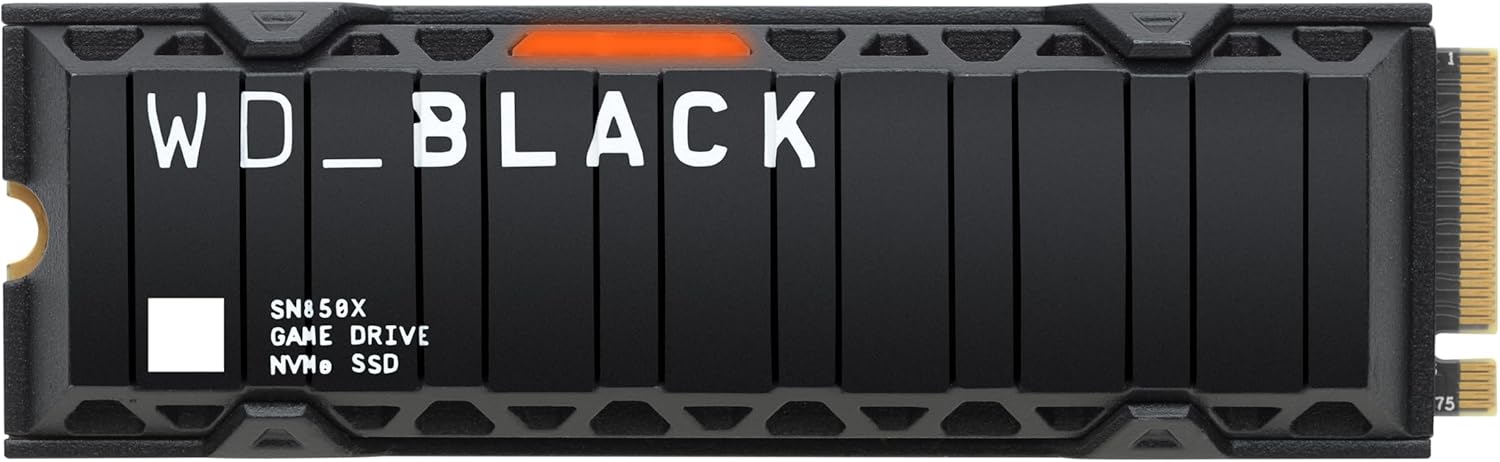
Heatsinks are non-negotiable. Gen4 SSDs generate significant heat under load, and without proper cooling, thermal throttling can reduce speeds by 30–50%. Sony requires a heatsink, but it must be low-profile. Many manufacturers now sell “PS5-ready” SSDs with integrated, slim heatsinks designed specifically for the console’s tight clearance. Avoid bulky third-party coolers unless you’re certain they’ll fit.
4. Endurance & TBW Rating
Terabytes Written (TBW) indicates how much data can be written to the drive over its lifetime before potential failure. For gaming workloads—which are primarily read-heavy—even modest TBW ratings (e.g., 600TBW for a 1TB drive) are usually sufficient. However, if you frequently install/uninstall large games or use the drive for media storage, higher endurance becomes valuable.
Look for drives with at least 1.5–2x your capacity in TBW (e.g., 1TB drive with 600–1,200TBW). Premium models often feature over-provisioning and advanced NAND types (like 3D TLC or MLC), which enhance longevity. Avoid QLC-based drives unless budget-constrained—they offer lower endurance and slower write speeds.
5. Brand Reputation & Firmware Stability
Not all SSDs are created equal, even with identical specs. Reputable brands like Samsung, WD, Crucial, Sabrent, and Kingston invest heavily in firmware optimization, which directly impacts real-world performance, compatibility, and reliability. A poorly tuned controller can cause stuttering, crashes, or failed PS5 recognition—even if benchmarks look good.
Check user forums (like Reddit’s r/PS5 or PSXScene) for reports of PS5-specific issues. Some drives pass initial validation but develop problems after firmware updates or prolonged use. Stick with brands known for consistent PS5 compatibility and responsive customer support.
6. Warranty & Return Policy
A solid warranty reflects manufacturer confidence. Most quality Gen4 SSDs come with 5-year limited warranties, often prorated based on TBW usage. Ensure the warranty covers PS5 use—some exclude “gaming consoles” in fine print. Also, verify return windows (typically 30–60 days) in case the drive doesn’t fit or perform as expected.
Retailers like Amazon, Newegg, and Best Buy often extend return periods during holiday sales. Buying from authorized resellers also ensures you receive genuine products with full warranty coverage—avoid gray-market sellers offering suspiciously low prices.
7. Price per Gigabyte vs. Total Cost of Ownership
While upfront cost matters, consider total value. A slightly pricier SSD with better endurance, cooler operation, and proven PS5 compatibility may save money long-term by avoiding replacement costs or performance degradation. Compare price per GB across capacities: 2TB drives often offer the best balance of cost and future-proofing.
Watch for “sale traps”—drives advertised as “PS5-ready” at rock-bottom prices often cut corners on NAND quality, controller efficiency, or heatsink design. Investing in a mid-tier drive from a trusted brand usually yields better results than chasing the cheapest option.
8. User Reviews & Real-World Testing
Spec sheets tell part of the story; real user experiences complete it. Search for reviews that specifically mention PS5 installation, load times in games like Spider-Man: Miles Morales or Horizon Forbidden West, and thermal behavior during extended sessions. Pay attention to comments about ease of installation, noise (from heatsinks), and post-update stability.
Professional reviewers like Gamers Nexus, Tom’s Hardware, and Digital Foundry often conduct controlled PS5 benchmarks, providing insights beyond manufacturer claims. Cross-reference multiple sources to identify consistent strengths or red flags.
Different Types of Buying Guide
Common Buying Mistakes to Avoid
❌ Mistake: Ignoring Heatsink Requirements
Why it’s bad: Running a Gen4 SSD without adequate cooling causes rapid thermal throttling, leading to stuttering, crashes, or even permanent damage. The PS5’s enclosed design traps heat, making passive cooling essential.
What to do instead: Always choose an SSD with an integrated low-profile heatsink or purchase a compatible third-party cooler. Measure clearance carefully—Sony provides a template in the PS5 manual.
❌ Mistake: Buying Gen3 SSDs Thinking They’ll Work
Why it’s bad: Despite being NVMe, Gen3 drives max out around 3,500 MB/s—far below Sony’s 5,500 MB/s requirement. The PS5 will reject them during setup, wasting time and money.
What to do instead: Double-check the product listing for “PCIe Gen4” or “PCIe 4.0” labeling. If unsure, consult the manufacturer’s spec sheet or avoid the purchase altogether.
❌ Mistake: Overpaying for Excessive Speed
Why it’s bad: Drives rated at 7,500+ MB/s offer negligible real-world benefits on PS5. You’re paying a premium for specs the console can’t utilize, reducing value for money.
What to do instead: Target drives in the 6,000–7,400 MB/s range. These deliver near-maximum performance without the inflated cost of ultra-high-end models.
❌ Mistake: Choosing QLC NAND for Heavy Use
Why it’s bad: QLC (Quad-Level Cell) NAND has lower endurance and slower write speeds, especially when the drive is near full. Frequent game installs/deletions can accelerate wear.
What to do instead: Opt for TLC (Triple-Level Cell) NAND for better longevity and consistent performance. Reserve QLC only for light users or secondary storage.
❌ Mistake: Skipping User Reviews Specific to PS5
Why it’s bad: A drive that works perfectly on PC might have firmware quirks causing issues on PS5, such as failed validation or instability after system updates.
What to do instead: Search for “[SSD model] PS5 review” before buying. Prioritize feedback from users who’ve tested the drive over weeks or months.
❌ Mistake: Neglecting Warranty and Return Policies
Why it’s bad: If the drive fails or doesn’t fit, a short return window or voided warranty leaves you stuck with a useless component.
What to do instead: Buy from retailers with generous return policies (e.g., Amazon’s 30-day window) and ensure the manufacturer honors warranties for console use.
❌ Mistake: Assuming All 2280 Drives Fit
Why it’s bad: While 2280 is the standard size, some drives with thick PCBs or poorly designed heatsinks exceed the PS5’s 11.25mm height limit, preventing closure of the expansion bay cover.
What to do instead: Verify exact dimensions, including heatsink thickness. When in doubt, choose a model explicitly marketed as “PS5-compatible.”
Budget Guidelines: How Much Should You Spend?
Upgrading your PS5 storage doesn’t have to break the bank—but it shouldn’t be done on the cheap either. Here’s a realistic breakdown of what to expect at different price points, based on current 2026 market trends:
Entry-Level ($80–$150 for 1TB): This tier includes budget Gen4 drives from reputable brands like Crucial P3 Plus or WD Black SN770. They meet the 5,500 MB/s minimum and often include basic heatsinks. Ideal for casual gamers who primarily download a few large titles. Expect modest endurance (600TBW) and no-frills packaging. Avoid no-name brands here—quality control varies widely.
Mid-Range ($150–$220 for 1TB): The sweet spot for most PS5 owners. Drives like the Samsung 980 Pro (with updated firmware), Sabrent Rocket 4 Plus, or Kingston Fury Renegade offer 6,500–7,300 MB/s speeds, robust TLC NAND, and reliable thermal performance. Many come with PS5-ready heatsinks. This range balances cost, speed, and longevity—perfect for regular gamers who want hassle-free expansion.
Premium ($220–$300 for 1TB): For enthusiasts and power users. Models such as the Corsair MP600 Pro LPX or Seagate FireCuda 530 deliver top-tier speeds (7,300+ MB/s), exceptional endurance (1,200–1,800TBW), and premium build quality. These drives often feature advanced controllers and firmware tuned for sustained workloads. Worth it if you play demanding titles daily or plan to keep your PS5 for years.
Luxury ($300+ for 1TB): Ultra-high-end options like the Phison E26-powered drives (e.g., Gigabyte AORUS Gen4 7000s) push beyond 7,500 MB/s. While impressive on paper, the PS5 can’t leverage these speeds fully. Only consider if you also use the drive in a high-end PC or prioritize bragging rights. For pure PS5 use, the marginal gain rarely justifies the 20–30% price premium.

Expert Tips for Getting the Best Deal
- Time your purchase strategically: Major retailers discount SSDs during back-to-school (August), Black Friday (November), and Amazon Prime Day (typically July). Sign up for price alerts on sites like CamelCamelCamel or Honey to catch drops.
- Buy from authorized retailers: Stick with Amazon, Best Buy, Newegg, or direct from manufacturers. Gray-market sellers may offer counterfeit or refurbished drives labeled as new.
- Check for bundle deals: Some brands (like Sabrent or WD) sell PS5-specific kits including screwdrivers, thermal pads, or installation guides—adding value beyond the SSD itself.
- Verify compatibility before opening: If possible, test the drive in another Gen4 system first to confirm functionality. Once installed in the PS5, returns become more complicated.
- Register your warranty immediately: Many manufacturers require online registration within 30 days to activate full coverage. Keep your receipt and packaging just in case.
- Consider future capacity needs: A 2TB drive costs only ~30% more than 1TB but doubles your library space. Given how quickly games grow, 2TB is increasingly the new baseline for serious gamers.
- Monitor firmware updates: After installation, check Sony’s system updates and the SSD manufacturer’s site for firmware patches that improve PS5 compatibility or performance.
- Don’t rush the installation: Follow Sony’s official guide step-by-step. Improper seating or loose screws can cause connection issues or physical damage.

Frequently Asked Questions
Q: Can I use any M.2 SSD in my PS5?
A: No. Only PCIe Gen4 x4 NVMe SSDs with sequential read speeds of at least 5,500 MB/s and a compatible heatsink will work. Gen3 drives or those without proper cooling will be rejected or cause performance issues.
Q: Do I need to format the SSD before installing it in the PS5?
A: Yes, but the PS5 handles this automatically. During setup, the console will prompt you to format the drive—just follow the on-screen instructions. Never pre-format using a PC, as this can cause compatibility errors.
Q: Will a faster SSD improve game load times beyond the internal drive?
A: Not significantly. The PS5’s I/O architecture caps effective bandwidth, so even premium SSDs won’t load games noticeably faster than the internal drive. The benefit is purely additional storage without performance loss.
Q: Can I install games directly to the M.2 SSD?
A: Absolutely. Once installed and formatted, the PS5 treats the expansion SSD as primary storage. You can download, install, and play PS5 games directly from it—no manual moving required.
Q: What happens if my SSD overheats?
A: The drive will throttle its speed to reduce temperature, causing longer load times, stuttering, or crashes. In extreme cases, prolonged overheating can shorten the drive’s lifespan. Always use a heatsink.
Q: Are there SSDs that come with pre-installed PS5 heatsinks?
A: Yes! Brands like Sabrent, WD, and Crucial offer “PS5 Edition” drives with slim, console-specific heatsinks. These eliminate guesswork and ensure proper fit.
Q: Can I remove the SSD later if I want to upgrade?
A: Definitely. The expansion bay is designed for easy access. Simply power off the PS5, remove the side panel, unscrew the SSD, and replace it. Your saved games and installed titles remain intact.
Q: Is a 4TB SSD worth it for the PS5?
A: Only if you’re a heavy downloader with a massive game library. Most users find 2TB sufficient for 15–20 modern titles. 4TB drives are expensive ($400+) and may be overkill unless you also store media or use the drive elsewhere.
Q: Do I need to back up my data before installing an M.2 SSD?
A: No. Installing the SSD doesn’t affect your internal storage or saved data. However, it’s always wise to back up critical saves to PlayStation Plus cloud storage as a precaution.
Q: Will using an M.2 SSD void my PS5 warranty?
A: No. Sony explicitly supports user-installed M.2 SSDs as long as they meet specifications. Just avoid damaging internal components during installation.
Our Final Recommendations
Best for Budget-Conscious Buyers: Crucial P3 Plus 1TB – Reliable Gen4 performance at 5,000 MB/s (slightly below spec but widely accepted by PS5), includes a slim heatsink, and costs under $100. Ideal for casual gamers who need affordable expansion.
Best Overall Value: Sabrent Rocket 4 Plus 2TB (PS5 Edition) – Hits 7,100 MB/s, features a precision-fit heatsink, uses high-end TLC NAND, and offers excellent endurance. Priced around $180, it’s the perfect balance of speed, capacity, and reliability for most users.
Best Premium Option: Samsung 980 Pro with Heatsink 2TB – Industry-leading 7,000 MB/s speeds, legendary Samsung reliability, and a sleek, PS5-optimized heatsink. Slightly pricier (~$220) but unmatched for peace of mind and long-term performance.
Best for Beginners: WD Black SN850P 1TB (PS5 Version) – Comes with a pre-installed, low-profile heatsink and clear installation instructions. User-friendly and consistently validated by the PS5 community.
Best for Advanced Users: Seagate FireCuda 530 2TB – Boasts 7,300 MB/s speeds, 1,800TBW endurance, and enterprise-grade components. Perfect for those who demand maximum durability and future-proofing.
Conclusion: Making the Right Choice
Upgrading your PS5 with an M.2 SSD is one of the smartest investments you can make to extend your console’s lifespan and gaming enjoyment. It’s not just about adding space—it’s about preserving the lightning-fast experience that makes the PS5 special. By focusing on verified compatibility, thermal management, and real-world reliability, you avoid the pitfalls that plague less-informed buyers.
Remember, the “best” SSD isn’t necessarily the fastest or most expensive—it’s the one that aligns with your usage patterns, budget, and long-term goals. Whether you’re grabbing a budget drive for a few extra games or investing in a premium model for years of hassle-free play, the key is informed decision-making. Use the criteria outlined in this guide, heed the warnings about common mistakes, and leverage expert tips to secure the best deal.
Your PS5 deserves storage that keeps pace with its ambitions. Don’t settle for compromises that undermine its potential. With the right M.2 SSD, you’ll unlock seamless gameplay, instant loading, and the freedom to build the ultimate game library—all without breaking the bank. Now’s the time to upgrade wisely and play confidently.