
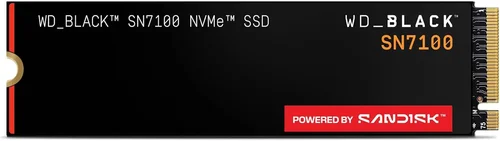
The gaming world has evolved dramatically over the past decade, and one of the most transformative upgrades you can make to your gaming rig is installing a high-performance M.2 SSD. Gone are the days when loading screens felt like mini-breaks between gameplay—today’s fastest NVMe drives slash load times, reduce stuttering in open-world titles, and even improve texture streaming in modern AAA games. Whether you’re building a new PC or upgrading an existing system, choosing the right M.2 SSD isn’t just about speed—it’s about balancing performance, reliability, capacity, and value for your specific needs.
This comprehensive buying guide is designed to cut through the noise and help you make an informed decision. We’ll walk you through every critical factor—from understanding NVMe generations and DRAM cache importance to decoding real-world gaming performance versus synthetic benchmarks. You’ll learn how to avoid common pitfalls, identify genuine deals, and select a drive that delivers both immediate benefits and long-term reliability. With SSD prices stabilizing and new PCIe 5.0 drives hitting the market, now is an excellent time to upgrade—but only if you know what to look for.
The M.2 SSD market in 2026 is more competitive than ever. Major players like Samsung, Western Digital, Crucial, Kingston, and Sabrent continue to push the boundaries of speed and endurance, while newer brands like TeamGroup and PNY offer compelling budget-friendly alternatives. Meanwhile, the shift toward PCIe 5.0 is gaining momentum, promising double the bandwidth of PCIe 4.0—but not all systems can take full advantage yet. This guide will help you navigate these choices based on your motherboard, CPU, budget, and gaming habits, ensuring you don’t overspend on features you won’t use or underspend on a drive that bottlenecks your experience.

What to Look for When Buying Buying Guide
1. Interface & Protocol: PCIe Gen4 vs Gen5
The interface and protocol your M.2 SSD uses determine its maximum theoretical speed. Most modern gaming PCs support either PCIe 4.0 or PCIe 5.0, with older systems still running PCIe 3.0. PCIe 4.0 drives typically deliver sequential read speeds up to 7,000 MB/s, while PCIe 5.0 drives can exceed 12,000 MB/s. However, real-world gaming performance doesn’t scale linearly with raw bandwidth—most games see diminishing returns beyond ~5,000 MB/s. If your motherboard only supports PCIe 4.0, investing in a Gen5 drive won’t provide any benefit. Always check your motherboard’s M.2 slot specifications before purchasing.
2. Sequential vs Random Read/Write Speeds
While manufacturers often highlight sequential read/write speeds (great for large file transfers), gaming performance is more influenced by random read speeds—especially 4K random reads at low queue depths. Games constantly load small assets like textures, scripts, and audio files, which rely heavily on random access performance. A drive with strong 4K random read speeds (measured in IOPS) will feel snappier in-game, reducing pop-in and improving level transitions. Look for drives that specify both sequential and random performance metrics.
3. DRAM Cache: The Hidden Performance Booster
DRAM cache acts as a high-speed buffer between the NAND flash and the controller, significantly improving performance consistency—especially during sustained workloads. DRAM-less SSDs use system memory (HMB) or slower SLC caching, which can lead to performance drops under heavy use. For gaming, where consistent responsiveness matters more than peak burst speeds, a DRAM-equipped SSD is strongly recommended. Most premium and mid-range drives include DRAM, but some budget models omit it to cut costs—be cautious with these unless you’re only using the drive for secondary storage.
4. NAND Flash Type: TLC vs QLC
NAND flash comes in different types, with Triple-Level Cell (TLC) and Quad-Level Cell (QLC) being the most common in consumer SSDs. TLC stores three bits per cell and offers better endurance, faster write speeds, and longer lifespan—ideal for OS drives and frequent game installations. QLC stores four bits per cell, increasing density and lowering cost per GB, but at the expense of write performance and endurance. While QLC drives are acceptable for secondary storage or light gaming use, we recommend TLC for your primary gaming drive to ensure longevity and consistent performance.
5. Capacity: How Much Storage Do You Really Need?
Modern AAA games routinely exceed 100GB each—Call of Duty: Modern Warfare III clocks in at over 200GB, and Starfield requires nearly 150GB. A 1TB drive might hold just 5–7 large titles, which fills up quickly. We recommend a minimum of 2TB for serious gamers, with 4TB being ideal if your budget allows. Smaller capacities (500GB or less) are only suitable for budget builds or as secondary drives. Remember: SSD performance can degrade as the drive fills up, so leaving 10–20% free space helps maintain speed and longevity.
6. Thermal Management & Heatsinks
High-speed NVMe drives generate significant heat, especially PCIe 5.0 models. Without proper cooling, thermal throttling can reduce performance by 30–50% during extended gaming sessions. Many premium M.2 SSDs come with integrated heatsinks, and some motherboards include M.2 shields or heatsinks. If your case has poor airflow or you’re using a compact build (like an ITX system), consider a drive with a built-in heatsink or purchase an aftermarket solution. Avoid installing a heatsink-equipped drive in a slot covered by a GPU—it may cause clearance issues.
7. Brand Reputation & Firmware Reliability
Not all SSDs are created equal, even if they share the same controller and NAND. Brand reputation matters because firmware optimization directly impacts real-world performance, stability, and longevity. Samsung, for example, is renowned for its robust firmware and consistent performance across generations. Lesser-known brands may offer attractive specs on paper but suffer from poor garbage collection, aggressive throttling, or compatibility issues. Stick to reputable manufacturers with a track record of reliable updates and responsive support.
8. Warranty & Endurance Rating (TBW)
Total Bytes Written (TBW) indicates how much data can be written to the drive over its lifetime before it may fail. A higher TBW means greater endurance—critical if you frequently install and uninstall large games. Most consumer SSDs offer 300–1,200 TBW for 1TB drives. Pair this with a solid warranty (typically 5 years) for peace of mind. Avoid drives with short warranties or vague endurance claims, as these are often signs of lower-quality components.
Different Types of Buying Guide

Common Buying Mistakes to Avoid
❌ Mistake: Prioritizing Peak Sequential Speeds Over Real-World Performance
Why it’s bad: Marketing materials often highlight blistering sequential read speeds (e.g., “12,000 MB/s!”), but most games don’t benefit from speeds beyond 5,000–6,000 MB/s. Focusing solely on these numbers can lead you to overpay for a PCIe 5.0 drive when a well-optimized PCIe 4.0 model would deliver nearly identical in-game performance.
What to do instead: Look for reviews that test actual game load times and level transitions. Prioritize drives with strong 4K random read performance and consistent sustained speeds.
❌ Mistake: Ignoring Thermal Throttling
Why it’s bad: A drive that throttles under load will perform worse during long gaming sessions, leading to stuttering or longer load times. This is especially common with PCIe 5.0 drives in poorly ventilated cases.
What to do instead: Check thermal performance in third-party reviews. If your case has limited airflow, choose a drive with a built-in heatsink or ensure your motherboard has an M.2 heatsink.
❌ Mistake: Buying a DRAM-less Drive as Your Primary OS/Gaming Drive
Why it’s bad: DRAM-less SSDs rely on system memory (HMB) for caching, which can cause performance hiccups during multitasking or when the system RAM is under heavy load. This leads to inconsistent frame pacing and longer asset loading.
What to do instead: Invest in a DRAM-equipped SSD for your primary drive. Reserve DRAM-less models for secondary storage or budget builds where cost is the top priority.
❌ Mistake: Overlooking Compatibility with Your Motherboard
Why it’s bad: Not all M.2 slots support the same PCIe generations or keying types. Installing a PCIe 5.0 drive in a Gen3-only slot wastes money, while using an incompatible key (B-key vs M-key) may prevent installation altogether.
What to do instead: Consult your motherboard manual to confirm M.2 slot specifications (PCIe version, supported lengths, and keying). Most modern gaming boards support M-key NVMe drives, but double-check to avoid returns.
❌ Mistake: Choosing Capacity Based Solely on Current Game Library
Why it’s bad: Game sizes are increasing every year. A 1TB drive that seems sufficient today may be full within 12–18 months as you add new releases and DLC. Running an SSD near full capacity also degrades performance.
What to do instead: Plan for future growth. If you play multiple AAA titles, start with 2TB. Consider cloud backups or external storage for older games you rarely play.
❌ Mistake: Falling for “Gaming” Branding Without Checking Specs
Why it’s bad: Many budget SSDs are marketed with flashy “gaming” labels but use outdated controllers or QLC NAND with poor write endurance. These drives may fail prematurely under heavy use.
What to do instead: Ignore marketing fluff. Focus on technical specs: controller model, NAND type, DRAM presence, and TBW rating. Cross-reference with reputable review sites.
❌ Mistake: Skipping Firmware Updates
Why it’s bad: SSD manufacturers frequently release firmware updates to fix bugs, improve performance, and enhance compatibility. Running outdated firmware can lead to instability or missed optimizations.
What to do instead: Register your drive with the manufacturer and periodically check for firmware updates using their official utility (e.g., Samsung Magician, WD Dashboard).
Budget Guidelines: How Much Should You Spend?
Entry-Level ($50–$80 for 1TB):
This tier includes DRAM-less NVMe drives or older PCIe 3.0 models. While they’ll boot your OS and run games, expect longer load times and potential performance drops under load. Best for budget builds or as secondary storage. Examples: Kingston NV2, Crucial P3 (QLC version).
Mid-Range ($80–$130 for 1TB):
The sweet spot for most gamers. These are typically PCIe 4.0 TLC drives with DRAM cache, offering excellent real-world performance and reliability. You’ll see noticeable improvements in load times and system responsiveness. Examples: Samsung 980 Pro, WD Black SN770, Crucial P5 Plus.
Premium ($130–$200 for 1TB):
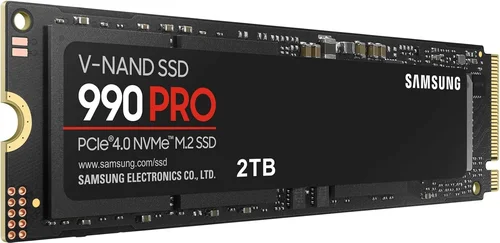
Designed for enthusiasts and high-refresh gaming. These drives often feature advanced controllers, robust thermal solutions, and higher endurance ratings. PCIe 5.0 models start appearing here, though benefits are limited without compatible hardware. Examples: Sabrent Rocket 4 Plus, Corsair MP700, Samsung 990 Pro.
Luxury ($200+ for 1TB or $300+ for 2TB):
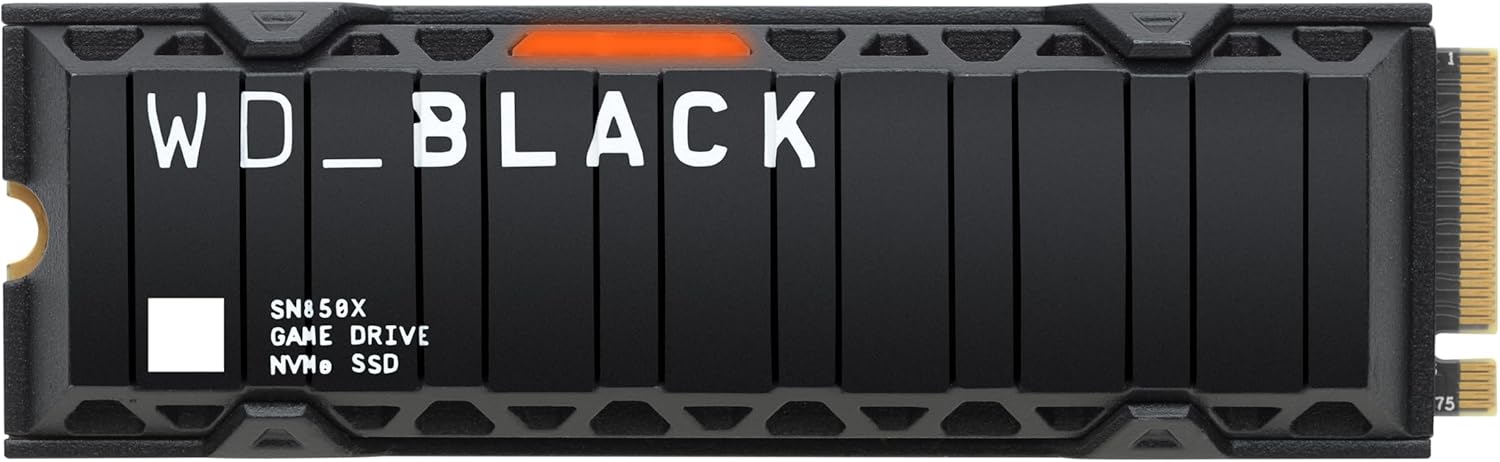
Top-tier drives with cutting-edge tech, massive capacities, and premium build quality. Ideal for content creators, streamers, or those building a no-compromise rig. Expect integrated heatsinks, 5-year warranties, and TBW ratings exceeding 1,000. Examples: WD Black SN850X (2TB), Samsung 990 Pro (4TB), Seagate FireCuda 540.

Expert Tips for Getting the Best Deal
1. Time Your Purchase Around Major Sales Events
SSD prices fluctuate significantly during Black Friday, Prime Day, and back-to-school seasons. Historical data shows discounts of 20–40% are common during these periods. Set price alerts on sites like CamelCamelCamel or Honey to catch drops.
2. Buy Directly from Reputable Retailers
Stick to authorized sellers like Amazon (sold by Amazon, not third parties), Newegg, Best Buy, or the manufacturer’s website. This ensures warranty validity and reduces the risk of counterfeit products.
3. Compare Total Cost of Ownership
Factor in warranty length, endurance (TBW), and expected lifespan—not just upfront cost. A $100 drive with a 3-year warranty and 300 TBW may cost more long-term than a $120 drive with 5 years and 600 TBW.
4. Check Return Policies Before Buying
Some retailers charge restocking fees for opened SSDs. Ensure you can return the drive if it’s incompatible or defective. Most major brands offer 30-day return windows.
5. Test Performance After Installation
Use tools like CrystalDiskMark or AS SSD Benchmark to verify your drive meets advertised speeds. Monitor temperatures with HWInfo or SSD manufacturer software to confirm thermal performance.
6. Consider Bundled Software
Many premium SSDs include cloning software, migration tools, or cloud backup subscriptions. These can save you $20–$50 if you’re upgrading from an HDD.
7. Avoid “Refurbished” or “Open-Box” Drives Unless Certified
While tempting, used SSDs may have high write counts or hidden defects. Only buy refurbished units directly from the manufacturer with full warranty coverage.
8. Future-Proof, But Don’t Overbuy
If you plan to upgrade your CPU/motherboard within 2–3 years, a PCIe 5.0 drive makes sense. But if your current system is PCIe 4.0-only, save the extra $50–$100 and invest in more RAM or a better GPU instead.
Frequently Asked Questions
Q: Will a faster SSD improve my FPS in games?
A: No—SSD speed does not directly affect frame rates (FPS). However, it significantly reduces load times, minimizes texture pop-in, and improves level streaming smoothness, especially in open-world games like Cyberpunk 2077 or Elden Ring. Think of it as enhancing responsiveness, not raw performance.
Q: Can I use an M.2 SSD as a boot drive?
A: Absolutely. In fact, most modern systems are designed to boot from NVMe M.2 drives. Ensure your BIOS supports UEFI boot and that the drive is properly detected during POST.
Q: Do I need a heatsink for my M.2 SSD?
A: It depends. PCIe 4.0 drives benefit from heatsinks in high-temperature environments, while PCIe 5.0 drives almost always require one to prevent throttling. If your motherboard includes an M.2 heatsink, use it—even if the drive doesn’t come with one.
Q: Is PCIe 5.0 worth it for gaming in 2026?
A: For most gamers, no—not yet. While PCIe 5.0 offers double the bandwidth, current games don’t utilize it fully. The real benefit comes in content creation or future titles optimized for ultra-fast storage. If you have a compatible system and budget, it’s a nice-to-have, but not essential.
Q: How do I clone my old SSD to a new M.2 drive?
A: Use cloning software like Macrium Reflect (free), Acronis True Image, or the manufacturer’s tool (e.g., Samsung Data Migration). Connect both drives, clone the old one to the new, then swap them in your system.
Q: What’s the difference between M.2 SATA and M.2 NVMe?
A: M.2 is just the physical form factor. SATA M.2 drives are limited to ~550 MB/s, while NVMe M.2 drives use the PCIe interface and can reach 7,000+ MB/s. Always check which type your motherboard supports—most modern boards only support NVMe in M.2 slots.
Q: Can I install multiple M.2 SSDs?
A: Yes, if your motherboard has multiple M.2 slots. Be aware that some slots share bandwidth with SATA ports or PCIe lanes—consult your manual to avoid disabling other components.
Q: How long do M.2 SSDs last?
A: Under normal gaming use, a quality TLC SSD should last 5–10 years. Most will outlive your PC upgrade cycle. Monitor health using SMART tools like CrystalDiskInfo.
Q: Are external M.2 SSDs good for gaming?
A: Only if connected via Thunderbolt 3/4 or USB 3.2 Gen 2×2 (20 Gbps). Standard USB 3.0 enclosures bottleneck performance. For portable gaming, internal drives are still superior.
Q: Should I enable TRIM on my SSD?
A: Yes—TRIM helps maintain performance by informing the SSD which blocks are no longer in use. It’s enabled by default in Windows 10/11 and macOS, but verify it’s active using “fsutil behavior query DisableDeleteNotify” in Command Prompt (should return 0).
Our Final Recommendations
Best for Budget-Conscious Buyers:
Crucial P3 Plus (1TB) – A PCIe 4.0 QLC drive with surprisingly good read speeds and a low price. Ideal for casual gamers or secondary storage. Just avoid heavy write workloads.
Best Overall Value:
Samsung 980 Pro (2TB) – Proven reliability, excellent 4K random performance, and consistent speeds under load. Backed by a 5-year warranty and Samsung’s stellar firmware support.
Best Premium Option:
WD Black SN850X (2TB) – One of the fastest PCIe 4.0 drives available, with a robust heatsink, high endurance (1,200 TBW), and optimized firmware for gaming workloads.
Best for Beginners:
Kingston KC3000 (1TB) – Easy to install, reliable, and well-documented. Comes with cloning software and strong thermal performance—perfect for first-time upgraders.
Best for Advanced Users:
Sabrent Rocket 4 Plus-G (2TB, PCIe 5.0) – For those with Z790/X670E motherboards, this drive delivers over 10,000 MB/s reads and includes a sleek aluminum heatsink. Future-proof and blazing fast.
Conclusion: Making the Right Choice
Choosing the best M.2 SSD for gaming isn’t about chasing the highest number on a spec sheet—it’s about finding the right balance of speed, capacity, reliability, and value for your unique setup and habits. While PCIe 5.0 drives represent the cutting edge, most gamers will see greater benefits from a well-chosen PCIe 4.0 TLC drive with DRAM cache and ample storage. Avoid common pitfalls like ignoring thermal management or overlooking real-world performance metrics, and always prioritize reputable brands with strong warranties.
Remember, your SSD is the foundation of your system’s responsiveness. Investing wisely here pays dividends in smoother gameplay, faster load times, and a more enjoyable overall experience. Whether you’re building a budget battlestation or a high-end rig, the right M.2 SSD will keep you in the game—not waiting for it to load.
Take the time to assess your needs, compare options using the criteria in this guide, and don’t rush into a purchase. With SSD prices more accessible than ever, there’s never been a better moment to upgrade. Your future self—and your game library—will thank you.