
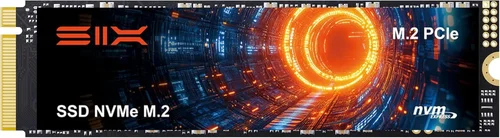
If you’re serious about gaming in 2026, your storage drive isn’t just a place to park your games—it’s a performance-critical component that directly impacts load times, system responsiveness, and even in-game smoothness. Gone are the days when a standard SATA SSD or, worse, an HDD, could keep up with modern titles. Today’s games are built with massive textures, open-world environments, and real-time asset streaming that demand lightning-fast data access. That’s where M.2 SSDs come in.
This comprehensive buying guide is designed to cut through the noise and help you choose the best M.2 SSD for gaming based on your specific needs, budget, and system setup. Whether you’re building a new PC from scratch, upgrading an existing rig, or simply looking to future-proof your storage, we’ll walk you through every critical factor—from performance specs and form factors to brand reliability and real-world gaming benefits. By the end of this guide, you’ll not only understand what makes one M.2 SSD better than another for gaming, but you’ll also know exactly which model to buy and why.
The M.2 SSD market in 2026 is more competitive than ever. With advancements in NAND flash technology, controller efficiency, and PCIe Gen5 adoption, even mid-range drives now offer speeds that were unthinkable just a few years ago. However, not all M.2 SSDs are created equal—especially when it comes to gaming. While synthetic benchmarks might look impressive on paper, real-world gaming performance depends on a mix of sustained read/write speeds, random I/O performance, thermal management, and firmware optimization. This guide will help you navigate these nuances and avoid common pitfalls so you can invest wisely in a drive that delivers tangible improvements in your gaming experience.

What to Look for When Buying Buying Guide
1. Interface & Protocol: PCIe Gen4 vs Gen5
The interface and protocol your M.2 SSD uses determine its maximum theoretical speed. In 2026, the two dominant standards are PCIe Gen4 and PCIe Gen5. PCIe Gen4 drives typically offer sequential read speeds up to 7,000–7,400 MB/s, which is already more than enough for most gaming workloads. These drives are widely compatible with current-generation motherboards (AMD AM5, Intel LGA 1700/1851) and offer excellent price-to-performance ratios.
PCIe Gen5 SSDs, on the other hand, double the bandwidth, pushing speeds up to 14,000 MB/s or more. While this sounds impressive, the real-world gaming benefits are still limited. Most games don’t yet take full advantage of Gen5 speeds, and the performance gains over Gen4 are often marginal—especially when considering the added cost and heat output. However, if you’re building a high-end system with a Gen5-compatible motherboard (like those based on AMD X670E or Intel Z790/Z890 chipsets), a Gen5 drive can future-proof your setup and improve performance in content creation or large file transfers.
2. Sequential Read/Write Speeds
Sequential speeds refer to how quickly the drive can read or write large, contiguous blocks of data—think loading a massive game level or installing a 100GB title. For gaming, sequential read speed is the most important metric. A drive with high sequential read performance will reduce level load times, texture pop-in, and stuttering during open-world exploration.
In 2026, top-tier PCIe Gen4 drives like the Samsung 990 Pro or WD Black SN850X offer sequential read speeds around 7,300–7,400 MB/s. Gen5 drives like the Crucial T705 push this to 14,500 MB/s. While these numbers look impressive, diminishing returns set in quickly. Going from 5,000 MB/s to 7,000 MB/s might shave a few seconds off load times, but going from 7,000 to 14,000 MB/s offers almost no perceptible improvement in gaming.
That said, don’t ignore write speeds entirely. If you frequently install or update large games, a drive with strong write performance (ideally 6,000+ MB/s) will make the process faster and reduce wear on the drive over time.
3. Random Read/Write Performance (IOPS)
While sequential speeds get all the attention, random I/O performance—measured in Input/Output Operations Per Second (IOPS)—is arguably more important for gaming. Games constantly access small, scattered files: textures, audio clips, scripts, and metadata. A drive with high random read IOPS will deliver smoother gameplay, faster asset streaming, and fewer hitches.
For example, a drive with 1M+ random read IOPS (4KB, QD32) will handle complex game worlds like those in Cyberpunk 2077 or Starfield much more efficiently than a drive with only 500K IOPS. This is especially true in games that use DirectStorage or similar technologies, which allow the GPU to directly access game assets from storage, bypassing the CPU bottleneck.
Look for drives that emphasize both high sequential and random performance. Samsung, WD, and Crucial consistently lead in this category, while some budget drives sacrifice random performance to hit lower price points.
4. NAND Flash Type: TLC vs QLC
The type of NAND flash memory used in an SSD affects its speed, endurance, and longevity. In 2026, most high-performance M.2 SSDs use TLC (Triple-Level Cell) NAND, which stores three bits per cell. TLC offers a great balance of speed, durability, and cost, making it ideal for gaming.
QLC (Quad-Level Cell) NAND stores four bits per cell, allowing for higher capacities at lower prices. However, QLC drives typically have slower write speeds, especially when the cache is exhausted, and lower endurance (measured in TBW—Terabytes Written). While QLC drives like the Samsung 870 QVO (SATA) or some budget M.2 models can work for secondary storage, they’re not ideal for your primary gaming drive.
Avoid drives that use older MLC or SLC NAND unless you’re in a niche enterprise environment. SLC is extremely fast and durable but prohibitively expensive. MLC is rare in consumer drives today.
5. DRAM Cache
A DRAM cache acts as a high-speed buffer between the SSD controller and the NAND flash. It stores the flash translation layer (FTL) map, which tells the drive where data is physically located. Drives with DRAM cache perform significantly better under sustained workloads and maintain faster speeds when the drive is nearly full.
For gaming, a DRAM cache ensures consistent performance during long play sessions and prevents slowdowns when loading large textures or assets. Most premium M.2 SSDs include a DRAM cache (e.g., 1GB for a 1TB drive), but some budget models are DRAM-less, relying on HMB (Host Memory Buffer) instead.
HMB uses a portion of your system RAM as a cache, which can work well in theory—but it’s less reliable and can cause performance drops if your system is under heavy load. For a primary gaming drive, always choose a model with a dedicated DRAM cache.
6. Thermal Management & Heatsinks
High-speed M.2 SSDs generate significant heat, especially during sustained workloads. Without proper cooling, thermal throttling can occur, causing the drive to slow down to prevent damage. This is particularly problematic in small form-factor PCs, laptops, or systems with poor airflow.
Many premium M.2 SSDs now come with integrated heatsinks or are designed to work with motherboard M.2 heatsinks. Drives like the WD Black SN850X or Samsung 990 Pro include robust thermal solutions that help maintain peak performance. If your motherboard doesn’t have an M.2 heatsink, consider buying a third-party one or choosing a drive with built-in cooling.
7. Endurance & TBW Rating
Endurance is measured in Terabytes Written (TBW)—the total amount of data that can be written to the drive over its lifetime. A higher TBW means the drive is built to last longer under heavy use. For gaming, where you’re mostly reading data, endurance is less critical than for content creation or server workloads. However, it’s still a good indicator of overall build quality.
Most premium M.2 SSDs offer 600–1,200 TBW for a 1TB model. For example, the Samsung 990 Pro 1TB has a 600 TBW rating, while the WD Black SN850X 1TB offers 600 TBW. Budget drives may have as little as 200–300 TBW, which is still more than enough for typical gaming use but may not hold up as well over 5–7 years of heavy use.
8. Brand Reputation & Reliability
Not all SSD brands are created equal. In 2026, the most trusted names in the M.2 SSD space include Samsung, Western Digital (WD), Crucial, Kingston, and Seagate. These companies invest heavily in R&D, use high-quality components, and offer strong warranties and customer support.
Avoid no-name or off-brand drives, especially those sold at unusually low prices. These often use recycled NAND, outdated controllers, or poor firmware, leading to reliability issues, data loss, or early failure. Stick with established brands that have a proven track record in the consumer SSD market.
9. Warranty & Support
A solid warranty is a sign of confidence in a product’s durability. Most premium M.2 SSDs come with a 5-year limited warranty, which is standard in the industry. Some brands, like Samsung and WD, also offer data recovery services or extended support plans.
Check the warranty terms carefully. Some warranties are voided if the TBW limit is exceeded, while others are based solely on time. Also, ensure the brand offers reliable customer support in your region, especially if you’re buying from an international retailer.
10. Price per GB
Finally, consider the cost per gigabyte. As of 2026, high-performance PCIe Gen4 M.2 SSDs typically range from $0.08 to $0.15 per GB. For example, a 1TB drive priced at $90 offers $0.09/GB, which is excellent value. Gen5 drives are more expensive, often $0.15–$0.25/GB.
While it’s tempting to go for the cheapest option, remember that you’re investing in performance and reliability. A slightly more expensive drive with better endurance, thermal management, and brand support will serve you better in the long run.
Different Types of Buying Guide

Common Buying Mistakes to Avoid
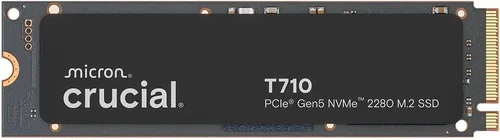
❌ Mistake: Prioritizing Peak Speed Over Real-World Performance
Why it’s bad: Many buyers get caught up in marketing claims like “14,000 MB/s!” without realizing that most games don’t benefit from such extreme speeds. A PCIe Gen5 drive may look impressive on paper, but in actual gameplay, the difference between 7,000 MB/s and 14,000 MB/s is often unnoticeable.
What to do instead: Focus on real-world benchmarks and reviews that test gaming load times, not just synthetic speeds. Look for drives that balance sequential and random performance, and consider whether your system can even support Gen5 speeds.
❌ Mistake: Buying a DRAM-less SSD as Your Primary Drive
Why it’s bad: DRAM-less SSDs use HMB (Host Memory Buffer) to simulate cache, which can lead to inconsistent performance, especially when the system is under load. This can cause stuttering, longer load times, and reduced longevity.
What to do instead: Always choose an M.2 SSD with a dedicated DRAM cache for your primary gaming drive. The small price difference is worth the performance and reliability gains.
❌ Mistake: Ignoring Thermal Throttling
Why it’s bad: High-speed SSDs generate heat, and without proper cooling, they can throttle down to safe speeds, negating their performance advantages. This is especially common in laptops or tightly packed desktop builds.
What to do instead: Choose a drive with a heatsink or ensure your motherboard has an M.2 heatsink. Monitor drive temperatures using tools like HWInfo or CrystalDiskInfo, and consider adding case fans if needed.
❌ Mistake: Overlooking Compatibility
Why it’s bad: Not all M.2 SSDs fit all systems. Some motherboards only support PCIe Gen3 or Gen4, and some laptops have physical size restrictions (e.g., 2280 vs 2242). Installing an incompatible drive can lead to boot failures or no detection.
What to do instead: Check your motherboard or laptop manual for M.2 slot specifications (length, key type, supported protocols). Most consumer drives are 2280 (80mm long), but verify before buying.
❌ Mistake: Choosing Based Solely on Price
Why it’s bad: The cheapest SSDs often use lower-quality NAND, lack DRAM, and have poor firmware. While they may work initially, they’re more prone to failure, data corruption, and performance degradation over time.
What to do instead: Aim for the best value within your budget. A $90 1TB Gen4 drive from a reputable brand is often a better investment than a $60 no-name model.
❌ Mistake: Not Checking Warranty and Support
Why it’s bad: A short or unclear warranty can leave you stranded if the drive fails. Some brands offer limited regional support or require original packaging for RMA.
What to do instead: Choose brands with at least a 5-year warranty and strong customer support. Register your drive upon purchase and keep your receipt.
❌ Mistake: Buying More Capacity Than You Need
Why it’s bad: While it’s tempting to buy a 4TB drive “just in case,” you may be overspending on unused space. Games are large, but most gamers only actively play 5–10 titles at a time.
What to do instead: Assess your current game library and future needs. A 2TB drive is usually sufficient for most gamers in 2026. Use a smaller SSD for your OS and frequently played games, and a larger HDD or secondary SSD for archives.
Budget Guidelines: How Much Should You Spend?
Entry-Level ($50–$80 for 1TB): This range includes budget PCIe Gen4 QLC drives or older Gen3 models. They’re fine for casual gaming or secondary storage but may struggle with sustained writes and lack DRAM. Examples: Kingston NV2, Team Group MP33.
Mid-Range ($80–$130 for 1TB): The sweet spot for most gamers. These are high-quality PCIe Gen4 TLC drives with DRAM, strong endurance, and excellent real-world performance. Examples: Samsung 980 Pro, WD Black SN770, Crucial P5 Plus.
Premium ($130–$200 for 1TB): Top-tier Gen4 or entry-level Gen5 drives with advanced features like heatsinks, superior controllers, and firmware optimized for gaming. Examples: Samsung 990 Pro, WD Black SN850X, Crucial T700.
Luxury ($200+ for 1TB): Cutting-edge PCIe Gen5 drives with maximum speeds, premium build quality, and extended warranties. These are overkill for most gamers but ideal for enthusiasts, streamers, or content creators. Examples: Crucial T705, Sabrent Rocket 5, Gigabyte Aorus Gen5.
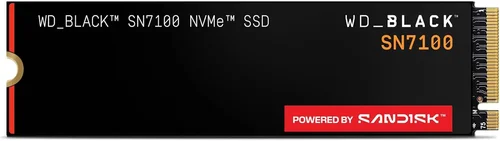
Expert Tips for Getting the Best Deal
1. Buy During Major Sales Events: Look for discounts during Black Friday, Cyber Monday, Amazon Prime Day, and back-to-school seasons. SSD prices often drop 20–30% during these periods.
2. Compare Prices Across Retailers: Use price tracking tools like Honey, CamelCamelCamel, or PCPartPicker to monitor deals. Sometimes smaller retailers offer better prices than Amazon or Newegg.
3. Check for Bundled Deals: Some motherboard or CPU bundles include free or discounted M.2 SSDs. These can be a great way to save if you’re building a new system.
4. Consider Refurbished or Open-Box: Reputable retailers like Best Buy or Micro Center often sell certified refurbished SSDs at a discount. These come with warranties and are thoroughly tested.
5. Read User Reviews: Look beyond professional reviews. User feedback on Amazon, Newegg, or Reddit can reveal real-world issues like overheating, compatibility problems, or early failure.
6. Test Before Committing: If possible, test the drive in your system before installing your OS. Use tools like CrystalDiskMark to verify speeds and check for errors.
7. Register Your Drive: Registering your SSD with the manufacturer ensures you’re eligible for warranty support and firmware updates.
8. Monitor Firmware Updates: Some SSDs receive performance or stability improvements via firmware updates. Check the manufacturer’s website periodically.

Frequently Asked Questions
Q: Does an M.2 SSD improve FPS in games?
A: No, an M.2 SSD does not directly increase frames per second (FPS). FPS is determined by your GPU, CPU, and RAM. However, a fast SSD can reduce stuttering, eliminate texture pop-in, and improve overall smoothness by loading assets more quickly.
Q: Can I use an M.2 SSD in a laptop?
A: Yes, many modern laptops have M.2 slots. Check your laptop’s manual to confirm the supported form factor (usually 2280) and protocol (PCIe Gen3 or Gen4). Some ultrabooks only support Gen3.
Q: Is PCIe Gen5 worth it for gaming in 2026?
A: Not yet. While Gen5 offers double the bandwidth of Gen4, most games in 2026 still don’t require that level of performance. The real benefits are seen in content creation, not gaming. Wait for broader DirectStorage adoption before investing in Gen5.
Q: How long do M.2 SSDs last?
A: Most high-quality M.2 SSDs last 5–10 years under normal use. With a TBW rating of 600+ and typical gaming workloads, you’re unlikely to reach the endurance limit before the drive becomes obsolete.
Q: Should I install Windows on my M.2 SSD?
A: Absolutely. Installing your OS on an M.2 SSD drastically improves boot times, application launches, and overall system responsiveness. It’s one of the best upgrades you can make.
Q: Can I use multiple M.2 SSDs?
A: Yes, most modern motherboards have two or more M.2 slots. You can use one for your OS and games, and another for storage or backups. Just ensure your chipset supports multiple NVMe drives.
Q: What’s the difference between M.2 SATA and M.2 NVMe?
A: M.2 is a form factor, not a protocol. M.2 SATA SSDs use the older SATA interface and are limited to ~550 MB/s. M.2 NVMe SSDs use the PCIe interface and are much faster. Always choose NVMe for gaming.
Q: Do I need to enable RAID or special settings?
A: No. For single-drive setups, leave your BIOS in AHCI mode. RAID is only necessary for multi-drive configurations and offers no benefit for gaming.
Q: Can an M.2 SSD overheat?
A: Yes, especially high-performance Gen4 and Gen5 drives. Use a heatsink if possible, and ensure good case airflow. Monitor temperatures to avoid throttling.
Q: Is it safe to move games between SSDs?
A: Yes. You can move games between drives using Steam’s built-in feature or by copying files manually. Just ensure the destination drive has enough space and is formatted correctly.
Our Final Recommendations
Best for Budget-Conscious Buyers: WD Black SN770 (1TB) – At around $85, this PCIe Gen4 TLC drive offers excellent performance, DRAM cache, and WD’s reliable firmware. It’s a fantastic value for gamers who want NVMe speeds without overspending.
Best Overall Value: Samsung 990 Pro (1TB) – With 7,450 MB/s read speeds, 1M+ IOPS, and a robust heatsink, the 990 Pro delivers top-tier performance at a reasonable price (~$120). It’s our top pick for most gamers.
Best Premium Option: Crucial T705 (1TB) – For those with Gen5-compatible systems, the T705 offers 14,500 MB/s speeds and excellent thermal management. It’s overkill for gaming but perfect for future-proofing.
Best for Beginners: Crucial P5 Plus (1TB) – Easy to install, reliable, and well-priced at ~$90. It’s a great entry point into high-speed NVMe storage with no frills.
Best for Advanced Users: WD Black SN850X with Heatsink (1TB) – This drive includes a premium heatsink, top-tier performance, and WD’s gaming-optimized firmware. Ideal for enthusiasts who want the best without compromise.
Conclusion: Making the Right Choice
Choosing the best M.2 SSD for gaming in 2026 doesn’t have to be overwhelming. By focusing on real-world performance, compatibility, and value, you can find a drive that significantly enhances your gaming experience without breaking the bank. Remember: speed matters, but so does reliability, thermal management, and brand trust.
Start by assessing your system’s capabilities and your budget. A high-quality PCIe Gen4 TLC drive with DRAM and a heatsink will serve most gamers perfectly well. Avoid the temptation to chase peak benchmarks—instead, prioritize smooth gameplay, fast load times, and long-term durability.
Whether you’re upgrading an old rig or building a new one, investing in a top-tier M.2 SSD is one of the most impactful upgrades you can make. It’s not just about faster games—it’s about a faster, more responsive, and more enjoyable PC experience overall. So take the time to choose wisely, and get ready to game like never before.