
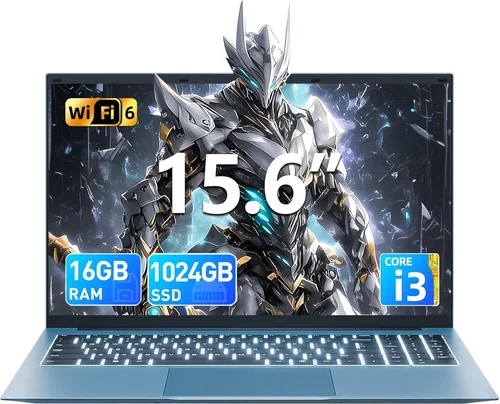
If you’re in the market for a new laptop in 2026, one of the most important decisions you’ll make is choosing a model with solid-state drive (SSD) storage. Gone are the days when traditional hard disk drives (HDDs) were the standard—today’s best laptops rely on SSDs for faster boot times, quicker file access, improved durability, and overall better performance. Whether you’re a student, creative professional, gamer, or remote worker, an SSD-equipped laptop can dramatically enhance your productivity and user experience.
This comprehensive buying guide is designed to help you navigate the crowded laptop market with confidence. We’ll walk you through everything you need to know—from understanding why SSDs matter to evaluating key specs, comparing different laptop categories, avoiding common pitfalls, and finding the best value for your budget. By the end of this article, you’ll have a clear roadmap to select the ideal SSD-powered laptop that fits your lifestyle, workflow, and financial goals. With technology evolving rapidly and new models launching every quarter, having expert-level insight ensures you don’t just buy a laptop—you invest in a long-term computing companion.
The laptop landscape in 2026 is more diverse than ever. From ultra-thin ultrabooks to high-performance gaming rigs and rugged business machines, nearly every new laptop now comes standard with SSD storage. However, not all SSDs are created equal—and neither are the laptops that house them. Factors like SSD type (SATA vs. NVMe), storage capacity, processor speed, RAM, display quality, battery life, and build materials all play a role in determining which machine will serve you best. This guide cuts through the marketing noise and delivers actionable, real-world advice based on current trends, performance benchmarks, and user feedback. Whether you’re upgrading from an older HDD-based system or buying your first modern laptop, this guide will empower you to make a smart, informed decision.

What to Look for When Buying Buying Guide
1. SSD Type and Interface
The type of SSD your laptop uses has a direct impact on speed, reliability, and future upgrade potential. In 2026, two main SSD interfaces dominate the market: SATA and NVMe (Non-Volatile Memory Express). SATA SSDs are older technology but still widely used in budget and mid-range laptops. They connect via the same interface as traditional HDDs and offer read/write speeds up to around 550 MB/s—adequate for everyday tasks like web browsing, document editing, and media playback.
However, NVMe SSDs—especially those using the PCIe Gen4 or Gen5 interface—are the gold standard for performance. These drives plug directly into the motherboard via an M.2 slot and can achieve speeds exceeding 7,000 MB/s (Gen4) or even 14,000 MB/s (Gen5). This means near-instant boot times, lightning-fast application launches, and seamless multitasking. For users running video editing software, large databases, or virtual machines, NVMe is non-negotiable.
When shopping, always check the product specifications for phrases like “PCIe NVMe SSD” or “M.2 NVMe.” Avoid laptops that only list “SSD” without specifying the interface—they may be using slower SATA drives. Also, consider whether the SSD is soldered to the motherboard or user-replaceable. Soldered SSDs save space and reduce weight but limit future upgrades, while replaceable drives offer flexibility at the cost of slightly thicker designs.
2. Storage Capacity
Storage capacity determines how much data—documents, photos, videos, games, and applications—you can store locally on your laptop. While cloud storage is increasingly popular, having sufficient onboard SSD space remains critical for performance and convenience. In 2026, the minimum recommended SSD capacity is 512GB. This allows room for the operating system, essential apps, and a moderate amount of personal files.
For most users, 1TB strikes the perfect balance between cost and utility. It accommodates large software suites (like Adobe Creative Cloud or Microsoft Office), multiple games, and years of photo/video archives. Creative professionals—such as video editors, 3D animators, or music producers—should aim for 2TB or more, especially if working with 4K/8K footage or high-resolution project files.
Be cautious of laptops advertised with “256GB SSD.” While acceptable for lightweight Chromebooks or secondary travel devices, this size fills up quickly on Windows or macOS systems. Windows 11 alone requires over 32GB, and modern games can consume 100GB+ each. Additionally, SSDs perform best when they’re not nearly full—ideally keeping usage below 75% of total capacity helps maintain speed and longevity.
Some premium laptops now offer dual SSD slots, allowing you to install two drives for expanded storage or RAID configurations. This is ideal for power users who need both speed and capacity. Always verify whether the laptop supports SSD upgrades before purchase—many ultrabooks seal the drive inside, making post-purchase expansion impossible.
3. Processor (CPU) Performance
The CPU works hand-in-hand with your SSD to deliver smooth, responsive performance. Even the fastest SSD won’t compensate for a weak processor when multitasking or running demanding applications. In 2026, Intel’s 14th and 15th Gen Core processors (e.g., Core i5-14500H, Core i7-15600H) and AMD’s Ryzen 8000 and 9000 series (e.g., Ryzen 7 8845HS, Ryzen 9 9900X) dominate the laptop market.
For general productivity—email, web browsing, office apps—an Intel Core i5 or AMD Ryzen 5 is sufficient. These CPUs pair well with NVMe SSDs to deliver snappy performance without breaking the bank. If you’re into photo editing, programming, or light video work, step up to a Core i7 or Ryzen 7. These offer more cores, higher clock speeds, and better thermal management.
Gamers, engineers, and content creators should look for high-performance H-series orHX-series processors (e.g., Intel Core i9-14900HX or AMD Ryzen 9 9950X). These CPUs are designed for sustained workloads and often include integrated AI acceleration for tasks like background blur in video calls or real-time translation. Pairing one of these with a fast NVMe SSD ensures your system never bottlenecks during intensive tasks.
Don’t overlook efficiency cores (in Intel’s hybrid architecture) or AMD’s Zen 4/Zen 5 designs—they improve battery life without sacrificing performance. Always check benchmark scores (like Cinebench R23 or PassMark) rather than relying solely on model numbers, as naming conventions can be misleading across generations.
4. RAM and Multitasking Capability
Random Access Memory (RAM) works alongside your SSD to keep frequently used data readily accessible. While the SSD stores your files long-term, RAM holds active applications and processes. In 2026, 16GB of RAM is the new baseline for smooth multitasking. This allows you to run a web browser with 20+ tabs, a word processor, a messaging app, and background updates simultaneously without slowdowns.
For students, casual users, or those on a tight budget, 8GB may suffice—but only if paired with a fast SSD and lightweight OS (like ChromeOS). However, Windows 11 and macOS Sonoma are memory-hungry, and 8GB often leads to swapping (using SSD space as virtual RAM), which degrades performance over time.
Professionals and power users should opt for 32GB or more. Video editors, software developers, data scientists, and gamers benefit greatly from extra RAM, especially when working with large datasets, compiling code, or running virtual machines. Some high-end workstations even support 64GB or 128GB, though these are typically reserved for specialized use cases.
Check whether the RAM is soldered or upgradeable. Many thin-and-light laptops use soldered RAM to save space, meaning you must choose your configuration at purchase. If future-proofing is a priority, select a model with user-accessible RAM slots—even if it means a slightly heavier chassis.
5. Build Quality and Durability
A laptop’s physical construction affects its longevity, portability, and overall user experience. In 2026, premium laptops often feature unibody aluminum or magnesium alloy chassis, which offer excellent rigidity, heat dissipation, and a premium feel. These materials resist flexing and dents better than plastic, making them ideal for frequent travelers or students carrying their devices daily.
Look for MIL-STD-810H certification if durability is a concern. This military-grade standard tests resistance to drops, vibrations, extreme temperatures, and humidity. Brands like Lenovo (ThinkPad series), Dell (Latitude), and Panasonic (Toughbook) excel in this area. Even consumer-focused lines like Apple’s MacBook Air and Pro now incorporate recycled aluminum and reinforced hinges for added resilience.
Keyboard and trackpad quality also matter. A well-traveled keyboard with backlighting improves typing accuracy in low-light conditions, while a precision glass trackpad ensures smooth navigation. Test these components in-store if possible—or read detailed reviews focusing on ergonomics.
Port selection is another durability factor. Laptops with fewer ports often rely on USB-C hubs, which can be inconvenient. Ideally, choose a model with a mix of USB-A, USB-C (Thunderbolt 4/5), HDMI, and an SD card reader—especially if you connect peripherals regularly. Avoid models that remove essential ports entirely in favor of slimness.
6. Display Quality and Resolution
The display is your primary interface with the laptop, so investing in a high-quality screen enhances everything from productivity to entertainment. In 2026, Full HD (1920×1080) remains the minimum standard, but QHD (2560×1440) and 4K (3840×2160) resolutions are increasingly common—even in mid-range models.
For most users, a QHD IPS panel with 300+ nits brightness, 100% sRGB color coverage, and anti-glare coating offers the best balance of clarity, color accuracy, and battery efficiency. Creative professionals should prioritize displays with factory calibration, wide color gamuts (DCI-P3), and high refresh rates (120Hz or more) for smoother motion and accurate color reproduction.
OLED screens are gaining traction for their deep blacks, vibrant colors, and fast response times—ideal for media consumption and design work. However, they consume more power and may suffer from burn-in over time, so consider your usage patterns carefully.
Screen size also impacts usability. 13-14 inches is ideal for portability, while 15-16 inches suits desktop replacement scenarios. Avoid screens smaller than 13 inches unless you’re committed to ultra-portability—they can strain eyes during prolonged use.
7. Battery Life and Power Efficiency
Even with a blazing-fast SSD, a laptop is only as good as its battery life—especially for mobile professionals and students. In 2026, expect at least 8–10 hours of real-world usage from a well-optimized system. Apple’s M3 and M4 chips lead in efficiency, often delivering 15–20 hours on a single charge. Intel’s Meteor Lake and Arrow Lake processors, along with AMD’s Ryzen AI series, have made significant strides in power management.
Look for laptops with adaptive brightness, low-power display modes, and intelligent cooling systems that reduce fan noise and energy consumption. Features like Windows 11’s “Battery Saver” or macOS’s “Low Power Mode” can extend runtime when needed.
Battery capacity is measured in watt-hours (Wh). A 50Wh battery is typical for ultrabooks, while gaming laptops may have 90Wh or more. However, efficiency matters more than raw capacity—a well-tuned 60Wh system can outlast a poorly optimized 80Wh one.
Avoid laptops that sacrifice battery life for thinness. Some ultra-slim models use smaller batteries to achieve sub-1kg weights, resulting in frustratingly short runtimes. Always check independent battery tests (like those from Notebookcheck or PCMag) rather than manufacturer claims.
8. Brand Reputation and Ecosystem Integration
Not all laptop brands are equal in terms of reliability, software support, and customer service. In 2026, Apple, Dell, Lenovo, HP, and ASUS continue to lead the pack, each with distinct strengths. Apple excels in build quality, macOS optimization, and long-term software updates. Dell and Lenovo dominate the business segment with robust enterprise support and durable designs. HP offers strong value in consumer and education markets, while ASUS pushes innovation in gaming and creator laptops.
Consider ecosystem integration if you own other devices. Apple users benefit from seamless Handoff, AirDrop, and Universal Clipboard between Mac, iPhone, and iPad. Windows users can leverage Microsoft’s Your Phone app, OneDrive sync, and Xbox Cloud Gaming. Chromebooks integrate tightly with Google Workspace and Android apps.
Warranty and support matter too. Look for at least a 1-year warranty, with options to extend coverage. Brands like Lenovo and Dell offer onsite service for business customers, while Apple provides Genius Bar support globally. Read user forums and review sites to gauge real-world reliability—some models have known issues with overheating, speaker quality, or trackpad responsiveness.
Different Types of Buying Guide

Common Buying Mistakes to Avoid
❌ Mistake: Ignoring SSD Interface Type
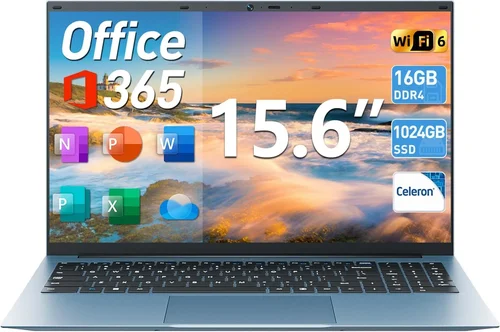
Why it’s bad: Buying a laptop with a SATA SSD instead of NVMe can result in significantly slower performance, even if other specs look good. You’ll notice longer boot times, sluggish app launches, and reduced responsiveness during multitasking.
What to do instead: Always verify the SSD interface in the technical specifications. Look for “PCIe NVMe” or “M.2 NVMe” explicitly stated. If the listing only says “SSD,” assume it’s SATA unless proven otherwise.
❌ Mistake: Choosing Insufficient Storage Capacity
Why it’s bad: A 256GB SSD fills up quickly on modern operating systems. You’ll constantly juggle files, uninstall apps, and rely on external drives—defeating the purpose of fast internal storage.
What to do instead: Start with at least 512GB, but aim for 1TB if your budget allows. Consider your usage: photo libraries, game installations, and video projects consume space rapidly. Future-proof by selecting a model with upgradeable storage.
❌ Mistake: Overlooking RAM Limitations
Why it’s bad: Even with a fast SSD, insufficient RAM causes the system to use SSD space as virtual memory (“page file”), which slows everything down and wears out the drive faster.
What to do instead: Pair your SSD with adequate RAM—16GB minimum for most users, 32GB for professionals. Check if RAM is soldered; if so, choose your configuration wisely at purchase.
❌ Mistake: Prioritizing Thinness Over Practicality
Why it’s bad: Ultra-thin laptops often sacrifice ports, cooling, upgradability, and battery life. They may also use lower-power CPUs that throttle under load.
What to do instead: Balance portability with functionality. A slightly thicker laptop with better thermals, more ports, and user-replaceable components often provides better long-term value.
❌ Mistake: Skipping Real-World Reviews
Why it’s bad: Marketing materials highlight peak performance, not real-world usage. Some laptops overheat, have poor speakers, or suffer from driver issues not mentioned in specs.
What to do instead: Read detailed reviews from trusted sources (e.g., Notebookcheck, The Verge, Wirecutter). Watch video unboxings and thermal tests. Check user forums for recurring complaints.
❌ Mistake: Neglecting Warranty and Support
Why it’s bad: A laptop is a significant investment. Without proper warranty coverage, repairs can cost hundreds—especially for soldered components or display issues.
What to do instead: Choose brands with strong customer support and at least a 1-year warranty. Consider extended plans for high-end models. Business users should look for onsite service options.
❌ Mistake: Buying Based Solely on Price
Why it’s bad: The cheapest laptop often cuts corners on build quality, display, SSD speed, and longevity. You may end up replacing it sooner, costing more in the long run.
What to do instead: Focus on total cost of ownership. A mid-range laptop with a quality SSD, good build, and upgradeability often outperforms a budget model over 3–5 years.
Budget Guidelines: How Much Should You Spend?
Entry-Level ($400–$700): In this range, expect Chromebooks or basic Windows laptops with 256GB–512GB SATA or slow NVMe SSDs. Processors are typically Intel Core i3, AMD Ryzen 3, or MediaTek chips. Ideal for web browsing, streaming, and light document work. Battery life is decent, but build quality and display may be compromised. Best for students or secondary devices.
Mid-Range ($700–$1,300): This is the sweet spot for most buyers. Laptops here feature 512GB–1TB NVMe SSDs, Intel Core i5/i7 or AMD Ryzen 5/7, 16GB RAM, and Full HD or QHD displays. Build quality improves significantly, with aluminum chassis and better keyboards. Perfect for professionals, creators, and power users who need reliability without premium pricing.
Premium ($1,300–$2,500): High-performance machines with 1TB–2TB NVMe Gen4/Gen5 SSDs, top-tier CPUs (Core i9, Ryzen 9), 32GB+ RAM, and high-refresh or OLED displays. Common in gaming, creator, and business laptops. Expect excellent thermals, premium materials, and advanced features like Thunderbolt 5, facial recognition, and stylus support.
Luxury ($2,500+): Reserved for enthusiasts and professionals. These laptops offer cutting-edge specs: 4TB+ SSDs, workstation GPUs, 4K mini-LED displays, and bespoke designs. Examples include the MacBook Pro 16-inch M4 Max, Dell XPS 17, or ASUS ROG Zephyrus Duo. Built for extreme workloads and longevity, with concierge-level support.
Expert Tips for Getting the Best Deal
- Time your purchase: Major sales occur during Black Friday, back-to-school (July–August), and Amazon Prime Day. New model releases (typically Q1 and Q3) also trigger discounts on previous generations.
- Compare retailers: Check manufacturer websites (Apple, Dell, Lenovo), Amazon, Best Buy, and B&H Photo. Some offer student discounts, military pricing, or bundle deals (free mouse, backpack, or software).
- Look for open-box or refurbished units: Certified refurbished laptops from reputable sellers often come with full warranties and save 15–30%. Apple Refurbished and Dell Outlet are excellent sources.
- Negotiate business pricing: If buying for work, contact sales reps directly. Many brands offer volume discounts, extended warranties, and custom configurations not available online.
- Check return policies: Ensure you have at least 14–30 days to test the laptop. Some retailers charge restocking fees, so read the fine print.
- Test before committing: If possible, visit a store to evaluate keyboard feel, screen quality, and port layout. Pay attention to fan noise and heat under load.
- Consider trade-in programs: Apple, Best Buy, and Gazelle offer credit for old devices, reducing your net cost.
- Monitor price tracking tools: Use CamelCamelCamel (for Amazon) or Honey to track price history and get alerts for drops.

Frequently Asked Questions
Q: Is an SSD really that much better than an HDD?
A: Absolutely. SSDs are 5–10x faster than HDDs in real-world tasks. Boot times drop from minutes to seconds, apps launch instantly, and file transfers complete in a fraction of the time. SSDs also have no moving parts, making them more durable and silent.
Q: Can I upgrade the SSD in my laptop later?
A: It depends on the model. Many ultrabooks and MacBooks use soldered SSDs, which cannot be upgraded. Gaming and business laptops often have accessible M.2 slots. Always check the service manual or teardown videos before buying.
Q: Do I need a 1TB SSD if I use cloud storage?
A: Not necessarily—but having local storage improves offline access, speeds up backups, and reduces reliance on internet connectivity. A 512GB SSD with cloud sync is a good compromise for light users.
Q: Are all NVMe SSDs the same speed?
A: No. NVMe Gen3, Gen4, and Gen5 offer progressively higher speeds. Gen4 is common in 2026 mid-to-high-end laptops, while Gen5 appears in premium models. Check benchmarks if speed is critical.
Q: Will a faster SSD improve gaming performance?
A: Yes, but primarily in load times and texture streaming. Games boot faster, levels load quicker, and open-world games stutter less. However, FPS (frames per second) is determined by the GPU, not the SSD.
Q: How long do SSDs last?
A: Modern SSDs are highly durable, with lifespans measured in terabytes written (TBW). A typical 1TB SSD can handle 600TB of writes—enough for 10+ years of normal use. Wear leveling and TRIM commands extend longevity.
Q: Should I buy a laptop with dual SSD slots?
A: Only if you need massive storage or plan to set up RAID 0 (for speed) or RAID 1 (for redundancy). For most users, a single large NVMe SSD is simpler and more cost-effective.
Q: Are external SSDs a good alternative?
A: They’re great for backups and portability but can’t replace internal storage for OS and apps. USB 3.2 or Thunderbolt external SSDs are fast but add clutter and depend on cable management.
Q: Do MacBooks use SSDs?
A: Yes—all MacBooks since 2013 have used proprietary SSDs (soldered on newer models). They’re among the fastest in the industry, especially Apple’s custom controllers in M-series chips.
Q: Can I clone my old HDD to a new SSD laptop?
A: Yes, using cloning software like Macrium Reflect (Windows) or Carbon Copy Cloner (macOS). Ensure the new SSD is equal or larger in capacity. Some manufacturers provide migration tools.
Our Final Recommendations
Best for Budget-Conscious Buyers: Lenovo IdeaPad Slim 5 (2026) – Offers a 512GB NVMe SSD, Ryzen 5 8645U, 16GB RAM, and a sleek aluminum design under $700. Excellent value for students and home users.
Best Overall Value: Dell XPS 13 Plus (2026) – Combines a 1TB Gen4 NVMe SSD, Intel Core i7-1460P, 16GB RAM, and a stunning QHD+ display in a premium chassis. Priced around $1,200, it’s ideal for professionals seeking balance.
Best Premium Option: Apple MacBook Pro 14-inch (M4, 2026) – Features a blazing-fast 2TB SSD, M4 Pro chip, 32GB unified memory, and a Liquid Retina XDR display. At $2,499, it’s the ultimate creative workstation.
Best for Beginners: HP Pavilion Aero 13 – Lightweight (2.2 lbs), 512GB NVMe SSD, Ryzen 5, and 10-hour battery life. Simple setup and intuitive Windows 11 make it perfect for first-time laptop buyers.
Best for Advanced Users: ASUS ROG Zephyrus G14 (2026) – Packed with a 2TB Gen5 NVMe SSD, Ryzen 9 9900HS, RTX 4070, and 32GB RAM. Ideal for gamers, developers, and engineers who demand top-tier performance in a portable form.
Conclusion: Making the Right Choice
Choosing the best laptop with SSD storage in 2026 doesn’t have to be overwhelming. By focusing on key factors like SSD type, capacity, CPU, RAM, build quality, and real-world performance, you can narrow down your options and find a machine that truly meets your needs. Remember: the fastest SSD won’t compensate for a weak processor or insufficient RAM, and the most beautiful display is useless if the battery dies in three hours.
Prioritize your workflow. Are you editing 4K video? A creator laptop with a color-accurate display and high-speed NVMe SSD is essential. Do you travel frequently? An ultrabook with long battery life and durable construction will serve you better than a bulky gaming rig. And always consider longevity—investing a little more upfront for upgradeability and quality components pays dividends over time.
Use this guide as your compass. Compare models, read independent reviews, test keyboards and screens in person when possible, and don’t rush the decision. Your laptop is more than a tool—it’s your gateway to productivity, creativity, and connection. Choose wisely, and you’ll enjoy years of smooth, reliable performance powered by the silent speed of solid-state storage.