
[FEATURED_IMAGE_PLACEOLDER]
The PlayStation 5 has revolutionized console gaming with its lightning-fast load times, immersive 3D audio, and cutting-edge graphics powered by a custom SSD. But even the built-in 825GB storage can fill up quickly—especially when modern games like Call of Duty: Modern Warfare III or Horizon Forbidden West easily exceed 100GB each. That’s why expanding your PS5’s internal storage with a compatible M.2 NVMe SSD is no longer just an option—it’s a necessity for serious gamers in 2026.
This comprehensive buying guide is designed to cut through the noise and help you make the smartest, most informed decision when upgrading your PS5’s storage. Whether you’re a casual player looking to store a few extra titles or a hardcore enthusiast building a library of next-gen exclusives, we’ve got you covered. You’ll learn exactly what specs matter, which brands deliver real-world performance, how to avoid common pitfalls, and how to get the best value for your money—without compromising on speed, reliability, or future-proofing.
The market for PS5-compatible SSDs has matured significantly since Sony first opened the door to user-upgradeable storage in late 2021. Today, dozens of manufacturers offer M.2 drives that meet or exceed Sony’s strict requirements, but not all are created equal. Some prioritize raw speed, others focus on thermal management, and a few cut corners on endurance or compatibility. Our goal is to arm you with expert-level knowledge so you can confidently choose an SSD that enhances your gaming experience—not one that causes headaches down the line.

What to Look for When Buying Buying Guide
1. Sequential Read Speed (Minimum 5,500 MB/s)
The single most critical specification for any PS5-compatible SSD is its sequential read speed. Sony mandates a minimum of 5,500 MB/s to ensure games load as quickly as they do on the internal drive. Anything below this threshold will either fail to install or severely bottleneck performance, resulting in longer load screens and stuttering textures.
When evaluating drives, look for models that advertise speeds of 5,500 MB/s or higher—ideally in the 6,000–7,500 MB/s range. While write speeds matter less for gaming, they’re still worth noting if you plan to capture gameplay footage or transfer large files frequently. Real-world testing by outlets like Digital Foundry and Gamers Nexus confirms that drives hitting 6,500+ MB/s often deliver marginally faster load times in titles like Ratchet & Clank: Rift Apart, though the difference is usually under two seconds. Still, why settle for minimum compliance when you can future-proof?
2. Form Factor & Physical Compatibility (M.2 2280)
Not all M.2 SSDs fit inside the PS5. Sony requires a specific form factor: M.2 2280, meaning the drive is 22mm wide and 80mm long. Attempting to install a shorter (like 2260) or longer (22110) drive will physically prevent the cover from closing or damage the slot.
Additionally, the PS5 has strict height limitations due to the heatsink cover. The total thickness—including any attached heatsink—must be under 11.25mm, and the width of the heatsink must not exceed 25mm. Many high-performance drives come with bulky heatsinks that violate these limits, so always verify dimensions before purchasing. If you’re unsure, opt for a bare drive and add a slim third-party heatsink later.
3. Thermal Management & Heatsink Requirements
High-speed NVMe SSDs generate significant heat, especially during extended gaming sessions. Without proper cooling, thermal throttling can reduce performance by 30% or more, negating the benefits of a fast drive. The PS5’s internal airflow helps, but it’s not enough for sustained workloads.
That’s why nearly every recommended PS5 SSD includes an integrated heatsink—or at least supports one. Look for aluminum or copper heatsinks with finned designs that maximize surface area. Avoid plastic or rubber-based coolers; they offer minimal thermal benefit. If your chosen drive doesn’t include a heatsink, consider adding a low-profile model like the Sabrent Rocket Heatsink or Thermalright HR-10, both proven to keep drives under 70°C even during marathon sessions.
4. NAND Type & Endurance (TLC vs. QLC)
The type of NAND flash memory used in an SSD directly impacts its longevity, performance consistency, and price. Triple-Level Cell (TLC) NAND stores three bits per cell and offers the best balance of speed, endurance, and cost—making it the gold standard for gaming SSDs. Quad-Level Cell (QLC) NAND stores four bits per cell, which increases capacity and reduces cost but sacrifices write speed and durability.
For PS5 use, where reads dominate but occasional writes occur (game installs, updates, saves), TLC is strongly preferred. QLC drives may struggle with sustained writes and have lower TBW (Terabytes Written) ratings—often half that of comparable TLC models. While QLC might seem tempting for budget builds, it’s a false economy: you’ll likely need to replace it sooner, costing more in the long run.
5. DRAM Cache & Controller Quality
A DRAM cache acts as a high-speed buffer between the SSD controller and NAND flash, dramatically improving random read/write performance and system responsiveness. Drives without DRAM (often labeled “DRAM-less”) rely on slower HMB (Host Memory Buffer) technology, which borrows system RAM—a workaround that works for light tasks but falters under gaming loads.
Always choose an SSD with a dedicated DRAM chip. Paired with a modern controller (like Phison E18, Silicon Motion SM2264, or Samsung’s in-house designs), DRAM ensures consistent performance even when the drive is nearly full. This is crucial for PS5 games that constantly stream assets from storage during gameplay.
6. Brand Reputation & Firmware Support
Not all SSD manufacturers are equally reliable. Established brands like Samsung, WD Black, Crucial, and Sabrent have proven track records of delivering stable firmware, consistent performance, and responsive customer support. Lesser-known brands may offer attractive prices but often lack rigorous testing, leading to compatibility issues or premature failures.
Firmware updates are another differentiator. Top-tier brands regularly release updates to fix bugs, improve compatibility, and optimize performance—especially important as new PS5 system updates roll out. Check forums like Reddit’s r/PS5 or Sony’s official support pages to see if a brand has a history of bricking drives or ignoring user complaints.
7. Warranty & TBW Rating
SSD warranties typically range from 3 to 5 years and are tied to the drive’s TBW (Total Bytes Written) rating—a measure of endurance. For example, a 1TB drive with a 600 TBW rating can theoretically write 600 terabytes over its lifetime before hitting its limit. While most gamers won’t reach this threshold, higher TBW indicates better build quality and longer expected lifespan.
Look for drives with at least a 5-year warranty and a TBW of 600+ for 1TB models (or 1,200+ for 2TB). Samsung and WD Black often lead in this category, while budget brands may offer only 3 years and lower TBW. Remember: warranty claims can be tedious, so choosing a reputable brand reduces the risk of hassle if something goes wrong.
8. Price per Gigabyte & Value Proposition
While raw specs matter, so does value. As of 2026, expect to pay between $0.08 and $0.15 per gigabyte for a quality PS5-compatible SSD. A 1TB drive should cost $80–$150, while 2TB models range from $150–$280. Prices fluctuate based on NAND supply, demand, and seasonal sales.
Avoid drives priced significantly below market average—they often use inferior components or outdated controllers. Conversely, don’t overpay for marginal gains. A drive rated at 7,400 MB/s won’t feel noticeably faster than one at 6,600 MB/s in actual gameplay. Focus on the sweet spot: reliable performance, robust cooling, and fair pricing.
Different Types of Buying Guide
Common Buying Mistakes to Avoid
❌ Mistake: Ignoring Heatsink Compatibility
Why it’s bad: Installing a drive with an oversized heatsink can crack the PS5’s expansion slot cover or prevent it from sealing properly, potentially voiding your warranty and risking dust ingress.
What to do instead: Measure your chosen drive’s total height (including heatsink) and confirm it’s under 11.25mm. When in doubt, buy a bare drive and attach a verified slim heatsink.
❌ Mistake: Choosing QLC for Primary Storage
Why it’s bad: QLC drives suffer from slow write speeds and reduced lifespan under frequent writes. Game updates and installations can cause significant slowdowns or premature failure.
What to do instead: Stick with TLC NAND for any drive you plan to use regularly. Reserve QLC for archival storage or backup purposes only.
❌ Mistake: Overpaying for Marginal Speed Gains
Why it’s bad: A drive rated at 7,400 MB/s costs 20–30% more than one at 6,600 MB/s but delivers imperceptible gains in real-world gaming.
What to do instead: Target the 6,000–6,800 MB/s range—it’s the性价比 sweet spot where performance meets value.
❌ Mistake: Skipping Firmware Updates
Why it’s bad: Outdated firmware can cause compatibility issues with new PS5 system updates or lead to instability.
What to do instead: After installation, check the manufacturer’s website for firmware tools and apply updates before loading games.
❌ Mistake: Buying Based Solely on Price
Why it’s bad: Ultra-cheap drives often use recycled NAND, lack DRAM, or have poor controllers—leading to crashes, corrupted saves, or total failure.
What to do instead: Prioritize reputable brands and verified user reviews over the lowest sticker price.
❌ Mistake: Forgetting to Backup Before Installation
Why it’s bad: While SSD installation doesn’t erase internal data, mistakes during the process can corrupt the system.
What to do instead: Always back up your PS5 data to the cloud or an external drive before opening the expansion slot.
❌ Mistake: Assuming All “PS5 Compatible” Labels Are Equal
Why it’s bad: Some retailers slap “PS5 Ready” on any fast SSD, even if it lacks proper cooling or uses unstable firmware.
What to do instead: Cross-reference the model number with Sony’s official compatibility list and trusted review sites.
Budget Guidelines: How Much Should You Spend?
Entry-Level ($70–$100 for 1TB): Ideal for casual gamers who want to expand storage without breaking the bank. Expect drives like the Crucial P5 Plus or WD Black SN770—both offer 5,000–5,300 MB/s speeds, TLC NAND, and basic heatsinks. Perfect if you mainly play single-player titles and don’t mind slightly longer loads.
Mid-Range ($100–$160 for 1TB): The sweet spot for most users. Models like the Samsung 980 Pro (with updated firmware), Sabrent Rocket 4 Plus, and Kingston Fury Renegade deliver 6,500–7,000 MB/s, robust heatsinks, and 5-year warranties. These drives balance speed, reliability, and value—making them ideal for mixed libraries of AAA and indie games.
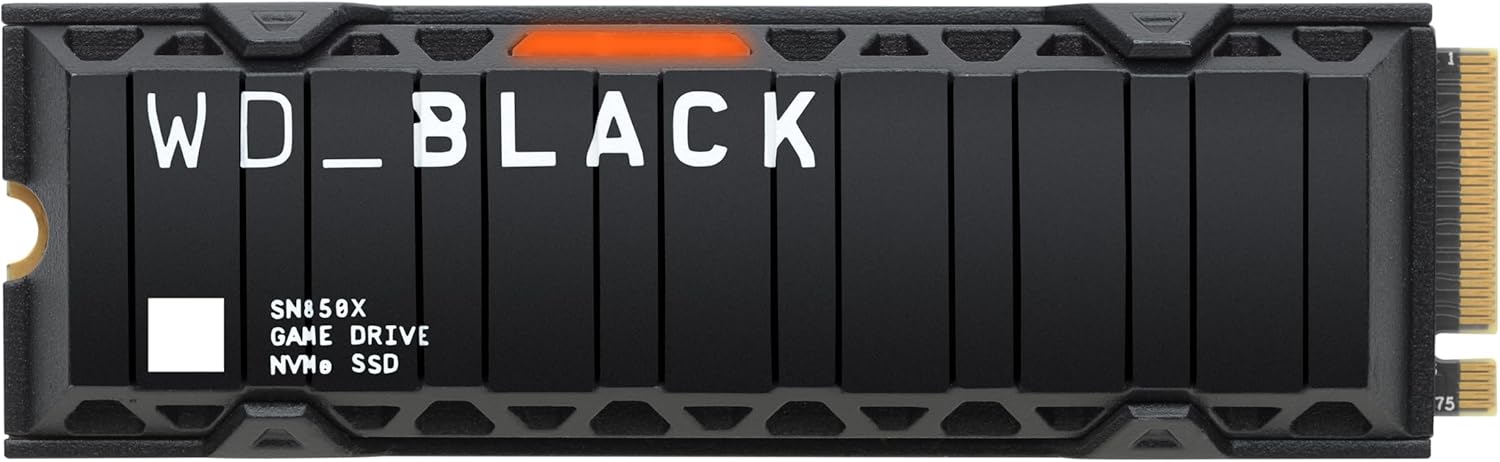
Premium ($160–$220 for 1TB): For enthusiasts who demand the best. The Samsung 990 Pro, WD Black SN850X, and Corsair MP700 Pro feature top-tier controllers, advanced thermal solutions, and endurance ratings exceeding 1,200 TBW. These are overkill for pure gaming but excel if you also use your PS5 for streaming, recording, or development.
Luxury ($220+ for 1TB): Reserved for professionals or collectors. Drives like the Seagate FireCuda 530 or Gigabyte Aorus Gen4 7000 offer cutting-edge specs and premium materials—but the real-world benefit over mid-range options is negligible for gaming alone. Only consider if you need maximum future-proofing or are building a showcase rig.
Expert Tips for Getting the Best Deal
1. Time Your Purchase Around Major Sales: Black Friday, Prime Day, and back-to-school seasons consistently offer 20–35% discounts on SSDs. Sign up for price alerts on CamelCamelCamel (for Amazon) or Honey to catch flash deals.
2. Buy Direct from Reputable Retailers: Stick with Amazon (sold by Amazon, not third parties), Best Buy, Newegg, or B&H Photo. Avoid unknown eBay sellers or gray-market imports that may sell refurbished drives as new.
3. Bundle with Accessories: Some retailers offer SSD + heatsink + screwdriver kits at a slight discount. Even if you don’t need everything, the bundled price is often better than buying separately.
4. Check Return Policies: Ensure the seller allows returns within 30 days—even if unopened. This gives you peace of mind if the drive arrives damaged or incompatible.
5. Test Immediately After Installation: Once installed, run a few large games and monitor load times. If performance seems off, check for thermal throttling using tools like HWInfo (on PC) or observe system behavior during gameplay.
6. Register Your Warranty: Most manufacturers require online registration within 30 days of purchase. Do this immediately to avoid claim denials later.
7. Consider Capacity Needs Realistically: A 1TB drive holds about 8–10 modern AAA games. If you play multiple titles simultaneously, start with 2TB—it’s only 50–70% more expensive than 1TB and saves future upgrade hassle.
8. Don’t Forget the Screw: The PS5 includes a tiny M.2 mounting screw, but it’s easy to lose. Keep it in a labeled bag or magnetic tray during installation.

Frequently Asked Questions
Q: Can I use any M.2 SSD in my PS5?
A: No. Only M.2 2280 NVMe PCIe Gen4 SSDs with sequential read speeds of at least 5,500 MB/s are supported. SATA M.2 drives or PCIe Gen3 SSDs will not work.
Q: Do I need to format the SSD before installing it?
A: No. The PS5 automatically formats the drive during the initial setup process. Just insert it and follow the on-screen prompts.
Q: Will adding an SSD void my PS5 warranty?
A: No. Sony explicitly permits user-installed M.2 SSDs and does not consider this a warranty-voiding modification—as long as you follow their installation guidelines.
Q: Can I move games between internal and expanded storage?
A: Yes. You can transfer games back and forth via the Settings > Storage menu. However, PS5 games must be played from internal or expanded storage—they cannot run from external USB drives.
Q: What happens if my SSD fails?
A: You’ll lose access to games stored on that drive, but your internal storage and saved data remain intact. Always keep critical saves synced to PlayStation Plus cloud storage.
Q: Are there SSDs specifically made for PS5?
A: Not officially, but many brands market “PS5 Edition” models with pre-attached heatsinks designed to fit perfectly. These are convenient but often cost more than buying components separately.
Q: How do I know if my SSD is overheating?
A: Signs include sudden slowdowns, game crashes, or the PS5 displaying a “storage device error” message. Properly cooled drives should stay below 70°C under load.
Q: Can I install more than one SSD?
A: No. The PS5 has only one M.2 expansion slot. Choose a drive with enough capacity for your needs.
Q: Will a faster SSD improve frame rates?
A: No. SSDs affect load times and asset streaming, not GPU or CPU performance. Frame rates remain unchanged regardless of storage speed.
Q: Is it safe to buy used SSDs for PS5?
A: Generally not recommended. Used drives may have high write counts, degraded NAND, or hidden defects. The risk outweighs the savings.
Our Final Recommendations
Best for Budget-Conscious Buyers: Crucial P5 Plus 1TB – Reliable TLC NAND, 5,000 MB/s read, and a slim profile make this an excellent entry point. Often available under $85.
Best Overall Value: Samsung 980 Pro (with Heatsink) 1TB – Consistently tops performance charts, includes a PS5-compatible heatsink, and boasts a 5-year warranty. A proven workhorse.
Best Premium Option: WD Black SN850X 2TB – Blazing 7,300 MB/s speeds, exceptional thermal design, and 1,200 TBW endurance. Ideal for power users with large game libraries.
Best for Beginners: Sabrent Rocket 4 Plus 1TB (Heatsink Edition) – Comes with a perfectly sized heatsink, easy installation, and strong real-world performance. Great first upgrade.
Best for Advanced Users: Corsair MP700 Pro 2TB – Features a dual-sided heatsink, Phison E26 controller, and PCIe Gen4 x4 speeds. Built for those who want maximum headroom and future-proofing.
Conclusion: Making the Right Choice
Upgrading your PS5’s storage isn’t just about adding space—it’s about preserving the console’s revolutionary speed and ensuring seamless access to your growing game library. By focusing on sequential read speed, physical compatibility, thermal management, and brand reliability, you can avoid costly mistakes and invest in a drive that enhances your experience for years to come.
Remember, the “best” SSD isn’t always the fastest or most expensive—it’s the one that aligns with your budget, usage habits, and long-term goals. Whether you’re stretching dollars or splurging on top-tier performance, the principles outlined in this guide will steer you toward a smart, satisfying purchase.
Don’t let storage limitations hold back your gaming. With the right SSD, your PS5 will feel as fresh and responsive on day 1,000 as it did on day one. Take the time to research, compare, and choose wisely—your future self (and your game saves) will thank you.