
If you’ve ever watched your laptop crawl through boot-up, waited endlessly for apps to launch, or felt frustrated when transferring large files, you already know how much storage performance impacts daily computing. In 2026, the internal SSD market has evolved far beyond basic speed improvements—it’s now a critical component that defines your entire user experience. Whether you’re a student juggling assignments, a creative professional editing 4K video, or a gamer loading massive open-world titles, upgrading to the right internal SSD can transform your laptop from sluggish to snappy in minutes.
This comprehensive buying guide is designed to cut through the noise and help you make an informed decision. We’ll walk you through every essential factor—from form factor compatibility and performance benchmarks to real-world durability and brand reliability. You’ll learn how to match your specific needs with the right technology, avoid costly mistakes, and get the best value for your budget. By the end, you won’t just know which SSD to buy—you’ll understand why it’s the best fit for your laptop and workflow.
The internal SSD landscape in 2026 is more diverse than ever. With PCIe Gen5 drives pushing speeds beyond 10,000 MB/s, QLC NAND offering high capacities at lower prices, and OEMs like Samsung, WD, Crucial, and Kingston refining their designs, there’s never been a better time to upgrade. However, this abundance of choice also brings complexity. Not all SSDs are created equal, and picking the wrong one could lead to compatibility issues, premature failure, or wasted money. This guide demystifies the process, equipping you with expert insights, practical comparisons, and actionable advice to confidently select the best internal SSD for your laptop.

What to Look for When Buying Buying Guide
1. Form Factor & Compatibility
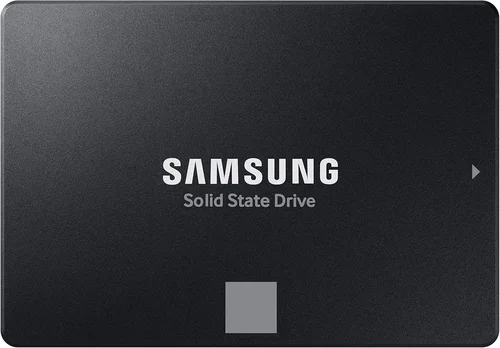
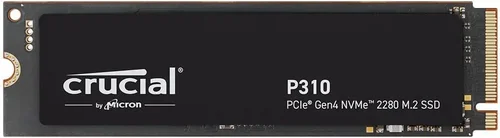
The first and most crucial step in choosing an internal SSD is ensuring it physically fits your laptop. Most modern laptops use the M.2 form factor—a small, stick-like drive that slots directly onto the motherboard—but not all M.2 SSDs are interchangeable. There are three key dimensions to check: length (commonly 2280, meaning 22mm wide and 80mm long), interface (SATA vs. NVMe), and keying (the notch position on the connector).
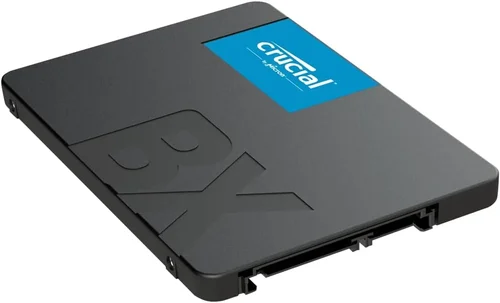
For example, many ultrabooks only support M.2 2280 NVMe drives, while older or budget models might still rely on 2.5-inch SATA SSDs that require a drive bay and power cable. Always consult your laptop’s manual or manufacturer’s website before purchasing. A mismatch here means the drive simply won’t work—no amount of speed or capacity will save you.
2. Interface & Protocol: SATA vs. NVMe
Understanding the difference between SATA and NVMe is essential. SATA SSDs use the older AHCI protocol and max out at around 550 MB/s—fine for basic tasks but increasingly outdated. NVMe (Non-Volatile Memory Express) SSDs, on the other hand, connect via PCIe lanes and deliver dramatically faster speeds by bypassing the SATA bottleneck.
In 2026, PCIe Gen4 is the mainstream standard for most high-performance laptops, offering sequential read/write speeds up to 7,000 MB/s. PCIe Gen5 drives are emerging, doubling that bandwidth, but they’re currently overkill for most users and often require advanced cooling due to heat output. Unless you’re working with 8K video, scientific datasets, or enterprise-level workloads, Gen4 NVMe strikes the perfect balance of speed, availability, and price.
3. Performance Specifications
Raw speed numbers—like sequential read/write speeds—are often highlighted in marketing, but real-world performance depends on more nuanced specs. Look beyond peak benchmarks and consider random read/write performance (measured in IOPS), which affects how quickly your system handles small files, multitasking, and OS operations.
For everyday users, a drive with 3,500–5,000 MB/s read speeds and strong random 4K performance (50,000+ IOPS) will feel noticeably snappier than a slower SATA drive. Gamers and content creators should prioritize drives with sustained write speeds and low latency, especially if working with large project files. Also, pay attention to DRAM cache: SSDs with dedicated DRAM buffers maintain consistent performance under load, while DRAM-less models may slow down during prolonged transfers.
4. Storage Capacity Needs
Capacity isn’t just about how many movies or photos you can store—it directly impacts performance and longevity. SSDs perform best when they have free space for wear leveling and garbage collection. As a rule of thumb, never fill an SSD beyond 75–80% of its rated capacity.
For most laptop users, 500GB–1TB is the sweet spot. It provides ample room for the OS, applications, and personal files without breaking the bank. Students and casual users might get by with 256GB, but be prepared to manage storage aggressively. Professionals handling video, 3D models, or virtual machines should consider 2TB or higher. Remember: larger capacities often come with better endurance ratings (TBW—terabytes written), making them more reliable over time.
5. NAND Flash Type: TLC vs. QLC
The type of NAND flash memory used in an SSD affects speed, endurance, and cost. Triple-Level Cell (TLC) NAND stores three bits per cell and remains the gold standard for performance and durability. Quad-Level Cell (QLC) NAND stores four bits per cell, enabling higher capacities at lower prices but with reduced write speeds and lifespan.
In 2026, QLC drives have improved significantly thanks to better controllers and SLC caching, making them viable for light to moderate workloads. However, if you frequently write large amounts of data—like video editors or database users—stick with TLC. Many premium SSDs now use 3D TLC NAND with advanced error correction, offering the best blend of speed, reliability, and value.
6. Endurance & TBW Rating
SSD endurance is measured in Terabytes Written (TBW)—the total amount of data that can be written to the drive over its lifetime. A higher TBW means greater longevity. For example, a 1TB Samsung 980 Pro has a TBW of 600, while a similarly sized Crucial P5 Plus offers 600–700 TBW depending on the model.
While most consumers will never reach these limits, TBW matters for professionals and power users. A drive with low endurance may fail prematurely under heavy workloads. Always check the manufacturer’s specifications and warranty terms—many brands guarantee the drive for a certain TBW or number of years, whichever comes first.
7. Brand Reputation & Reliability
Not all SSD brands are equal. Established manufacturers like Samsung, Western Digital, Crucial (Micron), Kingston, and SK Hynix have proven track records for quality control, firmware updates, and customer support. Lesser-known brands may offer tempting prices but often cut corners on components or lack long-term reliability data.
Look for brands that provide robust software suites (e.g., Samsung Magician, WD Dashboard) for monitoring health, updating firmware, and optimizing performance. Community forums and third-party reviews (like those from Tom’s Hardware or AnandTech) can also reveal real-world failure rates and user experiences.
8. Warranty & Support
A solid warranty is a strong indicator of a manufacturer’s confidence in their product. Most reputable SSDs come with 3–5 years of coverage, often tied to TBW limits. For instance, the Samsung 990 Pro includes a 5-year limited warranty or 1,200 TBW (for the 2TB model), whichever comes first.
Check what the warranty covers: some exclude accidental damage or require registration. Also, verify whether the brand offers cross-region support if you travel internationally. Good customer service can save you hours of frustration if issues arise.
Different Types of Buying Guide

Common Buying Mistakes to Avoid
❌ Mistake: Ignoring Laptop Compatibility
Why it’s bad: Buying a Gen5 NVMe drive for a laptop that only supports SATA will result in a paperweight. Even within NVMe, some laptops don’t support newer generations or specific key types.
What to do instead: Always verify your laptop’s SSD specifications using the manual, manufacturer support page, or diagnostic tools before purchasing.
❌ Mistake: Prioritizing Peak Speed Over Real-World Performance
Why it’s bad: A drive advertising 7,000 MB/s reads may slow dramatically during sustained writes if it lacks a good controller or DRAM cache. You’ll notice stutters during large file transfers or video renders.
What to do instead: Look for reviews that test real-world scenarios—not just synthetic benchmarks. Focus on mixed workloads and sustained performance.
❌ Mistake: Choosing the Cheapest Drive Available
Why it’s bad: Ultra-budget SSDs often use inferior NAND, lack DRAM, and have minimal endurance. They may fail within a year under moderate use, risking data loss.
What to do instead: Spend a little more for a reputable brand with proven reliability. The extra $20 could save you hundreds in data recovery.
❌ Mistake: Overlooking Thermal Throttling
Why it’s bad: High-speed NVMe drives generate heat. In thin laptops with poor airflow, this can cause thermal throttling—slowing the drive to prevent damage—which negates performance gains.
What to do instead: Check if your laptop has a heatsink or thermal pad for the SSD. If not, consider drives with built-in thermal management or add a small aftermarket heatsink if space allows.
❌ Mistake: Neglecting Backup Before Installation
Why it’s bad: Installing a new SSD often involves cloning your old drive or reinstalling the OS. Without a backup, you risk losing important files.
What to do instead: Always back up your data to an external drive or cloud service before starting the upgrade process.
❌ Mistake: Assuming All 1TB Drives Are Equal
Why it’s bad: A 1TB QLC drive may have half the endurance and slower write speeds than a 1TB TLC drive, even if they cost the same.
What to do instead: Compare specs side-by-side—not just capacity. Look at NAND type, TBW, and controller quality.
❌ Mistake: Skipping Firmware Updates
Why it’s bad: Outdated firmware can cause instability, reduced performance, or compatibility issues with newer operating systems.
What to do instead: After installation, use the manufacturer’s utility (e.g., Samsung Magician) to check for and install firmware updates.
Budget Guidelines: How Much Should You Spend?
Your budget should align with your usage needs—not just what’s cheapest or fastest. Here’s a realistic breakdown for 2026:
Entry-Level ($30–$60 for 1TB): Ideal for students or casual users upgrading from HDDs. Look for DRAM-less QLC NVMe drives like the Kingston NV2 or Crucial P3. Expect decent boot times and app loading but slower sustained writes. Avoid for heavy workloads.
Mid-Range ($60–$120 for 1TB): The sweet spot for most users. Drives like the WD Black SN770, Samsung 980 (non-Pro), or Crucial P5 Plus offer excellent TLC NAND, strong random performance, and reliable endurance. Perfect for gaming, office work, and light creative tasks.
Premium ($120–$200 for 1TB): For professionals and enthusiasts. Models such as the Samsung 990 Pro, WD Black SN850X, or Sabrent Rocket 4 Plus deliver top-tier Gen4 speeds, robust thermal management, and high TBW ratings. Ideal for video editing, 3D rendering, and competitive gaming.
Luxury ($200+ for 1TB): Reserved for Gen5 drives like the Gigabyte AORUS Gen5 10000 or Corsair MP700 PRO. These offer bleeding-edge speeds but require compatible hardware and active cooling. Only justified for extreme workloads or future-proofing high-end systems.
Expert Tips for Getting the Best Deal
- Buy during seasonal sales: Major retailers offer 20–40% discounts on SSDs during holiday periods. Q4 (October–December) is especially lucrative.
- Check refurbished or open-box options: Certified refurbished drives from Amazon Renewed or Best Buy often come with full warranties at 15–30% off.
- Compare total cost of ownership: A slightly more expensive drive with better endurance may save money long-term by avoiding premature replacement.
- Use manufacturer trade-in programs: Some brands (like Samsung) offer discounts when you recycle old drives.
- Verify return policies: Ensure the seller allows returns if the drive is incompatible or defective. Amazon and Newegg typically offer 30-day windows.
- Test before finalizing: After installation, run benchmarks (CrystalDiskMark, AS SSD) and monitor temperatures (HWInfo) to confirm performance matches expectations.
- Register your warranty: Many manufacturers require online registration to activate full coverage. Don’t skip this step!
- Consider capacity scalability: If your laptop has two M.2 slots, buy a smaller high-performance drive now and add a second later for bulk storage.

Frequently Asked Questions
Q: Can I upgrade my laptop’s SSD myself?
A: Yes, in most cases—but check your laptop model first. Many ultrabooks and MacBooks have soldered storage, making upgrades impossible. For user-replaceable models, you’ll need a Phillips screwdriver and possibly a cloning tool. Always ground yourself to avoid static damage.
Q: Will a faster SSD improve gaming performance?
A: It depends. Faster load times and reduced texture pop-in are noticeable in open-world games (e.g., Cyberpunk 2077, Elden Ring). However, FPS (frames per second) is primarily determined by your GPU and CPU. An NVMe SSD enhances the experience but won’t boost raw graphics performance.
Q: Do I need a heatsink for my M.2 SSD?
A: Not always. Most laptops have minimal clearance, so aftermarket heatsinks may not fit. If your drive consistently hits 70°C+ under load, consider a low-profile thermal pad or a model with integrated heat spreader (like the WD Black SN850X).
Q: How long do laptop SSDs last?
A: Under normal use, a quality SSD should last 5–10 years. Modern drives have wear-leveling algorithms and high TBW ratings. Unless you’re writing terabytes daily, failure is more likely due to physical damage than wear.
Q: Can I use an external SSD instead of upgrading internally?
A: Yes, but with trade-offs. External USB 3.2 Gen 2×2 SSDs can reach 2,000 MB/s—faster than SATA—but still lag behind internal NVMe. They’re great for backups or portable storage but not ideal as a primary OS drive due to latency and connection reliability.
Q: What’s the difference between OEM and retail SSDs?
A: OEM (Original Equipment Manufacturer) drives are sold in bulk to system builders and often lack retail packaging or software. They’re usually identical in specs but may have shorter warranties. Retail versions include full support and accessories—worth the slight premium for most users.
Q: Should I enable TRIM on my SSD?
A: Absolutely. TRIM helps maintain performance by telling the SSD which blocks of data are no longer in use. Windows, macOS, and Linux enable it by default, but you can verify with commands like fsutil behavior query DisableDeleteNotify (Windows) or sudo fstrim -v / (Linux).
Q: Are there SSDs specifically designed for laptops?
A: Not exactly—but many manufacturers optimize drives for mobile use. These prioritize low power consumption, compact designs, and thermal efficiency. Look for models labeled “mobile-optimized” or check power draw specs (measured in watts during active use).
Q: Can I clone my old HDD to a new SSD?
A: Yes, and it’s often the easiest way to migrate your OS and files. Use tools like Macrium Reflect (Windows), Carbon Copy Cloner (macOS), or Clonezilla (cross-platform). Ensure the SSD is equal or larger in capacity than the used space on your HDD.
Q: What happens if my SSD fails?
A: Unlike HDDs, SSDs don’t make noise when failing—they often just stop working. That’s why regular backups are critical. If under warranty, contact the manufacturer for replacement. Data recovery is possible but expensive and not guaranteed.
Our Final Recommendations
Best for Budget-Conscious Buyers: Crucial P3 1TB – Offers reliable QLC NVMe performance at under $60. Great for basic upgrades and everyday tasks.
Best Overall Value: WD Black SN770 1TB – Combines TLC NAND, strong Gen4 speeds (5,150 MB/s), and excellent endurance at a mid-range price. Ideal for gamers and general users.
Best Premium Option: Samsung 990 Pro 2TB – Top-tier performance (7,450 MB/s), 1,200 TBW endurance, and Samsung’s legendary reliability. Perfect for creators and power users.
Best for Beginners: Kingston NV2 1TB – Simple, affordable, and compatible with most systems. Includes Kingston’s SSD Manager for easy monitoring.
Best for Advanced Users: Sabrent Rocket 4 Plus-G 2TB – High-end Gen4 drive with customizable heatsink options, excellent sustained writes, and robust firmware. Built for demanding workloads.
Conclusion: Making the Right Choice
Choosing the best internal SSD for your laptop isn’t just about chasing the highest speed or largest capacity—it’s about finding the right balance of compatibility, performance, reliability, and value for your specific needs. In 2026, the market offers incredible options across every budget, but success comes from doing your homework. Always verify compatibility first, prioritize TLC NAND and DRAM for longevity, and don’t overlook real-world performance over marketing specs.
Whether you’re breathing new life into an aging machine or maximizing a high-end workstation, the right SSD upgrade can deliver transformative results. Take the time to assess your usage patterns, compare models thoughtfully, and invest in a drive from a trusted brand. With the insights from this guide, you’re now equipped to make a confident, informed decision that will keep your laptop running smoothly for years to come.
Ready to upgrade? Start by checking your laptop’s specs, set a realistic budget, and pick one of our recommended drives. Your faster, more responsive laptop is just an SSD away.