
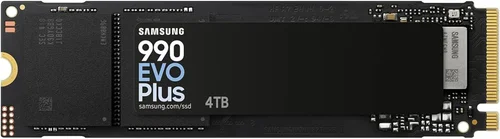
Upgrading your PlayStation 4 with a high-capacity internal SSD is one of the smartest moves you can make to breathe new life into your console. While the PS4 originally shipped with slow mechanical hard drives—often limiting load times, system responsiveness, and overall gaming performance—a modern 4TB internal SSD transforms the experience. Games load faster, menus feel snappier, and multitasking between apps becomes seamless. But with so many SSDs on the market, choosing the right one can be overwhelming. That’s exactly why this guide exists.
In this comprehensive buying guide, we’ll walk you through everything you need to know to pick the best 4TB internal SSD for your PS4. Whether you’re a casual gamer looking to reduce load times or a power user who wants maximum storage for your growing library, we’ve got you covered. You’ll learn how to evaluate performance specs, understand compatibility requirements, avoid common pitfalls, and get the most value for your money. We’ll also break down real-world benchmarks, compare top models, and share expert tips to help you make a confident decision.
The market for PS4-compatible SSDs has evolved significantly in recent years. What was once a niche upgrade is now mainstream, thanks to falling SSD prices and growing awareness of their benefits. However, not all SSDs are created equal—especially when it comes to fitting inside the PS4’s slim drive bay and meeting the console’s specific interface limitations. This guide cuts through the noise, focusing exclusively on 4TB internal SSDs that are proven to work reliably with the PS4 (including the original model, PS4 Slim, and PS4 Pro). By the end, you’ll have a clear roadmap to the perfect SSD upgrade.

What to Look for When Buying Buying Guide
1. Compatibility with PS4 Hardware
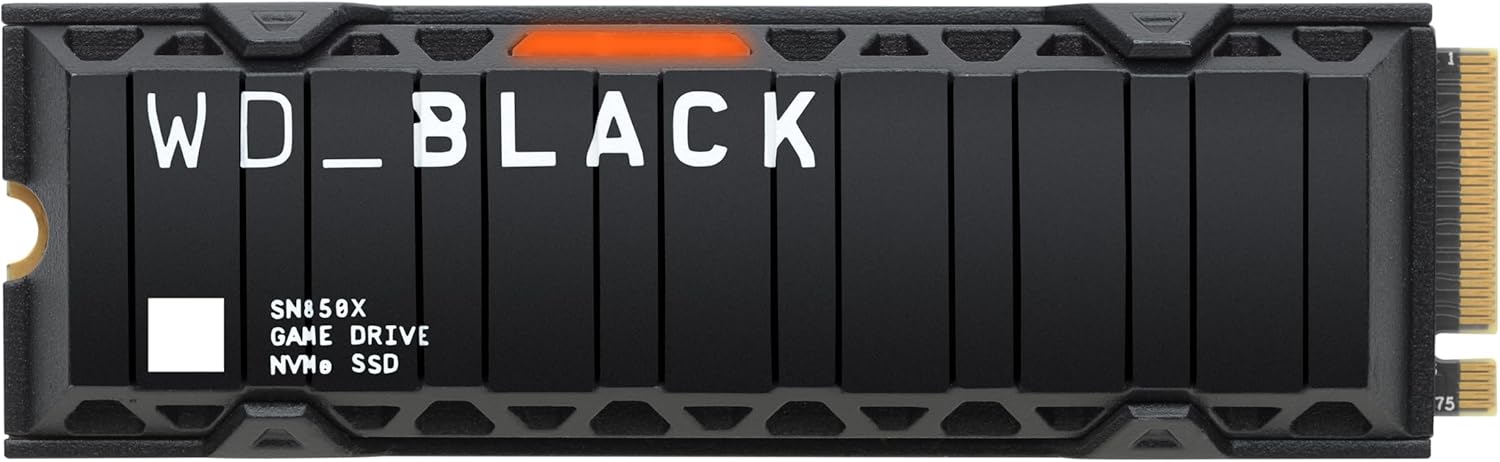
Before anything else, your SSD must physically and electronically work with your PS4. The console uses a 2.5-inch SATA III drive bay, which means you need a standard 2.5-inch form factor SSD—not an M.2 NVMe drive, which won’t fit or connect without additional hardware. Additionally, the PS4’s SATA interface caps data transfer speeds at around 600 MB/s, so even if you buy a blazing-fast SSD, it won’t exceed that limit. That said, any modern SATA III SSD will still offer a massive improvement over the stock HDD.
Another key compatibility factor is thickness. Most PS4 models support drives up to 9.5mm thick. While many SSDs are only 7mm, some high-capacity models come with heatsinks or thicker casings that may exceed this limit. Always check the drive’s specifications before purchasing. Also, ensure the SSD uses a standard SATA data and power connector—no proprietary or unusual interfaces.
2. Performance Specifications
While the PS4’s SATA III bottleneck limits peak performance, you should still aim for an SSD with strong sequential read/write speeds. Look for drives rated at 500–560 MB/s for reads and 450–530 MB/s for writes. These numbers represent the upper end of what SATA III can handle and ensure you’re getting the fastest possible performance within the console’s constraints.
Random read/write performance (measured in IOPS—input/output operations per second) is less critical for gaming but still relevant for system responsiveness. A drive with high IOPS will feel snappier when navigating the PS4’s UI or switching between games and apps. Most reputable SATA SSDs deliver over 80,000 IOPS, which is more than sufficient for PS4 use.
Avoid drives with unusually low endurance ratings (measured in TBW—terabytes written). While PS4 usage isn’t as write-intensive as a PC, a drive with at least 200–300 TBW ensures longevity. For a 4TB drive, this translates to years of reliable service under normal gaming conditions.
3. Build Quality & Durability
SSDs have no moving parts, making them inherently more durable than HDDs—especially important if you travel with your PS4 or move it frequently. However, build quality still varies. Look for SSDs from manufacturers known for reliability, such as Samsung, Crucial, Western Digital, or Kingston. These brands use high-quality NAND flash memory and robust controllers.
Pay attention to whether the SSD uses TLC (triple-level cell) or QLC (quad-level cell) NAND. TLC offers better endurance and performance, while QLC is cheaper but wears out faster under heavy writes. For PS4 gaming, QLC is generally acceptable since game installations and updates are infrequent compared to constant file transfers. Still, TLC remains the safer long-term choice.
Some SSDs include thermal throttling protection or basic heatsinks. While the PS4’s internal cooling is adequate for most drives, sustained high temperatures can reduce lifespan. A drive with built-in thermal management is a plus, though not essential.
4. Storage Capacity & Future-Proofing
A 4TB SSD gives you ample space for dozens of modern games. For context, AAA titles like Call of Duty: Modern Warfare or Red Dead Redemption 2 can take up 100–150GB each. With 4TB, you can easily store 25–30 large games plus system files, screenshots, and video captures without worrying about running out of space.
Consider future-proofing: game sizes continue to grow, and Sony may release larger system updates or backward-compatible content. A 4TB drive ensures you won’t need another upgrade for years. Avoid smaller capacities unless you’re on a tight budget—2TB fills up quickly, and 1TB is barely enough for a modest library.
Also, note that the PS4 formats drives to use about 93% of the advertised capacity. So a 4TB SSD will show roughly 3.72TB usable space—still plenty for most users.
5. Brand Reputation & Reliability
Stick with established brands. Samsung’s 870 QVO and 870 EVO, Crucial’s MX500, and Western Digital’s Blue 3D NAND are all proven performers in the PS4 space. These companies invest heavily in firmware optimization, quality control, and long-term support.
Avoid no-name or ultra-budget brands that cut corners on components. While they might seem like a bargain, they often use lower-grade NAND or unreliable controllers, leading to premature failure. User reports and professional reviews consistently show that reputable brands deliver better real-world reliability, even if the specs look similar on paper.
Check for consistent positive feedback on gaming forums like Reddit’s r/PS4 or r/buildapc. Real users often share insights about compatibility quirks or long-term performance that aren’t visible in spec sheets.
6. Warranty & Support
A solid warranty is a strong indicator of a manufacturer’s confidence in their product. Most top-tier SSDs come with a 3- to 5-year limited warranty. Samsung and Crucial typically offer 5 years, while WD and Kingston often provide 3 years. Longer warranties usually correlate with higher endurance ratings.
Pay attention to what the warranty covers. Some exclude “consumer misuse” like installing in consoles, though this is rare. Most reputable brands honor warranties regardless of usage, as long as the drive hasn’t been physically damaged.
Customer support matters too. If you run into issues during installation or encounter errors, responsive support can save you hours of frustration. Brands like Samsung and Crucial have dedicated SSD support teams with detailed troubleshooting guides.
7. Price-to-Performance Ratio
Don’t just chase the cheapest option. A slightly more expensive SSD from a trusted brand often delivers better longevity, performance consistency, and peace of mind. That said, 4TB SATA SSDs have become remarkably affordable—many high-quality options now sit between $200 and $300.
Compare price per gigabyte (GB). As of 2026, expect to pay around $0.05–$0.07 per GB for a reliable 4TB SATA SSD. Anything significantly below $0.04/GB should raise red flags about component quality. Conversely, paying over $0.08/GB is usually unnecessary unless you’re getting premium features like extended warranty or bundled software.
Watch for seasonal sales—Black Friday, Prime Day, and back-to-school periods often feature steep discounts on storage. Patience can save you $30–$50.
8. Ease of Installation & Setup
While installing an SSD in a PS4 is straightforward, some drives make the process easier than others. Look for SSDs that come with cloning software (though you’ll likely do a fresh install on PS4) or clear installation guides. Most importantly, ensure the drive doesn’t require complex configuration—PS4 handles formatting automatically.
The physical installation involves removing the PS4’s hard drive cover, swapping the old drive, and reassembling. No tools beyond a Phillips-head screwdriver are needed. Some users prefer drives with pre-applied thermal pads or slim profiles to avoid interference with the console’s internal components.
After installation, the PS4 will prompt you to reinstall the system software via USB. This takes 10–15 minutes and is well-documented by Sony. The entire upgrade process should take under an hour for a first-timer.
Different Types of Buying Guide
Common Buying Mistakes to Avoid
❌ Mistake: Buying an M.2 NVMe SSD
Why it’s bad: The PS4 does not support M.2 NVMe drives natively. Even if you use an adapter, the console’s SATA-only interface won’t recognize the drive. You’ll waste money and time.
What to do instead: Stick strictly to 2.5-inch SATA III SSDs. If you want NVMe speeds, consider upgrading to a PS5 instead.
❌ Mistake: Ignoring Thickness Limits
Why it’s bad: A drive thicker than 9.5mm won’t fit in the PS4’s drive bay. You might force it, damaging the console or the SSD.
What to do instead: Double-check the drive’s dimensions. Most reputable 4TB SATA SSDs are 7mm, but always verify before buying.
❌ Mistake: Choosing Based Solely on Price
Why it’s bad: Ultra-cheap SSDs often use inferior NAND or lack proper error correction, leading to data corruption or early failure.
What to do instead: Prioritize brand reputation and warranty length. Spend a little more for peace of mind.
❌ Mistake: Overlooking Warranty Terms
Why it’s bad: Some warranties void if used in consoles. Others have short coverage periods that don’t match the drive’s expected lifespan.
What to do instead: Read the fine print. Choose drives with at least a 3-year warranty and clear terms.
❌ Mistake: Assuming All 4TB SSDs Are Equal
Why it’s bad: Performance, endurance, and reliability vary widely—even among drives with identical capacities.
What to do instead: Compare real-world reviews and benchmarks. Don’t rely solely on marketing specs.
❌ Mistake: Skipping System Reinstallation
Why it’s bad: Simply swapping drives without reinstalling the PS4 system software can cause errors or boot failures.
What to do instead: Always follow Sony’s official guide to format the new SSD and reinstall the OS via USB.
❌ Mistake: Not Backing Up First
Why it’s bad: Drive replacement erases all data. Without a backup, you lose saves, screenshots, and installed games.
What to do instead: Use PS Plus cloud saves or an external drive to back up your data before swapping.
Budget Guidelines: How Much Should You Spend?
- Entry-Level ($150 – $200): These are typically QLC-based SSDs from lesser-known brands. They’ll work for basic gaming but may suffer from slower write speeds under load and shorter lifespans. Only consider if you’re on a very tight budget and plan to upgrade again soon.
- Mid-Range ($200 – $260): This is the sweet spot for most PS4 owners. You get reliable TLC NAND, strong performance, and reputable brands like Crucial or WD. Drives in this range offer the best balance of cost, quality, and longevity.
- Premium ($260 – $320): Ideal for enthusiasts who want maximum reliability and future-proofing. These include Samsung’s 870 EVO or high-end Crucial models with extended warranties and superior firmware. Worth it if you plan to keep your PS4 for years.
- Luxury ($320+): Generally unnecessary for PS4 use. At this price, you’re paying for marginal gains in endurance or bundled software that the console won’t utilize. Only consider if you also use the SSD in a PC and want cross-compatibility.

Expert Tips for Getting the Best Deal
- Buy during major sales events: Black Friday, Cyber Monday, Amazon Prime Day, and back-to-school season (July–August) consistently offer the deepest SSD discounts. Historical data shows average savings of 20–30% during these periods.
- Check multiple retailers: Compare prices on Amazon, Newegg, Best Buy, and B&H Photo. Sometimes smaller retailers run unadvertised promotions. Use tools like Honey or CamelCamelCamel to track price history.
- Look for bundle deals: Some sellers include a USB-to-SATA adapter or cloning software—useful if you’re also using the SSD elsewhere. While not essential for PS4, these extras add value.
- Verify seller authenticity: On marketplaces like Amazon, ensure you’re buying from the manufacturer or an authorized reseller. Third-party sellers may offer counterfeit or used drives labeled as new.
- Read recent user reviews: Focus on reviews from the past 6 months. SSD technology evolves quickly, and older reviews may not reflect current firmware or batch quality.
- Consider open-box or refurbished units: Retailers like Best Buy often sell open-box SSDs at a discount. These are typically tested and come with full warranties—great for budget shoppers.
- Don’t rush: If you’re not in urgent need, wait for a sale. SSD prices drop steadily over time, and patience pays off.
- Check return policies: Ensure the retailer offers at least a 30-day return window. If the drive doesn’t fit or perform as expected, you’ll want an easy return option.

Frequently Asked Questions
Q: Will a 4TB SSD work in all PS4 models?
A: Yes—the original PS4, PS4 Slim, and PS4 Pro all use the same 2.5-inch SATA III drive bay and support up to 8TB officially (though 4TB is the practical sweet spot). Just ensure the SSD is 9.5mm or thinner.
Q: Do I need to clone my old drive?
A: No. The PS4 requires a fresh system installation on any new internal drive. Cloning won’t work due to Sony’s proprietary formatting. Back up your saves first, then reinstall the OS.
Q: How much faster will games load with an SSD?
A: Expect load times to drop by 30–60% compared to a stock HDD. For example, The Witcher 3 might go from 45 seconds to 20 seconds. Menus and transitions also feel noticeably snappier.
Q: Can I use an external SSD instead?
A: Yes, but only for storing and playing PS4 games (not PS5 titles). External SSDs connect via USB 3.0 and offer similar speed gains. However, internal SSDs provide better integration and don’t require extra cables.
Q: Will an SSD improve frame rates or graphics?
A: No. SSDs only affect load times and data streaming. They won’t boost FPS, resolution, or visual quality. Those are handled by the GPU and CPU.
Q: How long will a 4TB SSD last in a PS4?
A: Easily 5–7 years under normal use. Modern SSDs are rated for hundreds of terabytes written. Gaming workloads are light compared to video editing or server use.
Q: What if my PS4 doesn’t recognize the new SSD?
A: First, ensure it’s properly seated and connected. Then, reinstall the PS4 system software via USB. If it still fails, the drive may be defective—contact the manufacturer for warranty support.
Q: Are there any SSDs specifically made for PS4?
A: Not officially. Sony doesn’t certify specific SSD models. However, many third-party brands market “PS4-compatible” drives—these are just standard SATA SSDs with verified fit and performance.
Q: Should I enable TRIM on my PS4 SSD?
A: The PS4 handles SSD maintenance automatically. You don’t need to manually enable TRIM or run optimization tools. Sony’s firmware includes basic garbage collection.
Q: Can I use the old HDD as external storage after upgrading?
A: Absolutely! Enclose it in a USB 3.0 SATA adapter or external dock. It’s perfect for backing up saves or storing less-played games.
Our Final Recommendations
- Best for Budget-Conscious Buyers: Crucial MX500 4TB – At around $220, it delivers excellent TLC performance, a 5-year warranty, and proven PS4 compatibility. A no-brainer for value seekers.
- Best Overall Value: Samsung 870 QVO 4TB – Slightly faster than the MX500 and backed by Samsung’s legendary reliability. Priced near $250, it’s the sweet spot for most users.
- Best Premium Option: Samsung 870 EVO 4TB – The gold standard of SATA SSDs. With top-tier endurance, consistent performance, and a 5-year warranty, it’s ideal for long-term PS4 ownership.
- Best for Beginners: Western Digital Blue 3D NAND 4TB – Simple, reliable, and widely available. WD’s user-friendly support and clear documentation make installation stress-free.
- Best for Advanced Users: Crucial BX500 4TB (with heatsink variant) – While the standard BX500 is QLC, the heatsink version offers better thermal management for users who push their PS4 with frequent game installs and updates.
Conclusion: Making the Right Choice
Upgrading your PS4 with a 4TB internal SSD is one of the most impactful improvements you can make—both in terms of performance and convenience. You’ll enjoy faster load times, smoother navigation, and enough space to build an impressive game library without compromise. But not all SSDs are equal, and choosing wisely means balancing compatibility, performance, reliability, and price.
Throughout this guide, we’ve emphasized the importance of sticking to 2.5-inch SATA III drives from reputable brands, avoiding common pitfalls like M.2 confusion or thickness issues, and prioritizing warranty and build quality over rock-bottom pricing. Remember, this isn’t just a storage upgrade—it’s an investment in your gaming experience.
Take the time to assess your needs. Are you a casual player who wants quicker loads? A collector building a massive library? Or a long-term PS4 owner planning to keep the console for years? Your answer will guide your choice. And when you’re ready to buy, use our expert tips to find the best deal without sacrificing quality.
Finally, don’t forget the practical steps: back up your data, follow Sony’s installation guide, and enjoy the transformation. Once you experience a PS4 running on a fast 4TB SSD, you’ll wonder how you ever gamed without it. Happy upgrading!