
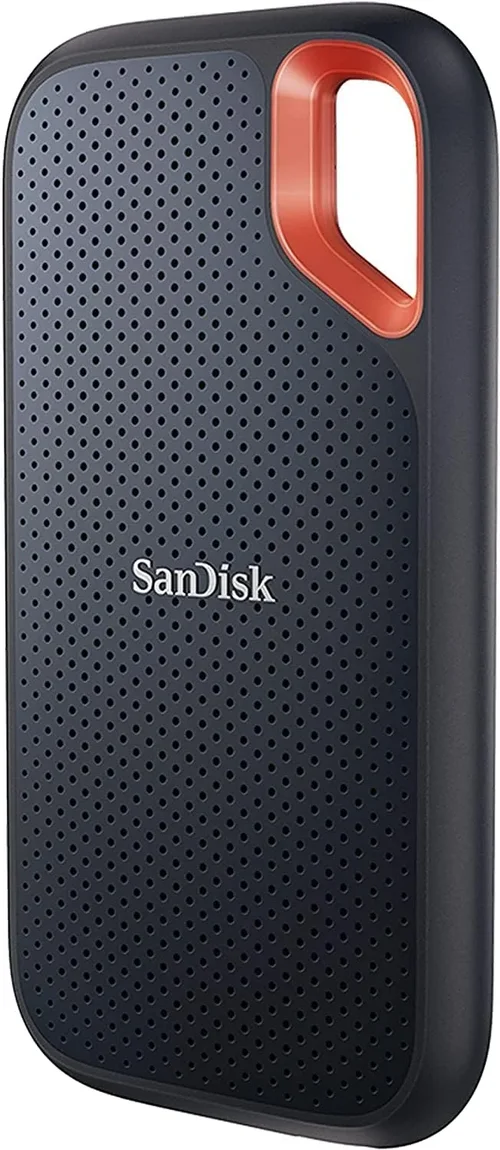
When building or upgrading a modern PC, one of the most impactful decisions you can make is how to balance speed and storage capacity. Solid State Drives (SSDs) deliver lightning-fast boot times, near-instant application loading, and snappy system responsiveness—but they often come with a steep price per gigabyte, especially at higher capacities. That’s where pairing an SSD with a traditional Hard Disk Drive (HDD) becomes a smart, cost-effective strategy. This hybrid setup allows you to enjoy the best of both worlds: the blazing performance of an SSD for your operating system, essential apps, and frequently used files, while leveraging the massive storage affordability of an HDD for media libraries, backups, games, and archival data.
Choosing the right HDD to complement your SSD isn’t just about picking the cheapest drive on the shelf. With evolving technologies like helium-filled drives, advanced power management, and improved reliability metrics, today’s HDDs offer far more nuanced options than ever before. Whether you’re a casual user storing family photos, a creative professional managing 4K video projects, or a gamer building a library of AAA titles, the ideal HDD must align with your specific workload, budget, and long-term storage goals. This comprehensive guide will walk you through every critical factor—from performance specs and durability to brand reputation and real-world value—so you can confidently select the best hard drive to pair with your SSD in 2026.
In this guide, you’ll learn how to evaluate HDDs based on your unique needs, avoid common pitfalls that lead to buyer’s remorse, and make informed decisions that maximize both performance and longevity. We’ll break down technical jargon into plain English, compare different drive types and use cases, and provide actionable tips for getting the best deal. By the end, you’ll have a clear roadmap for choosing a hard drive that not only fits your current setup but also scales with your future storage demands—all while keeping your SSD running at peak efficiency.

What to Look for When Buying Buying Guide
1. Budget & Price Range
Your budget is the foundation of any storage decision. While SSDs have become more affordable, high-capacity models still command premium prices—often $0.10–$0.30 per gigabyte or more. In contrast, HDDs typically cost between $0.02 and $0.05 per gigabyte, making them indispensable for bulk storage. When pairing an HDD with an SSD, aim to allocate roughly 70–80% of your total storage budget to the SSD if speed is your top priority, or flip that ratio if you need vast amounts of affordable space.
For example, a 1TB NVMe SSD might cost around $80–$120, while a 4TB HDD could run $90–$130. If you’re building a mid-range gaming rig, spending $100 on a fast SSD for your OS and favorite games and another $100 on a 4TB HDD for your media library strikes a balanced compromise. Always compare cost per terabyte (TB), not just total price—a $200 8TB drive may offer better long-term value than two $100 4TB drives, especially if you plan to expand later.
2. Performance Specifications
While HDDs can’t match SSD speeds, their internal performance still matters—especially for tasks like large file transfers, video editing, or running secondary applications. Key specs include rotational speed (RPM), cache size, and data transfer rates.
Most consumer HDDs spin at either 5,400 RPM or 7,200 RPM. The latter offers noticeably faster read/write speeds (typically 150–210 MB/s vs. 100–140 MB/s) and lower access latency, making it ideal for active workloads. However, 7,200 RPM drives consume more power, generate more heat, and may be slightly noisier. For archival storage or infrequent access, 5,400 RPM drives are perfectly adequate and often quieter.
Cache size—usually 64MB, 128MB, or 256MB—acts as a buffer for frequently accessed data. Larger caches improve performance during multitasking or repetitive operations. Look for drives with at least 128MB cache for general use, and 256MB if you’re handling large files regularly.
3. Build Quality & Durability
Hard drives contain moving parts, making them inherently more vulnerable to physical shock than SSDs. Durability hinges on build materials, internal design, and environmental resilience. Enterprise-grade or NAS-optimized drives often feature reinforced chassis, anti-vibration mounts, and helium sealing to reduce friction and improve longevity.
Helium-filled drives (like Western Digital’s Ultrastar or Seagate’s Exos series) are increasingly common even in consumer segments. By replacing air with helium—which is less dense—these drives reduce turbulence inside the enclosure, allowing for thinner platters, lower power draw, and higher capacities (up to 22TB+). They also run cooler and quieter, though they’re typically more expensive and may require specialized repair tools if failure occurs.
Check the drive’s Mean Time Between Failures (MTBF) rating—most consumer drives range from 500,000 to 1 million hours. Higher MTBF indicates greater reliability. Also consider workload rating: consumer drives are usually rated for 55TB/year, while NAS or enterprise drives handle 180–550TB/year.
4. Features & Functionality
Modern HDDs come with a suite of features designed to enhance usability, security, and integration. Look for drives with built-in power management (e.g., Advanced Power Management or APM), which reduces energy consumption during idle periods—ideal for always-on systems or home servers.
Some drives support hardware-based encryption (SED—Self-Encrypting Drive), which automatically encrypts all data without performance penalties. This is crucial if you store sensitive information and want compliance with privacy regulations. Additionally, features like TLER (Time-Limited Error Recovery) prevent drives from dropping out of RAID arrays during error correction—a must-have for multi-drive setups.
For creative professionals, consider drives with vibration compensation technology (like Seagate’s Multi-Axis Shock Sensor), which maintains performance in multi-drive enclosures. Gamers might appreciate drives with aggressive caching algorithms that prioritize frequently accessed game assets.
5. Brand Reputation
Not all HDD manufacturers are created equal. Established brands like Western Digital (WD), Seagate, and Toshiba have decades of experience, robust quality control, and extensive support networks. WD’s Red and Black series, Seagate’s IronWolf and BarraCuda lines, and Toshiba’s N300 and X300 drives are well-regarded in their respective niches.
Avoid generic or no-name brands, especially for critical storage. These often use lower-grade components, lack firmware updates, and have inconsistent failure rates. Stick to reputable manufacturers with proven track records in reliability testing. User forums, professional reviews, and long-term failure rate studies (like those from Backblaze) can provide valuable insights into real-world performance.
6. Warranty & Support
Warranty length is a strong indicator of a manufacturer’s confidence in their product. Most consumer HDDs come with a 2- to 3-year warranty, while NAS and enterprise drives often include 3- to 5-year coverage. Longer warranties usually correlate with higher build quality and better support.
Pay attention to what the warranty covers: some exclude physical damage or require registration within 30 days. Also check if the manufacturer offers data recovery services or expedited replacement programs. Seagate’s Rescue Data Recovery Services, for instance, provides free attempts at data retrieval for registered drives—an invaluable safety net.
Customer support responsiveness matters too. Look for brands with accessible technical support, clear documentation, and active community forums. A drive that fails after 18 months is far less frustrating if you can get a quick replacement without jumping through hoops.
7. Size & Form Factor
While most internal HDDs use the standard 3.5-inch form factor, ensure your PC case or external enclosure has adequate space and mounting points. Larger drives (8TB+) may require additional clearance due to thicker platters or reinforced frames.
For external or portable use, 2.5-inch HDDs are available but are generally slower and lower-capacity than their 3.5-inch counterparts. However, they’re ideal for lightweight backup solutions or travel. Note that 2.5-inch drives often draw power via USB, eliminating the need for an external adapter—but performance will lag behind internal 3.5-inch models.
If you’re building a compact PC (e.g., mini-ITX), verify that your case supports 3.5-inch drives. Some small form factor cases only accommodate 2.5-inch bays, forcing you to use external enclosures or sacrifice capacity.
8. User Reviews & Ratings
Don’t rely solely on manufacturer specs—real-world user feedback reveals nuances that lab tests miss. Check aggregated review sites like Amazon, Newegg, and Reddit’s r/DataHoarder or r/buildapc for patterns in user experiences.
Look for recurring themes: Is the drive consistently quiet? Does it run hot under load? Are there firmware issues or compatibility problems with certain motherboards? Pay special attention to reviews from users with similar use cases (e.g., video editors, gamers, or NAS builders).
Be wary of fake or incentivized reviews. Genuine feedback often includes specifics about setup, performance benchmarks, and long-term reliability. A drive with hundreds of 5-star reviews but vague comments like “Great product!” should raise suspicion.
Different Types of Buying Guide

Common Buying Mistakes to Avoid
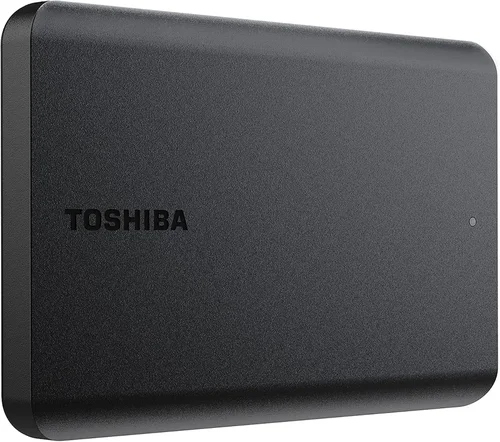
❌ Mistake: Choosing Based Solely on Capacity
Why it’s bad: A 10TB drive sounds impressive, but if it’s a slow 5,400 RPM model with poor reliability, it could become a bottleneck or failure point. Overspending on unused space wastes money that could go toward a better SSD or faster HDD.
What to do instead: Estimate your actual storage needs for the next 2–3 years. Most users don’t need more than 4–8TB for media and backups. Prioritize speed and reliability over raw capacity unless you’re a professional archivist.
❌ Mistake: Ignoring Workload Ratings
Why it’s bad: Using a consumer-grade drive in a 24/7 NAS or server environment drastically increases failure risk. These drives aren’t designed for constant operation and may overheat or wear out prematurely.
What to do instead: Match the drive type to your usage. For always-on systems, choose NAS or enterprise drives with high workload ratings (180TB+/year) and TLER support.
❌ Mistake: Overlooking Power and Thermal Requirements
Why it’s bad: High-RPM or multi-platter drives generate more heat and draw more power. In poorly ventilated cases or small form factors, this can lead to thermal throttling or system instability.
What to do instead: Check the drive’s power consumption (in watts) and ensure your PSU and case cooling can handle it. Consider low-power models for HTPCs or silent builds.
❌ Mistake: Buying Used or Refurbished Drives Without Caution
Why it’s bad: Used drives may have hidden wear, bad sectors, or shortened lifespans. Refurbished units might lack original packaging or warranty coverage.
What to do instead: If buying used, verify the drive’s health with tools like CrystalDiskInfo or WD Data Lifeguard. Only purchase from reputable sellers with return policies. For critical data, stick to new drives.
❌ Mistake: Neglecting Backup Strategy
Why it’s bad: Even the best HDD can fail unexpectedly. Relying solely on a single drive—even paired with an SSD—is a recipe for data loss.
What to do instead: Implement the 3-2-1 backup rule: 3 copies of your data, on 2 different media types, with 1 copy offsite (e.g., cloud or external drive stored elsewhere).
❌ Mistake: Mismatching Drive Types in RAID
Why it’s bad: Mixing consumer and NAS drives in a RAID array can cause compatibility issues, inconsistent performance, or premature failure due to differing error recovery behaviors.
What to do instead: Use identical drives from the same batch when possible. If building a RAID, choose NAS-optimized models designed for multi-drive environments.
❌ Mistake: Skipping Firmware Updates
Why it’s bad: Outdated firmware can cause performance bugs, compatibility issues, or security vulnerabilities. Some drives even ship with known defects patched in later updates.
What to do instead: Register your drive with the manufacturer and periodically check for firmware updates. Use official tools (e.g., Seagate SeaTools, WD Dashboard) to apply them safely.
Budget Guidelines: How Much Should You Spend?
- Entry-Level ($50–$100): Ideal for basic storage needs. Expect 2–4TB consumer drives (5,400 or 7,200 RPM) from brands like WD Blue or Seagate BarraCuda. Great for backups, document storage, or secondary game libraries. Performance is adequate but not exceptional.
- Mid-Range ($100–$200): The sweet spot for most users. Look for 4–8TB NAS or high-performance desktop drives (e.g., WD Red Plus, Seagate IronWolf, Toshiba N300). These offer better reliability, larger caches, and features like vibration resistance. Perfect for media servers, creative workstations, or enthusiast gaming rigs.
- Premium ($200–$400): For professionals and power users. 8–16TB helium-filled drives (WD Ultrastar, Seagate Exos) with enterprise-grade durability, 256MB+ cache, and 5-year warranties. Ideal for video production, large-scale backups, or small business servers.
- Luxury ($400+): Top-tier capacity and performance. 18–22TB+ drives designed for data centers or extreme workloads. These prioritize longevity and consistency over cost efficiency. Only justified for mission-critical applications or massive archival projects.

Expert Tips for Getting the Best Deal
- Time your purchase around major sales: Black Friday, Cyber Monday, Prime Day, and back-to-school seasons often feature deep discounts on storage. Retailers like Amazon, Newegg, and Best Buy frequently run bundle deals (e.g., SSD + HDD combos).
- Compare prices across multiple retailers: Use price-tracking tools like Honey, CamelCamelCamel, or PCPartPicker to monitor historical pricing and set alerts. Sometimes local Micro Center or B&H Photo offer better in-store pricing.
- Consider refurbished or open-box deals: Certified refurbished drives from manufacturer outlets (e.g., WD Refurbished, Seagate Factory Store) often come with full warranties at 20–40% off retail.
- Check return policies before buying: Ensure the seller offers at least a 30-day return window. Some retailers charge restocking fees for opened electronics—read the fine print.
- Test new drives immediately: Run a full surface scan and SMART check using tools like HD Tune or manufacturer diagnostics. Early detection of defects can save you from future headaches.
- Look for educational or bulk discounts: Students, educators, and businesses may qualify for special pricing through programs like Apple Education, Microsoft Academic, or Dell Business.
- Don’t overlook external options: If you need portable storage, external HDDs often include free backup software and ruggedized enclosures. Just ensure they use USB 3.2 Gen 2 or Thunderbolt for decent speeds.
- Future-proof with scalability: If you plan to expand later, choose a drive that matches your existing setup (same brand, model line, and capacity tier) to simplify management and avoid compatibility issues.

Frequently Asked Questions
Q: Can I use an HDD as my primary drive instead of an SSD?
A: Technically yes, but it’s not recommended for modern systems. Boot times, application launches, and overall responsiveness will be significantly slower. The SSD+HDD combo gives you speed where it matters most (OS and apps) and capacity for everything else.
Q: How do I decide between a 5,400 RPM and 7,200 RPM HDD?
A: Choose 7,200 RPM if you frequently access large files (videos, games, databases) or multitask heavily. Opt for 5,400 RPM if you’re using the drive for backups, archives, or media streaming—it’s quieter, cooler, and more energy-efficient.
Q: Are helium-filled drives worth the extra cost?
A: For capacities above 8TB or in multi-drive environments, yes. Helium drives run cooler, consume less power, and offer better longevity. For 4TB or below, the benefits are minimal, and air-filled drives are more than sufficient.
Q: Should I worry about SMR (Shingled Magnetic Recording) drives?
A: SMR drives offer higher density but suffer from slow write speeds, especially during random writes or rewrites. Avoid them for active workloads. Look for CMR (Conventional Magnetic Recording) drives—most NAS and performance models use CMR.
Q: How long do modern HDDs typically last?
A: Under normal use, most consumer HDDs last 3–5 years. NAS and enterprise drives can exceed 5–7 years. However, lifespan depends heavily on usage patterns, environmental conditions, and manufacturing quality.
Q: Can I mix different brands of HDDs in the same system?
A: Yes, but it’s better to stick with one brand for consistency in firmware, performance, and reliability. Mixing brands increases the risk of compatibility issues, especially in RAID setups.
Q: Do I need special software to manage my HDD?
A: Not necessarily. Modern OSes handle basic drive management well. However, manufacturer tools (like WD Dashboard or Seagate Toolkit) offer advanced features like health monitoring, firmware updates, and secure erase.
Q: Is it safe to move a PC with an HDD installed?
A: Modern HDDs have head parking mechanisms that protect against minor shocks. However, avoid moving the system while the drive is active. For transport, shut down completely and secure the case to minimize vibration.
Q: What’s the difference between SATA and SAS HDDs?
A: SATA drives are for consumer and prosumer use, with lower cost and adequate performance. SAS (Serial Attached SCSI) drives are enterprise-grade, offering faster interfaces, higher reliability, and better error handling—but require compatible hardware and are much more expensive.
Q: Should I defragment my HDD?
A: Yes, but only if it’s used as a secondary drive with frequent file changes. Windows automatically schedules defrags for HDDs. Never defragment an SSD—it’s unnecessary and reduces lifespan.
Our Final Recommendations
- Best for Budget-Conscious Buyers: Western Digital Blue 4TB (WD40EZAZ) – Reliable, quiet, and priced under $100. Perfect for general storage and light gaming.
- Best Overall Value: Seagate IronWolf 4TB (ST4000VN008) – NAS-optimized with 256MB cache, 7,200 RPM, and 3-year warranty. Excellent for home servers and media centers.
- Best Premium Option: Western Digital Red Pro 8TB (WD8003FRYZ) – Helium-filled, 7,200 RPM, 512MB cache, and 5-year warranty. Ideal for professionals needing speed and capacity.
- Best for Beginners: Toshiba N300 6TB (HDWG760) – Easy setup, robust build, and strong vibration resistance. Great first NAS or desktop upgrade.
- Best for Advanced Users: Seagate Exos X18 18TB (ST18000NM000J) – Enterprise-grade reliability, 7,200 RPM, and ultra-high capacity. Built for demanding workloads and 24/7 operation.
Conclusion: Making the Right Choice
Pairing an SSD with an HDD remains one of the most intelligent strategies for balancing speed, capacity, and cost in 2026. While SSDs handle your operating system and critical applications with blazing efficiency, the right hard drive provides affordable, high-capacity storage for everything else—from family photos to 4K video projects. By focusing on key factors like performance specs, build quality, workload compatibility, and long-term value, you can avoid common pitfalls and select a drive that truly complements your SSD setup.
Remember, there’s no universal “best” hard drive—only the one that aligns with your specific needs, budget, and usage patterns. Whether you’re a casual user, creative professional, or tech enthusiast, take the time to assess your storage requirements honestly. Invest in reliability over raw specs, prioritize features that match your workflow, and always back up your data. With the insights from this guide, you’re now equipped to make a confident, informed decision that will serve you well for years to come.
Don’t just buy the biggest or cheapest drive—buy the right one. Your future self (and your data) will thank you.