
Solid-state drives (SSDs) have revolutionized data storage over the past decade, replacing traditional hard disk drives (HDDs) in most modern computing environments—from laptops and desktops to gaming consoles and enterprise servers. As we move through 2026, SSD technology continues to evolve at a rapid pace, with new form factors, interface standards, and performance benchmarks emerging regularly. Whether you’re building a high-performance gaming rig, upgrading an aging laptop, or setting up a workstation for content creation, choosing the right SSD format is no longer just about capacity or speed—it’s about compatibility, longevity, efficiency, and future-proofing your system.
This comprehensive buying guide is designed to cut through the technical jargon and marketing hype to help you make an informed decision. We’ll explore the key factors that influence SSD performance and usability, compare the major SSD formats available today, highlight common pitfalls to avoid, and provide expert-backed recommendations tailored to different user needs and budgets. By the end of this guide, you’ll understand not only which SSD format suits your current setup but also how to anticipate future requirements—ensuring your investment remains relevant for years to come.
The SSD market in 2026 is more diverse than ever. From ultra-compact M.2 NVMe drives that deliver blistering speeds to cost-effective SATA SSDs ideal for older systems, the options can be overwhelming. Newer technologies like PCIe 5.0 and emerging standards such as EDSFF (Enterprise and Data Center SSD Form Factor) are pushing the boundaries of what’s possible, while backward compatibility remains crucial for mainstream users. With prices continuing to drop and capacities increasing, now is an excellent time to upgrade—but only if you choose wisely. This guide will equip you with the knowledge to do exactly that.

What to Look for When Buying Buying Guide
1. Interface & Form Factor Compatibility
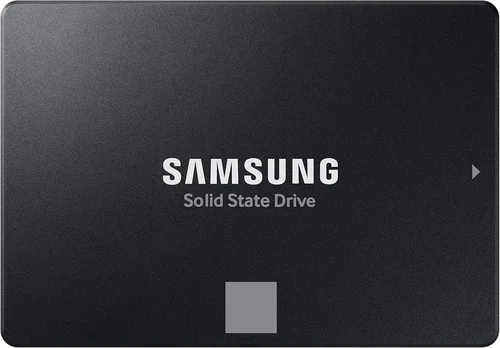
The physical and electrical interface of your SSD determines whether it will fit in your device and how fast it can communicate with your system. The three primary interfaces in use today are SATA, PCIe (via M.2 or U.2 connectors), and newer enterprise-focused standards like E1.S. SATA SSDs use the same connector as older HDDs and are limited to around 550 MB/s due to the SATA III bottleneck. They’re reliable and widely compatible but increasingly outdated for performance-oriented builds.
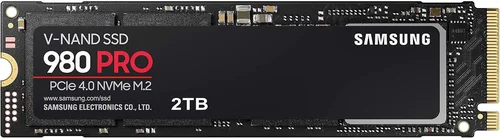
PCIe-based SSDs, especially those using the NVMe protocol, offer significantly higher speeds by connecting directly to the motherboard via the PCIe bus. M.2 NVMe drives are the most common consumer format—small, sleek, and capable of speeds exceeding 7,000 MB/s with PCIe 4.0, and even higher with PCIe 5.0. However, not all M.2 slots support NVMe; some only accept SATA-based M.2 drives, so always check your motherboard specifications. U.2 drives offer similar performance but require a dedicated connector and are more common in servers.
For laptops and small-form-factor PCs, the M.2 2280 (22mm wide, 80mm long) is the standard. But always verify your device supports the specific keying (B-key, M-key, or B+M) and protocol (SATA or NVMe). Installing an incompatible drive can result in it not being detected—or worse, damaging your system.
2. Performance Specifications
When evaluating SSD performance, focus on three key metrics: sequential read/write speeds, random read/write IOPS (Input/Output Operations Per Second), and endurance (measured in TBW—Terabytes Written). Sequential speeds matter most for large file transfers, such as loading games, editing 4K video, or copying media libraries. Random IOPS are critical for multitasking, boot times, and application responsiveness—especially in operating systems and databases.
For example, a PCIe 4.0 NVMe SSD might advertise 7,000 MB/s read and 6,500 MB/s write speeds, while a SATA SSD caps out near 560 MB/s. But real-world gains depend on your use case. If you’re primarily browsing the web and using office applications, the difference may not be noticeable. However, for video editors or gamers, the faster load times and smoother performance of NVMe can be transformative.
Endurance is often overlooked but vital for longevity. Consumer SSDs typically range from 150 TBW for entry-level 500GB drives to over 1,200 TBW for high-end 2TB models. Heavy users—such as those running virtual machines or frequently writing large datasets—should prioritize higher TBW ratings. Also, look for DRAM cache: SSDs with dedicated DRAM buffers perform better under sustained workloads and maintain speed consistency.
3. Storage Capacity Needs
Capacity directly impacts both price and usability. In 2026, 1TB has become the new baseline for most users, offering enough space for the OS, applications, and a moderate library of games or media. However, if you work with large files—such as RAW photos, 8K video, or CAD models—consider 2TB or larger. Cloud storage helps, but local SSD speed is unmatched for active projects.
Beware of the performance drop in lower-capacity drives. Many SSDs use over-provisioning (reserving part of the drive for wear leveling and garbage collection), so a 500GB drive may actually have less usable NAND than a 1TB model of the same series. Additionally, smaller drives fill up faster, which can degrade performance over time due to reduced free space for background operations.
For budget builds, a 500GB SSD paired with a secondary HDD for bulk storage remains viable. But for primary drives, aim for at least 1TB to future-proof your system. Prices per gigabyte have dropped dramatically—1TB NVMe SSDs now cost under $60 during sales—making larger capacities more accessible than ever.
4. NAND Flash Type & Controller Quality
The type of NAND flash memory used in an SSD significantly affects its speed, endurance, and cost. The main types are SLC (Single-Level Cell), MLC (Multi-Level Cell), TLC (Triple-Level Cell), and QLC (Quad-Level Cell). SLC is the fastest and most durable but prohibitively expensive for consumer use. MLC offers excellent performance and longevity but is mostly found in enterprise drives.
Most consumer SSDs today use TLC or QLC NAND. TLC strikes a good balance between cost, speed, and endurance, making it ideal for everyday users. QLC is cheaper and allows higher capacities (like 4TB in a single drive) but writes data more slowly and wears out faster under heavy workloads. If you plan to frequently install/uninstall large games or run disk-intensive applications, avoid QLC unless it’s a secondary drive.
Equally important is the SSD controller—the “brain” that manages data flow, error correction, and wear leveling. Reputable controllers from companies like Phison, Silicon Motion, and Samsung deliver better performance consistency and reliability. Avoid no-name brands with unknown controllers, as they often cut corners on firmware and error handling, leading to data corruption or premature failure.
5. Brand Reputation & Reliability
Not all SSDs are created equal, even if they share the same specs on paper. Established brands like Samsung, Western Digital, Crucial, Kingston, and Sabrent have proven track records for quality control, firmware updates, and customer support. Samsung’s 990 Pro and WD Black SN850X are benchmarks in the NVMe space, known for consistent performance and robust endurance.
Cheaper alternatives from lesser-known brands may offer tempting prices, but they often use lower-grade NAND, lack DRAM caches, or ship with buggy firmware. Real-world reviews and long-term user feedback are invaluable here. Look for brands that provide detailed specifications, transparent warranty terms, and accessible support channels.
Also consider ecosystem integration. If you’re using a Samsung laptop or motherboard, a Samsung SSD may offer optimized performance through proprietary software like Samsung Magician, which enables features like rapid mode and secure erase.
6. Warranty & Support
A strong warranty is a strong indicator of an SSD’s expected lifespan. Most reputable manufacturers offer 5-year limited warranties, often tied to TBW limits. For example, a 1TB drive with a 600 TBW rating and 5-year warranty means you’d need to write over 328GB per day, every day, to exceed the limit before the warranty expires—highly unlikely for typical users.
Check what the warranty covers: some exclude physical damage or improper installation, while others require registration. Also, verify whether the warranty is transferable—important if you plan to sell or upgrade your system later. Brands like Crucial and Samsung provide straightforward RMA processes, while others may require lengthy troubleshooting steps before issuing replacements.
Customer support quality varies widely. Look for companies with live chat, detailed FAQs, and active community forums. Avoid brands that only offer email support with slow response times.
7. Power Efficiency & Thermal Management
Especially important for laptops and small-form-factor PCs, power efficiency affects battery life and thermal performance. NVMe SSDs, particularly PCIe 4.0 and 5.0 models, can generate significant heat under load. Without proper cooling, they may throttle performance to prevent overheating.
High-end NVMe drives often include built-in heat spreaders or are designed to work with motherboard-mounted heatsinks. If your case has poor airflow, consider a drive with lower power draw or invest in an aftermarket M.2 heatsink. Some manufacturers, like Corsair and ADATA, offer SSDs with integrated thermal solutions.
For ultrabooks and tablets, low-power SSDs optimized for mobile use (like those based on Phison’s E12 or E18 controllers) can extend battery life by reducing idle power consumption. Always check power specifications if mobility is a priority.
8. Security Features & Encryption
If you handle sensitive data, built-in hardware encryption is essential. Many modern SSDs support TCG Opal 2.0 and IEEE-1667 standards, enabling full-disk encryption (FDE) without taxing your CPU. This is especially useful for business users or anyone storing personal documents, financial records, or proprietary work.
Self-Encrypting Drives (SEDs) automatically encrypt all data at rest and can be managed via software like Microsoft BitLocker or third-party tools. Avoid software-only encryption solutions, as they’re slower and less secure. Also, ensure the SSD supports secure erase functions to safely wipe data before disposal or resale.
For enterprise environments, look for SSDs with enhanced security features like cryptographic erase, tamper resistance, and compliance with FIPS 140-2 standards.
Different Types of Buying Guide

Common Buying Mistakes to Avoid
❌ Mistake: Ignoring Motherboard Compatibility
Why it’s bad: Buying a PCIe 4.0 NVMe SSD for a motherboard that only supports PCIe 3.0 means you won’t get the advertised speeds—and in some cases, the drive may not be recognized at all. Similarly, installing an M.2 NVMe drive in a slot that only supports SATA will result in failure to boot.
What to do instead: Always check your motherboard or laptop manual for supported SSD types, M.2 keying, and PCIe generation. Use tools like CPU-Z or manufacturer specs to confirm compatibility before purchasing.
❌ Mistake: Choosing QLC NAND for Primary Drive
Why it’s bad: QLC SSDs are slower under sustained writes and have lower endurance. Using one as your main drive can lead to sluggish performance when installing games, updating the OS, or running virtual machines.
What to do instead: Reserve QLC drives for secondary storage (e.g., media libraries). For your OS and applications, choose TLC-based SSDs with DRAM cache for consistent performance.
❌ Mistake: Overpaying for Marginal Gains
Why it’s bad: Paying double for a PCIe 5.0 SSD when your workload doesn’t benefit from the extra speed is a waste of money. Most users won’t notice the difference between PCIe 3.0 and 5.0 in daily tasks.
What to do instead: Match the SSD to your use case. Gamers and creators should aim for PCIe 4.0; casual users can save money with PCIe 3.0 or even SATA.
❌ Mistake: Skipping the DRAM Cache
Why it’s bad: DRAM-less SSDs use system memory (HMB) as a buffer, which can slow down under heavy multitasking and reduce longevity due to increased wear on NAND.
What to do instead: Always prefer SSDs with dedicated DRAM unless you’re on a tight budget. The performance and reliability difference is significant.
❌ Mistake: Neglecting Thermal Throttling
Why it’s bad: High-speed NVMe drives can overheat in poorly ventilated cases, causing performance drops during long transfers or gaming sessions.
What to do instead: Use a heatsink if your case supports it, or choose a drive with built-in thermal management. Monitor temperatures using tools like HWInfo or CrystalDiskInfo.
❌ Mistake: Buying Based Solely on Price
Why it’s bad: The cheapest SSDs often use inferior components, lack warranties, and fail prematurely. A $30 1TB SSD may seem like a steal—until it corrupts your data.
What to do instead: Balance cost with brand reputation, warranty length, and real-world reviews. A slightly more expensive drive from a trusted brand is a safer long-term investment.
❌ Mistake: Forgetting About Backup
Why it’s bad: SSDs can fail suddenly without warning signs like clicking noises (common in HDDs). Without backups, you risk losing everything.
What to do instead: Implement a 3-2-1 backup strategy: 3 copies of your data, on 2 different media, with 1 offsite (e.g., cloud storage).
Budget Guidelines: How Much Should You Spend?
- Entry-Level ($30–$60 for 1TB): Ideal for basic upgrades from HDDs or secondary storage. Look for SATA or PCIe 3.0 NVMe drives from reputable brands like Crucial BX500 or Kingston NV2. Expect decent performance for everyday tasks but limited endurance and no advanced features.
- Mid-Range ($60–$100 for 1TB): The sweet spot for most users. PCIe 3.0 or 4.0 NVMe SSDs with DRAM cache, such as the Samsung 980 or WD Blue SN580. These offer excellent speed, reliability, and value for gaming, productivity, and light content creation.
- Premium ($100–$150 for 1TB): For enthusiasts and professionals. High-end PCIe 4.0 drives like the Samsung 990 Pro or Sabrent Rocket 4 Plus deliver top-tier performance, robust endurance, and advanced features like hardware encryption and thermal throttling protection.
- Luxury ($150+ for 1TB): Cutting-edge PCIe 5.0 SSDs such as the Corsair MP700 or Gigabyte AORUS Gen5. These are overkill for most users but ideal for 8K video editing, AI workloads, or future-proofing high-end systems. Expect premium build quality and extended warranties.
Expert Tips for Getting the Best Deal
- Buy during major sales events: Retailers like Amazon, Newegg, and Best Offer deep discounts on SSDs during holidays. Historical data shows the best prices occur in November and July.
- Compare total cost per gigabyte: A 2TB drive may cost more upfront but offer better value than two 1TB drives. Calculate $/GB to find true bargains.
- Check refurbished or open-box options: Certified refurbished SSDs from manufacturers like Samsung or Crucial often come with full warranties and significant savings.
- Verify return policies: Ensure the retailer allows returns if the SSD is incompatible or defective. Some stores charge restocking fees—avoid them.
- Use manufacturer tools: Samsung Magician, WD Dashboard, and Crucial Storage Executive provide firmware updates, health monitoring, and optimization features—free with genuine drives.
- Avoid counterfeit drives: Purchase from authorized retailers only. Fake SSDs often report inflated capacities and fail quickly.
- Consider bundle deals: Some motherboards or laptops include free SSD upgrades during promotions—take advantage when available.
- Test before relying on it: After installation, run benchmarks (e.g., CrystalDiskMark) and check SMART data to ensure the drive is performing as expected.

Frequently Asked Questions
Q: Can I use an NVMe SSD in a SATA-only M.2 slot?
A: No. NVMe and SATA M.2 drives use different protocols and keying. A SATA-only slot will not recognize an NVMe drive, even if it fits physically. Always confirm your slot type before buying.
Q: Is PCIe 5.0 worth it in 2026?
A: Only if you have a compatible motherboard and workload that benefits from extreme speeds (e.g., 8K video editing or AI training). For most users, PCIe 4.0 offers the best balance of performance and price.
Q: Do I need a heatsink for my M.2 SSD?
A: Not always, but recommended for PCIe 4.0 and 5.0 drives under heavy load. Many motherboards include heatsinks; if yours doesn’t, a $10 aftermarket one can prevent thermal throttling.
Q: How long do SSDs last?
A: Most consumer SSDs last 5–10 years under normal use, depending on TBW rating and usage patterns. Modern drives are highly reliable—failure is rare unless subjected to extreme conditions.
Q: Can I clone my old HDD to a new SSD?
A: Yes, using cloning software like Macrium Reflect, Acronis True Image, or Samsung Data Migration. Ensure the SSD capacity is equal to or larger than the used space on your HDD.
Q: Are external SSDs as fast as internal ones?
A: Only if connected via USB 3.2 Gen 2×2 (20 Gbps) or Thunderbolt 4. USB 3.0/3.1 limits speeds to around 500 MB/s, negating NVMe advantages. For portability, consider USB4 or Thunderbolt enclosures.
Q: Should I enable TRIM?
A: Yes. TRIM helps maintain SSD performance by informing the drive which blocks are no longer in use. It’s enabled by default in Windows 10/11 and macOS, but check using fsutil behavior query DisableDeleteNotify in Command Prompt.
Q: What’s the difference between DRAM and DRAM-less SSDs?
A: DRAM SSDs have a dedicated memory chip for mapping data locations, improving speed and longevity. DRAM-less drives use system RAM (HMB), which can slow down under load and increase wear.
Q: Can I use an SSD as a cache drive?
A: Yes, with technologies like Intel Rapid Storage Technology (RST) or software solutions like PrimoCache. This accelerates an HDD using a small SSD as a buffer.
Q: Do SSDs need defragmentation?
A: No. Defragmentation is harmful to SSDs and unnecessary, as they access data electronically without mechanical delays. Windows automatically disables defrag for SSDs.
Our Final Recommendations
- Best for Budget-Conscious Buyers: Crucial P3 1TB (PCIe 3.0 NVMe) – Reliable, DRAM-equipped, and priced under $50. Perfect for upgrading older systems without breaking the bank.
- Best Overall Value: Samsung 980 1TB (PCIe 3.0 NVMe) – Excellent performance, Samsung reliability, and consistent speeds. A proven workhorse for everyday use.
- Best Premium Option: Samsung 990 Pro 2TB (PCIe 4.0 NVMe) – Top-tier speed, 1,200 TBW endurance, and built-in thermal control. Ideal for gamers and creators.
- Best for Beginners: WD Blue SN580 1TB (PCIe 4.0 NVMe) – Easy installation, solid performance, and WD’s user-friendly dashboard software. Great first NVMe drive.
- Best for Advanced Users: Corsair MP700 2TB (PCIe 5.0 NVMe) – Blazing 12,000 MB/s speeds, robust heatsink, and enterprise-grade endurance. For those who demand the absolute best.
Conclusion: Making the Right Choice
Choosing the best SSD format in 2026 isn’t just about picking the fastest or cheapest option—it’s about aligning technology with your specific needs, system compatibility, and long-term goals. Whether you’re breathing new life into an old laptop with a SATA SSD or building a bleeding-edge workstation with PCIe 5.0 NVMe, the right choice will enhance performance, reliability, and user experience.
Remember to prioritize compatibility first, then match performance and capacity to your workload. Don’t overlook endurance, warranty, and thermal management, especially if you’re a power user. And always buy from trusted sources to avoid counterfeit or subpar products.
Ultimately, the best SSD is the one that fits your system, supports your tasks, and delivers consistent value over time. Use this guide as your roadmap, weigh your options carefully, and invest wisely. Your data—and your sanity—will thank you.