
[FEATURED_IMAGE_PLACEGOER]
Solid-state drives (SSDs) have revolutionized personal computing over the past decade, and even modest-capacity models like the 240GB SSD now deliver performance that would have been unthinkable just a few years ago. Whether you’re upgrading an aging laptop, building a budget desktop, or seeking a fast boot drive for everyday tasks, choosing the right 240GB SSD can make a dramatic difference in system responsiveness, boot times, and application load speeds. However, with so many form factors, interfaces, and technical specifications on the market, it’s easy to feel overwhelmed—especially when you’re working within a tight capacity window where every gigabyte counts.
This comprehensive guide is designed to cut through the noise and help you make a confident, informed decision. We’ll walk you through the critical factors that truly matter when selecting a 240GB SSD—from interface compatibility and NAND type to endurance ratings and real-world performance. You’ll learn how to avoid common pitfalls, understand what your budget actually gets you, and identify which features are worth paying for (and which aren’t). By the end, you’ll know exactly what format and model best suits your needs, whether you’re a casual user, a student, a content creator, or a PC builder on a budget.
The 240GB SSD market remains surprisingly vibrant in 2026. While larger capacities dominate headlines, this sweet-spot size continues to offer an excellent balance of affordability, speed, and practicality for secondary storage, OS drives, or lightweight workstations. Major manufacturers like Samsung, Crucial, Kingston, WD, and ADATA still produce high-quality 240GB options across multiple formats—including 2.5-inch SATA, M.2 SATA, and M.2 NVMe—ensuring plenty of choice. But not all 240GB SSDs are created equal. Subtle differences in controller design, firmware optimization, and flash memory technology can lead to vastly different real-world experiences. This guide will equip you with the knowledge to spot those differences and choose wisely.

What to Look for When Buying Buying Guide
1. Interface & Form Factor Compatibility
The single most important consideration when buying a 240GB SSD is ensuring it physically fits your system and communicates properly with your motherboard or laptop. The three primary formats you’ll encounter are:
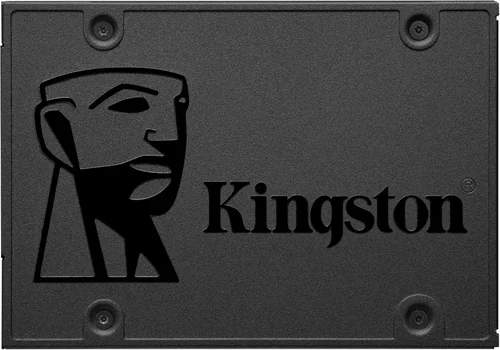
– 2.5-inch SATA: The traditional laptop hard drive shape, uses a SATA III interface (6 Gbps max). Universally compatible with older desktops and laptops that have a spare 2.5-inch bay and SATA power/data connectors.
– M.2 SATA: A compact gumstick-shaped module that plugs directly into an M.2 slot but still uses the SATA protocol. Looks similar to NVMe drives but is limited to ~550 MB/s speeds.
– M.2 NVMe (PCIe): Also M.2 form factor, but uses the faster PCIe interface (typically Gen3 x4 in 240GB models), delivering speeds up to 3,500 MB/s. Requires an M.2 slot that supports NVMe—not all do.
Before purchasing, check your device’s manual or use tools like CPU-Z or Speccy to confirm which M.2 keys (B-key, M-key, or B+M) and interfaces your system supports. Installing an NVMe drive in a SATA-only M.2 slot won’t work—and vice versa. For older systems without M.2 slots, the 2.5-inch SATA remains your only viable option.
2. Performance Specifications
While all SSDs are faster than HDDs, performance varies significantly—even among 240GB models. Key metrics to examine include:
– Sequential Read/Write Speeds: Indicates how quickly large files (like videos or game installs) transfer. For SATA drives, expect 500–560 MB/s. NVMe drives can reach 2,000–3,500 MB/s.
– Random 4K Read/Write IOPS: Measures performance for small, scattered operations (e.g., opening apps, loading OS files). Crucial for everyday responsiveness. Look for at least 50,000 IOPS for SATA and 200,000+ for NVMe.
– Controller Quality: The brain of the SSD. Reputable controllers from Phison, Silicon Motion, or Marvell generally offer better consistency and longevity than no-name alternatives.
– DRAM Cache: High-quality 240GB SSDs often include a small DRAM buffer (e.g., 256MB), which dramatically improves performance under sustained workloads and extends NAND lifespan. DRAM-less designs are cheaper but suffer from slowdowns during heavy use.
Don’t be fooled by peak speeds alone. Real-world performance depends heavily on sustained writes, thermal throttling behavior, and firmware efficiency. A drive that hits 3,000 MB/s in benchmarks but drops to 200 MB/s after 10 seconds of continuous writing isn’t ideal for productivity tasks.
3. NAND Flash Type & Endurance
The type of NAND memory used directly impacts durability, speed, and cost. In 2026, you’ll primarily encounter:
– TLC (Triple-Level Cell): Stores 3 bits per cell. Offers good balance of speed, endurance, and price. Most mainstream 240GB SSDs use TLC.
– QLC (Quad-Level Cell): Stores 4 bits per cell. Cheaper and denser but slower under load and less durable. Often found in budget NVMe drives.
– pSLC (pseudo-SLC): Not a true NAND type, but a mode where TLC/QLC acts like SLC for short bursts, boosting speed and endurance temporarily.
Endurance is measured in TBW (Terabytes Written). A typical 240GB TLC SSD offers 100–150 TBW—more than enough for years of normal use (most users write <10TB/year). QLC drives may drop to 60–80 TBW, which is still sufficient for light workloads but less ideal for frequent large file transfers or virtual machines. Avoid drives that don’t disclose TBW or NAND type—they’re likely using inferior components.
4. Brand Reputation & Reliability
Not all SSD brands are equal. Established manufacturers invest heavily in firmware optimization, quality control, and long-term reliability testing. Top-tier brands like Samsung, Crucial (Micron), WD (SanDisk), and Kingston consistently deliver stable, well-supported drives with transparent specs.
Cheap no-name or rebranded drives often cut corners on components, lack proper firmware updates, and may fail prematurely. While they might seem like a bargain, the risk of data loss or early failure outweighs the savings—especially when reputable 240GB SSDs are now available for under $25.
Check professional reviews (e.g., Tom’s Hardware, AnandTech) and user forums for real-world reliability reports. A drive with thousands of positive reviews and low return rates is a safer bet than one with flashy specs but no track record.
5. Warranty & Support
A solid warranty reflects manufacturer confidence in their product. Most reputable 240GB SSDs come with a 3- to 5-year limited warranty, often tied to TBW limits (e.g., “5 years or 120 TBW, whichever comes first”). This dual-condition warranty is standard and protects against both time-based and usage-based failures.
Pay attention to regional support policies. Some brands offer global warranties, while others require you to return drives to the country of purchase. Also, verify whether the warranty covers data recovery—it rarely does, so always back up critical files regardless.
Avoid brands that offer only 1-year warranties or vague “lifetime” claims without clear terms. These are red flags for low-quality components.
6. Price vs. Value
At 240GB, SSD pricing has dropped dramatically. As of 2026, you can find reliable SATA models for $18–$25 and NVMe drives for $22–$35. However, the cheapest option isn’t always the best value.
Consider total cost of ownership: a $20 drive that fails in 18 months costs more in downtime and data risk than a $28 drive that lasts 5+ years. Similarly, a DRAM-less NVMe might save $3 upfront but deliver frustratingly inconsistent performance during multitasking.
Look for drives that offer the best balance of price, performance, endurance, and warranty—not just the lowest sticker price.
7. Use Case Alignment
Your intended use should dictate your choice. Ask yourself:
– OS & Apps Only? A 240GB SATA SSD is sufficient and cost-effective.
– Gaming or Creative Work? Opt for NVMe if your system supports it—faster load times and asset streaming matter.
– Secondary Drive? SATA is fine; prioritize reliability over speed.
– Legacy System Upgrade? Stick with 2.5-inch SATA for maximum compatibility.
Matching the drive to your workflow ensures you don’t overspend on unused performance or underspend on critical capabilities.
8. Firmware Updates & Software Suite
Modern SSDs benefit from periodic firmware updates that fix bugs, improve performance, and enhance security (e.g., TCG Opal encryption). Brands like Samsung and Crucial provide user-friendly utilities (Samsung Magician, Crucial Storage Executive) that enable easy updates, health monitoring, and secure erase functions.
Cheaper drives often lack update mechanisms entirely, leaving you vulnerable to undiscovered issues. If long-term usability matters, choose a brand with active software support.
Different Types of Buying Guide

Common Buying Mistakes to Avoid
❌ Mistake: Ignoring Interface Compatibility
Why it’s bad: Buying an NVMe drive for a system that only supports SATA M.2 slots (or vice versa) results in a paperweight. Even within M.2, keying differences (B-key vs. M-key) can prevent installation.
What to do instead: Always verify your motherboard or laptop’s M.2 specifications before purchasing. When in doubt, consult the manual or manufacturer’s support site.
❌ Mistake: Choosing DRAM-less SSDs for Primary Use
Why it’s bad: DRAM-less drives rely on system RAM (via HMB) or slower caching methods, leading to stutters during multitasking, file transfers, or OS updates. Performance degrades significantly under load.
What to do instead: Spend a few extra dollars for a drive with onboard DRAM—especially if using it as your boot drive. The performance consistency is worth the small premium.
❌ Mistake: Overlooking TBW and NAND Type
Why it’s bad: A QLC drive with 60 TBW might seem fine, but if you frequently install/uninstall games or work with large media files, you could hit the limit faster than expected. Undisclosed NAND types often indicate low-quality flash.
What to do instead: Prioritize TLC-based drives with at least 100 TBW for 240GB models. Check spec sheets or retailer listings—reputable brands always disclose this.
❌ Mistake: Falling for “Gen4” Hype on Budget Drives
Why it’s bad: Some budget 240GB Gen4 drives use inferior controllers and NAND that throttle heavily under sustained loads, negating the speed advantage. They’re often more expensive than Gen3 alternatives with similar real-world performance.
What to do instead: Stick with proven Gen3 NVMe drives unless you have a specific need for Gen4 speeds (e.g., directStorage gaming). For most users, Gen3 offers the best price-to-performance ratio at 240GB.
❌ Mistake: Neglecting Firmware and Software Support
Why it’s bad: Without firmware updates, your drive may suffer from undiscovered bugs, security vulnerabilities, or performance regressions over time. No software means no health monitoring or secure erase.
What to do instead: Choose brands with active software ecosystems. Samsung Magician and Crucial Storage Executive are gold standards for drive management.
❌ Mistake: Buying Based Solely on Sequential Speeds
Why it’s bad: Peak sequential speeds look great in ads but don’t reflect everyday usage. Random 4K performance and sustained write speeds matter far more for OS responsiveness.
What to do instead: Look for reviews that test real-world scenarios (boot time, app launch, file copying) rather than relying on manufacturer specs alone.
❌ Mistake: Skipping the Warranty Check
Why it’s bad: A short or unclear warranty suggests the manufacturer expects higher failure rates. You could be stuck with a dead drive and no recourse.
What to do instead: Only buy from brands offering at least a 3-year warranty with clear TBW terms. Register your drive upon purchase to activate coverage.
Budget Guidelines: How Much Should You Spend?
– Entry-Level ($15–$22): At this price, you’ll find basic 2.5-inch SATA SSDs from lesser-known brands or older models from reputable ones. Expect TLC NAND, ~500 MB/s speeds, and 3-year warranties. Suitable for secondary storage or very light use, but avoid for primary OS drives if possible.
– Mid-Range ($22–$30): This is the sweet spot for most buyers. You’ll get reliable SATA or NVMe drives from trusted brands (Crucial BX500, Kingston NV2, WD Green) with DRAM, 100+ TBW, and solid performance. Ideal for boot drives, student laptops, or budget gaming PCs.
– Premium ($30–$40): Here, you’ll find high-end 240GB NVMe drives (Samsung 980, Crucial P3) with excellent controllers, robust firmware, and 5-year warranties. Overkill for basic tasks but justified if you demand maximum responsiveness or plan to reuse the drive in a future build.
– Luxury ($40+): Rare for 240GB, but some Gen4 drives (e.g., WD Black SN770) dip into this range during sales. Only consider if you have a Gen4-compatible system and need every last bit of speed—otherwise, the diminishing returns aren’t worth it.

Expert Tips for Getting the Best Deal
– Buy During Seasonal Sales: SSD prices dip predictably during Q4 (Black Friday, Cyber Monday) and back-to-school periods (July–August). Patience pays off.
– Prioritize Reputable Retailers: Purchase from authorized sellers (Amazon direct, Newegg, Best Buy, B&H) to ensure warranty validity and avoid counterfeit drives.
– Check Return Policies: Even new SSDs can be DOA (dead on arrival). Choose retailers with hassle-free returns (30+ days preferred).
– Use Price Tracking Tools: Sites like CamelCamelCamel (Amazon) or Keepa show historical pricing, helping you avoid inflated “sale” prices.
– Consider Refurbished (Carefully): Some manufacturers sell certified refurbished SSDs with full warranties at 20–30% off. Only buy directly from the brand (e.g., Samsung Renewed).
– Test Immediately: Once installed, run a SMART check (using CrystalDiskInfo or the manufacturer’s tool) to verify health. Perform a full format and benchmark to confirm advertised speeds.
– Don’t Forget the Mounting Hardware: M.2 drives require a small screw (usually included with motherboards). If missing, they’re cheap online—but annoying to source last-minute.
– Future-Proof When Possible: If your system supports both SATA and NVMe, lean toward NVMe—even at 240GB. The speed difference is tangible, and prices have converged.

Frequently Asked Questions
Q: Can I use a 240GB SSD as my only drive?
A: Yes, but with caveats. It’s sufficient for Windows/macOS, core apps, and a few games—but you’ll need disciplined storage management. Disable hibernation, move downloads/media to cloud or external storage, and avoid large media libraries. For most users, pairing it with a 1TB+ HDD or cloud storage is smarter.
Q: Is NVMe worth it over SATA for a 240GB drive?
A: Absolutely—if your system supports it. NVMe reduces boot times by 30–50%, accelerates app launches, and improves multitasking smoothness. The price difference is minimal ($3–$5), making NVMe the clear winner for modern systems.
Q: Do I need to enable TRIM or over-provisioning?
A: TRIM is usually enabled automatically in Windows 10/11 and macOS. Over-provisioning (reserving space for wear leveling) is handled internally by modern SSDs—no user action needed. Just keep 10–15% free space for optimal performance.
Q: How long will a 240GB SSD last?
A: With typical use (5–10GB written daily), a 120 TBW drive will last 15–30+ years. Realistically, you’ll upgrade your system long before the SSD wears out. Failure is more likely due to electronic issues than NAND wear.
Q: Can I clone my old HDD to a 240GB SSD?
A: Only if your current OS partition is under 240GB. Use tools like Macrium Reflect Free or Samsung Data Migration. Clean installs are often faster and cleaner, though.
Q: Are external 240GB SSDs a good idea?
A: For portability, yes—but internal drives offer better performance and longevity. USB 3.2 Gen2 enclosures can bottleneck NVMe speeds. Use external only for backups or media transfer.
Q: What’s the difference between M.2 2280 and 2242?
A: The number refers to dimensions: 22mm wide × 80mm long (2280) or 42mm long (2242). Most desktops and laptops use 2280. Verify your slot length before buying—2242 drives are rarer and pricier.
Q: Should I worry about SLC caching?
A: SLC cache boosts short-term write speeds but can cause slowdowns once full. High-quality drives manage this seamlessly. Avoid DRAM-less QLC drives with tiny caches (<10GB) for sustained workloads.
Q: Can I use a 240GB SSD in a RAID setup?
A: Technically yes, but not recommended. RAID 0 increases failure risk with no meaningful benefit at this capacity. RAID 1 (mirroring) wastes half your storage. Stick to single-drive setups.
Q: Do SSDs need cooling?
A: NVMe drives can get warm under heavy load, but 240GB models rarely throttle. Most motherboards include M.2 heatsinks. If yours doesn’t and you’re doing sustained writes (e.g., video editing), a cheap aftermarket heatsink helps—but it’s rarely necessary.
Our Final Recommendations
– Best for Budget-Conscious Buyers: Crucial BX500 240GB (2.5-inch SATA) – Reliable TLC NAND, 3-year warranty, and consistent performance under $22. Perfect for legacy upgrades.
– Best Overall Value: Kingston NV2 240GB (M.2 NVMe) – DRAM-equipped, 3500 MB/s reads, 100 TBW, and priced around $25. Ideal for modern systems needing speed without overspending.
– Best Premium Option: Samsung 980 240GB (M.2 NVMe) – Top-tier controller, excellent firmware, 5-year warranty, and best-in-class consistency. Worth the $32–$35 for demanding users.
– Best for Beginners: WD Green 240GB (M.2 SATA) – Simple installation, no cables, and WD’s reliable software suite. Great for first-time upgraders with M.2 slots.
– Best for Advanced Users: Crucial P3 240GB (M.2 NVMe Gen3) – Combines Phison E21T controller with Micron TLC NAND for exceptional endurance and performance. Ideal for tinkerers who value transparency and tweakability.
Conclusion: Making the Right Choice
Choosing the best 240GB SSD in 2026 isn’t about finding the fastest or cheapest drive—it’s about matching the right format, performance profile, and reliability to your specific needs and system constraints. Whether you’re breathing new life into an old laptop with a SATA SSD or building a snappy NVMe-powered mini-PC, the key is informed decision-making. Prioritize compatibility first, then balance price, endurance, and real-world performance. Avoid the trap of overspending on unused features or underspending on critical reliability.
Remember, a 240GB SSD is more than just storage—it’s the foundation of your system’s responsiveness. Invest wisely, and you’ll enjoy faster boots, quicker app launches, and a smoother computing experience for years to come. Use this guide as your roadmap, trust reputable brands, and don’t hesitate to ask for help if you’re unsure. Your perfect SSD is out there—and now you know exactly how to find it.