
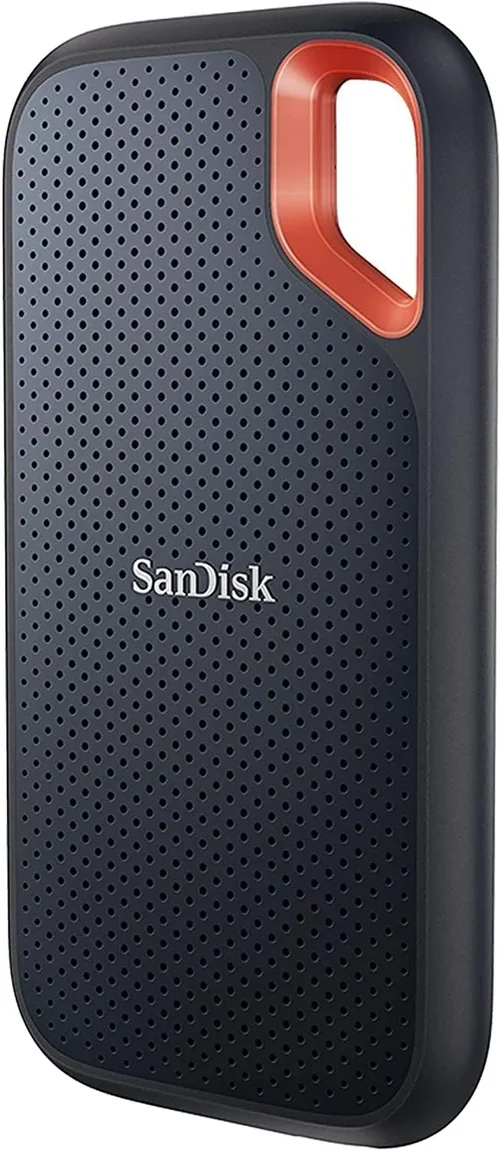
External SSDs have revolutionized the way we store, transfer, and back up data. Gone are the days of slow, bulky external hard drives that took minutes—or even hours—to move large files. Today’s external solid-state drives offer blazing-fast speeds, compact designs, and rock-solid reliability, making them essential tools for everyone from students and remote workers to creative professionals and gamers. Whether you’re editing 4K video on location, backing up your laptop before a big trip, or expanding your console’s storage, an external SSD can be a game-changer.
This comprehensive buying guide is designed to help you navigate the crowded and rapidly evolving market of external SSDs in 2026. With so many options available—ranging from budget-friendly models to high-performance, ruggedized drives—it’s easy to feel overwhelmed. Our goal is to cut through the noise and give you the knowledge and confidence to choose the best external SSD for your specific needs. You’ll learn how to evaluate performance, durability, portability, and value, and we’ll walk you through common pitfalls to avoid. By the end of this guide, you’ll know exactly what to look for and how to get the most bang for your buck.
The external SSD market has matured significantly over the past few years. Major brands like Samsung, SanDisk, Crucial, WD, and Sabrent now offer a wide range of drives with USB-C connectivity, NVMe technology, and even IP-rated water and dust resistance. At the same time, newer entrants and lesser-known brands have pushed prices down, making high-speed storage more accessible than ever. However, not all SSDs are created equal. Some prioritize speed, others focus on ruggedness, and a few strike a balance between performance and affordability. This guide will help you understand the trade-offs and make an informed decision based on your real-world usage.

What to Look for When Buying Buying Guide
1. Budget & Price Range
Your budget is often the first and most important factor when shopping for an external SSD. Prices can range from under $50 for basic 500GB models to over $500 for high-capacity, enterprise-grade drives. The key is to align your spending with your actual needs rather than chasing the latest specs or the lowest price tag.
Entry-level drives typically use SATA-based SSDs inside, which cap out around 550 MB/s—still much faster than traditional hard drives but slower than NVMe-based models. These are perfect for everyday file storage, document backups, and light media use. Mid-range options often feature NVMe technology with speeds exceeding 1,000 MB/s, ideal for photographers, videographers, and power users. Premium drives go even further, offering speeds up to 2,000 MB/s or more, along with enhanced durability and advanced features like hardware encryption.
It’s also worth considering cost per gigabyte. A 1TB drive might seem like a better deal than a 500GB one, but if you only need 500GB, you’re paying for unused capacity. Conversely, buying multiple smaller drives can be more expensive and less convenient than a single larger unit. Always assess your current and future storage needs before deciding on capacity and price.
2. Performance Specifications
Performance is where external SSDs truly shine—but not all drives perform the same. The two most critical specs to look at are read and write speeds, usually measured in megabytes per second (MB/s). Faster speeds mean quicker file transfers, smoother video editing, and reduced load times for games or applications.
Most modern external SSDs use either SATA or NVMe (Non-Volatile Memory Express) interfaces. SATA SSDs are limited to around 550 MB/s due to the older protocol, while NVMe drives can reach 1,000–2,000+ MB/s, especially when connected via USB 3.2 Gen 2×2 or Thunderbolt 3/4. If you’re transferring large video files, RAW photos, or game libraries, NVMe is the way to go.
Also pay attention to the connection type. USB-C is now standard, but the version matters. USB 3.2 Gen 1 (formerly USB 3.0) offers up to 5 Gbps, Gen 2 delivers 10 Gbps, and Gen 2×2 hits 20 Gbps. Thunderbolt 3 and 4 support up to 40 Gbps and are backward compatible with USB-C, but require compatible ports on your device. Always check your computer or console’s port capabilities to ensure you’re getting the full speed your drive can deliver.
3. Build Quality & Durability
Unlike traditional hard drives, SSDs have no moving parts, making them inherently more resistant to physical shock. However, external SSDs still face real-world risks like drops, spills, and extreme temperatures—especially if you’re using them on the go. That’s why build quality and durability features are crucial.
Look for drives with metal casings (like aluminum), which dissipate heat better and provide structural strength. Rubberized coatings can add grip and shock absorption. Many premium models now include IP ratings—such as IP65 or IP68—which indicate resistance to dust and water. For example, an IP68 rating means the drive can survive submersion in water up to 1.5 meters for 30 minutes.
Ruggedized drives are ideal for outdoor photographers, field researchers, or travelers. Brands like LaCie and SanDisk offer models specifically designed to withstand harsh conditions. Even if you’re mostly using your SSD at home, a well-built drive will last longer and give you peace of mind.
4. Features & Functionality
Beyond raw speed and durability, modern external SSDs come with a variety of features that can enhance usability and security. One of the most valuable is hardware-based encryption, often paired with a password or biometric authentication (like a fingerprint scanner). This protects your data if the drive is lost or stolen—critical for business users or anyone storing sensitive information.
Some drives include bundled software for automatic backups, drive cloning, or cloud sync integration. While convenient, be cautious: proprietary software can sometimes be bloated or incompatible with your system. Open standards like Time Machine (for Mac) or File History (for Windows) are often more reliable long-term.
Other useful features include LED activity indicators, built-in cable storage, and compatibility with multiple operating systems (Windows, macOS, Linux, Android). A few high-end models even support daisy-chaining via Thunderbolt, allowing you to connect multiple devices in a chain without needing extra ports.
5. Brand Reputation
When it comes to storage, brand reputation matters. Established manufacturers like Samsung, Western Digital, SanDisk, Crucial, and Kingston have a proven track record of reliability, consistent performance, and strong customer support. They also tend to use higher-quality NAND flash memory and controllers, which translates to better longevity and fewer failures.
That said, newer brands and white-label manufacturers have entered the market with competitive offerings—often at lower prices. While some of these drives perform well, they may lack rigorous testing, long-term firmware updates, or responsive customer service. If you go with a lesser-known brand, check independent reviews and user feedback carefully.
Another advantage of reputable brands is ecosystem integration. For example, Samsung’s T series drives work seamlessly with Samsung smartphones and laptops, while WD’s My Passport SSD includes tools for easy backup across devices. Stick with trusted names unless you’ve done thorough research on alternatives.
6. Warranty & Support
A solid warranty is a strong indicator of a manufacturer’s confidence in their product. Most reputable external SSDs come with a 3- to 5-year limited warranty, covering defects in materials and workmanship. Some premium models even offer 5+ years of coverage.
Pay attention to what the warranty includes. Does it cover accidental damage? Is data recovery included? Can you get a replacement drive shipped quickly? Also consider the availability of customer support—phone, email, live chat, or community forums. A company that responds promptly and helpfully can save you hours of frustration if something goes wrong.
Extended warranties or accidental damage protection plans are sometimes available at checkout, especially from retailers like Best Buy or Amazon. These can be worth it if you plan to use the drive in risky environments, but they’re usually unnecessary for home or office use.
7. Size & Portability
One of the biggest advantages of external SSDs is their compact size. Many are smaller than a smartphone and light enough to slip into a pocket or laptop bag. This makes them ideal for mobile professionals, students, and travelers who need fast, reliable storage on the go.
When evaluating portability, consider both physical dimensions and weight. A drive that’s 3 inches long and weighs under 2 ounces is highly portable, while larger models with built-in cooling or extra features may be bulkier. Also check if the drive includes a protective case or sleeve—some do, others don’t.
Cable management is another subtle but important detail. Some drives come with short, detachable USB-C cables that tuck neatly into the casing. Others require you to carry a separate cable, which can get lost. If you’re frequently on the move, look for a model with integrated cable storage or a compact, coiled design.
8. User Reviews & Ratings
While specs and marketing materials give you the basics, real-world user reviews reveal how a drive performs under actual conditions. Look for patterns in feedback: Are multiple users reporting slowdowns after prolonged use? Do people praise the build quality or complain about overheating? Are there consistent issues with compatibility or software?
Trusted review sites like Tom’s Hardware, PCMag, and Wirecutter provide in-depth testing and comparisons, but don’t ignore customer reviews on retail platforms like Amazon, Best Buy, or Newegg. These often include photos, long-term usage reports, and tips from other buyers.
Be wary of fake or incentivized reviews. Look for detailed, balanced feedback that mentions both pros and cons. A drive with thousands of 5-star reviews but no critical comments may raise red flags. Aim for a mix of professional and user insights to get a complete picture.
Different Types of Buying Guide
Common Buying Mistakes to Avoid
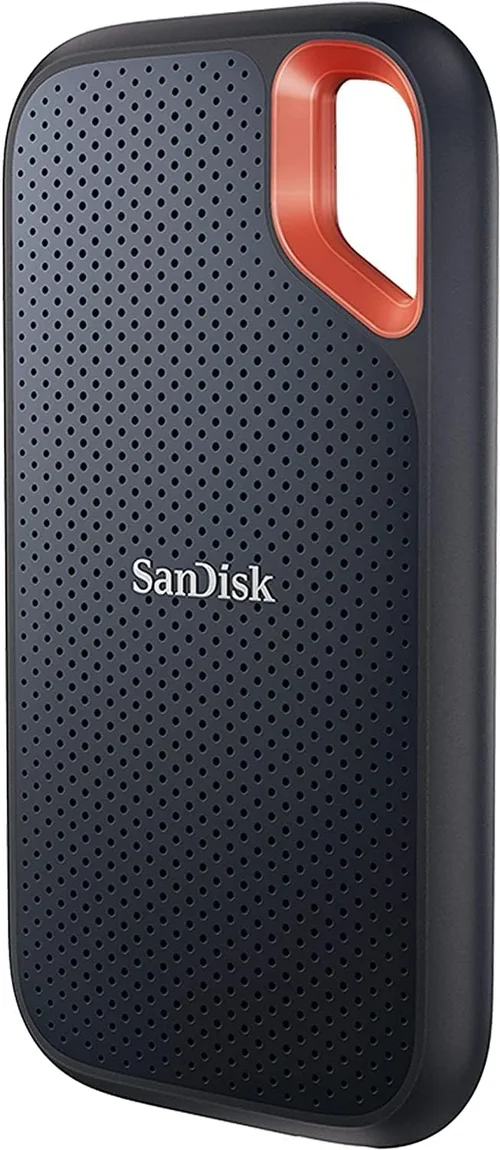
❌ Mistake: Ignoring Interface Compatibility
Why it’s bad: Buying a Thunderbolt 4 SSD for a laptop that only has USB 3.0 ports means you’ll never reach the drive’s full speed—and you’ll have wasted money on capabilities you can’t use.
What to do instead: Always check your device’s port types and supported protocols before purchasing. Match the drive’s interface (USB 3.2, Thunderbolt, etc.) to what your system can handle.
❌ Mistake: Overpaying for Unused Capacity
Why it’s bad: Spending $300 on a 4TB drive when you only need 1TB is inefficient and unnecessary. You’re paying for storage you’ll likely never use.
What to do instead: Estimate your current storage needs and add 20–30% for future growth. Choose a capacity that fits your workflow without excessive overhead.
❌ Mistake: Skipping Warranty Details
Why it’s bad: A drive with a 1-year warranty may fail just after coverage ends, leaving you with no recourse. Some brands also exclude certain types of damage.
What to do instead: Read the fine print. Opt for drives with at least a 3-year warranty and clear terms. Consider extended protection if you’re using the drive in high-risk environments.
❌ Mistake: Choosing Based Solely on Speed
Why it’s bad: A drive with 2,000 MB/s speeds is overkill if you’re only storing documents or streaming movies. You’re paying for performance you don’t need.
What to do instead: Align speed with use case. Casual users can thrive with SATA SSDs, while professionals should invest in NVMe or Thunderbolt models.
❌ Mistake: Neglecting Backup Strategy
Why it’s bad: An external SSD is not a backup solution by itself. If it fails or gets lost, your data is gone unless you have another copy.
What to do instead: Use the 3-2-1 backup rule: 3 copies of your data, on 2 different media, with 1 copy offsite (e.g., cloud storage).
❌ Mistake: Buying from Unknown Sellers
Why it’s bad: Counterfeit or refurbished drives sold as new can have hidden defects, reduced lifespan, or malicious firmware.
What to do instead: Purchase from authorized retailers or the manufacturer’s official store. Check seller ratings and return policies.
❌ Mistake: Ignoring Heat Management
Why it’s bad: High-speed SSDs generate heat, which can throttle performance or shorten lifespan if not properly managed.
What to do instead: Choose drives with aluminum casings or built-in heat sinks. Avoid enclosing the drive in tight spaces during heavy use.
Budget Guidelines: How Much Should You Spend?
- Entry-Level ($40–$80): Ideal for students, casual users, and basic file storage. Expect SATA-based drives with 500GB–1TB capacity and speeds around 500 MB/s. Brands like Kingston and PNY offer reliable options in this range.
- Mid-Range ($80–$200): The sweet spot for most buyers. These NVMe drives offer 1TB–2TB of storage, speeds from 1,000 to 1,500 MB/s, and better build quality. Great for photographers, gamers, and remote workers.
- Premium ($200–$400): For professionals and power users. Features include Thunderbolt support, rugged designs, hardware encryption, and capacities up to 4TB. Expect top-tier performance and durability.
- Luxury ($400+): High-capacity desktop SSDs or enterprise-grade models with 8TB+ storage, active cooling, and advanced security. Best for video production studios, IT departments, or users with massive data needs.
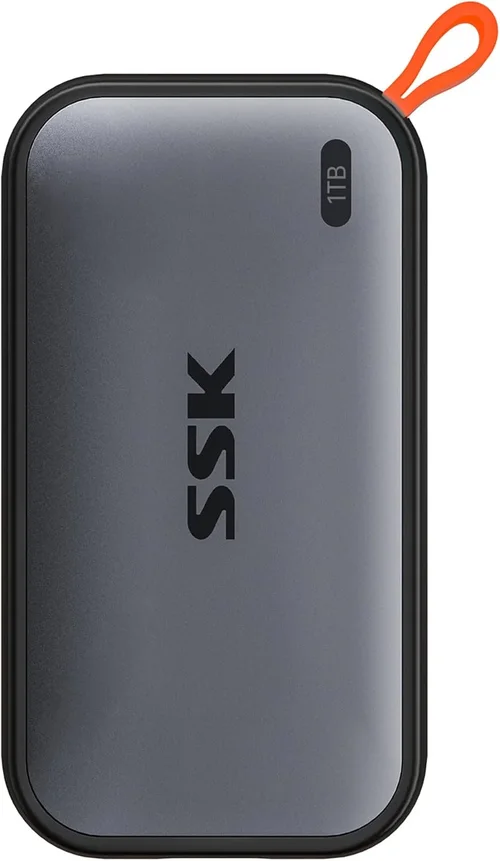
Expert Tips for Getting the Best Deal
- Buy during major sales events: Retailers consistently discount external SSDs during holidays and shopping festivals. Patience can save you 20–40%.
- Compare prices across platforms: Check Amazon, Best Buy, Newegg, B&H, and the manufacturer’s website. Sometimes the best deal isn’t where you expect.
- Look for bundle deals: Some retailers offer SSDs with free cloud storage, cases, or software subscriptions. These can add significant value.
- Check return policies: Ensure you can return or exchange the drive within 30 days if it doesn’t meet your expectations.
- Test performance after purchase: Use tools like CrystalDiskMark (Windows) or Blackmagic Disk Speed Test (Mac) to verify advertised speeds.
- Register your warranty: Many manufacturers require online registration to activate full coverage. Don’t skip this step.
- Consider refurbished models: Certified refurbished drives from reputable sellers often come with full warranties and cost 20–30% less.
- Future-proof your purchase: If you plan to upgrade your laptop or console soon, choose a drive with Thunderbolt or USB 3.2 Gen 2×2 to maximize compatibility.

Frequently Asked Questions
Q: Can I use an external SSD with my gaming console?
A: Yes! The PlayStation 5 and Xbox Series X|S both support external SSDs for storing and playing games (PS5 requires NVMe SSDs with heatsinks for internal expansion, but external SSDs work for storage). Nintendo Switch also supports external SSDs via USB for game backups and homebrew, though official support is limited.
Q: Will an external SSD improve my laptop’s performance?
A: Not directly. An external SSD won’t speed up your laptop’s internal operations, but it can help if you’re running out of internal storage. You can install apps or games on the external drive to free up space and maintain system responsiveness.
Q: Are external SSDs safe for long-term storage?
A: SSDs are reliable but not ideal for archival storage. Unlike tape or optical media, SSDs can lose data over time if left unpowered for years. For long-term backups, consider combining an SSD with cloud storage or a traditional HDD.
Q: Do I need a special cable for my external SSD?
A: Most drives come with a USB-C cable, but quality varies. For maximum speed, use a certified USB 3.2 Gen 2 or Thunderbolt cable. Avoid cheap, uncertified cables that may limit performance or cause connection issues.
Q: Can I use one external SSD with both Mac and PC?
A: Yes, but you’ll need to format it correctly. exFAT is the best file system for cross-platform compatibility. Avoid NTFS (Windows-only) or APFS (macOS-only) unless you’re using third-party drivers.
Q: How long do external SSDs last?
A: Most consumer SSDs are rated for 150–600 terabytes written (TBW), which translates to 5–10 years of typical use. Heavy workloads (like video editing) may wear them out faster, but modern drives include wear-leveling technology to extend lifespan.
Q: Should I get a drive with hardware encryption?
A: If you store sensitive data—financial records, client files, personal photos—yes. Hardware encryption is faster and more secure than software-based solutions. Look for AES-256 bit encryption and biometric or password protection.
Q: Can I daisy-chain multiple external SSDs?
A: Only if they support Thunderbolt and your host device has Thunderbolt ports. USB-based drives cannot be daisy-chained. Thunderbolt allows up to six devices in a chain, which is useful for video editors or developers.
Q: What’s the difference between USB 3.2 Gen 1 and Gen 2?
A: Gen 1 offers up to 5 Gbps (625 MB/s), while Gen 2 doubles that to 10 Gbps (1,250 MB/s). Gen 2×2 pushes it to 20 Gbps. Always match your drive’s interface to your port’s capability.
Q: Are cheaper SSDs from unknown brands safe to use?
A: Proceed with caution. Some budget drives use lower-quality NAND or lack proper firmware updates. Stick to reputable brands or thoroughly research alternatives with independent reviews.
Our Final Recommendations
- Best for Budget-Conscious Buyers: Kingston XS2000 – Offers NVMe speeds up to 2,000 MB/s at a surprisingly low price. Compact, lightweight, and reliable for everyday use.
- Best Overall Value: Samsung T7 Shield – Combines rugged design, IP65 rating, and consistent 1,050 MB/s speeds. Perfect balance of performance, durability, and price.
- Best Premium Option: SanDisk Professional PRO-G40 – Thunderbolt 4 support, 3,000 MB/s speeds, and military-grade durability. Ideal for filmmakers and tech enthusiasts.
- Best for Beginners: WD My Passport SSD – User-friendly design, solid performance, and includes backup software. Great first external SSD.
- Best for Advanced Users: Sabrent Rocket XTRM-Q – Up to 8TB capacity, Thunderbolt 3, and hardware encryption. Built for demanding workflows and large datasets.
Conclusion: Making the Right Choice
Choosing the best external SSD doesn’t have to be overwhelming. By focusing on your specific needs—whether that’s speed, durability, portability, or budget—you can narrow down the options and find a drive that truly enhances your workflow. Remember to prioritize compatibility, warranty coverage, and real-world performance over flashy specs or brand names alone.
Don’t fall into the trap of overbuying or underspending. A well-chosen external SSD should last you years, protect your data, and make your digital life easier. Use the guidelines, tips, and recommendations in this guide to make a confident, informed decision.
Ready to upgrade your storage? Start by assessing your usage, setting a realistic budget, and comparing the top models in your price range. And when you find the right drive, don’t forget to back up your data regularly—because even the best SSD isn’t immune to failure.
Your files deserve the best. Make 2026 the year you invest in reliable, high-performance storage that keeps up with your ambitions.