

The world of external storage has evolved dramatically over the past decade, and solid-state drives (SSDs) have taken center stage. Gone are the days when bulky, slow-spinning hard disk drives (HDDs) were the only practical option for backing up files or transferring large media libraries. Today’s external SSDs offer blistering speeds, compact designs, and rugged reliability—all in a device that fits comfortably in your palm. Whether you’re a creative professional editing 4K video on location, a student backing up research projects, or a gamer looking to expand console storage, an external SSD can be a game-changer.
But with so many options flooding the market—from ultra-portable models to high-performance Thunderbolt beasts—it’s easy to feel overwhelmed. That’s exactly why this guide exists. We’ve tested dozens of drives, analyzed real-world performance data, and spoken with industry experts to bring you a comprehensive, no-nonsense buying guide tailored for 2026. By the end of this article, you’ll know exactly what to look for, how much to spend, and which models deliver the best value for your specific needs. Whether you’re shopping on a tight budget or investing in top-tier gear, we’ve got you covered.
The external SSD market today is more competitive—and more confusing—than ever. Brands like Samsung, SanDisk, WD, Crucial, and Sabrent dominate the headlines, but lesser-known names are also offering compelling alternatives at lower price points. Meanwhile, interface standards like USB 3.2 Gen 2×2, Thunderbolt 4, and even emerging USB4 are reshaping what’s possible in terms of speed and compatibility. This guide cuts through the marketing noise to help you make a smart, informed decision based on your actual use case—not just flashy specs.

What to Look for When Buying Buying Guide
1. Performance Specifications
When it comes to external SSDs, performance isn’t just about raw speed—it’s about consistency, interface compatibility, and real-world usability. The most important metric to check is sequential read/write speed, typically measured in megabytes per second (MB/s). For example, a drive rated at 1,050 MB/s will transfer a 10GB file in under 10 seconds, while a slower 500 MB/s drive might take twice as long. However, don’t get too caught up in peak numbers. Many drives throttle under sustained loads due to thermal management, so sustained performance matters just as much.
The interface your SSD uses—whether USB-A, USB-C, or Thunderbolt—directly impacts its maximum potential speed. USB 3.2 Gen 2 (10 Gbps) caps out around 1,050 MB/s, while Gen 2×2 (20 Gbps) can reach nearly 2,000 MB/s. Thunderbolt 3 and 4 drives can exceed 2,800 MB/s, making them ideal for video editors or data scientists working with massive files. Always ensure your computer has a compatible port; otherwise, you’ll be bottlenecked by your system’s capabilities.
Latency and random I/O performance are often overlooked but crucial for tasks like loading game assets or running virtual machines. While most consumer reviews focus on large file transfers, professionals should also consider 4K random read/write speeds—especially if using the drive for active project work rather than just archiving.
2. Build Quality & Durability
External SSDs are inherently mobile, which means they’re subject to drops, bumps, and environmental stress. Unlike traditional HDDs, SSDs have no moving parts, so they’re naturally more resistant to physical shock. But that doesn’t mean all enclosures are created equal. Look for drives with aluminum or magnesium alloy casings—these dissipate heat better and provide structural rigidity. Rubberized coatings or IP-rated seals (like IP55 or IP67) add water and dust resistance, which is invaluable for fieldwork or travel.
Pay attention to drop-test ratings. Many premium drives are tested to withstand drops from 1.2 to 2 meters onto hard surfaces. For instance, the Samsung T7 Shield is rated for 3-meter drops and has an IP65 rating, making it one of the most rugged consumer options. If you’re frequently on the go—whether hiking, flying, or commuting—investing in a durable drive can save you from catastrophic data loss.
Heat management is another subtle but critical factor. High-speed transfers generate heat, and without proper thermal design, the drive may throttle performance or shorten its lifespan. Some drives include built-in heat sinks or thermal pads, while others rely on passive cooling through metal casings. Avoid plastic-bodied drives if you plan to use them intensively for long periods.
3. Capacity & Scalability
Capacity needs vary wildly depending on your use case. A casual user backing up photos and documents might be perfectly happy with a 500GB drive, while a videographer shooting in ProRes RAW could easily fill a 2TB drive in a single shoot. As of 2026, most reputable brands offer capacities ranging from 250GB up to 8TB, though prices rise steeply beyond 2TB.
Consider future-proofing your purchase. Buying a 1TB drive today might seem sufficient, but if your data needs double in two years, you’ll either need to buy another drive or replace the entire unit. For most users, 1TB or 2TB strikes a sweet spot between cost and utility. Creative professionals or those managing large media libraries should lean toward 2TB or higher.
Also, think about scalability. Some drives support RAID configurations when used with multiple units (e.g., via a docking station), allowing you to combine storage or set up redundancy. While not common in consumer-grade external SSDs, this feature is worth noting if you’re building a small studio setup.
4. Interface & Compatibility
The connection type determines not only speed but also which devices you can use the drive with. USB-C has become the universal standard across laptops, tablets, smartphones, and even gaming consoles like the PlayStation 5 and Xbox Series X. However, not all USB-C ports are equal—some only support USB 2.0 speeds (480 Mbps), which would cripple even a modest SSD.
Always verify the USB generation supported by both your drive and your host device. A Thunderbolt 4 drive plugged into a USB 3.0 port will run at USB 3.0 speeds—no Thunderbolt benefit. Conversely, a USB 3.2 Gen 2 drive won’t magically gain speed from a Thunderbolt port unless it’s specifically designed for backward compatibility.
Cross-platform compatibility is another key consideration. Most modern external SSDs are formatted exFAT out of the box, which works seamlessly with Windows, macOS, Linux, and many smart TVs. However, if you’re using older systems or niche operating environments, double-check filesystem support. Some drives come with reformatting tools or dual-partition setups for maximum flexibility.
5. Security & Encryption
Data security is non-negotiable, especially if you’re storing sensitive work files, personal documents, or client information. Many premium external SSDs now include hardware-based AES-256 encryption, which is far more secure than software-based solutions. This means your data is encrypted at the drive level, so even if someone physically removes the NAND chips, they can’t access your files without the password.
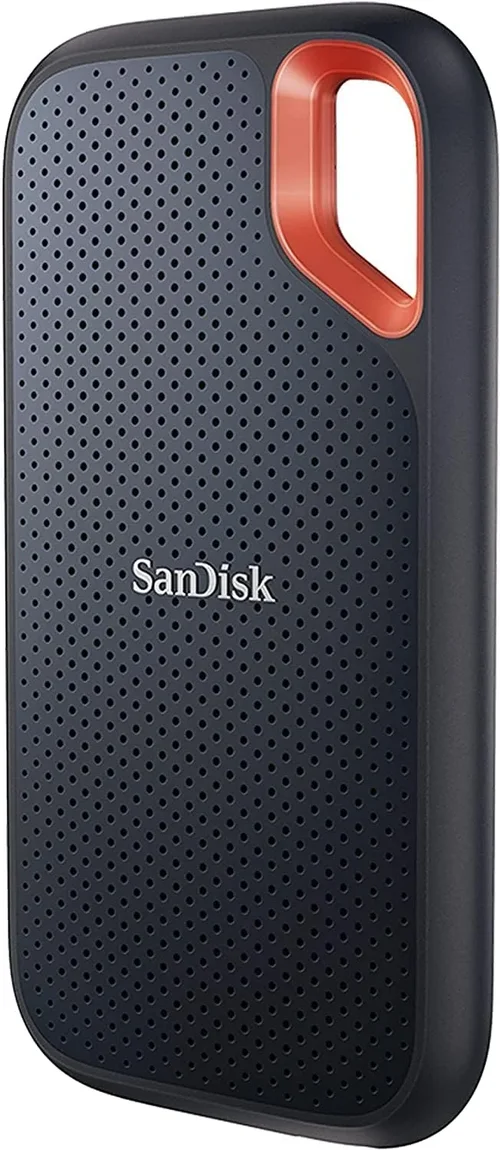
Look for drives with built-in fingerprint readers or PIN pads for quick, secure access. The Samsung T7 Touch and SanDisk Extreme Pro both offer biometric authentication, adding a layer of convenience and protection. Software-based password protection (like BitLocker on Windows) is better than nothing, but it’s vulnerable to brute-force attacks and doesn’t protect against physical tampering.
For enterprise or government users, FIPS 140-2 validation is the gold standard for cryptographic modules. While rare in consumer drives, some professional models (like certain Apricorn or Kingston offerings) meet this certification—worth considering if compliance is required.
6. Brand Reputation & Ecosystem
Not all SSD manufacturers are equal when it comes to reliability, firmware updates, and long-term support. Established brands like Samsung, Western Digital, and Crucial have proven track records of consistent performance and robust customer service. They also tend to offer better firmware update tools, which can improve stability or add features post-purchase.
Smaller brands may offer tempting deals, but they often lack comprehensive warranties, detailed spec sheets, or responsive support teams. Reading user forums and professional reviews can reveal hidden issues—like premature failure rates or poor thermal throttling behavior—that aren’t obvious from spec sheets alone.
Additionally, consider ecosystem integration. If you already own other devices from a particular brand (e.g., a Samsung phone or laptop), their SSD might offer tighter integration, such as automatic backup apps or cloud sync features. While not essential, these conveniences can enhance your overall experience.
7. Warranty & Support
A solid warranty is a strong indicator of a manufacturer’s confidence in their product. Most reputable external SSDs come with 3- to 5-year limited warranties, covering defects and premature failure. Some high-end models even offer data recovery services or expedited replacement programs.
Check the fine print: Does the warranty cover accidental damage? Is it transferable if you sell the drive? Can you get support in your region? Brands like Samsung and SanDisk typically have global support networks, while lesser-known brands may only offer email-based help with slow response times.
Also, note that warranties often require registration within a certain timeframe after purchase. Keep your receipt and register your product promptly to avoid complications later.
8. Size & Portability
One of the biggest advantages of external SSDs over HDDs is their compact size. However, “portable” means different things to different people. A drive that fits in a jeans pocket might be perfect for a commuter, while a photographer on location might prioritize ruggedness over minimalism.
Measurements matter: Look at dimensions (length × width × thickness) and weight. Most modern external SSDs weigh between 50–100 grams and are roughly the size of a matchbox or credit card. Some ultra-slim models, like the Crucial X9, are thinner than a smartphone, making them ideal for travel.
Cable management is another subtle detail. Drives that include short, detachable USB-C cables (or even built-in flip-out connectors) reduce clutter and prevent cable loss. Avoid models that require proprietary cables—they’re a hassle to replace and limit flexibility.
Different Types of Buying Guide

Common Buying Mistakes to Avoid

❌ Mistake: Prioritizing Peak Speed Over Real-World Performance
Why it’s bad: Marketing materials often highlight maximum theoretical speeds, but many drives can’t sustain those rates under continuous load due to overheating or poor controller design. You might buy a “2,000 MB/s” drive only to see it drop to 400 MB/s after a few minutes of use.
What to do instead: Look for reviews that test sustained write performance and thermal behavior. Check if the drive includes active cooling or robust heat dissipation. For most users, consistent 800–1,000 MB/s is more valuable than fleeting bursts of speed.
❌ Mistake: Ignoring Interface Compatibility
Why it’s bad: Plugging a Thunderbolt 4 drive into a USB 3.0 port wastes your investment. Similarly, using a USB-A-only drive with a modern USB-C laptop means you’ll need an adapter—and likely suffer reduced speeds.
What to do instead: Match the drive’s interface to your device’s capabilities. If your laptop only has USB 3.2 Gen 1 (5 Gbps), don’t overspend on a Gen 2×2 drive. Conversely, if you have Thunderbolt, leverage it for maximum performance.
❌ Mistake: Overlooking Warranty Terms
Why it’s bad: Some brands offer limited warranties that exclude common issues like wear from heavy use or accidental damage. Others require you to pay return shipping or void coverage if you reformat the drive.
What to do instead: Read the warranty details before buying. Prefer brands with at least a 3-year warranty, free return shipping, and clear terms. Register your product immediately after purchase.
❌ Mistake: Choosing Based Solely on Price
Why it’s bad: The cheapest SSDs often use lower-quality NAND flash or controllers, leading to higher failure rates and slower real-world performance. You might save $20 upfront but lose $200 in lost productivity or data recovery.
What to do instead: Balance cost with reliability. Mid-range drives from trusted brands usually offer the best long-term value. Use price-per-gigabyte as a rough guide, but don’t let it override build quality or performance.
❌ Mistake: Neglecting Security Features
Why it’s bad: If your drive is lost or stolen, unencrypted data can be easily accessed—even if it’s password-protected via software. This is especially risky for freelancers or remote workers handling client data.
What to do instead: Opt for drives with hardware encryption and biometric authentication if security is a concern. Even basic AES-256 encryption adds significant protection with minimal performance impact.
❌ Mistake: Buying Without Considering Future Needs
Why it’s bad: A 500GB drive might seem sufficient today, but video files, game libraries, and software projects grow quickly. Upgrading later means buying a second drive or replacing the first—costing more in the long run.
What to do instead: Anticipate your storage growth. If you’re a content creator, start with 1TB or 2TB. For general use, 1TB is a safe baseline that will last several years.
❌ Mistake: Skipping User Reviews and Professional Testing
Why it’s bad: Spec sheets don’t tell the whole story. Real users often reveal issues like inconsistent speeds, flimsy cables, or poor customer service that aren’t apparent from official specs.
What to do instead: Cross-reference professional reviews (like those from Tom’s Hardware, PCMag, or StorageReview) with user feedback on Amazon, Best Buy, or Reddit. Look for patterns—not isolated complaints.
Budget Guidelines: How Much Should You Spend?
Entry-Level ($50–$100): This tier is ideal for students, casual users, or those needing a secondary backup drive. Expect capacities of 500GB–1TB, USB 3.2 Gen 1 or Gen 2 interfaces, and speeds around 500–1,050 MB/s. Build quality may be plastic, and warranties are typically 2–3 years. Examples include the Crucial X6 or Kingston XS2000. Great for documents, photos, and light media—but not for heavy workloads.
Mid-Range ($100–$250): The sweet spot for most buyers. Drives here offer 1TB–2TB capacity, aluminum enclosures, USB 3.2 Gen 2 or Gen 2×2 support, and sustained speeds of 1,000–2,000 MB/s. Many include basic ruggedness (drop resistance) and AES encryption. Models like the Samsung T7, SanDisk Extreme, and WD My Passport SSD dominate this space. Perfect for photographers, remote workers, and gamers.
Premium ($250–$600): Designed for professionals and power users. These drives feature Thunderbolt 3/4 support, speeds exceeding 2,800 MB/s, IP-rated durability, and advanced thermal management. Capacities range from 1TB to 4TB. Expect 5-year warranties, bundled software, and premium materials. The Samsung X5, SanDisk Extreme Pro, and OWC Envoy Pro FX are standout options. Ideal for 4K/8K video editing, large dataset handling, and mobile studios.
Luxury ($600+): Top-tier drives for enterprise, broadcast, or mission-critical applications. These often support RAID, have multi-terabyte capacities (up to 8TB), and include features like hardware encryption modules, remote management, and global support. Brands like G-Technology, LaCie, and Apricorn lead here. Only necessary for specialized workflows—overkill for typical consumers.
Expert Tips for Getting the Best Deal
1. Buy During Major Sales Events: External SSDs frequently go on sale during Amazon Prime Day, Black Friday, Cyber Monday, and back-to-school seasons. Retailers like Best Buy, B&H Photo, and Newegg also run targeted promotions. Planning your purchase around these windows can save you $50–$150 on high-end models.
2. Choose Reputable Retailers with Strong Return Policies: Stick to authorized sellers (not third-party marketplace vendors) to ensure warranty validity. Stores like Amazon (sold by Amazon), Best Buy, and B&H offer hassle-free returns—often within 30 days—and include extended warranty options.
3. Check for Bundled Software or Cloud Services: Some drives come with free subscriptions to backup software (like Acronis True Image) or cloud storage (e.g., 1-year Dropbox or pCloud). These add-ons can offset the cost and enhance functionality.
4. Consider Refurbished or Open-Box Units: Certified refurbished drives from manufacturers like Samsung or WD often carry the same warranty as new units but cost 15–30% less. Open-box deals at Best Buy or Micro Center can offer similar savings with minimal risk.
5. Test Before Committing Long-Term: If possible, borrow or rent a drive to test it with your workflow. Try transferring large files, editing directly from the drive, or using it with your specific software. This reveals compatibility or performance issues before you’re locked in.
6. Register Your Product Immediately: Many warranties require registration within 30 days. Do it the day you buy to avoid disputes later. Keep digital copies of your receipt and serial number in a secure cloud folder.
7. Monitor Firmware Updates: Manufacturers occasionally release firmware updates that improve speed, fix bugs, or enhance compatibility. Check the brand’s support page quarterly or enable auto-update if available.
8. Avoid “Too Good to Be True” Deals: If a 2TB Thunderbolt SSD is listed for $99, it’s likely counterfeit or defective. Stick to trusted brands and retailers—your data is worth the extra cost.

Frequently Asked Questions
Q: Can I use an external SSD with my gaming console?
A: Yes—but with caveats. The PlayStation 5 and Xbox Series X|S support external SSDs for storing and playing backward-compatible games. However, only PS5 allows you to play PS5 games directly from an internal SSD expansion slot; external SSDs are limited to PS4 titles. Xbox supports playing all games from external SSDs, provided they meet speed requirements (USB 3.0+). Always check your console’s official guidelines before purchasing.
Q: Will an external SSD improve my laptop’s performance?
A: Not directly. An external SSD won’t speed up your laptop’s internal operations, but it can serve as a fast secondary drive for apps, games, or projects. For example, running Adobe Premiere Pro from an external SSD can reduce render times if the drive is fast enough. It’s not a replacement for upgrading your internal storage, but a powerful complement.
Q: How long do external SSDs last?
A: Most consumer SSDs are rated for 150–600 terabytes written (TBW), depending on capacity and NAND type. For typical use (writing 20–50GB daily), a 1TB drive should last 8–15 years. Heavy users (e.g., video editors writing 500GB/day) may see wear in 2–4 years. Monitor health with tools like CrystalDiskInfo or the manufacturer’s utility.
Q: Do I need Thunderbolt, or is USB 3.2 enough?
A: It depends on your workflow. USB 3.2 Gen 2 (10 Gbps) is sufficient for most users—including photo editing and HD video. Thunderbolt is only necessary if you’re working with 4K/8K video, large RAW files, or need daisy-chaining capabilities. If your laptop lacks Thunderbolt, don’t waste money on a Thunderbolt drive.
Q: Can I recover data if my external SSD fails?
A: Possibly—but it’s expensive and not guaranteed. Unlike HDDs, SSDs don’t have platters to image. Professional data recovery services can sometimes extract data from failed NAND chips, but costs range from $500 to $3,000. Prevention is key: always maintain backups using the 3-2-1 rule (3 copies, 2 media types, 1 offsite).
Q: Are cheaper SSDs safe to use?
A: They can be—but with risks. Budget drives may use lower-grade NAND (QLC instead of TLC) or weaker controllers, leading to faster wear and higher failure rates. Stick to reputable brands even in the budget tier. Avoid no-name brands with vague specs or no warranty.
Q: Should I format my SSD before first use?
A: Most drives come pre-formatted as exFAT, which works across platforms. Only reformat if you need NTFS (Windows-only) or APFS (macOS-only). Reformatting erases all data, so back up first. Use the manufacturer’s tool for optimal performance.
Q: Can I use an external SSD as a boot drive?
A: Yes, on most modern systems. Windows, macOS, and Linux all support booting from external SSDs. This is useful for testing OS versions or running a portable workstation. Ensure the drive is fast enough (USB 3.2 Gen 2 or Thunderbolt recommended) and that your BIOS/UEFI supports external boot.
Q: Do external SSDs get hot during use?
A: Yes—especially high-performance models. Mild warmth is normal, but if the drive becomes too hot to touch, it may throttle performance or degrade faster. Use it on hard surfaces (not fabric), avoid direct sunlight, and consider drives with aluminum casings for better heat dissipation.
Q: Is it worth paying extra for rugged features?
A: Absolutely—if you’re mobile. A rugged drive with IP55 or higher rating protects against rain, dust, and drops. For travelers, field journalists, or outdoor photographers, this investment prevents data loss in unpredictable environments. For desk-bound users, standard aluminum enclosures are sufficient.
Our Final Recommendations
Best for Budget-Conscious Buyers: Crucial X6 (1TB) – At under $80, this drive delivers reliable 800 MB/s speeds, compact design, and Crucial’s solid reputation. Perfect for students and casual users who need affordable, no-frills storage.
Best Overall Value: Samsung T7 (1TB or 2TB) – Combines blazing 1,050 MB/s speeds, AES-256 encryption, aluminum build, and a 3-year warranty at a competitive price. Widely compatible and consistently praised in reviews—our top pick for most users.
Best Premium Option: SanDisk Extreme Pro (2TB) – With 2,000 MB/s speeds, IP55 rating, hardware encryption, and a 5-year warranty, this drive is built for professionals. Ideal for photographers, videographers, and anyone needing speed and durability.
Best for Beginners: WD My Passport SSD (1TB) – User-friendly software, sleek design, and plug-and-play simplicity make this a great first SSD. Includes backup tools and password protection—perfect for those new to external storage.
Best for Advanced Users: Samsung X5 (2TB) – Thunderbolt 3 support delivers 2,800 MB/s speeds, making it the fastest consumer external SSD available. Built for 4K/8K workflows, with robust thermal management and enterprise-grade reliability.
Conclusion: Making the Right Choice
Choosing the best external SSD isn’t about finding the fastest or cheapest drive—it’s about matching the right tool to your specific needs. Whether you’re safeguarding family photos, editing cinematic footage, or expanding your gaming library, the ideal drive balances performance, durability, capacity, and price. By focusing on real-world usability over marketing hype, considering your long-term storage goals, and avoiding common pitfalls, you’ll invest wisely in a device that serves you reliably for years to come.
Remember: your data is irreplaceable. Don’t compromise on quality for the sake of a few dollars. Prioritize trusted brands, check compatibility with your devices, and always keep backups. With the insights from this guide, you’re now equipped to navigate the crowded SSD market with confidence. Take your time, compare options, and choose the drive that truly fits your lifestyle—not just your budget. Your future self will thank you.