

Solid-state drives (SSDs) have revolutionized how we store and access data. Gone are the days of waiting minutes for a computer to boot or applications to load—SSDs deliver near-instant performance, silent operation, and improved reliability compared to traditional hard disk drives (HDDs). Yet, despite their clear advantages, many people still hesitate to upgrade due to perceived cost barriers. The truth is, you don’t need to spend a fortune to enjoy the benefits of solid-state storage. In fact, as of 2026, high-quality SSDs under $50 are not only available—they’re abundant, reliable, and capable of transforming your computing experience.
This comprehensive buying guide is designed for anyone looking to make a smart, budget-conscious decision when purchasing an SSD under $50. Whether you’re upgrading an old laptop, building a budget PC, or simply expanding your storage capacity, this guide will walk you through everything you need to know. We’ll break down the key factors that matter most—from performance and durability to brand reputation and warranty—and help you avoid common pitfalls that can lead to buyer’s remorse. By the end, you’ll have a clear understanding of what to look for, which models offer the best value, and how to stretch your dollar without sacrificing quality.
The SSD market in 2026 is more competitive than ever. Major manufacturers like Samsung, Crucial, Kingston, and Western Digital continue to push the envelope on affordability and performance, while newer brands like TeamGroup and Netac are gaining traction with aggressive pricing and solid reliability. At the same time, advancements in 3D NAND and QLC (quad-level cell) technology have made it possible to produce higher-capacity drives at lower costs. This means that even entry-level SSDs now offer capacities of 480GB to 1TB, with read/write speeds that far exceed what HDDs can deliver. However, not all cheap SSDs are created equal. Some sacrifice endurance or use outdated controllers, while others come with hidden costs like poor customer support or limited warranties. This guide will help you navigate these nuances and find the best cheap SSD under $50 that meets your specific needs.

What to Look for When Buying Buying Guide
1. Budget & Price Range
When shopping for an SSD under $50, your budget is the most immediate constraint—but it shouldn’t be the only consideration. While it’s tempting to go for the absolute lowest price, doing so can lead to compromises in performance, durability, or longevity. In 2026, you can expect to find reliable SSDs in the $25–$50 range, with capacities typically ranging from 240GB to 1TB. The sweet spot for most users is between $35 and $45, where you’ll find drives that balance speed, capacity, and build quality.
It’s important to understand what you’re getting for your money. At the lower end of the spectrum ($25–$30), you’ll often find 240GB or 480GB drives from lesser-known brands or older models from reputable manufacturers. These are fine for basic tasks like web browsing, document editing, or light gaming, but they may lack advanced features like DRAM cache or strong error correction. As you move up to the $35–$45 range, you’ll start seeing 500GB to 1TB drives from trusted brands with better controllers, faster NAND, and more robust firmware. These drives offer significantly better value and are ideal for everyday computing, multitasking, and even moderate content creation.
Always compare price per gigabyte (GB) when evaluating value. For example, a 480GB drive for $30 equals $0.0625 per GB, while a 1TB drive for $45 equals $0.045 per GB. The larger drive offers better long-term value, even if the upfront cost is higher. Additionally, keep an eye out for seasonal sales—Black Friday, Prime Day, and back-to-school promotions often bring high-capacity SSDs under $50, sometimes even dipping below $40 for 1TB models.
2. Performance Specifications
Performance is where SSDs truly shine, and even budget models deliver impressive speed improvements over HDDs. When evaluating performance, focus on three key metrics: sequential read/write speeds, random read/write IOPS (input/output operations per second), and interface type.
Sequential speeds refer to how quickly the drive can read or write large files, such as videos or game installations. For SATA III SSDs—the most common type under $50—you can expect read speeds between 500–560 MB/s and write speeds between 400–530 MB/s. These are more than sufficient for everyday tasks and represent a massive leap over HDDs, which typically max out around 120–160 MB/s.
Random IOPS measure how well the drive handles small, scattered data requests—like opening multiple browser tabs or launching several applications at once. A good budget SSD should deliver at least 50,000–80,000 IOPS for random reads and 40,000–70,000 for random writes. Higher IOPS mean smoother multitasking and faster system responsiveness.
The interface is also critical. Most SSDs under $50 use the SATA III interface, which is compatible with nearly all laptops and desktops made in the last decade. However, if your system supports NVMe (via an M.2 slot), you may find budget NVMe drives in this price range—especially during sales. NVMe drives are significantly faster, with speeds often exceeding 2,000 MB/s, but they’re less common under $50 and may come with trade-offs like lower endurance or smaller capacities.
3. Build Quality & Durability
Even though SSDs have no moving parts and are inherently more durable than HDDs, build quality still varies significantly between models and brands. A cheap SSD might save you money upfront, but if it fails prematurely, you could lose valuable data and end up spending more in the long run.
Look for drives that use high-quality NAND flash memory. In 2026, most budget SSDs use either TLC (triple-level cell) or QLC (quad-level cell) NAND. TLC is more durable and offers better performance, making it ideal for everyday use. QLC is cheaper and allows for higher capacities, but it has lower endurance and slower write speeds, especially when the drive is nearly full. For most users, a TLC-based SSD under $50 is the better choice.
The controller is another critical component. It manages data flow, error correction, and wear leveling. Reputable controllers from companies like Silicon Motion (SMI), Phison, or Marvell are signs of a well-engineered drive. Avoid drives with unknown or generic controllers, as they may lack proper firmware optimization and could lead to instability or data corruption.
Physical build quality also matters. Check for a sturdy casing, proper heat dissipation (especially in M.2 drives), and secure connectors. Some budget drives use thin plastic enclosures or poorly soldered components, which can lead to overheating or connection issues over time. Reading user reviews and professional teardowns can give you insight into a drive’s real-world reliability.
4. Features & Functionality
Modern SSDs come with a range of features that enhance performance, security, and usability. Even in the under-$50 category, you can find drives with useful extras that make a real difference in daily use.
One of the most important features is DRAM cache. Drives with a dedicated DRAM buffer can maintain consistent performance, especially during sustained writes. DRAM-less SSDs are cheaper but often suffer from speed drops when the cache fills up. If possible, prioritize drives with DRAM, as they offer a smoother experience for tasks like file transfers, video editing, or gaming.
Another valuable feature is hardware encryption. Many budget SSDs support AES-256 encryption, which protects your data in case the drive is lost or stolen. This is especially useful for laptops or external drives. Look for drives that are TCG Opal or IEEE-1667 compliant if security is a concern.
Firmware updates and management software are also worth considering. Brands like Samsung, Crucial, and Kingston offer free utilities that let you monitor drive health, update firmware, and optimize performance. These tools can extend the life of your SSD and help you troubleshoot issues before they become serious.
Finally, consider form factor and compatibility. Most budget SSDs come in the 2.5-inch SATA form factor, which fits standard laptop and desktop bays. However, if you’re upgrading a compact laptop or building a small-form-factor PC, you may need an M.2 2280 drive. Make sure your system supports the drive type before purchasing.
5. Brand Reputation
Brand reputation is a strong indicator of reliability and customer support. While it’s possible to find good deals from lesser-known brands, sticking with established manufacturers reduces the risk of encountering defective products or poor after-sales service.
In 2026, the most trusted brands in the budget SSD space include Samsung, Crucial (a subsidiary of Micron), Kingston, Western Digital, and TeamGroup. These companies have a proven track record of producing reliable drives, offering solid warranties, and providing responsive customer support.
Samsung, for example, is known for its high-quality NAND and excellent firmware. Even their budget models, like the 870 EVO, offer strong performance and durability. Crucial leverages Micron’s in-house memory production to deliver consistent quality at competitive prices. Kingston focuses on value and accessibility, with drives like the NV2 and KC3000 offering great performance for the price.
On the other hand, brands with limited presence or no customer support infrastructure should be approached with caution. A drive that fails after six months is no bargain if you can’t get a replacement or refund. Always check the manufacturer’s website for warranty information and support options before buying.
6. Warranty & Support
A good warranty is a sign that the manufacturer stands behind its product. For SSDs under $50, a warranty of 3 to 5 years is standard, but the terms matter just as much as the duration.
Look for warranties that cover both time and usage. Most SSDs are rated for a certain number of terabytes written (TBW)—for example, a 480GB drive might have a 200 TBW rating. This means the drive is expected to last until you’ve written 200 terabytes of data to it. If you exceed this limit, the warranty may no longer apply. For typical users, 200–300 TBW is more than sufficient, but heavy users (like video editors or gamers) should aim for higher ratings.
Also, check whether the warranty is transferable and what it covers. Some manufacturers only cover defects in materials and workmanship, while others include data recovery services or expedited replacements. Read the fine print to understand your rights.
Customer support is equally important. Can you contact the manufacturer via phone, email, or live chat? Are there online resources like FAQs, forums, or troubleshooting guides? A brand with strong support can save you hours of frustration if something goes wrong.
7. Size & Portability
While most internal SSDs are designed to fit inside a computer, portability becomes a factor if you’re considering an external SSD or upgrading a laptop with limited space.
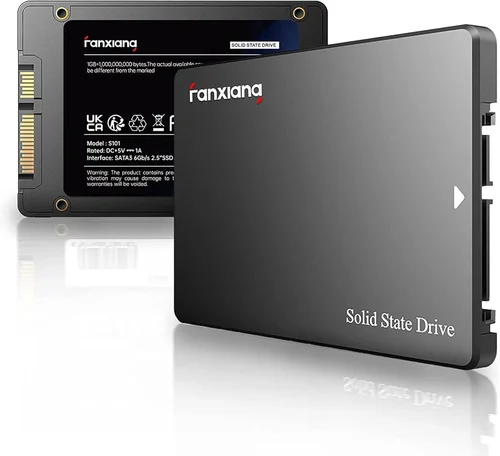
For internal use, the 2.5-inch SATA form factor is the most common and compatible with nearly all systems. These drives are about the size of a smartphone and can be mounted in standard drive bays or secured with brackets. M.2 drives are much smaller—about the size of a stick of gum—and plug directly into the motherboard. They’re ideal for ultrabooks, mini PCs, and space-constrained builds.
If you need portable storage, consider a USB 3.2 or USB-C external SSD. These drives connect via cable and don’t require internal installation. Many budget external SSDs under $50 offer speeds up to 500 MB/s and come with durable, compact enclosures. Just make sure your computer supports the connection type—USB-C is faster and more versatile than USB-A.
Portability also affects ease of installation. 2.5-inch drives require mounting and cabling, while M.2 drives are plug-and-play. If you’re not comfortable opening your computer, an external SSD might be the better choice.
8. User Reviews & Ratings
Never underestimate the power of user feedback. While professional reviews provide technical insights, real-world user experiences reveal how a drive performs over time, under various conditions, and across different systems.
Check reviews on trusted platforms like Amazon, Newegg, Best Buy, and Reddit. Look for patterns in the feedback—do multiple users report the same issues, like sudden failures, slow speeds, or compatibility problems? Are there consistent praises for reliability, speed, or ease of use?
Pay attention to the number of reviews and the overall rating. A drive with hundreds of 4.5-star reviews is generally more trustworthy than one with only a handful of 5-star ratings. Also, read both positive and negative reviews to get a balanced perspective.
Be wary of fake reviews. Look for detailed, specific feedback rather than generic praise like “Great product!” or “Works perfectly!” Real users often mention their system specs, usage patterns, and any issues they encountered.
Different Types of Buying Guide

Common Buying Mistakes to Avoid

❌ Mistake: Choosing the Cheapest Option Without Research
Why it’s bad: The lowest-priced SSD may use outdated NAND, lack DRAM, or come from an unreliable brand. These drives can fail prematurely, suffer from slow write speeds, or even corrupt data.
What to do instead: Compare at least three models within your budget. Prioritize drives with good reviews, reputable brands, and solid warranties. A few extra dollars can make a big difference in long-term satisfaction.
❌ Mistake: Ignoring Compatibility
Why it’s bad: Not all SSDs fit all systems. Installing an M.2 NVMe drive in a slot that only supports SATA, or using a 2.5-inch drive without the right mounting hardware, can lead to frustration and wasted money.
What to do instead: Check your device’s manual or manufacturer website to confirm supported form factors and interfaces. Use tools like Crucial’s Scanner or Samsung’s Advisor to find compatible drives.
❌ Mistake: Overlooking Warranty Terms
Why it’s bad: A short or restrictive warranty can leave you unprotected if the drive fails. Some warranties only cover manufacturing defects and exclude wear and tear.
What to do instead: Read the warranty details carefully. Look for at least a 3-year warranty with a reasonable TBW rating. Choose brands with accessible customer support.
❌ Mistake: Buying Based Solely on Capacity
Why it’s bad: A 1TB drive for $40 might seem like a steal, but if it uses QLC NAND and has no DRAM, it could slow down significantly under load.
What to do instead: Balance capacity with performance and endurance. A 500GB TLC drive with DRAM may offer better real-world performance than a 1TB QLC drive.
❌ Mistake: Skipping Firmware Updates
Why it’s bad: Outdated firmware can cause bugs, reduce performance, or even lead to data loss. Many users never update their SSD firmware, missing out on improvements.
What to do instead: After installation, check the manufacturer’s website for firmware updates. Use their management software to keep your drive optimized.
❌ Mistake: Not Backing Up Before Upgrading
Why it’s bad: Installing a new SSD often involves cloning your old drive or reinstalling the operating system. Without a backup, you risk losing important files.
What to do instead: Always back up your data before making any hardware changes. Use cloud storage, external drives, or imaging software to create a full backup.
❌ Mistake: Assuming All SSDs Are the Same
Why it’s bad: SSDs vary widely in performance, durability, and features. Treating them as interchangeable can lead to poor choices.
What to do instead: Treat SSD selection like any other tech purchase—research, compare, and prioritize based on your needs.
Budget Guidelines: How Much Should You Spend?
– Entry-Level ($20–$30): At this price, expect 240GB to 480GB drives, often DRAM-less or using QLC NAND. Best for basic tasks like web browsing, office work, or as a secondary drive. Look for brands like Kingston or TeamGroup for better reliability.
– Mid-Range ($30–$40): This is the sweet spot for most buyers. You’ll find 500GB to 1TB drives with TLC NAND, DRAM cache, and solid performance. Models like the Crucial BX500 or Samsung 870 EVO offer excellent value and reliability.
– Premium ($40–$50): Here, you can get high-capacity drives (1TB) from top brands with strong warranties and advanced features. Some NVMe drives may appear in this range during sales, offering near-flagship performance.
– Luxury ($50+): While this guide focuses on under $50, drives above this threshold offer even better endurance, faster speeds, and longer warranties. If your budget allows, consider stepping up for future-proofing.
Expert Tips for Getting the Best Deal
– Wait for Sales: Major shopping events like Black Friday, Cyber Monday, Amazon Prime Day, and back-to-school season often feature deep discounts on SSDs. Sign up for deal alerts from retailers like Newegg, Best Buy, and B&H.
– Buy Refurbished or Open-Box: Certified refurbished SSDs from reputable sellers can save you 20–30% off retail. These drives are tested, cleaned, and often come with the same warranty as new units.
– Check Manufacturer Websites: Sometimes, manufacturers offer direct discounts, rebates, or bundle deals that aren’t available elsewhere.
– Use Price Tracking Tools: Tools like CamelCamelCamel (for Amazon) or Honey can alert you when a drive drops in price.
– Consider Older Models: Last year’s flagship SSDs often drop in price when newer versions are released. They’re still high-performing and reliable.
– Read Return Policies: Make sure the retailer offers a generous return window (at least 30 days) in case the drive is defective or incompatible.
– Test After Installation: Use tools like CrystalDiskMark or AS SSD Benchmark to verify performance. If the drive underperforms, contact the seller or manufacturer.

Frequently Asked Questions
Q: Can I use an SSD under $50 for gaming?
A: Absolutely. Even budget SSDs drastically reduce game load times compared to HDDs. A 500GB SATA SSD is perfect for storing your OS and a few favorite games. For faster load times, look for NVMe models on sale.
Q: Will a cheap SSD last as long as an expensive one?
A: Not necessarily. Cheaper drives often use lower-endurance NAND and may have shorter lifespans under heavy use. However, for typical users, even a budget SSD should last 5–7 years with normal usage.
Q: Do I need to install drivers for my SSD?
A: No. Most SSDs are plug-and-play and work with standard storage drivers. However, installing the manufacturer’s software can help with monitoring and firmware updates.
Q: Can I use an SSD as an external drive?
A: Yes, but you’ll need an external enclosure. Many 2.5-inch SSDs can be placed in a USB 3.0 enclosure to create a fast, portable drive.
Q: Is a 240GB SSD enough for Windows?
A: It’s tight. Windows 11 requires about 64GB, leaving little room for apps and files. A 480GB or 500GB drive is a better choice for most users.
Q: Are DRAM-less SSDs bad?
A: Not inherently. They’re fine for light use, but can slow down during sustained writes. If you plan to transfer large files regularly, opt for a drive with DRAM.
Q: Can I install an SSD in an old computer?
A: Yes, as long as it has a SATA port or M.2 slot. Even computers from 2010 or earlier can benefit from an SSD upgrade.
Q: Do SSDs need to be defragmented?
A: No. SSDs don’t benefit from defragmentation and it can reduce their lifespan. Windows automatically disables defrag for SSDs.
Q: What’s the difference between SATA and NVMe?
A: SATA is older and slower (max ~560 MB/s), while NVMe uses the PCIe interface for much faster speeds (2,000+ MB/s). NVMe requires an M.2 slot and UEFI support.
Q: Can I recover data from a failed SSD?
A: It’s possible but difficult and expensive. Always back up important data. SSDs don’t fail like HDDs—they often die suddenly without warning.
Our Final Recommendations
– Best for Budget-Conscious Buyers: Kingston NV2 500GB NVMe SSD – Often available under $40, this drive offers solid NVMe speeds, a compact M.2 form factor, and reliable performance for everyday use.
– Best Overall Value: Crucial BX500 1TB SATA SSD – Priced around $45, this drive delivers excellent performance, a 3-year warranty, and Crucial’s trusted reliability. Ideal for upgrades and new builds.
– Best Premium Option: Samsung 870 EVO 1TB SATA SSD – Frequently on sale under $50, this drive is a benchmark for quality, with top-tier NAND, strong endurance, and Samsung’s Magician software.
– Best for Beginners: TeamGroup AX2 480GB SATA SSD – Affordable, easy to install, and compatible with almost any system. Great for first-time upgraders.
– Best for Advanced Users: Western Digital Green SN350 500GB NVMe SSD – A budget NVMe drive with decent speeds and WD’s reliable firmware. Perfect for users who want PCIe performance on a budget.
Conclusion: Making the Right Choice
Upgrading to an SSD under $50 is one of the most impactful improvements you can make to your computer. The performance gains are immediate and transformative—faster boot times, quicker app launches, and smoother multitasking. With the right knowledge, you can find a drive that delivers excellent value without compromising on quality.
Remember, the best SSD isn’t always the cheapest or the fastest—it’s the one that fits your needs, budget, and usage patterns. Prioritize reliability, compatibility, and warranty support. Read reviews, compare specs, and don’t rush the decision. A little research now can save you time, money, and frustration down the road.
Whether you’re reviving an old laptop, building a budget gaming rig, or simply expanding your storage, there’s a high-quality SSD under $50 that’s perfect for you. Use this guide as your roadmap, and you’ll be enjoying the benefits of solid-state storage in no time. Happy upgrading!