
Solid-state drives (SSDs) have revolutionized the way we store and access data. Gone are the days when upgrading your computer meant swapping out a bulky, slow hard disk drive (HDD) for a faster alternative. Today, even budget-conscious buyers can enjoy near-instant boot times, lightning-fast file transfers, and smoother multitasking—all thanks to affordable SSDs. Whether you’re building a new PC, upgrading an aging laptop, or simply looking to breathe new life into an old system, a cheap SSD can make a world of difference. But with so many options flooding the market, how do you separate the gems from the duds?
This comprehensive buying guide is designed to help you navigate the crowded landscape of budget SSDs in 2026. We’ll walk you through every critical factor—from performance specs and build quality to warranty terms and real-world reliability—so you can make an informed decision without overspending. You’ll learn what to prioritize based on your needs, avoid common pitfalls, and discover which models deliver the best bang for your buck. Whether you’re a student, a casual gamer, a remote worker, or a tech enthusiast on a tight budget, this guide equips you with the knowledge to choose wisely.
The SSD market has matured significantly over the past few years. Prices have dropped dramatically, while capacities and performance have increased. In 2026, you can now find reliable 1TB NVMe SSDs for under $60 and even 2TB models dipping below $100 during sales. At the same time, manufacturers continue to innovate—offering better endurance ratings, improved power efficiency, and sleeker form factors. However, not all cheap SSDs are created equal. Some sacrifice longevity for low cost, while others cut corners on firmware or use lower-grade NAND flash. That’s why understanding what truly matters—and what’s just marketing fluff—is essential.

What to Look for When Buying Buying Guide
1. Budget & Price Range
Your budget is the starting point for any SSD purchase—but it shouldn’t be the only factor. In 2026, “cheap” doesn’t have to mean “low quality.” Entry-level SSDs now offer excellent value, especially if you’re replacing an HDD. Aim to spend at least $40–$50 for a decent 500GB SATA SSD or $50–$70 for a 1TB NVMe drive. Going below $30 for anything over 250GB often means compromising on NAND type, controller quality, or firmware stability. Always compare price per gigabyte: a 1TB drive at $55 ($0.055/GB) is a far better deal than a 500GB at $35 ($0.07/GB). Also, watch for seasonal sales—Black Friday, Prime Day, and back-to-school periods often bring steep discounts on reputable brands.
2. Performance Specifications
Performance matters—but not always in the way you think. For most everyday tasks (web browsing, office work, media playback), even modest SSDs feel snappy. However, if you’re gaming, video editing, or running virtual machines, speed becomes more critical. Focus on two key metrics: sequential read/write speeds (measured in MB/s) and random 4K IOPS (input/output operations per second). NVMe SSDs typically hit 3,000–7,000 MB/s, while SATA caps out around 550 MB/s. Random performance affects real-world responsiveness—look for drives with strong 4K read/write IOPS (ideally 50,000+ for reads, 80,000+ for writes). Don’t get swayed by peak numbers alone; sustained performance under load is what counts during long file transfers or heavy multitasking.
3. Build Quality & Durability
Cheap SSDs sometimes use lower-tier components that wear out faster. The most important durability metric is terabytes written (TBW)—the total amount of data the drive can safely write over its lifetime. A 1TB SSD with a 600 TBW rating will last much longer than one with 300 TBW, especially if you’re a frequent writer (e.g., content creators or developers). Also check the NAND type: TLC (triple-level cell) is standard and reliable for most users; QLC (quad-level cell) is cheaper but wears faster and may throttle under sustained writes. Avoid drives that don’t disclose TBW or use vague terms like “up to X years.” Real-world endurance matters more than theoretical lifespan.
4. Features & Functionality
Beyond raw speed, consider features that enhance usability and longevity. DRAM cache is a big one—SSDs with dedicated DRAM buffers maintain consistent performance during heavy workloads, while DRAM-less models may slow down significantly. SLC caching is another smart feature: it uses a small portion of TLC/QLC NAND as single-level cache to boost short bursts of speed. Encryption support (like AES-256) is useful for laptops or sensitive data. Some budget drives now include thermal throttling protection or power-loss protection, though these are rarer in ultra-low-cost models. Also, check compatibility: M.2 2280 is the most common form factor, but ensure your motherboard supports NVMe if you’re buying an NVMe drive.
5. Brand Reputation
Not all brands are equal—even among budget options. Stick with manufacturers known for consistent quality and transparent specs: Crucial, Kingston, Samsung, Western Digital, and TeamGroup are solid choices. Avoid no-name brands that flood Amazon or eBay with suspiciously low prices and minimal technical details. Reputable brands often use higher-grade controllers (like Phison or Silicon Motion) and perform rigorous firmware testing. They also tend to offer better customer support and firmware updates. While you might save $5–$10 with an unknown brand, the risk of early failure or data loss isn’t worth it—especially when reputable drives are now so affordable.
6. Warranty & Support
A good warranty is a strong indicator of a manufacturer’s confidence in their product. Most budget SSDs come with 3- to 5-year limited warranties. Look for drives that offer at least 3 years—and ideally 5. Some brands (like Samsung and Crucial) also provide free data recovery services or migration software. Check the fine print: some warranties are voided if you exceed the TBW limit, while others prorate coverage. Also, verify whether the warranty is transferable (important if you sell or upgrade your system). Avoid drives with only 1-year warranties unless they’re extremely cheap temporary solutions.
7. Size & Portability
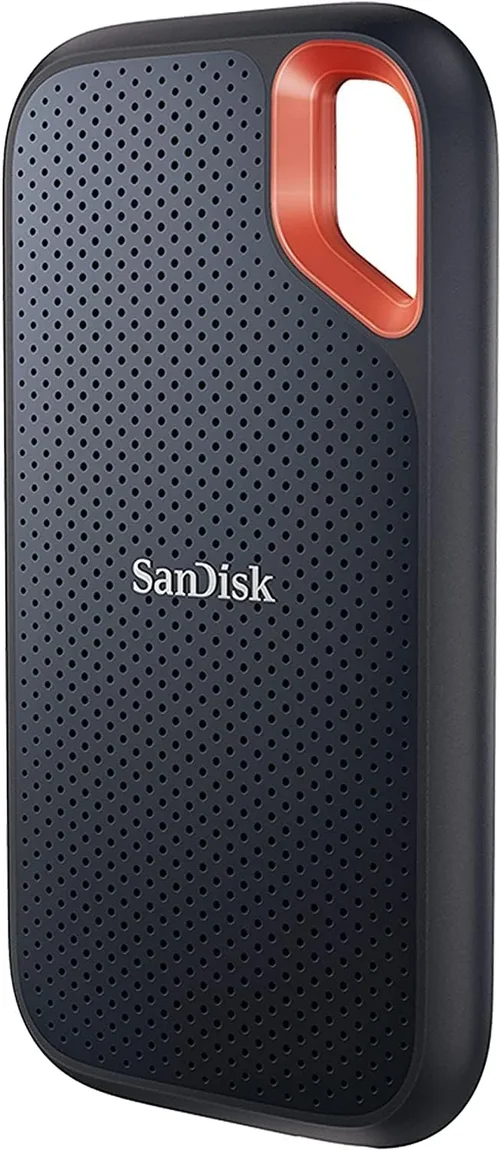
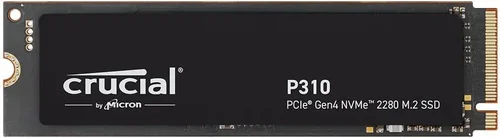
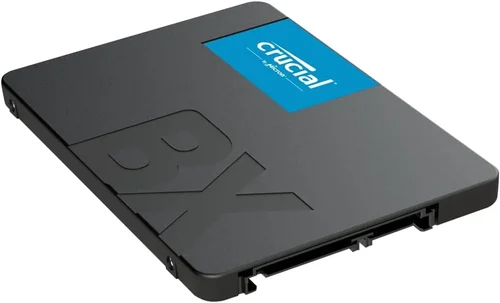
Form factor affects both compatibility and convenience. The three main types are 2.5-inch SATA (fits most laptops and desktops), M.2 SATA (slimmer, used in ultrabooks), and M.2 NVMe (fastest, requires M.2 slot with NVMe support). For desktops, 2.5-inch drives are easiest to install. For laptops, check your manual—many modern ultrabooks only support M.2. Portability isn’t usually a concern unless you’re building a compact mini-PC or frequently moving drives between systems. In those cases, M.2 NVMe drives are ideal due to their tiny size and lack of cables.
8. User Reviews & Ratings
Don’t rely solely on manufacturer specs—real-world feedback is invaluable. Check verified purchase reviews on Amazon, Newegg, or Best Buy. Look for patterns: if multiple users report early failures, slowdowns after a few months, or compatibility issues, steer clear. Pay attention to comments about idle power draw (important for laptops) and noise (though SSDs are silent, some enclosures or adapters can cause coil whine). Forums like Reddit’s r/buildapc or Tom’s Hardware are great for deeper insights. Remember: a drive with 10,000 five-star reviews is more trustworthy than one with 100 perfect scores from unverified accounts.
Different Types of Buying Guide

Common Buying Mistakes to Avoid
❌ Mistake: Prioritizing Price Over Endurance
Why it’s bad: The cheapest SSDs often use QLC NAND and minimal TBW ratings, meaning they wear out quickly under frequent writes. If you’re using the drive for OS, apps, or active projects, premature failure could lead to data loss.
What to do instead: Always check the TBW rating and prefer TLC-based drives for primary storage. Spend a little more for a drive with at least 300–600 TBW for a 1TB model.
❌ Mistake: Ignoring DRAM Cache
Why it’s bad: DRAM-less SSDs rely on system memory (HMB) for caching, which can cause noticeable slowdowns during large file transfers or multitasking—especially on systems with limited RAM.
What to do instead: Choose drives with dedicated DRAM unless you’re on a very tight budget and only doing light tasks. The performance difference is real and measurable.
❌ Mistake: Buying Based on Peak Speeds Alone
Why it’s bad: Marketing materials highlight maximum sequential speeds, but real-world performance depends on sustained speeds, random I/O, and cache management. A drive that throttles after 10 seconds isn’t truly fast.
What to do instead: Look for reviews that test sustained workloads (like copying 100GB+ files) and check random 4K performance. Tools like CrystalDiskMark or AS SSD Benchmark can help verify claims.
❌ Mistake: Overlooking Compatibility
Why it’s bad: Not all M.2 slots support NVMe—some only accept SATA M.2 drives. Installing an NVMe SSD in a SATA-only slot will result in it not being detected.
What to do instead: Consult your motherboard or laptop manual before buying. If unsure, stick with 2.5-inch SATA SSDs—they work everywhere.
❌ Mistake: Skipping Firmware Updates
Why it’s bad: Outdated firmware can cause bugs, reduced performance, or even data corruption. Many budget drives receive critical updates post-launch.
What to do instead: Register your drive with the manufacturer and check for firmware updates periodically. Most brands offer free utilities for this.
❌ Mistake: Assuming All “NVMe” Drives Are Fast
Why it’s bad: Entry-level NVMe drives (especially DRAM-less QLC models) can be slower than high-end SATA SSDs in real-world scenarios due to poor cache algorithms.
What to do instead: Read professional reviews and avoid drives that don’t disclose controller or NAND details. Stick with known controllers like Phison E12/E16 or Silicon Motion SM2262EN.
❌ Mistake: Neglecting Warranty Terms
Why it’s bad: Some warranties are voided if you exceed TBW limits or use the drive in certain environments (e.g., industrial temps). Others don’t cover data recovery.
What to do instead: Read the warranty document carefully. Choose brands that offer hassle-free RMA processes and clear terms.
Budget Guidelines: How Much Should You Spend?
Entry-Level ($30–$50): This tier is ideal for basic upgrades or secondary storage. Expect 250GB–500GB capacities, SATA or DRAM-less NVMe interfaces, and modest endurance (150–300 TBW). Perfect for replacing an old HDD in a school laptop or adding storage to a media center. Models like the Kingston A400 or Crucial BX500 fit here—reliable for light use but not for heavy workloads.
Mid-Range ($50–$90): The sweet spot for most buyers. You’ll find 1TB NVMe drives with TLC NAND, DRAM cache, and 600+ TBW ratings. These deliver excellent performance for gaming, office work, and light content creation. Drives like the WD Blue SN580 or TeamGroup MP34 offer great value here. This range balances speed, capacity, and longevity without breaking the bank.
Premium ($90–$150): For enthusiasts and professionals who want top-tier budget performance. Expect 1TB–2TB NVMe SSDs with Gen3 or Gen4 speeds, robust controllers, and advanced features like thermal monitoring. The Samsung 980 (non-Pro) or Crucial P3 Plus shine here—offering near-flagship performance at a fraction of the cost.
Luxury ($150+): While this guide focuses on “cheap” SSDs, some users may stretch into this tier for peace of mind. You’ll get 2TB+ capacities, Gen4 speeds (7,000 MB/s+), premium build quality, and 5-year warranties. However, unless you’re doing 4K video editing or running databases, the marginal gains over mid-range drives are minimal for most.
Expert Tips for Getting the Best Deal
1. Time Your Purchase Around Sales Events: Major retailers slash SSD prices during Black Friday, Cyber Monday, Amazon Prime Day (July), and back-to-school season (August). Sign up for price alerts on CamelCamelCamel or Honey to catch drops.
2. Buy Direct from Manufacturer Websites: Brands like Crucial, Samsung, and Kingston often offer exclusive deals, free shipping, and extended warranties when you buy directly. They also provide better support than third-party sellers.
3. Check Refurbished or Open-Box Options: Certified refurbished SSDs from reputable sellers (like Best Buy Open Box or manufacturer outlets) can save you 20–30% with full warranty coverage. Just ensure they’re tested and come with original packaging.
4. Compare Total Cost of Ownership: Factor in power efficiency (important for laptops), expected lifespan, and potential data recovery costs. A slightly pricier drive with higher TBW may save money long-term.
5. Use Price Tracking Tools: Tools like Keepa (for Amazon) or PCPartPicker let you view historical pricing and set alerts. Many SSDs fluctuate by $10–$20 weekly—patience pays off.
6. Read Return Policies Carefully: Some retailers charge restocking fees for opened SSDs. Others require you to pay return shipping. Stick with stores offering free returns (Amazon, Newegg, B&H).
7. Test Before Committing: Once installed, run benchmarks (CrystalDiskMark, ATTO) and monitor SMART data with tools like CrystalDiskInfo. If performance drops significantly after a week, initiate a return.
8. Consider Bundled Deals: Some SSDs come with free cloning software, mounting brackets, or USB enclosures. These add-ons can save you $10–$20 if you need them separately.

Frequently Asked Questions
Q: Can I use an NVMe SSD in a SATA-only M.2 slot?
A: No. NVMe and SATA M.2 drives use different protocols and physical keys. An NVMe SSD will not fit or function in a SATA-only slot. Always verify your motherboard’s M.2 specification before buying.
Q: Is QLC NAND bad for everyday use?
A: Not necessarily. For light tasks like web browsing, document editing, and media playback, QLC is fine. However, avoid QLC for primary drives if you frequently install/uninstall large games or edit videos, as write speeds can drop dramatically once the cache fills.
Q: Do I need a heatsink for my NVMe SSD?
A: Only if your case has poor airflow or you’re using a Gen4 drive under heavy load. Most budget Gen3 NVMe SSDs don’t require heatsinks for normal use. Check your motherboard—some include built-in heatsinks.
Q: How long do cheap SSDs really last?
A: With typical home use (5–10GB written daily), even a 300 TBW SSD will last 8–15 years. Most users will upgrade their system long before the drive wears out. Focus more on reliability than theoretical lifespan.
Q: Should I buy a 500GB or 1TB SSD?
A: Go for 1TB if your budget allows. Modern OSes, apps, and games consume significant space. A 500GB drive may fill up in 1–2 years, forcing you to buy another sooner. The price difference is minimal in 2026.
Q: Are external SSDs slower than internal ones?
A: It depends on the interface. USB 3.2 Gen 2 (10Gbps) external SSDs match SATA speeds (~500 MB/s). USB4 or Thunderbolt models can rival NVMe, but budget externals usually cap at USB 3.0 speeds.
Q: Can I clone my old HDD to a new SSD?
A: Yes—and it’s recommended. Use free tools like Macrium Reflect Free, Clonezilla, or manufacturer utilities (e.g., Samsung Data Migration). Cloning preserves your OS, apps, and settings seamlessly.
Q: What’s the difference between Gen3 and Gen4 NVMe?
A: Gen4 doubles the bandwidth (up to 7,000 MB/s vs. 3,500 MB/s for Gen3). However, real-world gains are modest unless you’re transferring huge files daily. Most budget Gen3 drives offer better value for general use.
Q: Do SSDs need defragmentation?
A: No. SSDs have no moving parts, so defragmentation is unnecessary and actually reduces lifespan by causing extra writes. Windows and macOS automatically disable defrag for SSDs.
Q: Is it safe to buy SSDs from unknown brands on Amazon?
A: Proceed with caution. Look for verified reviews, clear specs, and seller ratings. If the price seems too good to be true, it probably is. Stick with brands that disclose controller, NAND, and TBW information.
Our Final Recommendations
Best for Budget-Conscious Buyers: Crucial BX500 1TB (SATA) – At around $55, this drive offers reliable TLC NAND, 360 TBW, and Crucial’s solid reputation. Perfect for HDD replacements and light computing.
Best Overall Value: WD Blue SN580 1TB (NVMe) – Priced near $65, it delivers Gen3 speeds (3,500 MB/s), DRAM cache, 600 TBW, and excellent real-world performance. A no-brainer for most users.
Best Premium Option: Samsung 980 1TB (NVMe) – Around $85, it combines Samsung’s legendary reliability with Gen3 speeds, intelligent TurboWrite cache, and a 5-year warranty. Ideal for those who want brand assurance without Pro-tier pricing.
Best for Beginners: Kingston NV2 1TB (NVMe) – Simple, affordable (~$60), and compatible with nearly all systems. Uses DRAM-less design but performs well for everyday tasks. Great first NVMe upgrade.
Best for Advanced Users: TeamGroup MP34 2TB (NVMe) – At ~$110, this drive offers massive capacity, TLC NAND, DRAM cache, and 1,200 TBW. Excellent for gamers, creators, or anyone needing high-capacity, high-endurance storage on a budget.
Conclusion: Making the Right Choice
Choosing the best cheap SSD in 2026 doesn’t have to be overwhelming. By focusing on key factors like endurance, DRAM cache, brand reputation, and real-world performance—not just price—you can find a drive that delivers exceptional value without compromising reliability. Remember, the goal isn’t to buy the absolute cheapest option, but the one that offers the best balance of cost, performance, and longevity for your specific needs.
Whether you’re upgrading a decade-old laptop or building a budget gaming rig, a quality SSD will transform your computing experience. Boot times shrink, apps launch instantly, and file transfers complete in seconds. And with today’s prices, there’s never been a better time to make the switch.
Take the time to assess your usage patterns, check compatibility, and read real user reviews. Avoid the traps of misleading specs and unknown brands. And when in doubt, lean toward trusted manufacturers with transparent warranties and strong support.
Your data deserves reliable storage—and your wallet deserves a smart investment. Use this guide as your roadmap, and you’ll walk away with an SSD that serves you well for years to come. Happy upgrading!