
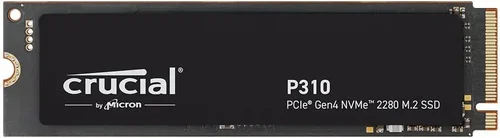
When it comes to upgrading your computer’s storage, few components deliver as dramatic a performance boost as a solid-state drive (SSD). Whether you’re building a new PC, refreshing an aging laptop, or simply craving faster boot times and snappier application launches, choosing the right SSD can make all the difference. But with dozens of brands, form factors, and technical specs flooding the market in 2026, it’s easy to feel overwhelmed. That’s where this comprehensive guide comes in.
In this expert-level buying guide, we’ll cut through the marketing noise and help you identify what truly matters when selecting an SSD. You’ll learn how to evaluate key performance metrics like read/write speeds and endurance ratings, understand the nuances between SATA, NVMe, and PCIe Gen5 drives, and discover which brands consistently deliver reliability, innovation, and value. We’ll also walk you through common pitfalls to avoid, budget considerations across different tiers, and insider tips to get the best deal—whether you’re a first-time buyer or a seasoned tech enthusiast. By the end, you’ll have a clear roadmap to confidently choose the best SSD for your specific needs.
The SSD market in 2026 is more competitive—and more confusing—than ever. Major players like Samsung, Western Digital, Crucial, Kingston, and SK Hynix continue to push the envelope with cutting-edge NAND technology, while newer entrants like TeamGroup and Sabrent offer compelling alternatives at aggressive price points. Meanwhile, evolving standards like PCIe 5.0 and emerging form factors such as M.2 2230 (popularized by devices like the Steam Deck) add another layer of complexity. With prices dropping steadily and capacities climbing past 8TB for consumer drives, there’s never been a better time to upgrade—but only if you know what to look for.

What to Look for When Buying Buying Guide
1. Budget & Price Range
Your budget is the single most important factor shaping your SSD choice. In 2026, SSD pricing has become remarkably accessible, with high-capacity drives offering excellent value per gigabyte. However, “cheap” doesn’t always mean “good.” Entry-level SSDs may use older NAND types or lack robust controllers, leading to inconsistent performance under load. Conversely, premium drives often justify their cost with superior endurance, advanced error correction, and faster sustained speeds.
As a rule of thumb, aim to spend at least $0.08–$0.12 per GB for a reliable SATA or NVMe Gen3 drive. For Gen4 and Gen5 SSDs, expect $0.15–$0.25 per GB. Always compare total cost versus capacity—sometimes paying 10% more gets you 50% more storage. Avoid no-name brands selling suspiciously low-priced SSDs; they often use recycled or low-grade components that can fail prematurely.
2. Performance Specifications
SSD performance isn’t just about peak speed—it’s about real-world responsiveness. Key specs include sequential read/write speeds (measured in MB/s), random read/write IOPS (Input/Output Operations Per Second), and latency. For most users, sequential speeds matter less than random 4K performance, which directly impacts how quickly your system opens apps, loads files, and multitasks.
NVMe SSDs connected via PCIe Gen4 or Gen5 vastly outperform older SATA III drives (which cap at ~550 MB/s). A Gen4 drive like the Samsung 990 Pro can hit 7,400 MB/s reads, while Gen5 models like the Crucial T700 exceed 12,000 MB/s. However, unless you’re transferring massive video files or running professional workloads, Gen3 NVMe drives (3,500 MB/s) offer near-identical everyday performance at a lower cost. Always check sustained write performance too—many SSDs slow dramatically once their SLC cache fills up.
3. Build Quality & Durability
Not all SSDs are built equally. Durability hinges on three main elements: NAND flash type, controller quality, and thermal management. Look for drives using TLC (Triple-Level Cell) or MLC (Multi-Level Cell) NAND—these offer better longevity than QLC (Quad-Level Cell), which trades endurance for density and cost savings. Most consumer SSDs today use TLC, which strikes a solid balance.
The controller acts as the SSD’s brain, managing data flow, wear leveling, and error correction. Brands like Samsung, Phison, and Silicon Motion produce top-tier controllers found in premium drives. Additionally, high-performance Gen4/Gen5 SSDs generate significant heat. Drives with built-in heatsinks or those compatible with motherboard M.2 heatsinks maintain peak speeds longer and reduce thermal throttling risks.
Endurance Matters Too
SSD lifespan is measured in TBW (Terabytes Written)—the total amount of data you can write before the drive may fail. A 1TB SSD with 600 TBW will last far longer under heavy use than one with 300 TBW. For typical users writing 20–30GB daily, even modest TBW ratings will last 10+ years. But content creators, gamers, or developers should prioritize higher TBW values.
4. Features & Functionality
Beyond raw speed, modern SSDs offer features that enhance usability and security. Hardware encryption (via TCG Opal or IEEE 1667) protects your data if the drive is lost or stolen. DRAM cache improves performance consistency, especially during large file transfers—avoid DRAM-less SSDs unless you’re on a tight budget and only doing light tasks.
Some drives include proprietary software suites for monitoring health, updating firmware, or cloning old drives. Samsung Magician and Crucial Storage Executive are standout examples. Others support advanced protocols like HMB (Host Memory Buffer), which lets DRAM-less SSDs borrow system RAM for caching—a clever compromise for budget builds.
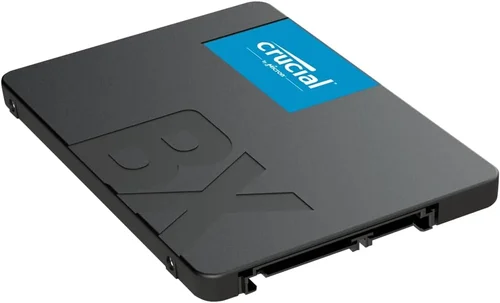
Form factor is another functional consideration. M.2 2280 is the standard for desktops and most laptops, but compact devices like ultrabooks or handheld PCs may require shorter 2242 or 2230 modules. Always verify your device’s compatibility before buying.
5. Brand Reputation
Brand matters—not because of marketing, but because established manufacturers invest heavily in R&D, quality control, and long-term support. Samsung has dominated the SSD space for over a decade, known for consistent performance and reliability. Western Digital (and its SanDisk subsidiary) offers excellent value across all segments. Crucial, a Micron brand, leverages in-house NAND production for cost efficiency and stability.
Newer brands like Kingston, TeamGroup, and Sabrent have earned trust through transparent specs and competitive pricing. However, be cautious with lesser-known labels that lack third-party reviews or detailed spec sheets. A reputable brand also means better firmware updates, longer warranty periods, and responsive customer service—critical if something goes wrong.
6. Warranty & Support
Warranty length and terms reveal a manufacturer’s confidence in their product. Most premium SSDs come with 5-year limited warranties, often tied to TBW limits (e.g., “5 years or 600 TBW, whichever comes first”). Some brands, like Samsung and WD, offer hassle-free replacements with prepaid shipping labels.
Check whether the warranty is transferable (important if you sell your PC later) and what documentation is required. Avoid brands that demand original packaging or proof of purchase from authorized retailers only—this can void your coverage if bought during a third-party sale. Also, note that warranties typically don’t cover physical damage or misuse, so handle your SSD carefully during installation.
7. User Reviews & Ratings
While specs tell part of the story, real-world user feedback reveals hidden strengths and weaknesses. Look beyond Amazon star ratings—read detailed reviews on forums like Reddit’s r/buildapc, Tom’s Hardware, or AnandTech. Pay attention to reports of sudden failures, inconsistent speeds, or poor customer service experiences.
Be wary of fake reviews. Genuine feedback often includes specifics: “After 6 months of daily gaming, my drive still hits 6,800 MB/s” carries more weight than “Great SSD!!!” Cross-reference multiple sources and prioritize reviews from verified purchasers. If a drive has dozens of reports about overheating or early failure, steer clear—even if the specs look impressive on paper.
8. Compatibility & Use Case
Finally, match your SSD to your actual needs. Gamers benefit most from fast load times, so a Gen4 NVMe with strong random performance is ideal. Content creators handling 4K/8K video need high sustained write speeds and large capacities. Office users or students can thrive with affordable SATA or Gen3 NVMe drives.
Don’t overlook interface compatibility. Older motherboards may only support SATA or PCIe Gen3. Laptops often have space or power constraints—some can’t accommodate double-sided M.2 drives or require specific voltage levels. Always consult your device manual or manufacturer’s compatibility list before purchasing.
Different Types of Buying Guide

Common Buying Mistakes to Avoid
❌ Mistake: Prioritizing Peak Speed Over Real-World Performance
Why it’s bad: Many buyers fixate on advertised sequential speeds (e.g., “7,000 MB/s!”) but ignore random 4K performance, which affects everyday tasks like opening browsers or loading games. A drive with high peak speed but poor sustained writes will stutter during large file copies.
What to do instead: Check reviews that test both synthetic benchmarks and real-world scenarios. Look for consistent performance across the entire capacity, not just burst speeds.
❌ Mistake: Buying QLC NAND for Heavy Workloads
Why it’s bad: QLC SSDs are cheaper and offer high capacities, but they wear out faster under frequent writes. Using a QLC drive as your primary OS drive for video editing or game development can lead to premature failure.
What to do instead: Reserve QLC for secondary storage (e.g., media libraries). Choose TLC or MLC for your boot drive or workloads involving constant writing.
❌ Mistake: Ignoring Thermal Throttling
Why it’s bad: High-speed Gen4/Gen5 SSDs can overheat without proper cooling, causing performance drops of 50% or more. This is especially problematic in compact laptops or poorly ventilated cases.
What to do instead: Opt for drives with integrated heatsinks or ensure your motherboard has an M.2 heatsink. Monitor temps using tools like HWInfo or CrystalDiskInfo.
❌ Mistake: Overlooking Warranty Terms
Why it’s bad: Some brands offer long warranties but impose strict conditions—like requiring registration within 30 days or voiding coverage if used in a laptop instead of a desktop.
What to do instead: Read the fine print. Choose brands with straightforward, transferable warranties and clear support channels.
❌ Mistake: Choosing DRAM-less SSDs for Critical Tasks
Why it’s bad: DRAM-less SSDs rely on system memory (HMB) for caching, which can slow down under heavy multitasking or on systems with limited RAM.
What to do instead: For OS drives or productivity workloads, always choose SSDs with dedicated DRAM cache. Save DRAM-less models for external or archival use.
❌ Mistake: Not Checking Compatibility
Why it’s bad: Buying a Gen5 SSD for a Gen3-only motherboard wastes money—you won’t see any speed benefit. Similarly, some laptops only accept single-sided M.2 drives.
What to do instead: Verify your device’s specifications before purchasing. When in doubt, contact the manufacturer or consult community forums.
❌ Mistake: Falling for “Too Good to Be True” Deals
Why it’s bad: Extremely low prices often indicate counterfeit drives, refurbished units sold as new, or drives using inferior components.
What to do instead: Stick to reputable retailers (Amazon, Newegg, Best Buy, B&H) and avoid third-party sellers with no reviews. If a deal seems suspicious, it probably is.
Budget Guidelines: How Much Should You Spend?
- Entry-Level ($30–$60 for 1TB): Ideal for basic upgrades or secondary storage. Look for reliable SATA or Gen3 NVMe drives from Crucial (P3), Kingston (NV2), or WD Blue SN580. Expect decent performance for everyday tasks but lower endurance and no heatsink.
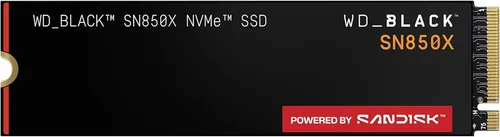
- Mid-Range ($60–$120 for 1TB): The sweet spot for most users. Gen4 NVMe drives like the Samsung 980 Pro, WD Black SN850X, or Crucial P5 Plus offer excellent speed, robust build quality, and 5-year warranties. Perfect for gaming, streaming, and moderate creative work.
- Premium ($120–$250 for 1TB): For enthusiasts and professionals. These include top-tier Gen4/Gen5 drives with premium controllers, high TBW ratings, and advanced features like hardware encryption. Examples: Samsung 990 Pro, Sabrent Rocket 4 Plus, or SK Hynix Platinum P41.
- Luxury ($250+ for 1TB): Cutting-edge performance with no compromises. Gen5 drives like the Crucial T700 or Corsair MP700 Pro dominate here, offering blistering speeds for 8K video editing, AI training, or competitive benchmarking. Often include bundled software and premium support.
Expert Tips for Getting the Best Deal
- Time your purchase: Major sales events like Black Friday, Amazon Prime Day, and back-to-school season (July–August) offer the deepest discounts. SSD prices also dip when new generations launch (e.g., Gen5 drives dropping after Gen6 announcements).
- Buy from trusted retailers: Stick to authorized sellers to avoid counterfeits. Amazon (sold by Amazon, not third parties), Newegg, Best Buy, and B&H Photo are safe bets. Check return policies—some stores offer 30–60 day windows.
- Compare total cost per GB: A 2TB drive at $180 ($0.09/GB) is often a better value than a 1TB at $100 ($0.10/GB), even if you don’t need the extra space immediately.
- Check for bundle deals: Some manufacturers include free cloning software, mounting kits, or extended warranties. Samsung often bundles its Data Migration Tool, which simplifies upgrading from an old drive.
- Monitor price history: Use tools like CamelCamelCamel (for Amazon) or Keepa to track price trends and set alerts for drops.
- Test before relying on it: After installation, run a full benchmark (e.g., CrystalDiskMark) and check SMART data to ensure the drive performs as advertised.
- Register your warranty: Don’t skip this step—it ensures you’re covered if issues arise later.
- Consider refurbished (carefully): Some brands sell certified refurbished SSDs with full warranties at 20–30% off. Only buy from the manufacturer or authorized resellers.

Frequently Asked Questions
Q: Is NVMe always faster than SATA?
A: In theory, yes—NVMe leverages PCIe lanes for much higher bandwidth. However, for everyday tasks like web browsing or office work, the difference is barely noticeable. SATA is still perfectly adequate for older systems or light use.
Q: Do I need a heatsink for my SSD?
A: Only if you’re using a high-performance Gen4/Gen5 drive in a confined space (like a small-form-factor PC or laptop). Desktops with good airflow may not need one, but it’s cheap insurance against throttling.
Q: Can I use an SSD in an old computer?
A: Absolutely! Most modern SSDs are backward-compatible. Just ensure your system supports the interface (SATA or M.2) and has available connectors.
Q: How long do SSDs really last?
A: For typical users, 10+ years is realistic. Even heavy users will likely upgrade their system before the SSD wears out. Modern drives include wear-leveling algorithms that extend lifespan significantly.
Q: Should I fill my SSD to capacity?
A: No. Keep at least 10–20% free space for optimal performance and longevity. Full drives slow down due to reduced over-provisioning.
Q: Are external SSDs as fast as internal ones?
A: It depends on the interface. USB 3.2 Gen 2×2 (20 Gbps) or Thunderbolt 4 external SSDs can match internal Gen3 speeds. But USB 3.0 (5 Gbps) will bottleneck even SATA SSDs.
Q: What’s the difference between M.2 SATA and M.2 NVMe?
A: Both use the M.2 slot, but M.2 SATA drives are limited to ~550 MB/s, while M.2 NVMe drives use PCIe for much higher speeds. Check your motherboard manual to see which your system supports.
Q: Can I recover data from a failed SSD?
A: It’s possible but difficult and expensive. Unlike HDDs, SSDs often fail suddenly with little warning. Always maintain regular backups—don’t rely solely on your SSD.
Q: Do SSDs need defragmentation?
A: No—and defragmenting can actually reduce lifespan. Windows and macOS automatically disable defrag for SSDs and use TRIM instead to maintain performance.
Q: Is a 500GB SSD enough for gaming?
A: Barely. Modern AAA games can take 100–200GB each. For a comfortable gaming library, aim for 1TB minimum—or pair a smaller SSD with a larger HDD for less-played titles.
Our Final Recommendations
- Best for Budget-Conscious Buyers: Crucial P3 1TB – Reliable Gen3 NVMe performance at under $70. Great for upgrading older systems without breaking the bank.
- Best Overall Value: Samsung 980 Pro 1TB – Consistently top-tier performance, excellent endurance, and a proven track record. A favorite among gamers and creators alike.
- Best Premium Option: SK Hynix Platinum P41 1TB – Outstanding efficiency, class-leading endurance (750 TBW), and near-silent operation. Ideal for power users who demand reliability.
- Best for Beginners: WD Blue SN580 1TB – Simple, affordable, and easy to install. Comes with intuitive software and solid everyday performance.
- Best for Advanced Users: Crucial T700 2TB (Gen5) – Blazing 12,400 MB/s speeds, massive 2TB capacity, and robust thermal design. Perfect for 8K video editors and AI developers.
Conclusion: Making the Right Choice
Choosing the best SSD in 2026 doesn’t have to be overwhelming—if you focus on your actual needs rather than chasing specs. Start by defining your use case: Are you upgrading an old laptop? Building a high-end gaming rig? Backing up family photos? Your answer will guide every other decision, from interface type to capacity and brand.
Remember, the “best” SSD isn’t always the fastest or most expensive—it’s the one that delivers reliable performance, fits your budget, and lasts for years. Prioritize reputable brands, check real-world reviews, and don’t overlook warranty terms. And if you’re unsure, mid-range Gen4 NVMe drives offer the perfect balance of speed, value, and future-proofing for 90% of users.
Ultimately, investing in a quality SSD is one of the smartest upgrades you can make. It breathes new life into old hardware, accelerates your workflow, and transforms your computing experience from sluggish to seamless. So take your time, do your research, and choose wisely—your future self will thank you every time your PC boots up in under 10 seconds.