
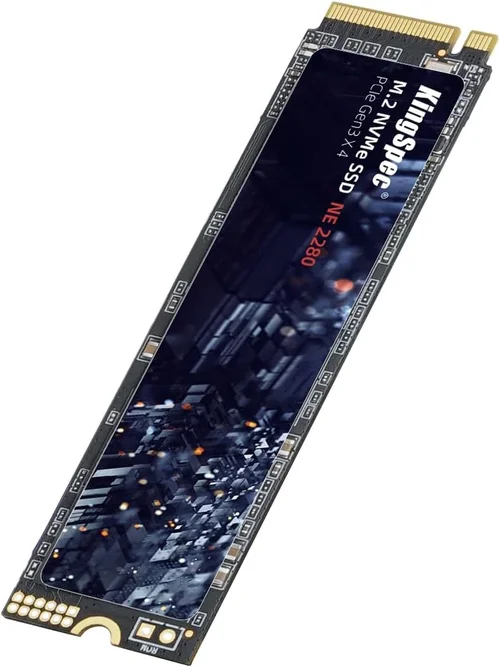
When it comes to building or upgrading your computer system, few components have as dramatic an impact on performance as your storage drive. Solid State Drives (SSDs) have completely transformed computing experiences—booting systems in seconds, launching applications instantly, and transferring large files at lightning speed. But not all SSDs are created equal. The secret behind their performance, longevity, and reliability lies in a critical but often overlooked component: the type of NAND flash memory used inside.
NAND flash is the core technology that stores your data on an SSD. While most consumers focus on capacity, interface (like SATA or NVMe), or brand names, the real differentiator in SSD quality and performance is the NAND type. Whether you’re a gamer, content creator, IT professional, or everyday user, understanding NAND technology empowers you to make smarter, more informed decisions. This guide cuts through the technical jargon and marketing buzz to deliver a comprehensive, expert-level breakdown of what makes one SSD better than another—starting with the heart of the drive itself.
By the end of this guide, you’ll know exactly what to look for when choosing an SSD based on its NAND type. You’ll understand the trade-offs between performance, endurance, cost, and longevity. You’ll be able to compare SLC, MLC, TLC, and QLC NAND like a pro, and even grasp emerging technologies like 3D NAND, PLC, and ZNS (Zoned Namespaces). Whether you’re building a high-end workstation, upgrading a laptop, or just looking for reliable storage for your photos and documents, this guide will help you pick the right SSD for your needs—without overspending or falling for misleading specs. The SSD market in 2026 is more competitive than ever, with new innovations pushing the boundaries of speed and density. But with so many options, it’s easy to get overwhelmed. That’s why we’ve done the research, tested the trends, and distilled everything into one definitive buying guide.

What to Look for When Buying Buying Guide
1. NAND Type and Architecture
The single most important factor in SSD performance and longevity is the type of NAND flash memory used. NAND comes in several flavors, each with distinct characteristics in terms of speed, endurance, cost, and reliability. The primary types include SLC (Single-Level Cell), MLC (Multi-Level Cell), TLC (Triple-Level Cell), QLC (Quad-Level Cell), and the emerging PLC (Penta-Level Cell). Each stores a different number of bits per memory cell: SLC stores 1 bit, MLC stores 2, TLC stores 3, QLC stores 4, and PLC stores 5. The more bits per cell, the higher the storage density and lower the cost per gigabyte—but at the expense of speed, endurance, and data retention.
SLC is the gold standard for enterprise and industrial applications due to its exceptional endurance and speed, but it’s prohibitively expensive for consumer use. MLC offers a balance of performance and cost, often found in high-end consumer and prosumer drives. TLC is the most common in mainstream SSDs today, offering good performance at a reasonable price. QLC is increasingly popular in budget and high-capacity drives, trading endurance for affordability. PLC is still in early adoption but promises even higher densities—ideal for cold storage or archival use.
Beyond cell type, the physical architecture matters. 2D NAND (planar) is outdated, while 3D NAND stacks memory cells vertically, allowing for greater density, improved performance, and better power efficiency. Modern SSDs almost exclusively use 3D NAND, with layer counts ranging from 64L to 232L and beyond. Higher layer counts generally mean better performance and endurance, though manufacturing quality varies by manufacturer.
2. Performance Specifications
Raw speed is a major selling point for SSDs, but it’s not the whole story. Performance is typically measured in sequential read/write speeds (in MB/s) and random read/write IOPS (Input/Output Operations Per Second). Sequential speeds matter most for large file transfers—like copying videos or loading game assets—while random IOPS are crucial for multitasking, boot times, and application responsiveness.
For example, a high-end NVMe SSD might boast 7,000 MB/s read and 6,500 MB/s write speeds, while a budget SATA SSD may top out at 550 MB/s. But real-world performance depends on more than just peak numbers. Sustained performance under load, especially when the drive is nearly full, can vary dramatically. Some drives use SLC caching—temporarily storing data in faster SLC mode before moving it to slower TLC or QLC—to boost short bursts of speed. However, once the cache is exhausted, performance can drop significantly.
Look for drives with large, dynamic SLC caches and strong controllers that manage data efficiently. Also consider the interface: NVMe PCIe 4.0 and 5.0 drives are significantly faster than SATA or older PCIe 3.0 models. But unless your system supports these newer standards, you won’t benefit from the extra speed.
3. Endurance and Write Lifespan
SSD endurance refers to how much data can be written to the drive over its lifetime, typically measured in Terabytes Written (TBW) or Drive Writes Per Day (DWPD). This is directly tied to the NAND type and quality. SLC drives can endure hundreds of thousands of write cycles per cell, while QLC may only handle a few hundred. A higher TBW rating means the drive is built to last longer under heavy use.
For example, a 1TB TLC SSD might have a TBW of 600–800TB, while a similarly sized QLC drive might be rated for only 200–400TB. If you’re a video editor writing terabytes of footage weekly, a high-endurance TLC or MLC drive is essential. Casual users who mostly browse and stream may never reach the endurance limit of even a QLC drive.
Manufacturers often provide endurance ratings based on a 5-year warranty period. A drive with a 1,000TBW rating and a 5-year warranty implies it can safely write about 550GB per day for five years. Always check the TBW and warranty terms—some budget drives have surprisingly low endurance despite high capacities.
4. Controller and Firmware Quality
The SSD controller is the brain of the drive, managing data flow, error correction, wear leveling, and garbage collection. A high-quality controller can make a mediocre NAND perform well, while a poor controller can bottleneck even the best memory chips. Top-tier controllers from companies like Phison, Silicon Motion, and Marvell offer advanced features like dynamic SLC caching, power-loss protection, and robust error correction (ECC).
Firmware is equally important. It’s the software that runs on the controller and dictates how the drive behaves under different workloads. Poor firmware can lead to performance degradation, data corruption, or even sudden failure. Reputable brands regularly update firmware to fix bugs and improve performance, while lesser-known brands may leave drives unsupported.
When evaluating an SSD, research the controller model and check for firmware updates. Drives with well-documented firmware support and active developer communities (like those from Samsung, Crucial, or WD) tend to be more reliable long-term.
5. Brand Reputation and Reliability
Not all SSD brands are equal. While many manufacturers use the same NAND and controllers, their quality control, testing, and support vary widely. Established brands like Samsung, Crucial (Micron), Western Digital, Kingston, and SK Hynix have proven track records of reliability and performance. They often use their own in-house NAND (e.g., Samsung’s V-NAND, Micron’s 3D NAND) and controllers, allowing for tighter integration and optimization.
Budget brands or no-name drives may use lower-grade components, outdated firmware, or even recycled NAND. While they might offer tempting prices, they often come with higher failure rates and shorter lifespans. User reviews and third-party testing (like those from Tom’s Hardware, AnandTech, or StorageReview) can reveal real-world reliability issues that specs alone won’t show.
Also consider regional availability and support. A drive sold in one country may not have warranty coverage in another. Stick with brands that offer global support and clear return policies.
6. Warranty and Support
A strong warranty is a sign of confidence in a product’s durability. Most SSDs come with 3- to 5-year limited warranties, often tied to both time and TBW. For example, a drive might be covered for 5 years or up to 1,200TBW—whichever comes first. Higher-end drives typically offer longer warranties and higher TBW limits.
Check the warranty terms carefully. Some brands require registration, proof of purchase, or original packaging. Others may void the warranty if the drive is used in certain environments (like servers or NAS devices). Also, note whether the warranty includes data recovery services—most don’t, so always back up important data.
Customer support quality varies. Brands with dedicated support teams, live chat, and detailed troubleshooting guides (like Samsung or Crucial) are preferable to those with slow email responses or automated systems.
7. Power Efficiency and Thermal Management
Especially important for laptops, tablets, and small-form-factor PCs, power efficiency affects battery life and system thermals. SSDs with efficient controllers and low-power NAND consume less energy, generating less heat. This is crucial for devices with limited cooling.
High-performance NVMe drives, particularly PCIe 5.0 models, can get very hot under load. Without proper heatsinks or thermal throttling, they may slow down to prevent damage. Look for drives with built-in thermal sensors and dynamic throttling, or consider adding a heatsink if your case supports it.
For mobile users, drives with low idle power consumption (measured in milliwatts) help extend battery life. Some SSDs also support advanced power states like DevSleep (for SATA) or Autonomous Power State Transition (APST) for NVMe, which reduce power when the drive is inactive.
8. Use Case and Workload Compatibility
Your intended use should heavily influence your NAND choice. Gamers benefit from fast load times and quick asset streaming, making high-speed TLC or MLC NVMe drives ideal. Content creators handling 4K/8K video need high endurance and sustained write performance—TLC with large caches or MLC is best.
Enterprise users running databases or virtual machines require maximum reliability and endurance, often favoring SLC or enterprise-grade MLC. Casual users storing documents, photos, and media can get by with QLC drives, especially for secondary storage.
Also consider whether the drive will be used as a boot drive, secondary storage, or in a RAID array. Boot drives benefit from faster random access, while archival storage prioritizes capacity and data retention over speed.
Different Types of Buying Guide

Common Buying Mistakes to Avoid
❌ Mistake: Ignoring NAND Type Entirely
Why it’s bad: Many buyers focus only on capacity and price, completely overlooking the NAND type. This can lead to purchasing a QLC drive for a high-write workload, resulting in premature failure or performance drops. For example, using a QLC SSD as a primary drive for video editing could cause slowdowns and reduced lifespan.
What to do instead: Always check the NAND type in the product specifications or manufacturer’s datasheet. If it’s not listed, research the model number or contact support. Prioritize TLC or MLC for primary drives and heavy workloads.
❌ Mistake: Overpaying for Unused Speed
Why it’s bad: Buying a PCIe 5.0 NVMe SSD for a system that only supports PCIe 3.0 is a waste of money. The drive will be bottlenecked by the older interface, delivering no real benefit over a PCIe 3.0 model.
What to do instead: Match the SSD interface to your system’s capabilities. If you have PCIe 4.0, a high-end PCIe 4.0 drive makes sense. But if you’re on PCIe 3.0 or SATA, invest in a quality drive within that tier rather than overspending on incompatible hardware.
❌ Mistake: Choosing Based on Peak Speeds Alone
Why it’s bad: Marketing materials often highlight maximum sequential speeds, but real-world performance depends on sustained speeds, cache size, and controller efficiency. A drive with a small SLC cache may slow to a crawl after transferring a few gigabytes.
What to do instead: Look for reviews that test sustained performance under load. Pay attention to random IOPS and how the drive performs when nearly full. Drives with large, adaptive caches (like Samsung’s TurboWrite or WD’s nCache) offer more consistent performance.
❌ Mistake: Neglecting Endurance Ratings
Why it’s bad: Assuming all SSDs last forever is dangerous. QLC drives, in particular, have lower endurance. If you’re writing large amounts of data regularly—like backing up servers or rendering videos—you could exceed the TBW limit quickly.
What to do instead: Calculate your expected write workload and compare it to the drive’s TBW. Choose a drive with a safety margin. For heavy users, opt for TLC or MLC with high TBW ratings.
❌ Mistake: Buying No-Name or Counterfeit Drives
Why it’s bad: Cheap SSDs from unknown brands may use recycled NAND, fake controllers, or counterfeit chips. These drives often fail prematurely, lose data, or even damage your system.
What to do instead: Stick to reputable brands with verified supply chains. Check for authenticity seals, serial number verification, and user reviews. Avoid deals that seem too good to be true.
❌ Mistake: Overlooking Thermal Throttling
Why it’s bad: High-performance NVMe drives can overheat in poorly ventilated cases, causing thermal throttling—where the drive slows down to cool off. This negates the benefits of fast hardware.
What to do instead: Ensure your case has adequate airflow. Consider drives with built-in thermal sensors or add a heatsink. Monitor drive temperatures using tools like HWInfo or CrystalDiskInfo.
❌ Mistake: Not Checking Warranty Terms
Why it’s bad: A long warranty doesn’t always mean good coverage. Some brands limit warranties based on usage, require registration, or exclude certain use cases.
What to do instead: Read the fine print. Look for clear, transferable warranties with reasonable TBW limits. Register your drive and keep proof of purchase.
Budget Guidelines: How Much Should You Spend?
– Entry-Level ($20–$50 for 500GB–1TB): Ideal for basic computing, web browsing, and light office work. Expect QLC or lower-tier TLC NAND, SATA or basic NVMe interfaces, and modest endurance (200–400TBW). Great for secondary storage or older systems. Examples: Kingston NV2, Crucial P3.
– Mid-Range ($50–$120 for 1TB): The sweet spot for most users. Offers TLC or high-quality MLC NAND, PCIe 3.0 or 4.0 NVMe, strong controllers, and good endurance (600–1,000TBW). Perfect for gaming, content creation, and general productivity. Examples: Samsung 980 Pro, WD Black SN850X, Crucial P5 Plus.
– Premium ($120–$250 for 1TB–2TB): For enthusiasts and professionals. Features top-tier TLC or MLC, PCIe 4.0/5.0 support, advanced controllers, large caches, and high endurance (1,000+ TBW). Includes extras like hardware encryption, power-loss protection, and robust firmware. Examples: Samsung 990 Pro, Sabrent Rocket 4 Plus, SK Hynix Platinum P41.
– Luxury ($250+ for 2TB+): Enterprise-grade or ultra-high-performance drives. Often use SLC or enterprise MLC, support advanced features like ZNS (Zoned Namespaces) for optimized workloads, and come with 5-year+ warranties. Designed for servers, data centers, or extreme workloads. Examples: Samsung PM9A3, Kioxion XL-FLASH.
Expert Tips for Getting the Best Deal
– Buy During Major Sales Events: Look for discounts during Black Friday, Cyber Monday, Amazon Prime Day, and back-to-school seasons. SSD prices drop significantly during these periods, especially on last-gen models.
– Compare Prices Across Retailers: Use price tracking tools like CamelCamelCamel (for Amazon) or Honey to monitor price history. Check Newegg, Best Buy, B&H, and direct manufacturer stores for deals.
– Consider Refurbished or Open-Box Drives: Reputable retailers often sell certified refurbished SSDs with full warranties at 20–40% off. These are tested and reliable, especially from brands like Samsung or Crucial.
– Check for Bundled Deals: Some manufacturers offer free software (like cloning tools), extended warranties, or bundled heatsinks. These add value beyond the drive itself.
– Read Professional Reviews: Don’t rely solely on specs or user ratings. Sites like Tom’s Hardware, AnandTech, and StorageReview conduct rigorous testing on performance, endurance, and reliability.
– Test Before Committing: If possible, test the drive in your system. Use tools like CrystalDiskMark to benchmark speeds and ensure compatibility.
– Prioritize Firmware Updates: Choose brands that actively support their drives with firmware updates. This can fix bugs, improve performance, and extend lifespan.
– Plan for the Future: If you’re building a new system, consider PCIe 4.0 or 5.0 support even if you don’t need the speed now. It ensures your drive won’t become obsolete quickly.
Frequently Asked Questions
Q: Is QLC NAND bad?
A: Not necessarily. QLC is slower and less durable than TLC or MLC, but it’s perfectly fine for read-heavy tasks like storing movies, photos, or games. Avoid using QLC as a primary drive for heavy writing workloads.
Q: Can I mix different NAND types in a RAID array?
A: Technically yes, but it’s not recommended. Different drives have varying speeds, endurance, and failure rates, which can reduce overall array performance and reliability. Use identical drives for best results.
Q: How do I check my SSD’s NAND type?
A: Check the product specifications on the manufacturer’s website. If not listed, use tools like CrystalDiskInfo or SSD-Z to identify the model and research it online.
Q: Do SSDs slow down over time?
A: Yes, but modern SSDs use wear leveling and garbage collection to minimize slowdowns. Performance drops are more noticeable on nearly full drives or those with small caches.
Q: Is 3D NAND better than 2D NAND?
A: Absolutely. 3D NAND offers higher density, better performance, lower power consumption, and improved endurance. All modern SSDs use 3D NAND.
Q: Should I enable TRIM?
A: Yes. TRIM helps the SSD manage unused data blocks, maintaining performance and longevity. It’s enabled by default in Windows, macOS, and most Linux distributions.
Q: Can I recover data from a failed SSD?
A: It’s possible but difficult and expensive. Unlike HDDs, SSDs don’t have moving parts, but data recovery requires specialized tools and cleanroom environments. Always back up important data.
Q: Are NVMe SSDs worth it over SATA?
A: If your system supports NVMe, yes—especially for gaming, video editing, or multitasking. NVMe drives are 5–10x faster than SATA. But for basic use, SATA SSDs still offer a massive upgrade over HDDs.
Q: What’s the difference between DRAM and DRAM-less SSDs?
A: DRAM-equipped SSDs have a separate memory chip to cache mapping tables, improving speed and longevity. DRAM-less drives use system memory (HMB) or internal caching, which can slow down under heavy load. Prefer DRAM for primary drives.
Q: Will a faster SSD improve gaming performance?
A: It improves load times and asset streaming, especially in open-world games. But it won’t increase FPS (frames per second), which depends on your GPU and CPU.
Our Final Recommendations
– Best for Budget-Conscious Buyers: Crucial P3 1TB (QLC, PCIe 3.0) – Excellent value, reliable brand, good for everyday use and secondary storage.
– Best Overall Value: Samsung 980 Pro 1TB (TLC, PCIe 4.0) – Top-tier performance, strong endurance, and proven reliability. Ideal for gamers and creators.
– Best Premium Option: SK Hynix Platinum P41 2TB (TLC, PCIe 4.0) – Consistently ranks as one of the fastest consumer SSDs with excellent power efficiency and endurance.
– Best for Beginners: WD Blue SN580 1TB (TLC, PCIe 4.0) – Easy to install, reliable, and well-supported. Great first NVMe upgrade.
– Best for Advanced Users: Samsung 990 Pro 2TB (TLC, PCIe 4.0) – Flagship performance, large cache, and advanced features like hardware encryption and thermal control.
Conclusion: Making the Right Choice
Choosing the right SSD isn’t just about picking the fastest or cheapest drive—it’s about understanding how NAND technology impacts real-world performance, longevity, and value. From SLC’s unmatched endurance to QLC’s affordability, each NAND type serves a purpose. Your decision should align with your workload, budget, and system capabilities.
Remember: a high-quality TLC drive often outperforms a budget QLC drive, even if the latter has higher peak speeds. Prioritize endurance for write-heavy tasks, interface compatibility for speed, and brand reputation for reliability. Use this guide to cut through the noise and make a confident, informed purchase.
Whether you’re building a dream gaming rig, upgrading an aging laptop, or expanding your storage for creative projects, the right SSD can transform your experience. Take the time to research, compare, and invest wisely. Your data—and your patience—will thank you.