

When it comes to building, upgrading, or replacing a computer—whether it’s a desktop, laptop, or gaming rig—one of the most critical decisions you’ll face is choosing between a solid-state drive (SSD) and a hard disk drive (HDD). This choice doesn’t just affect how fast your system boots up or how quickly your games load; it influences your entire computing experience, from daily productivity to long-term reliability and performance under pressure. With technology evolving rapidly and prices shifting every year, the landscape of storage options in 2026 is more nuanced than ever. Gone are the days when HDDs were the default for budget builds and SSDs were reserved only for high-end machines. Today, SSDs dominate the mainstream market, offering compelling speed, durability, and efficiency at increasingly accessible price points.
This comprehensive buying guide is designed to cut through the noise and help you make an informed, confident decision based on your specific needs, budget, and use case. Whether you’re a student looking for a reliable laptop for note-taking and research, a creative professional editing 4K video, a gamer chasing ultra-fast load times, or a business user managing large databases, understanding the differences between SSDs and HDDs—and knowing which one (or combination) suits you best—is essential. We’ll dive deep into performance metrics, real-world usage scenarios, cost considerations, longevity, and emerging technologies like NVMe, SATA, and even next-gen form factors such as M.2 and U.2. By the end of this guide, you’ll not only know the technical distinctions but also how to apply them practically to your own setup.
The storage market in 2026 reflects a mature yet dynamic ecosystem. While HDDs still hold a niche for high-capacity, low-cost archival storage, SSDs have become the standard for primary drives in nearly all consumer and professional devices. Advances in NAND flash technology, including 3D TLC and QLC memory, have driven down SSD prices while increasing capacities. Meanwhile, innovations like PCIe 5.0 support and improved controller chips have pushed SSD performance to new heights. At the same time, hybrid solutions and intelligent caching systems are blurring the lines between traditional categories. Our goal is to equip you with the knowledge to navigate this landscape wisely—so you don’t overspend on unnecessary speed or compromise on reliability when you need it most.

What to Look for When Buying Buying Guide
1. Budget & Price Range
Your budget is often the first and most decisive factor when choosing between an SSD and an HDD. As of 2026, the price gap between the two technologies has narrowed significantly, but it still exists—especially at higher capacities. For example, a 1TB SATA SSD typically costs between $60 and $100, while a comparable 1TB HDD can be found for as little as $35 to $50. However, if you’re looking at 4TB or larger drives, HDDs maintain a strong cost-per-gigabyte advantage, often costing half or less than their SSD counterparts. This makes HDDs attractive for users who need massive storage for media libraries, backups, or archival purposes without breaking the bank.
That said, don’t let upfront cost alone dictate your decision. Consider total cost of ownership. SSDs consume less power, generate less heat, and are more resistant to physical shock—all of which can translate into lower electricity bills, reduced cooling needs, and longer system lifespan. If you’re building a laptop or a compact desktop, these factors become even more important. Additionally, the performance boost from an SSD can extend the usable life of your machine, delaying the need for a full system upgrade. So while an HDD might seem cheaper initially, investing in an SSD could save you money and frustration down the line.
2. Performance Specifications
Performance is where SSDs truly shine—and it’s often the deciding factor for users who prioritize speed. The key metrics to evaluate include sequential read/write speeds, random IOPS (Input/Output Operations Per Second), and interface type. Modern SATA SSDs typically deliver read speeds of 500–550 MB/s, which is already a massive leap over HDDs that average 80–160 MB/s. But if you step up to NVMe SSDs (which use the PCIe interface), you can achieve speeds exceeding 3,500 MB/s on PCIe 3.0, 5,000 MB/s on PCIe 4.0, and even over 10,000 MB/s on PCIe 5.0 drives available in 2026.
Random IOPS matter just as much as raw throughput, especially for multitasking, gaming, and running virtual machines. A high-end NVMe SSD can handle hundreds of thousands of random read/write operations per second, whereas even the fastest HDDs struggle to reach 1,000 IOPS. This difference is immediately noticeable when opening multiple applications, loading large files, or booting your operating system. For everyday users, a SATA SSD offers more than enough performance. But for content creators, developers, or gamers, investing in an NVMe drive can drastically reduce wait times and improve workflow efficiency.
3. Build Quality & Durability
Durability is a major differentiator between SSDs and HDDs, rooted in their fundamental designs. HDDs contain spinning magnetic platters and a moving read/write head—mechanical components that are inherently vulnerable to shock, vibration, and wear over time. Dropping a laptop with an active HDD can result in catastrophic data loss. In contrast, SSDs have no moving parts. They store data on interconnected flash memory chips, making them far more resistant to physical trauma. This makes SSDs ideal for laptops, tablets, and portable devices that are frequently moved or used in unpredictable environments.
Beyond physical resilience, SSDs also tend to have longer operational lifespans under normal use. While both drive types have finite write cycles, modern SSDs use wear-leveling algorithms and over-provisioning to distribute writes evenly across memory cells, significantly extending their usable life. Most consumer SSDs now come with endurance ratings (measured in terabytes written, or TBW) that far exceed typical user workloads. For instance, a 1TB SSD with a 600 TBW rating could theoretically write 100GB of data every day for over 16 years. HDDs, while generally reliable, are more prone to mechanical failure and often show signs of degradation (like bad sectors) long before reaching their theoretical lifespan.
4. Features & Functionality
Beyond raw speed and capacity, modern storage drives offer a range of features that can enhance usability, security, and compatibility. One of the most important is the interface type: SATA III remains widely supported and sufficient for many users, but NVMe (Non-Volatile Memory Express) drives connected via M.2 slots offer dramatically higher bandwidth and lower latency. In 2026, M.2 NVMe drives have become the standard in new laptops and motherboards, often replacing traditional 2.5-inch SATA bays entirely.
Other features to consider include hardware encryption (such as TCG Opal or AES-256), which protects your data if your device is lost or stolen; thermal throttling management, which prevents overheating in compact systems; and support for advanced commands like TRIM and S.M.A.R.T. monitoring, which help maintain performance and predict failures. Some premium SSDs also include bundled software for cloning, backup, and drive health monitoring. HDDs, by contrast, offer fewer advanced features—though enterprise-grade models may include RAID support, vibration resistance, and enhanced error correction.
5. Brand Reputation
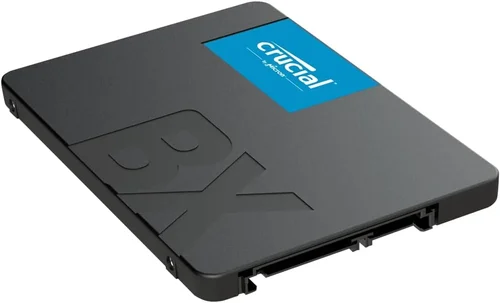
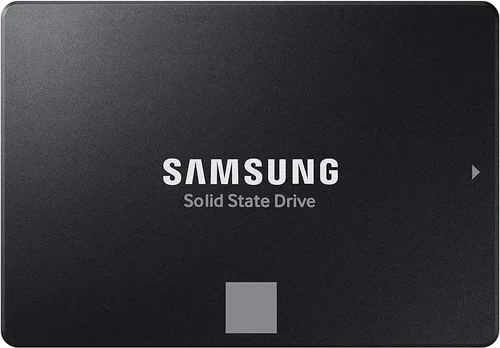
Not all SSDs and HDDs are created equal, even if they share similar specs. Brand reputation matters because it reflects consistency in quality control, firmware reliability, and long-term support. Established manufacturers like Samsung, Western Digital, Crucial, Kingston, Seagate, and Intel have built strong track records for producing reliable storage solutions. Samsung’s 990 Pro and WD Black SN850X are frequently cited as top-tier NVMe drives, while Crucial’s MX500 and BX500 series offer excellent value in the SATA segment.
When evaluating brands, look beyond marketing claims. Check independent reviews, failure rate reports (such as those from Backblaze), and user forums for real-world feedback. A lesser-known brand might offer a cheaper drive, but if it lacks consistent firmware updates or has a history of early failures, it could end up costing you more in data recovery or replacement. Also, reputable brands often provide better customer service and longer warranties, which brings us to our next point.
6. Warranty & Support
Warranty terms are a strong indicator of a manufacturer’s confidence in their product—and a practical safeguard for your investment. Most consumer SSDs come with 3- to 5-year limited warranties, often tied to both time and endurance (e.g., “5 years or 600 TBW, whichever comes first”). Premium models may offer up to 10 years of coverage. HDDs typically carry 2- to 5-year warranties, though some enterprise models extend beyond that. Always read the fine print: some warranties require registration, proof of purchase, or restrict coverage to original purchasers.
Support quality varies widely. Top-tier brands usually provide responsive customer service, detailed troubleshooting guides, and easy RMA (Return Merchandise Authorization) processes. Smaller or no-name brands may offer little to no support, leaving you stranded if something goes wrong. Additionally, check whether the warranty covers data recovery—most don’t, so it’s wise to maintain regular backups regardless of your drive type.
7. Size & Portability
Form factor plays a crucial role, especially in compact systems. Traditional 3.5-inch HDDs are bulky and require both SATA power and data cables, making them impractical for small-form-factor PCs or ultrabooks. 2.5-inch HDDs and SSDs are more portable and commonly used in laptops, but even these are being phased out in favor of M.2 SSDs—tiny, stick-like drives that plug directly into the motherboard. M.2 drives come in various lengths (e.g., 2242, 2260, 2280) and can be either SATA or NVMe.
For users building or upgrading a laptop, an M.2 NVMe SSD is often the only viable option due to space constraints. Desktop builders have more flexibility but should still consider cable management and airflow. If you’re adding secondary storage, a 2.5-inch SATA SSD offers a good balance of capacity, performance, and ease of installation. Portability also matters for external drives: USB-C SSDs like the Samsung T7 or SanDisk Extreme Pro deliver fast, durable, and pocket-sized storage perfect for on-the-go professionals.
8. User Reviews & Ratings
While specs and marketing materials provide a baseline, real-world user experiences reveal the full picture. Look for reviews that go beyond synthetic benchmarks and discuss everyday performance, reliability over time, noise levels (especially for HDDs), and compatibility with specific systems. Sites like Amazon, Newegg, and Reddit’s r/buildapc community are rich sources of honest feedback.
Pay attention to patterns: if multiple users report the same issue—such as sudden disconnects, slow write speeds after prolonged use, or incompatibility with certain motherboards—it’s a red flag. Conversely, consistent praise for boot times, game loading speeds, or silent operation can confirm a drive’s strengths. Remember, however, that individual experiences vary based on usage intensity, system configuration, and expectations. Use reviews to inform your decision, but always cross-reference with your own needs.
Different Types of Buying Guide

Common Buying Mistakes to Avoid
❌ Mistake: Choosing Based Solely on Capacity
Why it’s bad: Opting for the largest drive without considering speed or use case can lead to poor performance. A 4TB HDD might store all your movies, but it will take minutes to boot your OS or load a game—frustrating and inefficient.
What to do instead: Prioritize your primary drive as an SSD (even if smaller, like 500GB–1TB) for the operating system and frequently used apps. Use a large HDD as secondary storage for media and backups.
❌ Mistake: Ignoring Interface Compatibility
Why it’s bad: Buying an NVMe M.2 SSD for a laptop or motherboard that only supports SATA will result in incompatibility and wasted money.
What to do instead: Check your device’s specifications before purchasing. Look for M.2 slot type (B-key, M-key, or B+M), supported protocols (SATA vs. NVMe), and physical dimensions.
❌ Mistake: Overlooking Endurance Ratings
Why it’s bad: QLC-based SSDs offer high capacity at low cost but have lower write endurance. Using one for heavy workloads (like video editing or database logging) can lead to premature failure.
What to do instead: Match the SSD type to your workload. TLC SSDs are ideal for most users; opt for enterprise-grade drives with higher TBW if you’re doing intensive writes.
❌ Mistake: Skipping Firmware Updates
Why it’s bad: Outdated firmware can cause bugs, performance drops, or even data corruption. Many users never update their SSD firmware, missing critical fixes.
What to do instead: Download the manufacturer’s utility (e.g., Samsung Magician, WD Dashboard) and check for firmware updates regularly—especially after major OS updates.
❌ Mistake: Assuming All SSDs Are Equal
Why it’s bad: A $40 no-name SSD may use inferior NAND and lack proper error correction, leading to instability or data loss.
What to do instead: Stick to reputable brands and read professional reviews. Pay a little more for reliability—your data is worth it.
❌ Mistake: Neglecting Backup Strategies
Why it’s bad: Both SSDs and HDDs can fail unexpectedly. Relying solely on one drive without backups risks permanent data loss.
What to do instead: Follow the 3-2-1 rule: keep 3 copies of your data, on 2 different media, with 1 copy offsite (e.g., cloud or external drive).
❌ Mistake: Buying Oversized Drives Unnecessarily
Why it’s bad: A 8TB SSD costs thousands and is overkill for most users. You’re paying for capacity you’ll never use.
What to do instead: Assess your actual needs. Most users are fine with 1TB–2TB for primary storage. Scale up only if you work with large files regularly.
Budget Guidelines: How Much Should You Spend?
Entry-Level ($40–$80): At this price, you’ll find basic 500GB SATA SSDs or 1TB–2TB HDDs. Ideal for budget builds, older system upgrades, or secondary storage. Expect modest performance from SSDs and slow but spacious HDDs. Avoid no-name brands here—stick to Crucial BX500, WD Blue, or Seagate Barracuda.
Mid-Range ($80–$150): This is the sweet spot for most buyers. You can get a reliable 1TB SATA SSD (like the Samsung 870 EVO) or a fast 1TB NVMe drive (such as the WD Black SN770). Perfect for everyday computing, light gaming, and productivity. Offers excellent value with strong performance and durability.
Premium ($150–$300): For enthusiasts and professionals. Here, you’ll find high-end NVMe drives with PCIe 4.0 support, advanced cooling, and robust endurance (e.g., Samsung 990 Pro, Sabrent Rocket 4 Plus). Great for 4K video editing, AAA gaming, and multitasking. Also includes premium external SSDs for creatives.
Luxury ($300+): Top-tier options with cutting-edge specs: PCIe 5.0 drives, 4TB+ capacities, hardware encryption, and enterprise-grade reliability. Examples include the Corsair MP700 Pro or Kingston KC3000. Reserved for power users, servers, or those who demand absolute peak performance.
Expert Tips for Getting the Best Deal
– Time your purchase: Major sales events like Black Friday, Prime Day, and back-to-school season often feature deep discounts on storage. SSD prices also tend to drop after new generations launch (e.g., when PCIe 5.0 drives arrived, PCIe 4.0 models saw price cuts).
– Buy from trusted retailers: Stick to Amazon, Newegg, Best Buy, or direct from manufacturers. Avoid third-party sellers with unclear return policies or suspiciously low prices—they may sell refurbished or counterfeit drives.
– Check for bundle deals: Some retailers offer SSDs with free cloning software, mounting brackets, or even Windows licenses. These add-ons can save you money and hassle during installation.
– Read return policies carefully: Ensure the seller allows returns within at least 30 days, especially for opened items. Some brands void warranties if the drive is removed from its original packaging.
– Test before relying on it: Once installed, run a quick benchmark (using tools like CrystalDiskMark) and check S.M.A.R.T. status (via CrystalDiskInfo) to confirm the drive is performing as expected and hasn’t been heavily used.
– Consider future-proofing: If your system supports it, invest in a PCIe 4.0 or 5.0 NVMe drive even if you don’t need the speed today. It ensures compatibility with future upgrades and maximizes resale value.
– Don’t overlook used marketplaces: Reputable sellers on eBay or r/hardwareswap sometimes offer lightly used SSDs at steep discounts. Just verify health status and warranty transferability.

Frequently Asked Questions
Q: Is an SSD really worth the extra cost over an HDD?
A: Absolutely—for your primary drive. The speed difference is transformative: faster boot times, quicker app launches, and smoother multitasking. Even a budget SATA SSD makes a noticeable improvement over an HDD. Reserve HDDs for bulk storage where speed isn’t critical.
Q: Can I use both an SSD and an HDD in the same system?
A: Yes! This is a common and effective setup. Install your OS and frequently used programs on the SSD for speed, and use the HDD for storing large files like videos, photos, and backups. Most modern motherboards support multiple drives.
Q: Do SSDs slow down over time?
A: They can, but modern SSDs use TRIM and garbage collection to maintain performance. As long as you keep 10–20% of the drive free and avoid filling it to capacity, slowdowns are minimal. High-quality drives also include over-provisioning to mitigate this.
Q: Are external SSDs as fast as internal ones?
A: It depends on the interface. USB 3.2 Gen 2 (10 Gbps) external SSDs deliver around 1,000 MB/s—close to SATA SSD speeds. Thunderbolt 3/4 models can match NVMe performance. For most users, external SSDs are plenty fast for editing and transfers.
Q: How long do SSDs last?
A: Under normal use, most consumer SSDs last 5–10 years. Their lifespan is measured in terabytes written (TBW). A typical 1TB SSD with 600 TBW endurance will outlast the usable life of most computers.
Q: Should I defragment my SSD?
A: No! Defragmentation is unnecessary and harmful to SSDs. It causes unnecessary write cycles and offers no performance benefit. Windows and macOS automatically disable defrag for SSDs and enable TRIM instead.
Q: What’s the difference between TLC and QLC NAND?
A: TLC (Triple-Level Cell) stores 3 bits per cell and offers better endurance and performance. QLC (Quad-Level Cell) stores 4 bits, allowing higher capacities at lower cost but with reduced write speed and lifespan. Choose TLC for primary drives, QLC for secondary storage.
Q: Can I recover data from a failed SSD?
A: It’s possible but difficult and expensive. Unlike HDDs, SSDs often fail suddenly with no warning signs. Professional data recovery services exist but can cost hundreds to thousands. Prevention through regular backups is far better.
Q: Do gaming consoles benefit from SSD upgrades?
A: Yes—especially on PlayStation 5 and Xbox Series X|S, which support NVMe SSD expansion. Games load significantly faster, and some titles are optimized for SSD speeds. Ensure the drive meets the console’s thermal and speed requirements.
Q: Are there eco-friendly storage options?
A: SSDs are generally more energy-efficient than HDDs, consuming less power and generating less heat. Some manufacturers also use recycled materials and offer take-back programs. Look for ENERGY STAR certification or EPEAT ratings when available.
Our Final Recommendations
Best for Budget-Conscious Buyers: Crucial BX500 1TB SATA SSD – Reliable, affordable, and dramatically faster than any HDD. Perfect for upgrading an older laptop or building a budget desktop.
Best Overall Value: Samsung 980 (Non-Pro) 1TB NVMe SSD – Excellent performance, strong endurance, and competitive pricing. A great all-rounder for most users.
Best Premium Option: Samsung 990 Pro 2TB – Top-tier PCIe 4.0 speeds, superb build quality, and 5-year warranty. Ideal for gamers, creators, and power users.
Best for Beginners: WD Blue SA510 1TB SATA SSD – Easy to install, widely compatible, and backed by WD’s solid support. Great first SSD for new builders.
Best for Advanced Users: Sabrent Rocket 4 Plus-G 2TB – Blazing-fast PCIe 4.0 performance, built-in heatsink, and excellent thermal management. Built for heavy workloads and overclocking.
Conclusion: Making the Right Choice
Choosing between an SSD and an HDD in 2026 isn’t just about speed versus capacity—it’s about aligning your storage solution with your lifestyle, workload, and long-term goals. For the vast majority of users, an SSD should be the foundation of your system, delivering the responsiveness and reliability that modern computing demands. HDDs still have their place, particularly as cost-effective secondary storage for large media collections or backups, but they’re no longer the default choice for primary drives.
As you weigh your options, remember to consider not just what you need today, but how your needs might evolve. A slightly more expensive NVMe drive today could save you from needing an upgrade in two years. Likewise, investing in a reputable brand with strong support ensures peace of mind and longevity. Avoid the temptation to cut corners on storage—it’s one of the most impactful upgrades you can make to any system.
Ultimately, the best drive is the one that fits your budget, meets your performance requirements, and inspires confidence in its reliability. Whether you’re building a gaming rig, reviving an old laptop, or setting up a home office, the right storage choice will pay dividends in speed, stability, and satisfaction. Use this guide as your roadmap, prioritize your needs, and don’t hesitate to ask questions or seek advice from trusted communities. Your data—and your time—are too valuable to leave to chance.