

When it comes to upgrading your computer’s storage or building a new system from the ground up, one of the most impactful decisions you can make is choosing the right SSD format. Solid State Drives have revolutionized computing performance over the past decade, delivering lightning-fast boot times, near-instant application launches, and seamless multitasking that traditional hard drives simply can’t match. But with so many SSD formats on the market—SATA, NVMe M.2, U.2, PCIe add-in cards, and more—it’s easy to feel overwhelmed. The wrong choice could mean wasted money, compatibility headaches, or subpar performance that doesn’t meet your needs.
This comprehensive guide is designed to cut through the confusion and help you make an informed, confident decision in 2026. Whether you’re a casual user looking to speed up an aging laptop, a gamer chasing every frame per second, a creative professional handling large media files, or a system builder assembling a high-performance workstation, understanding SSD formats is critical. We’ll walk you through the key factors that matter most—from performance and compatibility to budget and future-proofing—and compare the major types side by side. By the end, you’ll know exactly which SSD format aligns with your use case, hardware setup, and long-term goals.
The SSD market has matured significantly, but it’s also become more fragmented. Newer interfaces like PCIe 5.0 and emerging form factors are pushing performance boundaries, while backward compatibility ensures older systems aren’t left behind. Meanwhile, pricing has stabilized across tiers, making high-speed NVMe drives accessible even to budget-conscious buyers. With manufacturers like Samsung, WD, Crucial, Kingston, and Sabrent offering a wide range of options, the challenge isn’t finding an SSD—it’s finding the right one. This guide equips you with the knowledge to navigate that landscape with clarity and confidence.

What to Look for When Buying Buying Guide
1. Interface & Connection Type
The interface determines how your SSD communicates with your motherboard and directly impacts speed, compatibility, and physical installation. The three main interfaces are SATA, NVMe over PCIe, and newer standards like PCIe 5.0. SATA SSDs use the same connector as traditional hard drives and max out at around 550 MB/s due to SATA III bandwidth limitations. They’re reliable and widely compatible but increasingly outdated for performance-focused builds. NVMe (Non-Volatile Memory Express) SSDs, on the other hand, connect via PCIe lanes, bypassing SATA entirely and enabling speeds of 3,500 MB/s or higher—especially with PCIe 4.0 and 5.0. If your motherboard supports NVMe (most modern ones do), this is almost always the better choice for speed. Always check your motherboard manual or manufacturer specs to confirm which interfaces are supported before buying.
2. Form Factor & Physical Compatibility
SSDs come in several physical shapes, and matching the right form factor to your system is essential. The most common today is M.2, a small, stick-like drive that plugs directly into the motherboard without cables. M.2 drives come in different lengths (e.g., 2280 = 22mm wide, 80mm long) and key types (B-key, M-key, or B+M), so verify your motherboard’s M.2 slot specifications. 2.5-inch SATA SSDs resemble traditional laptop hard drives and connect via SATA data and power cables—ideal for older desktops or laptops with drive bays. U.2 drives are less common but offer high endurance and are used in enterprise environments. PCIe add-in card SSDs plug into a full-sized PCIe slot and are typically found in high-end workstations. Always measure available space and confirm slot availability—especially in compact builds like mini-ITX PCs or thin laptops.
3. Performance Specifications
Raw speed isn’t everything, but it’s a crucial starting point. Look at sequential read/write speeds (measured in MB/s) for large file transfers and random read/write IOPS (Input/Output Operations Per Second) for everyday tasks like opening apps or loading game levels. For example, a PCIe 4.0 NVMe SSD might deliver 7,000 MB/s reads and 6,500 MB/s writes, while a SATA SSD caps at ~550 MB/s. However, real-world gains depend on your workload: gamers and video editors will notice the difference, but casual web browsers may not. Also consider sustained performance—some budget NVMe drives throttle under prolonged load due to poor thermal management. Check reviews for thermal performance and whether the drive includes a heatsink or requires one.
4. Storage Capacity Needs
Capacity affects both price and usability. A 250GB SSD may suffice for a lightweight OS and a few apps, but modern games and creative software quickly eat up space—AAA titles often exceed 100GB each. For most users, 500GB to 1TB strikes a good balance between cost and utility. Content creators, developers, or anyone working with 4K video should consider 2TB or more. Keep in mind that SSDs perform best when they’re not nearly full; aim to keep at least 10–20% free space for optimal wear leveling and garbage collection. Also, note that advertised capacities use decimal (base-10) measurements, while your OS reports binary (base-2), so a “1TB” drive shows as ~931GB in Windows.
5. NAND Flash Type & Endurance
The type of NAND memory used inside the SSD affects longevity, speed, and cost. TLC (Triple-Level Cell) is the sweet spot for most consumers—it offers good performance, decent endurance, and reasonable pricing. QLC (Quad-Level Cell) is cheaper and higher-capacity but slower under sustained writes and less durable, making it better suited for read-heavy tasks like media storage. MLC and SLC are found in enterprise drives and offer superior endurance but at a steep premium. Check the drive’s TBW (Terabytes Written) rating—this indicates how much data can be written over its lifetime. A 1TB TLC drive might have a 600 TBW rating, while a QLC version could be half that. For typical home use, TLC is ideal; for heavy write workloads (e.g., database servers), consider MLC or enterprise-grade options.
6. Brand Reputation & Reliability
Not all SSDs are created equal, even if they share the same specs. Established brands like Samsung, Western Digital, Crucial, and Kingston have proven track records for quality control, firmware stability, and long-term reliability. Lesser-known or no-name brands may offer tempting prices but often cut corners on components, lack robust error correction, or provide minimal customer support. Look for brands that publish detailed specs, offer firmware updates, and have positive user feedback across multiple platforms. Samsung’s 990 Pro, for instance, is renowned for consistent performance and durability, while WD’s Black SN850X is a favorite among gamers. Avoid “mystery” brands with vague specifications or no warranty information.
7. Warranty & Support
A solid warranty is a strong indicator of manufacturer confidence. Most reputable SSDs come with 3- to 5-year limited warranties, often tied to TBW limits (e.g., “5 years or 600 TBW, whichever comes first”). Longer warranties usually correlate with higher endurance and better build quality. Also consider what support is available: does the brand offer data recovery services? Is there a user-friendly dashboard for monitoring health (like Samsung Magician or WD Dashboard)? Can you easily RMA a failed drive? Avoid drives with no warranty or those sold through third-party resellers without clear support channels. A good warranty isn’t just about replacement—it’s peace of mind.
8. Price per Gigabyte & Value Proposition
While raw price matters, the true metric is cost per gigabyte (e.g., $0.08/GB). SATA SSDs are often cheaper per GB than NVMe, but the performance gap has narrowed significantly. In 2026, you can find excellent 1TB NVMe drives for under $60, making them a better value for most users. However, don’t chase the lowest price blindly—extremely cheap drives may use inferior NAND, lack DRAM caches, or have hidden limitations. Compare drives within the same category (e.g., PCIe 4.0 NVMe vs. PCIe 4.0 NVMe) and factor in performance, endurance, and warranty. Sometimes paying $10–$20 more gets you a vastly better experience.
Different Types of Buying Guide

Common Buying Mistakes to Avoid
❌ Mistake: Ignoring Motherboard Compatibility
Why it’s bad: Buying a PCIe 5.0 NVMe SSD for a motherboard that only supports PCIe 3.0 means you won’t get the advertised speeds—and you may have wasted money on features you can’t use. Worse, some older boards don’t support NVMe at all, requiring a BIOS update or rendering the drive unusable.
What to do instead: Always check your motherboard’s manual or manufacturer website for supported interfaces, M.2 slot types, and maximum PCIe generation. Use tools like CPU-Z or the motherbox’s QVL (Qualified Vendor List) to verify compatibility before purchasing.
❌ Mistake: Choosing QLC Over TLC for Primary Drive
Why it’s bad: QLC SSDs are slower under sustained writes and have lower endurance. Using one as your main OS drive can lead to sluggish performance when installing updates, copying large files, or running virtual machines.
What to do instead: Reserve QLC drives for secondary storage (e.g., media libraries, backups). For your primary drive, stick with TLC NAND—it offers the best balance of speed, endurance, and value for daily use.
❌ Mistake: Overlooking Thermal Throttling
Why it’s bad: High-performance NVMe drives generate significant heat. Without proper cooling, they throttle down to protect themselves, causing performance drops during extended workloads like video rendering or game loading.
What to do instead: Choose drives with built-in heatsinks or plan to add one. Ensure your case has adequate airflow, especially if using PCIe 4.0 or 5.0 drives. Some motherboards include M.2 heatsinks—use them!
❌ Mistake: Skimping on Capacity
Why it’s bad: A 250GB SSD fills up fast with Windows, apps, and a few games. Running low on space degrades performance and reduces the drive’s lifespan due to inefficient wear leveling.
What to do instead: Start with at least 500GB for light use, 1TB for most users, and 2TB+ for creators or gamers. Remember: it’s better to have extra space than to constantly manage storage.
❌ Mistake: Buying Based Solely on Price
Why it’s bad: The cheapest SSDs often lack DRAM caches, use low-quality controllers, or have poor firmware. This leads to inconsistent performance, higher failure rates, and frustrating user experiences.
What to do instead: Prioritize value over absolute lowest cost. Look for drives with DRAM caches, strong reviews, and reputable brands—even if they cost $10–$20 more.
❌ Mistake: Not Checking Warranty Terms
Why it’s bad: Some warranties are voided if you exceed the TBW limit, even within the time frame. Others require original packaging or proof of purchase from authorized retailers.
What to do instead: Read the fine print. Register your drive if required, keep receipts, and understand whether the warranty is prorated or full replacement.
❌ Mistake: Assuming All M.2 Drives Are NVMe
Why it’s bad: M.2 is a form factor, not an interface. Some M.2 drives use SATA and are much slower than their NVMe counterparts, despite looking identical.
What to do instead: Check the product specs carefully. If it says “M.2 SATA” or lists speeds around 550 MB/s, it’s not NVMe. Look for “PCIe” or “NVMe” in the description.
Budget Guidelines: How Much Should You Spend?
Entry-Level ($30 – $60 for 1TB): This tier includes reliable SATA SSDs and basic PCIe 3.0 NVMe drives. Perfect for upgrading an old laptop or building a budget desktop. Expect decent performance for everyday tasks but limited speed under heavy loads. Brands like Crucial BX500 or Kingston NV2 offer solid value here.
Mid-Range ($60 – $90 for 1TB): The sweet spot for most users. You’ll find high-quality PCIe 3.0 and entry-level PCIe 4.0 NVMe drives with TLC NAND, DRAM caches, and strong warranties. Examples include the Samsung 980, WD Blue SN580, and Sabrent Rocket Q. These deliver excellent real-world performance without breaking the bank.
Premium ($90 – $130 for 1TB): Ideal for gamers, creators, and power users. Drives like the Samsung 990 Pro, WD Black SN850X, and Corsair MP600 Pro offer top-tier PCIe 4.0 speeds, robust thermal management, and high endurance. Expect 6,500–7,000 MB/s reads and 5-year warranties.
Luxury ($130+ for 1TB): Reserved for enthusiasts and professionals. PCIe 5.0 drives like the Crucial T700 or Seagate FireCuda 540 deliver blistering 12,000–14,000 MB/s speeds but require compatible hardware and often aftermarket cooling. Only worth it if you’re pushing the limits of storage performance.
Expert Tips for Getting the Best Deal
1. Time Your Purchase Strategically: SSD prices fluctuate based on NAND supply and demand. Historically, Q4 (October–December) offers the best deals due to holiday shopping. Avoid buying right after major product launches when prices are highest.
2. Buy Direct or From Authorized Retailers: Purchasing from Amazon, Newegg, Best Buy, or the manufacturer’s site ensures warranty validity and reduces the risk of counterfeit products. Avoid third-party sellers with unclear return policies.
3. Compare Real-World Performance, Not Just Specs: A drive advertising 7,000 MB/s might throttle to 1,000 MB/s under sustained load. Read professional reviews (e.g., Tom’s Hardware, AnandTech) that test thermal performance and real-world usage.
4. Consider Bundled Software: Some drives come with cloning software, migration tools, or cloud backup subscriptions. These can save time and money if you’re upgrading from an HDD.
5. Check Return Policies: Even the best drives can fail. Ensure the retailer offers at least a 30-day return window and covers return shipping for defective units.
6. Test Before Committing: If possible, test the SSD in your system before finalizing setup. Use tools like CrystalDiskMark or AS SSD Benchmark to verify speeds and health.
7. Future-Proof Without Overpaying: If your motherboard supports PCIe 4.0, a PCIe 4.0 NVMe drive is a smart investment. But don’t pay extra for PCIe 5.0 unless you have a compatible system—it’s still niche in 2026.
8. Monitor Drive Health: Use manufacturer utilities (e.g., Samsung Magician, WD Dashboard) to track wear, temperature, and firmware updates. This helps catch issues early and maintain peak performance.
Frequently Asked Questions
Q: Can I use an NVMe SSD in a SATA-only M.2 slot?
A: No. NVMe and SATA M.2 drives use different keying and protocols. A SATA M.2 slot won’t recognize an NVMe drive, even if it physically fits. Always match the interface to your slot type.
Q: Do I need a heatsink for my M.2 SSD?
A: It depends. PCIe 3.0 drives rarely need one, but PCIe 4.0 and 5.0 drives can get very hot under load. If your motherboard includes a heatsink, use it. For high-performance builds, consider an aftermarket solution.
Q: Will a faster SSD improve gaming performance?
A: Yes, but mostly in load times and texture streaming. Games load faster, and open-world titles stutter less when assets stream in quickly. However, FPS (frames per second) is still primarily determined by your GPU and CPU.
Q: How long do SSDs last?
A: Modern TLC SSDs typically last 5–10 years under normal use, often outlasting the computer itself. The TBW rating gives a more precise estimate—most consumer drives can handle hundreds of terabytes written.
Q: Can I clone my HDD to an SSD?
A: Absolutely. Tools like Macrium Reflect, Acronis True Image, or manufacturer-provided software (e.g., Samsung Data Migration) make cloning straightforward. Just ensure the SSD is equal or larger in capacity.
Q: Is DRAM cache important?
A: Yes. DRAM acts as a buffer for the SSD’s controller, improving speed and longevity. DRAM-less SSDs (often QLC) are slower under sustained workloads and more prone to performance drops.
Q: What’s the difference between PCIe 3.0, 4.0, and 5.0?
A: Each generation roughly doubles bandwidth. PCIe 3.0 offers ~1,000 MB/s per lane, PCIe 4.0 ~2,000 MB/s, and PCIe 5.0 ~4,000 MB/s. Most consumer workloads don’t saturate PCIe 3.0, but 4.0 and 5.0 benefit large file transfers and professional apps.
Q: Can I use multiple SSDs in one system?
A: Yes. Many motherboards have multiple M.2 slots and SATA ports. You can use one SSD for the OS and apps and another for games or media. Just ensure your power supply and case have enough connectors.
Q: Are external SSDs as fast as internal ones?
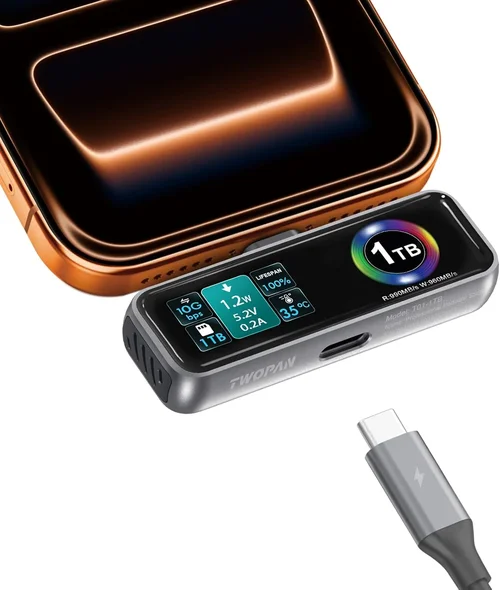
A: Not always. USB 3.2 Gen 2×2 (20 Gbps) can reach ~2,000 MB/s, while Thunderbolt 3/4 supports full PCIe speeds. But most external SSDs use USB 3.2 Gen 2 (10 Gbps), capping at ~1,000 MB/s—still fast, but slower than internal NVMe.
Q: Should I enable TRIM?
A: Yes. TRIM helps the SSD manage deleted data efficiently, maintaining performance over time. It’s enabled by default in Windows, macOS, and most Linux distributions.
Our Final Recommendations
Best for Budget-Conscious Buyers: Crucial P3 1TB (PCIe 3.0 NVMe) – At around $45, it offers excellent value with TLC NAND, DRAM cache, and reliable performance for everyday use. Perfect for upgrading older systems without overspending.
Best Overall Value: Samsung 980 1TB (PCIe 3.0 NVMe) – A proven performer with consistent speeds, strong endurance, and Samsung’s excellent software suite. Great for gamers and general users who want reliability without PCIe 4.0 premiums.
Best Premium Option: WD Black SN850X 1TB (PCIe 4.0 NVMe) – Delivers near-max PCIe 4.0 speeds (7,300 MB/s), includes a heatsink option, and is optimized for gaming and creative workloads. Ideal for high-end builds.
Best for Beginners: Kingston NV2 1TB (PCIe 3.0 NVMe) – Simple, affordable, and easy to install. No frills, but solid performance and Kingston’s reputation for reliability make it a safe first SSD choice.
Best for Advanced Users: Crucial T700 2TB (PCIe 5.0 NVMe) – For those with PCIe 5.0-compatible systems, this drive pushes boundaries with 12,000+ MB/s speeds. Requires a heatsink and robust cooling, but it’s the ultimate in future-proof performance.
Conclusion: Making the Right Choice
Choosing the right SSD format isn’t just about picking the fastest or cheapest drive—it’s about aligning technology with your specific needs, hardware, and budget. In 2026, the landscape offers more options than ever, but the fundamentals remain clear: prioritize compatibility, balance performance with endurance, and invest in quality from reputable brands. Whether you’re breathing new life into an old machine or building a cutting-edge rig, the right SSD can transform your computing experience.
Remember, the best SSD is the one that fits your system, meets your performance demands, and delivers lasting value. Don’t rush the decision. Use this guide to evaluate your priorities, compare your options, and avoid common pitfalls. And when you do buy, take advantage of seasonal deals and trusted retailers to get the most bang for your buck.
Your storage is the foundation of your digital workflow—make it count. With the insights from this guide, you’re now equipped to choose wisely, upgrade confidently, and enjoy the speed, reliability, and responsiveness that only a well-matched SSD can provide.