
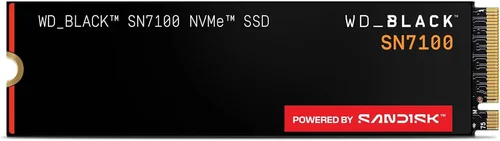
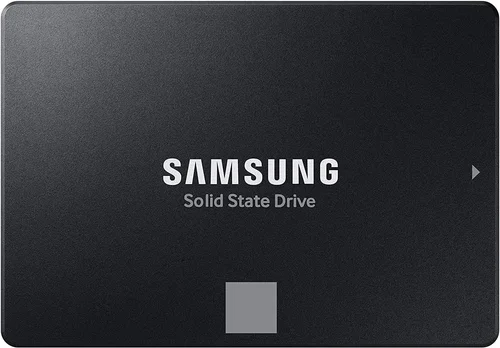
Solid-state drives (SSDs) have revolutionized how we store and access data in modern computing. Gone are the days of slow boot times, laggy file transfers, and the mechanical whirring of traditional hard disk drives (HDDs). Today, whether you’re building a high-performance gaming rig, upgrading an aging laptop, or simply looking to speed up your everyday workflow, choosing the right SSD is one of the most impactful decisions you can make. But with so many form factors, interfaces, and technologies on the market, it’s easy to feel overwhelmed—especially when trying to decide between two of the most popular options: the classic 2.5-inch SSD and the newer, sleeker M.2 SSD.
This comprehensive buyer’s guide is designed to cut through the noise and help you make an informed decision tailored to your specific needs. Whether you’re a first-time buyer, a tech enthusiast, or a professional seeking maximum performance, we’ll walk you through every critical factor—from performance and compatibility to budget and future-proofing. By the end of this guide, you’ll not only understand the technical differences between 2.5-inch and M.2 SSDs but also know exactly which type suits your use case, system configuration, and long-term goals. The SSD market in 2026 is more advanced than ever, with PCIe Gen 5, QLC NAND, and intelligent caching algorithms becoming mainstream. Yet, despite these innovations, the fundamental choice between form factors remains pivotal. Let’s dive in and explore what truly matters when selecting the best SSD for your setup.

What to Look for When Buying Buying Guide
1. Budget & Price Range
Your budget is often the first and most decisive factor when choosing between a 2.5-inch SSD and an M.2 SSD. While both offer significant performance improvements over HDDs, their pricing structures differ based on technology, capacity, and brand. As of 2026, 2.5-inch SATA SSDs remain the most affordable option, with entry-level models starting as low as $30 for 250GB. These drives are ideal for users upgrading older systems or those with tight budgets. In contrast, M.2 SSDs—especially NVMe models—tend to be more expensive due to their superior speed and compact design. A 1TB NVMe M.2 SSD can range from $70 to $150, depending on whether it uses PCIe Gen 3, Gen 4, or the latest Gen 5 interface.
However, price isn’t just about the upfront cost. You should also consider cost per gigabyte (GB), which gives a clearer picture of value. For example, a 2TB 2.5-inch SATA SSD might cost $120 ($0.06/GB), while a 2TB PCIe Gen 4 M.2 SSD could run $180 ($0.09/GB). While the M.2 is pricier per GB, the performance gains may justify the premium for power users. Additionally, keep an eye on sales cycles—back-to-school, Black Friday, and Amazon Prime Day often bring steep discounts on both types. Always compare prices across retailers like Amazon, Newegg, Best Buy, and B&H Photo to ensure you’re getting the best deal.
2. Performance Specifications
Performance is where the divide between 2.5-inch and M.2 SSDs becomes most apparent. 2.5-inch SSDs typically use the SATA III interface, which caps sequential read/write speeds at around 550 MB/s. This is still a massive improvement over HDDs (which average 80–160 MB/s), but it’s far from the bleeding edge. These drives are excellent for general computing tasks like web browsing, office applications, and media playback.
M.2 SSDs, on the other hand, come in two main varieties: SATA-based and NVMe-based. M.2 SATA SSDs offer similar performance to their 2.5-inch counterparts but in a smaller form factor. The real performance leap comes with NVMe M.2 drives, which connect directly to the motherboard via the PCIe interface. PCIe Gen 3 drives deliver speeds up to 3,500 MB/s, Gen 4 doubles that to around 7,000 MB/s, and Gen 5 pushes beyond 14,000 MB/s. This makes NVMe M.2 SSDs ideal for gaming, video editing, 3D rendering, and other data-intensive workloads.
When evaluating performance, also consider random read/write speeds (measured in IOPS), which affect how quickly small files are accessed—critical for operating system responsiveness and multitasking. NVMe drives typically offer significantly higher IOPS than SATA SSDs. For example, a high-end NVMe drive might achieve 1 million IOPS, while a SATA SSD might reach only 100,000. Always check manufacturer specs and third-party benchmarks (like those from Tom’s Hardware or AnandTech) to verify real-world performance.
3. Build Quality & Durability
SSDs are inherently more durable than HDDs because they lack moving parts, but build quality still varies between models and manufacturers. Both 2.5-inch and M.2 SSDs are built to withstand shocks, vibrations, and temperature fluctuations, making them ideal for laptops and portable devices. However, M.2 drives, due to their compact size and direct motherboard mounting, are less prone to physical damage from drops or impacts compared to 2.5-inch drives, which require cables and mounting brackets.
Look for SSDs with robust controllers and high-quality NAND flash memory. TLC (Triple-Level Cell) NAND is the sweet spot for most users, offering a good balance of speed, endurance, and cost. QLC (Quad-Level Cell) NAND is cheaper and offers higher capacities but has lower write endurance and slower write speeds under sustained loads. For professional workloads, consider drives with MLC (Multi-Level Cell) or even SLC (Single-Level Cell) NAND, though these are rare and expensive.
Endurance is measured in terabytes written (TBW) or drive writes per day (DWPD). A 1TB SSD with a 600 TBW rating can theoretically write 600TB of data over its lifespan. Higher TBW ratings indicate better longevity. For example, Samsung’s 870 EVO (2.5-inch) offers up to 2,400 TBW for the 4TB model, while the 990 PRO (M.2 NVMe) provides 1,200 TBW for the 2TB version. Always check the TBW rating relative to your expected usage—heavy users should prioritize higher endurance.
4. Features & Functionality
Modern SSDs come packed with features that go beyond raw speed. One of the most important is DRAM cache. Drives with DRAM buffers store mapping tables for faster data access and improved longevity. DRAM-less SSDs are cheaper but can suffer from performance degradation under heavy workloads. For most users, a DRAM-equipped drive is worth the extra cost.
Another key feature is power efficiency. M.2 NVMe drives, especially Gen 4 and Gen 5 models, consume more power and generate more heat than SATA SSDs. This can be a concern in laptops or small form factor PCs. Look for drives with advanced power management features like DevSleep (for laptops) or thermal throttling protection. Some high-end M.2 drives include built-in heat spreaders or are designed to work with motherboard-mounted heatsinks.
Encryption and security are also important. Many SSDs support hardware-based encryption standards like TCG Opal and IEEE 1667, which allow for secure data protection without impacting performance. This is crucial for business users or anyone handling sensitive information. Additionally, some drives offer proprietary software suites for cloning, monitoring health, and firmware updates—Samsung Magician and Crucial Storage Executive are excellent examples.
5. Brand Reputation
Not all SSDs are created equal, and brand reputation plays a significant role in reliability and support. Established brands like Samsung, Crucial (a subsidiary of Micron), Western Digital, Kingston, and Sabrent have proven track records for quality, performance, and customer service. Samsung’s 870 EVO and 990 PRO series are widely regarded as among the best in their respective categories. Crucial’s MX500 (2.5-inch) and P5 Plus (M.2) offer excellent value and performance.
Avoid no-name or ultra-budget brands that may use inferior components or lack proper firmware support. While they might seem like a bargain, they often come with higher failure rates and limited warranties. Reading professional reviews and user feedback on forums like Reddit’s r/buildapc or Tom’s Hardware can help identify reliable models. Also, consider brands that offer transparent specifications—some manufacturers downplay limitations like DRAM-less designs or QLC NAND in marketing materials.
6. Warranty & Support
A strong warranty is a sign of a manufacturer’s confidence in their product. Most reputable SSDs come with a 3- to 5-year limited warranty, often tied to the TBW rating. For example, if a drive has a 600 TBW rating and a 5-year warranty, the warranty expires when either the time limit is reached or the TBW limit is exceeded—whichever comes first.
Check the warranty terms carefully. Some brands offer international coverage, while others are region-specific. Also, note whether the warranty includes data recovery services—most do not, so always back up important data. Customer support quality varies; Samsung and Crucial are known for responsive support, while some lesser-known brands may have slow or unhelpful service. Registering your drive with the manufacturer can also unlock extended support or firmware updates.
7. Size & Portability
Physical size and portability are critical, especially for laptop users or those building compact desktops. 2.5-inch SSDs are larger and require a 2.5-inch drive bay, SATA data cable, and power cable. This makes them less ideal for thin laptops or small form factor (SFF) PCs. However, they are universally compatible with older systems that lack M.2 slots.
M.2 SSDs are tiny—about the size of a stick of gum—and plug directly into the motherboard. This saves space, reduces cable clutter, and improves airflow. There are different M.2 lengths (e.g., 2242, 2260, 2280), with 2280 (80mm) being the most common. Always check your motherboard’s M.2 slot specifications to ensure compatibility. M.2 drives are also more portable, making them ideal for external SSD enclosures or portable storage solutions.
8. User Reviews & Ratings
While specs and benchmarks are important, real-world user experiences provide invaluable insights. Look for reviews on trusted platforms like Amazon, Newegg, and Best Buy, paying attention to both star ratings and detailed written feedback. Common issues to watch for include overheating, inconsistent performance, firmware bugs, and early failures.
User reviews can also reveal compatibility issues with specific motherboards, BIOS versions, or operating systems. For example, some older motherboards may not support NVMe booting without a BIOS update. Additionally, forums like Reddit, Linus Tech Tips, and Overclock.net often have in-depth discussions about long-term reliability and real-world performance. Don’t rely solely on marketing claims—real user data is often the best indicator of a drive’s true value.
Different Types of Buying Guide

Common Buying Mistakes to Avoid

❌ Mistake: Ignoring Compatibility
Why it’s bad: Not all motherboards support M.2 NVMe, and some only support SATA-based M.2 drives. Installing an NVMe drive in a slot that only supports SATA will result in it not being recognized. Similarly, older systems may lack M.2 slots entirely.
What to do instead: Always check your motherboard’s manual or manufacturer website for M.2 slot specifications. Look for details like supported interface (SATA/NVMe), key type (B-key, M-key, or B+M), and maximum length. Use tools like CPU-Z or the motherboxdumper database to verify compatibility before purchasing.
❌ Mistake: Choosing DRAM-less SSDs for Heavy Use
Why it’s bad: DRAM-less SSDs use system memory (HMB) or rely on slower caching methods, which can lead to performance drops during sustained writes or multitasking. This is especially problematic for video editors, gamers, or anyone running virtual machines.
What to do instead: Opt for SSDs with dedicated DRAM cache, especially if you plan to use the drive as a primary OS or application drive. Look for models like the Samsung 990 PRO, Crucial P5 Plus, or WD Black SN850X, which include robust DRAM buffers.
❌ Mistake: Overpaying for PCIe Gen 5 Without Need
Why it’s bad: PCIe Gen 5 SSDs are expensive and generate significant heat. Most current applications—even 4K gaming and video editing—don’t fully utilize Gen 5 speeds. You’re paying a premium for performance you may never use.
What to do instead: Unless you’re building a top-tier workstation or plan to future-proof for several years, a PCIe Gen 4 drive offers excellent performance at a lower cost. Save Gen 5 for when software and hardware ecosystems fully leverage its capabilities.
❌ Mistake: Neglecting Thermal Management
Why it’s bad: High-performance M.2 NVMe drives, especially Gen 4 and Gen 5, can overheat under load, triggering thermal throttling and reducing performance. This is a common issue in laptops or tightly packed desktop builds.
What to do instead: Use motherboards with built-in M.2 heatsinks or purchase aftermarket heatsinks. For laptops, ensure adequate airflow. Monitor drive temperatures using tools like HWInfo or CrystalDiskInfo, and avoid prolonged heavy workloads without cooling.
❌ Mistake: Buying Based Solely on Price
Why it’s bad: The cheapest SSD may use low-quality NAND, lack DRAM, or have poor firmware, leading to early failure or inconsistent performance. You might end up replacing it sooner, costing more in the long run.
What to do instead: Balance price with features, brand reputation, and warranty. A slightly more expensive drive from a trusted brand often provides better reliability and longevity. Use cost per GB as a guide, but don’t sacrifice quality for savings.
❌ Mistake: Not Checking Warranty Terms
Why it’s bad: Some warranties are voided if the drive is used in certain environments (e.g., servers) or if the TBW limit is exceeded quickly. Others may not cover data recovery, leaving you stranded if the drive fails.
What to do instead: Read the fine print. Choose drives with long warranties (5 years is ideal) and high TBW ratings. Register your drive and keep proof of purchase. Always maintain backups regardless of warranty coverage.
❌ Mistake: Assuming All M.2 Drives Are Fast
Why it’s bad: M.2 is a form factor, not a performance standard. Some M.2 drives use the SATA interface and offer the same speed as 2.5-inch SSDs. Buying an M.2 SATA drive thinking it’s NVMe is a common and costly mistake.
What to do instead: Always verify the interface. Look for “NVMe” or “PCIe” in the product name. If it only says “M.2 SATA,” it’s not faster than a 2.5-inch drive. Check the specifications carefully before buying.
Budget Guidelines: How Much Should You Spend?
Entry-Level ($30 – $60): This range is perfect for budget-conscious users upgrading from an HDD or building a basic system. Expect 2.5-inch SATA SSDs with capacities from 250GB to 500GB. Brands like Kingston A400 or Crucial BX500 offer reliable performance for everyday tasks. Avoid DRAM-less models if possible, and prioritize 500GB for better longevity and usability.
Mid-Range ($60 – $120): This is the sweet spot for most users. You can get a 1TB SATA SSD (like the Samsung 870 EVO) or a 1TB NVMe Gen 3 M.2 SSD (like the WD Blue SN580). These drives offer excellent performance, good endurance, and strong warranties. Ideal for gaming, office work, and light content creation.
Premium ($120 – $200): For enthusiasts and professionals, this tier includes high-performance NVMe Gen 4 M.2 SSDs like the Samsung 990 PRO, Sabrent Rocket 4 Plus, or Corsair MP600 Pro. These drives deliver blazing speeds, robust build quality, and advanced features like hardware encryption and thermal monitoring. Perfect for 4K video editing, 3D rendering, and high-FPS gaming.
Luxury ($200+): The top tier is reserved for cutting-edge PCIe Gen 5 drives and high-capacity models (2TB+). Examples include the Gigabyte AORUS Gen5 10000 or the Seagate FireCuda 540. These are overkill for most users but ideal for workstations, servers, or future-proof builds. Expect premium pricing, advanced cooling solutions, and top-tier endurance.
Expert Tips for Getting the Best Deal
- Buy During Sales Cycles: Major sales events like Black Friday, Cyber Monday, Amazon Prime Day, and back-to-school season offer the best discounts on SSDs. Sign up for deal alerts from Slickdeals or CamelCamelCamel to catch price drops.
- Compare Retailers: Prices vary significantly between Amazon, Newegg, Best Buy, B&H Photo, and Micro Center. Use price comparison tools to find the lowest price with reliable shipping and return policies.
- Check for Bundled Deals: Some retailers offer SSDs bundled with cloning software, external enclosures, or free installation services. These can add value beyond the drive itself.
- Consider Refurbished or Open-Box: Reputable sellers like Amazon Renewed or Best Buy Outlet offer certified refurbished SSDs at 20–40% off. These come with warranties and are often as good as new.
- Monitor Firmware Updates: Some SSDs receive performance or stability improvements via firmware updates. Check the manufacturer’s website after purchase and install updates as needed.
- Use Manufacturer Tools: Brands like Samsung and Crucial offer free cloning software to transfer your OS and data from an old drive. This makes upgrading seamless and reduces setup time.
- Test Before Finalizing: After installation, use tools like CrystalDiskMark or AS SSD Benchmark to verify performance matches specs. Also, check SMART data to ensure the drive is healthy.
- Don’t Forget Return Policies: Ensure the retailer offers at least a 30-day return window. This gives you time to test the drive and return it if it’s defective or incompatible.

Frequently Asked Questions
Q: Can I use an M.2 SSD in a laptop that only has a 2.5-inch bay?
A: No, you cannot directly install an M.2 SSD in a 2.5-inch bay. However, you can use an M.2 to 2.5-inch adapter or an external USB enclosure. For internal use, you’d need a laptop with an M.2 slot. Always check your laptop’s service manual for compatibility.
Q: Is NVMe always faster than SATA?
A: Yes, NVMe drives are significantly faster than SATA SSDs in both sequential and random performance. However, for everyday tasks like web browsing or document editing, the difference may not be noticeable. NVMe shines in data-intensive applications.
Q: Do I need a heatsink for my M.2 SSD?
A: It depends. High-performance NVMe Gen 4 and Gen 5 drives benefit from heatsinks, especially in desktops. Laptops usually have limited space, so built-in thermal management is crucial. If your motherboard includes a heatsink, use it.
Q: Can I boot from an M.2 NVMe SSD?
A: Yes, most modern motherboards support NVMe booting. Ensure your BIOS is updated and that the M.2 slot is enabled for boot devices. Some older systems may require a BIOS update or UEFI mode.
Q: Are QLC SSDs reliable?
A: QLC SSDs are reliable for light to moderate use but have lower write endurance and slower write speeds under sustained loads. They’re fine for general use but not ideal for heavy workloads like video editing or database servers.
Q: How long do SSDs last?
A: Most consumer SSDs last 5–10 years under normal use, depending on workload and TBW rating. Modern drives are highly durable, and failure is rare before the warranty expires. Regular backups are still essential.
Q: Can I use both a 2.5-inch and M.2 SSD in the same system?
A: Yes, most motherboards support multiple storage devices. You can use a 2.5-inch SSD for bulk storage and an M.2 NVMe for your OS and applications. Just ensure you have enough SATA ports and M.2 slots.
Q: What’s the difference between B-key and M-key M.2 slots?
A: B-key slots support SATA and PCIe x2, while M-key slots support PCIe x4 and NVMe. Most modern NVMe drives use M-key. Some drives are B+M key and fit both, but performance depends on the slot type.
Q: Do SSDs improve gaming performance?
A: Yes, SSDs reduce load times, eliminate texture pop-in, and improve level streaming in open-world games. NVMe drives offer slightly faster load times than SATA, but the difference is often minimal in real-world gameplay.
Q: Should I enable TRIM?
A: Yes, TRIM helps maintain SSD performance over time by clearing unused data blocks. It’s usually enabled by default in Windows, macOS, and Linux. Check using “fsutil behavior query DisableDeleteNotify” in Windows.
Our Final Recommendations
- Best for Budget-Conscious Buyers: Samsung 870 EVO 1TB (2.5-inch SATA) – Reliable, fast for SATA, excellent endurance, and backed by a 5-year warranty. Ideal for upgrading older systems.
- Best Overall Value: Crucial P5 Plus 1TB (M.2 NVMe Gen 4) – Offers near-top-tier performance at a mid-range price, with DRAM cache and strong reliability.
- Best Premium Option: Samsung 990 PRO 2TB (M.2 NVMe Gen 4) – One of the fastest consumer SSDs, with excellent thermal management, high endurance, and top-tier performance for professionals.
- Best for Beginners: WD Blue SA510 1TB (2.5-inch SATA) – Simple installation, user-friendly, and great for first-time upgraders. Comes with Acronis cloning software.
- Best for Advanced Users: Sabrent Rocket 4 Plus 2TB (M.2 NVMe Gen 4) – High capacity, blazing speeds, and excellent value for enthusiasts and content creators.
Conclusion: Making the Right Choice
Choosing between a 2.5-inch SSD and an M.2 SSD isn’t just about speed or size—it’s about aligning your storage solution with your system, usage, and future needs. The 2.5-inch SATA SSD remains a fantastic, budget-friendly option for upgrading older machines or building reliable, everyday systems. Its universal compatibility and ease of installation make it a go-to for beginners and those with legacy hardware. On the other hand, M.2 NVMe SSDs represent the future of storage, delivering unprecedented speeds, compact designs, and advanced features that cater to gamers, creators, and power users.
As we move further into 2026, the gap between these two form factors continues to widen in terms of performance, but not necessarily in practical value. For most users, a PCIe Gen 4 M.2 NVMe SSD offers the perfect balance of speed, capacity, and price. However, if you’re working with an older system or have a tight budget, a high-quality 2.5-inch SATA SSD can still provide a dramatic improvement over an HDD.
Ultimately, the best SSD is the one that fits your specific scenario. Take the time to assess your motherboard, workload, and long-term goals. Don’t be swayed by marketing hype or the allure of the latest technology if it doesn’t serve your needs. Prioritize compatibility, reliability, and value. And remember—no matter which drive you choose, upgrading to an SSD is one of the most effective ways to breathe new life into any computer.
So, whether you’re building a dream gaming rig, reviving an old laptop, or simply craving faster boot times, use this guide as your compass. Armed with the right knowledge, you can confidently select the SSD that will deliver performance, durability, and satisfaction for years to come. Your data deserves the best—make the smart choice today.