
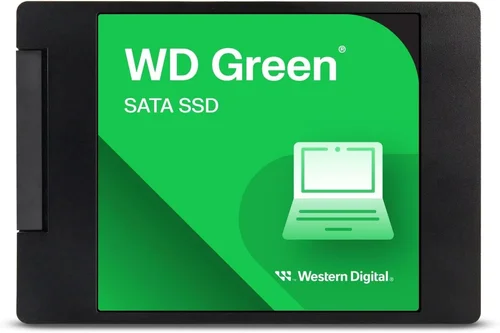
If you’re in the market for a 120GB SSD in 2026, you’re likely not looking to future-proof a high-end gaming rig or build a content creation workstation. Instead, you’re probably aiming to breathe new life into an older laptop, upgrade a budget desktop, or set up a lightweight system for basic tasks like web browsing, office work, or light media consumption. And that’s perfectly valid. Solid State Drives (SSDs) have revolutionized computing performance, and even a modest 120GB model can dramatically improve boot times, application responsiveness, and overall system smoothness compared to traditional hard disk drives (HDDs).
But here’s the catch: while 120GB SSDs are among the most affordable storage options available, they’re also the most constrained in terms of capacity. This makes choosing the right one a delicate balance between price, performance, reliability, and longevity. The market is flooded with options—some excellent, some mediocre, and a few outright risky. Without proper guidance, it’s easy to end up with a drive that fails prematurely, underperforms, or simply doesn’t meet your needs. That’s why this comprehensive buying guide exists. We’ll walk you through everything you need to know to make a smart, informed decision, whether you’re a first-time buyer or a seasoned tech enthusiast looking for a reliable secondary drive.
By the end of this guide, you’ll understand exactly what to look for in a 120GB SSD, how to avoid common pitfalls, and which models offer the best value for your specific use case. We’ll break down key factors like performance specs, NAND type, endurance ratings, and brand reputation, while also providing real-world budget breakdowns and expert tips to help you get the most bang for your buck. Whether you’re upgrading a decade-old laptop or building a minimalist Linux machine, this guide will equip you with the knowledge to choose wisely—and avoid wasting money on a drive that won’t last.

What to Look for When Buying Buying Guide
1. Budget & Price Range
When shopping for a 120GB SSD, your budget will naturally be one of the first considerations. These drives are among the most affordable storage options on the market, typically ranging from $15 to $35 depending on brand, performance, and availability. However, it’s important not to let price alone dictate your decision. While it’s tempting to go for the cheapest option, extremely low prices can be a red flag—often indicating outdated components, poor-quality NAND flash, or drives nearing end-of-life.
A good rule of thumb is to aim for the sweet spot between $20 and $28. In this range, you’ll find reputable brands offering reliable performance and decent warranties. Drives under $18 may use older TLC or even QLC NAND, which can wear out faster under frequent writes. On the other hand, paying more than $30 for a 120GB SSD is generally unnecessary unless you’re getting exceptional build quality or extended support. Always compare prices across multiple retailers and watch for seasonal sales, especially during Black Friday, back-to-school periods, or Amazon Prime Day.
2. Performance Specifications
Performance is where SSDs truly shine compared to HDDs, but even among 120GB models, there’s a noticeable difference in speed. The two key metrics to look at are sequential read and write speeds, usually measured in MB/s (megabytes per second). For most SATA-based 120GB SSDs, you can expect read speeds between 500–560 MB/s and write speeds ranging from 300–520 MB/s. These numbers are more than sufficient for everyday tasks like booting Windows, launching applications, and transferring small files.
However, don’t overlook random read/write performance, especially if you plan to use the drive for multitasking or running lightweight virtual machines. Measured in IOPS (Input/Output Operations Per Second), random performance affects how quickly the drive can access scattered data. A drive with strong random read performance (e.g., 80,000+ IOPS) will feel snappier when opening multiple browser tabs or switching between apps. While 120GB drives aren’t built for heavy workloads, better random performance can still make a noticeable difference in daily usability.
Also, pay attention to the interface. Most 120GB SSDs use the SATA III (6 Gb/s) interface, which is standard for older systems. If you’re upgrading a laptop or desktop from the past decade, SATA is likely your only option. Avoid NVMe drives unless your system explicitly supports M.2 slots—most budget systems don’t, and NVMe drives are overkill for such a small capacity anyway.
3. Build Quality & Durability
Durability matters more than you might think, especially for a small-capacity drive that may be used in older or portable systems. SSDs have no moving parts, making them inherently more resistant to physical shock than HDDs. However, the quality of internal components—particularly the NAND flash memory and controller—can vary significantly between brands and models.
Look for drives that use 3D TLC (Triple-Level Cell) NAND, which offers a good balance of speed, endurance, and cost. Avoid QLC (Quad-Level Cell) NAND if possible, as it stores more data per cell but wears out faster under write-heavy workloads. While 120GB drives aren’t typically used for heavy writing, QLC can still degrade faster over time, especially if the drive lacks sufficient over-provisioning (extra space reserved for wear leveling).
The controller is another critical component. Reputable controllers from companies like Phison, Silicon Motion, or Marvell ensure better performance consistency, error correction, and longevity. Cheaper drives may use off-brand or outdated controllers that lead to slower speeds or premature failure. Always check the manufacturer’s specifications or third-party teardowns to confirm the controller model.
4. Features & Functionality
Beyond raw speed and capacity, certain features can enhance the usability and lifespan of your 120GB SSD. One of the most important is TRIM support, a command that helps the SSD manage deleted data more efficiently, maintaining performance over time. Most modern SSDs support TRIM, but it’s worth verifying—especially if you’re buying a no-name brand.
Another valuable feature is S.M.A.R.T. (Self-Monitoring, Analysis, and Reporting Technology) monitoring, which allows you to track the drive’s health, temperature, and wear level. Tools like CrystalDiskInfo or HWMonitor can read S.M.A.R.T. data and alert you to potential issues before they cause data loss.
Some drives also include power-loss protection, which uses capacitors to safely complete write operations during unexpected shutdowns. While rare in budget 120GB models, this feature can be a lifesaver if you’re using the drive in a system prone to power fluctuations.
Additionally, consider whether the drive includes cloning software or migration tools. Many reputable brands bundle free software (like Acronis True Image or Samsung Data Migration) to help you transfer your existing OS and files from an old HDD. This can save hours of setup time and ensure a smooth transition.
5. Brand Reputation
Brand matters—especially in the world of SSDs, where reliability and long-term support can vary dramatically. Established brands like Samsung, Crucial, Kingston, Western Digital, and SanDisk have a proven track record of producing reliable storage solutions. They invest in quality control, firmware updates, and customer support, which translates into better real-world performance and peace of mind.
That said, lesser-known brands aren’t automatically bad. Some off-brand SSDs are rebranded versions of drives made by reputable OEMs, offering similar performance at a lower price. However, these often come with shorter warranties, limited support, and less transparent specifications. If you go this route, stick to models with strong user reviews and avoid anything that seems too good to be true.
6. Warranty & Support
Warranty length is a strong indicator of a drive’s expected lifespan. Most reputable 120GB SSDs come with a 3-year limited warranty, though some premium models offer 5 years. While 120GB drives aren’t built for heavy workloads, a longer warranty suggests the manufacturer has confidence in the product’s durability.
Pay attention to what the warranty covers. Some only cover defects in materials and workmanship, while others include data recovery services or expedited replacements. Also, check whether the warranty is transferable—important if you plan to sell or repurpose the system later.
Customer support is another factor. Brands like Samsung and Crucial offer responsive support via phone, email, or live chat. If you run into issues, having access to knowledgeable technicians can save you time and frustration. Avoid brands with no clear support channels or those that only offer email support with slow response times.
7. Size & Form Factor
While most 120GB SSDs come in the standard 2.5-inch form factor (designed to fit in laptop bays or desktop drive cages), it’s important to confirm compatibility with your system. Some older laptops may require a 7mm or 9.5mm drive thickness, so measure your existing drive or check the manual before buying.
If you’re upgrading a compact desktop or mini PC, you might also consider M.2 SATA drives, which are smaller and connect directly to the motherboard. These are ideal for space-constrained builds but require an M.2 slot—something not all older systems have. Avoid M.2 NVMe drives unless your system supports them, as they won’t work in SATA-only slots.
For external use, some 120GB SSDs come in portable enclosures, but these are rare and often overpriced. It’s usually better to buy a bare drive and a separate USB 3.0 enclosure if you need portability.
8. User Reviews & Ratings
Never underestimate the power of real-world feedback. Before making a purchase, read through user reviews on Amazon, Newegg, Best Buy, or tech forums like Reddit’s r/buildapc or Tom’s Hardware. Look for patterns—consistent praise for speed and reliability is a good sign, while repeated complaints about failure within months or poor customer service are red flags.
Pay special attention to reviews from users with similar use cases. If you’re upgrading an old laptop, look for reviews from others who’ve done the same. If you’re using the drive as a boot drive for a media center, see what others say about performance in that context.
Also, check the rating distribution. A drive with 4.5 stars and hundreds of reviews is generally more trustworthy than one with 5 stars but only a handful of feedback. Be wary of suspiciously glowing reviews that sound scripted or overly promotional.
Different Types of Buying Guide

Common Buying Mistakes to Avoid
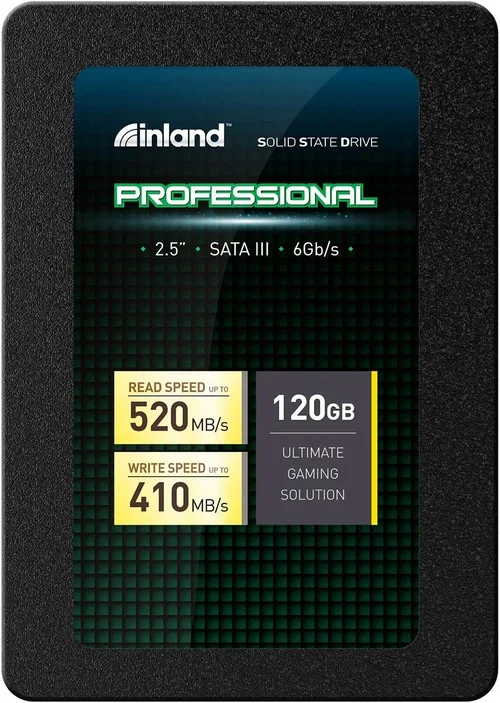
❌ Mistake: Choosing Based Solely on Price
Why it’s bad: The cheapest 120GB SSDs often use low-quality NAND, outdated controllers, or lack essential features like TRIM and S.M.A.R.T. monitoring. These drives may fail within a year or suffer from performance degradation, leading to data loss and frustration.
What to do instead: Set a reasonable budget ($20–$28) and prioritize drives from reputable brands. A few extra dollars can mean the difference between a drive that lasts five years and one that fails in six months.
❌ Mistake: Ignoring NAND Type
Why it’s bad: QLC NAND stores four bits per cell, increasing density but reducing endurance and write speeds. While fine for light use, QLC drives wear out faster under frequent writes and may slow down significantly when nearly full.
What to do instead: Opt for TLC (Triple-Level Cell) NAND, which offers better longevity and consistent performance. Check the product specs or reviews to confirm the NAND type before buying.
❌ Mistake: Overlooking Warranty Length
Why it’s bad: A short or nonexistent warranty suggests the manufacturer doesn’t expect the drive to last long. If the drive fails outside the warranty period, you’re left with no recourse.
What to do instead: Choose a drive with at least a 3-year warranty. Brands like Samsung and Crucial often offer 5 years, providing extra peace of mind.
❌ Mistake: Buying Without Checking Compatibility
Why it’s bad: Not all SSDs fit all systems. A 2.5-inch drive may be too thick for a slim laptop, and an M.2 drive won’t work in a system without an M.2 slot.
What to do instead: Measure your existing drive or consult your system’s manual. Confirm form factor, thickness, and interface (SATA vs. NVMe) before purchasing.
❌ Mistake: Skipping User Reviews
Why it’s bad: Marketing specs don’t always reflect real-world performance. A drive may claim 550 MB/s write speeds but deliver half that in practice due to poor firmware or thermal throttling.
What to do instead: Read multiple user reviews, especially from buyers with similar use cases. Look for consistent feedback on reliability, speed, and longevity.
❌ Mistake: Using a 120GB SSD for Heavy Workloads
Why it’s bad: 120GB is extremely limited. Installing a modern OS (like Windows 11) leaves little room for apps, updates, or files. Frequent writes (e.g., video editing, gaming) will wear out the drive quickly.
What to do instead: Use the drive only for lightweight tasks: web browsing, office apps, media playback, or as a boot drive in a dual-drive setup. Pair it with a larger HDD for storage.
❌ Mistake: Forgetting to Enable TRIM
Why it’s bad: Without TRIM, the SSD can’t efficiently manage deleted data, leading to slower write speeds and reduced lifespan over time.
What to do instead: After installation, verify TRIM is enabled in your OS. On Windows, open Command Prompt and type fsutil behavior query DisableDeleteNotify. If it returns “0,” TRIM is active.
Budget Guidelines: How Much Should You Spend?
– Entry-Level ($15 – $22): This tier includes budget drives from lesser-known brands or older models from reputable manufacturers. Expect basic performance, limited warranties (1–2 years), and possible use of QLC NAND. Best for non-critical systems or temporary upgrades. Examples include the Kingston A400 or older SanDisk SSD Plus models.
– Mid-Range ($22 – $28): The sweet spot for most buyers. Drives in this range offer reliable TLC NAND, strong controllers, 3–5 year warranties, and consistent performance. Brands like Crucial, Samsung, and WD dominate this space. Ideal for daily use, OS installation, and light multitasking. The Crucial BX500 and Samsung 870 EVO (120GB) are excellent choices.
– Premium ($28 – $35): For those who want the best possible 120GB experience. These drives often feature premium components, advanced firmware, and extended support. While overkill for most, they’re worth considering if you plan to keep the system long-term or need maximum reliability. The Samsung 870 EVO stands out here.
– Luxury ($35+): Generally unnecessary for 120GB drives. At this price, you’re better off upgrading to a 240GB or 480GB SSD for significantly more usable space. However, if you need a specific form factor (e.g., M.2) or enterprise-grade features, this tier may be justified.
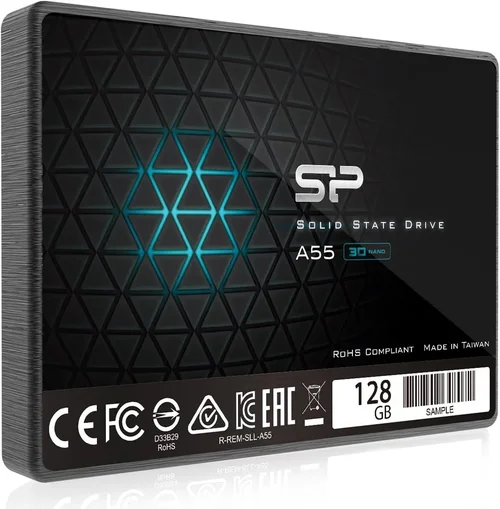
Expert Tips for Getting the Best Deal
– Buy During Sales Events: Major retailers offer deep discounts on SSDs during Black Friday, Cyber Monday, Amazon Prime Day, and back-to-school seasons. Sign up for deal alerts to catch price drops.
– Compare Prices Across Retailers: Use tools like Google Shopping, PriceGrabber, or CamelCamelCamel to compare prices. Don’t forget to check smaller retailers like Micro Center or B&H Photo, which sometimes have exclusive deals.
– Consider Refurbished or Open-Box Options: Certified refurbished drives from reputable sellers (like Amazon Renewed or Best Buy Outlet) can save you 20–30% and often come with the same warranty as new units.
– Check Return Policies: Ensure the retailer offers a hassle-free return window (at least 30 days). This gives you time to test the drive and return it if it fails or underperforms.
– Verify Firmware Updates: Before installing, check the manufacturer’s website for firmware updates. Updated firmware can improve performance, fix bugs, and extend lifespan.
– Use Cloning Software: If upgrading from an HDD, use cloning software to transfer your OS and files seamlessly. This avoids reinstalling Windows and reconfiguring settings.
– Monitor Drive Health: After installation, use tools like CrystalDiskInfo to monitor S.M.A.R.T. data. Regular checks can help you catch issues early.
– Avoid No-Name Brands: While tempting, ultra-cheap drives from unknown manufacturers often lack quality control and support. Stick to brands with a proven track record.

Frequently Asked Questions
Q: Is a 120GB SSD enough for Windows 11?
A: Technically, yes—Windows 11 requires a minimum of 64GB, so 120GB meets the baseline. However, after installing the OS, updates, and a few essential apps, you’ll have very little free space. We recommend at least 240GB for a comfortable experience, but if you’re on a tight budget, 120GB can work for a lightweight, single-purpose system.
Q: Can I use a 120GB SSD in an old laptop?
A: Absolutely. Most laptops from the past 15 years support 2.5-inch SATA SSDs. Just ensure the drive thickness (usually 7mm or 9.5mm) matches your laptop’s bay. You may also need a mounting bracket or caddy if replacing an HDD.
Q: Will a 120GB SSD improve my computer’s speed?
A: Yes, dramatically. Even a basic SSD will reduce boot times from minutes to seconds, speed up application launches, and make the system feel more responsive. The improvement over an HDD is night and day.
Q: How long does a 120GB SSD last?
A: With normal use, a quality 120GB SSD can last 5–7 years or more. SSDs have a limited number of write cycles, but for light tasks like browsing and office work, you’re unlikely to reach the endurance limit. Check the TBW (Terabytes Written) rating—most 120GB drives are rated for 60–100 TBW.
Q: Should I buy an M.2 or 2.5-inch SSD?
A: It depends on your system. If your laptop or motherboard has an M.2 slot, an M.2 SATA SSD saves space and eliminates cables. If not, stick with a 2.5-inch drive. Avoid M.2 NVMe unless your system supports it.
Q: Can I install games on a 120GB SSD?
A: You can, but space will be extremely limited. A single modern game can take 50–100GB. We recommend using the SSD for the OS and a few frequently used apps, and storing games on a larger HDD or external drive.
Q: Do I need to format the SSD before use?
A: Most SSDs come pre-formatted, but it’s a good idea to initialize and format it using your OS’s disk management tool. This ensures proper alignment and prepares the drive for use.
Q: Is it safe to buy used SSDs?
A: It can be, but proceed with caution. Used SSDs may have high wear levels or hidden defects. Only buy from trusted sellers with detailed condition reports and avoid drives with unknown usage history.
Q: Can I use a 120GB SSD as a cache drive?
A: Yes, some systems support SSD caching (e.g., Intel Rapid Storage Technology). This uses the SSD to speed up access to frequently used files on a larger HDD. However, this requires compatible hardware and software.
Q: What’s the difference between SATA and NVMe?
A: SATA SSDs use the older SATA interface, with speeds capped around 550 MB/s. NVMe SSDs use the faster PCIe interface, offering speeds over 3,000 MB/s. However, NVMe requires an M.2 or U.2 slot and is unnecessary for a 120GB drive.
Our Final Recommendations
– Best for Budget-Conscious Buyers: Kingston A400 120GB – Reliable, affordable, and widely available. Great for basic upgrades, though it uses older TLC NAND and has a 3-year warranty.
– Best Overall Value: Crucial BX500 120GB – Excellent balance of price, performance, and reliability. Features Micron TLC NAND, a 3-year warranty, and strong user reviews. Ideal for most users.
– Best Premium Option: Samsung 870 EVO 120GB – Top-tier performance, 5-year warranty, and Samsung’s renowned reliability. Uses high-quality TLC NAND and includes migration software. Worth the extra cost for long-term use.
– Best for Beginners: SanDisk SSD Plus 120GB – Simple installation, decent performance, and comes with cloning software. A solid choice for first-time upgraders.
– Best for Advanced Users: WD Blue 3D NAND 120GB – Offers strong random performance, good endurance, and WD’s reliable firmware. Great for users who want a no-compromise SATA SSD.
Conclusion: Making the Right Choice
Choosing the best 120GB SSD in 2026 isn’t about finding the fastest or most feature-packed drive—it’s about finding the right balance of affordability, reliability, and performance for your specific needs. Whether you’re reviving an old laptop, building a minimalist desktop, or setting up a lightweight media center, a quality SSD can transform your computing experience.
Remember to prioritize reputable brands, check NAND type and warranty length, and avoid the temptation of ultra-cheap, no-name drives. Use this guide to compare options, read real user reviews, and make an informed decision. And don’t forget to enable TRIM, monitor drive health, and take advantage of sales to get the best possible deal.
While 120GB may seem small by today’s standards, it’s more than enough for a fast, responsive system focused on everyday tasks. With the right SSD, you’ll enjoy quicker boots, smoother multitasking, and a noticeable upgrade in overall performance—all without breaking the bank.
So go ahead, make the switch. Your old system will thank you, and you’ll wonder how you ever lived without the speed and reliability of solid-state storage.