
When it comes to building or upgrading a FreeNAS system, one of the most critical decisions you’ll make is selecting the right SSD format. FreeNAS—now known as TrueNAS CORE—is a powerful open-source network-attached storage (NAS) operating system built on FreeBSD and designed for data integrity, scalability, and performance. Whether you’re setting up a home media server, a small business file-sharing solution, or a high-availability enterprise storage cluster, the type of SSD you choose can dramatically impact reliability, speed, longevity, and overall system efficiency.
But here’s the catch: not all SSDs are created equal, especially in the context of NAS environments. Unlike typical desktop or laptop usage, FreeNAS workloads involve constant read/write operations, ZFS file system demands, and 24/7 operation. This means that consumer-grade SSDs—while tempting due to their low price—often fail prematurely under sustained loads. Choosing the wrong format or model could lead to data corruption, unexpected downtime, or costly replacements down the line. That’s why this guide exists: to cut through the marketing noise and help you make an informed, future-proof decision based on real-world performance, endurance, and compatibility.
In this comprehensive buyer’s guide, we’ll walk you through every essential factor to consider when selecting an SSD for your FreeNAS setup. You’ll learn how to evaluate performance specs like IOPS and throughput, understand the importance of endurance ratings (TBW), and distinguish between consumer, enterprise, and NAS-optimized drives. We’ll compare SATA vs. NVMe formats, explore caching vs. boot drive use cases, and break down budget tiers so you know exactly how much to spend for your needs. By the end, you’ll have a clear roadmap to choose the best SSD format—whether you’re prioritizing cost, speed, or long-term reliability.
The market for SSDs has evolved rapidly over the past few years. NVMe technology has become mainstream, prices have dropped significantly, and manufacturers now offer specialized drives tailored for NAS and server workloads. However, this abundance of choice can be overwhelming. Some SSDs boast blazing-fast speeds but lack the endurance needed for ZFS metadata operations. Others are built for endurance but come with a steep price tag. Meanwhile, newer form factors like M.2 and U.2 introduce compatibility considerations that aren’t always obvious. This guide will demystify these variables and equip you with the knowledge to select the optimal SSD format for your specific FreeNAS deployment—whether it’s a modest two-bay setup or a multi-terabyte ZFS pool with mirrored vdevs.

What to Look for When Buying Buying Guide
1. Endurance Rating (TBW & DWPD)
Endurance is arguably the most important factor when choosing an SSD for FreeNAS. Unlike casual computing tasks, NAS systems often handle continuous small-file writes, ZFS scrub operations, snapshots, and metadata updates—all of which wear out NAND flash memory over time. To quantify this, manufacturers provide two key metrics: Terabytes Written (TBW) and Drive Writes Per Day (DWPD).
TBW indicates the total amount of data that can be written to the drive over its lifetime before it’s likely to fail. For example, a 1TB SSD with a 600 TBW rating can theoretically endure 600 terabytes of writes. DWPD, on the other hand, expresses endurance as a fraction of the drive’s capacity written daily over the warranty period. A 1TB drive with 1 DWPD can safely handle writing 1TB of data every day for five years (a common warranty period).
For FreeNAS, aim for SSDs with at least 1 DWPD or higher—especially if you plan to use the SSD for ZFS intent logs (ZIL) or as a cache device (L2ARC). Consumer drives often have DWPD values below 0.3, which may suffice for boot drives but are risky for active workloads. Enterprise or NAS-optimized SSDs typically offer 1–3+ DWPD, making them far more suitable for 24/7 operation.
2. NAND Flash Type (SLC, MLC, TLC, QLC)
The type of NAND flash memory used in an SSD directly affects its performance, endurance, and cost. There are four main types:
– SLC (Single-Level Cell): Stores 1 bit per cell. Offers the highest endurance and fastest write speeds but is expensive and rarely used in consumer products.
– MLC (Multi-Level Cell): Stores 2 bits per cell. Common in enterprise SSDs; balances performance, endurance, and cost.
– TLC (Triple-Level Cell): Stores 3 bits per cell. Found in most consumer and mid-range NAS SSDs. Requires robust error correction and wear-leveling algorithms.
– QLC (Quad-Level Cell): Stores 4 bits per cell. Cheapest per gigabyte but has lower endurance and slower write speeds, especially under sustained loads.
For FreeNAS, avoid QLC SSDs unless used strictly as read-only boot drives. TLC is acceptable for caching or light workloads if paired with sufficient over-provisioning. MLC or enterprise-grade TLC (sometimes labeled as “3D MLC” or “eTLC”) is ideal for ZIL, L2ARC, or boot drives in production environments. SLC is overkill for most users but appears in ultra-high-end enterprise drives.
3. Interface & Form Factor (SATA vs. NVMe)
The interface determines how the SSD connects to your FreeNAS server and significantly impacts performance. The two primary options are SATA and NVMe.
SATA SSDs use the legacy SATA III interface, capped at ~600 MB/s bandwidth. They come in 2.5-inch form factors and are widely compatible with older NAS hardware. While slower than NVMe, they’re reliable, affordable, and sufficient for boot drives or light caching.
NVMe SSDs leverage the PCIe interface and offer dramatically higher speeds—often 3,000–7,000 MB/s or more—depending on the generation (PCIe 3.0, 4.0, or 5.0). They come in M.2 or U.2 form factors. M.2 is compact and ideal for space-constrained builds, while U.2 offers better thermal management and is common in servers.
For FreeNAS, NVMe is superior if your hardware supports it—especially for L2ARC caching, where low latency and high IOPS drastically improve read performance. However, ensure your motherboard or HBA has available M.2 slots or U.2 connectors. Also, note that ZFS doesn’t fully utilize NVMe speeds for all operations, so balance your investment with actual workload needs.
4. Power Loss Protection (PLP)
Power loss protection is a critical feature often overlooked in consumer SSDs but essential for NAS reliability. When a power outage occurs, an SSD without PLP may lose data in its volatile cache, leading to file system corruption—particularly dangerous in ZFS, which relies on transactional consistency.
PLP-equipped SSDs include capacitors that provide enough energy to flush cached data to non-volatile memory during a sudden shutdown. This ensures data integrity and prevents silent corruption. Most enterprise and NAS-optimized SSDs include PLP, but many consumer models do not.
If you’re using the SSD for ZIL (SLOG device), PLP is non-negotiable. Even for boot drives, PLP adds a layer of protection against unexpected outages. Always verify PLP support in the technical specifications—don’t assume it’s included.
5. Over-Provisioning & Wear Leveling
Over-provisioning (OP) refers to reserving a portion of the SSD’s total capacity for internal management tasks like garbage collection, wear leveling, and bad block replacement. Higher OP improves performance consistency and extends lifespan by reducing write amplification.
Consumer SSDs typically have 7% OP, while enterprise drives may offer 20–28%. Some NAS-focused SSDs allow user-configurable OP via vendor tools. For FreeNAS, especially in write-heavy scenarios, look for drives with at least 15–20% OP or the ability to increase it.
Wear leveling ensures that write operations are distributed evenly across all NAND blocks, preventing premature failure of specific cells. All modern SSDs include wear leveling, but the quality varies. Enterprise controllers use more sophisticated algorithms that better handle sustained workloads.
6. Compatibility with ZFS & FreeNAS
Not all SSDs play nicely with ZFS, the copy-on-write file system at the heart of FreeNAS. ZFS performs frequent metadata updates, checksums, and copy-on-write operations that can stress SSDs not designed for such patterns.
Key compatibility considerations include:
– TRIM Support: While ZFS doesn’t issue TRIM commands by default (due to potential performance impacts), some setups benefit from periodic manual TRIM. Ensure your SSD supports it if needed.
– 4K Alignment: ZFS uses 4KB block sizes. Misaligned partitions can cause performance degradation. Most modern SSDs are 4K-native, but double-check during installation.
– SMART Monitoring: FreeNAS relies on SMART data to predict drive failures. Choose SSDs with comprehensive SMART attributes (e.g., media wear indicator, available spare blocks).
Additionally, avoid SSDs with aggressive garbage collection or proprietary firmware that may interfere with ZFS operations. Stick to well-documented, Linux/FreeBSD-compatible models.
7. Brand Reputation & Firmware Stability
The SSD market is crowded, but not all brands prioritize NAS or server use cases. Some manufacturers optimize firmware for burst performance in consumer workloads, which can lead to instability under sustained loads.
Reputable brands known for NAS/server SSDs include:
– Samsung (especially the PM883 and PM983 series)
– Intel (D3-S4510/S4610)
– Micron (5300/5400 PRO)
– Kingston (DC series)
– WD (Gold and Red SA510)
Avoid no-name or rebranded SSDs, even if they appear cheap. Firmware bugs can cause silent data corruption—a nightmare in a ZFS environment. Look for brands with a track record of stable firmware updates and responsive support.
8. Warranty & Support
A longer warranty often correlates with higher endurance and build quality. Most consumer SSDs come with 3–5 year warranties, while enterprise drives may offer 5 years or more with higher TBW ratings.
Pay attention to warranty terms:
– Is it prorated or full replacement?
– Does it require registration?
– Are there usage limits (e.g., TBW caps)?
For mission-critical FreeNAS deployments, choose drives with comprehensive warranties and accessible technical support. Some vendors even offer advance replacement programs, minimizing downtime.
Different Types of Buying Guide

Common Buying Mistakes to Avoid
❌ Mistake: Using Consumer SSDs for ZIL/SLOG
Why it’s bad: ZIL (ZFS Intent Log) handles synchronous writes and requires ultra-low latency and power loss protection. Consumer SSDs lack PLP and have poor write endurance, risking data loss during power failures.
What to do instead: Use enterprise-grade SSDs with PLP and high DWPD (e.g., Intel D3-S4610, Samsung PM883). Mirroring SLOG devices adds redundancy.
❌ Mistake: Ignoring Over-Provisioning
Why it’s bad: Low OP increases write amplification, reducing lifespan and causing performance degradation over time—especially under ZFS’s frequent metadata updates.
What to do instead: Choose drives with ≥15% OP or use vendor tools to increase it. For example, Kingston’s SSD Manager allows custom OP settings.
❌ Mistake: Buying QLC SSDs for Active Workloads
Why it’s bad: QLC NAND has high write amplification and slow sustained write speeds. It’s prone to performance collapse under load, making it unsuitable for caching or logging.
What to do instead: Reserve QLC for read-heavy boot drives only. Use TLC or MLC for any write-involved role.
❌ Mistake: Overlooking Thermal Throttling in M.2 Drives
Why it’s bad: M.2 NVMe SSDs can overheat in enclosed NAS cases, triggering thermal throttling that cripples performance during long scrubs or backups.
What to do instead: Use heatsinks or choose drives with built-in thermal management (e.g., Samsung 980 Pro with heatsink). Ensure adequate case airflow.
❌ Mistake: Assuming All NVMe Drives Are Equal
Why it’s bad: Some NVMe drives use DRAM-less controllers or HMB (Host Memory Buffer), which rely on system RAM. While fine for desktops, this can introduce latency in NAS environments.
What to do instead: Prefer NVMe SSDs with onboard DRAM cache for consistent performance. Check reviews for real-world NAS benchmarks.
❌ Mistake: Skipping SMART Monitoring Setup
Why it’s bad: Without SMART monitoring, you won’t receive early warnings of SSD degradation, increasing the risk of silent failures.
What to do instead: Enable SMART in FreeNAS and configure email alerts. Regularly check attributes like “Percentage Used” and “Available Spare.”
❌ Mistake: Buying Based Solely on Price
Why it’s bad: The cheapest SSD may save money upfront but cost more in downtime, data recovery, or premature replacement.
What to do instead: Calculate total cost of ownership (TCO), including endurance, warranty, and reliability. Invest in quality for critical roles.
Budget Guidelines: How Much Should You Spend?
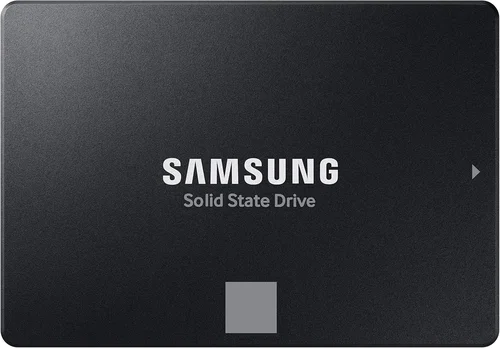
Entry-Level ($50–$120 per TB): Suitable for basic home NAS setups using the SSD solely as a boot drive. Look for reputable consumer SATA SSDs like the Crucial MX500 or Samsung 870 EVO. Avoid using these for caching or logging.
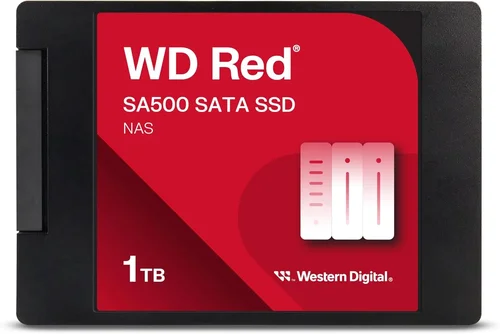
Mid-Range ($120–$250 per TB): The sweet spot for most FreeNAS users. NAS-optimized drives like the WD Red SA510 or Kingston DC600M offer excellent endurance, PLP, and firmware stability. Ideal for boot + L2ARC or light SLOG use.
Premium ($250–$500 per TB): For small businesses or power users running high-write workloads. Enterprise SATA SSDs from Intel, Samsung, or Micron provide 3+ DWPD, full PLP, and 5-year warranties. Perfect for mirrored SLOG devices.
Luxury ($500+ per TB): Reserved for enterprise deployments or performance-critical applications. NVMe U.2 drives like the Samsung PM1733 or Kioxia CD6 deliver PCIe 4.0 speeds, extreme endurance (10+ DWPD), and advanced error correction. Justified only for large ZFS pools or virtualization hosts.
Expert Tips for Getting the Best Deal
– Buy during seasonal sales: Black Friday, Prime Day, and back-to-school periods often feature deep discounts on SSDs. Sign up for price alerts on sites like CamelCamelCamel or Slickdeals.
– Prioritize refurbished enterprise drives: Many datacenters retire SSDs after 1–2 years with plenty of life left. Refurbished enterprise drives (e.g., from ServerSupply or Exxact) offer huge savings with verified health reports.
– Check manufacturer recertified programs: Samsung, Intel, and WD sell certified refurbished SSDs with full warranties at 20–40% off retail.
– Bundle with NAS hardware: Some NAS vendors (like Synology or QNAP) offer SSD bundles at discounted rates when purchased with compatible systems.
– Verify return policies: Ensure the retailer allows returns if the SSD fails compatibility tests. Avoid sellers with restocking fees.
– Test before deploying: Run extended SMART tests and burn-in benchmarks (e.g., using fio or badblocks) before adding the SSD to your ZFS pool.
– Consider capacity vs. endurance: Larger SSDs often have higher TBW ratings. A 2TB drive may offer better endurance per dollar than a 1TB model.
– Monitor firmware updates: Subscribe to vendor newsletters for critical firmware patches that improve stability or fix bugs.

Frequently Asked Questions
Q: Can I use a single SSD for both boot and L2ARC in FreeNAS?
A: Technically yes, but it’s not recommended. Sharing an SSD between boot and cache roles increases wear and reduces reliability. Use separate drives: a small, durable SSD for boot and a high-endurance drive for L2ARC.
Q: Do I need NVMe for FreeNAS?
A: Not necessarily. NVMe excels in low-latency scenarios like SLOG or high-IOPS L2ARC, but SATA SSDs are sufficient for most home and small business setups. Only upgrade to NVMe if your hardware supports it and your workload demands it.
Q: How much SSD cache (L2ARC) do I need?
A: A general rule is 1GB of L2ARC per 1TB of main storage, but more isn’t always better. ZFS manages L2ARC dynamically, and excessive cache can waste money without performance gains. Start with 256GB–1TB and monitor hit rates in FreeNAS.
Q: Are DRAM-less SSDs safe for FreeNAS?
A: DRAM-less SSDs use HMB (Host Memory Buffer), which can introduce latency and rely on system RAM. While usable for boot drives, avoid them for SLOG or heavy caching. Opt for drives with dedicated DRAM.
Q: Should I mirror my boot SSDs?
A: Absolutely. FreeNAS supports boot device mirroring, which protects against SSD failure and allows seamless upgrades. Always use two identical SSDs in a mirror for the boot pool.
Q: Can I use USB SSDs for FreeNAS boot?
A: While possible, USB SSDs are less reliable due to potential power issues and slower interfaces. Use internal SATA or NVMe drives whenever possible for better performance and stability.
Q: How often should I replace my FreeNAS SSDs?
A: Monitor SMART “Percentage Used” or “Media Wearout Indicator.” Replace the drive when it reaches 80–90% of its rated endurance. Most enterprise SSDs last 3–5 years under normal NAS workloads.
Q: Does FreeNAS support TRIM on SSDs?
A: FreeNAS does not enable automatic TRIM by default due to potential performance impacts on ZFS. However, you can manually issue TRIM commands via the CLI if needed, especially after large deletions.
Q: What’s the difference between SLOG and L2ARC?
A: SLOG (Separate Intent Log) accelerates synchronous writes and requires low-latency, PLP-equipped SSDs. L2ARC (Level 2 Adaptive Replacement Cache) speeds up read operations and benefits from high-IOPS drives. They serve entirely different purposes.
Our Final Recommendations
Best for Budget-Conscious Buyers: Samsung 870 EVO (1TB SATA) – Reliable, widely available, and sufficient for boot drives in home NAS setups. Avoid for caching.
Best Overall Value: WD Red SA510 (1TB SATA) – NAS-optimized with PLP, 1.3 DWPD, and excellent FreeBSD compatibility. Great for boot + light L2ARC.
Best Premium Option: Intel D3-S4610 (960GB SATA) – Enterprise-grade with 3 DWPD, full PLP, and 5-year warranty. Ideal for SLOG or high-write environments.
Best for Beginners: Kingston DC600M (1TB SATA) – Easy to configure, includes management tools, and offers solid endurance for entry-level NAS builds.
Best for Advanced Users: Samsung PM9A3 (1.92TB NVMe U.2) – PCIe 4.0 speeds, 1.5 DWPD, and enterprise reliability. Perfect for high-performance L2ARC or virtualized FreeNAS hosts.
Conclusion: Making the Right Choice
Selecting the right SSD format for FreeNAS isn’t just about speed or price—it’s about matching the drive’s capabilities to your workload, environment, and long-term goals. Whether you’re building a quiet home server or a resilient business storage solution, prioritize endurance, power loss protection, and compatibility with ZFS. Avoid cutting corners on critical roles like SLOG or boot devices, and always plan for redundancy.
Remember: a failed SSD in a NAS isn’t just an inconvenience—it can jeopardize your data. By investing in quality, understanding your use case, and following the guidelines in this guide, you’ll build a FreeNAS system that’s not only fast but also trustworthy and future-ready.
Take the time to assess your needs, compare options, and don’t hesitate to spend a little more for peace of mind. Your data deserves nothing less.