
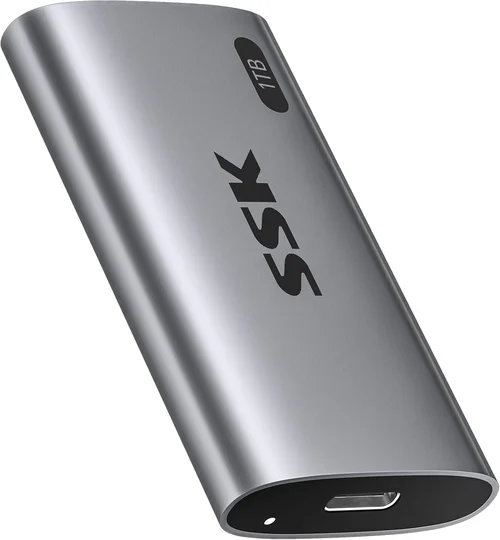
When it comes to building or upgrading a computer in 2026, one of the most critical decisions you’ll face is choosing between solid-state drives (SSDs) and hard disk drives (HDDs)—and more importantly, understanding what data and applications should run from each type of storage. This isn’t just about picking the fastest or cheapest drive; it’s about optimizing your system for performance, longevity, cost-efficiency, and reliability. With SSD prices continuing to drop and capacities expanding, the line between SSDs and HDDs is blurring, but their roles in a modern computing setup remain distinct.
This comprehensive buying guide will walk you through everything you need to know to make smart, informed decisions about SSD and HDD usage in 2026. Whether you’re building a gaming rig, setting up a workstation for content creation, or simply upgrading an older laptop, we’ll help you determine which files, programs, and operating systems should live on your SSD versus your HDD. You’ll learn how to balance speed and capacity, how to future-proof your storage setup, and how to avoid common pitfalls that can lead to poor performance or unnecessary expenses. By the end, you’ll have a clear strategy for maximizing both performance and value.
The storage market in 2026 is more dynamic than ever. NVMe SSDs now dominate the high-performance segment, offering blistering read/write speeds that make older SATA SSDs look sluggish by comparison. Meanwhile, HDDs continue to offer unmatched value for bulk storage, with 20TB+ drives now available at surprisingly affordable prices. Hybrid setups—using an SSD for the operating system and frequently used applications, paired with an HDD for media, backups, and archives—are becoming the standard for both consumers and professionals. Understanding how to leverage both technologies is no longer optional; it’s essential for anyone who wants a responsive, efficient, and scalable computing experience.

What to Look for When Buying Buying Guide
1. Budget & Price Range
Your budget is the foundation of any storage decision. SSDs, especially NVMe models, offer incredible speed but come at a higher cost per gigabyte compared to HDDs. As of 2026, a 1TB NVMe SSD typically costs between $60 and $120, while a 4TB HDD can be found for under $100. If you’re on a tight budget, you may need to prioritize: invest in a smaller SSD for your operating system and key applications, then supplement with a larger HDD for everything else. Conversely, if performance is your top priority and cost is less of a concern, you might opt for a high-capacity NVMe SSD as your primary drive. Always calculate cost per gigabyte to compare value across drive types and capacities.
2. Performance Specifications
Performance is where SSDs truly shine. Look for key metrics like sequential read/write speeds (measured in MB/s or GB/s), random read/write IOPS (input/output operations per second), and latency. NVMe SSDs connected via PCIe 4.0 or 5.0 can deliver speeds exceeding 7,000 MB/s, making them ideal for booting your OS, launching games, or running demanding applications like video editing software. SATA SSDs, while slower (typically capped at ~550 MB/s), still offer a massive improvement over HDDs. HDDs, by contrast, usually max out around 150–200 MB/s and suffer from higher latency due to mechanical parts. For tasks requiring fast data access—like gaming, programming, or real-time rendering—SSDs are non-negotiable.
3. Build Quality & Durability
Durability is a major differentiator. SSDs have no moving parts, making them resistant to shock, vibration, and physical wear. This makes them ideal for laptops, portable drives, and environments where the device might be moved frequently. HDDs, with their spinning platters and moving read/write heads, are more vulnerable to damage from drops or sudden movements. If you’re using a desktop in a stable environment, an HDD may last many years without issue. But for mobile users or those in rugged conditions, SSDs are the safer bet. Additionally, SSDs generally have longer lifespans under heavy write workloads, especially models with high endurance ratings (measured in terabytes written, or TBW).
4. Features & Functionality
Modern SSDs come with advanced features like hardware encryption (e.g., TCG Opal), power-loss protection, and thermal throttling management. These are especially valuable for business users or those handling sensitive data. Some high-end NVMe drives include heatsinks or are designed for sustained workloads, such as those found in workstations or servers. HDDs, while simpler, often include features like rotational vibration sensors and error recovery controls to improve reliability in multi-drive setups. Consider whether you need features like RAID support, hot-swappability, or compatibility with specific interfaces (SATA, M.2, U.2). Also, check for software suites that offer drive health monitoring, cloning tools, or backup utilities.
5. Brand Reputation
Not all storage brands are created equal. Established manufacturers like Samsung, Crucial, Western Digital, Seagate, Kingston, and Sabrent have proven track records for reliability, performance, and customer support. Samsung’s 990 Pro and Crucial’s P5 Plus are consistently top-rated NVMe SSDs, while Western Digital and Seagate dominate the HDD market with models like the WD Black and Seagate IronWolf. Avoid no-name or ultra-cheap brands, especially for primary drives, as they may use lower-quality NAND flash or lack proper firmware support. Reading professional reviews and user feedback can help you identify brands that consistently deliver quality products.
6. Warranty & Support
Warranty length and terms are strong indicators of a drive’s expected lifespan and manufacturer confidence. Most SSDs come with 3- to 5-year limited warranties, often tied to both time and write endurance (e.g., 600 TBW for a 1TB drive). Some premium models, like the Samsung 990 Pro, offer up to 1.5PB (1,500 TB) of total writes. HDDs typically have 2- to 5-year warranties, with enterprise models sometimes offering longer coverage. Check whether the warranty includes data recovery services—some brands offer this as a value-added benefit. Also, ensure the manufacturer provides accessible customer support, firmware updates, and clear RMA (return merchandise authorization) processes.
7. Size & Portability
Physical size matters, especially in compact builds or laptops. M.2 NVMe SSDs are tiny—about the size of a stick of gum—and plug directly into the motherboard, saving space and reducing cable clutter. SATA SSDs and HDDs are larger, typically 2.5-inch or 3.5-inch form factors, and require power and data cables. If you’re building a small form factor (SFF) PC or upgrading a laptop, M.2 SSDs are often the only viable option. For desktop users with ample space, 3.5-inch HDDs offer the best capacity-to-cost ratio. Portability also extends to external drives: SSD-based external drives are more durable and faster, making them ideal for on-the-go use, while HDD-based externals are better for large backups.
8. User Reviews & Ratings
Never rely solely on manufacturer specs. Real-world user reviews provide invaluable insights into reliability, real-world performance, and potential issues like overheating, firmware bugs, or premature failure. Platforms like Amazon, Newegg, and Reddit’s r/buildapc community are excellent sources. Look for patterns in reviews—if multiple users report the same problem, it’s likely a design flaw. Conversely, consistent praise for speed, quiet operation, or ease of installation is a good sign. Pay attention to long-term reviews (6+ months of use) to assess durability. Also, check professional reviews from trusted tech sites like Tom’s Hardware, AnandTech, or PCWorld for in-depth benchmarks and comparisons.
Different Types of Buying Guide

Common Buying Mistakes to Avoid
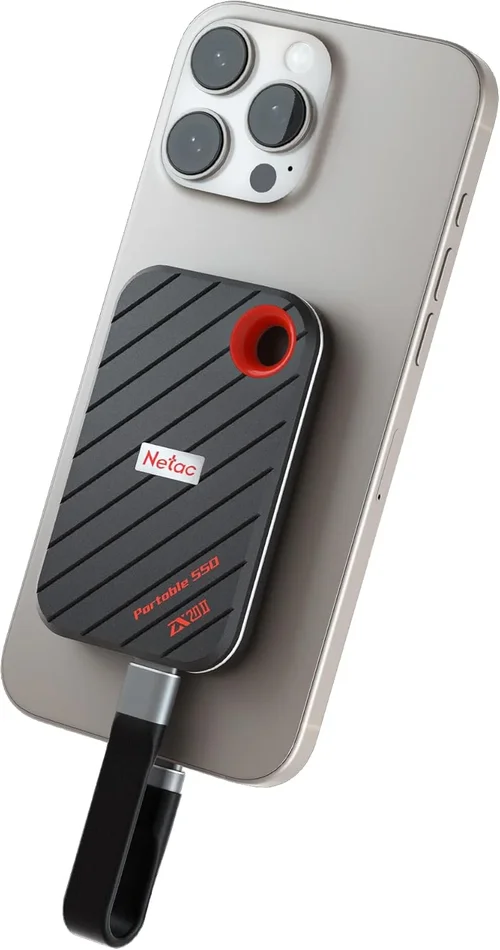
❌ Mistake: Using an HDD as Your Primary Boot Drive
Why it’s bad: Booting your operating system from an HDD results in slow startup times, sluggish application launches, and overall poor system responsiveness. Even basic tasks like opening a web browser or file explorer can feel delayed.
What to do instead: Always install your OS (Windows, macOS, Linux) on an SSD. A 500GB or 1TB NVMe SSD is ideal for most users, providing ample space for the OS, essential apps, and frequently used files.
❌ Mistake: Buying the Cheapest SSD Without Checking Endurance
Why it’s bad: Low-cost SSDs often use lower-grade NAND flash and have minimal endurance ratings (TBW). This can lead to premature failure, especially under heavy write workloads like video editing or database operations.
What to do instead: Check the TBW rating and warranty terms. For general use, aim for at least 300–600 TBW per 1TB of capacity. For professional workloads, consider enterprise-grade SSDs with higher endurance.
❌ Mistake: Ignoring Interface Compatibility
Why it’s bad: Not all SSDs fit all systems. M.2 drives come in different lengths and key types (B-key, M-key), and not all motherboards support PCIe 4.0 or 5.0. Installing an incompatible drive can result in it not being detected or running at reduced speeds.
What to do instead: Verify your motherboard’s M.2 slot specifications and supported interfaces before purchasing. Use tools like CPU-Z or your motherboard manual to confirm compatibility.
❌ Mistake: Overlooking Thermal Throttling in NVMe SSDs
Why it’s bad: High-performance NVMe SSDs can overheat during sustained workloads, causing thermal throttling—where the drive slows down to prevent damage. This negates the speed advantage and can affect performance in tasks like video rendering.
What to do instead: Choose NVMe drives with built-in heatsinks or install an aftermarket M.2 heatsink. Ensure good case airflow, especially in compact builds.
❌ Mistake: Storing Critical Data Only on an HDD Without Backups
Why it’s bad: HDDs are more prone to mechanical failure than SSDs. Relying solely on an HDD for important files without a backup strategy risks permanent data loss.
What to do instead: Use the 3-2-1 backup rule: keep 3 copies of your data, on 2 different media types, with 1 copy offsite (e.g., cloud storage). Consider using an external SSD or NAS for backups.
❌ Mistake: Buying a Large HDD Without Considering Power and Noise
Why it’s bad: Large HDDs consume more power and generate more noise and heat than SSDs. In a quiet home office or energy-efficient build, this can be a significant drawback.
What to do instead: If noise and power are concerns, consider a high-capacity SSD or a hybrid setup with a smaller SSD for active use and a low-RPM HDD (e.g., 5400 RPM) for archival storage.
❌ Mistake: Not Planning for Future Upgrades
Why it’s bad: Buying a single large HDD or SSD without considering future needs can lead to storage bottlenecks or the need for costly upgrades down the line.
What to do instead: Plan your storage architecture from the start. Use a modular approach: a fast SSD for performance, a large HDD for capacity, and leave room for expansion (e.g., extra M.2 slots or drive bays).
Budget Guidelines: How Much Should You Spend?
– Entry-Level ($50–$100): At this price point, you can afford a 500GB SATA SSD or a 1TB HDD. Ideal for basic computing, web browsing, and light productivity. A 500GB SSD will significantly improve system responsiveness over an HDD, making it the better choice if you can stretch your budget slightly.
– Mid-Range ($100–$250): This is the sweet spot for most users. You can get a 1TB NVMe SSD (like the Crucial P5 Plus or Samsung 980 Pro) and a 2TB–4TB HDD. This setup offers excellent performance for gaming, content creation, and multitasking, with plenty of space for media and backups.
– Premium ($250–$500): For enthusiasts and professionals, this tier allows for high-capacity NVMe SSDs (2TB–4TB) and large HDDs (8TB–16TB). Ideal for 4K video editing, 3D rendering, or running virtual machines. Consider drives with high endurance ratings and advanced features like hardware encryption.
– Luxury ($500+): Top-tier users can invest in PCIe 5.0 NVMe SSDs (like the Samsung 990 Pro or Sabrent Rocket 4 Plus) with speeds over 10,000 MB/s, or enterprise-grade SSDs with multi-terabyte capacities. These are overkill for most consumers but essential for data centers, AI workloads, or extreme performance needs.

Expert Tips for Getting the Best Deal
– Buy during seasonal sales: Major discounts occur during Black Friday, Cyber Monday, Amazon Prime Day, and back-to-school seasons. SSDs and HDDs often see 20–40% price drops during these periods.
– Compare prices across retailers: Check Amazon, Newegg, Best Buy, B&H, and direct manufacturer stores. Use price-tracking tools like Honey or CamelCamelCamel to monitor historical prices and set alerts.
– Consider refurbished or open-box deals: Many retailers sell certified refurbished SSDs and HDDs at significant discounts. These often come with full warranties and are thoroughly tested.
– Bundle drives with other components: Some PC builders or retailers offer discounts when you buy storage with a motherboard, CPU, or prebuilt system. This can save you $20–$50.
– Check warranty transfer policies: If buying used or open-box, ensure the warranty is transferable. Some manufacturers require original purchase receipts.
– Read the fine print on endurance: A 5-year warranty sounds great, but if it’s only valid for 100 TBW on a 1TB drive, it may not be sufficient for heavy users. Always check TBW ratings.
– Test new drives before relying on them: Use tools like CrystalDiskInfo or Samsung Magician to monitor drive health. Run a full diagnostic scan to catch early signs of failure.
– Use cloning software for upgrades: When replacing an old drive, use cloning tools (like Macrium Reflect or Acronis True Image) to transfer your OS and files seamlessly, avoiding a fresh install.

Frequently Asked Questions
Q: Should I install my games on an SSD or HDD?
A: Always install games on an SSD if possible. SSDs drastically reduce loading times, improve texture streaming, and enhance overall gameplay smoothness. For large game libraries, consider a 1TB–2TB NVMe SSD for your most-played titles and use an HDD for older or less frequently played games.
Q: Can I use both an SSD and HDD in the same system?
A: Absolutely. This is the recommended setup for most users. Use the SSD for your operating system, applications, and active projects, and the HDD for media files, backups, and archives. Most modern motherboards support multiple drives, and Windows/macOS make it easy to manage storage locations.
Q: How long do SSDs and HDDs last?
A: SSDs typically last 5–10 years under normal use, depending on write cycles and TBW ratings. HDDs can last 3–7 years, but mechanical wear makes them more prone to sudden failure. Regular backups are essential for both.
Q: Is NVMe worth the extra cost over SATA SSD?
A: For most users, yes—especially for gaming, video editing, or multitasking. NVMe drives are 5–10x faster than SATA SSDs, resulting in quicker boot times, faster file transfers, and smoother performance in demanding applications. If your motherboard supports it, NVMe is the better long-term investment.
Q: Can I recover data from a failed SSD or HDD?
A: Data recovery is possible but not guaranteed. HDDs have a better success rate due to their mechanical nature, while SSDs can fail silently due to controller issues. Professional recovery services can be expensive ($300–$3,000), so prevention through backups is far more cost-effective.
Q: Do SSDs need defragmentation?
A: No. SSDs do not benefit from defragmentation and can actually be harmed by it due to unnecessary write cycles. Modern operating systems automatically disable defrag for SSDs and use TRIM instead to maintain performance.
Q: What’s the difference between M.2 SATA and M.2 NVMe?
A: M.2 is the physical form factor, but the interface differs. M.2 SATA drives use the SATA protocol and offer speeds similar to 2.5-inch SATA SSDs (~550 MB/s). M.2 NVMe drives use the PCIe interface and are much faster (up to 7,000+ MB/s). Check your motherboard specs to see which type it supports.
Q: Are external SSDs faster than internal HDDs?
A: Yes, even over USB 3.2 Gen 2 (10 Gbps), external SSDs typically outperform internal HDDs in real-world transfers. They’re ideal for fast backups, portable workstations, or expanding storage without opening your PC.
Q: Should I buy a single large drive or multiple smaller ones?
A: Multiple drives offer better organization, performance, and redundancy. For example, a 1TB SSD for the OS and apps, plus a 4TB HDD for media, is more flexible than a single 5TB drive. It also allows for easier backups and upgrades.
Q: Can I use an SSD as a backup drive?
A: Yes, but it’s not the most cost-effective option for long-term archival storage. SSDs are better for active backups or frequent access. For long-term storage, HDDs or cloud solutions are more economical and reliable over decades.
Our Final Recommendations
– Best for Budget-Conscious Buyers: Crucial MX500 1TB SATA SSD – Reliable, affordable, and significantly faster than an HDD. Perfect for upgrading an older system or building a budget PC.
– Best Overall Value: Samsung 980 Pro 1TB NVMe SSD + Seagate Barracuda 4TB HDD – A balanced combo offering blazing-fast performance for your OS and apps, plus ample storage for media and backups.
– Best Premium Option: Samsung 990 Pro 2TB NVMe SSD – Top-tier performance with PCIe 4.0 speeds, excellent endurance, and a 5-year warranty. Ideal for gamers, creators, and power users.
– Best for Beginners: Western Digital Blue SN570 1TB NVMe SSD – Easy to install, reliable, and offers great performance for everyday tasks. Comes with WD Dashboard software for monitoring.
– Best for Advanced Users: Sabrent Rocket 4 Plus 4TB NVMe SSD + WD Black 8TB HDD – High-capacity, high-speed storage for demanding workloads like 8K video editing, 3D rendering, or virtualization.
Conclusion: Making the Right Choice
Choosing between SSDs and HDDs—and deciding what to run on each—isn’t just a technical decision; it’s a strategic one that impacts your daily computing experience. In 2026, the best approach is almost always a hybrid setup: leverage the speed of an SSD for your operating system, applications, and active projects, while using a high-capacity HDD for bulk storage, backups, and media archives. This balance delivers the best of both worlds—performance and value.
Remember, your storage needs will evolve over time. Plan for scalability, prioritize reliability, and always back up your data. Whether you’re a casual user, a creative professional, or a hardcore gamer, the right storage configuration can transform your system from sluggish to seamless. Use the insights from this guide to make informed choices, avoid common pitfalls, and build a storage solution that grows with you.
Don’t just buy the biggest or fastest drive—buy the right one for your needs. With the right mix of SSD and HDD, you’ll enjoy faster boot times, quicker file access, and a more responsive system, all while keeping your data safe and your budget intact. Start planning your upgrade today, and experience the difference that smart storage decisions can make.