
Solid-state drives (SSDs) have revolutionized the way we store and access data. Gone are the days of waiting minutes for a computer to boot up or applications to load—thanks to SSDs, modern computing is faster, quieter, and more reliable than ever before. Whether you’re upgrading an aging laptop, building a high-performance gaming rig, or setting up a workstation for creative professionals, choosing the right SSD can make a dramatic difference in your overall experience. With so many options flooding the market in 2026—from budget-friendly SATA drives to lightning-fast NVMe Gen5 models—it’s easy to feel overwhelmed. That’s exactly why this comprehensive buying guide exists: to cut through the noise and help you make an informed decision based on your specific needs, budget, and use case.
In this expert-level guide, you’ll learn everything you need to know about SSDs—from understanding key technical specifications like read/write speeds and endurance ratings, to comparing form factors such as M.2, 2.5-inch, and U.2 drives. We’ll walk you through the most important factors to consider when shopping, highlight common pitfalls to avoid, and provide actionable tips for getting the best value. You’ll also find detailed comparisons of SSD types, budget breakdowns by price tier, real-world recommendations, and answers to frequently asked questions. By the end, you won’t just know what to buy—you’ll understand why it’s the right choice for you.
The SSD market in 2026 is more competitive and diverse than ever. Major players like Samsung, Western Digital, Crucial, Kingston, and Sabrent continue to push the boundaries of speed and capacity, while newer brands offer compelling alternatives at lower price points. At the same time, advancements in NAND flash technology—including QLC, TLC, and even emerging PLC (pental-level cell) memory—have expanded options across all budgets. Meanwhile, the shift toward PCIe Gen5 and NVMe protocols has unlocked unprecedented performance for enthusiasts and professionals. With prices steadily declining and capacities soaring past 8TB for consumer drives, there’s never been a better time to invest in solid-state storage. But with great choice comes great confusion—so let’s dive in and demystify the world of SSDs together.

What to Look for When Buying Buying Guide
1. Performance Specifications
Performance is arguably the most critical factor when selecting an SSD. Unlike traditional hard disk drives (HDDs), which rely on spinning platters and moving read/write heads, SSDs use NAND flash memory with no mechanical parts—resulting in significantly faster data access. When evaluating performance, focus on three main metrics: sequential read/write speeds, random read/write IOPS (Input/Output Operations Per Second), and interface type.
Sequential speeds—measured in MB/s or GB/s—determine how quickly large files like videos, games, or disk images can be transferred. For example, a typical SATA III SSD maxes out around 550 MB/s due to interface limitations, while a PCIe Gen4 NVMe drive can reach 7,000 MB/s or more. Random IOPS matter more for everyday multitasking, boot times, and application responsiveness. A drive with high random read performance (e.g., 1M+ IOPS) will feel snappier when opening multiple browser tabs or loading small system files.
The interface also plays a crucial role. SATA III remains common in older systems and budget builds, but NVMe over PCIe (especially Gen4 and Gen5) dominates the high-end segment. If your motherboard supports PCIe Gen5, you can future-proof your build—but ensure your CPU and chipset also support it, as not all do. Always check compatibility before purchasing.
2. Storage Capacity
Capacity determines how much data your SSD can hold—from your operating system and applications to personal files, games, and media libraries. In 2026, consumer SSDs range from 250GB all the way up to 8TB or more, though capacities above 4TB remain premium-tier.
For most users, a 1TB SSD strikes the ideal balance between cost and utility. It’s enough to install Windows or macOS, run dozens of applications, store a large game library, and keep several terabytes of documents and photos. Gamers and content creators may want to consider 2TB or larger, especially if they work with 4K/8K video, RAW photos, or virtual machines. On the other hand, budget-conscious buyers or those upgrading older laptops might start with 500GB—but be aware that filling an SSD beyond 70–80% can impact performance and longevity.
It’s also wise to leave some free space for over-provisioning, which helps maintain write performance and extends drive lifespan. Most modern SSDs handle this automatically, but it’s something to keep in mind if you’re manually managing partitions.
3. NAND Flash Type
The type of NAND flash memory used in an SSD directly affects its speed, endurance, cost, and reliability. There are four primary types: SLC, MLC, TLC, and QLC (with PLC emerging in limited capacities).
– SLC (Single-Level Cell): Stores one bit per cell. Offers the highest endurance and speed but is extremely expensive—used almost exclusively in enterprise environments.
– MLC (Multi-Level Cell): Two bits per cell. Better balance of performance and cost; found in older prosumer drives.
– TLC (Triple-Level Cell): Three bits per cell. The sweet spot for most consumers—good performance, decent endurance, and affordable pricing. Dominates the mainstream market in 2026.
– QLC (Quad-Level Cell): Four bits per cell. Cheaper and higher-capacity, but slower write speeds and lower endurance. Best for read-heavy workloads like media storage or secondary drives.
While QLC drives have improved significantly with better controllers and SLC caching, they’re not ideal for heavy write workloads (e.g., video editing or database servers). For general use, TLC remains the gold standard. Avoid SLC unless you’re in a specialized field—it’s overkill for home users.
4. Form Factor & Compatibility
SSDs come in several physical forms, and choosing the right one depends on your device’s design and available slots.
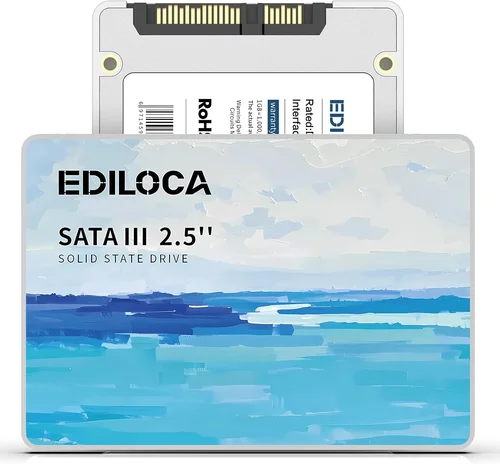
– 2.5-inch SATA: The traditional laptop drive size. Easy to install in most desktops and laptops with SATA ports. Great for upgrades but limited to ~550 MB/s.
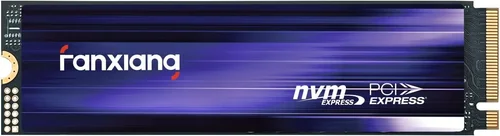
– M.2: A compact, card-like form factor that plugs directly into the motherboard. Comes in different lengths (e.g., 2280 = 22mm wide, 80mm long) and key types (B-key, M-key, or B+M). Most modern M.2 SSDs use the NVMe protocol for blazing speeds.
– U.2: Less common, typically used in servers and workstations. Requires a special connector and is rarely found in consumer systems.
– mSATA & M.2 SATA: Older or niche variants that use the SATA interface despite their small size—don’t confuse them with NVMe M.2 drives.
Always verify your system’s compatibility. For example, some older motherboards only support SATA-based M.2 drives, while newer ones may offer multiple PCIe lanes for Gen4 or Gen5 speeds. Check your laptop or desktop manual before buying.
5. Endurance & TBW Rating
Endurance refers to how much data can be written to an SSD over its lifetime, measured in Terabytes Written (TBW). This is crucial because NAND cells degrade with each write cycle. A higher TBW means the drive can handle more writes before potential failure.
For example, a 1TB TLC SSD might have a TBW rating of 600–800TB, while a similarly sized QLC drive could be rated at 200–400TB. Heavy users—such as video editors, developers, or gamers who frequently install/uninstall large games—should prioritize higher TBW ratings. Casual users will likely never reach the limit, but it’s still a good indicator of build quality.
Manufacturers also publish DWPD (Drive Writes Per Day), which tells you how many times you can rewrite the entire drive capacity daily over the warranty period. A 1TB drive with 1 DWPD can safely write 1TB per day for five years (typical warranty length).
6. Brand Reputation & Reliability
Not all SSDs are created equal—even if they share similar specs. Brand reputation matters because it reflects consistency in quality control, firmware updates, customer support, and long-term reliability.
Established brands like Samsung (with its acclaimed 990 PRO series), Western Digital (WD Black SN850X), Crucial (MX and P series), and Kingston (KC3000) have proven track records. They invest heavily in R&D, use high-quality components, and offer robust warranties. Lesser-known brands may offer tempting prices, but they often cut corners on NAND sourcing, controllers, or thermal management.
Look for brands that disclose detailed specs (like NAND type and controller model) and provide firmware update tools. Avoid “no-name” drives sold on discount marketplaces—they may use recycled or counterfeit components.
7. Warranty & Support
A solid warranty is a strong indicator of manufacturer confidence. Most reputable SSDs come with 3- to 5-year limited warranties, often tied to TBW limits. For instance, Samsung offers a 5-year warranty or 1,200TBW on its 2TB 990 PRO—whichever comes first.
Check what the warranty covers: Does it include data recovery? Is there expedited replacement? Some brands, like Crucial, provide free cloning software and migration tools, which simplify upgrades. Others offer 24/7 support or online diagnostics.
Avoid drives with only 1-year warranties unless they’re ultra-budget models. And always register your product—many warranties require it for activation.
8. Price per Gigabyte
While total cost matters, the real value lies in price per gigabyte (often abbreviated as $/GB). This metric helps you compare drives across capacities and tiers.
As of 2026, expect:
– Entry-level SATA SSDs: $0.06–$0.08/GB
– Mid-range NVMe Gen4: $0.08–$0.12/GB
– High-end Gen5 drives: $0.15–$0.25/GB
– Premium 8TB models: $0.20–$0.35/GB
Watch for sales during Black Friday, Prime Day, or back-to-school seasons. Prices can drop 20–30%, making high-capacity drives much more accessible. However, don’t sacrifice reliability for a few extra dollars saved—cheap drives may fail prematurely, costing you more in data loss and downtime.
Different Types of Buying Guide

Common Buying Mistakes to Avoid
❌ Mistake: Ignoring Your System’s Compatibility
Why it’s bad: Buying a Gen5 NVMe drive for a motherboard that only supports SATA will result in a paperweight. Similarly, installing an M.2 drive in a slot that doesn’t support NVMe will limit you to SATA speeds—or worse, cause boot failures.
What to do instead: Check your laptop or desktop specs before purchasing. Look up your motherboard model or consult your device manual. Use tools like CPU-Z or the manufacturer’s support page to confirm interface support.
❌ Mistake: Choosing QLC for Primary Drive Use
Why it’s bad: QLC drives suffer from slower write speeds once their SLC cache is exhausted. If you’re constantly installing large games, editing videos, or running virtual machines, performance will degrade noticeably.
What to do instead: Use QLC for secondary storage (e.g., media libraries or backups) and opt for TLC for your OS and primary applications. If budget allows, go with a high-end TLC or even MLC drive for heavy workloads.
❌ Mistake: Overlooking Thermal Management
Why it’s bad: High-speed NVMe drives generate significant heat. Without proper cooling, they throttle performance to prevent damage—negating their speed advantages.
What to do instead: If your case or laptop lacks airflow, consider drives with built-in heatsinks or purchase an aftermarket M.2 heatsink. Laptops with tight enclosures may benefit from lower-power Gen3 drives.
❌ Mistake: Focusing Only on Peak Speeds
Why it’s bad: Marketing materials often highlight maximum sequential speeds, but real-world performance depends on sustained writes, random IOPS, and controller efficiency. A drive that peaks at 7,000 MB/s might drop to 500 MB/s after 10 seconds of continuous writing.
What to do instead: Read professional reviews that include stress tests and thermal analysis. Look for benchmarks using tools like CrystalDiskMark, ATTO, or AS SSD.
❌ Mistake: Skipping Firmware Updates
Why it’s bad: Outdated firmware can cause bugs, compatibility issues, or even data corruption. Manufacturers regularly release updates to improve stability and performance.
What to do instead: Download the manufacturer’s SSD management tool (e.g., Samsung Magician, WD Dashboard) and check for updates periodically. Some drives even support automatic updates.
❌ Mistake: Not Backing Up Before Upgrading
Why it’s bad: Cloning or fresh-installing an OS carries risks. If something goes wrong, you could lose important files.
What to do instead: Always create a full system backup using tools like Macrium Reflect, Acronis True Image, or Time Machine (macOS). Test the backup before proceeding.
❌ Mistake: Buying Based Solely on Price
Why it’s bad: The cheapest SSD may use inferior NAND, lack DRAM cache, or have poor endurance. You might save $20 upfront but risk drive failure within a year.
What to do instead: Compare price per gigabyte, but also factor in brand reputation, warranty length, and user reviews. Sometimes paying 10–15% more gets you a vastly more reliable drive.
Budget Guidelines: How Much Should You Spend?
Entry-Level ($30–$80): Ideal for basic upgrades or secondary storage. Look for 500GB–1TB SATA or Gen3 NVMe drives from reputable brands. Expect decent performance for everyday tasks but avoid heavy workloads. Example: Crucial BX500 or Kingston NV2.
Mid-Range ($80–$200): The sweet spot for most users. 1TB–2TB Gen4 NVMe drives offer excellent speed and capacity for gaming, productivity, and light content creation. Brands like Samsung, WD, and Sabrent dominate here. You’ll get TLC NAND, good endurance, and 5-year warranties.
Premium ($200–$400): For enthusiasts and professionals. 2TB–4TB Gen4 or early Gen5 drives with top-tier controllers and heatsinks. Perfect for 4K video editing, large game libraries, or workstation use. Consider the Samsung 990 PRO or WD Black SN850X.
Luxury ($400+): Cutting-edge performance and massive capacity. 4TB–8TB Gen5 drives aimed at power users, AI developers, or enterprise clients. These drives push the limits of speed and endurance but come at a steep premium. Only worth it if you need the absolute best.
Expert Tips for Getting the Best Deal
– Time your purchase: Major sales events like Black Friday, Amazon Prime Day, and New Year promotions offer the deepest discounts. SSD prices also tend to drop after new generations launch (e.g., when Gen5 arrived, Gen4 prices fell).
– Shop at trusted retailers: Buy from authorized sellers like Amazon (sold by Amazon, not third-party), Newegg, Best Buy, or directly from manufacturers. Avoid gray-market sellers on eBay or AliExpress unless you’re certain of authenticity.
– Use price tracking tools: Sites like CamelCamelCamel (for Amazon) or Honey can alert you when prices drop. Set alerts for your desired model and capacity.
– Check return policies: Ensure the retailer offers at least 30 days for returns. Some brands also provide “no-hassle” replacements under warranty.
– Consider open-box deals: Retailers like Best Buy often sell open-box SSDs at 10–20% off. These are typically tested and come with full warranties.
– Bundle with other components: When building a PC, look for motherboard + SSD bundles. Manufacturers sometimes offer discounts when purchased together.
– Monitor firmware recalls: Occasionally, drives are recalled due to firmware bugs. Subscribe to brand newsletters or check forums like Reddit’s r/buildapc for alerts.
– Don’t forget the heatsink: If your case is compact or poorly ventilated, invest in a quality M.2 heatsink ($10–$20). It can prevent throttling and extend drive life.

Frequently Asked Questions
Q: Can I use an SSD in an older computer?
A: Yes—as long as your system has a SATA port or compatible M.2 slot. Most laptops from 2012 onward support 2.5-inch SATA SSDs. For M.2, check if your BIOS supports NVMe (many post-2015 systems do).
Q: Do I need a DRAM cache?
A: DRAM cache improves performance and longevity by storing mapping tables. While DRAM-less SSDs exist (often QLC-based), they’re best avoided for primary drives. Always choose a DRAM-equipped model for OS installation.
Q: How long do SSDs last?
A: Under normal use, most consumer SSDs last 5–10 years. Modern drives far exceed their TBW ratings in real-world scenarios. Failure is more likely due to power surges or manufacturing defects than wear.
Q: Should I enable TRIM?
A: Absolutely. TRIM helps the SSD manage deleted data efficiently, maintaining performance over time. It’s enabled by default in Windows 10/11, macOS, and most Linux distributions.
Q: Can I recover data from a failed SSD?
A: It’s possible but difficult and expensive. Unlike HDDs, SSDs don’t respond well to traditional recovery methods. Always maintain backups—SSDs don’t give warning signs before failing.
Q: Are external SSDs as fast as internal ones?
A: It depends on the interface. USB 3.2 Gen 2×2 (20 Gbps) or Thunderbolt 4 (40 Gbps) can match internal SATA speeds, but won’t reach NVMe Gen4 levels. For portability, they’re excellent—for raw speed, internal is better.
Q: Do SSDs improve gaming performance?
A: Yes—but mostly in load times and asset streaming. Games boot faster, levels load quicker, and open-world titles stutter less. However, FPS (frames per second) is unaffected; that’s GPU/CPU dependent.
Q: What’s the difference between NVMe and SATA?
A: NVMe is a protocol designed for flash storage, allowing much higher speeds via PCIe lanes. SATA is an older interface limited to ~550 MB/s. NVMe drives are faster but require compatible hardware.
Q: Can I mix SSD brands in RAID?
A: Technically yes, but it’s not recommended. Mixing brands can lead to inconsistent performance, compatibility issues, and reduced reliability. Stick to identical models for RAID setups.
Q: Is it safe to defragment an SSD?
A: No—and you shouldn’t. Defragmentation is unnecessary for SSDs and causes unnecessary wear. Windows automatically disables defrag for SSDs, replacing it with TRIM.
Our Final Recommendations
Best for Budget-Conscious Buyers: Crucial P3 1TB (Gen3 NVMe) – Offers excellent value at under $70, with reliable TLC NAND and 5-year warranty. Perfect for upgrading older systems without breaking the bank.
Best Overall Value: Samsung 980 PRO 2TB (Gen4 NVMe) – Combines top-tier performance (7,000 MB/s), robust endurance (1,200 TBW), and Samsung’s legendary reliability. Ideal for gamers and creators.
Best Premium Option: WD Black SN850X 4TB (Gen4 NVMe) – Built for enthusiasts, with blazing speeds, a sleek heatsink, and optimized firmware for gaming. Handles sustained workloads with ease.
Best for Beginners: Kingston NV2 1TB (Gen3 NVMe) – Simple, affordable, and plug-and-play. Great for first-time upgraders who want a noticeable speed boost without complexity.
Best for Advanced Users: Sabrent Rocket 4 Plus-G 8TB (Gen4 NVMe) – Massive capacity, enterprise-grade endurance, and consistent performance under load. Ideal for video editors, developers, and NAS builders.
Conclusion: Making the Right Choice
Choosing the right SSD in 2026 doesn’t have to be overwhelming—if you know what to prioritize. Focus on your actual needs: Are you upgrading an old laptop for basic use, or building a high-end workstation for 8K video? Your answer will guide every decision, from capacity and form factor to NAND type and interface. Remember, the fastest drive isn’t always the best—compatibility, reliability, and real-world performance matter just as much.
Use this guide as your roadmap. Compare specs, read reviews, check compatibility, and don’t rush into a purchase during a flash sale without due diligence. Invest in a reputable brand with a solid warranty, and always back up your data before making changes. With the right SSD, you’ll not only breathe new life into your system but also future-proof it for years to come.
Now that you’re armed with expert knowledge, it’s time to make your move. Whether you’re chasing speed, capacity, or value, there’s an SSD out there perfectly suited to your lifestyle. Don’t settle for slow boot times or sluggish apps—upgrade today and experience the true power of solid-state storage.